How to fix
“You don’t currently have permission to access this folder” error
on Windows
Resolve the "You don't currently have permission to access this folder" error on Windows 10 quickly and effectively. Expert-tested solutions await!

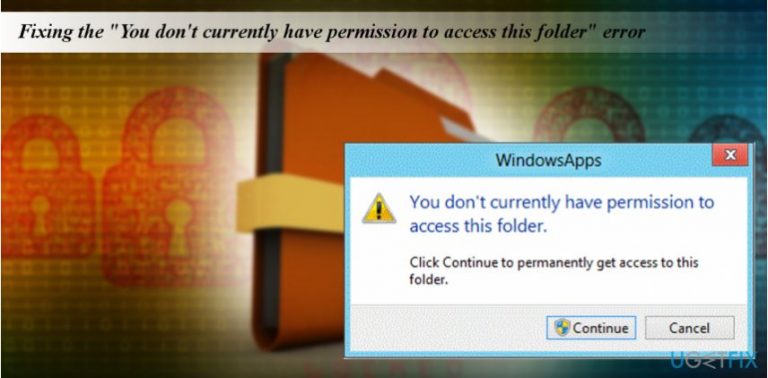
What causes How to fix “You don’t currently have permission to access this folder” error on Windows 10?
- The user or group was removed from Group or user names on the folder’s Security tab.
- An explicit Deny has mistakenly been applied to the user or group.
- A conflict between share permissions and New Technology File System (NTFS) permissions was created when someone changes permissions without examining both types of permissions.
- Legacy user from Windows 7 no longer exists in Windows 10, causing folders to be locked.
Repairs Windows system files, removes malware, and restores a clean OS state — without reinstalling.
I need someone’s help urgently!! I have upgraded my Windows 7 OS to Windows 10 and lost access to the bulk of folders and files. I got the error message, which says "You don't currently have permission to access this folder." Helpless!! Know nothing I can do to fix that. Could you please help me to resolve the problem?
"You don't currently have permission to access this folder" usually strikes Windows 10 users after upgrading the system to Windows 10 from older OS, mainly Windows 7.[ref en-3] The error prevents the PC owner from accessing, renaming or deleting files and folders even if he or she is signed into Windows 10 with an administrator account.
In some rare cases, people managed to fix the problem by deselecting “Read Only” option, which can be found by right-clicking on the folder and opening Properties. Unfortunately, but this solution helped for few people only. The others reported that after deselecting “Read Only” option they received the other error message – “Access is denied.”
The "You don't currently have permission to access this folder" is a problem, which is similar to "Error 0x80007005. Access is denied.” The culprit of the issue is related to the changes initiated during the process of upgrade to Windows 10. The PC’s owner might have a legacy user in Windows 7, which no longer exist in Windows 10, which is why all folders get, let us say, locked and require reassigning the folder’s owner. Microsoft[ref en-1] named the following reasons for the "You don't currently have permission to access this folder" error:
- The user or group was removed from Group or user names on the folder’s Security tab.
- An explicit Deny has mistakenly been applied to the user or group.
- A conflict between share permissions and New Technology File System (NTFS)[ref en-2] permissions was created when someone changes permissions without examining both types of permissions.
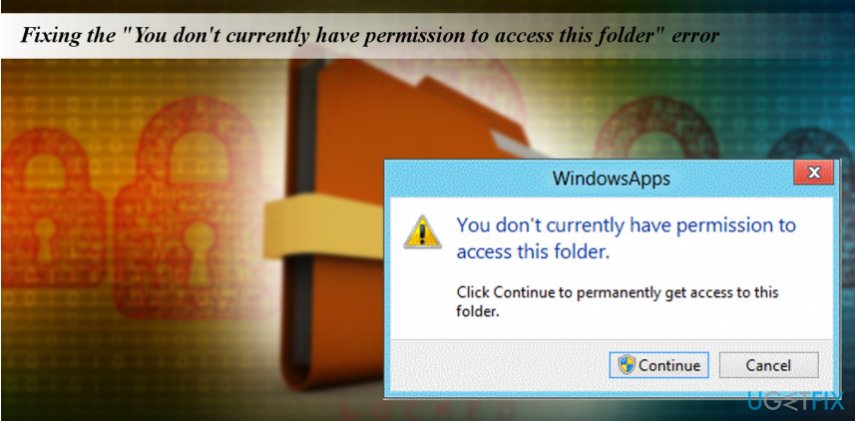
How to fix "You don't currently have permission to access this folder" error on Windows 10?
Despite all the inconveniences, there is a quite easy way to fix "You don't currently have permission to access this folder" error. First of all, we would install the latest Windows 10 Updates and check if the issue hasn’t been resolved. Second of all, run File and Folder Troubleshooter. This link will redirect you to the official Microsoft’s website where you’ll be able to download the tool.
Change the ownership of affected data to fix the issue
Finally, if the problem persists, you’ll have to change the ownership of the affected folders:
- Right-click on the folder that you want to access and select Properties.
- Open Security tab and find the group or user name section.
- If you don’t have the ownership of that folder, click Advanced button.
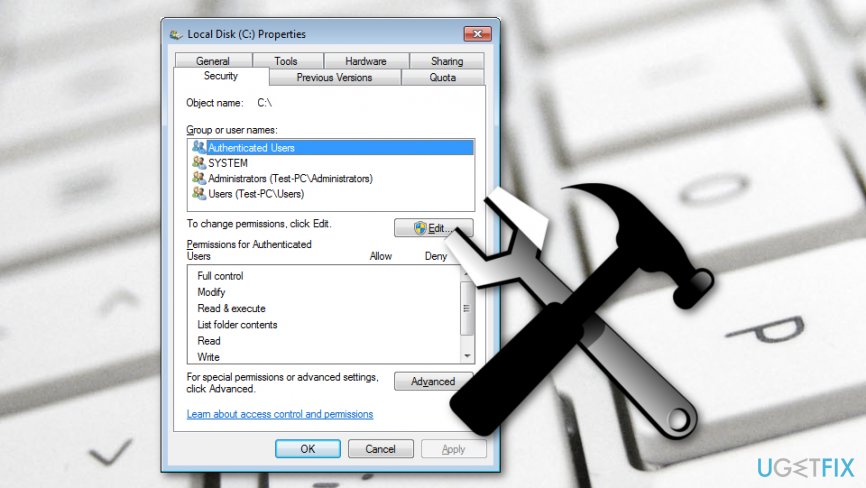
Fixing - Select the Owner section at the top of the Advanced Security Settings window and select Change.
- When the User or Group window opens, select Advanced.
- Enter the name of your User Account and click Check Names or you can do the same by clicking on Find Now button. When the list of available accounts is delivered, select your account and click OK.
- Check the Replace owner on subcontainers and objects and click OK to save the changes.
Activate Command Prompt to take care of the error
If it turns out that you have lots of inaccessible folders, we would recommend taking the ownership of the Windows root folder via the Command Prompt:
- Right-click on Windows key and select Command Prompt (Admin).
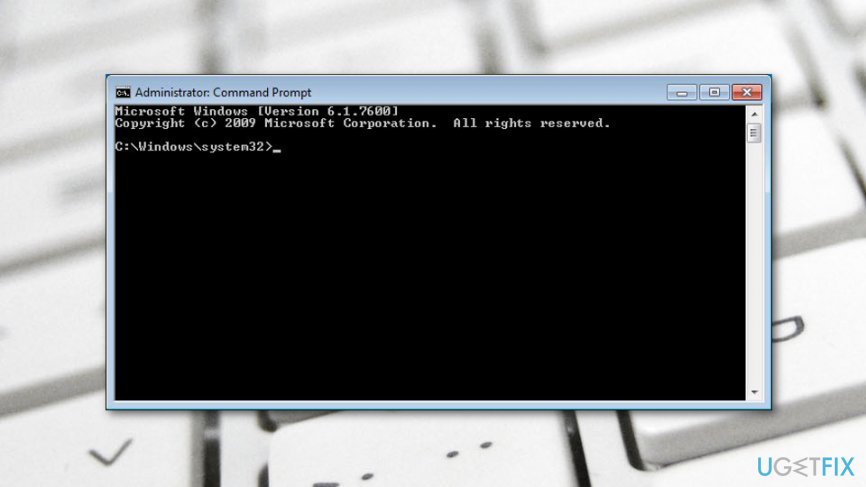
Fixing - Type the TAKEOWN /F /R /D Y command in the dialog box and press Enter. IMPORTANT: change DIRECTORY with the reference to the Windows mother folder.
- Close Command Prompt and reboot.
RECOMMENDED: to keep Windows optimized, regularly scan it with [d1] optimization utility.
Bottom line
To fix the error, users can try deselecting the 'Read Only' option in the folder's Properties. If these solutions do not work, it may be necessary to reassign the folder’s owner or check the permissions settings.
Frequently asked questions
This error typically occurs due to incorrect folder permissions or ownership settings that prevent your user account from accessing the folder.
Right-click the folder, select 'Properties', go to the 'Security' tab, and click 'Edit' to modify permissions for your user account.
Yes, right-click the folder, go to 'Properties', select the 'Security' tab, click 'Advanced', and then change the owner to your user account under the 'Owner' section.




Report an issue
What's wrong with this guide? We review every report and update or remove content.
Report received — thank you. We'll review and fix it.
You need a free account to submit a report.
Be the first to comment