How to fix
“You don’t have permission to save in this location” error
on Windows
Resolve the "You don’t have permission to save in this location" error on Windows 10 and 11 with our expert-tested solutions, fixed in minutes.

What causes How to fix “You don’t have permission to save in this location” error on Windows?
- Missing permissions
- User Account Control (UAC) issues
- Corrupted system files
- User account not in Administrators group
- Overaggressive UAC activity
Repairs Windows system files, removes malware, and restores a clean OS state — without reinstalling.
Each time I try to save files in any folder, Desktop, Documents, Pictures, OneDrive or anything else, I get an error that claims “You don’t have permission to save in this location,” etc. I tried saving in alternative folders, but the same error shows up again and again. It’s a vicious circle and I don’t know how to get out of it. Could you please help?
“You don’t have permission to save in this location” is a pop-up notification, which can show up on any Windows OS version when the system encounters a problem with Permissions.[ref en-1] It occurs when PC's user marks the file and drags it or copies-pastes it to the preferred location. The full message says:
C:/ Program Files (x86)/NewTextFile.txt
You don't have permission to save in this location
Contact the administrator to obtain permissionWould you like to save in the My Documents folder instead?
The patch and the alternative location differ in each case. There are many reasons why people may encounter the “You don’t have permission to save in this location” error. Initially it was registered in Windows 7 and then transmigrated into Windows 8. According to people's reports, older versions returned this notification due to missing permissions, so the top pick solution is to give a full control to Administrators over problematic folder.

Giving permission to modify particular folder is hardly a solution if the “You don’t have permission to save in this location” error occurs when saving in many different places. In this case, you should try to add your account to Administrators group.
User Account Control (UAC)[ref en-2] is yet another feature, which can trigger such and similar problems. UAC is relatively new security feature currently available in Windows 10 OS only. Despite its usefulness, Microsoft admits that UAC activity may sometimes be overaggressive and causing errors like “You don’t have permission to save in this location.”
In some of the cases, full Windows optimization[ref en-3] with [d1] is sufficient to fix “You don’t have permission to save in this location” and similar errors. This scenario is possible in those cases when Windows malfunctions due to corrupted system files, registries or malware. Otherwise, you may need to fix you don’t have permission error by following this tutorial:
Methods helping to fix “You don’t have permission to save in this location” error
To start with, it’s advisable to run Windows Troubleshooter. Several people have reported that this tool automatically detected and fixed the problems. If, however, the issue hasn’t been resolved, disable third-party antivirus if you are using one. Kaspersky and Avast programs might have changed security settings automatically or several malfunctions of these programs may be causing “You don’t have permission to save in this location” bug. If you are still facing the issue, then the only way to work around it is to modify security settings manually:
Method 1. Give permission to the current user
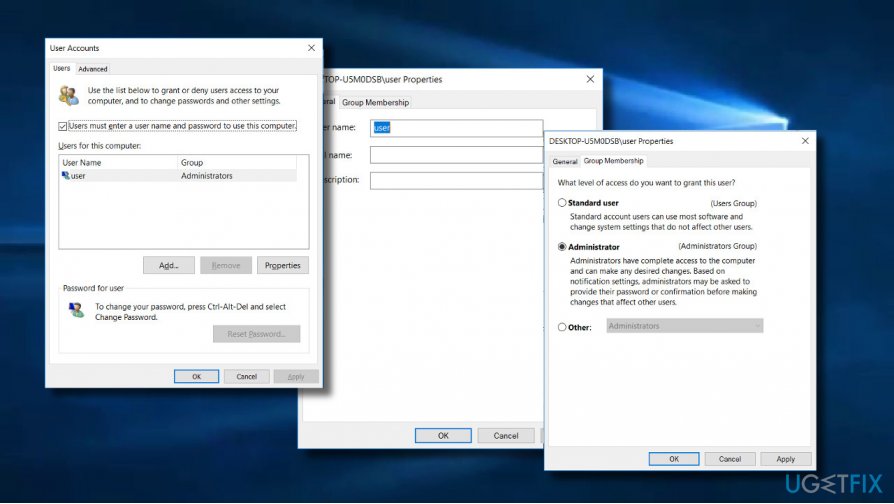
- Press Windows key + R to open Run.
- Type netplwiz and press Enter.
- When the User Account dialogue box opens, click Users tab.
- Locate the account with which you are encountering the error and click on it.
- Select Properties and check the Administrator box.
- Click Apply and OK to save the changes.
- Finally, reboot your PC.
Method 2. Give Full Control to Administrators over particular folders
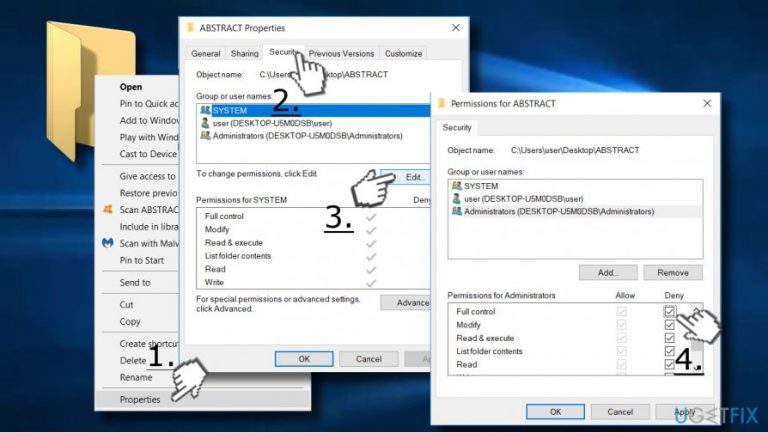
- Right-click on the problematic folder and select Properties.
- Open Security tab and select Edit.
- Select Administrators and mark Full control in Allow column.
- Click Apply and OK to save the changes.
In case full control has already been given, select any other option from Deny column and then re-select Full Control in Allow section again.
Method 3. Change the owner of the affected folder
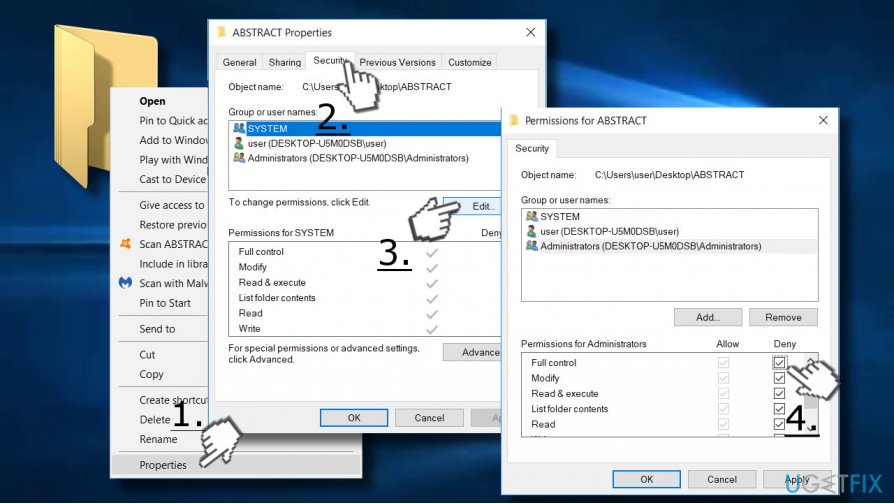
- Right-click on the folder, which throws the “You don’t have permission to save in this location” error.
- Select Properties and open Security tab.
- Click Advanced and find Owner.
- Select Change button next to Owner and type your username.
- Click Check Names and press Enter.
- Check Replace owner on subcontainers and objects and click OK.
- If "Do you want to replace the directory permissions with permissions granting you full control?" message shows up, press Yes to continue.
- After that, press Edit button and click on your username.
- Select Full control and click OK.
- Press Apply and OK to save the changes.
- Reboot your PC to activate the changes.
Method 4. Disable User Account Control
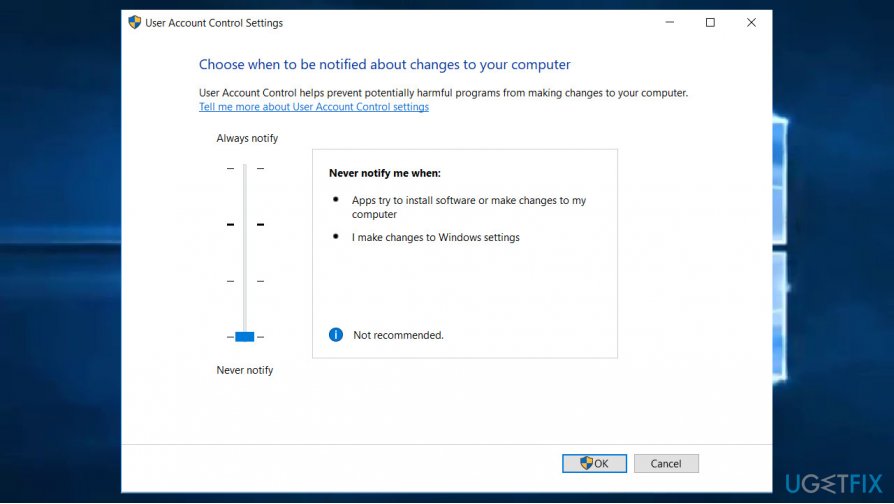
- Press Windows key + S to open Search.
- Type User Account and select Change User Account Control settings option.
- Move the slider to Never notify and click on OK to save changes.
Hopefully, these steps helped you to fix “You don’t have permission to save in this location” error successfully. If none of the methods worked, please let us know and we'll analyze your case individually.
Bottom line
To fix the 'You don’t have permission to save in this location' error, you can try giving full control to Administrators over the problematic folder, adding your account to the Administrators group, or optimizing Windows to repair corrupted system files. If these solutions do not work, consider seeking further assistance or checking for additional system issues.
Frequently asked questions
You can try running the application as an administrator or changing the folder permissions to allow your user account to save files there.
Right-click the folder, select 'Properties', go to the 'Security' tab, and edit the permissions to give your user account full control.
Yes, you can also try saving the file to a different location, such as your Documents or Desktop folders, which typically have fewer restrictions.




Report an issue
What's wrong with this guide? We review every report and update or remove content.
Report received — thank you. We'll review and fix it.
You need a free account to submit a report.
Be the first to comment