How to fix
“You need to format the disk in drive before you can use it” error
on Windows
Resolve the "You need to format the disk" error in Windows 10/11 quickly and efficiently with expert-tested solutions. Fixed in minutes!


What causes How to fix “You need to format the disk in drive before you can use it” error in Windows?
- File system corruption
- Physical damage to the storage device
- Compatibility issues with different operating systems
- Outdated or corrupted drivers
- Improper ejection of the device
Repairs Windows system files, removes malware, and restores a clean OS state — without reinstalling.
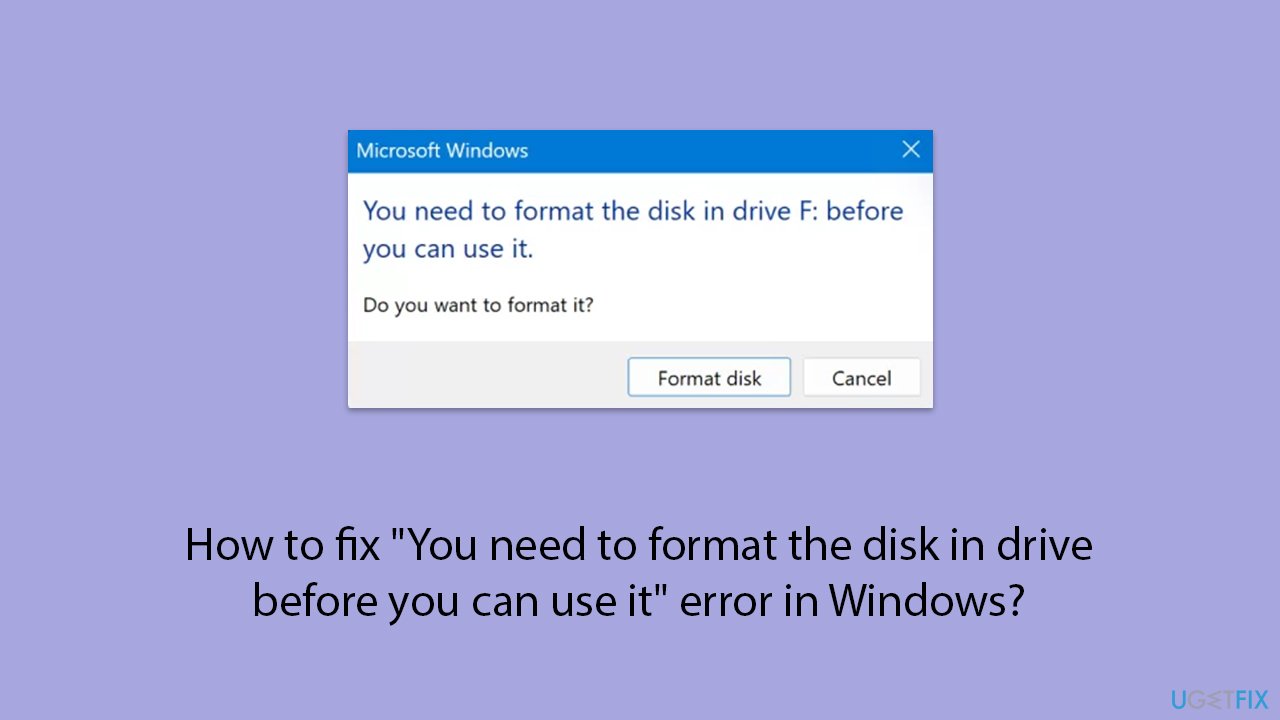
I have an issue with my older external hard drive. I plugged it in today and an error message saying "You need to format the disk in drive before you can use it." Because of this, I am not able to use my files stored on the drive. Is there anything I can do to fix this?
When attempting to access external storage devices such as external hard drives, USB flash drives, or SD cards, the error message "You need to format the disk in the drive before you can use it" might prevent users from accessing it. This error means that Windows is unable to read the file system on the device, making it inaccessible until formatting is done.
As a result, users might not be able to access data located on the drive, as the error prompts them to format the drive. However, you should not do that before following the instructions to fix the "You need to format the disk in the drive before you can use it" error as described below.
What causes the error
Errors that might affect Windows systems or files located on them are numerous, and all of them can usually have several causes. One common reason is file system corruption, which can happen due to improper ejection of the device, sudden power loss, or malware attacks. Another common cause is physical damage to the storage device; some users might not notice the damage since it could be internal.
In some cases, the "You need to format the disk in drive before you can use it" error may show up due to compatibility issues, especially if the device was formatted using a different operating system. Additionally, outdated or corrupted drivers on your computer can prevent Windows from recognizing the file system on the device.
Potential solutions
There are several ways you can approach the "You need to format the disk in drive before you can use it" error, because, as mentioned before, the causes of it aren't universal, so it can differ for each individual.
First, you can try reconnecting the device to another USB port or a different computer to see if it is recognized correctly. If that's the case, the cause is likely to be (the lack of) Windows updates.
If the source of trouble is corrupted drive sectors, running a disk check utility to scan and repair file system errors can be helpful. You can also use specialized data recovery software before formatting the drive to avoid data loss. Formatting the disk will erase all data, so it should be considered a last resort after all recovery attempts have been made. You can find all the detailed instructions for these steps below.
We also recommend using [d1] repair and maintenance tool as a great way to handle various Windows issues related to system file corruption automatically.
Fix 1. Reconnect the device
Sometimes, simply reconnecting the device to another USB port or a different computer can resolve the issue, as it may be caused by a temporary connection problem or port malfunction.
- Disconnect the device from the current USB port.
- Connect it to a different USB port on the same computer.
- If the issue persists, try connecting the device to another computer.
Fix 2. Update Windows
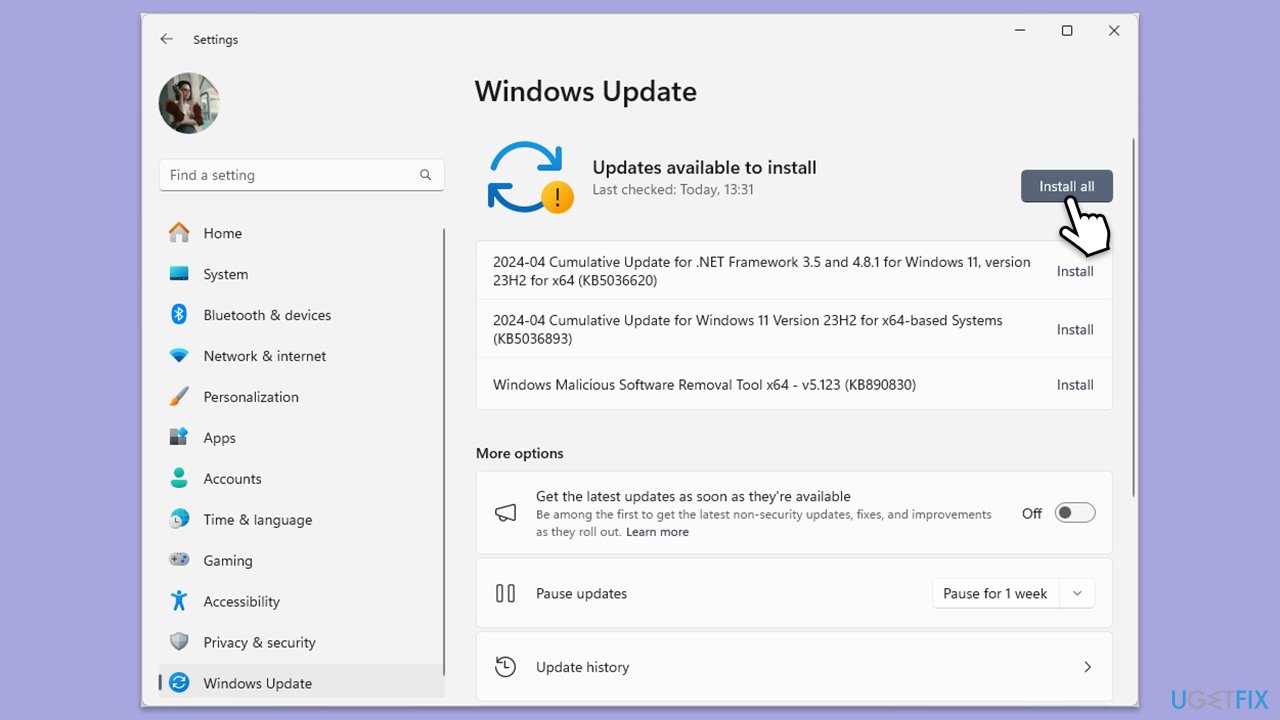
It is a known issue that a lack of certain bug fixes from Microsoft can cause issues with external drives. Thus, make sure all Windows updates are installed.
- Type Updates in the Windows search box and press Enter.
- Click Check for Updates or Install all.
- Ensure optional and pending updates are installed as well.
- Wait till the process is finished.
- Restart your device.
Fix 3. Update drivers
Outdated or corrupted drivers can prevent Windows from recognizing the file system on the device. Updating the drivers ensures compatibility and proper functionality. For an easy way to install drivers automatically, try [rev id="DriverFix"].
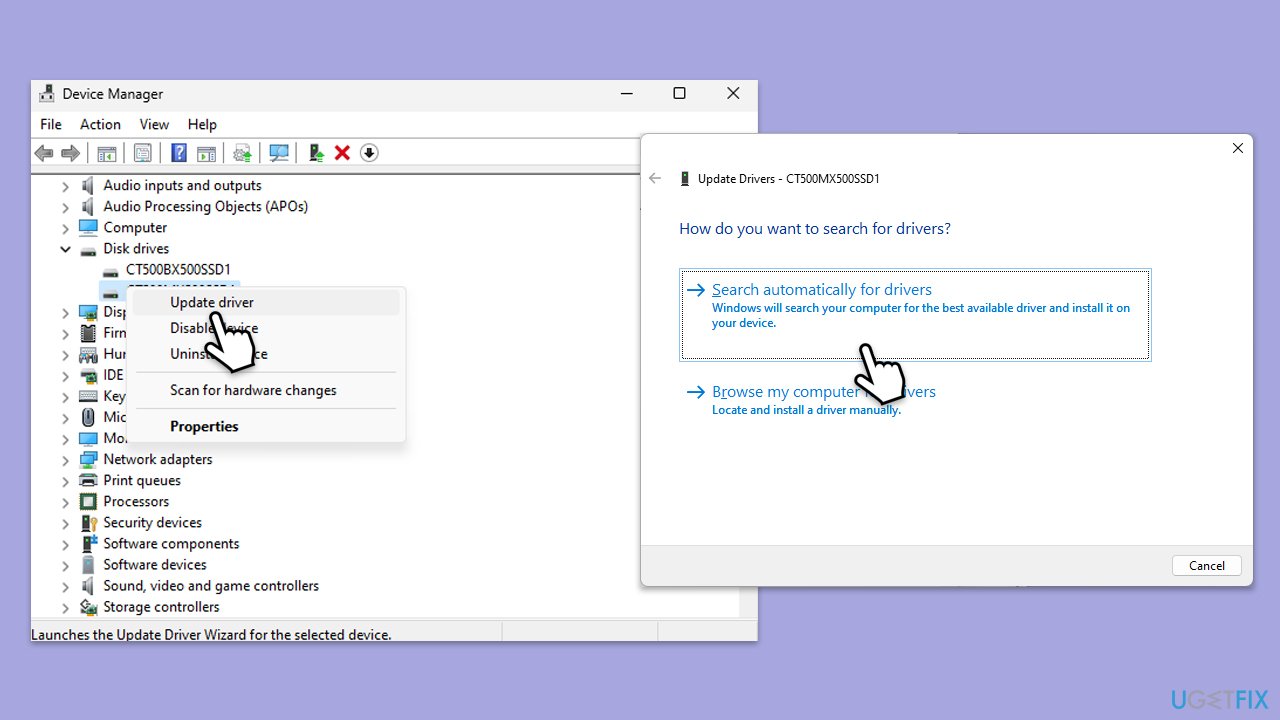
- Right-click on Start and pick Device Manager.
- Locate the external storage device under Disk Drives.
- Right-click on the device and select Update driver.
- When prompted, pick Search automatically for drivers.
- Follow the prompts to search for and install any available updates.
- Restart your computer.
Fix 4. Run Check Disk
The disk check utility can scan and repair file system errors on the device, which might be causing the issue.
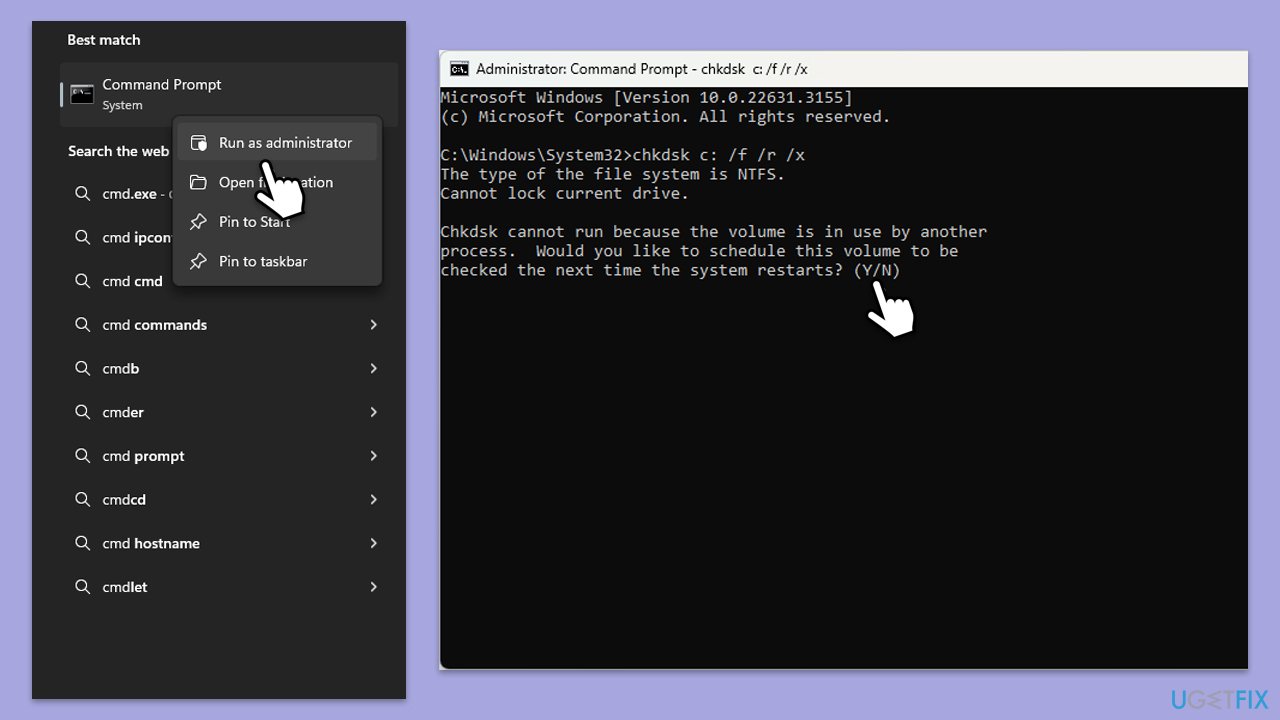
- Type cmd in Windows search.
- Right-click on Command Prompt and pick Run as administrator.
- User Account Control window will show up - click Yes when prompted.
- In the new window, type in the following command and press Enter after:
chkdsk c: /f
(Note: use chkdsk c: /f /r /x command if you are using SSD. Also, replace c: with the external drive letter assigned upon insertion) - If you receive an error, type in Y, close down Command Prompt, and restart your computer.
- Wait till the scan is finished.
Fix 5. Use data recovery software
Before formatting, using data recovery software can help retrieve important files from the device.
- Download and install reputable data recovery software.
- Launch the software and select the problematic drive.
- Follow the instructions to scan for recoverable files.
- Save the recovered files to a different storage location.
Bottom line
To fix the error, you can try reconnecting the device, checking for driver updates, or using disk repair tools. If these solutions do not work, consider seeking professional data recovery services.
Frequently asked questions
Try using the 'Check Disk' utility to scan for errors on the drive by opening Command Prompt as an administrator and typing 'chkdsk X: /f', replacing 'X' with the drive letter.
Yes, you can use data recovery software to attempt to retrieve files before formatting; just ensure you do not write new data to the drive.
This error can occur due to file system corruption, improper ejection of removable drives, or hardware issues with the drive itself.




Report an issue
What's wrong with this guide? We review every report and update or remove content.
Report received — thank you. We'll review and fix it.
You need a free account to submit a report.
Be the first to comment