
How to fix "You require permission from SYSTEM to make changes" in Windows?

Prefer to fix it yourself? The manual steps follow.
7 methods in this guide
I wanted to delete some files and it turned out I couldn't. The message reads "You require permission from SYSTEM to make changes to this file." Why is this happening and how can I fix it?
"You require permission from SYSTEM to make changes to this folder" means the folder belongs to the SYSTEM account, so even an administrator may only read it. For old folders on a second drive, take ownership and give Administrators full control. For Windows.old, Store apps and running programs, Windows has a safer tool.
The file or folder is owned by SYSTEM, the account Windows itself runs as, and your administrator account has only read rights. If it is a leftover folder on a second drive, open Command Prompt as administrator and run takeown and icacls on it (Fix 1), then delete it. If it is Windows.old, use Disk Cleanup. If it is a Store app or game, uninstall it instead.
| Error | "You require permission from SYSTEM to make changes to this folder" (or "to this file"), under the line "You need permission to perform this action". |
|---|---|
| Where it appears | File Explorer, in the Folder Access Denied or File Access Denied window, when you delete, rename or move an item. The buttons are Try Again and Cancel. |
| Main cause | The item is owned by the SYSTEM account and only SYSTEM has full control. Most often it is an old Windows folder on a second drive, or a disk taken from another PC. |
| Fastest fix | takeown /f "path" /a /r /d y, then icacls "path" /grant *S-1-5-32-544:F /t /c in Command Prompt as administrator (Fix 1). |
| Also written as | "You need permission from SYSTEM to make changes", "You require permission from to make changes to this folder" (the name is blank on some PCs), "require permission from SYSTEM". |
| Affects | Windows 11 (25H2, 26H2) and Windows 10 (22H2), Home and Pro alike. Windows 10 left support on 14 October 2025, but the dialog and the fixes are the same. |
| Vendor status | Not a bug. Microsoft documents takeown as the way an administrator recovers access to a file that was denied. |
| Not the same as | "You require permission from TrustedInstaller" (Windows Modules Installer owns it) or "from Administrators" (you are not elevated). The steps in Fix 1 and Fix 2 also work for those. |
| Time to fix | 2 minutes with the commands. Longer only when a running program or a game installer holds the files. |
Facts checked on 15 October 2026. Steps written for Windows 11 25H2 and 26H2 and Windows 10 22H2.
What "You require permission from SYSTEM to make changes to this folder" means
File Explorer shows this window when you try to delete, rename or move an item that your account is not allowed to change. You first see a request for administrator permission. After you select Continue, a second window says:
Folder Access Denied
You need permission to perform this action
You require permission from SYSTEM to make changes to this folder- SYSTEM is the built-in account that Windows and its services run as. It is not a person and has no password.
- The message names the owner. Windows tells you whose permission is needed. Here it is SYSTEM. Other versions name TrustedInstaller, Administrators or another user.
- Being an administrator is not enough. On such items the Security tab gives SYSTEM Full control and Administrators only Read, often with every box greyed out.
- For a file the window is called File Access Denied and the last line ends in "to make changes to this file". The cause and the fixes are the same.
Users on Microsoft's forum describe exactly this: they are the only user and the administrator, SYSTEM already has a tick for full access, and every box is grey. Changing the owner is the step that unlocks those boxes, and Microsoft's takeown page says so: it lets an administrator recover access to a file that was denied by making the administrator its owner.
Why Windows asks for permission from SYSTEM: the causes, most common first
Most often the item is a leftover of another Windows installation. Less often it belongs to a Store app or a game, or a running program holds it open. Rarely it is a part of the Windows you are running, and then it should stay where it is.
| Cause | Typical folder | Fix |
|---|---|---|
| Old Windows folders on a second drive or a disk from another PC. They kept the owner and rights of the old system. | D:\Windows, D:\Program Files, D:\Users, D:\ProgramData, D:\$Recycle.Bin | Fix 1 or Fix 2 |
| Files left by a Windows upgrade, reset or reinstall. | C:\Windows.old, C:\$WINDOWS.~BT, C:\$Windows.~WS | Fix 3 |
| Microsoft Store apps, Xbox app and Game Pass games. | C:\Program Files\WindowsApps, ProgramData\Packages, AppData\Local\Packages, a game folder on another drive | Fix 4 |
| A service or program has the file open right now. | Logs, databases, antivirus, backup or driver folders | Fix 5, then Fix 6 |
| The file belongs to the Windows that is running. | C:\Windows, C:\Program Files, System Volume Information | Do not change it |
| Nothing else helped and the folder is not a system one. | Any | Fix 7 |
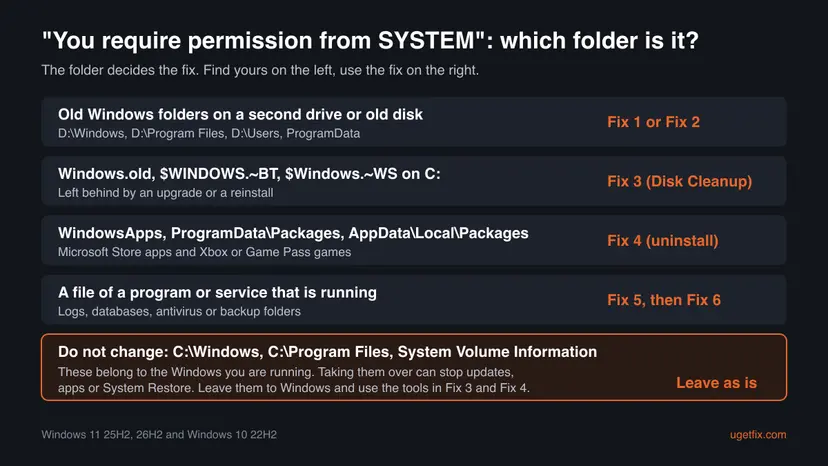
Taking ownership of C:\Windows, C:\Program Files, WindowsApps or a whole drive changes thousands of rights that Windows expects. Updates, Store apps and System Restore can then fail. Use the fixes below only on folders you know you no longer need.
How to fix "You require permission from SYSTEM to make changes"
Look at the path in the address bar of File Explorer first, then use the table below. Fix 1 works for most readers, because most of them are cleaning old folders from a second drive.
| What you see or have | Start with |
|---|---|
| Folders of an old Windows on drive D: or on a disk from another PC, and you are happy with commands. | Fix 1 |
| The same folders, but you prefer windows and check boxes, or only one file is affected. | Fix 2 |
Windows.old, $WINDOWS.~BT or $Windows.~WS on drive C:. | Fix 3 |
| A Store app, an Xbox or Game Pass game, or a folder named WindowsApps or Packages. | Fix 4 |
| The folder belongs to a program you still use, or the error came back after Fix 1. | Fix 5, then Fix 6 |
| Fix 1 reports Access is denied even as administrator. | Fix 6, then Fix 7 |
Fix 1. Take ownership and give Administrators full control with takeown and icacls
2 minutesRead the warningThe folder is a leftover on a second drive or an old disk, and you are sure you no longer need it.
The message appears because SYSTEM is the owner and Administrators may only read. takeown makes the Administrators group the owner, and icacls then gives that group full control, so File Explorer can delete or change the items.
These commands change the rights of every file under the path you type. Run them on one leftover folder, never on C:\, C:\Windows, C:\Program Files or a whole drive. If the folder may hold photos or documents from an old PC, copy them out first.
- In File Explorer, click the address bar of the folder above the one you want to change and copy the full path.
- Select Start, type
cmd, right-click Command Prompt and select Run as administrator. Select Yes in the User Account Control window. - Run the first command below with your own path in quotes. It makes the Administrators group the owner of the folder and of everything in it.
- Wait for the lines that start with SUCCESS. A large old Windows folder can take several minutes.
- Run the second command. It gives the Administrators group full control.
*S-1-5-32-544is the fixed ID of that group, so it works in every language of Windows. - Check the last line, for example Successfully processed 1520 files; Failed processing 0 files.
- Delete the folder in File Explorer, or run the third command to remove it with everything in it.
Take ownership, give full control, then delete (replace the path):
takeown /f "D:\Windows" /a /r /d y
icacls "D:\Windows" /grant *S-1-5-32-544:F /t /c
rd /s /q "D:\Windows"/agives ownership to the Administrators group instead of only your account./rgoes through all subfolders./d yanswers yes for folders you cannot even list, and Microsoft notes it replaces their rights with full control for you./tapplies the grant to all files and subfolders./ckeeps going when one file fails, so one locked file does not stop the rest.
It worked if: Both commands end without failures, and the folder is deleted or can be changed without the SYSTEM message.
If not: If some files report Access is denied or being used by another process, go to Fix 5. If the path is Windows.old, use Fix 3 instead.
Fix 2. Change the owner and permissions in File Explorer
5 minutesLow riskYou prefer windows to commands, or only one file or a small folder shows the message.
This is the same change as Fix 1, made in the Security tab. As long as SYSTEM is the owner, the permission boxes stay grey, so the owner must change first.
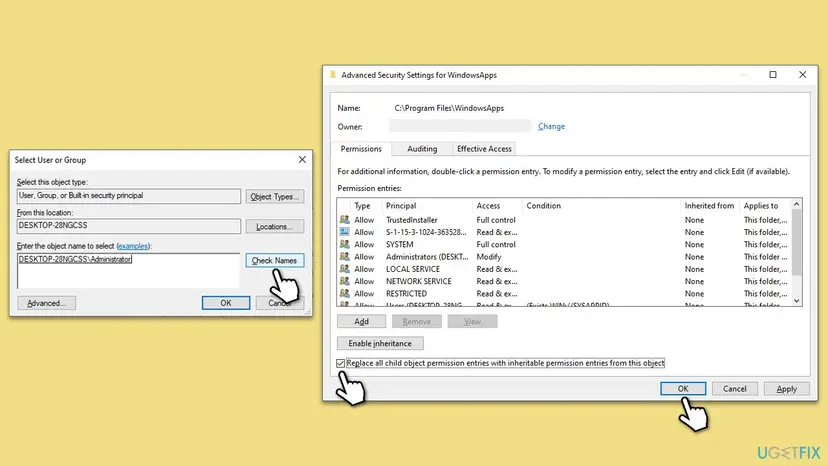
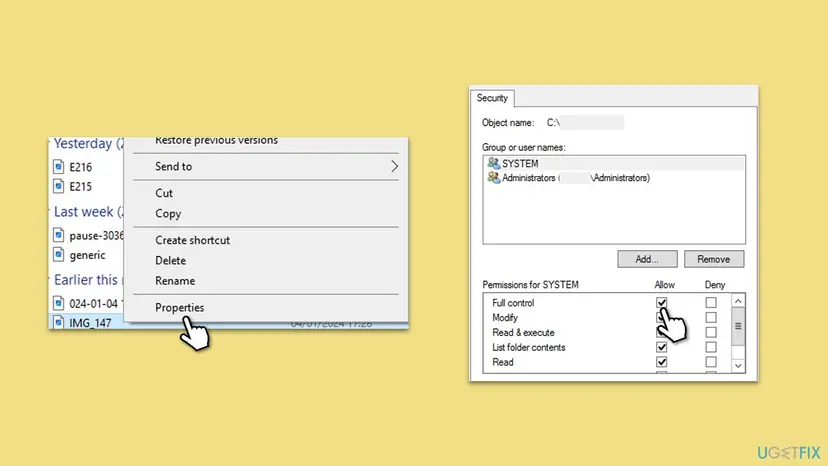
- Right-click the folder or file and select Properties. Open the Security tab and select Advanced.
- Next to Owner: SYSTEM, select Change.
- Type
Administrators, select Check Names, then OK. - For a folder, tick Replace owner on subcontainers and objects. Select Apply and OK in each window, then close Properties.
- Open Properties > Security again. The boxes are no longer grey. Select Edit.
- Select Administrators, tick Full control under Allow and select Apply, then OK.
- Try to delete or change the item again.
Some readers see "You require permission from yourself" or "from Administrators". That means the rights are fine but File Explorer is not elevated, or an old entry for a deleted account is left. Fix 1 run as administrator clears both.
It worked if: The Security tab shows Administrators with Full control, and the item can be deleted or changed.
If not: If Windows says it cannot change the owner of some items, go back to Fix 1, which skips them with /c and reports which ones failed.
Fix 3. Remove Windows.old and Windows setup folders with Disk Cleanup
5 to 15 minutesLow riskThe folder is C:\Windows.old, C:\$WINDOWS.~BT or C:\$Windows.~WS, left after an upgrade or a reinstall.
These folders are protected on purpose, because Windows uses them to go back to the previous version. Disk Cleanup removes them as SYSTEM, so you never need to change their rights.
- Type disk cleanup in the search box on the taskbar and open Disk Cleanup. Choose drive C: and select OK.
- Select Clean up system files, choose C: again and select OK.
- Tick Previous Windows installation(s) and Temporary Windows installation files if they are listed.
- Select OK, then Delete files, and confirm.
- Restart the PC and check that the folders are gone.
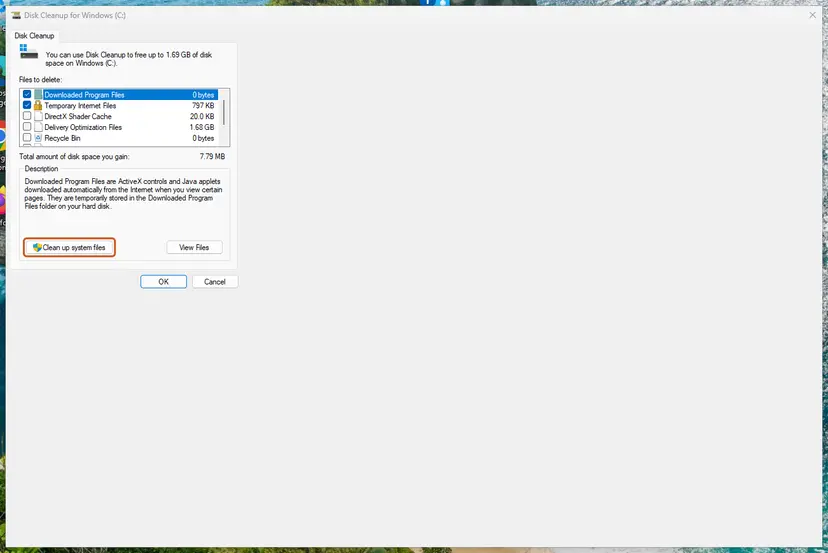
In Windows 11 the same entries are under Settings > System > Storage > Temporary files. More ways to free space: Free up disk space and delete temporary files.
It worked if: Windows.old and the setup folders disappear, and the free space on C: grows.
If not: If Previous Windows installation(s) is not listed, the folder is a copy from an older reinstall. Use Fix 1 on it.
Fix 4. Uninstall Store apps and Xbox games instead of deleting their folders
5 minutesLow riskThe path contains WindowsApps, ProgramData\Packages or AppData\Local\Packages, or it is a Game Pass or Xbox game folder.
Store apps and Xbox games are registered with Windows, and their folders are owned by SYSTEM and TrustedInstaller. Deleting the files leaves the registration behind. Uninstalling removes both.
- Select Start > Settings > Apps > Installed apps (Windows 10: Apps & features).
- Find the app or game, select the three dots next to it and select Uninstall.
- Restart the PC, then check whether the folder is gone.
- If the game was installed to another drive and its folder is still there, open the Xbox app, install the same game to the same folder, then uninstall it again from Settings.

A user on Microsoft's forum deleted such folders as SYSTEM, and the command reported no error. The folders under WindowsApps and the two Packages paths were still there afterwards. That is why uninstalling comes first.
It worked if: The app is gone from Installed apps, and its folders are removed after the restart.
If not: If the app is not in the list but its folder remains on a second drive that no longer holds a Windows, use Fix 1 on that folder.
Fix 5. Close the program or service that holds the file
5 minutesLow riskThe folder belongs to an antivirus, a backup program, a driver tool or another program that runs in the background.
Background services run as SYSTEM and keep their files open. While a file is open, Windows refuses changes even after you take ownership.
- Press Win + R, type
resmonand press Enter to open Resource Monitor. - Open the CPU tab and type the folder or file name into the search box of Associated Handles.
- Note the program in the Image column. That program has the file open.
- If it is a program you want to remove, uninstall it from Settings > Apps > Installed apps. Its own uninstaller removes the protected folder. Step by step: Uninstall a program or app in Windows.
- If you want to keep the program, close it or stop its service, then try again.
If the Image column shows System, svchost.exe, MsMpEng.exe or SearchIndexer.exe, the file belongs to Windows or Microsoft Defender. Do not end those processes. Restart the PC and try once more, or use Fix 6.
It worked if: Resource Monitor finds no handle any more, and the folder can be deleted.
If not: If a service starts again on its own, go to Fix 6.
Fix 6. Delete the folder in Safe Mode
10 minutesLow riskA service or program starts again and locks the files each time, or Fix 1 reported files in use.
Safe Mode starts Windows with only the basic drivers and services, so most programs that hold the files are not running. The SYSTEM rights do not change, so run Fix 1 or Fix 2 in Safe Mode if the message still appears.
- Open Settings > System > Recovery and select Restart now next to Advanced startup. Or hold Shift while you select Restart.
- Select Troubleshoot > Advanced options > Startup Settings > Restart.
- Press 4 or F4 for Enable Safe Mode.
- Sign in, then delete the folder, or run the commands from Fix 1 in Command Prompt as administrator.
- Restart the PC normally.
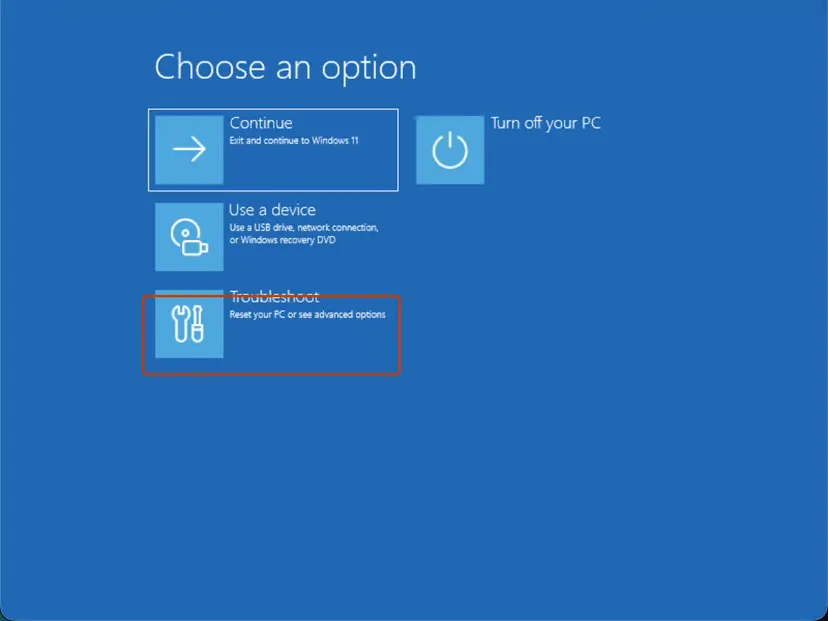
Full steps, also for a PC that does not start: Start Windows or a Mac in Safe Mode.
It worked if: In Safe Mode the folder deletes without the message, and Windows starts normally afterwards.
If not: If even Safe Mode refuses with Access is denied, go to Fix 7.
Fix 7. Run Command Prompt as SYSTEM with Microsoft PsExec
10 minutesRead the warningA leftover folder that is not part of the running Windows still refuses every other fix.
PsExec is a free Microsoft Sysinternals tool. With -s it opens Command Prompt as the SYSTEM account itself, so the owner of the folder is the one who deletes it. A Microsoft Independent Advisor suggested this on Microsoft's forum.
A SYSTEM prompt can delete anything, including Windows itself, without a question. Type the full path of one leftover folder and check it twice. Close the window as soon as you are done. Create a restore point first.
- Download PsTools from Microsoft's Sysinternals page and extract it, for example to
C:\Tools. - Open Command Prompt as administrator and run
cd C:\Tools. - Run
PsExec64.exe -s cmd.exeand accept the licence. A new prompt opens. - Run
whoami. It must shownt authority\system. If it shows your own name, you are not in the SYSTEM prompt yet. - Run
rd /s /q "D:\Windows"with your own path, then typeexit.
It worked if: whoami shows nt authority\system, and the folder is gone after rd.
If not: If the folder is Store app data, the user report in Fix 4 shows it can come back. Uninstall the app instead. Otherwise read the next section.
If Windows still asks for permission from SYSTEM
- See who owns the item now. Run
icacls "path"in Command Prompt. The list shows every account and its rights;(F)is full control. If Administrators lacks(F), Fix 1 did not reach that file. - Check the drive. Files on a disk with errors can refuse every change. Run
chkdsk D: /ffor that drive. Step by step: Check a disk for errors (chkdsk). - A drive that is read only. A USB stick with a lock switch, a disk set to read only or a network share gives a similar refusal. Check the switch, or the rights on the server.
- Work or school PC. An administrator may block changes on purpose. Ask the IT department, and do not try Fix 7 there.
- The file comes back. A folder that returns after deletion, under a name you do not know, can belong to unwanted software. Scan the PC: How to scan for malware with Microsoft Defender.
If the message appears on a folder inside C:\Windows or C:\Program Files and you only wanted to tidy up, stop there. Those files belong to the running Windows. Free space with Fix 3 and Storage settings instead.
How to avoid the SYSTEM permission message next time
- Format an old system disk instead of deleting folders. If you reuse a disk that held Windows, back up what you need and format it. That removes all old rights at once.
- Remove programs and games through Settings. Their uninstallers clean their own protected folders.
- Let Windows remove Windows.old. Disk Cleanup and Storage settings do it without any change of rights.
- Do not take ownership of whole drives. Change one folder at a time, and only folders you no longer need.
- Keep your own files in your user folder or a data folder you created. Those folders give your account full control from the start.
Frequently asked questions
What does "You require permission from SYSTEM" mean?
It means the file or folder is owned by SYSTEM, the built-in account that Windows and its services run as, and your account has no right to change it. Being an administrator does not help, because the rights on such items often give Administrators only read access. The message is a protection, not an error in the file. For a folder you no longer need, take ownership with takeown and give Administrators full control with icacls (Fix 1). For Windows folders, use Windows' own tools.
How do I get permission from SYSTEM to make changes to a folder?
You do not ask SYSTEM. You make Administrators the owner instead. Open Command Prompt as administrator and run takeown /f "path" /a /r /d y, then icacls "path" /grant *S-1-5-32-544:F /t /c. The first command changes the owner, the second gives full control. Microsoft notes that after takeown you may still need to give yourself full rights, which is what the second command does. The same can be done in Properties > Security > Advanced, as Fix 2 shows.
Why do I need permission from SYSTEM when I am the administrator?
An administrator can take control of any file, but does not have it by default. Windows protects its own files and old system folders by giving full control only to SYSTEM or TrustedInstaller. Your account can read them and can change the owner, and that is all. This stops a program you run from quietly deleting parts of Windows. Once you change the owner to Administrators and add full control, your account can do what it wants with that one folder.
Is "You need permission from SYSTEM" the same message?
Yes. People remember it in different words: "You need permission from SYSTEM", "You require permission from SYSTEM" or just "need permission from SYSTEM". The window itself says "You need permission to perform this action" on the first line and "You require permission from SYSTEM to make changes to this folder" on the second. On some PCs the account name is missing and the line reads "You require permission from to make changes". The cause and the fixes on this page are the same.
How do I fix "You require permission from SYSTEM" on Windows 10?
The steps are the same on Windows 10 22H2 and Windows 11. takeown and icacls work on both, and the Security tab looks the same. Only two paths differ: on Windows 10 uninstall apps under Settings > Apps > Apps & features, and open Disk Cleanup from the search box for Windows.old. Windows 10 left support on 14 October 2025. If you are cleaning a drive after moving to Windows 11, Fix 1 and Fix 3 are the ones you need.
Can I delete Windows.old if it says I need permission from SYSTEM?
Yes, but not by changing its rights. Use Disk Cleanup > Clean up system files > Previous Windows installation(s), or Settings > System > Storage > Temporary files in Windows 11 (Fix 3). Windows then removes the folder itself. Once it is gone, you cannot go back to the previous version of Windows from Settings > System > Recovery. So keep it until you are sure the new version works. If Disk Cleanup does not list it, the folder is older and Fix 1 can remove it.
Is it safe to take ownership of a folder owned by SYSTEM?
For a leftover folder on a second drive, yes: nothing runs from it any more. For folders of the Windows you are running, no. Taking over C:\Windows, C:\Program Files, WindowsApps or System Volume Information changes rights that updates, Store apps and System Restore rely on. Windows will not always repair them on its own. Change one folder at a time, never a whole drive, and only when you know what the folder is.
Does enabling the hidden Administrator account fix it?
Usually not. The built-in Administrator account is a member of the same Administrators group, and the folder still gives that group only read rights. It may skip the extra User Account Control question, which is why some guides suggest it. But the SYSTEM ownership stays. Leaving that account turned on also adds a powerful account without a password prompt. Use Fix 1 from your own account instead, and turn the account off again with net user administrator /active:no if you turned it on.
What about "You require permission from TrustedInstaller"?
It is the same kind of protection with a different owner. TrustedInstaller is the Windows Modules Installer service, which owns most files in C:\Windows and WindowsApps. Fix 1 and Fix 2 work the same way for a TrustedInstaller folder on an old drive. On the Windows you are running, leave TrustedInstaller files alone: they are the files Windows Update replaces. If such a file is damaged, repair it with SFC and DISM instead: Run DISM and SFC to repair Windows system files.
Sources
- Microsoft Learn: takeown command (/a, /r, /d, remarks on giving yourself full permissions after takeown) (learn.microsoft.com)
- Microsoft Learn: icacls command (/grant, /t, /c, SIDs with an asterisk, F for full access) (learn.microsoft.com)
- Microsoft Q&A: You Require Permission From System to Make Changes to this Folder (PsExec answer; used for what users report) (learn.microsoft.com)
Did this fix work?
One click, no account. It tells the next reader which guides are worth their time.
Questions and experiences: fix "You require permission from SYSTEM to make changes" in Windows
Still broken, or found a fix we did not cover? Ask here: members and our editors answer. Reading is open; writing needs a free account.
…