How to fix
“Your computer was restarted because of a problem”
on Windows
Resolve the "Your computer was restarted because of a problem" error on Windows 10/11 quickly and effectively. Expert-tested solutions await!

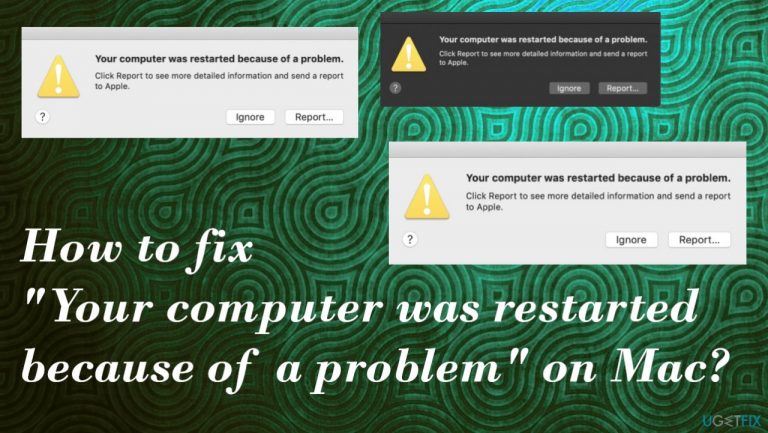
What causes How to fix “Your computer was restarted because of a problem” on Mac?
- Corrupted files
- Damaged parts of the machine
- Cyber threats
- Outdated macOS version
- Missing files
Repairs Windows system files, removes malware, and restores a clean OS state — without reinstalling.
Hello. I have a Mac issue. The "Your computer was restarted because of a problem" error appears and I want to solve the issue. But do not know how to find out what is the reason for it. You can help me, I hope.
"Your computer was restarted because of a problem" on Mac is the problem that users apparently encounter pretty often. The worst thing about the issue is the constant repetition of the error. The issue is also known as Kernel Panic on macOS.[ref en-1]
The restarting of the operating system can happen due to various reasons. Users occasionally restart the machine, and software installs require reboots to properly add the application or a different change on the computer. These are common scenarios, and you are aware of the procedure. However, sudden restart without any reason is concerning.
The error pop-up and repetition of the reboot with the "Your computer was restarted because of a problem" message on Mac indicates the major issue. A kernel panic is equivalent to the Windows Blue Screen of Death[ref en-2] error. It sounds scary and none of us want to encounter this issue.
The problem your mac computer encountered caused the restart to save the operating system from damage. The issue needs to be taken seriously when those restarts and error pop-ups appear repeatedly. There are a few reasons for the issue, and those causes can differ from device to device.
A common reason for the system errors could be corrupted files, damaged parts of the machine, or even cyber threats. Mac operating system is not immune to malware[ref en-3] that affects major files and functions of the machine. This is why running an app like [d1] could help assess some things before moving forward with more in-depth solutions.
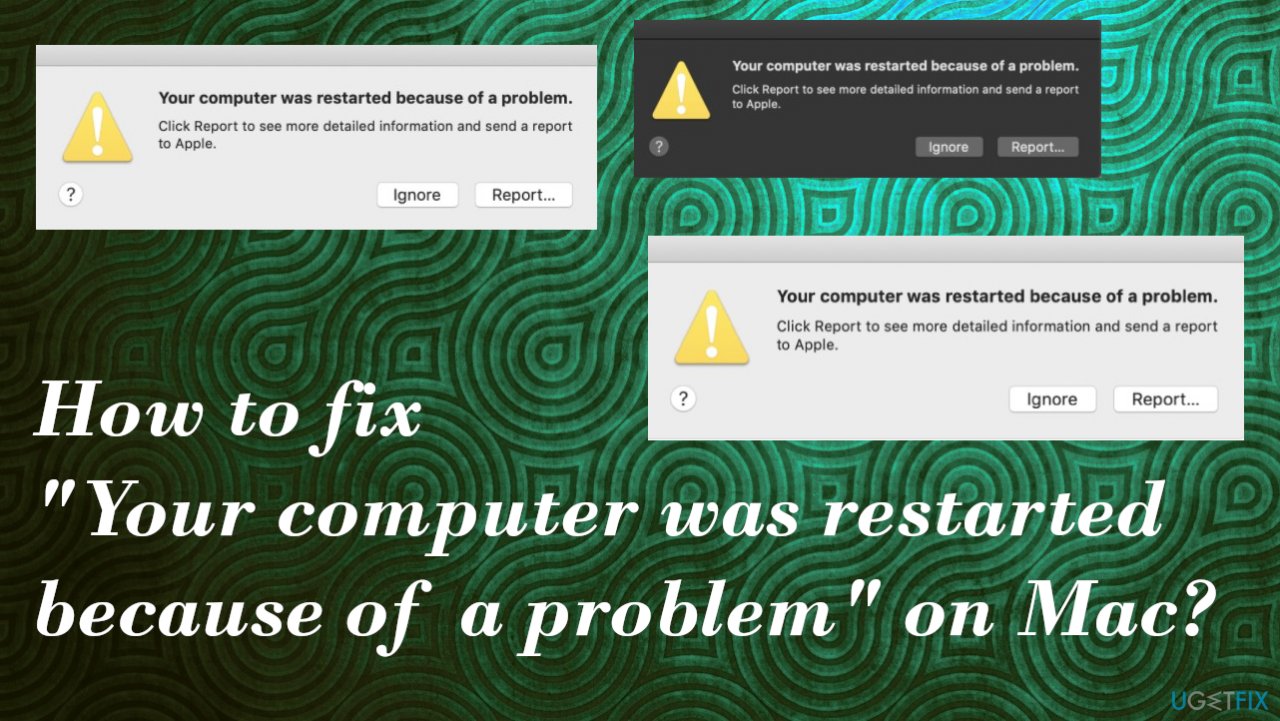
"Your computer was restarted because of a problem" can be triggered by the outdated macOS version and pieces, or files that are missing and needed. If you use the latest applications, improved programs, but the OS is out of date, you need to take care of that, so compatibility issues do not occur. Another problem that could cause the error is external peripherals that are connected to your machine. You can disconnect peripherals and monitor if the issue occurs again.
Other issues related to the kernel panic error could be triggered by the third-party software and applications conflicting with the OS. You might need to get rid of the programs that have been installed recently and see if the newest additions are responsible for the error.
This might help to fix "Your computer was restarted because of a problem" on Mac. If none of the mentioned solutions are working, you need to follow the in-depth guide with instructions below. Potential causes and problem fixes vary, so you can solve the issue, just be patient.
Option 1. Upgrade the macOS
- Click the Apple menu on the screen.
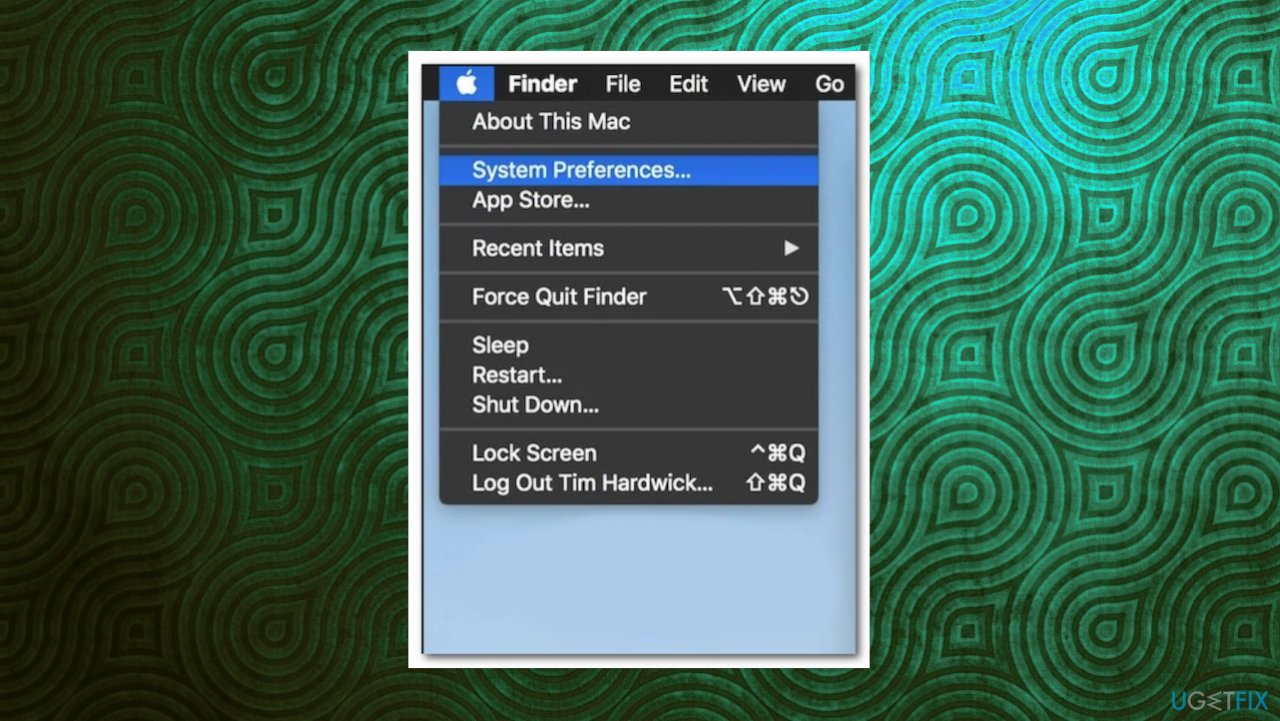
Mac restart error fix system menu - Select System Preferences.
- Click Software Update.
- If there are available updates, click the Install Now button to start the process.
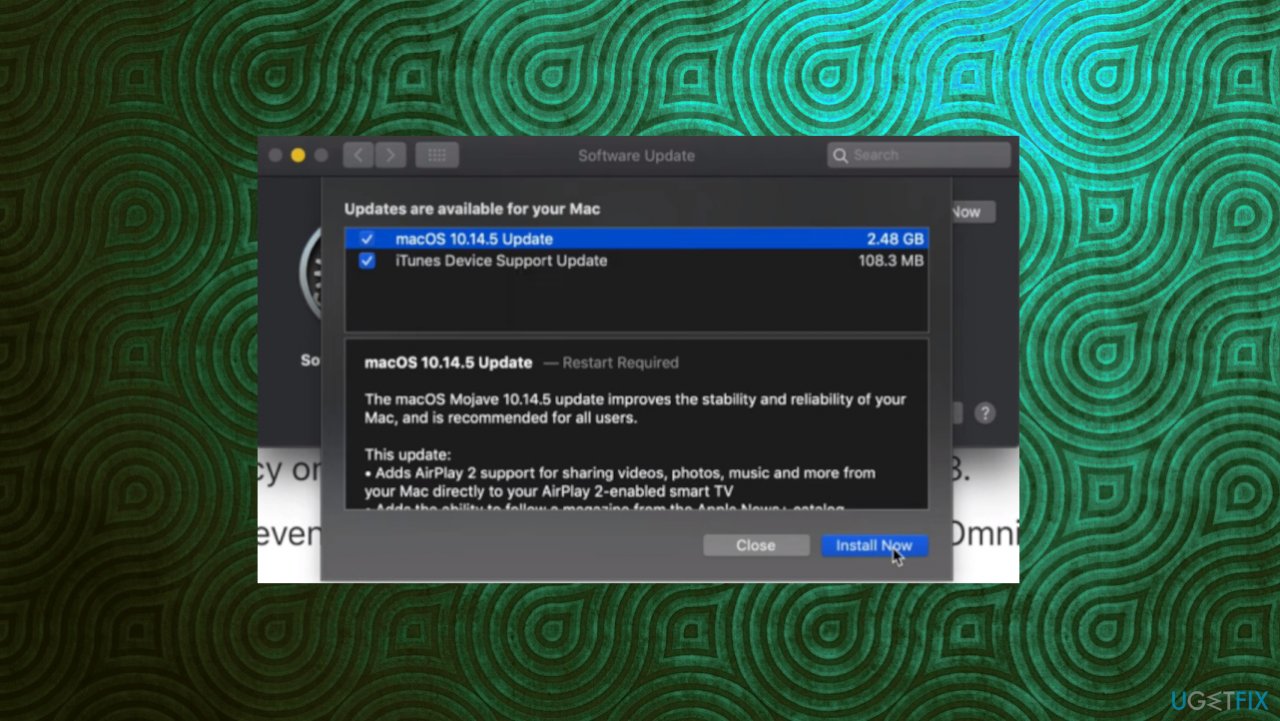
Mac restart error fix macos update - In case you don’t find any updates, click on the Advanced button at the bottom right corner.
- Make sure everything is ticked.
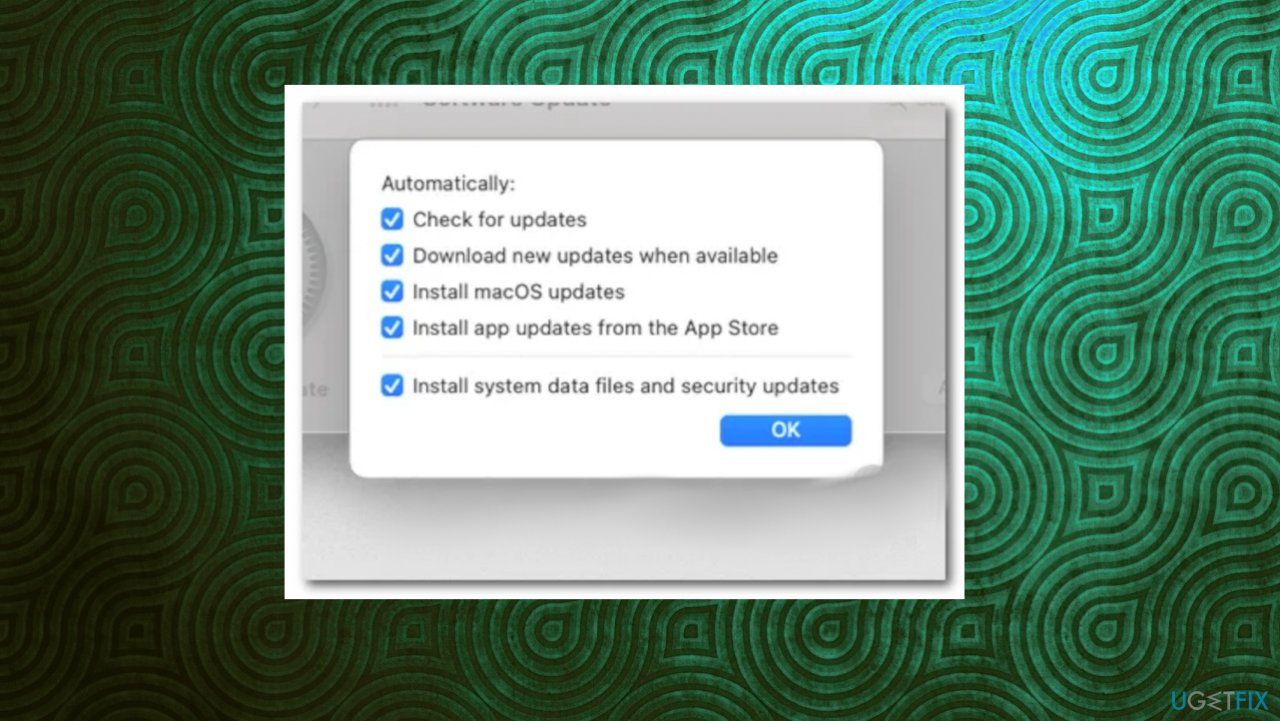
Mac restart error fix update advanced - Then click the OK button.
- Wait for the updates to be installed and it may even require you to restart your PC.
Option 2. Change display scaling
- Click the Apple icon.
- Then from the drop-down menu, choose System Preferences.
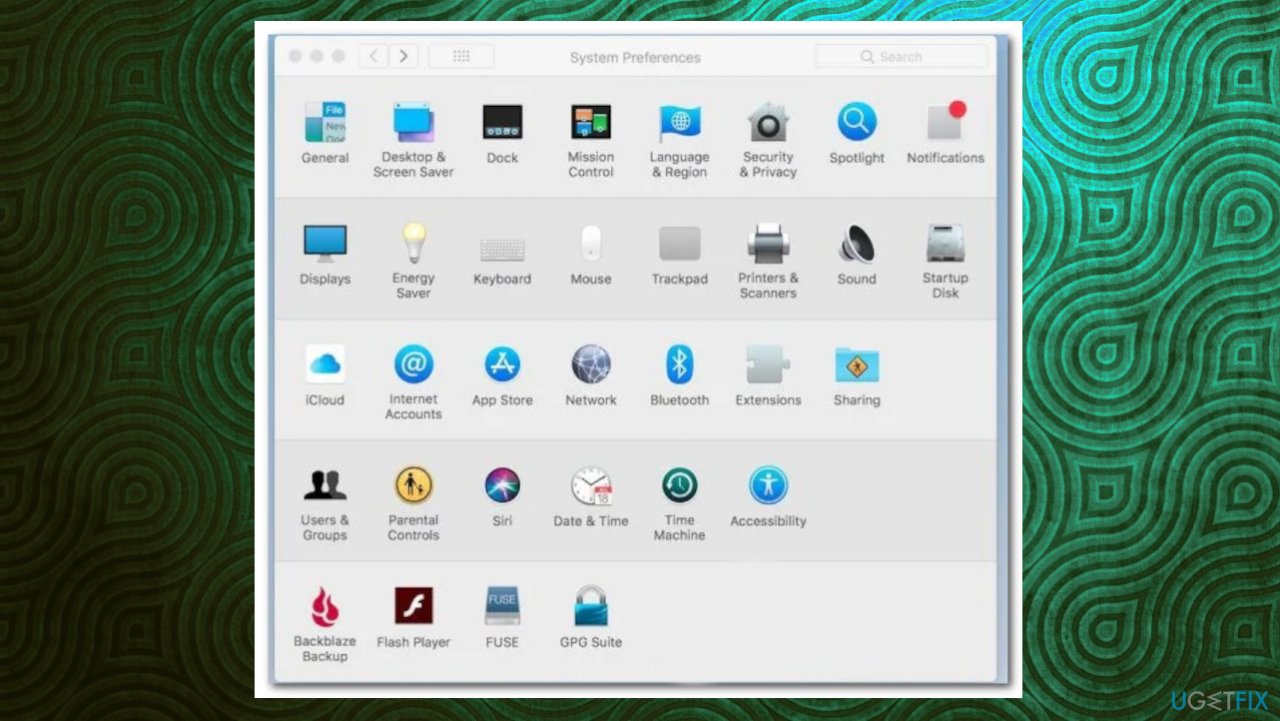
Mac restart error fix system preferences - Once the system preferences window is open, click on the Display option.
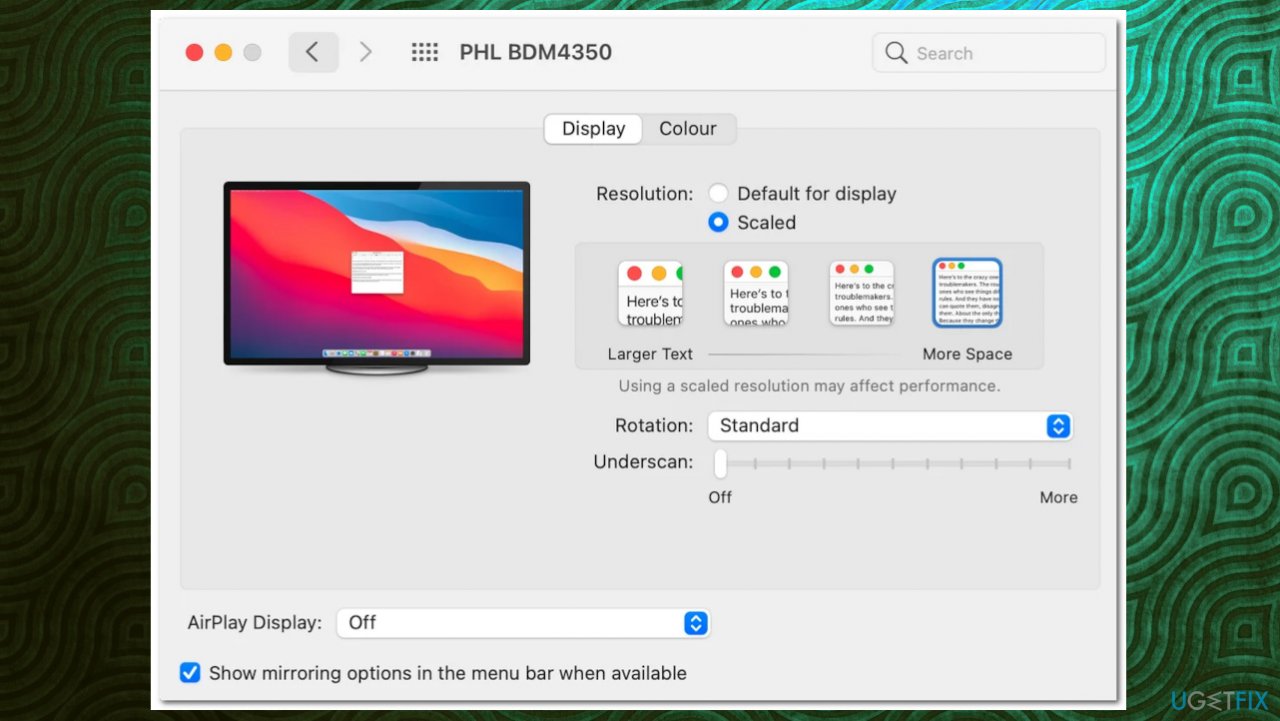
Mac restart error fix scaling - On the Display tab, choose the Default for display option.
- If it was already on the default option, press the Option key on your keyboard.
- Click the Scaled option.
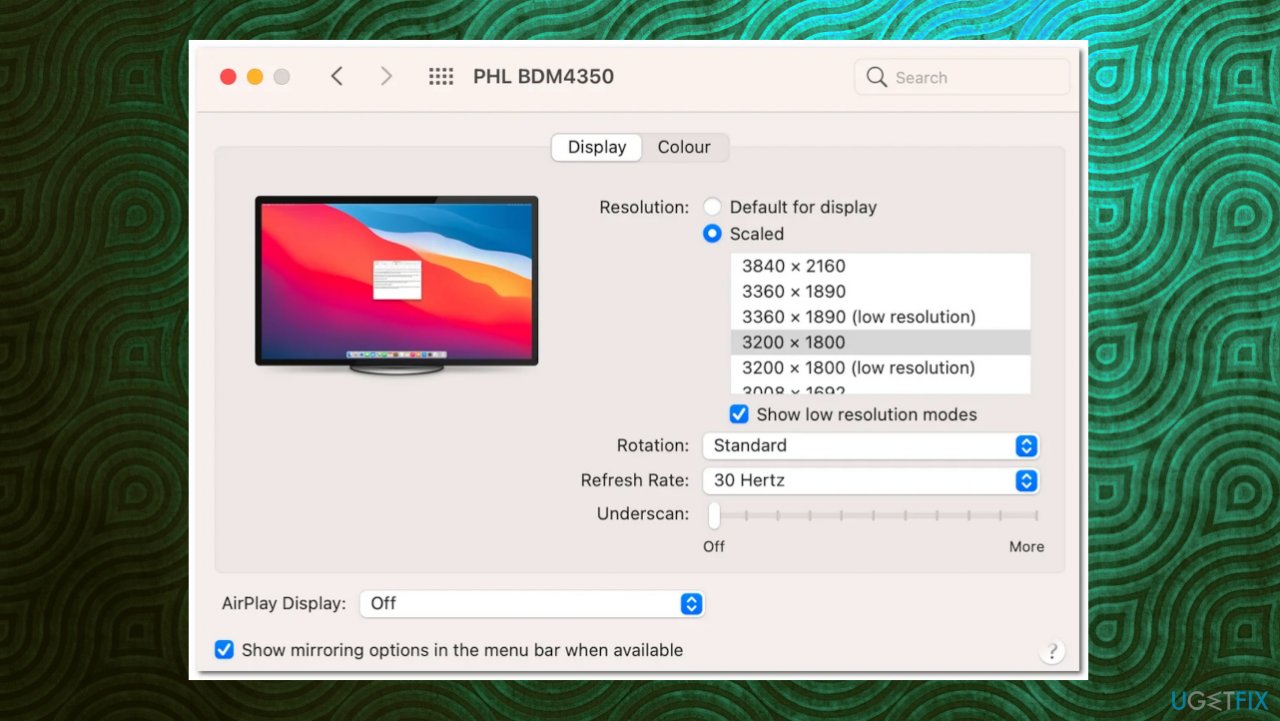
Mac restart error fix scaling display - Choose your display resolution.
Option 3. Repair disk errors and permissions
- Click on the Apple logo at the top left corner and then choose Restart from the drop-down menu.
- As your Mac restarts, immediately hold down the Command + R keys on your keyboard until you see the Apple logo on the screen.
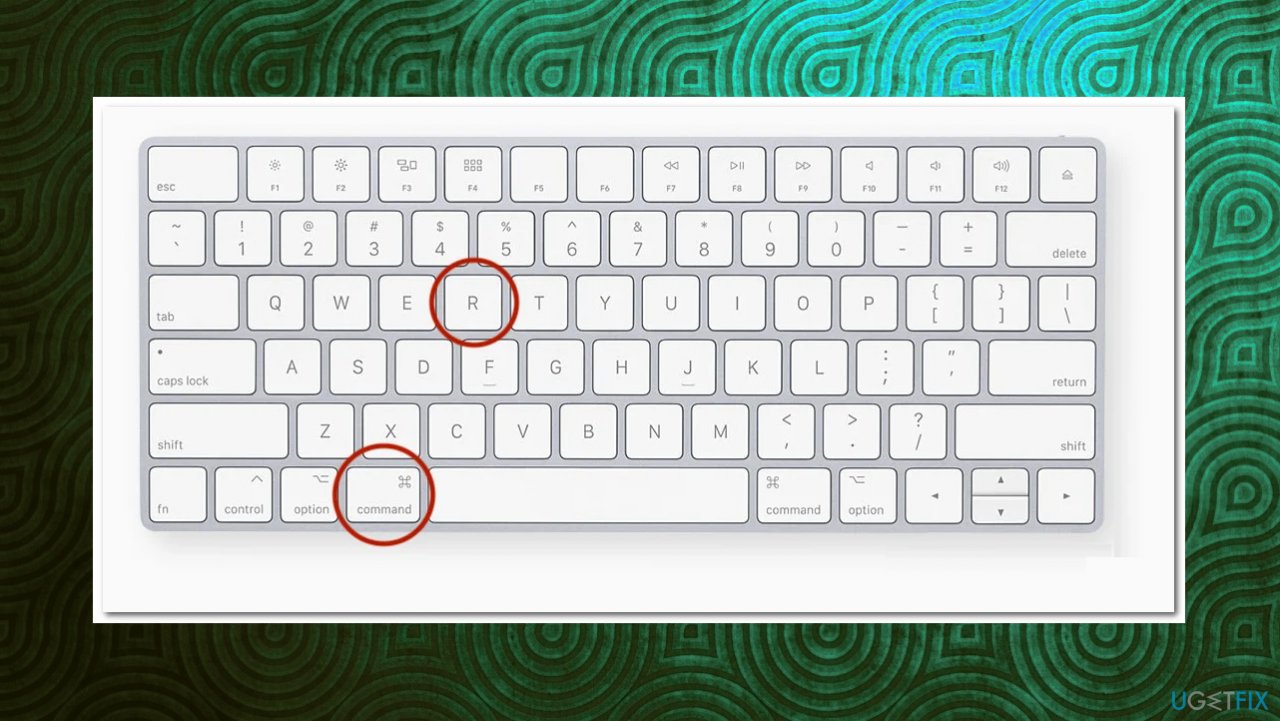
Mac restart error fix command r - This will open the macOS Utilities window.
- Choose Disk Utility and then click the Continue button.
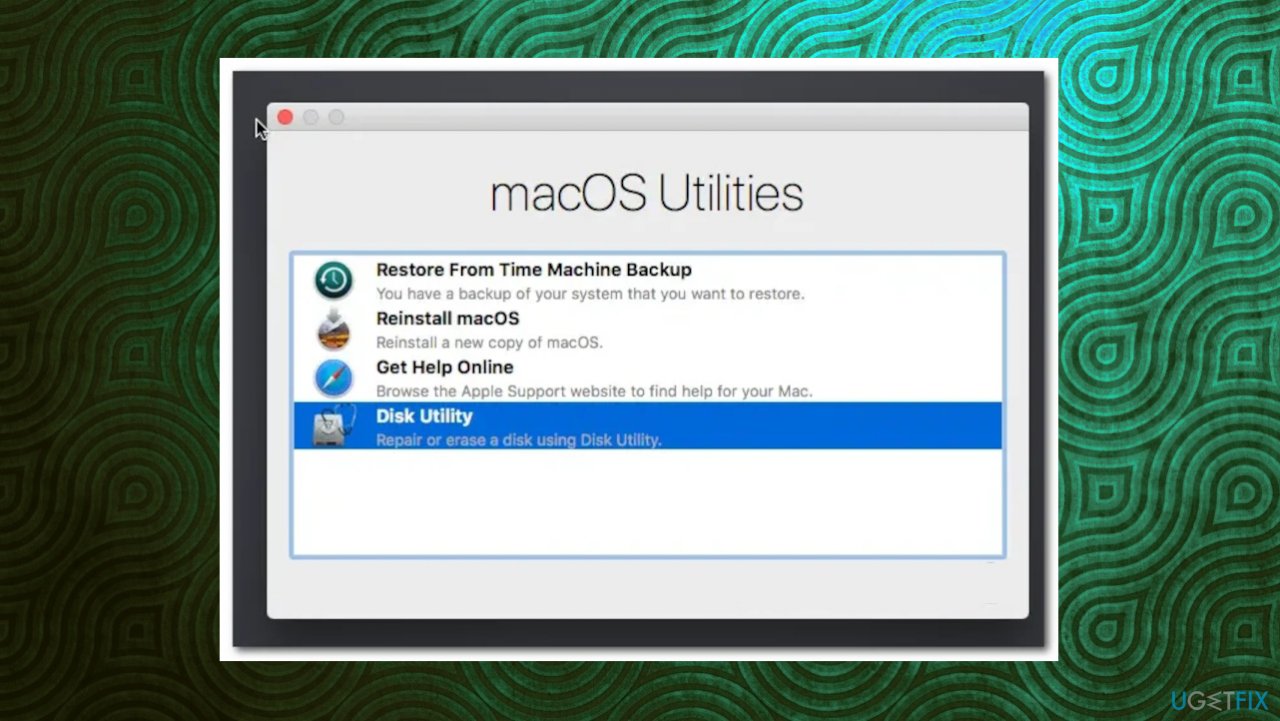
Mac restart error fix disk utility - Select your hard drive on the left-hand side and then click the First Aid option at the top of the window.
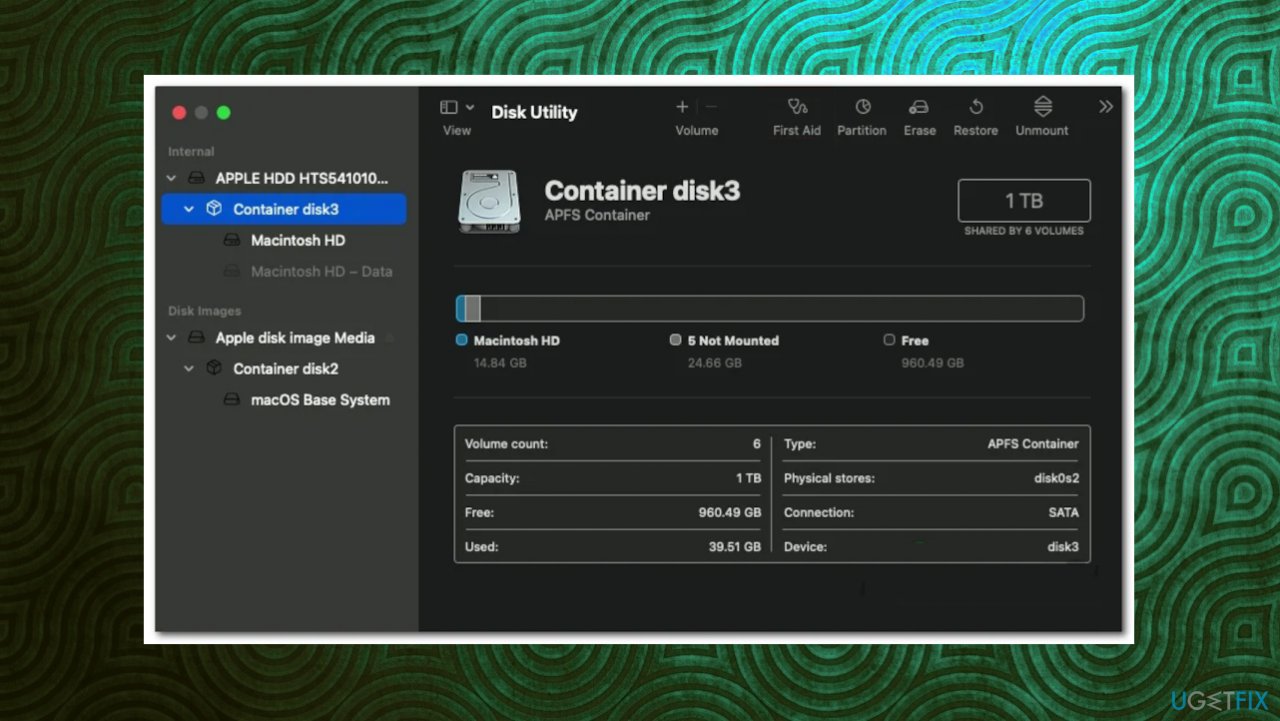
Mac restart error fix first aid - Click the Run button.
- Wait for the repair to complete.
- Then, restart.
Option 4. Disable unnecessary startup items
- Click the Apple menu.
- Go to System Preferences > Users & Groups.
- Select your user account.
- Click Login Items to list all startup items.
- Select the startup item you want to remove and then select the - icon.
- Restart your Mac.
Option 5. Reset PRAM/NVRAM
- Force shut down your Mac.
- Press the Power button and immediately press & hold Option-Command-P-R.
- Your Mac computer will restart about 20 seconds later, ending the PRAM/NVRAM resetting process.
Option 6. Reinstall MacOS
- Restart your Mac.
- Once it’s starting back up, press and hold Command (⌘) + R to boot into Recovery mode.
- Release the keys as soon as the macOS Utilities screen appears.
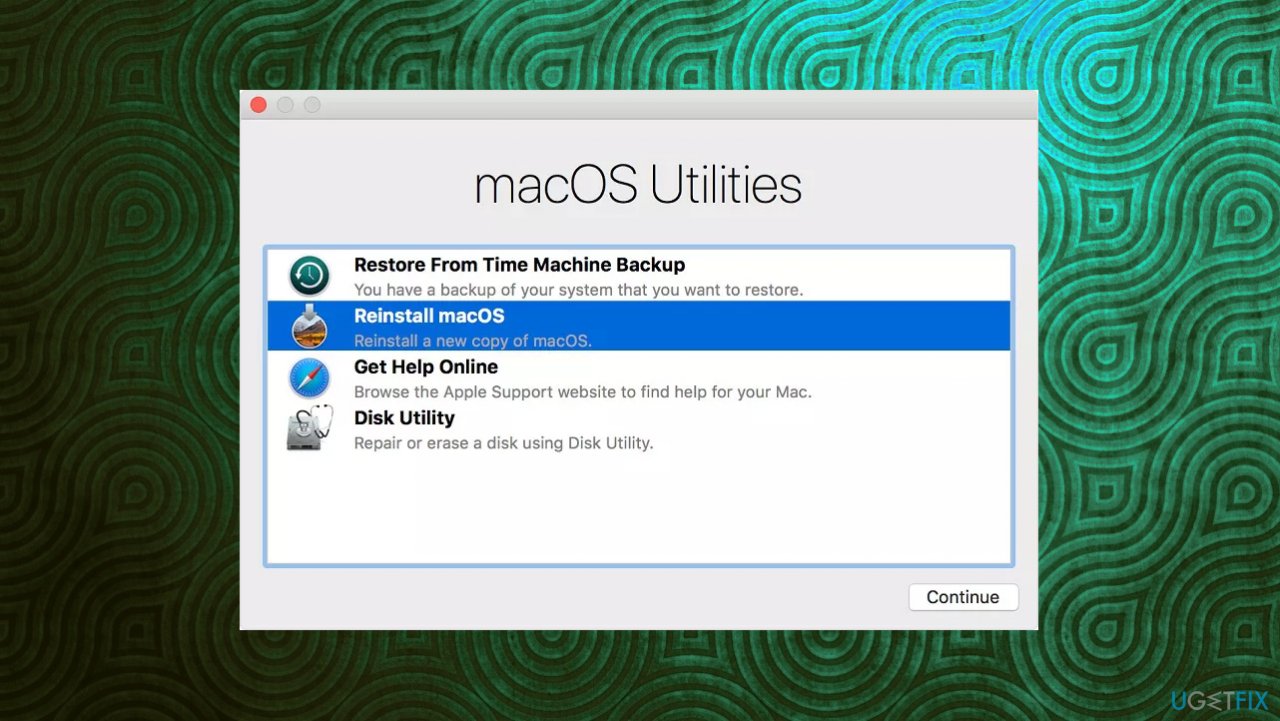
Mac restart error fix reinstall - Select the Reinstall macOS option and click Continue.
- Follow on-screen prompts.
Bottom line
To address the 'Your computer was restarted because of a problem' error, consider running diagnostic apps to assess the system, updating your macOS to the latest version, and checking for any corrupted files or hardware issues. If these solutions do not resolve the problem, further investigation may be necessary.
Frequently asked questions
You can start by checking for any recent Windows updates and ensuring your drivers are up to date. Additionally, running a system file checker scan may help identify and fix corrupted system files.
Try booting into Safe Mode to see if the issue persists; if not, uninstall any recent software or drivers that might have caused the problem. You can also use the Windows Recovery Environment to perform a startup repair.
Regularly updating your system and drivers can help minimize this error, as well as ensuring your antivirus software is up to date. Additionally, performing routine maintenance, like disk cleanup and checking for disk errors, can prevent future issues.




Report an issue
What's wrong with this guide? We review every report and update or remove content.
Report received — thank you. We'll review and fix it.
You need a free account to submit a report.
Be the first to comment