How to fix
“Your Computer Was Unable to Start”
on Windows
Resolve the "Your Computer Was Unable to Start" error on Windows 10 and 11 quickly. Follow our expert-tested guide for instant fixes!

What causes How to fix “Your Computer Was Unable to Start” on Windows?
- Incorrect Updates or Configuration
- BDC (Boot Configuration Data) Errors
- MBR (Master Boot Record) Corruption
- File System Errors
Repairs Windows system files, removes malware, and restores a clean OS state — without reinstalling.
Hello, can I find help here? I wanted to restart my PC because some apps were not running smooth I did that long time ago. However, the issue is now with the startup itself. I get the message “Your Computer Was Unable to Start”. I am puzzled and have no idea what to do now. Can I fix this “Your Computer Was Unable to Start” issue on Windows 10 myself?
“Your Computer Was Unable to Start” error message commonly occurs on Windows devices. These messages occur in various instances. Based on users' messages in online forums that date ten and more years in the past, the issue is annoying people to this day.
If you've ever encountered the message "Your computer was unable to start," you know how frustrating it can be, but you are, obviously, not alone. This error indicates that your system is having trouble booting up, which can stem from many issues. These might include corrupted system files, faulty hardware, or even a recent software installation that didn’t go as planned.
We can imagine: you need to restart your computer, and suddenly, instead of booting up as usual, you're faced with the Startup Repair program that delivers a questionable message. The message often reads, "Your computer was unable to start, and Startup Repair is checking your system for problems."
No matter how many times you try to restart, you find yourself stuck in a loop with no clear way out. So, what causes this frustrating loop? The root of the problem can vary, but some of the most common culprits include:
- Incorrect Updates or Configuration: Sometimes, a recent update or change in system settings can cause conflicts that prevent the computer from starting properly.
- BDC (Boot Configuration Data) Errors: If the Boot Configuration Data becomes corrupted or misconfigured, the system may struggle to find the right instructions to start up.
- MBR (Master Boot Record) Corruption: The MBR is crucial for booting the operating system. If it's damaged, your computer might fail to start.
- File System Errors: Corruption within the file system can disrupt the normal boot process, leading to errors during startup.
These issues can leave you stuck in a seemingly endless circle, where the system continuously tries and fails to repair itself. Not only is this “Your Computer Was Unable to Start” message frustrating, but it can also be concerning, especially if you’re unsure about the status of your important files and data.
Fix “Your Computer Was Unable to Start” on Windows
The danger of not addressing this “Your Computer Was Unable to Start” error on Windows issue promptly can be significant. A computer that can't boot properly is essentially unusable, cutting off access to your files, applications, and the internet.
Additionally, if the underlying problem is related to corrupted files or hardware issues, ignoring it could lead to further damage over time, potentially resulting in data loss or costly repairs. As for repairing the particular damage on the machine, tools like [d1] could help you fix these issues automatically.
Although it may seem daunting, the good news is that solutions do exist. By understanding the potential causes, you can approach the problem methodically, reducing the risk of further complications. Do not forget to ensure that your important data is backed up before attempting any fixes is always a wise step. This way, you can attempt to resolve the issue without the fear of losing valuable information.
The "Your computer was unable to start" error can be stressful, but it’s not impossible. With the guide below, you can take the necessary steps to address it and restore your system to working order.
Boot in Safe Mode
- Restart your PC multiple times to activate Automatic Repair Mode.
- Select Troubleshoot from the options available.
- Click Advanced options.
- Tap Startup Settings.
- Tap Restart.
- Press F5 to boot Windows into Safe Mode with Networking.
- PC should start in this mode automatically.
Repair damaged pieces
- Hit the Search bar and look for Command Prompt.
- Choose to run the function with admin rights.
- Type sfc /scannow and press Enter.
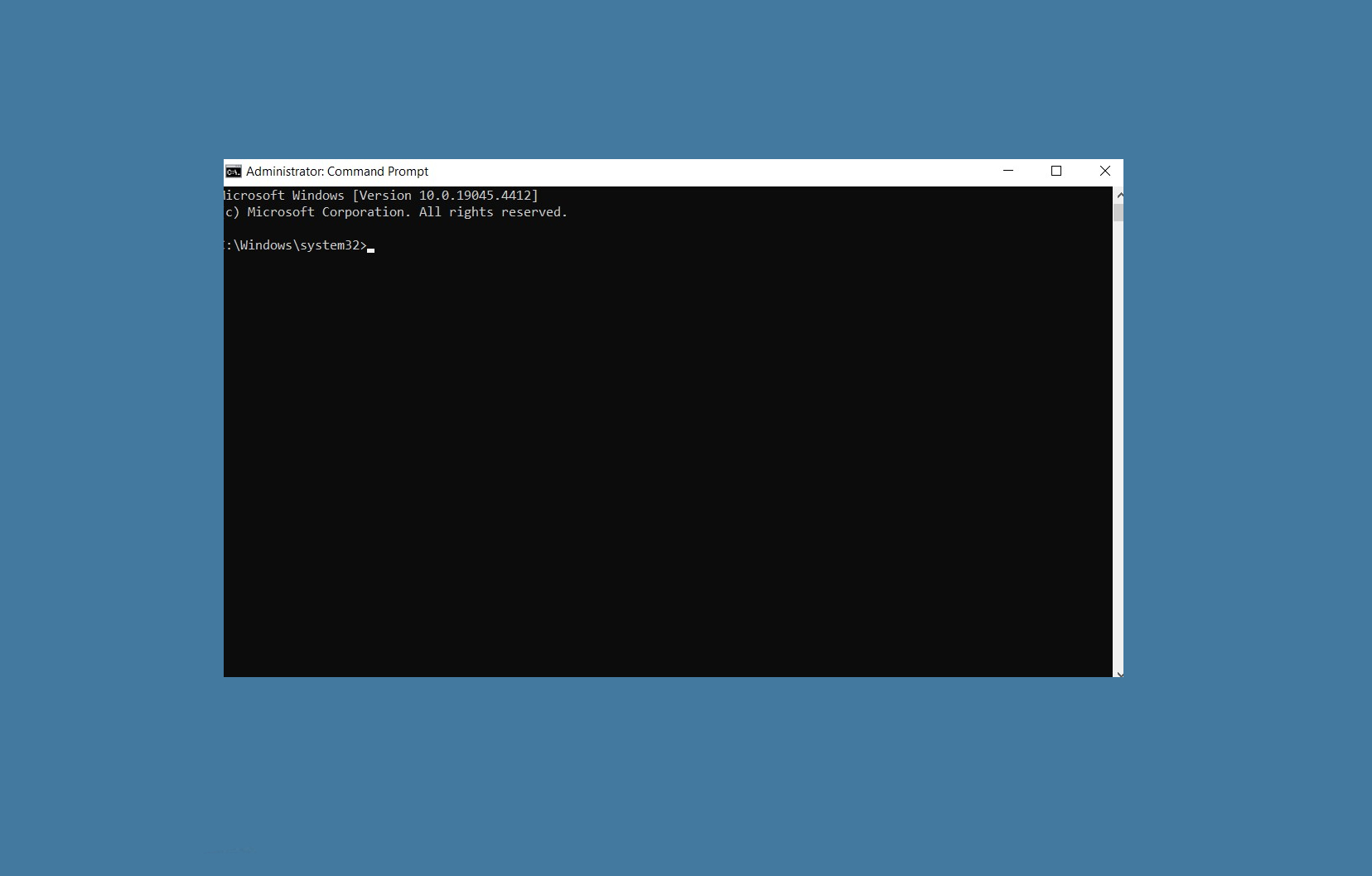
Your computer couldnt start cmd - Wait for the scan to complete.
Restore the System
- Type in Create a Restore point in Windows search and hit Enter.
- Then choose System Protection tab and pick System restore.
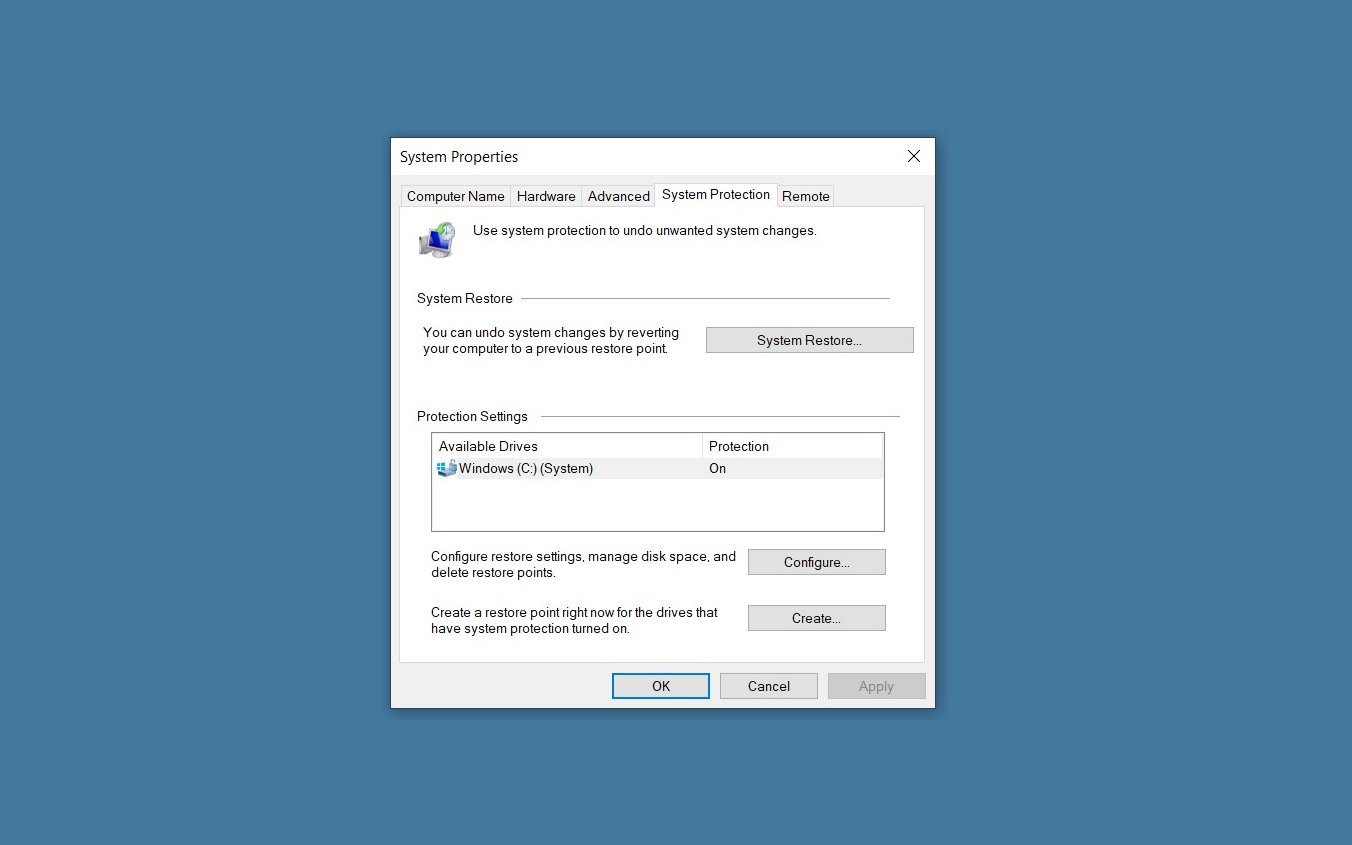
Your computer couldnt start syst restore - Click Next.
- Hit Show more restore points (if available).
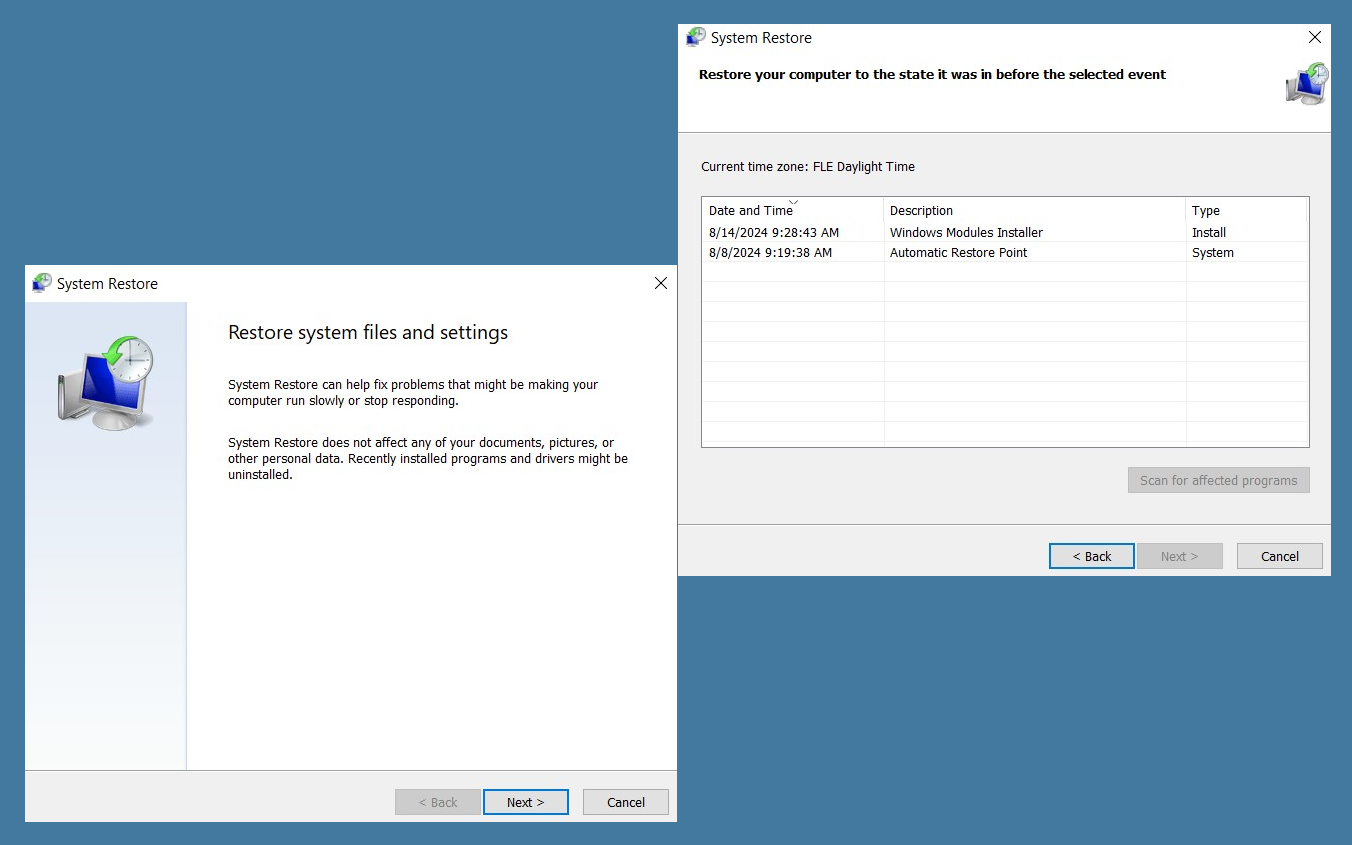
Your computer couldnt start syst restore points - Pick the time before the problem occurred and click Next.
- Follow the prompts to finish the process.
Repair system files that got corrupted
- Type in cmd in Windows search.
- Right-click on Command Prompt and select Run as administrator.
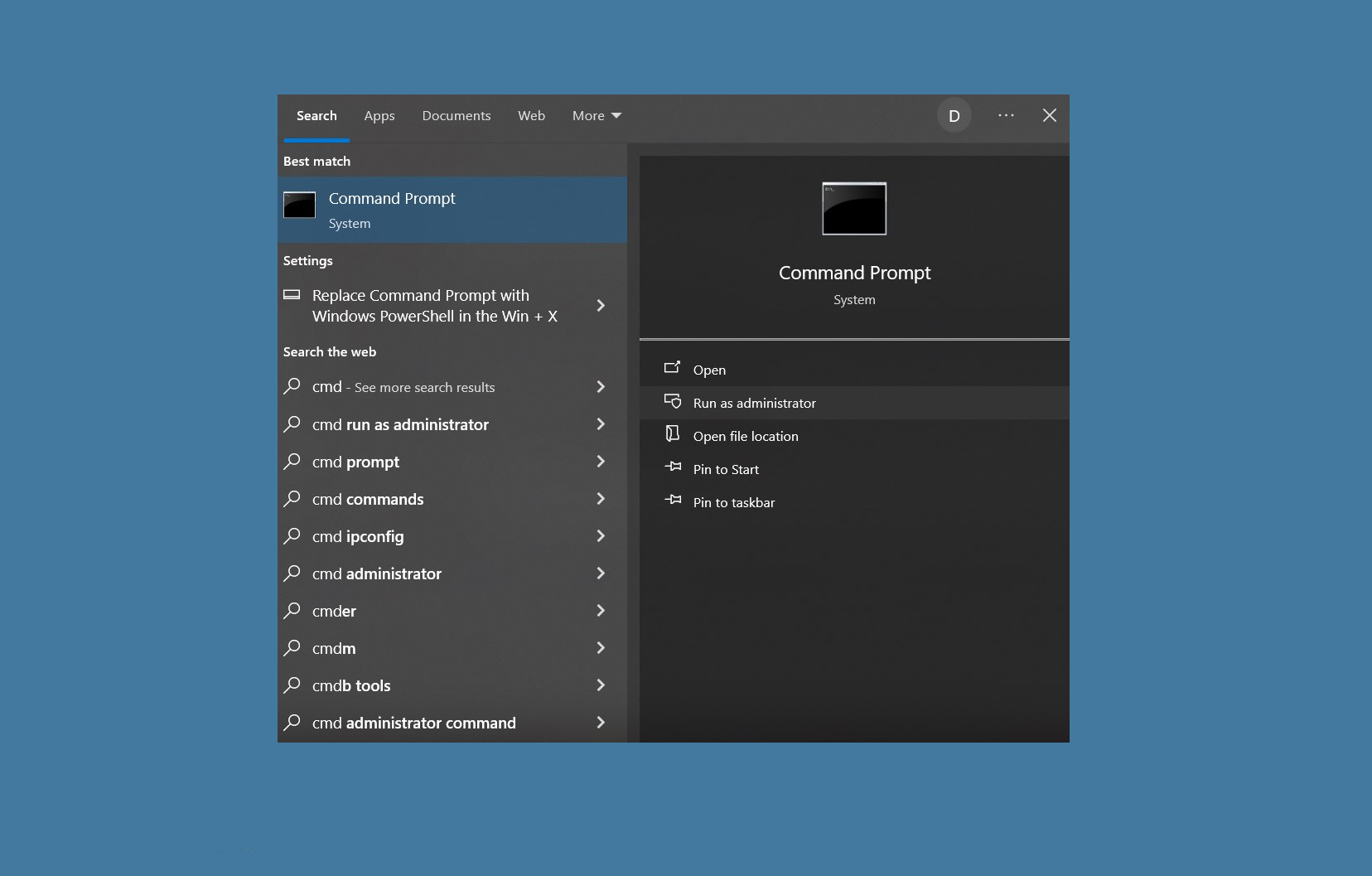
Your computer couldnt start cmd admin - User Account Control window will show up – click Yes when prompted.
- Use the following command lines, pressing Enter after each:
sfc /scannow - After the scan is done, copy the following commands and press Enter each time:
DISM /Online /Cleanup-Image /CheckHealth
DISM /Online /Cleanup-Image /ScanHealth
DISM /Online /Cleanup-Image /RestoreHealth - Restart your PC.
Bottom line
To fix the 'Your Computer Was Unable to Start' issue, you can try performing a system restore, running Startup Repair, or checking for hardware issues. If these solutions do not resolve the problem, consider seeking professional assistance or reinstalling the operating system.
Frequently asked questions
Try booting into Safe Mode by interrupting the boot process three times, then use the Startup Repair option to fix the issue.
Yes, you can access the recovery options by restarting your PC and using the recovery environment to perform a Startup Repair.
This error can be caused by corrupted system files, misconfigured boot settings, or hardware issues affecting the boot process.




Report an issue
What's wrong with this guide? We review every report and update or remove content.
Report received — thank you. We'll review and fix it.
You need a free account to submit a report.
Be the first to comment