How to fix
“Your credentials did not work” error
on Windows
Resolve the "Your credentials did not work" error on Windows 10 and 11 effortlessly. Follow our expert-tested solutions for quick fixes.


What causes How to fix “Your credentials did not work” error in Windows?
- Windows policies blocking incoming RDP connections
- Incorrect system username
- Network connectivity issues
- User account does not exist on the Remote Desktop server
- Incorrectly configured network settings
Repairs Windows system files, removes malware, and restores a clean OS state — without reinstalling.
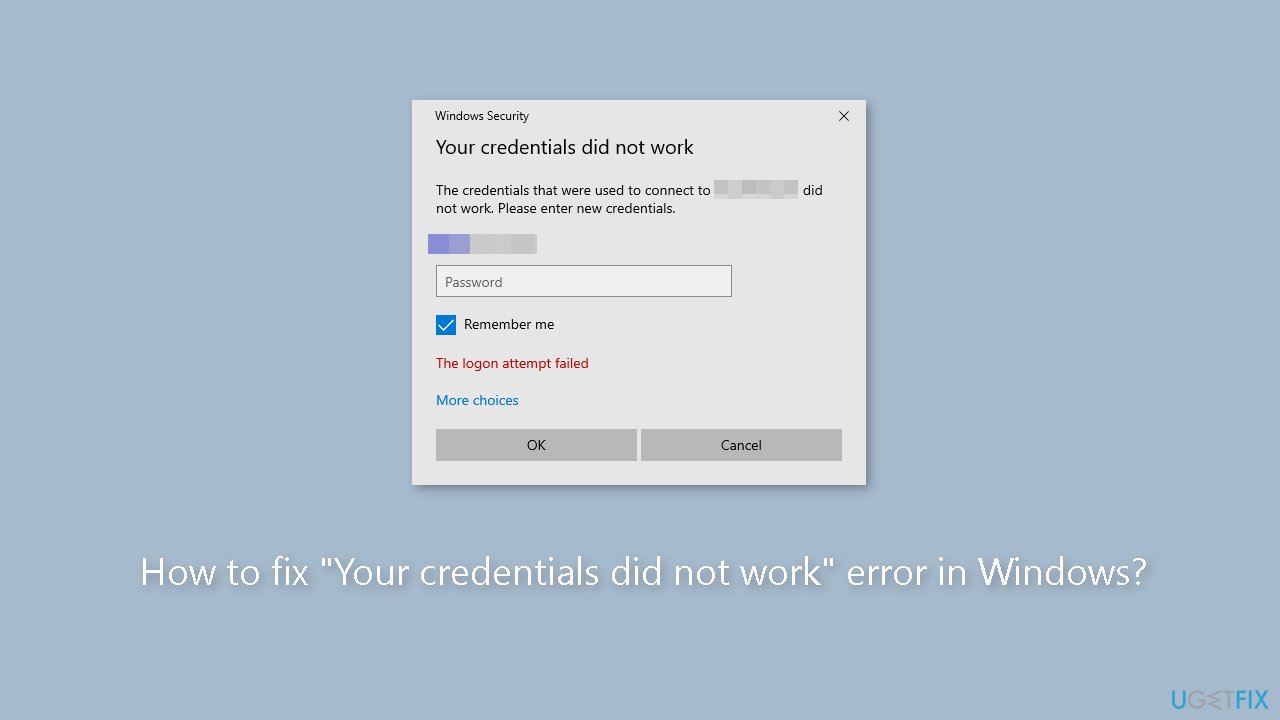
Hello. I tried to establish a connection from my desktop to my laptop with Microsoft's RDP. When I try to connect, I receive the "Your credentials did not work" error. How do I fix this?
When users are unable to connect to a remote system using Remote Desktop Connection, the "Your credentials did not work" error occurs. This error is particularly aggravating because it frequently appears even when users enter the correct credentials. The issue is usually not with the credentials themselves, but with Windows policies that block incoming Remote Desktop Protocol (RDP) connections or with issues with the system's username.
This error can have a number of consequences for users. For starters, it makes it difficult to remotely access and control another system, which is frequently required for tasks like remote troubleshooting or accessing files and applications on a different device. It has the potential to disrupt workflow and productivity, particularly for individuals who rely heavily on remote connections for work purposes. Furthermore, the error can cause confusion and frustration because users may believe they have entered the correct credentials, wasting time and effort troubleshooting the incorrect area.
Users can investigate various solutions to the problem. This may entail reviewing Windows policies related to RDP connections and ensuring that incoming connections are permitted. Verifying the system's username and ensuring that it corresponds to the username used for Remote Desktop Connection can also assist in resolving the error. Checking network settings, restarting the remote system, or troubleshooting network connectivity issues are some other possible solutions.
In this guide, you will find 6 steps that should help you fix "Your credentials did not work" error in Windows. If you experience any other OS issues, you can a repair tool like [d1] that can fix most system errors, BSODs,[ref en-1] corrupted files, and registry[ref en-2] issues. Otherwise, follow the step-by-step instructions below.
Method 1. Revert the Username
The error message can occur when attempting to connect from a user account that does not exist on the Remote Desktop server. This situation can arise when modifying your username or installing a new Windows copy. It's important to note that changing your username doesn't automatically update it for Remote Desktop Connection, leading to incorrect credentials since the user doesn't exist on the server. To troubleshoot this problem, you need to return to the username you were previously using before encountering the error message.
Method 2. Enable Remote Desktop
- Right-click on the Start button.
- Choose System from the shortcut menu.
- Select the Remote Desktop tab.
- Ensure that the Enable Remote Desktop setting is turned on.
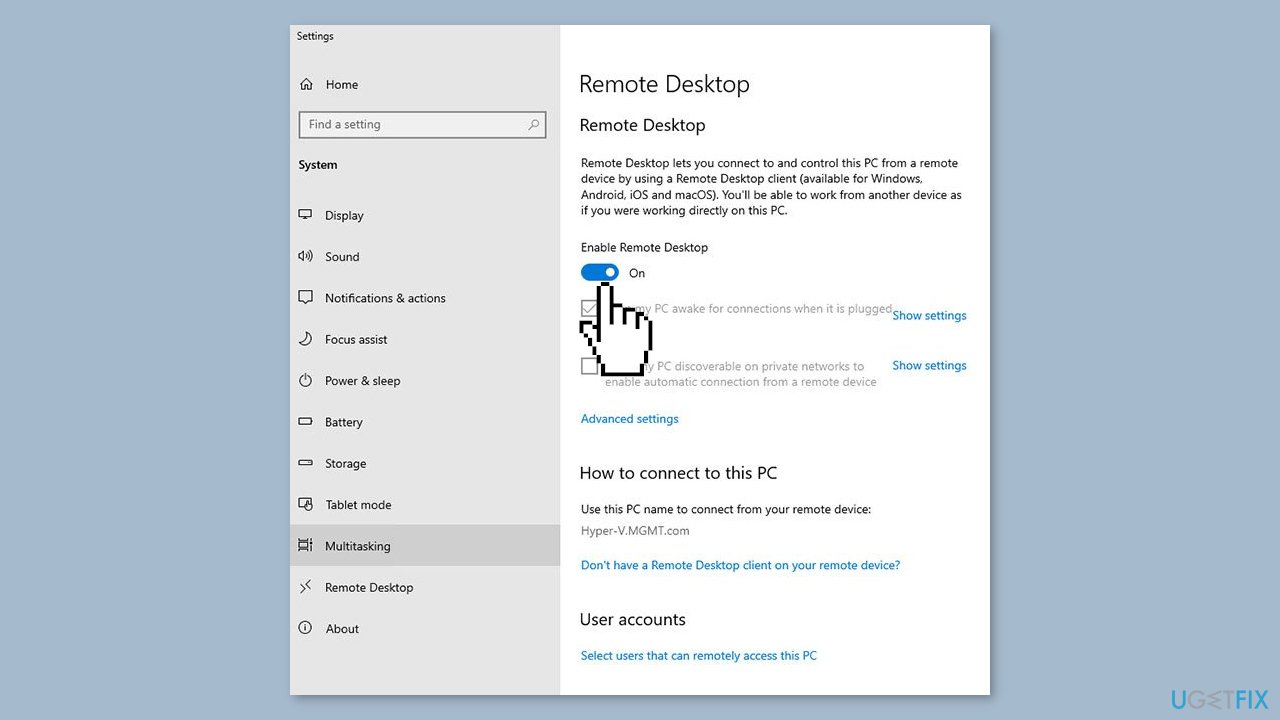
- Click on the Select users that can remotely access this PC link at the bottom of the screen.
- Verify the accounts that can establish remote desktop sessions with the machine.
- If necessary, add accounts that need remote access to the machine.
Method 3. Edit Windows Security Policy
- Press the Windows key + R to open the Run dialog box.
- Type in secpol.msc and press Enter. This will open the Local Security Policy window.
- Expand Local Policies and then select User Rights Assignment.
- On the right-hand side, locate and double-click either Allow log on through Remote Desktop Services or Allow log on through Terminal Services.
- Click Add User or Group.
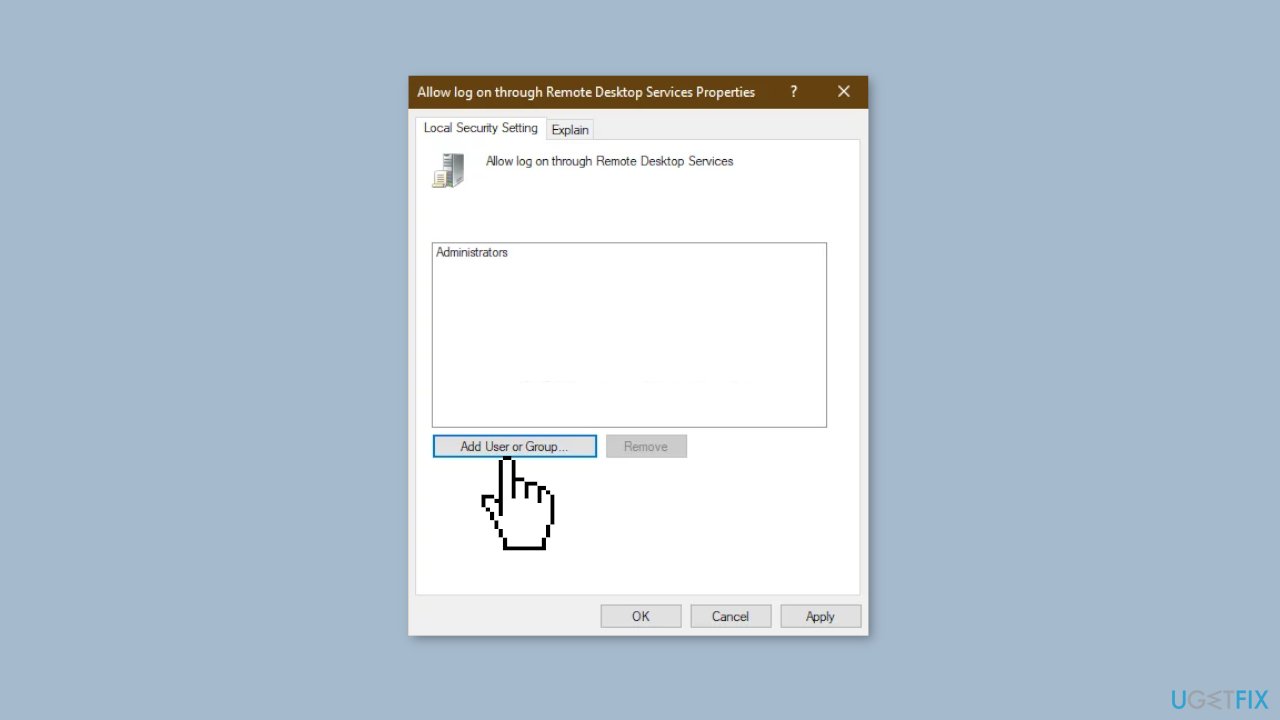
- Type in Remote Desktop Users and click OK.
- Hit Apply and then click OK again.
- Restart your system for the change to take effect.
- Check if it isolates the issue.
Method 4. Modify the Local Group Policy
- Press the Windows key + R to open Run.
- Type in gpedit.msc to open the Local Group Policy Editor.
- Navigate to the following path:
Computer Configuration > Administrative Templates > System > Credentials Delegation
- Double-click the Allow delegating default credentials with NTLM-only server authentication policy to edit it.
- Set it to Enabled and then click Show.
- Double-click under Value, type in TERMSRV/* and then click OK.
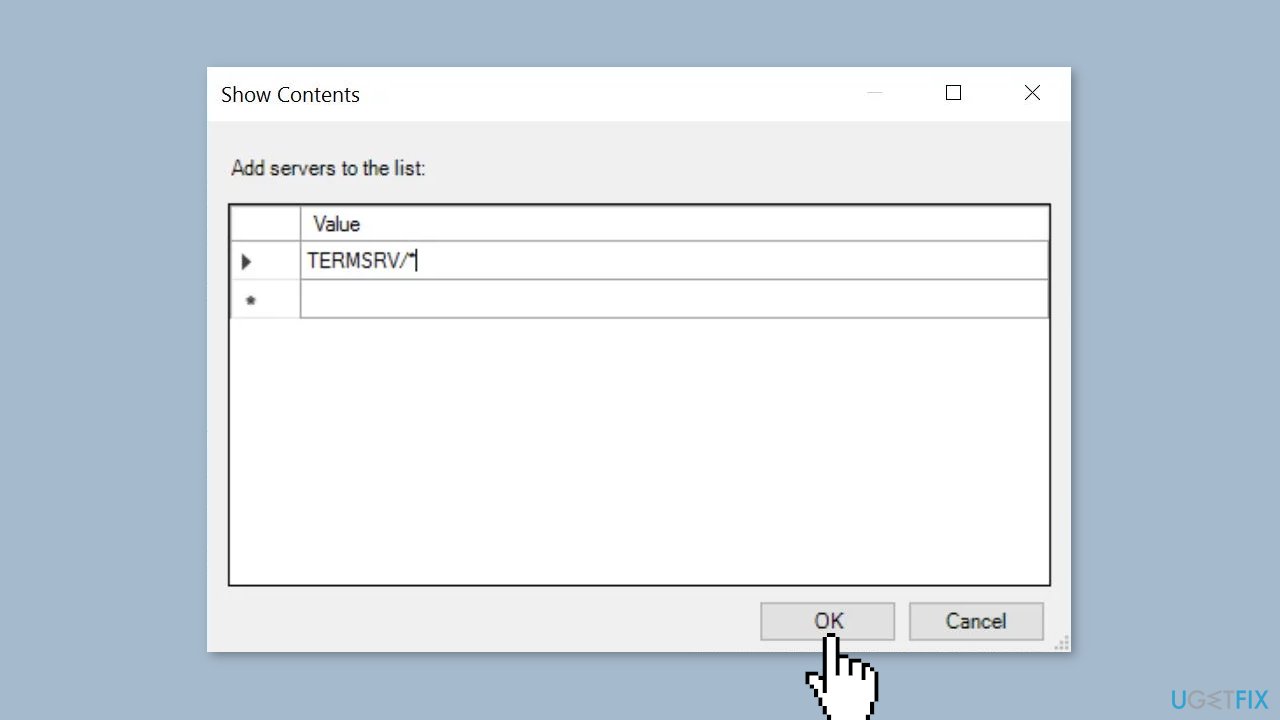
- Repeat the above steps for the following policies:
Allow delegating default credentials
Allow delegating saved credentials
Allow delegating saved credentials with NTLM-only server authentication
- Close the Local Group Policy Editor.
- Restart your system.
- Check if the issue persists.
Method 5. Modify the Windows Registry
- Press the Windows key + R to open the Run dialog box.
- Type in regedit and press Enter. This will open the Registry Editor.
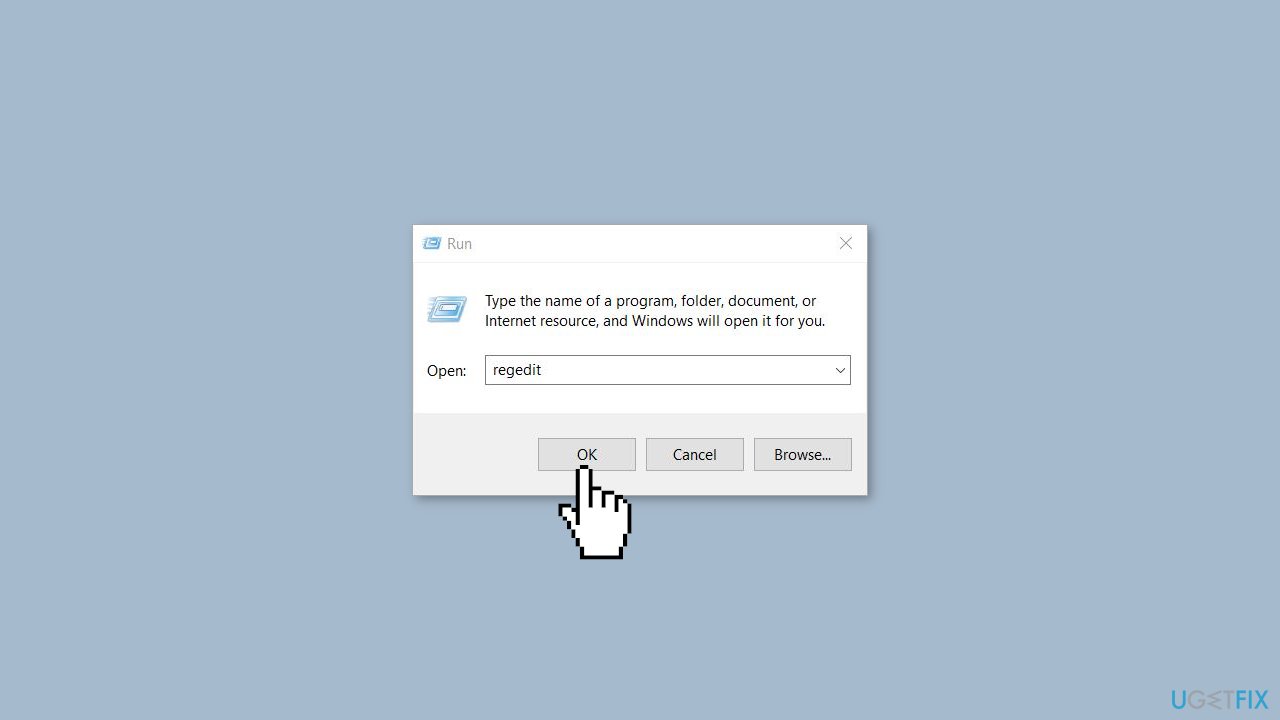
- Navigate to the following address:
Computer\HKEY_LOCAL_MACHINE\SYSTEM\CurrentControlSet\Control\Lsa
- Click on the LsaCompatibilityLevel option.
- Double-click on the REG_DWORD option and change the Value to 1.
- Check to see if the issue persists.
Method 6. Disable Windows Hello Sign-In
- Press and hold the Windows key + I keys together to open the Settings app.
- Once the Settings app is open, navigate to Accounts > Sign-in options.
- Disable Windows Hello sign-in.
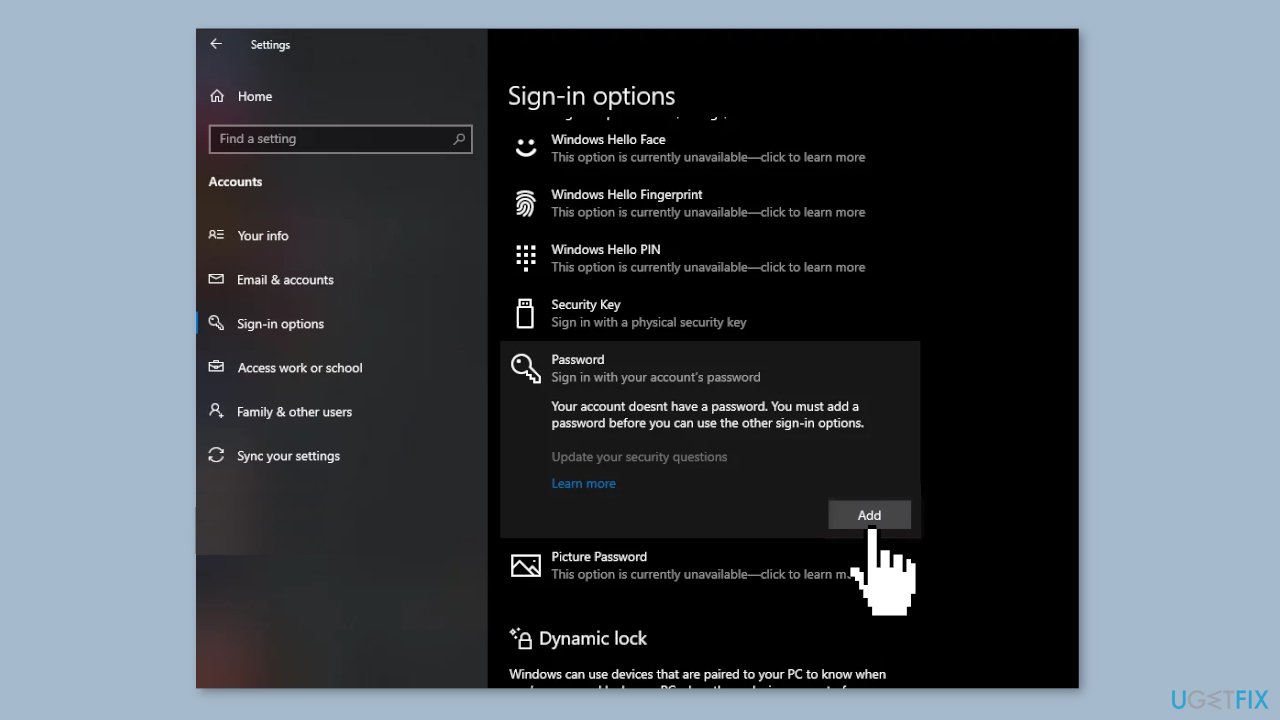
- Set a normal password by clicking on the Password option, then click on Add.
- In the pop-up window, enter your new password and provide a hint for it.
- Check to see if the issue persists.
Bottom line
To fix the 'Your credentials did not work' error, users can review Windows policies related to RDP connections, verify the system's username, and check network settings. Restarting the remote system may also help. If these solutions do not resolve the issue, consider using a repair tool to address other potential system errors.
Frequently asked questions
You can try resetting your Microsoft account password online or using the local user account if available. Ensure your keyboard layout is correct to avoid typing errors.
Check if your device is connected to the internet and verify your login credentials. If the problem persists, consider using the Startup Repair option from the recovery environment.
Yes, you can try removing and re-adding your account in the Settings app under Accounts, which can refresh your credentials. Additionally, running the 'sfc /scannow' command in Command Prompt may help fix underlying issues.




Report an issue
What's wrong with this guide? We review every report and update or remove content.
Report received — thank you. We'll review and fix it.
You need a free account to submit a report.
Be the first to comment