How to fix
“Your device is having trouble recognizing you” fingerprint error
on Windows
Resolve the "Your device is having trouble recognizing you" fingerprint error in Windows 10 or 11 quickly and effectively. Expert-tested solutions inside!

What causes How to fix “Your device is having trouble recognizing you” fingerprint error in Windows?
- Driver conflicts
- Problems with Windows Hello
- Issues with the fingerprint scanner
- Need to reregister biometric information
- Hardware troubleshooting
Repairs Windows system files, removes malware, and restores a clean OS state — without reinstalling.
Hello. Until recently, the fingerprint reader on my Windows laptop was working fine. Now, when I try to use it, I get the "Your device is having trouble recognizing you" error. Any way to fix this?
Some Windows users get an annoying "Your device is having trouble recognizing you" fingerprint error. This problem usually happens when the fingerprint scanner, which is frequently used with Windows Hello for biometric authentication, has trouble identifying a user's fingerprint. Users may occasionally see notices like "Windows Hello is not compatible with this device," which only serves to further confuse and upset users.
Users may be greatly impacted by this problem since it interferes with the quick and easy authentication process offered by biometric technologies. Users are required to enter passwords or use alternate authentication techniques, which can be less rapid and safe, in order to swiftly and securely log into their devices. For individuals who are accustomed to the ease of fingerprint recognition or Windows Hello facial recognition, this may result in a less-than-ideal user experience.
Depending on the precise cause, there are various potential remedies to this problem. Typically, these entail changing Windows Hello settings, checking for Windows updates, or installing drivers.[ref en-1] Some users' biometric information might need to be reregistered, while other users could need hardware troubleshooting. The best fix depends on what caused the error, which might be anything from driver conflicts to problems with Windows Hello and the fingerprint scanner working together.
In this guide, you will find 6 steps that should help you fix "Your device is having trouble recognizing you" error in Windows. You can also run a maintenance tool like [d1] that can fix most system errors, BSODs,[ref en-2] corrupted files, and registry[ref en-3] issues. Otherwise, follow the step-by-step instructions below.

Solution 1. Turn off Fast Startup
- Press the Windows key + R to open Run.
- Type control and click OK to open the Control Panel.
- Go to System and Security and then click on Power Options.
- In the left pane, click on Choose what the power buttons do.
- Next, click the Change settings that are currently unavailable link.
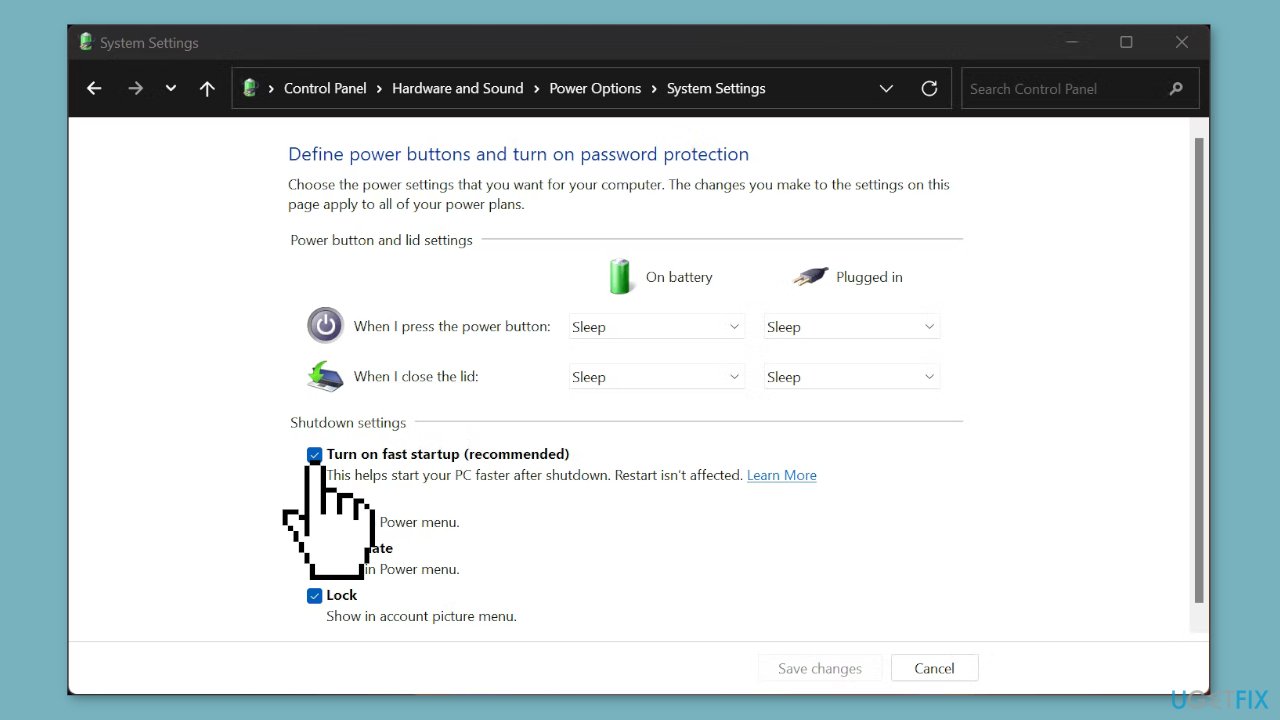
- Uncheck the Turn on fast startup option to disable Fast Startup.
- Click Save changes to apply the changes.
Solution 2. Reset Fingerprint Options
- Log into the computer using your PIN.
- Then, go to Control Panel > All Control Panel Items > Administrative Tools > Services.
- When you click Services, a new window will pop up.
- Find Windows Biometric Service and highlight it.
- In the left column, click Stop the service.
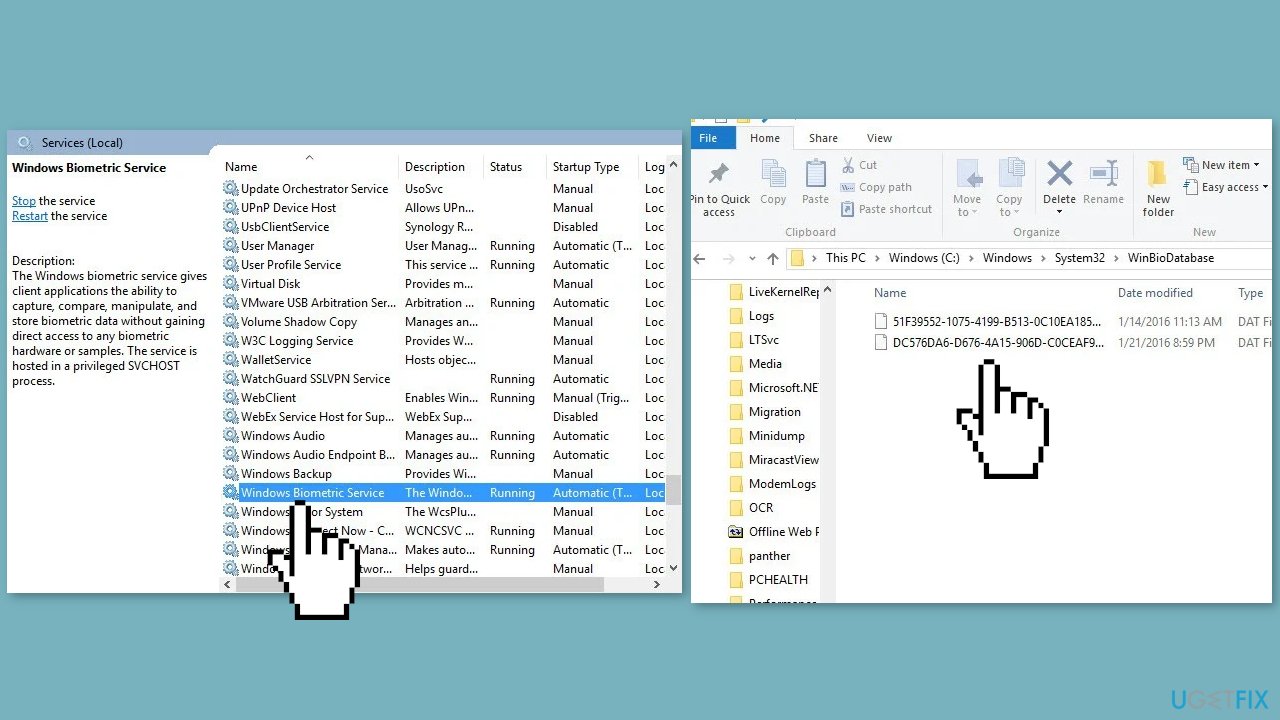
- Create a new folder somewhere on your computer called WinBioBackup.
- Then, open Windows Explorer and go to C:\Windows\System32\WinBioDatabase.
- Back up the Dat files in this folder by copying and pasting the files into the new folder you created.
- Delete the original files in the WinBioDatabase folder.
- Go back to the Control Panel, but this time, click Restart the Service.
- Go to your account settings, then Sign-in options and go through the registration process again to re-register your biometrics.
- If this machine has multiple users, everyone will need to re-register.
Solution 3. Modify Group Policy Settings
- Press the Windows key, type gpedit, and press Enter.
- Click on Computer Configuration and open Administrative Templates.
- Select Windows Components and open Biometrics.
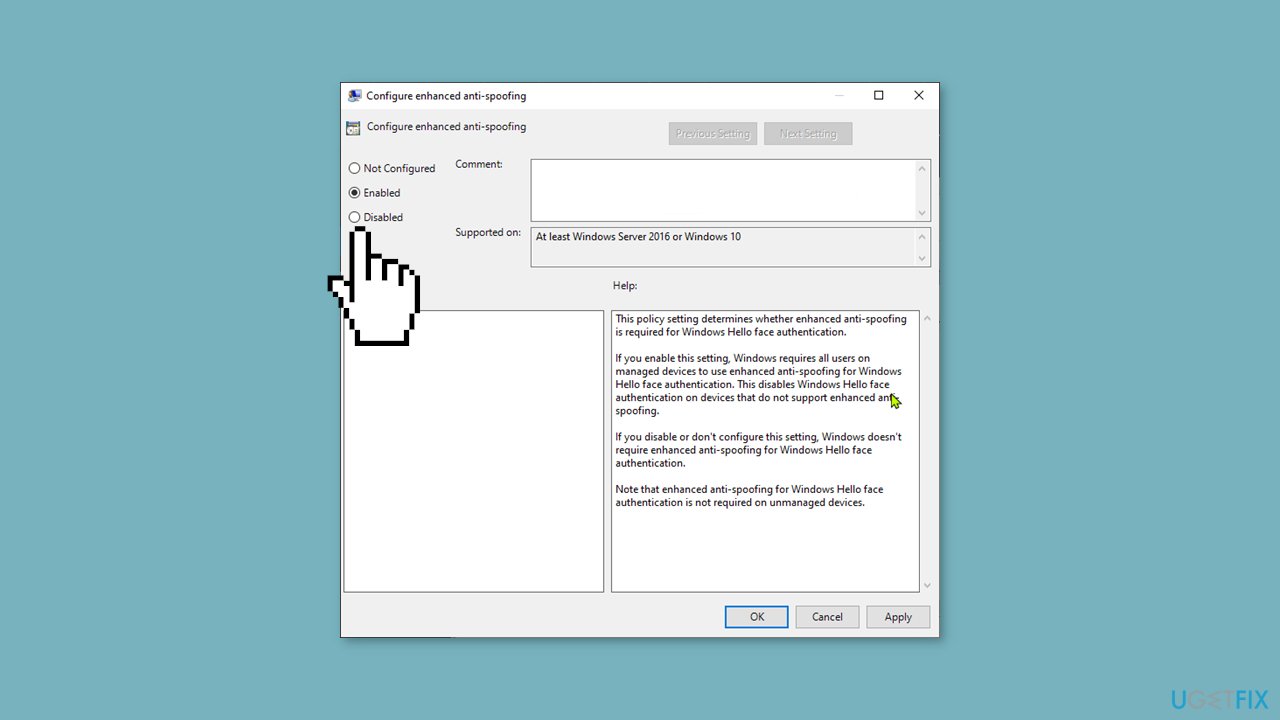
- Click on Facial Features and right-click on Configure enhanced anti-spoofing option.
- Select Edit and disable the Configure enhanced anti-spoofing feature.
- Reboot your PC.
Solution 4. Update Drivers
- Right-click on the Start icon to open the Power User menu.
- Select Device Manager from the list.
- Expand Biometric devices.
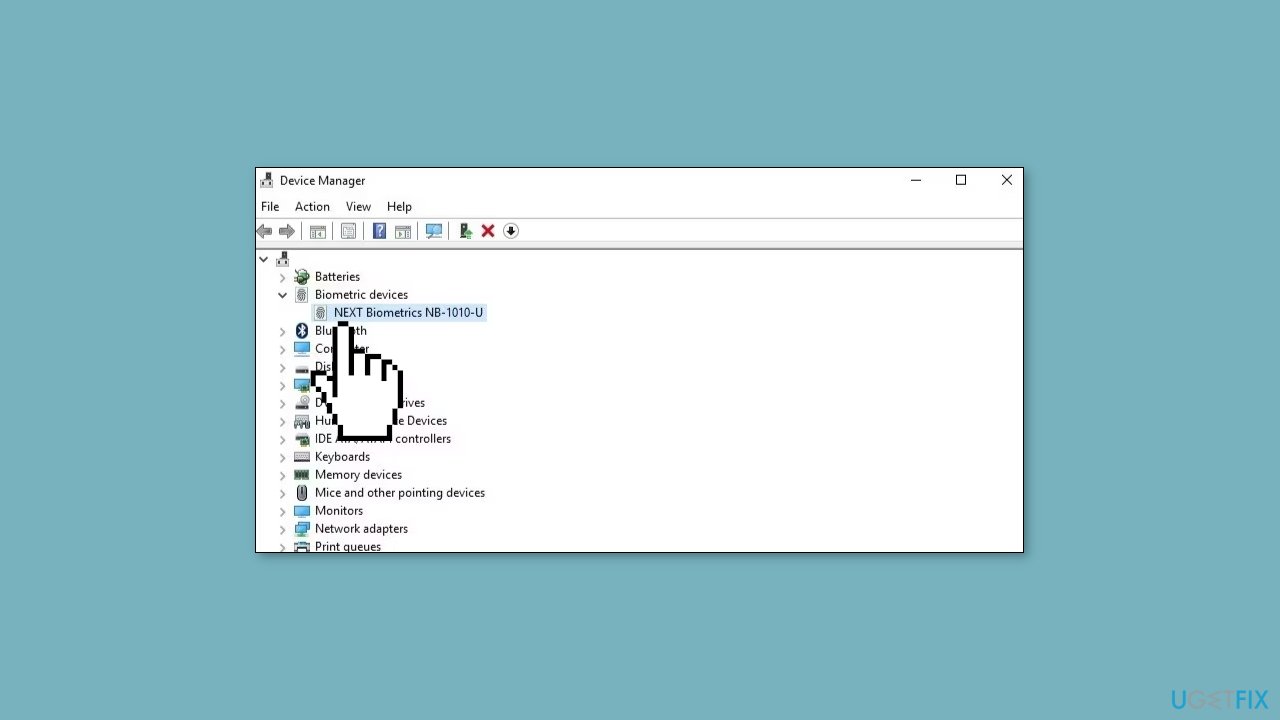
- Right-click on your fingerprint scanner device and select Update driver.
- Select Search automatically for drivers to confirm.
You can also use a dedicated utility like [rev id="DriverFix"] that can find the best drivers for your machine and install them automatically.
Solution 5. Reset Windows Hello
- Head towards Settings > Account > Sign-in options.
- Click on Fingerprint recognition (Windows Hello) and then click the Remove button.
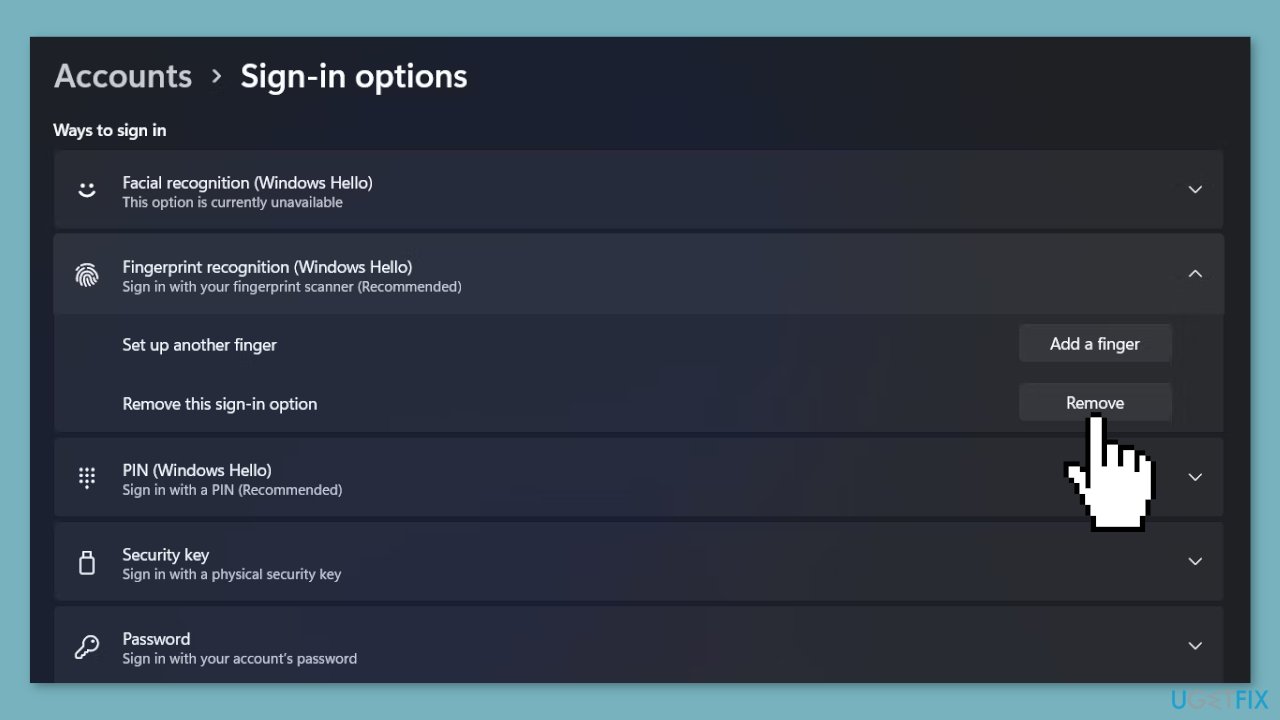
- Enter the password for security purposes and then click OK.
- Next, set up Windows Hello again to use it without any issues.
Solution 6. Use System Restore
System Restore is a feature in Microsoft Windows that allows users to revert their computer's state to a previous point in time. This can be helpful if you have made changes to your system that are causing problems.
- Press the Windows key + R on your keyboard to open the Run box.
- Type SystemPropertiesProtection and press Enter.
- Go to the System Protection tab.
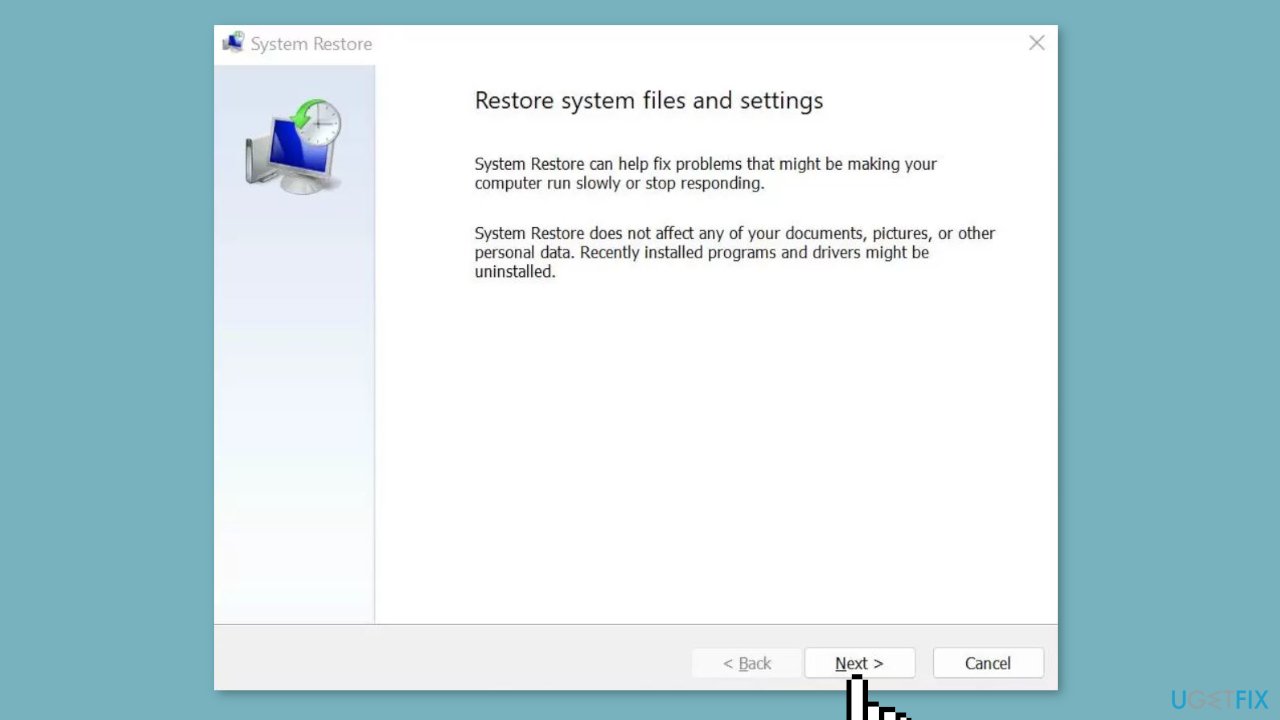
- You will see the System Restore… button. Click it to run System Restore.
- Follow the prompts until you can select a restore point.
- Select the one you want (ideally before the issue started occurring) and go ahead with the process.
Bottom line
To fix the "Your device is having trouble recognizing you" error, you can try turning off Fast Startup, changing Windows Hello settings, checking for Windows updates, or installing drivers. If these steps do not resolve the issue, consider running a maintenance tool or seeking further technical assistance.
Frequently asked questions
First, ensure that your fingerprint scanner is clean and free of obstructions. If the issue persists, try updating the fingerprint driver through Device Manager in Windows 10.
You can reset your fingerprint settings by going to Settings > Accounts > Sign-in options, and then removing and re-adding your fingerprint under the Fingerprint section.
Yes, check for the latest Windows updates by going to Settings > Update & Security > Windows Update, as updates often include important fixes for hardware issues.




Report an issue
What's wrong with this guide? We review every report and update or remove content.
Report received — thank you. We'll review and fix it.
You need a free account to submit a report.
Be the first to comment