How to fix
“Your device isn’t quite ready for Windows Update”
on Windows
Resolve the "Your device isn’t quite ready for Windows Update" error on Windows 10 and 11 swiftly and easily, with expert-tested solutions.

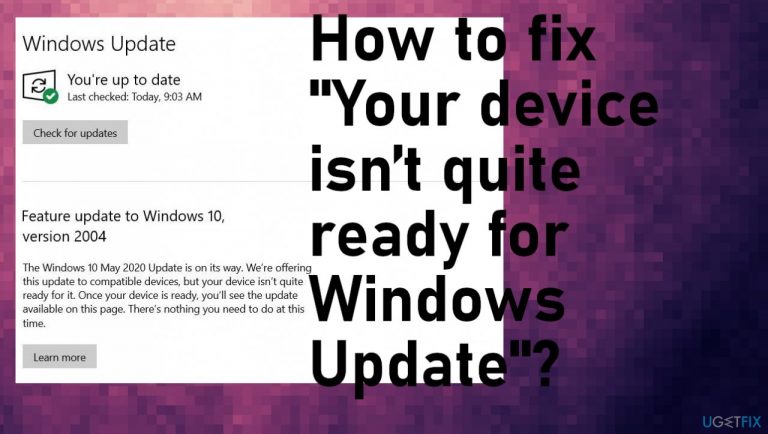
What causes How to fix “Your device isn’t quite ready for Windows Update”?
- Hardware incompatibility
- Software incompatibility
- Missing drivers
- Previous OS version issues
- Compatibility issues with Windows 10 updates
Repairs Windows system files, removes malware, and restores a clean OS state — without reinstalling.
Hello. There is a message by the Windows Update that the system is not ready for the upgrade. I don't know what that means, but I would like to update my OS to the latest version. Is there something I need to do before the update? Is there something wrong with the machine, so I need to fix it? Help.
"Your device isn’t quite ready for Windows Update" issue might be related to hardware or software incompatibility issues, so missing drivers are the reason why you see this status there. Users[ref en-1] encounter this issue with various previous versions of the OS, so the problems common.
Those who search for answers and solutions to fix "Your device isn’t quite ready for Windows Update" state that more commonly, this issue appears when trying to update Windows 10 2004 and gets the error. Windows 10 updates[ref en-2] bring various bug fixes and additional features, so people gladly upgrade their machine to solve other issues.
Windows users suffered from various OS update issues. Microsoft started to show this message on the Update page to indicate users that the update should be postponed due to compatibility issues. There is nothing wrong with your computer, but particular measures should take place.
When the process can't be proceeded due to the error, people get frustrated, and some of them might even panic since these PC issues might indicate malware[ref en-3] infections when people have little to no knowledge on IT issues. "Your device isn’t quite ready for Windows Update" is not related to any intruder or security issues, so you don't need to panic.
The full issue message:
The Windows 10 May 2019 Update is on its way. We’re offering this update to compatible devices, but your device isn’t quite ready for it. Once your device is ready, you’ll see the update available on this page. There’s nothing you need to do at this time.
Plenty of issues similar to this have already been addressed on this site, so we can confirm that it is possible to solve the problem and properly upgrade the operating system. It can be fixed, and you don't need to have a particular knowledge of the computer. Sometimes updates are not compatible with a particular driver or software, so upgrading those pieces can fix "Your device isn’t quite ready for Windows Update".
You can also try to find data on system folders that got affected, using [d1] before any other solutions. But methods below are particularly easy and should help fix this failed Windows Update issue.
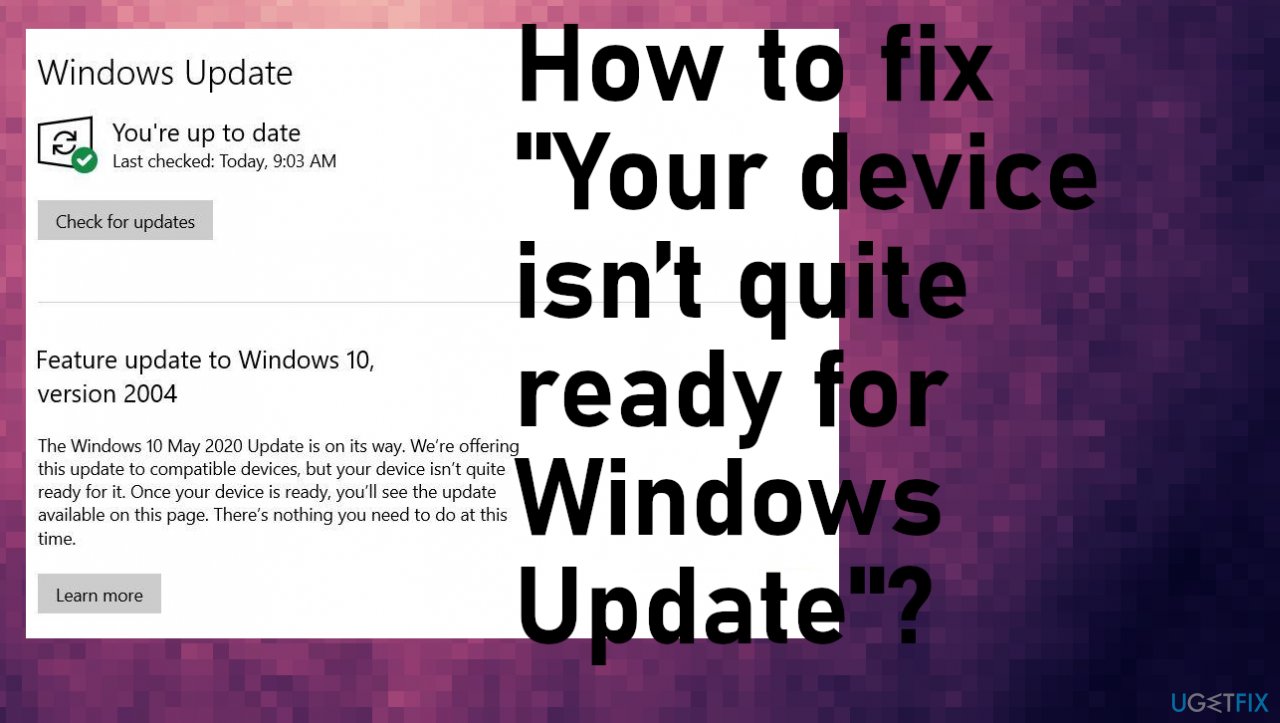
1. Update display drivers to fix "Your device isn’t quite ready for Windows Update"
- Right-click on Start and select Device Manager or search for it.
- Expand the Display adapters section.
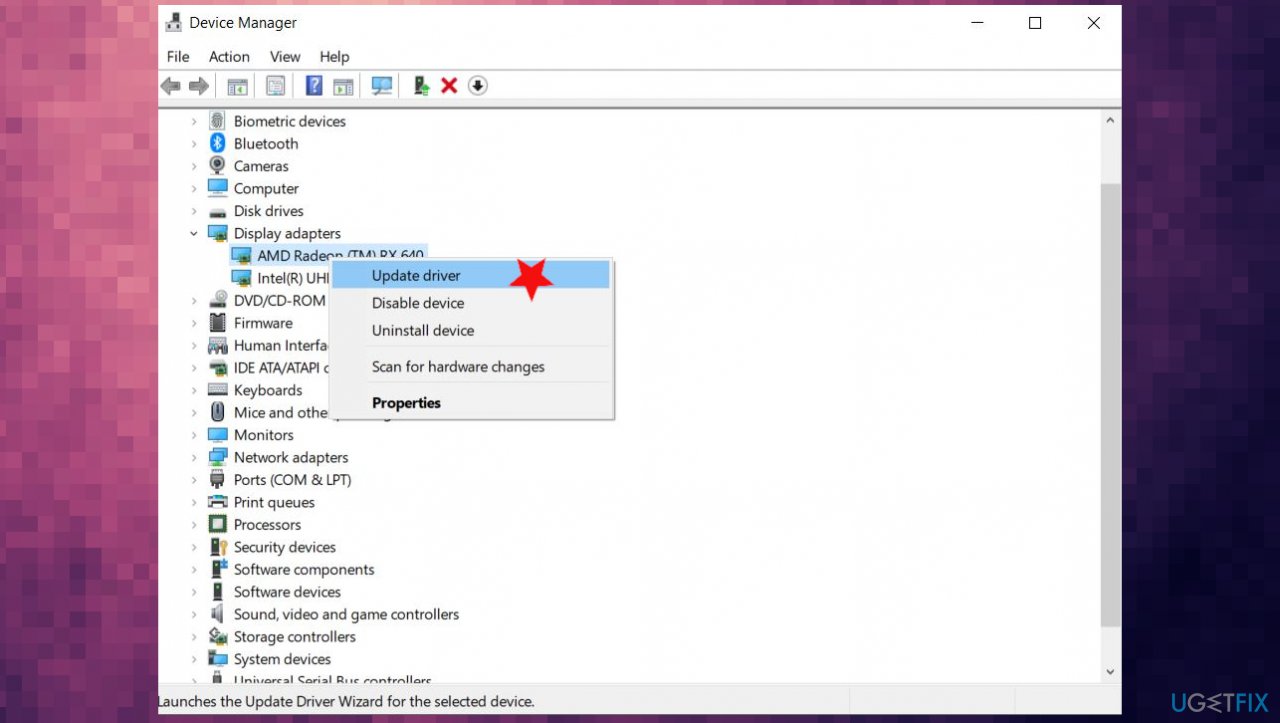
Your device is not ready for update fix drivers - Right-click the driver and select Update Driver.
- Select Search automatically for drivers from the options, so the process is automatic.
Or you can rely on an application like [rev id="DriverFix"] that does this driver maintenance automatically. The program runs the check and finds what parts of the machine need updates and download compatible drivers from the databases while saving you time.
2. Turn off Memory integrity
- Press Start.
- Go to Settings.
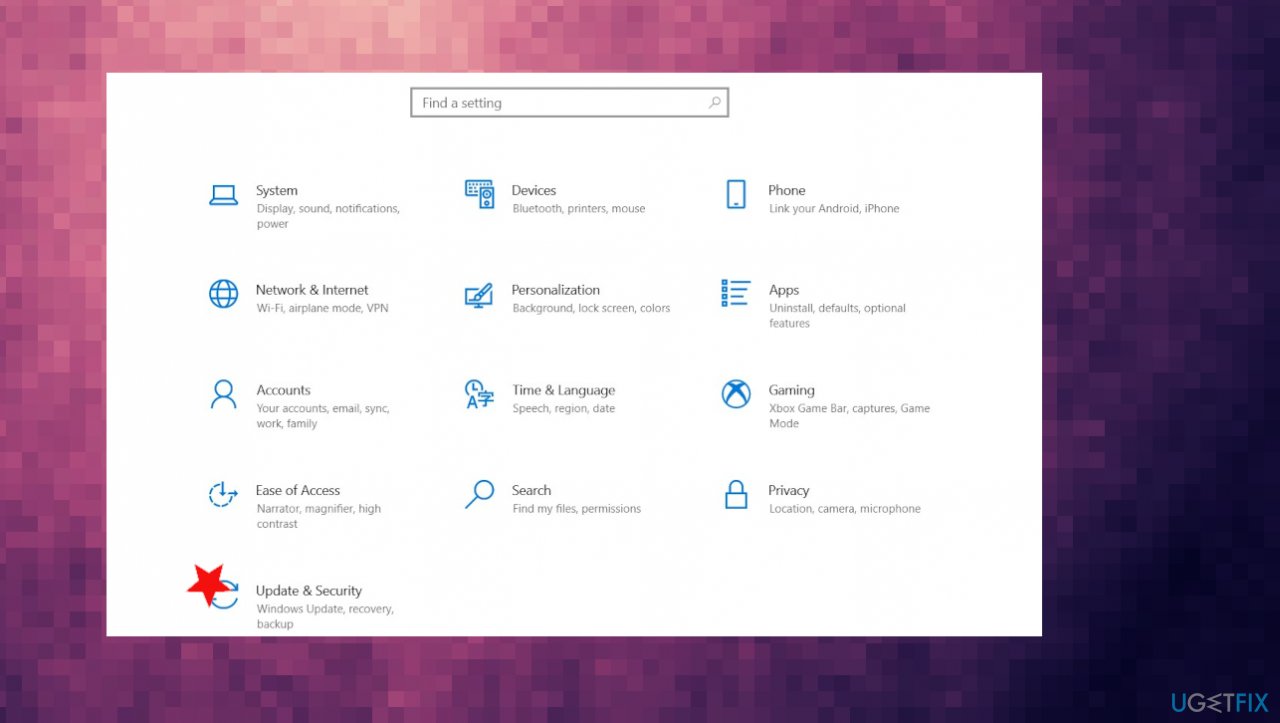
Your device is not ready for update fix update security - Select Update & Security.
- Choose Windows Security.
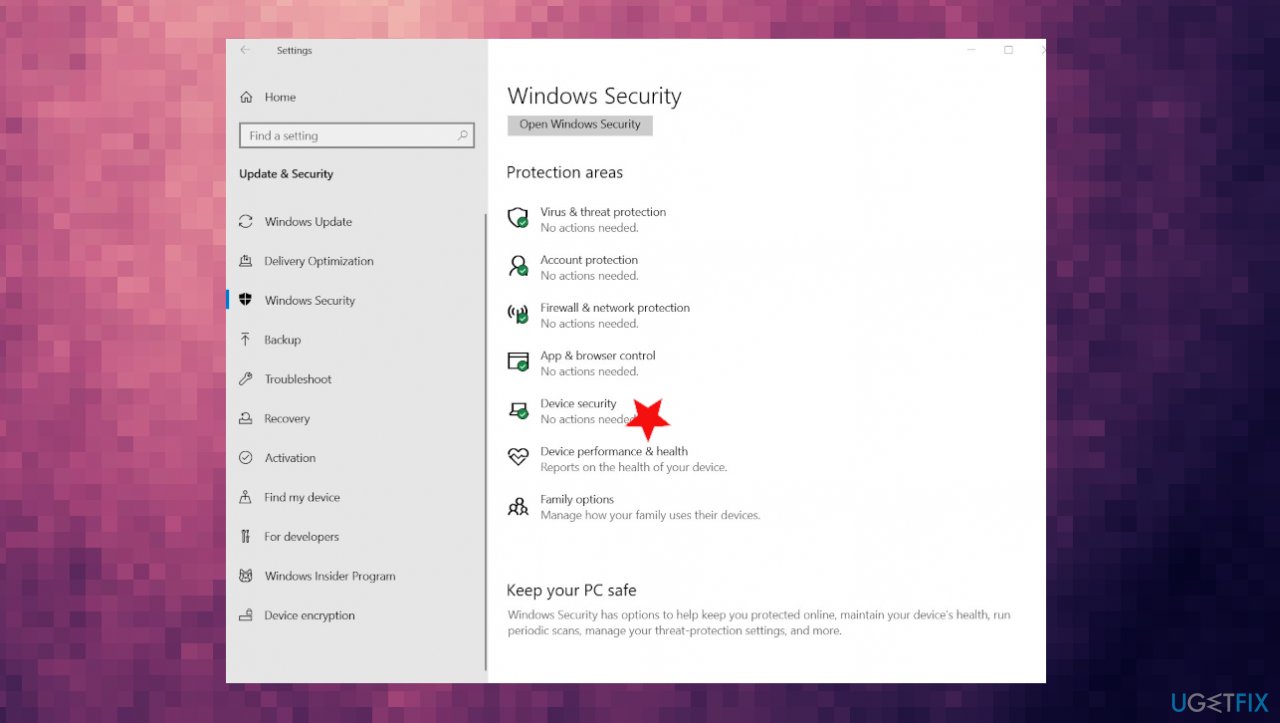
Your device is not ready for update fix device security - Find Device Security.
- Next, click on Core isolation details.
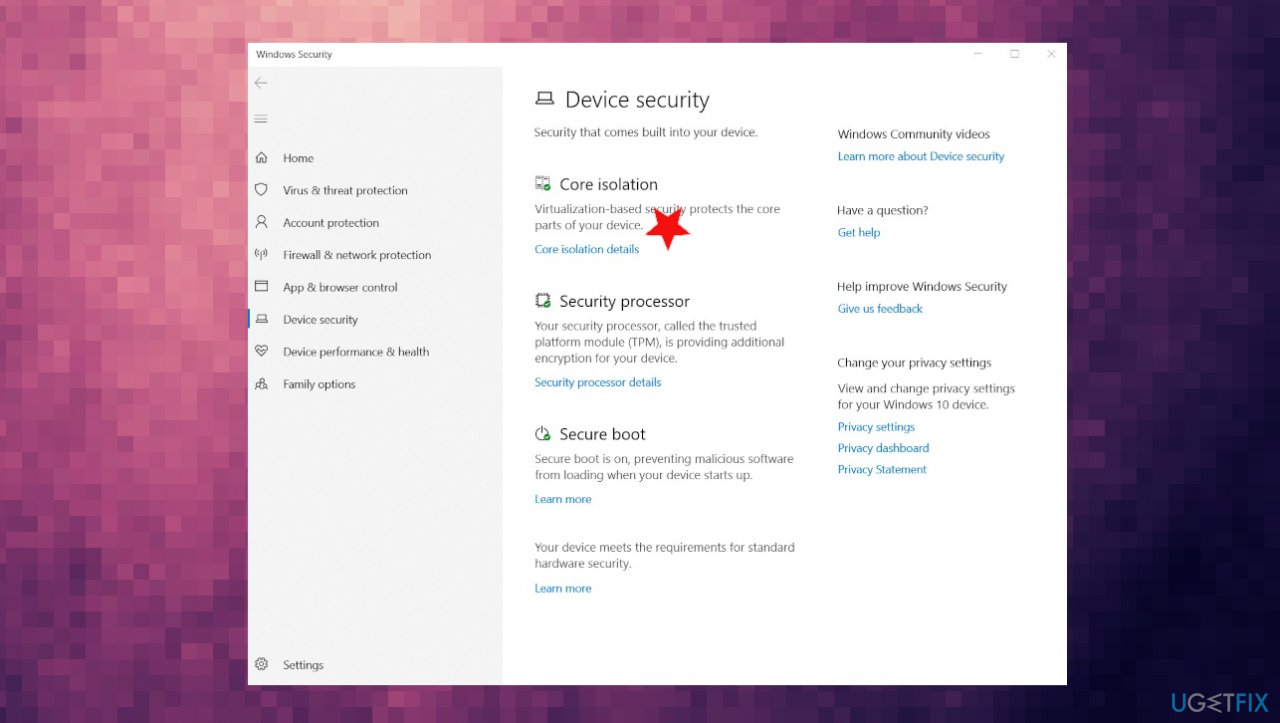
Your device is not ready for update fix core isolation - Turn the Memory Integrity setting to Off.
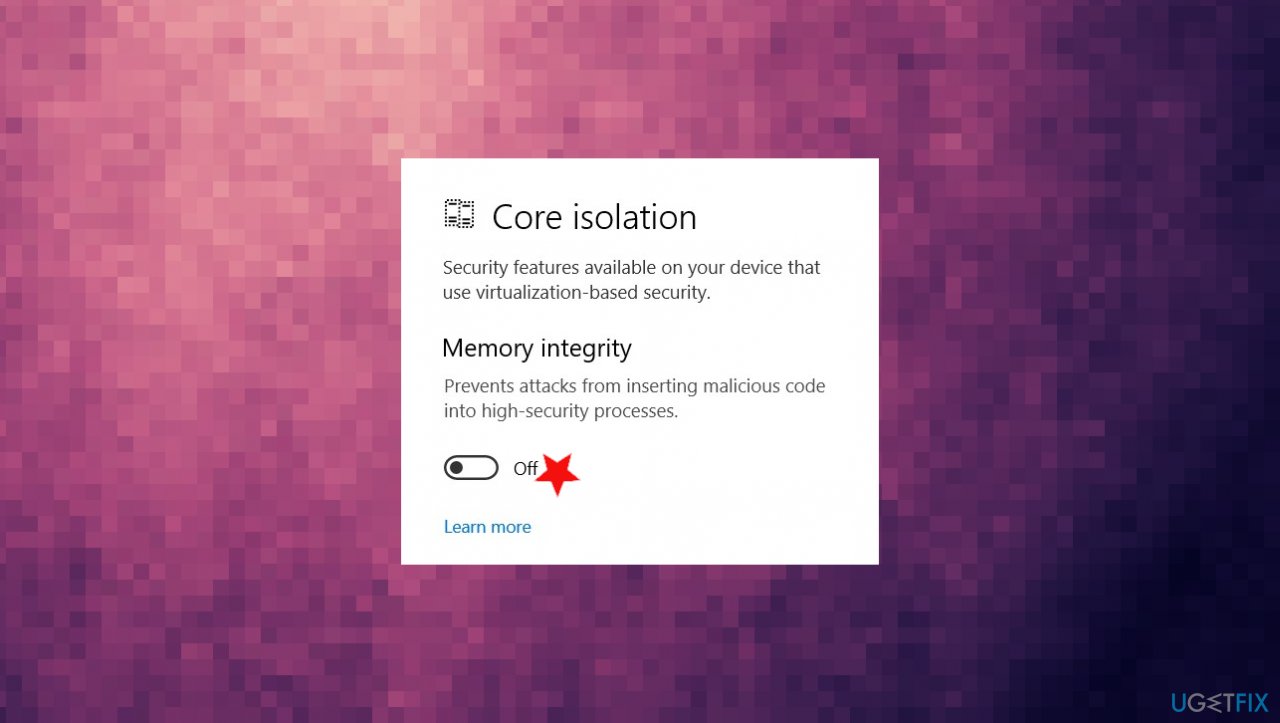
Your device is not ready for update fix off - Reboot the PC.
3. Restore the system
- Hold the power button to turn off your PC and then restart the system.
- Press F8 to boot into Safe Mode.
- Log in to your account if required.
- Once the system boots up, disable your antivirus.
- Click Windows key and type system restore.
- Select Create a restore point, select System Restore, and hit Next.
- Select the latest system restore point and click Next.
4. Reset the PC to fix "Your device isn’t quite ready for Windows Update"
- Go to Settings and then Update & Security section.
- Navigate to Recovery to find and click Get Started from the Reset this PC option.
- Choose the option of what happens with your files.
- Finish the operation by following the wizard.
Bottom line
To resolve the 'Your device isn’t quite ready for Windows Update' issue, ensure all drivers are updated, check for hardware compatibility, and verify that your system meets the requirements for the latest Windows version. If these fixes do not work, consider seeking further assistance or checking for additional solutions online.
Frequently asked questions
First, ensure that your device is connected to the internet and check for pending updates. If the issue persists, run the Windows Update Troubleshooter from Settings to resolve any underlying problems.
Yes, you can try resetting the Windows Update components using Command Prompt or running the System File Checker tool to repair any corrupted system files.
To minimize the chances of encountering this error, regularly check for updates and ensure that your system drivers are up to date.




Report an issue
What's wrong with this guide? We review every report and update or remove content.
Report received — thank you. We'll review and fix it.
You need a free account to submit a report.
Be the first to comment