
How to fix "Your Internet security settings prevented one or more files from being opened"?

Prefer to fix it yourself? The manual steps follow.
- 7methods
- 2 to 20 minutes
- Easy
Applies to Windows 11, Windows 10; File Explorer, Attachment Manager and the security zones in Internet Options
7 methods in this guide
- What the error means
- Why it appears
- Check the file first
- The fixes
- 1. Scan and unblock the file
- 2. Unblock a folder (PowerShell)
- 3. Network share: intranet zone
- 4. Reset the zone setting
- 5. Check the registry value
- 6. Check Group Policy
- 7. Test a new user account
- Still blocked: next steps
- Undo each change
- Keep it from coming back
- FAQ
Hello. When I try to open a specific app, I receive the "Your Internet security settings prevented one or more files from being opened" error on my Windows computer. What should I do?
This Windows Security message, headed "These files can't be opened", means the security zone of the file is set to block programs and other unsafe file types. Either the file is marked as coming from the internet, or it sits on a network share that Windows counts as the Internet zone, or the zone setting itself was changed. Scan the file with Microsoft Defender first, then unblock that one file.
If you trust the file, right-click it and select Scan with Microsoft Defender. Then open Properties, tick Unblock on the General tab and select OK (Fix 1). For a file on a network share, add that one server to the Local intranet zone (Fix 3). If every program is blocked, set Launching applications and unsafe files back to Prompt (recommended) in Internet Options (Fix 4). Never choose Enable there, and leave your antivirus on.
| Error | Windows Security: "These files can't be opened. Your Internet security settings prevented one or more files from being opened." |
|---|---|
| Where it appears | In a small Windows Security dialog, the moment you double-click a program, installer, shortcut or script in File Explorer, on the desktop or on a network drive. The file does not start. |
| Main cause | The security zone of the file has Launching applications and unsafe files set to Disable. Microsoft's default is Disable only for the Restricted sites zone and Prompt for the Internet zone. |
| Fastest fix | Scan the file, then Properties > General > Unblock for that one file (Fix 1). |
| Also written as | "These files can't be opened", "Internet security settings blocked one or more files", "Your Internet settings prevented", and in Spanish "La configuración de seguridad de Internet impidió la apertura de uno o varios archivos". |
| Affects | Windows 11 and Windows 10, every edition. The same dialog and the same zone settings exist in Windows 7. |
| Microsoft's status | Working as designed, not a bug waiting for a patch. It is the Attachment Manager and security zone check. We found no known issue for it on Microsoft's pages. |
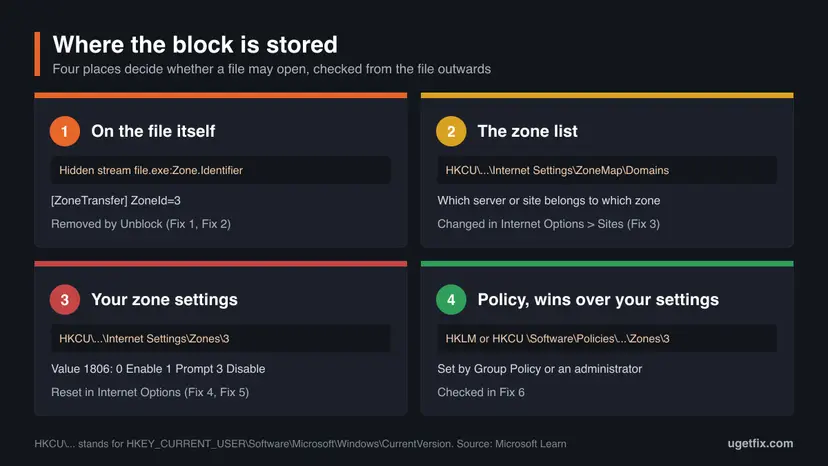
| Setting behind it | Registry value 1806 of the zone: 0 allows, 1 prompts, 3 blocks. For the Internet zone it is stored under ...\Internet Settings\Zones\3. |
| Time to fix | About 2 minutes for one file. Up to 20 minutes when a policy or the registry holds the setting. |
| Where the cause is stored | In the hidden Zone.Identifier stream of the file and in the zone settings of your user account. Windows keeps no log file for this dialog that we could find. |
Facts checked on 13 October 2026. Steps written for Windows 11 (25H2 and 26H2) and Windows 10 22H2.
What "Your Internet security settings prevented one or more files from being opened" means
The dialog is titled Windows Security. Its heading reads "These files can't be opened" and the line under it says "Your Internet security settings prevented one or more files from being opened." It appears right after a double-click, and the program, installer or shortcut never starts.
Despite the wording, your internet connection and your browser have nothing to do with it. Windows sorts every file into a security zone: Local computer, Local intranet, Trusted sites, Internet or Restricted sites. Each zone has a setting named Launching applications and unsafe files with three choices: Enable, Prompt and Disable. When the zone of your file is on Disable, Windows shows this message instead of opening the file.
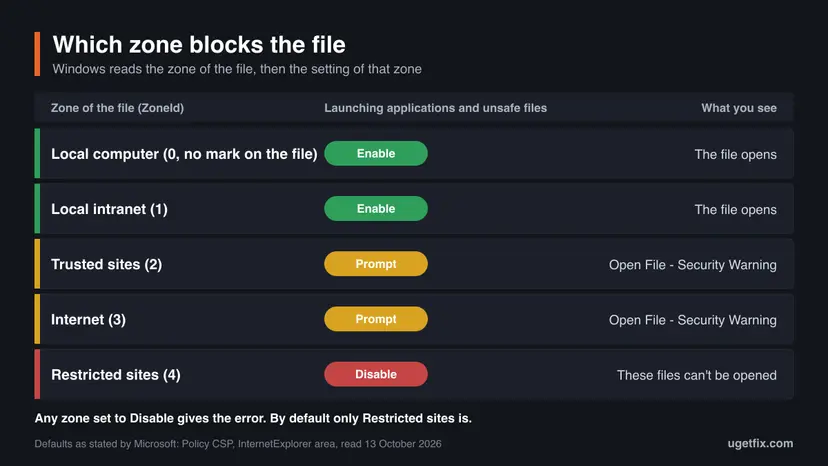
- How Windows knows the zone of a downloaded file: the browser, mail program or messaging app adds a hidden tag to the file, called the Mark of the Web. It is a small text stream named
Zone.Identifierwith a line such asZoneId=3. - How Windows knows the zone of a file on a share: it looks at the address. A share opened by its short name is Local intranet. An address with dots in it, such as an IP address or a full domain name, is treated as Internet.
- What the numbers mean: 0 is Local computer, 1 Local intranet, 2 Trusted sites, 3 Internet, 4 Restricted sites.
- Which files are checked: Microsoft's setting covers "executable files or other potentially unsafe files". Programs, installers and scripts are the usual ones.
With default settings a file from the Internet zone gives the milder Open File - Security Warning with a button to run it anyway. If you get "These files can't be opened" instead, either the file comes from the Restricted sites zone or someone or something set the zone to Disable.
Why Windows blocks the file: the causes, from most to least common
Most often one downloaded file or one extracted folder carries the Mark of the Web and the Internet zone on your PC is stricter than the default. Less often the file lives on a network share that Windows files under Internet. Rarely the setting was changed for every zone, and then every program is blocked.
| Cause | How often | How to tell | Fix |
|---|---|---|---|
| A downloaded file or mail attachment carries the Mark of the Web, and its zone is set to Disable. | Most often | Only files from the Downloads folder or from one ZIP are blocked. Properties shows an Unblock box. | Fix 1, Fix 2 |
| The file is on a network share, NAS or mapped drive addressed by IP address or full domain name. | Often | The same file opens after you copy it to the desktop. No Unblock box in Properties. | Fix 3 |
| Launching applications and unsafe files is on Disable for the Internet zone. | Often | Every freshly downloaded program is blocked, older programs still start. | Fix 4 |
| The zone settings in the registry are damaged or were changed by a tool, including the hidden Local computer zone. | Sometimes | Every program is blocked, even ones installed long ago, and Fix 4 changes nothing. | Fix 5, Fix 7 |
| A Group Policy or an administrator set the zone to Disable. | Sometimes | Work or school PC. The Security tab says some settings are managed by your system administrator. | Fix 6 |
| The site or server you got the file from is in your Restricted sites list. | Rarely | The Zone.Identifier stream of the file shows ZoneId=4. | Fix 1, then Fix 4 |
Microsoft's own description of the policy behind this setting confirms the order. If the setting is disabled for a zone, "these files don't open". When nothing is configured, files are "blocked in the Restricted zone, enabled in the Intranet and Local Computer zones, and set to prompt in the Internet and Trusted zones".
A user on the Windows 11 Forum reported in July 2026 that internet shortcut (.url) files had to be unblocked one by one after that month's cumulative update, and that changing the Internet Options setting no longer helped. We could not confirm this from a Microsoft page. If that matches your case, use Fix 1 or Fix 2.
Before you unblock anything: check where the file came from
The message is a real protection, so spend one minute on the file before you remove it. Microsoft's advice for a blocked download is short: verify where the file came from, scan it with Microsoft Defender Antivirus or your own antivirus, and make sure the file type is what you expected.
- Unblock a file you downloaded yourself from the maker's own website.
- Scan it first: right-click the file and select Scan with Microsoft Defender.
- Check the file name ending. An invoice or a photo should not end in
.exe,.scr,.jsor.bat.
- Do not unblock a file that arrived in an unexpected mail or message.
- Do not set the zone to Enable (not secure) to get one file open.
- Do not turn off your antivirus or SmartScreen for this message. Neither one shows it.
To see which case is yours, read the mark on the file. Right-click Start, select Terminal and run the command below with the path of your own file.
Read the Mark of the Web of one file (PowerShell)
Get-Content "C:\Users\you\Downloads\setup.exe" -Stream Zone.Identifier- ZoneId=3: the file came from the Internet zone. Fix 1 removes the mark. If the mild warning never shows and you get the block, also do Fix 4.
- ZoneId=4: the file came from a site in your Restricted sites list. Think twice. If the site is one you trust, use Fix 1 and take it off the list in Fix 4.
- An error that the stream cannot be found: the file has no mark. The block comes from its location (Fix 3) or from the zone settings (Fix 4 to Fix 7).
How to fix "Your Internet security settings prevented one or more files from being opened"
Fixes 1 and 2 remove the block from the files you trust and change nothing else. Fix 3 is for files on a network share. Fixes 4 to 6 put the zone setting back to Microsoft's default, first in Internet Options, then in the registry and in Group Policy. Fix 7 tests whether the damage is limited to your user account.
| What you see or have | Start with |
|---|---|
| One downloaded program, installer or attachment is blocked, other programs start. | Fix 1 |
| Many files from one ZIP, or a whole game or tool folder you copied from another PC. | Fix 2 |
| The file is on a NAS, a server or a mapped network drive. | Fix 3 |
| Every newly downloaded program is blocked. | Fix 4 |
| Every program is blocked, even Notepad or programs installed long ago. | Fix 5, then Fix 7 |
| Work or school PC, or the settings on the Security tab are greyed out. | Fix 6 |
| Internet Options and the registry look right, but the message stays. | Fix 7 |
Fix 1. Scan the file with Microsoft Defender, then unblock it in Properties
2 minutesLow riskOne file you downloaded or received is blocked and you know where it came from.
The Unblock box removes the Mark of the Web from this one file. Windows then treats it as a local file, and local files are not subject to the Internet zone setting. Nothing else on the PC changes.
- Open File Explorer and find the blocked file. For a shortcut on the desktop, right-click it and select Open file location to get to the real file.
- Right-click the file, select Show more options and then Scan with Microsoft Defender. On Windows 10 the command is in the first right-click menu.
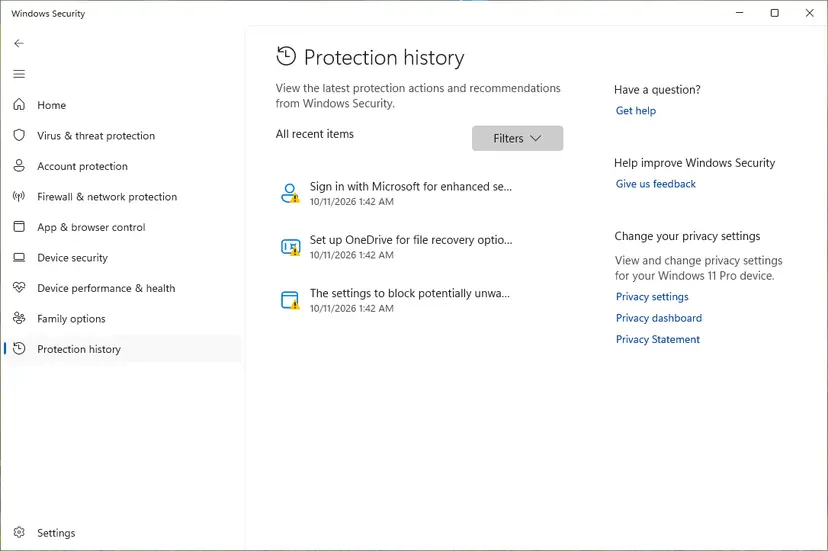
- Wait for the Scan options page of Windows Security to show the result. If a threat is found, stop here and let Defender remove the file.
- Right-click the file again and select Properties.
- On the General tab, look at the bottom for the text "This file came from another computer and might be blocked to help protect this computer."
- Tick Unblock next to that text.
- Select Apply, then OK, and open the file again.
Unblocking tells Windows to stop warning you about this file for good. Do it only for files from a source you trust, and never because a web page or a message asked you to. The scan takes seconds and is described step by step here: How to scan for malware with Microsoft Defender
- No security text and no Unblock box: the file is not marked. Its location or the zone settings cause the block, so go to Fix 3 or Fix 4.
- A ZIP file: unblock the ZIP itself before you extract it. Files extracted with File Explorer inherit the mark from the archive, so extract again after unblocking.
- Undo: download the file again. The new copy is marked.
It worked if: The security text is gone from the General tab and the program starts, at most after the usual User Account Control question.
If not: If many files in one folder are blocked, use Fix 2. If the file had no Unblock box, go to Fix 3 for a network location or to Fix 4.
Fix 2. Unblock a whole folder with the Unblock-File command
5 minutesLow riskA program folder, an extracted archive or a set of scripts holds many marked files.
A program that starts but then fails on its own helper files is often blocked file by file. Microsoft's Unblock-File command does the same as the Unblock box: it removes the Zone.Identifier stream, and it can take a list of files at once.
- Scan the folder first: right-click it, select Show more options and then Scan with Microsoft Defender.
- Right-click Start and select Terminal. On Windows 10 select Windows PowerShell.
- List the marked files with the first command below, with the path of your own folder.
- Check that the list holds only files you expect to be there.
- Remove the mark from one file with the second command, or from every file in the folder with the third.
- Close the window and start the program again.
1. List the files that carry the mark
Get-ChildItem "C:\Users\you\Downloads\tool" -Recurse | Get-Item -Stream "Zone.Identifier" -ErrorAction SilentlyContinue2. Unblock one file
Unblock-File -Path "C:\Users\you\Downloads\tool\setup.exe"3. Unblock every file in the folder
Get-ChildItem "C:\Users\you\Downloads\tool" -Recurse | Unblock-FileMicrosoft's own note on this command: do not run it on a group of files until you have verified that all of them are safe. Point it at one program folder. Never point it at the whole Downloads folder or a whole drive.
The command returns no output. On a file that is not blocked it does nothing and shows no error, so it is safe to repeat.
It worked if: The first command now returns nothing for that folder, and the program and its helper files open.
If not: If the files were never marked, the block comes from the zone settings. Go to Fix 4, or to Fix 3 when the folder is on the network.
Fix 3. Add the trusted file server to the Local intranet zone
5 minutesLow riskThe blocked file is on a NAS, a file server or a mapped drive, and a copy on the desktop opens normally.
Microsoft documents that a share addressed by IP address or by a full domain name is identified as the Internet zone, because the address contains periods. Listing that one server under Local intranet moves its files to a zone where they are allowed by default.
- Select Start, type Internet Options and open it. The window is titled Internet Properties.
- Open the Security tab, select Local intranet and then Sites.
- Check that Include all network paths (UNCs) is ticked, then select Advanced.
- Clear Require server verification (https:) for all sites in this zone. Microsoft says this is needed for network shares.
- In Add this website to the zone, type the address of the server, for example
\\nas01.example.localor*.example.local. - Select Add, then Close or OK in each window.
- Restart the PC and open the file from the share again.
- Shares opened by IP address: Microsoft states that adding an IP address range does not work for UNC paths such as
\\192.168.1.20\share. Open or map the share by the name of the server instead, for example\\nas01\share. - Short names: with Include all network paths (UNCs) ticked, a share opened as
\\nas01\shareis already Local intranet. Mapping the drive again by the short name can be the whole fix.
Programs from a server in the Local intranet zone start without any warning. Add one server you control, never a public website and never a wildcard for a public domain. To undo it, open the same Sites > Advanced list, select the entry and choose Remove.
It worked if: The program on the share starts without the Windows Security dialog, and File Explorer no longer treats the share as an internet location.
If not: If the block also hits files on your own disk, the zone settings themselves are wrong. Go to Fix 4.
Fix 4. Set "Launching applications and unsafe files" back to Prompt in Internet Options
5 minutesNo riskEvery newly downloaded program is blocked, or the file had no Unblock box and is not on a network share.
This is the setting named in the message. Putting the Internet zone back to Prompt (recommended) restores Microsoft's default: Windows asks before it opens a downloaded program instead of refusing it. It raises nothing above the default.
- Select Start, type Internet Options and open it. You can also open Control Panel > Network and Internet > Internet Options.
- Open the Security tab and select the Internet zone, the globe icon.
- Select Custom level....
- Scroll down to Miscellaneous and find Launching applications and unsafe files.
- Select Prompt (recommended) and then OK. Confirm if Windows asks whether you want to change the settings of the zone.
- Back on the Security tab, select Restricted sites and then Sites. Remove an entry only if you added it by mistake.
- Select Apply, then OK, and restart the PC.
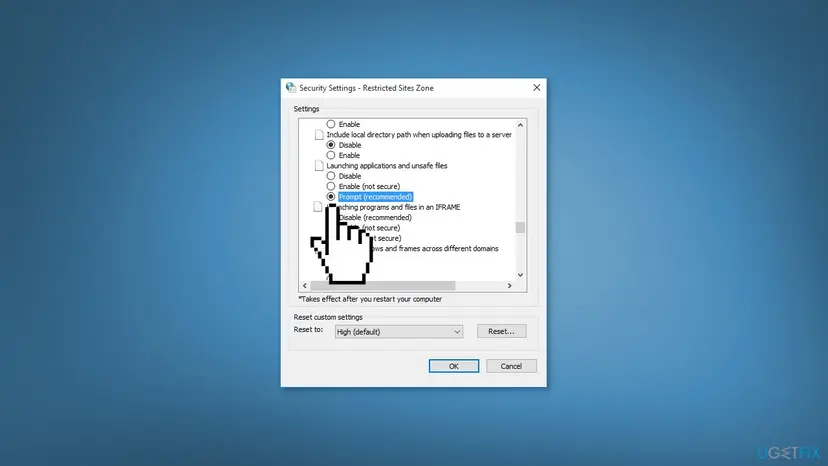
Do not pick Enable (not secure). With it, every downloaded program starts without a question, which is the opening that malicious attachments rely on. Prompt is the default and is enough to make the error go away.
If several settings look wrong, or you do not know what was changed, select Reset all zones to default level on the Security tab instead. It returns the four visible zones to their defaults.
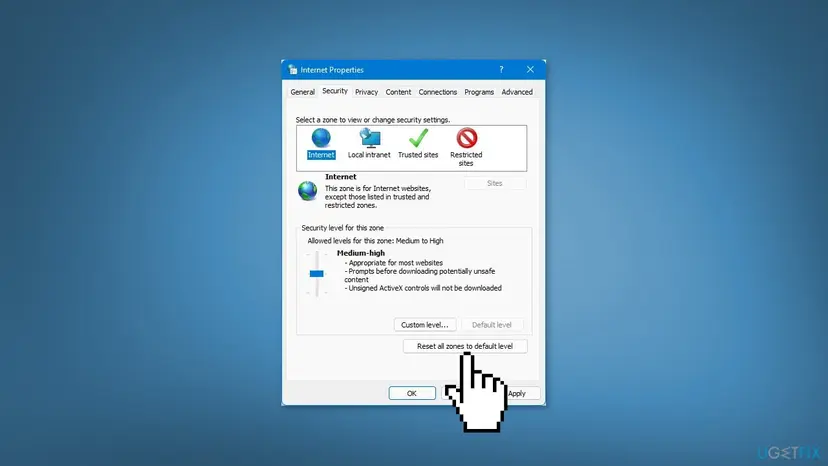
The Run command inetcpl.cpl opens the same window. We know that from answers on Microsoft Q&A, not from a Microsoft help page. A file with ZoneId=4 stays blocked after this fix, because Restricted sites is meant to block: unblock that one file with Fix 1 if you trust it.
It worked if: A downloaded program now opens the Open File - Security Warning with a Run button instead of "These files can't be opened".
If not: If the buttons are greyed out, go to Fix 6. If the setting was already on Prompt, or snaps back after a restart, go to Fix 5.
Fix 5. Check value 1806 of the zones in the registry
10 minutesLow riskEvery program is blocked, Fix 4 showed Prompt already, or the setting returns to Disable after a restart.
Internet Options shows four zones, but the registry holds five. The Local computer zone, number 0, is hidden in the window, and Microsoft's default for it is Enable. If value 1806 there is 3, even programs that were never downloaded are blocked, and no button in Internet Options shows it.
A wrong change in the registry can stop programs or Windows from starting. Export the Zones key before you touch it and change only the values named here. How to make the backup: Back up the registry before editing it
- Press Win + R, type
regedit, press Enter and select Yes. - Paste the first path below into the address bar and press Enter.
- Select File > Export and save the Zones key as a backup file.
- In the right pane, find the value named 1806 and double-click it.
- For zone 3, the Internet zone, type
1and select OK. 1 is Prompt, 0 is Enable and 3 is Disable. - Open the second path. For zone 0, the Local computer zone, value 1806 should be
0. Change it only if it is3. - Look at the two policy paths. If a value 1806 exists there, a policy sets it: go to Fix 6 and do not edit it here.
- Close Registry Editor, restart the PC and try the file again.
Your own zone settings: Internet zone (3) and Local computer zone (0)
HKEY_CURRENT_USER\Software\Microsoft\Windows\CurrentVersion\Internet Settings\Zones\3
HKEY_CURRENT_USER\Software\Microsoft\Windows\CurrentVersion\Internet Settings\Zones\0
Policy settings: look, do not edit
HKEY_CURRENT_USER\Software\Policies\Microsoft\Windows\CurrentVersion\Internet Settings\Zones\3
HKEY_LOCAL_MACHINE\Software\Policies\Microsoft\Windows\CurrentVersion\Internet Settings\Zones\3
If the value Security_HKLM_only is set to 1 under HKEY_LOCAL_MACHINE\Software\Policies\Microsoft\Windows\CurrentVersion\Internet Settings, Windows uses the machine settings for every user instead of yours. Leave that value alone on a managed PC.
It worked if: Value 1806 reads 1 for zone 3 and 0 for zone 0, and programs start again after the restart.
If not: If Registry Editor itself is blocked by the message, sign in with another account (Fix 7). If a policy value exists, continue with Fix 6.
Fix 6. Check the Group Policy settings that can force the block
10 minutesLow riskThe settings on the Security tab are greyed out, a policy value exists in the registry, or the PC belongs to an employer or school.
A policy wins over what you choose in Internet Options. Microsoft's policy Show security warning for potentially unsafe files controls the same setting: set to Disabled, in Microsoft's words, "these files don't open". On your own PC you can set it back to Not Configured.
- Press Win + R, type
gpedit.mscand select OK. This editor exists in the Pro, Enterprise and Education editions only. - Go to User Configuration > Administrative Templates > Windows Components > Internet Explorer > Internet Control Panel > Security Page > Internet Zone.
- Double-click Show security warning for potentially unsafe files.
- Select Not Configured, or select Enabled and choose Prompt in the drop-down box. Then select OK.
- Repeat steps 2 to 4 under Computer Configuration, which holds the same folder.
- Open User Configuration > Administrative Templates > Windows Components > Attachment Manager and set Hide mechanisms to remove zone information to Not Configured. That policy hides the Unblock box.
- Restart the PC.
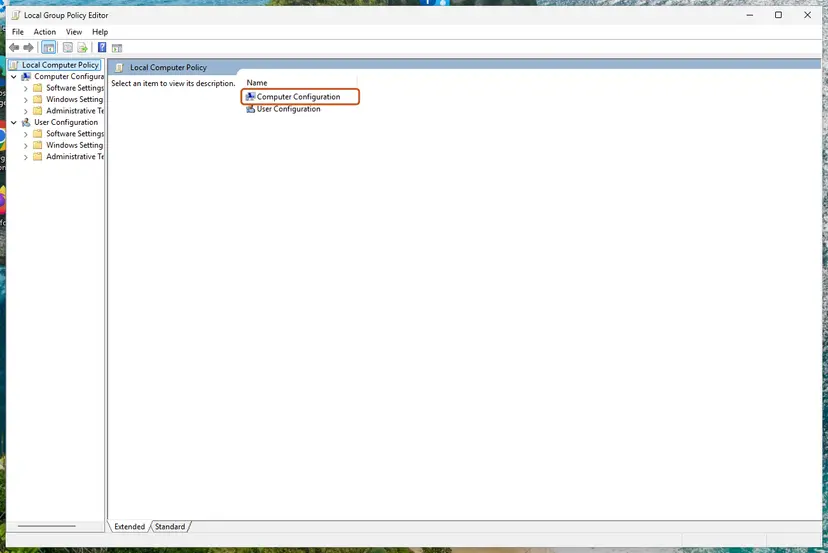
Save a report of every policy that applies to you (Terminal or Command Prompt)
gpresult /h "%USERPROFILE%\Desktop\policy-report.html"- Windows Home: the editor is missing. A policy shows up as value 1806 under the two policy paths of Fix 5.
- Work or school PC: do not change policies yourself. Send the report from
gpresultand the name of the file to the administrator, who can add the server or site to the Site to Zone Assignment List.
How to find and edit a policy, with the screens of the editor: Open the Local Group Policy Editor
It worked if: The policy shows Not Configured, the buttons on the Security tab of Internet Options work again and Fix 4 now holds after a restart.
If not: If no policy was set and the block stays, test another user account with Fix 7.
Fix 7. Test with a new user account
10 minutesNo riskEvery program is blocked in your account, including Registry Editor, or the fixes above did not hold.
Microsoft stores the zone settings in the part of the registry that is loaded per user, so one user's settings do not affect another's. A new account starts with the default zones. If files open there, the fault is in your profile, not in Windows.
- Open Other users. Open Settings > Accounts > Other users. You can also press Windows key + R and run the command below.
ms-settings:otherusers - Add an account. Next to Add other user, select Add account.
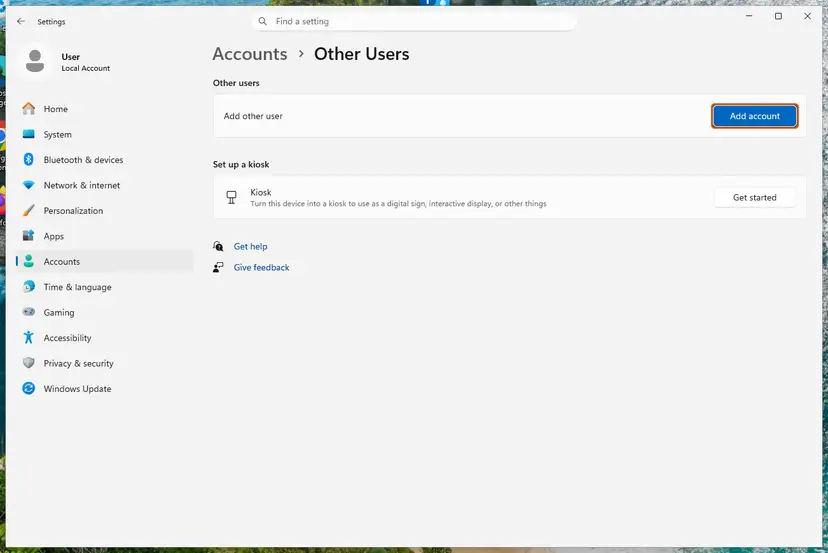
Add account is next to Add other user. Screenshot: Windows 11 26H2. - Skip the Microsoft account. Select I don't have this person's sign-in information.
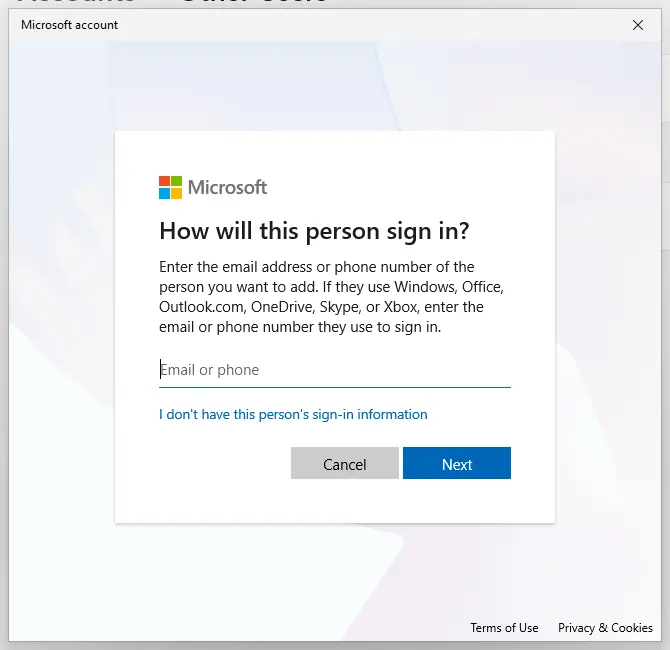
The link for a local account is under the email box. Screenshot: Windows 11 26H2. - Choose a local account. Select Add a user without a Microsoft account.
- Name the account. Type a user name and, if you want one, a password. If you set a password, Windows also asks for answers to security questions. Select Next.
- Make it an administrator (optional). Back in Other users, select the new account, then Change account type next to Account options. Choose Administrator and select OK. For testing a problem, a standard account is usually enough.
- Sign in to the new account. Open Start, select your account picture and choose the new account. The first sign-in takes a few minutes while Windows sets up the profile.
These steps were written for Windows 11 24H2, 25H2 and 26H2. The full page with the other versions and what each result means: Create a new user account to test a problem
- The file opens in the new account: your own profile holds the bad zone settings. Sign back in to your account and repeat Fix 5. If Registry Editor is blocked there, move your files to the new account and keep using it.
- The file is blocked there too: the setting applies to the whole PC. That points to a policy (Fix 6) or to the
Security_HKLM_onlyvalue named in Fix 5.
It worked if: In the new account the program starts, or shows only the normal Open File - Security Warning.
If not: If every account is affected and no policy is set, read the section below on what to try when the error is still there.
If the files still cannot be opened
Windows writes no log for this dialog that we could find, and Microsoft's pages name no Event Viewer entry for it. The cause is still readable, because it sits in three places you can look at. Collect them before you ask anyone for help.
- The mark on the file: run the
Get-Contentcommand from the section on checking the file and note theZoneIdline, or the error that no stream exists. - The full path of the file, including the server name or drive letter. It shows whether the file is local or on a share.
- Value 1806 under
Zones\0andZones\3from Fix 5, and whether the same value exists under the policy paths. - The policy report from
gpresultin Fix 6. - Whether a second user account shows the same message (Fix 7).
- Work or school PC: give these five things to the administrator. The zone is almost always set on purpose there, and only the administrator can add your server or program to the allowed list.
- The setting keeps coming back on your own PC: something on the PC rewrites it. Run a full scan with Microsoft Defender, then look at recently installed tuning, privacy or security tools. Steps for the scan: How to scan for malware with Microsoft Defender
- Nothing can be started at all: System Restore can return the registry to a day before the problem began. We did not test it on this error. Steps: Undo recent changes with System Restore
- The message appears at sign-in, with no file opened by you: a startup entry points to a marked or blocked file. The dialog lists the file. Find that file and decide with Fix 1 whether it should run at all.
This is never a hardware fault, a failing disk or a licence limit. The one thing outside your control is a policy set by an organisation.
How to undo each change from this guide
Every fix above is narrow on purpose, and each one can be taken back. Keep this table if you changed something on a shared or family PC and want to return to the earlier state.
| Change | What it allowed | How to undo it |
|---|---|---|
| Unblock on one file (Fix 1, Fix 2) | That file opens without a warning. | Delete the file and download it again. The new copy is marked. |
| Server added to Local intranet (Fix 3) | Programs from that server start without a warning. | Internet Options > Security > Local intranet > Sites > Advanced, select the entry, Remove. |
| Internet zone set to Prompt (Fix 4) | Microsoft's default. Windows asks before it opens a downloaded program. | Nothing to undo. Default level or Reset all zones to default level gives the same state. |
| Value 1806 edited (Fix 5) | The zone follows the value you typed. | Double-click the .reg backup you exported and confirm. |
| Policy set to Not Configured (Fix 6) | Your own choice in Internet Options counts again. | Open the policy again and choose the earlier state. |
| Test account (Fix 7) | Nothing. | Settings > Accounts > Other users, select the account, Remove. |
How to keep the message from coming back
- Download programs from the maker's own site, so that unblocking is a decision you can stand behind.
- Unblock a ZIP file before you extract it, not each extracted file afterwards.
- Open network shares by the name of the server, and list your own file server once in the Local intranet zone.
- Leave the Internet zone on its default level. Default level on the Security tab shows whether it still is.
- Do not run "tweak" or "hardening" scripts that set zone values without telling you which ones.
- Do not copy registry files for this error from forums. Many of them set value 1806 to 0, which removes the warning for every download.
- Do not enable the policy Do not preserve zone information in file attachments. Microsoft warns that without the zone information Windows cannot make proper risk assessments.
Windows 10 left support on 14 October 2025. The zone check works there as on Windows 11, but the system no longer gets security fixes, so the warning before a download opens matters more there, not less.
Frequently asked questions
What does "Your Internet security settings prevented one or more files from being opened" mean?
It means Windows refused to start a program or another risky file type because of the security zone the file belongs to. Each zone has a setting named Launching applications and unsafe files. On Prompt, Windows asks before opening. On Disable, it shows this Windows Security dialog with the heading "These files can't be opened" and nothing starts. By default only the Restricted sites zone is on Disable, so the message usually means a setting was changed.
Is it safe to unblock a file that Windows blocked?
It is safe when you know where the file came from and a scan finds nothing. Microsoft's own advice is to verify the source, scan the file with Microsoft Defender Antivirus or your antivirus, and check that the file type is what you expected. A setup file from the maker's site passes that test. An attachment you did not expect does not, even when the sender looks familiar.
Why is there no Unblock checkbox in the file's Properties?
Because the file carries no Mark of the Web, or because a policy hides the box. The mark is stored only on NTFS drives, so files from a FAT32 stick, and files that were never downloaded, have none. In that case the block comes from where the file is, for example a network share, or from the zone settings, and Fix 3 or Fix 4 applies. On managed PCs the policy Hide mechanisms to remove zone information removes the box on purpose (Fix 6).
Why do I get the error only for files on a network drive or NAS?
Because Windows decides the zone of a network file from its address. Microsoft documents that a share reached by IP address or by a full domain name is identified as the Internet zone, since the address contains periods. If your Internet zone is strict, programs on that share are blocked while the same file copied to your desktop opens. Open the share by the short name of the server, or add that one server to the Local intranet zone (Fix 3).
Should I turn off SmartScreen or my antivirus to get rid of the message?
No. Neither of them shows this message, so turning them off does not help and leaves the PC less protected. The dialog comes from the security zone check of Windows, and the two things that decide it are the mark on the file and the zone setting. Keep both on, scan the file with Microsoft Defender, and then use Fix 1 or Fix 4.
Where are the Internet security settings in Windows 11 and Windows 10?
They are in Internet Options, on the Security tab. Select Start, type Internet Options and open it, or go through Control Panel. The window is titled Internet Properties. The Security tab shows four zones: Internet, Local intranet, Trusted sites and Restricted sites. Custom level opens the full list of settings for the selected zone, and Launching applications and unsafe files is in the Miscellaneous group. They were made for Internet Explorer, but Windows still uses them for files.
Does this also apply to Windows 7 Internet security settings?
Yes, the mechanism is the same. Windows 7 has the same Internet Options window, the same four zones and the same setting, and reports of this exact message on Windows 7 go back to 2011. The Unblock box, the Local intranet zone and the Custom level list work there too. There is no Terminal app, so use Windows PowerShell for Fix 2. Windows 7 has had no security updates since January 2020, so take the warning before a download opens seriously.
The message is in Spanish ("La configuración de seguridad de Internet impidió la apertura de uno o varios archivos"). Is it the same error?
Yes. It is the same Windows Security dialog in a Spanish edition of Windows, and the cause and the fixes are identical. This page uses the English names of windows and buttons. In another language the buttons are in the same places: the unblock box at the bottom of the first tab of the file's Properties, and the security tab second from the left in Internet Options. Registry paths, value 1806 and the PowerShell commands are the same in every language.
Why does every program show the message, even Notepad or Command Prompt?
Because the block is no longer about downloaded files. When programs that were installed long ago are refused, the setting has most likely been changed for the hidden Local computer zone, number 0, or for all zones by a policy. Internet Options does not show that zone, so the place to look is value 1806 in the registry, as in Fix 5. If Registry Editor is blocked too, sign in with a second account (Fix 7), because zone settings are stored per user.
I searched for "internet security error". Is this page about my antivirus?
Probably not. This page explains one Windows dialog, the one that says your Internet security settings prevented files from being opened. It is produced by Windows itself, and no antivirus product is involved. If a program with Internet Security in its name shows its own error, for example about an expired licence or a failed update, that is a matter for the maker of that product. Do not remove your security program because of this Windows message.
Sources
- Microsoft Support: Information about the Attachment Manager in Microsoft Windows (KB 883260) (support.microsoft.com)
- Microsoft Learn: InternetExplorer Policy CSP (Show security warning for potentially unsafe files, Site to Zone Assignment List, Intranet Sites policies) (learn.microsoft.com)
- Microsoft Learn: Internet Explorer security zones registry entries for advanced users (KB 182569) (learn.microsoft.com)
Did this fix work?
One click, no account. It tells the next reader which guides are worth their time.
Questions and experiences: fix "Your Internet security settings prevented one or more files from being opened"
Still broken, or found a fix we did not cover? Ask here: members and our editors answer. Reading is open; writing needs a free account.
…