How to fix
“Your OneDrive folder can’t be created in the location you selected”
on Windows
Resolve the "Your OneDrive folder can't be created" issue on Windows 10 with our easy solutions. Expert-tested fixes for seamless cloud access!


What causes How to Fix “Your OneDrive folder can’t be created in the location you selected” on Windows 10?
- Drive is formatted using FAT32
- Drive is formatted using exFAT
- Drive is formatted using ReFS
- Drive is not formatted with NTFS
- Location selected is unsupported for OneDrive
Repairs Windows system files, removes malware, and restores a clean OS state — without reinstalling.
When I attempt to install OneDrive on my Windows 8, I receive an error during the install - "Your OneDrive folder can't be created in the location you selected." I tried to save it to the other drive, created a new profile, but neither of these solutions helped. Anybody have any ideas?
OneDrive is a cloud storage application released by Microsoft and pre-installed into Windows 10 by default. Millions of people are using OneDrive services, including but not limited to file uploading, storing, and transmission. Unfortunately, the app triggers issues on Windows OS quite frequently. To name a few, we would mention the high CPU usage by OneDriveSetup.exe, “Connecting to d.docs.live.net” when opening Microsoft Office files or irritating “Set Up OneDrive” pop-up.
Lately, many threads on Microsoft forums have been created regarding the “Your OneDrive folder can’t be created in the location you selected” error. This error message is typically followed by another one alert, saying:
The location you were trying to create OneDrive folder belongs to drive with an unsupported file system. To have OneDrive use a different location, click Set up OneDrive and point OneDrive to an NTFS drive. To use the existing location with OneDrive, you need to format it with NTFS and then click Set up OneDrive to continue your account.
The culprit of the “Your OneDrive folder can’t be created in the location you selected” error is the format of a drive on which you want to save the OneDrive folder. Currently, the drive has to be formatted using NTFS file system to store OneDrive folder. If yours is formatted using FAT32, exFAT, or ReFS file system, OneDrive prevents the user from saving OneDrive folder in a other than NTFS formatted drive.
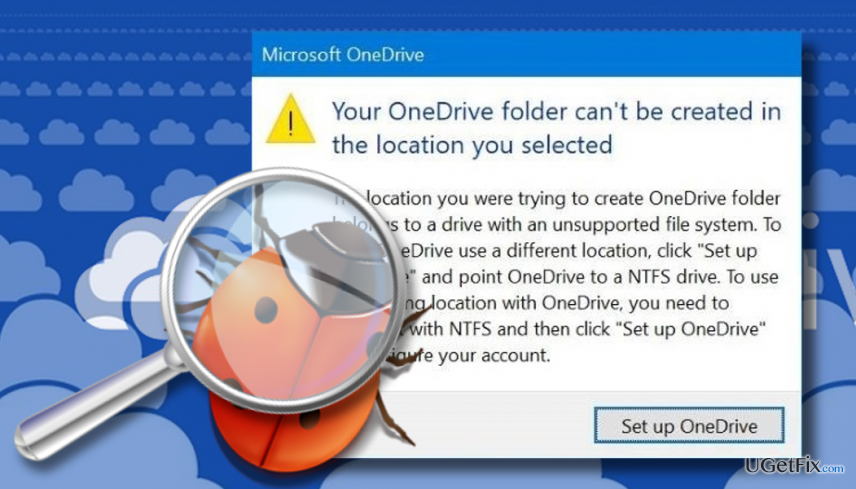
Fixing “Your OneDrive folder can’t be created in the location you selected” error
OneDrive folder is stored in C:\\Users\\YourUserName by default. If you cannot save the OneDrive in a particular drive, you should shift the folder of One Drive to the drive, which is formatted using the NTFS file system.
- When the “Your OneDrive folder can’t be created in the location you selected” error shows up, click Set up OneDrive button.
- If you are currently not seeing the alert, you can double-click on the OneDrive icon located in the notification area.
- Enter your Microsoft account email address and click Sign-In.
- Type your account password and click Sign-In.
- Now click Change location link and select the drive, which is formatted using NTFS file system.
- Finally, follow the on-screen instructions to set up OneDrive completely.
IMPORTANT: If you don’t know which drive is formatted with NTFS, navigate to This PC and right-click on the drive icon. Select Properties and check the on the General tab.
If, unfortunately, you don’t have a drive formatted with NTFS, the solution to fix “Your OneDrive folder can’t be created in the location you selected” error is to format the drive with NTFS file system and reinstall Windows 10. Be careful and create backups of the files stored on your PC because all data will be removed after Windows 10 reinstall.
Bottom line
To fix the error, ensure that the drive where you want to create the OneDrive folder is formatted with the NTFS file system. You can either point OneDrive to an NTFS drive or format the existing drive to NTFS. If these solutions do not work, consider seeking further assistance on Microsoft forums.
Frequently asked questions
First, ensure that the location you selected for OneDrive has the correct permissions and is not restricted. If the issue persists, try resetting OneDrive by running the command 'onedrive.exe /reset' in the Run dialog.
To change the OneDrive folder location, right-click the OneDrive cloud icon in the taskbar, select 'Settings', go to the 'Account' tab, and click 'Unlink this PC'. Then, set up OneDrive again and choose a different folder location.
Yes, you can run the OneDrive troubleshooter by going to Settings > Update & Security > Troubleshoot > Additional troubleshooters and selecting 'Windows Store Apps'. This can help resolve issues related to OneDrive on Windows 11.




Report an issue
What's wrong with this guide? We review every report and update or remove content.
Report received — thank you. We'll review and fix it.
You need a free account to submit a report.
Be the first to comment