How to fix
“Your organization has disabled the ability to change some options” error in Firefox
on Windows
Resolve the "Your organization has disabled the ability to change some options" error in Firefox on Windows 10 and 11 effortlessly. Expert-tested soluti…


What causes How to fix “Your organization has disabled the ability to change some options” error in Firefox?
- Altered group policy settings
- Interference from third-party applications
- Registry key alterations
- User account not belonging to an organization
- Limitations set by software configurations
Repairs Windows system files, removes malware, and restores a clean OS state — without reinstalling.
Hello, I have noticed the "Your organization has disabled the ability to change some options" message in Firefox options after having some problems with downloading some files or accessing certain websites. I have no clue where this is coming from, but I do not belong to any organization - it is my personal Windows computer and Microsoft account.
"Your organization has disabled the ability to change some options" is a short message that some Mozilla Firefox users might encounter after they can't access certain features when using the browser. For example, some people reported that they were attempting to download a file or paste a simple text into the search field, which ultimately failed.
The "Your organization has disabled the ability to change some options" error message in Firefox is often intended to be used by company administrators to prevent workers from accessing certain features on work computers - these settings may include web browser preferences, firewall configurations, and other security and privacy features, and are very useful.
However, there have been multiple reports that regular computer users with their personal devices were receiving this message, along with some limitations when using the Firefox browser. Similarly to the "Some settings are managed by your organization" message, this case is also related to altered group policy settings, usually caused by a third-party application or a service.
Users reported that they were able to fix the "Your organization has disabled the ability to change some options" error by disabling certain software that could be related to the problem. Altering Firefox-related registry keys could also solve the situation for some. Below you will find several solutions with detailed step-by-step instructions you should follow if you want to get rid of issues on your browser once and for all.
We also recommend using a powerful PC repair tool [d1] in case you suffer from various computer issues on Windows, including Windows update errors, registry corruption, BSODs, and more. The app can also remove various junk and privacy-related files to ensure your privacy and make your computer faster.
Fix 1. Check your anti-virus
Microsoft provides a comprehensive security tool known as Microsoft Defender, which is built-in and completely free as long as you possess a valid Windows license. Not only does Defender provides comprehensive security from all types of threats, such as ransomware, but it also does not create software conflicts that could result in various issues, including the "Your organization has disabled the ability to change some options" error in Firefox.
If you are OK with uninstalling your third-party security software and using Defender instead, try doing so and see if that helps to resolve the situation. Alternatively, you could change additional security settings within AV software that could interfere with Firefox's security protocols. You can find more detailed instructions on the Firefox support page.
Fix 2. Tweak the Registry
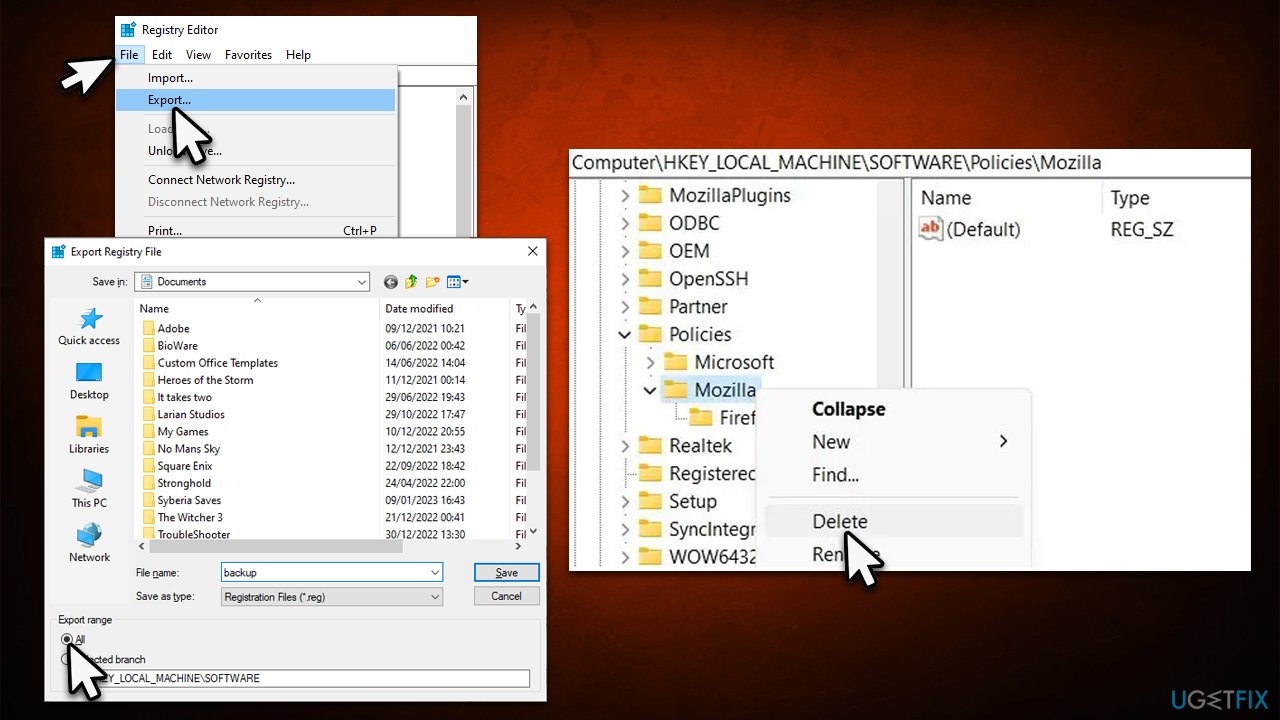
Before proceeding with any modifications to the Registry, we recommend you back it up first. To do so, follow these steps:
- Type regedit in Windows search and press Enter.
- User Account Control (UAC) will ask whether you want to make changes - click Yes.
- When Registry Editor opens, click File > Export.
- Under Export range, pick All.
- Name it and save it to the location of your preference.
Ince the registry is saved, proceed with the following:
- Open Registry Editor, as explained above.
- Navigate to the following location:
Computer\HKEY_LOCAL_MACHINE\SOFTWARE\Policies\Mozilla\Firefox - Right-click on the Firefox key and pick Delete.
- Right-click the Mozilla key and select Delete again.
- Close down the Registry Editor.
- Restart your PC and see if the error is gone from Firefox.
Fix 3. Try Clean Boot
- Press Win + R, type msconfig, then press Enter.
- Select the Services tab and tick the Hide all Microsoft services checkbox.
- Pick Disable all.
- Go to the Startup tab and click Open Task Manager.
- Here, right-click on each of the non-Windows entries and select Disable.
- Close down the Task Manager.
- Go to the Boot tab and tick the Safe boot option
- Restart your device.
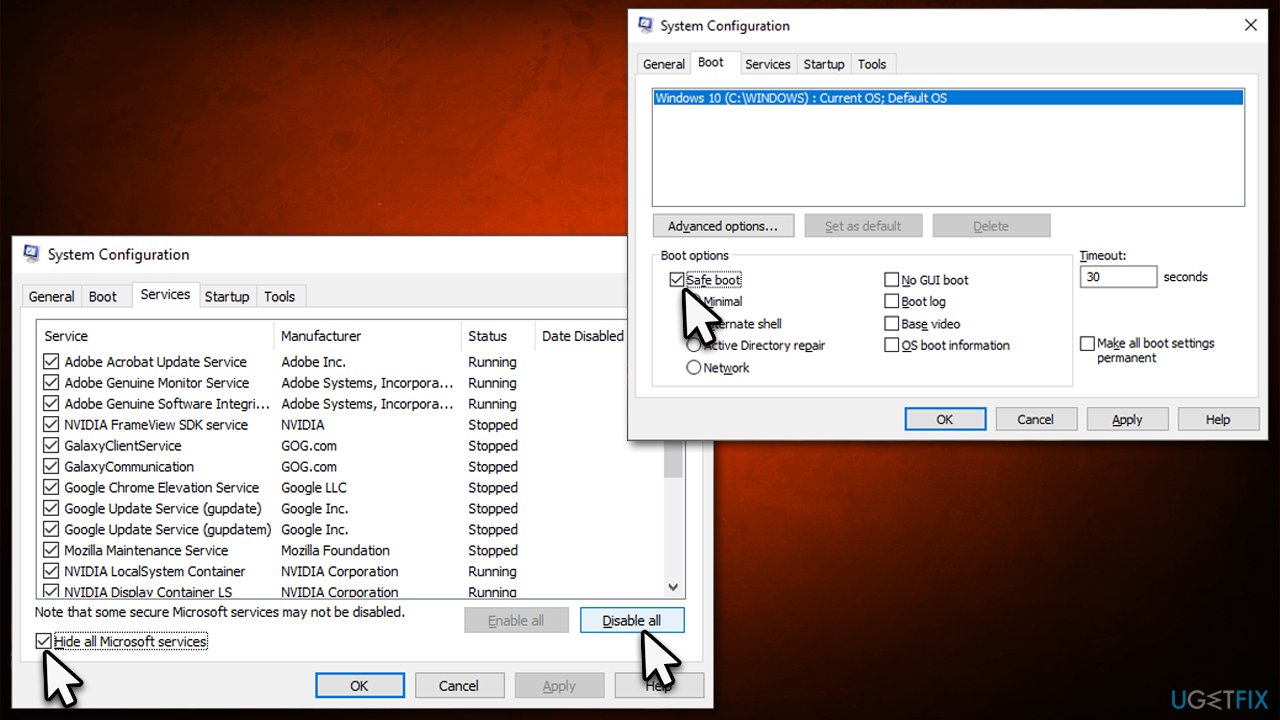
To identify the app causing Firefox issues, boot into Clean Boot Environment and begin systematically turning items on/off. This process may be slow if done one at a time, so to reduce this diagnostic time, try marking half of the programs and repeating until you locate the source of trouble. With this method, you can quickly remove any offending program that is leading to your problem.
Fix 4. Clear browser caches and uninstall browser extensions
If you couldn't identify which app is causing issues in Clean Boot, you could simply remove extensions and clear cached files from the browser and see if that fixes the "Your organization has disabled the ability to change some options" error.
- Open the Firefox browser and click Application menu at the top-right corner of the window.
- Select Add-ons and themes.
- Pick Extensions on the left.
- Here, remove everything suspicious or simply get rid of all extensions.
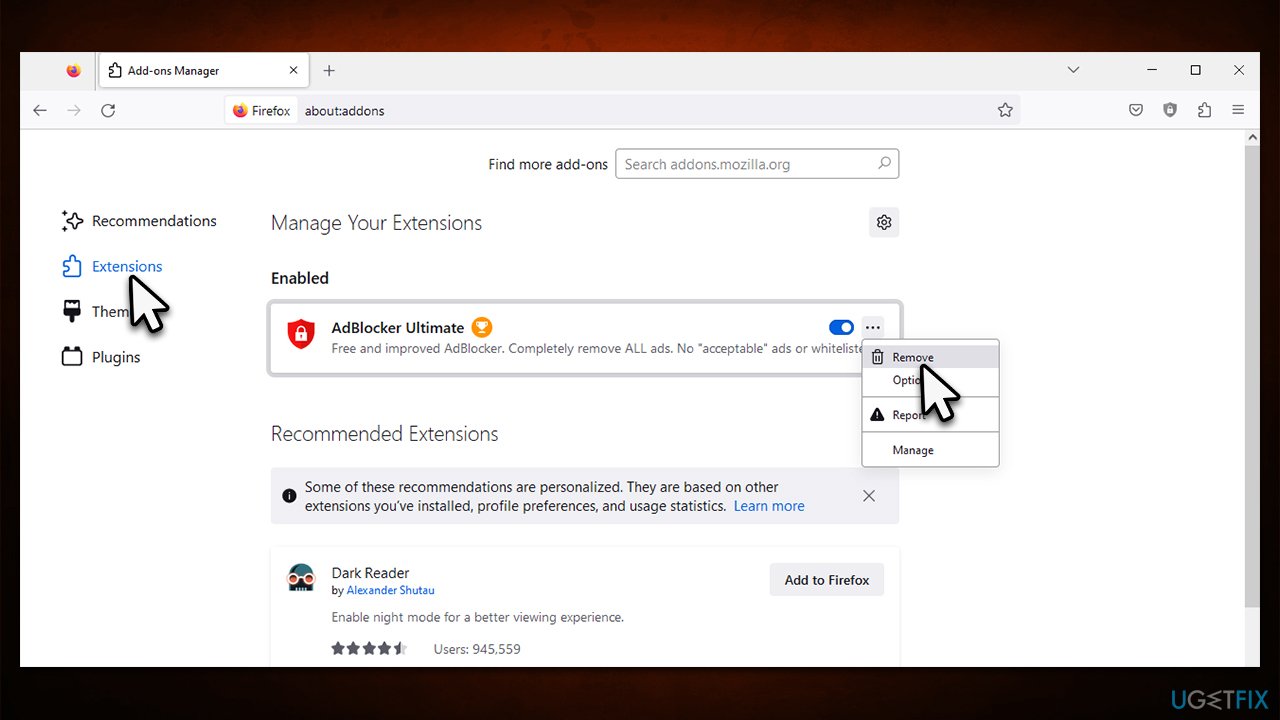
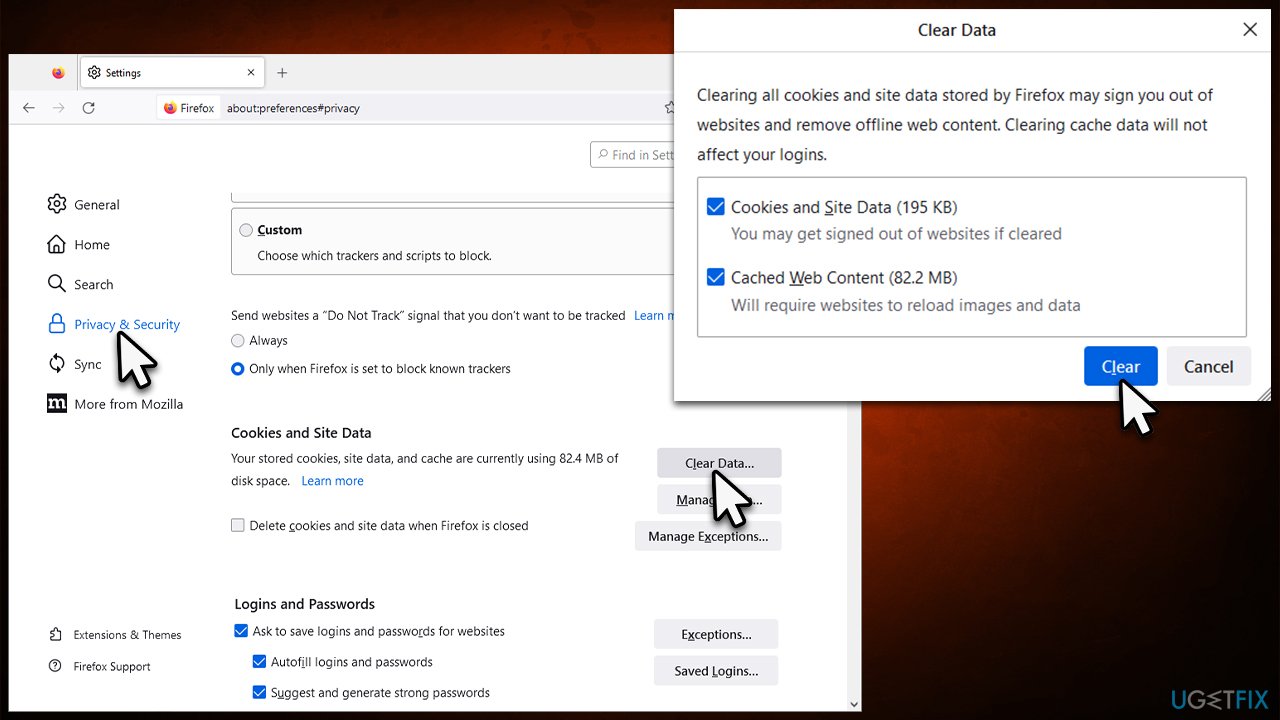
Once the apps are gone, clear the caches of the browser:
- Open the Firefox browser and click Application menu > Settings.
- Select Privacy & Security on the left.
- Scroll down to find Cookies and Site Data section.
- Click Clear Data.
- Select Cookies and Site Data and Cached Web Content and click Clear.
Bottom line
To fix the "Your organization has disabled the ability to change some options" error, you can disable certain software that may be causing the issue or alter Firefox-related registry keys. If these solutions do not resolve the problem, consider using a powerful PC repair tool to address underlying Windows issues.
Frequently asked questions
This error indicates that certain settings in Firefox have been restricted by group policies or administrative controls set on Windows 10, often in organizational or enterprise environments.
You can resolve this by modifying the Windows Group Policy settings or the Windows Registry to enable changes in Firefox, but be cautious and ensure you have administrative rights.
Reinstalling Firefox may not resolve the error if the underlying group policy settings are still in place; you will need to address those settings directly.




Report an issue
What's wrong with this guide? We review every report and update or remove content.
Report received — thank you. We'll review and fix it.
You need a free account to submit a report.
Be the first to comment