How to fix
“Your Outlook account settings are out of date” error
on Windows
Resolve the “Your Outlook account settings are out of date” error on Windows 10 easily. Get expert-tested solutions to fix it in minutes.

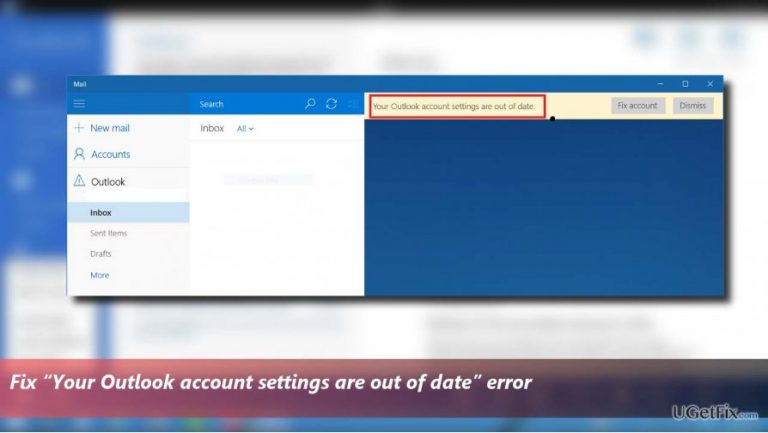
What causes How to fix “Your Outlook account settings are out of date” error on Windows 10?
- Upgrade to Windows 10
- Major Windows 10 updates
- Using a Local Account instead of a Microsoft Account
- Error related to Microsoft Outlook settings
- Previous versions of Windows handling the error differently
Repairs Windows system files, removes malware, and restores a clean OS state — without reinstalling.
Hello, all. Right after the upgrade to Windows 10, my mail stopped working. Simply as that. When I try to open it, I get the error message “Your Outlook account settings are out of date”, which provides two options – either “Fix account” or “Dismiss.” I tried to click “Fix account,” but the message starts flashing and eventually disappears. No other windows open. Has anyone encountered the same problem and could help me?
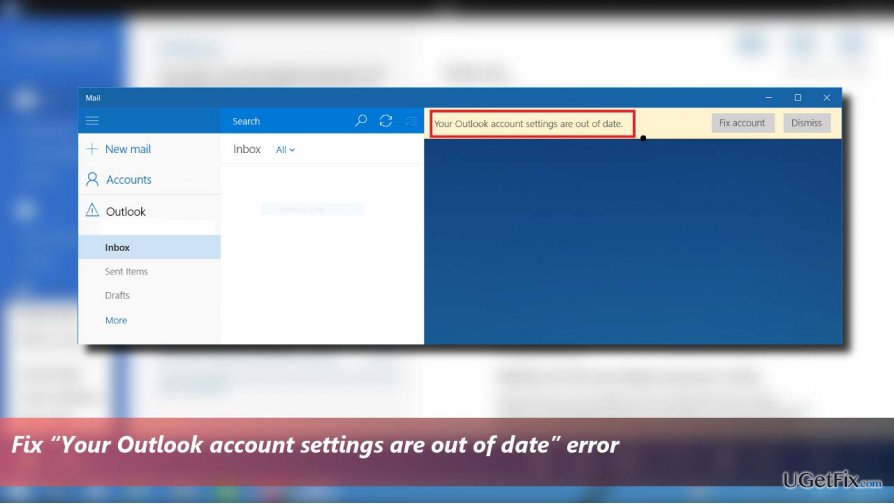
“Your Outlook account settings are out of date” is an issue directly related to Microsoft Outlook. It has been registered many times ago on earlier Windows versions, but, based on people’s reports on various forums, older versions have coped with this error because the bulk of affected PCs are running Windows 10. The “Your Outlook account settings are out of date” strikes PCs after installing major Windows 10 updates – Anniversary or Creators Update. The error message provides two options, which are either to “Dismiss” an alert or "Fix Account." Indeed, dismissing the warning is not a solution because the error will keep reappearing in the future, so we would recommend clicking the “Fix account” button without a delay. Some people managed to fix “Your Outlook account settings are out of date” error simply by doing so. “Fix account” button redirected them to the Mail app and Windows system automatically fixed the problem. If you are less fortunate because the “Fix account” button did nothing except closed the error message, then you should initiate “Your Outlook account settings are out of date” fixes manually:
Log into to the system using Microsoft Account
This fix apply for those users who are using Local Account on Windows 10. If you are already signed with the Microsoft Account, then please skip this method.
- Press Windows key + I and open Accounts.
- Select Sign in with a Microsoft account and enter the password if required.
- Press Next and enter login information.
- Press Next and re-enter the login information if required.
- Press Next again and select the account verification method.
- Now press Next and wait for the confirmation code.
- Enter the verification code and click Next.
- Make sure everything is correct and click Switch button.
- Finally, log out of the Local account and sign in with the Microsoft account.
Log into to the system using Local Account
This fix apply for those users who are using Microsoft Account to log into Windows 10. If you are already signed with the Local Account, then please skip this method.
- Press Windows key + I and select Accounts.
- Click on Sign in with a local account instead and enter the account password.
- Click Next and enter the name of your local account’s username.
- Press Next and click Sign Out.
- Finally, sign into Windows using your local account and check if the “Your Outlook account settings are out of date” error has been resolved.
Remove Outlook account from the Mail app and add it again
- Launch the Mail app and open Settings.
- Select Manage accounts and select you Outlook account.
- Select Delete account.
- Now open Settings and select Manage account again.
- Select Add account and scroll down until you see Advanced setup.
- Click on Internet email option and enter the required information.
- Select IMAP4 as the Account type and click Sign in.
Turn off the Internet Time
Internet Time synchronization or incorrect Date & Time may trigger the “Your Outlook account settings are out of date” error. Therefore, check your Date & Time and disable the Internet Time synchronization by following these steps:
- Right-click on Windows key and select Control Panel.
- Select Date and Time and open Internet Time tab.
- Click on Change Settings and unmark the Synchronize with an Internet time server check box.
- Click OK to save the changes.
Hopefully, this guide helped you to fix “Your Outlook account settings are out of date” error. If, after all, you are still encountering the problem, please inform us, so that we would further analyze the problem.
Bottom line
To fix the "Your Outlook account settings are out of date" error, users can try clicking the "Fix account" button or log into the system using a Microsoft Account. If these methods do not resolve the issue, users may need to initiate manual fixes.
Frequently asked questions
This error typically occurs due to incorrect account credentials, outdated password settings, or issues with the email server configuration in Windows 10.
You can update your Outlook account settings by going to File > Account Settings > Account Settings, selecting your account, and then clicking 'Change' to enter the correct credentials.
Yes, you can fix the error by removing and re-adding your email account in Outlook, which refreshes the settings without needing to change your password.




Report an issue
What's wrong with this guide? We review every report and update or remove content.
Report received — thank you. We'll review and fix it.
You need a free account to submit a report.
Be the first to comment