How to fix
“Your Outlook data file cannot be configured” error
on Windows
Resolve the "Your Outlook data file cannot be configured" error on Windows 10 or 11 with our expert-tested solutions. Fixed in minutes!


What causes How to fix “Your Outlook data file cannot be configured” error in Windows?
- Corruption in PST or OST files
- Improper shutdowns
- Software crashes
- Virus attacks
- Problems with the Outlook profile
- Inconsistencies in the Office installation
Repairs Windows system files, removes malware, and restores a clean OS state — without reinstalling.
I keep getting the "Your Outlook data file cannot be configured" error whenever I attempt to launch Outlook. Due to this, I can't access any emails I desperately need to access. Please advise on how to fix this ASAP.
Microsoft Outlook, a key to business communication, is extensively used for its robust email management system. It offers a seamless blend of email handling, calendar scheduling, and task tracking, making it an indispensable tool in professional and personal contexts.
Despite its widespread use and reliability, some users encounter a significant impediment – the "Your Outlook data file cannot be configured" error. This error presents a substantial hurdle as it prevents access to emails, one of the primary functions of Outlook.
This error typically arises due to issues with the Outlook data files – PST (Personal Storage Table) or OST (Offline Storage Table). These files are crucial as they store your emails, calendar entries, contacts, and other Outlook data. Corruption in these files, often due to improper shutdowns, software crashes, or virus attacks, can lead to the aforementioned error. Additionally, problems with the Outlook profile or inconsistencies in the Office installation can also trigger this issue.
If you encounter this error, several approaches can be adopted to rectify the situation. Repairing the Office apps through the Control Panel is a primary step, as it resolves any discrepancies in the application itself. If the issue is rooted in the PST or OST files, employing the Inbox Repair Tool (ScanPST.exe) provided by Microsoft can be a viable solution.
This tool scans and repairs errors in your Outlook data files. In scenarios where the problem is associated with your Outlook profile, creating a new profile is often a practical solution. This involves setting up your email account afresh in Outlook, which can bypass the configuration issues of the existing profile.
For a more comprehensive solution, particularly if you suspect underlying Windows issues, employing a PC repair tool like [d1] can automatically diagnose and fix these problems, streamlining the process and ensuring the smooth functioning of your Outlook application.
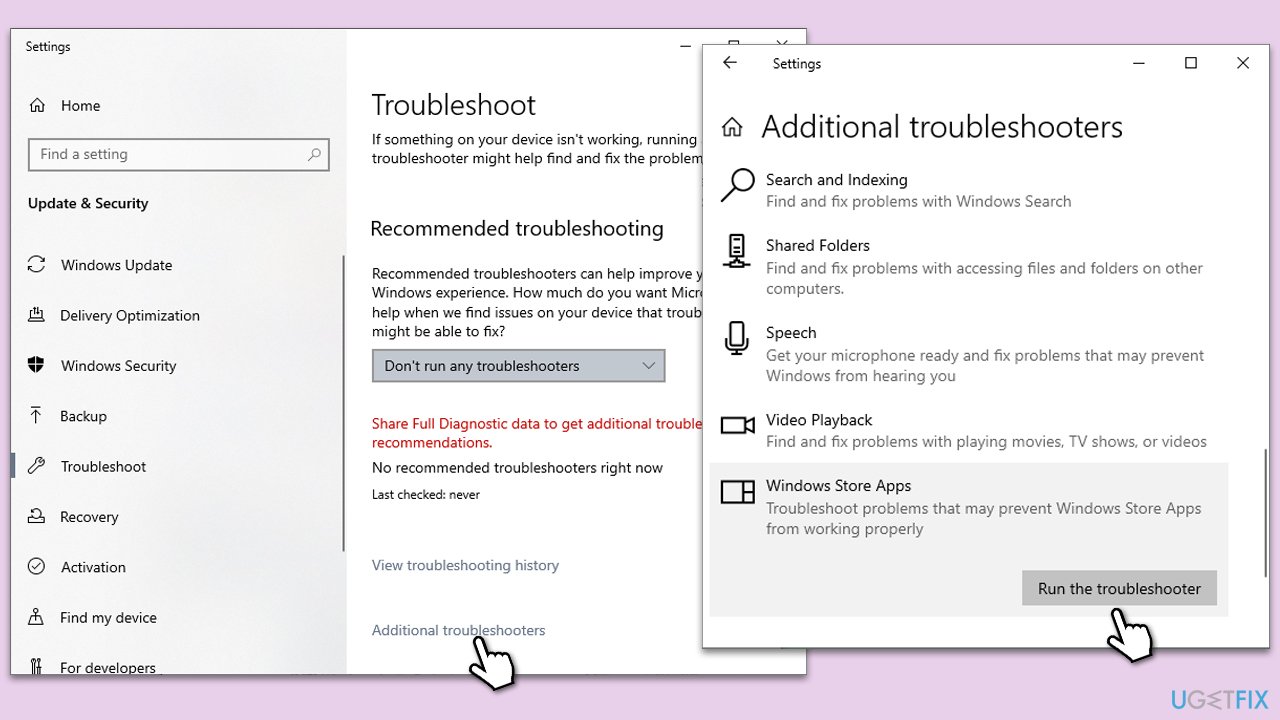
Fix 1. Run Windows Store Apps troubleshooter
The Windows Store Apps troubleshooter is a built-in utility in Windows that helps resolve common issues with apps downloaded from the Windows Store, including Outlook. This tool automatically detects and fixes problems related to app functionalities and system compatibility.
- Type Troubleshoot in Windows search and hit Enter.
- Click Additional troubleshooters/Other troubleshooters.
- Scroll down to find Windows store apps and select it.
- Click Run the troubleshooter/Run.
- Wait till the process is finished and apply the fixes.
Fix 2. Repair PST file
The PST file is a Personal Storage Table used by Outlook to store emails, contacts, and calendar events. Repairing a PST file can resolve issues caused by file corruption, which might be the reason behind the configuration error.
- Close Outlook.
- Navigate to the search bar and type Control Panel, then open it.
- Under View by, select Small icons from the drop-down menu.
- Go to Mail and then click on Data Files.
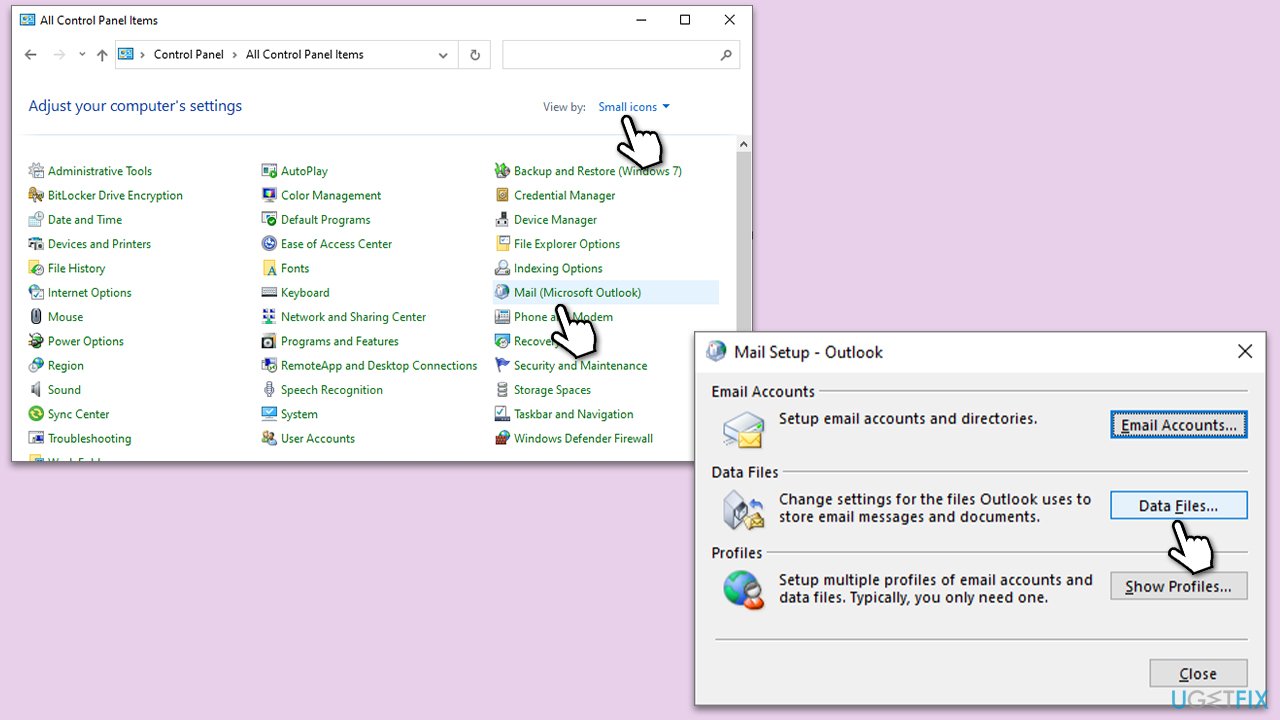
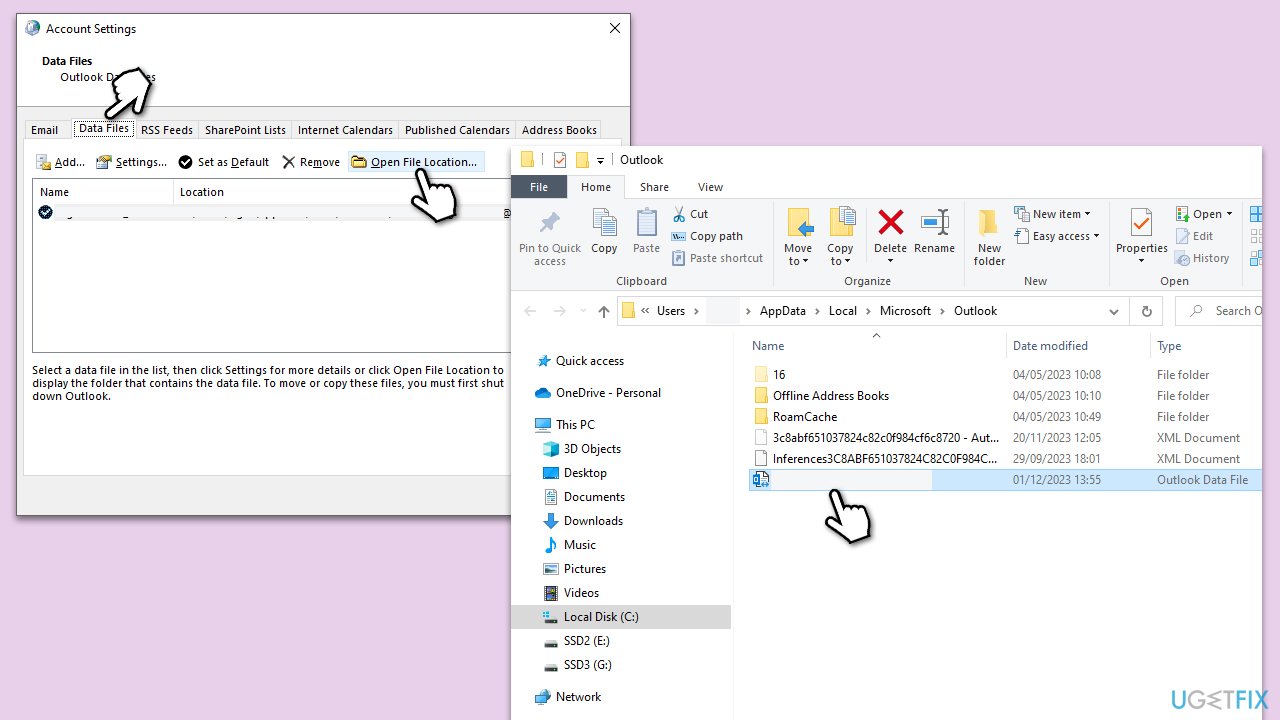
- In the Account Settings window, you’ll see the Data Files tab; here, you will find the location of your PST files listed.
- Take note of the location.
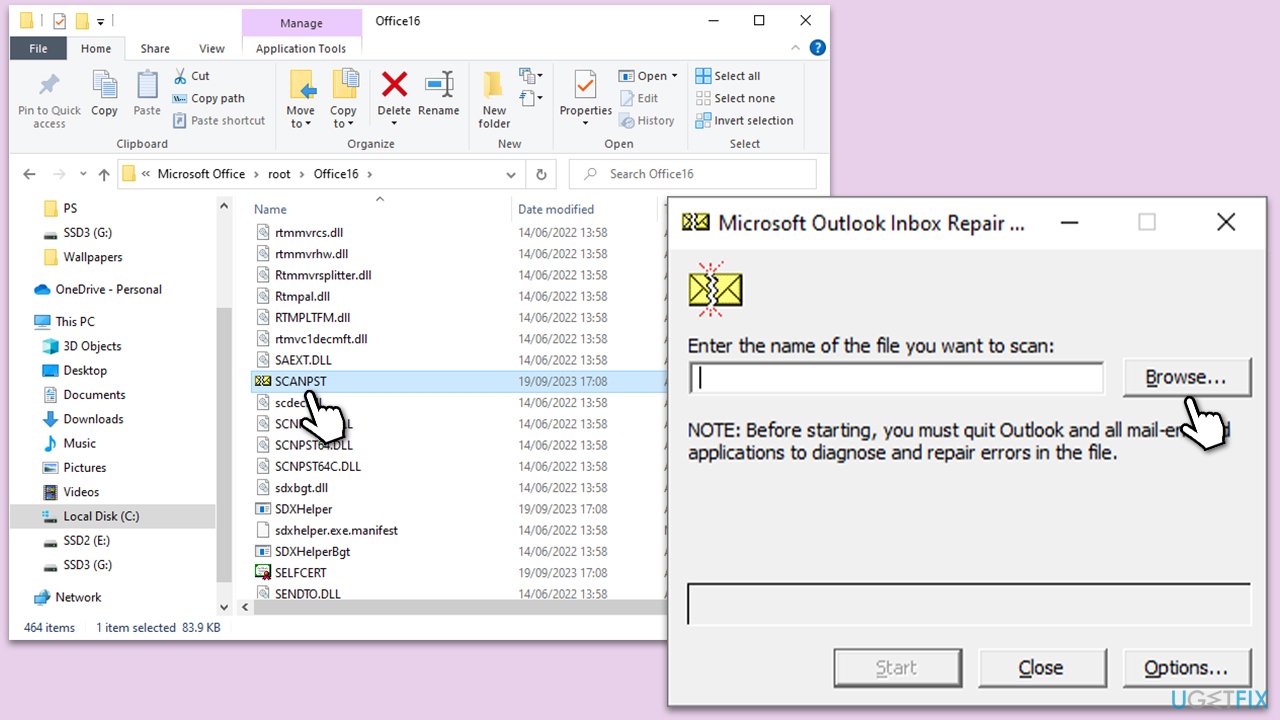
- Press Win + E to open File Explorer.
- Navigate to one of these locations (depending on your Office version):
C:\Program Files\Microsoft Office\Office[version]\
C:\Program Files\Microsoft Office\root\Office16 - Open the Inbox Repair Tool (scanpst.exe)
- Click Browse and select the PST file.
- Click Start and follow the prompts to repair the file.
Fix 3. Recreate OST file
The OST file, or Offline Storage Table, is used by Outlook to store a copy of your mailbox data. Recreating the OST file can eliminate issues related to corruption or synchronization errors.
- Close Outlook.
- Type Control Panel in Windows search and then press Enter.
- Under the View by section, select Small icons from the drop-down menu.
- Click on Mail (Microsoft Outlook).
- Select Email accounts.
- Then, navigate to the Data Files tab.
- Pick your account and click on Open File Location.
- Delete the OST file by pressing Shift + Del.
- Now reboot Outlook.
Fix 4. Repair Office
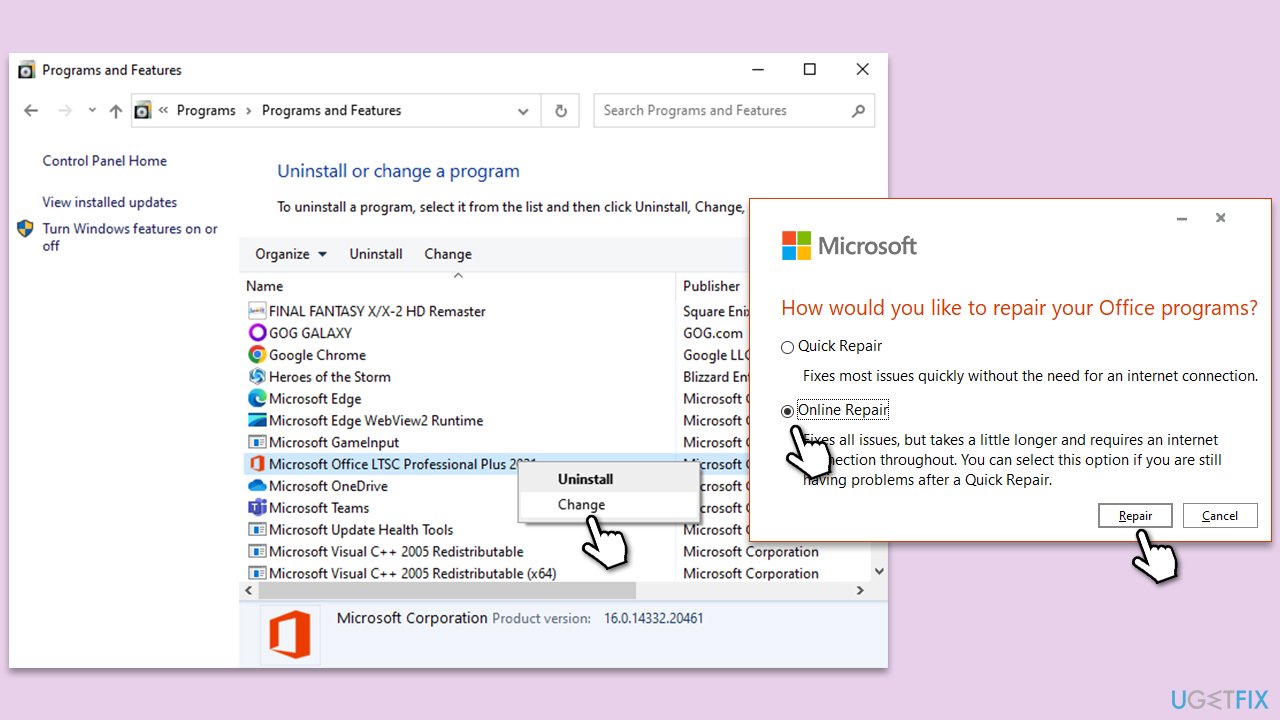
Repairing Office is a process that fixes any issues with the Office suite, including Outlook, without removing or altering your Office data. It is particularly useful when Outlook's problems are due to corrupted or malfunctioning program files. This repair can be done through the Control Panel and can be performed in two ways: Quick Repair, which is faster and works without an internet connection, and Online Repair, which is more comprehensive.
- Open the Control Panel again.
- Select Programs > Programs and Features.
- Select Microsoft Office and click on Change.
- Choose the option for Online Repair and click Repair.
- Follow the prompts to finish the process.
Fix 5. Perform Disk Cleanup
Disk Cleanup is a utility that removes unnecessary files from your hard drive, which can improve system performance and potentially resolve issues affecting Outlook.
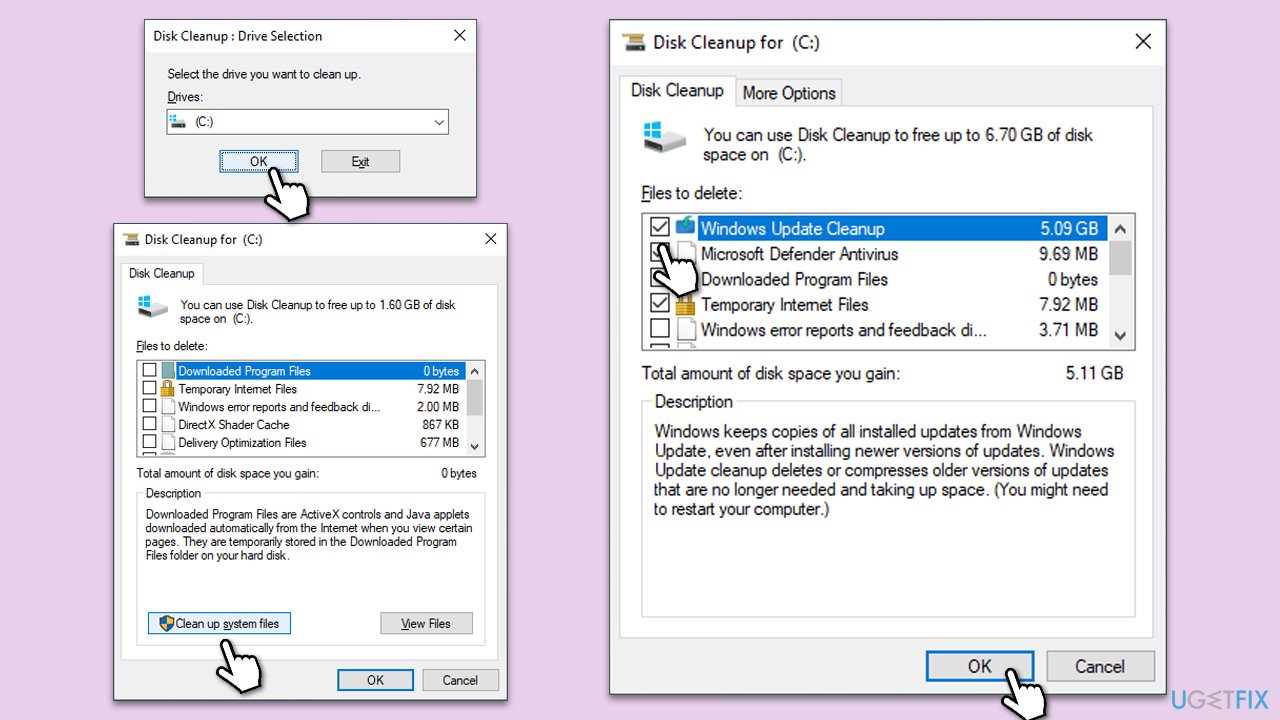
- Type Disk Cleanup in Windows search and hit Enter
- If your Windows is installed on drive C, pick it from the list (should be by default) and press OK
- Click Clean up system files
- Select your main disk again and click OK
- Here, select the largest portions of the data used - these typically include Temporary Internet Files, Windows Update, Temporary Files, Recycle Bin, Delivery Optimization Files, and others.
- Click OK and wait for the cleanup process to finish.
Fix 6. Reinstall Office
Reinstalling Office can resolve problems related to corrupted program files, which might be causing the Outlook data file configuration error.
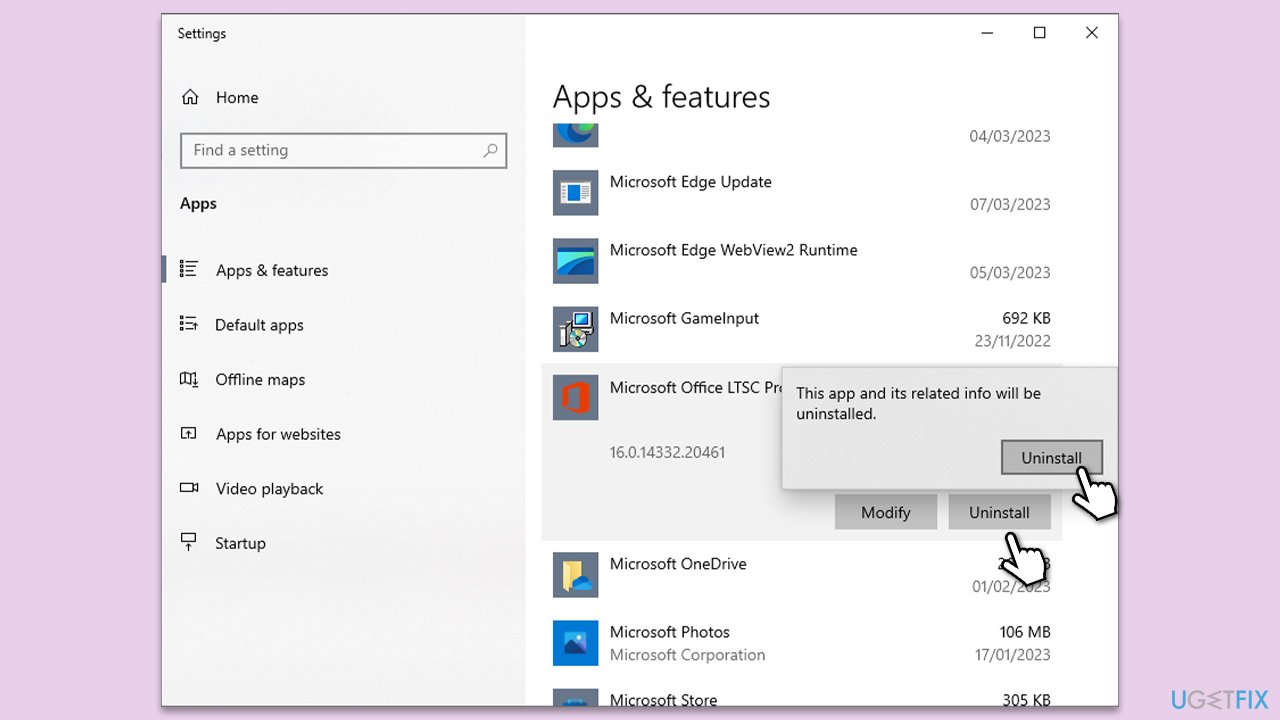
- Right-click on Start and pick Apps and Features.
- Scroll down to find the MS Office installation.
- Click Uninstall and confirm with Uninstall.
- Follow on-screen instructions to remove the app completely.
- Press Win + E to open File Explorer.
- Navigate to the following location and delete its contents:
C:\Program Files\Microsoft Office - Next, type regedit in Windows search and press Enter.
- Go to the following locations in the Registry Editor and delete these items:
Computer\HKEY_LOCAL_MACHINE\SOFTWARE\Microsoft\AppVISV
Computer\HKEY_LOCAL_MACHINE\SOFTWARE\Microsoft\Office\ClickToRun
Computer\HKEY_CURRENT_USER\Software\Microsoft\Office - Reboot the PC and then reinstall Microsoft Office.
Bottom line
To fix the "Your Outlook data file cannot be configured" error, you can repair the Office apps through the Control Panel, use the Inbox Repair Tool (ScanPST.exe) to address issues with PST or OST files, or create a new Outlook profile. If these solutions do not resolve the issue, consider using a PC repair tool to diagnose and fix underlying Windows problems.
Frequently asked questions
This error can occur due to corrupted Outlook data files, issues with the Outlook profile, or problems with Windows updates affecting Outlook functionality.
You can use the built-in Inbox Repair Tool (Scanpst.exe) to scan and repair your Outlook data files by locating it in the Microsoft Office installation directory.
Yes, creating a new Outlook profile can help eliminate profile-specific issues that may cause this error, especially in Windows 10 and Windows 11.




Report an issue
What's wrong with this guide? We review every report and update or remove content.
Report received — thank you. We'll review and fix it.
You need a free account to submit a report.
Be the first to comment