How to fix
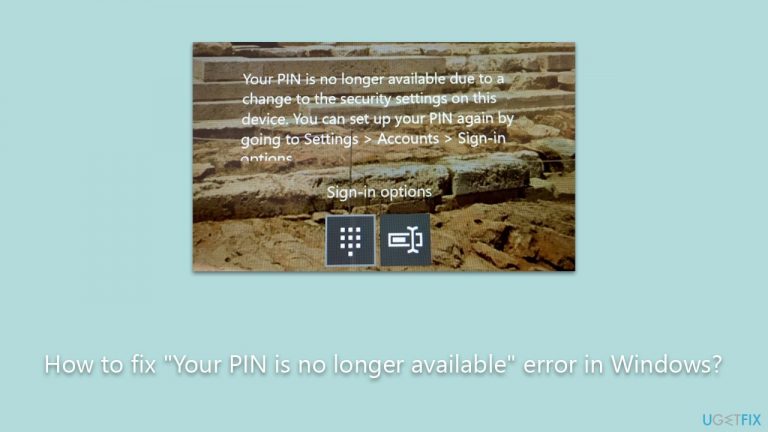
“Your PIN is no longer available” error
on Windows
Resolve the "Your PIN is no longer available" error on Windows 10 or 11 effortlessly. Expert-tested solutions for quick fixes and zero traces left.

What causes How to fix “Your PIN is no longer available” error in Windows?
- Changes from Windows updates
- Alterations in system configurations
- IT administrators enforcing security policies
- Corruption of system files associated with the PIN
Repairs Windows system files, removes malware, and restores a clean OS state — without reinstalling.
I can't set up my PIN because it asks for a security code from a mobile phone I no longer have - it says, "Your PIN is no longer available due to a change to the security settings on this device." Could you help?
Windows, one of the most widely used operating systems, offers various login options to its users. Among these, the Personal Identification Number (PIN) has become a favored choice for many due to its blend of security and convenience. However, some individuals have encountered an obstacle during their login process. The error message displayed is: "Your PIN is no longer available due to a change to the security settings on this device." This error bars them from their usual way of accessing Windows.
Several factors could lead to this error. Sometimes, changes from Windows updates or alterations in system configurations can affect security settings, making the PIN unusable. If the device is on a corporate or educational network, IT administrators might enforce security policies that disable the PIN function. Additionally, corruption of system files associated with the PIN might be a culprit.
If you find yourself facing the "Your PIN is no longer available" error, there are a few possible remedies. Restarting your device is a simple first step that can sometimes resolve the problem. If you have another means of accessing your computer, such as a password or fingerprint scanner, use it to log in and then navigate to the system's Settings to reset or reconfigure your PIN.

If your computer is part of a larger network, consulting with the IT department might shed light on whether PIN usage has been restricted. For those who suspect a recent update or system change to be the root of the problem, booting the computer in safe mode and performing a system restore might be a viable solution.
Lastly, for individuals grappling with general Windows issues, the [d1] PC repair tool is a valuable resource for troubleshooting and resolving common system challenges.
Fix 1. Restart the computer
Sometimes, simply restarting the computer can help resolve minor system glitches.
- Click on the Windows button or the power icon on the login screen.
- Select Restart from the drop-down menu.
- After restarting, attempt to log in again using your PIN.

Fix 2. Use the "I forgot my password/PIN" option
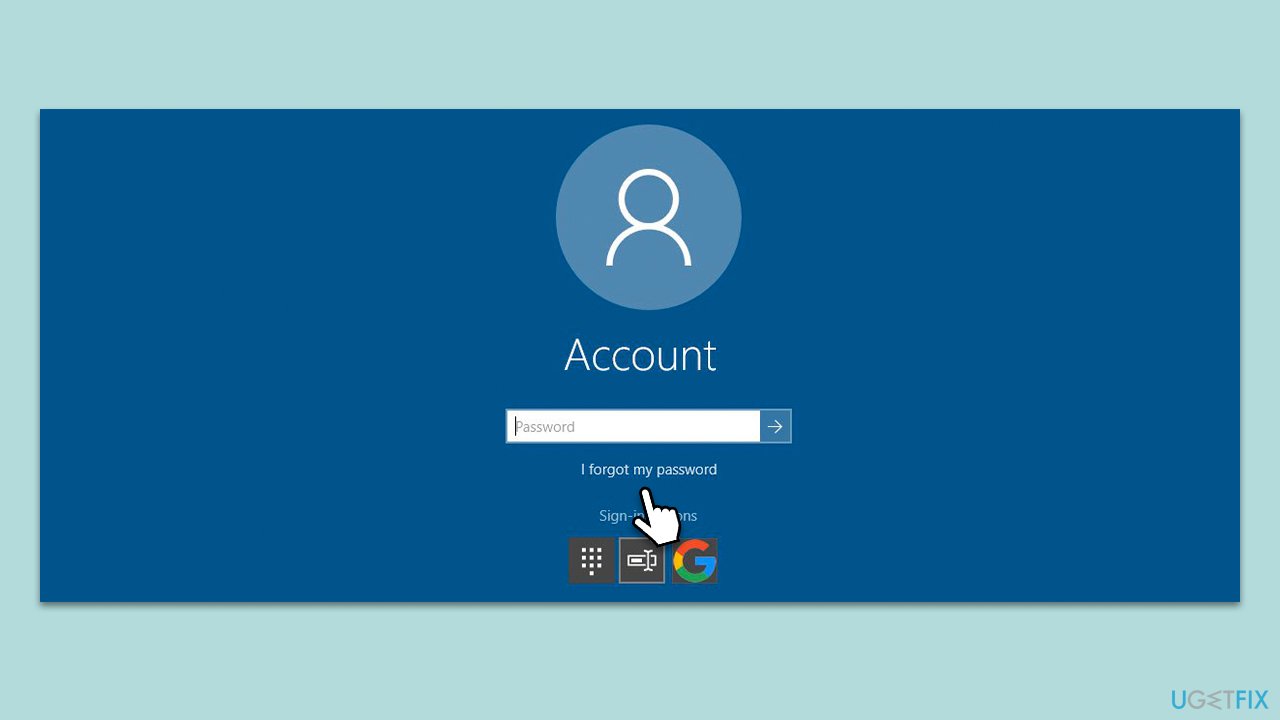
If you're locked out due to the "Your PIN is no longer available" error, the "I forgot my password" option allows you to reset your password without accessing the main Windows interface.
- In the login screen, pick I forgot my password/PIN option.
- Wait a bit, and Windows will show you the login screen.
- Here, enter the password for your Microsoft account and click Sign in.
- If you can't remember your Microsoft password, you should click Forgot password?
- In the verification method screen, pick your email and click Next.
- Enter the verification code sent to your email and click Next.
- Create a new password and log back in.
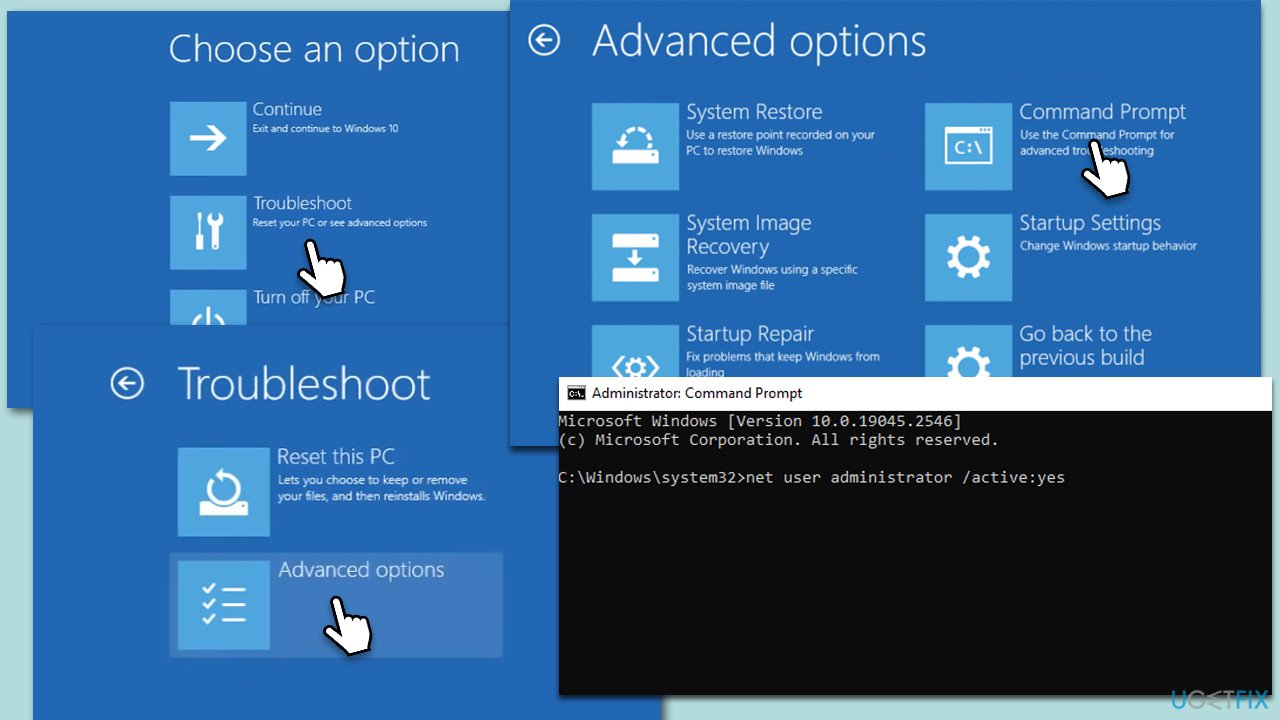
Fix 3. Set the administrator account in Recovery environment
The Recovery environment in Windows allows you to troubleshoot and fix common issues. By setting up the administrator account, you can bypass the regular login and make necessary changes.
- From the login screen, hold the Shift key on your keyboard and click Power > Restart.
- Once you enter the recovery environment, click Troubleshoot.
- Select Advanced options and then pick Command Prompt.
- When the Command Prompt window shows up, type in the following command and press Enter:
net user administrator /active:yes - Close down Command Prompt.
- Click Continue to boot into Windows normally.
Fix 4. Boot in Safe Mode
Safe mode is a diagnostic mode that starts Windows with a minimal set of drivers and services. This can help rule out any interference from third-party applications.
- From the login screen, hold the Shift key on your keyboard and click Power > Restart.
- After a reboot, you will be presented with several options - pick Troubleshoot.
- Go to Advanced options > Startup Settings and then pick Restart.
- After a reboot, pick either 4/F4 for Safe Mode or 5/F5 for Safe Mode with Networking.
- Once in Safe Mode, follow the instructions in the next Fix.

Fix 5. Remove and re-add your PIN
If you can access your computer using another authentication method, removing and re-adding your PIN might resolve the error.
- Right-click on Start and pick Settings
- Select Accounts option
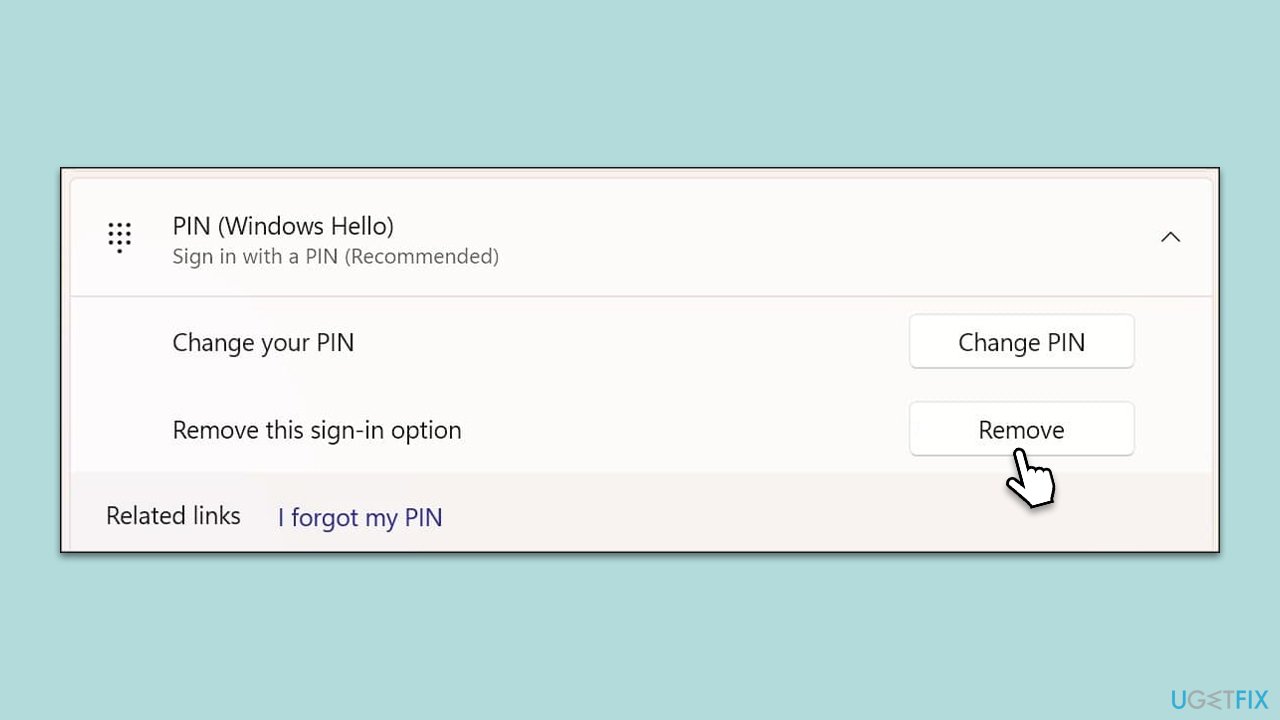
- Go to the Sign-in options on the left of the window
- Click on the PIN option and select Remove.
- After removal, select the option to Add a new PIN.
- Enter and confirm your new PIN.
Fix 6. Update Windows
Keeping Windows up-to-date ensures that any known bugs or issues are fixed.
- Log into Windows using a password or another method.
- Navigate to Settings > Update & Security.
- Click on Check for updates and install any available updates.
- Restart the computer after updates are installed.
Fix 7. Reset Windows and keep your files
If none of the solutions above helped, resetting Windows to its default state can resolve numerous system-related issues while allowing you to retain personal files. This method reverts any changes made to system settings and removes installed applications, but it keeps documents, photos, and other personal data intact.
- From the login screen, hold the Shift key on your keyboard and click Power > Restart.
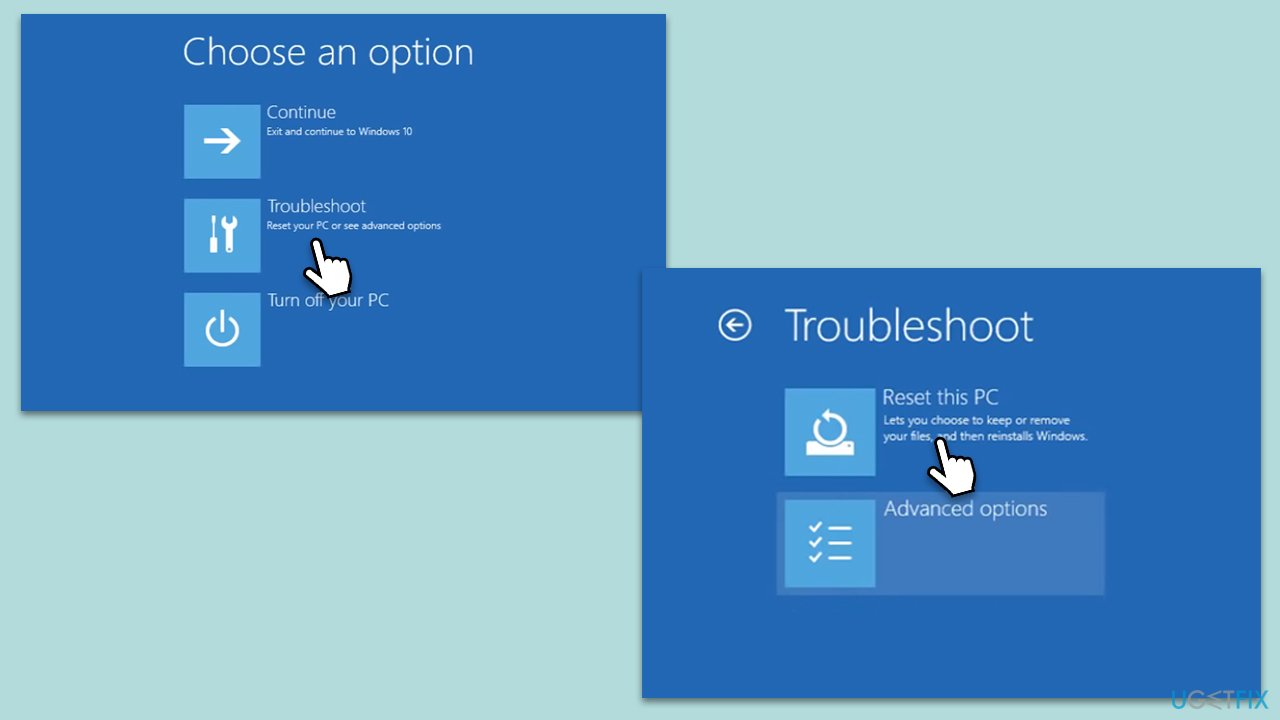
- This will lead you to the Choose an option screen. Here, select Troubleshoot.
- From the troubleshooting options, select Reset this PC.
- You will see two options: Keep my files and Remove everything. Choose Keep my files.
- A prompt will provide a list of software you will need to reinstall after the reset. Make a note of these if necessary.
- Select Reset to start the process. Windows will then reinstall itself while keeping your personal files untouched.
- Once the process is complete, follow the on-screen instructions to set up your computer. You can then reinstall any necessary software and applications.
Bottom line
To resolve the 'Your PIN is no longer available' error, you can try restarting your computer, using an alternative login method to reset your PIN, or consulting with your IT department if on a corporate network. If the issue persists, consider booting in safe mode and performing a system restore, or using a PC repair tool for further assistance.
Frequently asked questions
This error typically occurs due to system updates, changes in user account settings, or corrupted system files affecting the authentication process.
You can reset your PIN by going to Settings > Accounts > Sign-in options and selecting 'I forgot my PIN' to follow the prompts.
Yes, you can switch to using your Microsoft account password by selecting the 'Sign-in options' on the login screen and choosing the password sign-in method.




Report an issue
What's wrong with this guide? We review every report and update or remove content.
Report received — thank you. We'll review and fix it.
You need a free account to submit a report.
Be the first to comment