How to fix
“Your profile was signed out” error in Call of Duty Warzone 2
on Windows
Resolve the "Your profile was signed out" error in Call of Duty Warzone 2 on Windows 10/11 with expert-tested solutions and screenshots. Fixed in minutes!

What causes How to fix “Your profile was signed out” error in Call of Duty Warzone 2?
- Network connectivity issues
- Problem with the game's server
- Issues with the player's account
- Console or PC set to automatically sign out after inactivity
Repairs Windows system files, removes malware, and restores a clean OS state — without reinstalling.
Hello. Recently I started experiencing the "Your profile was signed out" error in Call of Duty Warzone 2 quite frequently. It is getting pretty annoying. What should I do?
Call of Duty Warzone 2 is a highly popular first-person shooter game that has taken the gaming world by storm. It offers players a fast-paced and intense gaming experience, where they can battle against other players from all over the world in various multiplayer modes.
However, some players have reported encountering an error message that says "Your profile was signed out." This error can be frustrating for gamers as it can prevent them from accessing the game and impede their progress. The error can be caused by several factors, including network connectivity issues, a problem with the game's server, or issues with the player's account.
It can also occur when a player's console or PC is set to automatically sign out after a certain period of inactivity. Luckily, there are several solutions to this error that players can try to resolve the issue. One solution is to check the player's network connection and ensure that it's stable. Players can also try to sign in to the game again or restart their console or PC.
Another solution is to clear the console's cache or delete the game's saved data, this can help to refresh the game and fix any issues caused by corrupted or outdated data. Additionally, players can try to contact the game's support team for further assistance. In this guide, you will find 6 steps that should help you fix "Your profile was signed out" error in Call of Duty Warzone 2.
Keep in mind that such errors may also be caused by underlying system issues. To check for this, you can use a maintenance tool like [d1]. It can fix most system errors, BSODs,[ref en-1] corrupted files, registry[ref en-2] issues, or clear cookies and cache[ref en-3] automatically. Otherwise, follow the step-by-step instructions below.
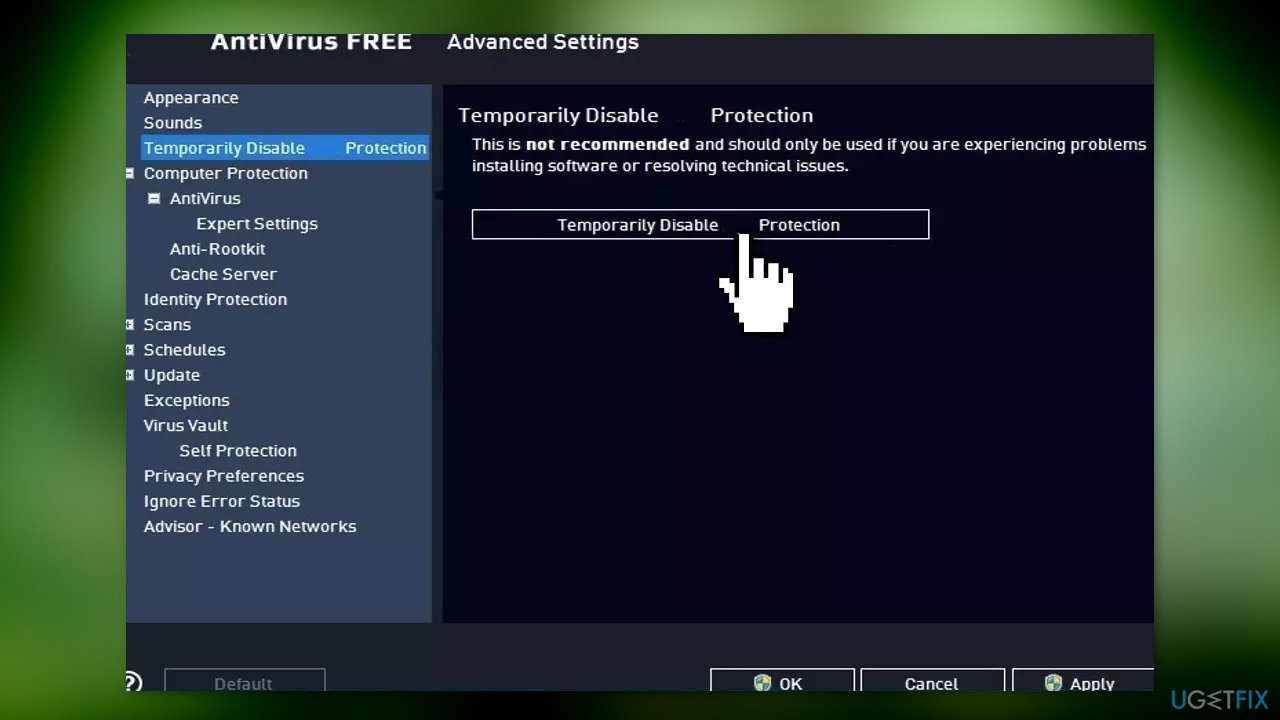
Solution 1. Disable Third-Party Security Software
Sometimes antivirus software can block legitimate processes mistakenly. You should try disabling your antivirus and trying to play Call of Duty Warzone 2 again.
Solution 2. Change Game Voice Channel to All Lobby
When attempting to troubleshoot an error message in Call of Duty Modern Warfare II or Warzone 2, one solution may be to change the in-game voice channel. The game has a feature that allows players to communicate with others in the game, and changing the channel to "All Lobby" has been known to fix the issue. This problem is caused by a bug in the game that is being addressed by the developer team.
- Open Call of Duty Warzone 2 on your computer
- Navigate to the Settings menu by clicking the gear icon
- In the Settings menu, select Audio
- Scroll down to locate the Game Voice Channel option
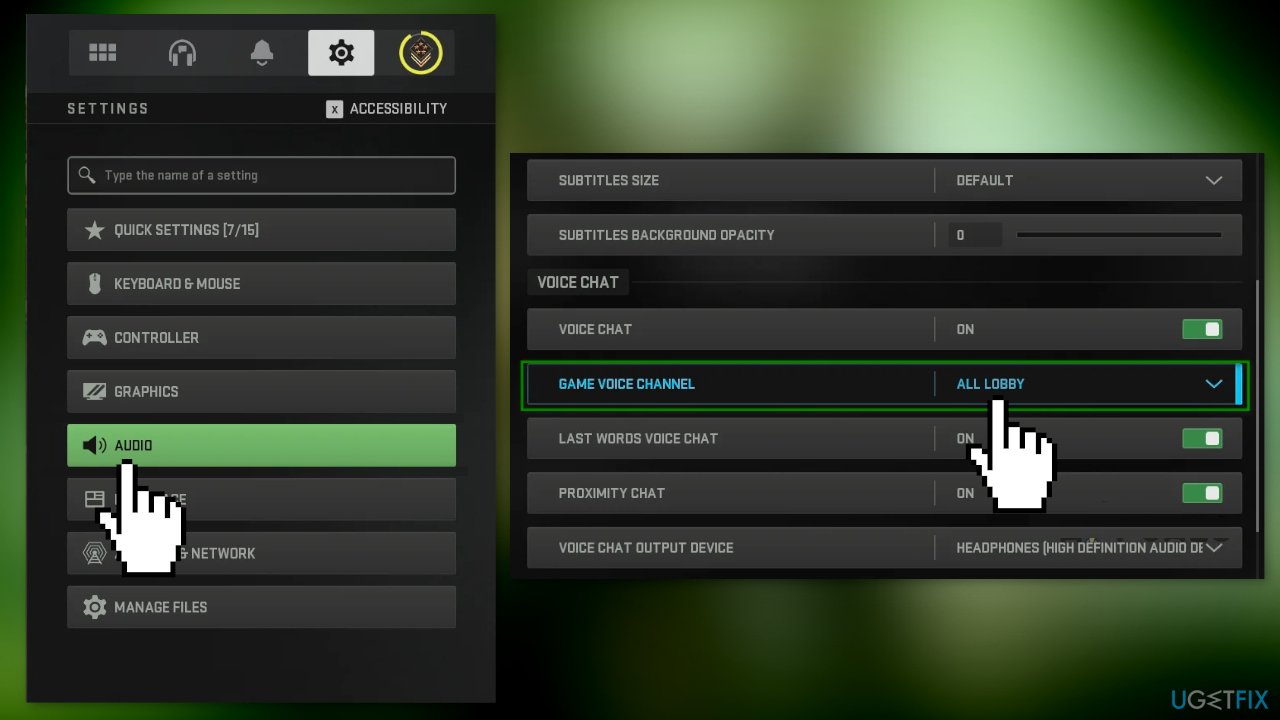
- From the drop-down menu, choose All Lobby
- Try playing the game to see if the issue still occurs
Solution 3. Start a Campaign Mission
A possible solution for overcoming connection issues when playing Call of Duty Warzone 2.0 is to start a campaign mission. This is because the game syncs the campaign progress to its servers, which requires an active connection to the game services. To do this, you will need to own Call of Duty Modern Warfare II. If you don't have it, you can try the following method.
- Launch Call of Duty Modern Warfare 2
- Start a campaign mission
- Wait for the game to establish a connection with the game servers
- Once the connection has been established, the error message should disappear
- You can then exit the campaign menu and play multiplayer
If you don't have the game, you can try other solutions like checking your internet connection, trying to access the game from a different network, or checking if there is any server outage.
Solution 4. Clear Steam Download Cache
Steam stores temporary files, called the download cache, on your computer during the download or update process. But sometimes, problems with the downloading process can cause these files to become corrupt or incomplete, which can lead to issues with your games.
- Open Steam
- Click on Steam on the top left corner and select Settings
- Select Downloads tab
- Click on Clear Download Cache button
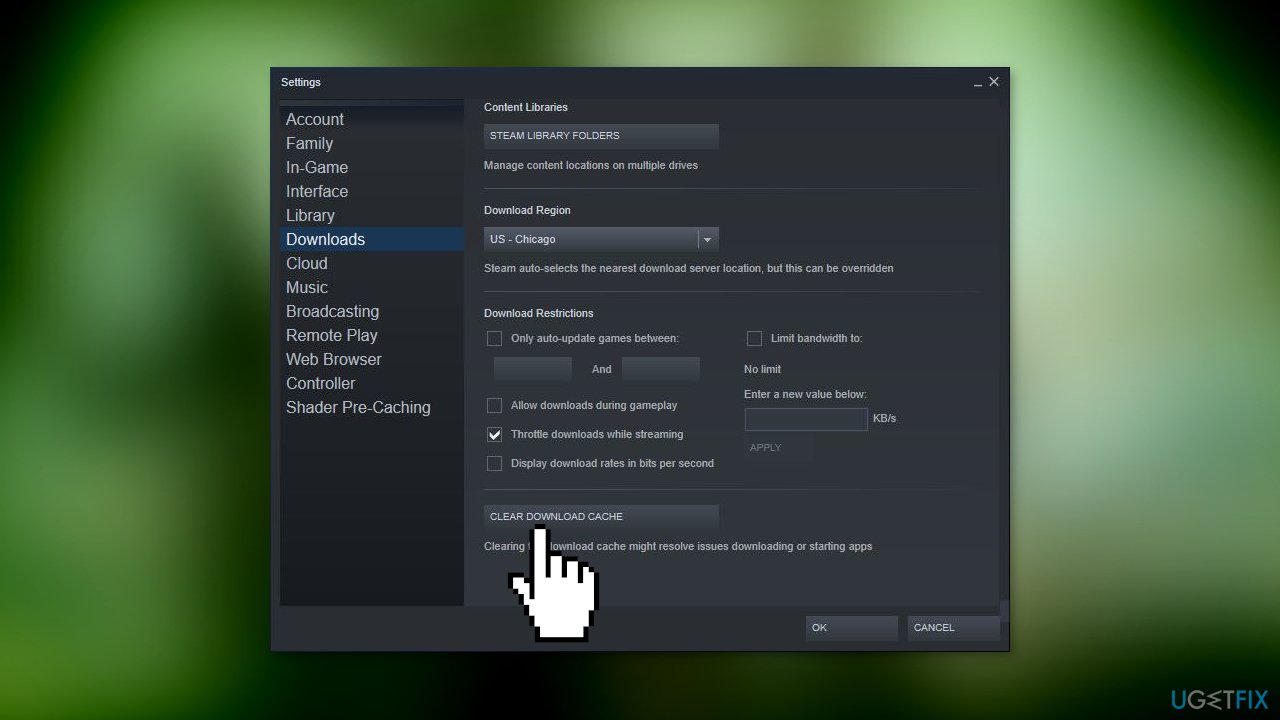
- Confirm the action
Solution 5. Flush DNS Cache
The Domain Name System (DNS) server uses a cache on your computer to store domain names and their corresponding IP addresses, so that domain names can load faster on subsequent visits. However, sometimes the DNS cache can become corrupt or out-of-date, which can cause issues connecting to certain servers. The IP addresses of servers can also change, and a stale entry in the DNS cache can lead to connection problems.
- Go to the Start Menu and search for Command Prompt
- Right-click on Command Prompt and select Run as administrator
- In the elevated Command Prompt, type in ipconfig /flushdns and press Enter
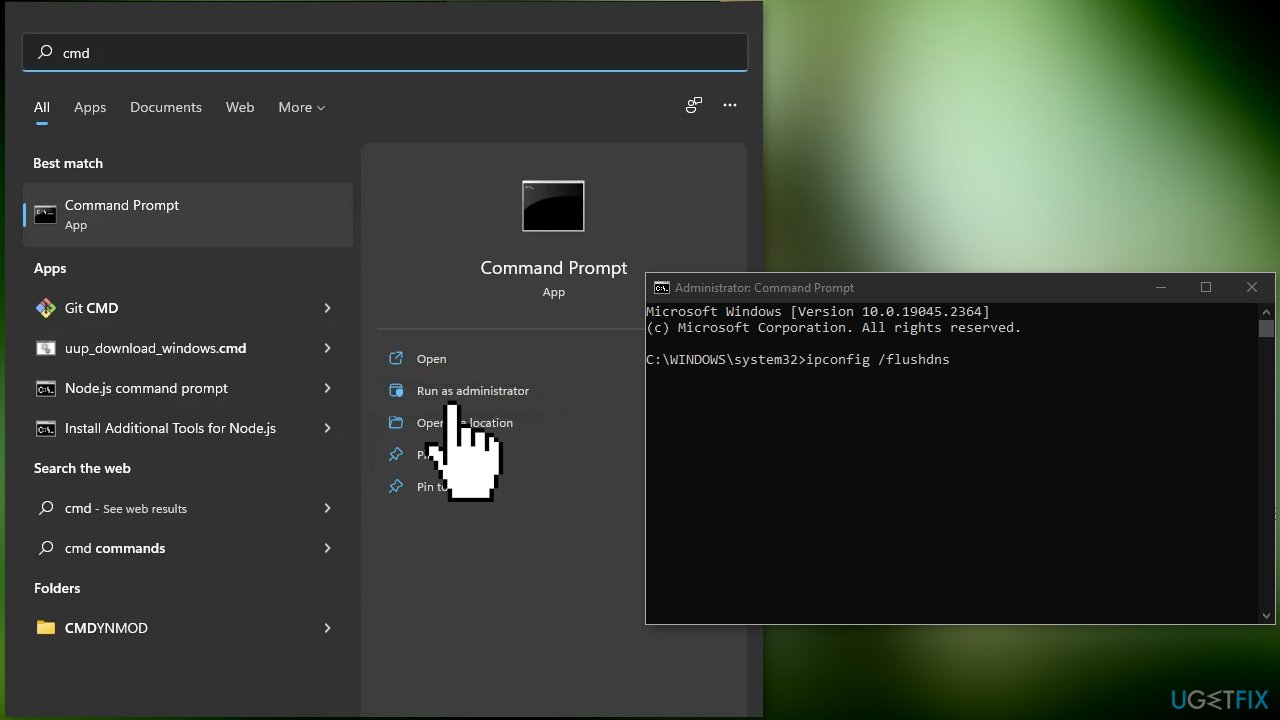
- Restart your computer
- After your PC boots up, open the game and check if the error message persists
Solution 6. Delete Saved Data (PlayStation)
If you're experiencing an issue with Call of Duty Warzone 2 on a PlayStation and changing the game voice channel didn't work, it's possible that the problem is caused by corrupted or outdated saved data on your console.
One solution to try is to delete the saved data for the game. This is a safe action to take and will not harm your console. However, you will need to go through the game's settings again and potentially redo some progress in the game.
- Go to the settings menu from the home screen
- Select Application Saved Data Management
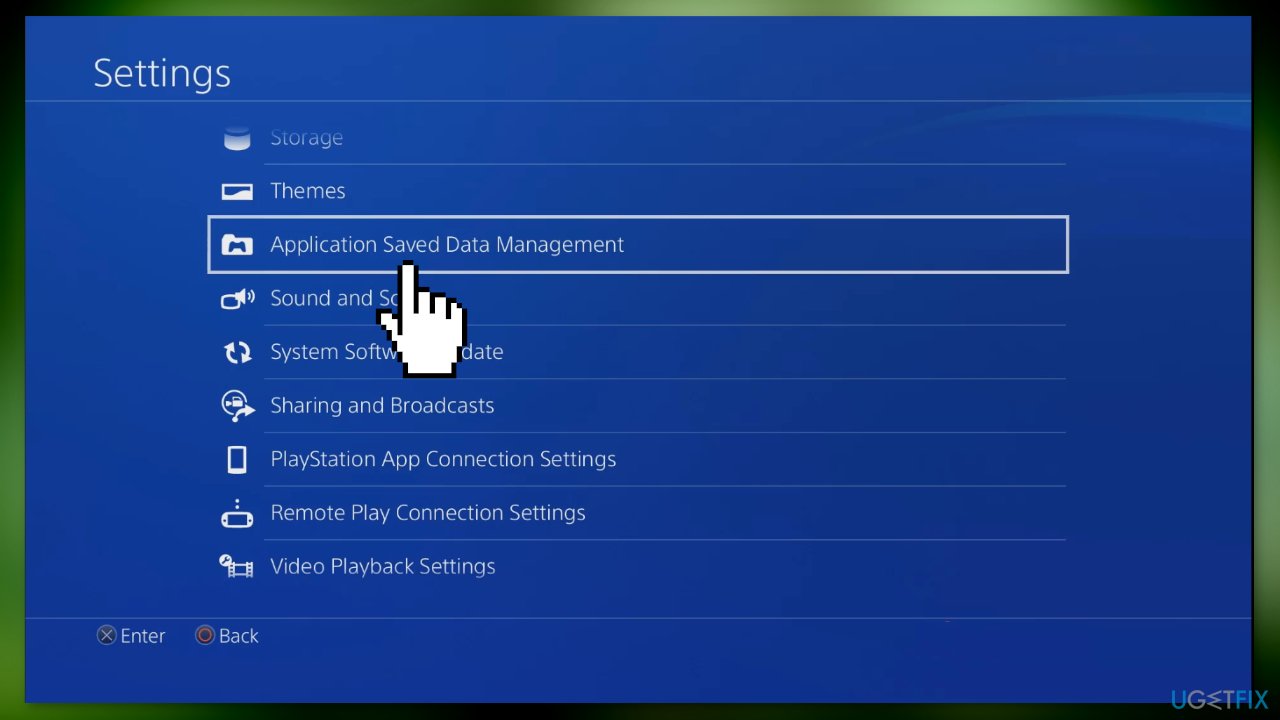
- Select Saved Data in System Storage (on PlayStation 5, navigate to Storage > Saved Data)
- Locate Call of Duty Modern Warfare 2
- Select the game and delete the saved data
- Check if the issue has been resolved
Bottom line
To fix the 'Your profile was signed out' error, players can check their network connection, sign in again, restart their console or PC, clear the console's cache, or delete the game's saved data. If these solutions do not resolve the issue, contacting the game's support team is recommended.
Frequently asked questions
This error typically occurs due to network issues or corrupted game files that prevent the game from accessing your profile properly.
You can try restarting your router and verifying the game files through the game launcher to resolve this issue on Windows 11.
Yes, reinstalling the game can help fix corrupted files that may be causing the 'Your profile was signed out' error on both Windows 10 and Windows 11.




Report an issue
What's wrong with this guide? We review every report and update or remove content.
Report received — thank you. We'll review and fix it.
You need a free account to submit a report.
Be the first to comment