
How to fix "Your Remote Desktop Services session has ended" error in Windows?

Prefer to fix it yourself? The manual steps follow.
- 8methods
- 5 to 30 minutes
- Intermediate
Applies to Windows 11 and Windows 10 Pro, Enterprise and Education as the remote PC; any Windows PC with Remote Desktop Connection (mstsc) as the client
8 methods in this guide
Hello. Recently, I have been having trouble with Windows Remote Desktop. It worked smoothly until last week, when I accidentally updated my Windows 10 system. Now I cannot establish a Remote Desktop connection to the remote computer, and I get the error message "Your Remote Desktop Services session has ended." How do I fix this?
The message "Your Remote Desktop Services session has ended" means the remote PC closed your Remote Desktop session, either right after sign-in or in the middle of work. Most often another sign-in took the session, or the connection over UDP dropped. Open Show details first: the extended error code tells you which fix is yours.
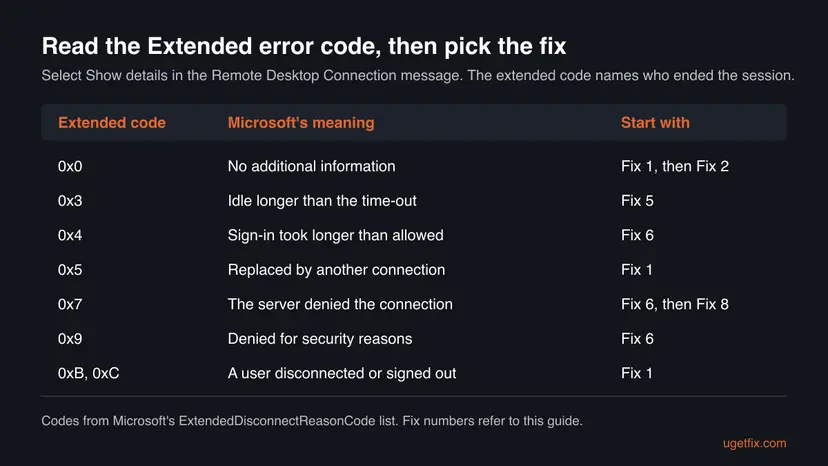
The remote PC ended your session. Select Show details and read the Extended error code. With 0x0, 0x5, 0xB or 0xC, another session took over: on the remote PC run quser, sign the old session out and connect again (Fix 1). If the session drops after a minute or so, turn off UDP in Remote Desktop Connection (Fix 2). With 0x3 the PC ended an idle session (Fix 5).
| Error | Your Remote Desktop Services session has ended, often followed by "possibly for one of the following reasons: The administrator has ended the session. An error occurred while the connection was being established. A network problem occurred." |
|---|---|
| Where it appears | In a Remote Desktop Connection window on the PC you connect from, right after you enter your password or in the middle of a session. |
| Main cause | The remote PC closed the session: another sign-in replaced it, the UDP connection dropped, or a time limit or security check ended it. |
| Fastest fix | Read the extended error code under Show details, then sign out the old session with quser and logoff on the remote PC (Fix 1). |
| Also written as | "Your Remote Desktop session has ended", "Remote Desktop Services session has ended", "Your session has ended", "The connection to the remote computer was lost, possibly due to network connectivity problems". |
| Affects | Windows 11 and Windows 10 PCs that accept Remote Desktop (Pro, Enterprise, Education), Windows Server and Azure virtual machines. |
| Microsoft's status | Not one bug. Microsoft lists the reasons in its ExtendedDisconnectReasonCode table. Microsoft support answers also describe UDP sessions from Windows 11 24H2 to older servers dropping after about 65 seconds, fixed by later updates. |
| Time to fix | About 5 minutes for Fix 1 and Fix 2. Up to 30 minutes when you need Group Policy and a restart on the remote PC. |
| Where the cause is logged | Event Viewer on the remote PC: TerminalServices-LocalSessionManager and RemoteDesktopServices-RdpCoreTS, under Applications and Services Logs > Microsoft > Windows. |
Facts checked on 15 October 2026. Steps written for Windows 11 (25H2 and 26H2) and Windows 10 22H2.
What "Your Remote Desktop Services session has ended" means
The window is titled Remote Desktop Connection. The full text reads: "Your Remote Desktop Services session has ended, possibly for one of the following reasons: The administrator has ended the session. An error occurred while the connection was being established. A network problem occurred. For help solving the problem, see "Remote Desktop" in Help and Support." The three reasons are a generic list. Windows shows the same text for many different causes.
The useful part is hidden. Select Show details in the message and Windows shows an Error code, an Extended error code and a timestamp in UTC. The extended code comes from a table Microsoft publishes for Remote Desktop, and it says who ended the session and why.
| Message you see | What it tells you |
|---|---|
| The administrator has ended the session. | Something on the remote PC closed the session: another sign-in, a sign-out, a restart or a policy. |
| The connection to the remote computer was lost, possibly due to network connectivity problems. | The network path dropped. Start with Fix 2 and Fix 7. |
| Your Remote Desktop Services session has ended because the remote computer didn't receive any input | The idle time limit ended the session. Use Fix 5. |
| The remote computer is shutting down | The remote PC restarted or shut down, often for updates. Wait and connect again, then see Prevent below. |
The client is the PC you sit at. The remote PC is the one you connect to. Fix 2 runs on the client. Fixes 1, 3, 5 and 8 run on the remote PC, so you need someone there, another way in, or a working session first.
Why your Remote Desktop session ends
Most often a second session replaced yours, because Windows 11 and Windows 10 allow one interactive session at a time. Less often the UDP part of the connection fails while the TCP part still works. Rarely the remote PC refuses the sign-in itself, through a time limit, stale saved credentials or a broken Remote Desktop certificate.
| Cause | How often | How to tell | Fix |
|---|---|---|---|
| Another session took over (someone signed in at the remote PC, or an old disconnected session is still open). | Most often | Extended code 0x0, 0x5, 0xB or 0xC; quser lists another session. | Fix 1 |
| The UDP transport drops on this network or with this server version. | Often | The session opens, then closes after about a minute or under load. | Fix 2 |
| The WDDM display driver for Remote Desktop fails on the remote PC. | Sometimes | The session ends right after the desktop starts to load, or shows a black screen first. | Fix 3 |
| A Windows update changed Remote Desktop behaviour. | Sometimes | It started on the day an update was installed on either PC. | Fix 4 |
| An idle or logon time limit. | Sometimes | Extended code 0x3 or 0x4, or the text about no input. | Fix 5, Fix 6 |
| The remote PC refused the connection (credentials, certificate, service state). | Rarely | Extended code 0x7 or 0x9, or a security error. | Fix 6, Fix 8 |
| Network, VPN or firewall profile. | Rarely | Other remote work also breaks, or it fails only on one network. | Fix 7 |
How to fix "Your Remote Desktop Services session has ended"
Fixes 1 and 2 solve most cases and take a few minutes. Fixes 3 to 6 change one setting on the remote PC each. Fixes 7 and 8 are the network and service checks for the cases that remain.
| What you see or have | Start with |
|---|---|
| Extended code 0x0, 0x5, 0xB or 0xC, or someone else uses the remote PC. | Fix 1 |
| The session opens and ends after about a minute, or ends at random. | Fix 2 |
| The session ends while the desktop is still loading, sometimes after a black screen. | Fix 3 |
| It started right after a Windows update on either PC. | Fix 4 |
| Extended code 0x3, or the message says the remote computer didn't receive any input. | Fix 5 |
| Extended code 0x4, 0x7 or 0x9, or the password is refused. | Fix 6, then Fix 8 |
| It fails only on one network, or over VPN. | Fix 7 |
Fix 1. Sign out the other session on the remote PC
5 minutesLow riskThe extended code is 0x0, 0x5, 0xB or 0xC, or someone else uses the remote PC or the same account.
Windows 11 and Windows 10 run one interactive session at a time. Microsoft's code 0x5 means your connection was replaced by another one, and a stuck disconnected session can end each new sign-in the same way.
- On the remote PC, select Start, type
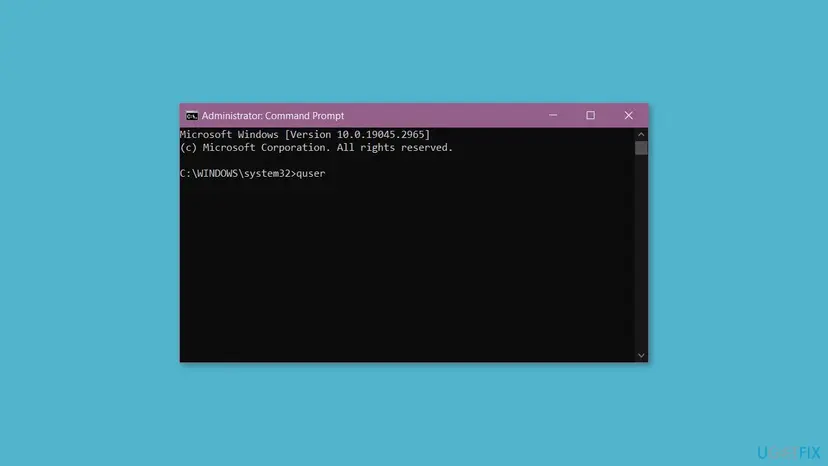
cmd, right-click Command Prompt and select Run as administrator. - Type the command below and press Enter. It lists every signed-in user, the session ID and whether the session is Active or Disc (disconnected).
quser - Note the ID of any session that is not yours, or of your own old session marked Disc.
- Sign that session out. Replace 2 with the ID you noted. Unsaved work in that session is lost.
logoff 2 - Ask anyone who uses the remote PC locally to sign out, not only lock the screen, before you connect.
- Connect again from Remote Desktop Connection.
It worked if: quser shows only your session, and the next connection stays open.
If not: If no other session is listed, go to Fix 2.
Fix 2. Turn off UDP in Remote Desktop Connection on your PC
5 minutesLow riskThe session opens and then ends after about a minute, at random, or only on some networks.
Remote Desktop sends its traffic over UDP when it can and keeps TCP as the base. When UDP packets are lost or blocked on the way, the session can end even though the network looks fine. Microsoft support answers describe this for Windows 11 24H2 clients connecting to Windows Server 2016 or older, with drops after about 65 seconds.
On Pro, Enterprise and Education, use Group Policy. Step by step for the editor itself: Open the Local Group Policy Editor
- On the PC you connect from, press Win + R, type
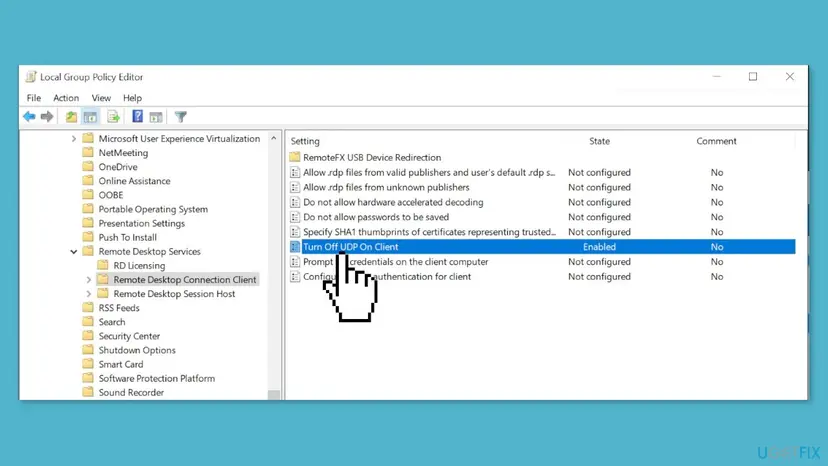
gpedit.mscand press Enter. - Go to Computer Configuration > Administrative Templates > Windows Components > Remote Desktop Services > Remote Desktop Connection Client.
- Double-click Turn Off UDP On Client.
- Select Enabled, then OK.
- Apply the change without a restart.
gpupdate /force - Close Remote Desktop Connection and connect again.
On Windows 11 Home or Windows 10 Home there is no Group Policy Editor. Set the same policy in the registry: create the DWORD value fClientDisableUDP with the value 1 in the key below. Back up the key first: Back up the registry before editing it
Registry key
HKEY_LOCAL_MACHINE\SOFTWARE\Policies\Microsoft\Windows NT\Terminal Services\ClientA wrong edit in the registry can stop programs from starting. Export the key before you change it, so you can import it back. To undo this fix, delete fClientDisableUDP or set it to 0.
It worked if: The session stays open past the first minute and does not drop at random.
If not: Set the policy back to Not Configured if nothing changed, and go to Fix 3.
Fix 3. Turn off the WDDM display driver for Remote Desktop on the remote PC
10 minutes plus a restartLow riskThe session ends while the desktop is still loading, sometimes after a black screen.
Since Windows 10 version 1903 Remote Desktop uses the WDDM display driver by default. The policy's own text says that when you disable it, Remote Desktop uses the older XDDM driver instead. Users report that this stops sessions that end while the desktop is being drawn.
- On the remote PC, press Win + R, type
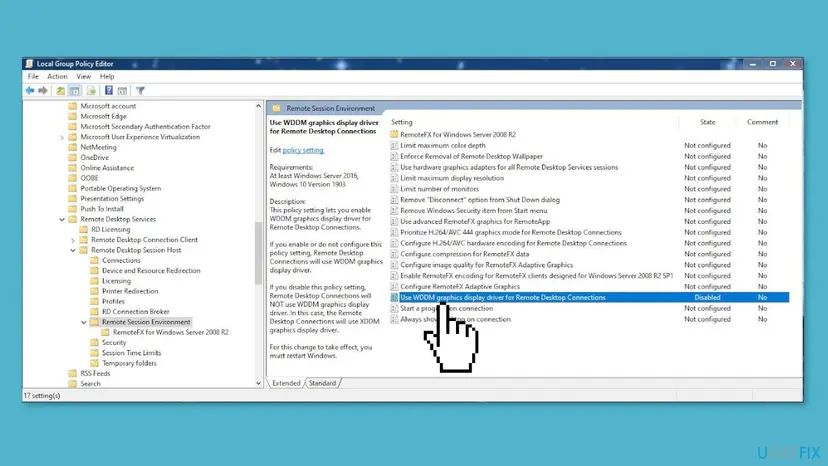
gpedit.mscand press Enter. - Go to Computer Configuration > Administrative Templates > Windows Components > Remote Desktop Services > Remote Desktop Session Host > Remote Session Environment.
- Double-click Use WDDM graphics display driver for Remote Desktop Connections.
- Select Disabled, then OK.
- Restart the remote PC. The policy text says the change needs a restart of Windows.
- Connect again.
It worked if: The desktop loads fully and the session stays open.
If not: Set the policy back to Not Configured, restart, and go to Fix 4.
Fix 4. Update both PCs, or remove the update that started it
15 to 30 minutesLow riskThe error started on the day an update was installed on the client or the remote PC.
Remote Desktop changes with cumulative updates on both ends. A connection problem one update brings is usually fixed in a later one, so the newest updates on both PCs come first. Removing the update is the fallback while you wait.
- On both PCs, open Settings > Windows Update and select Check for updates. Install everything, including optional quality updates, and restart.
- Connect again.
- If it still fails and the error began with one update, open Settings > Windows Update > Update history > Uninstall updates on that PC.
- Remove the update that was installed on the day the problem started, restart and test.
- Pause updates for a week so it does not come back before a fixed version is out.
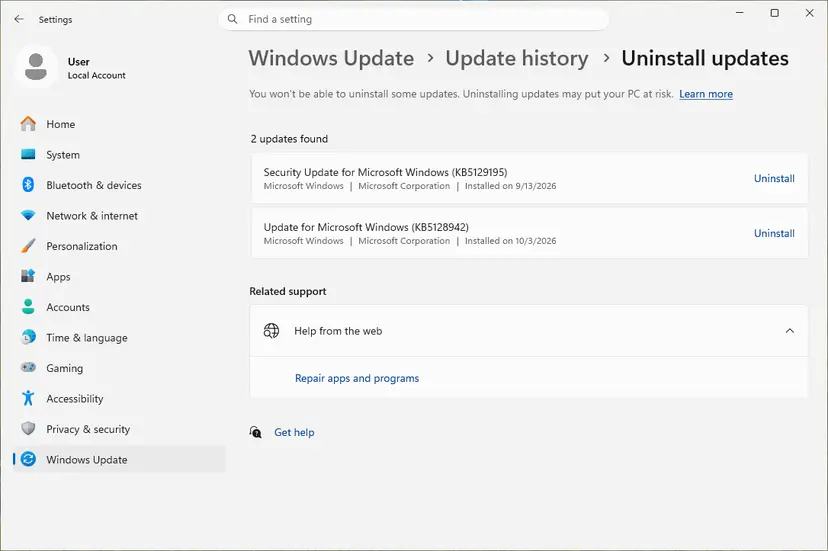
Step by step, with the recovery option for a PC that no longer starts: How to uninstall a Windows update
It worked if: After the update or the rollback the session stays open.
If not: Install the update again later, it carries security fixes. Go to Fix 5.
Fix 5. Change the idle session time limit on the remote PC
5 minutesLow riskThe extended code is 0x3, or the message says the session ended because the remote computer didn't receive any input.
Microsoft's code 0x3 means the server disconnected a client that was idle longer than the set time-out. A policy, often set by an administrator, decides that time.
- On the remote PC, press Win + R, type
gpedit.mscand press Enter. - Go to Computer Configuration > Administrative Templates > Windows Components > Remote Desktop Services > Remote Desktop Session Host > Session Time Limits.
- Double-click Set time limit for active but idle Remote Desktop Services sessions.
- Choose a longer time, or select Not Configured to remove the limit, then OK.
- Apply the policy.
gpupdate /force
On a work PC this limit is usually set by your organisation through domain policy, and a local change is overwritten. Ask the administrator instead.
It worked if: An idle session is no longer closed after the old time.
If not: If the code is not 0x3, the limit is not your cause. Go to Fix 6.
Fix 6. Remove saved Remote Desktop credentials and automatic sign-in
10 minutesRead the warningThe extended code is 0x4, 0x7 or 0x9, or the password is accepted and the session still ends at once.
Microsoft's codes 0x4, 0x7 and 0x9 mean the sign-in timed out or the server denied the connection. An old password saved in Remote Desktop Connection, or automatic sign-in on the remote PC, can trigger that.
- On the client, select Start, type
Credential Managerand open it. - Select Windows Credentials.
- Remove every entry whose name starts with
TERMSRV/followed by the remote PC's name or address. - Connect again and type the account password, not a PIN, when asked.
- If the remote PC signs in by itself at start-up, back up the key below with Back up the registry before editing it.
- In Registry Editor on the remote PC, open that key and set
ForceAutoLogonto0if it exists, then restart.
Registry key on the remote PC
HKEY_LOCAL_MACHINE\SOFTWARE\Microsoft\Windows NT\CurrentVersion\WinlogonRemoving saved credentials means you type the password again. Changing ForceAutoLogon stops the PC from signing in by itself, which can stop programs that rely on it. Export the Winlogon key first so you can import it back.
It worked if: Remote Desktop asks for the password once and the session opens.
If not: Go to Fix 8 for a refused connection, or Fix 7 when the network is in doubt.
Fix 7. Check the network path, the VPN and the network profile
10 minutesLow riskThe connection fails on one network only, over VPN, or the message says the connection was lost.
Remote Desktop needs a steady path to the remote PC. A VPN, a Wi-Fi that drops packets or a network set to Public can break the session, and Microsoft support staff list turning off the VPN as a test.
- From the client, check that the remote PC answers. Replace the name with the remote PC's name or IP address.
ping remote-pc-name - Disconnect the VPN, if you can reach the PC without it, and connect again.
- Use a cable instead of Wi-Fi on either end for one test.
- On the remote PC on a home network, open Settings > Network & internet, select Wi-Fi or Ethernet, open the connection and set Network profile type to Private network.
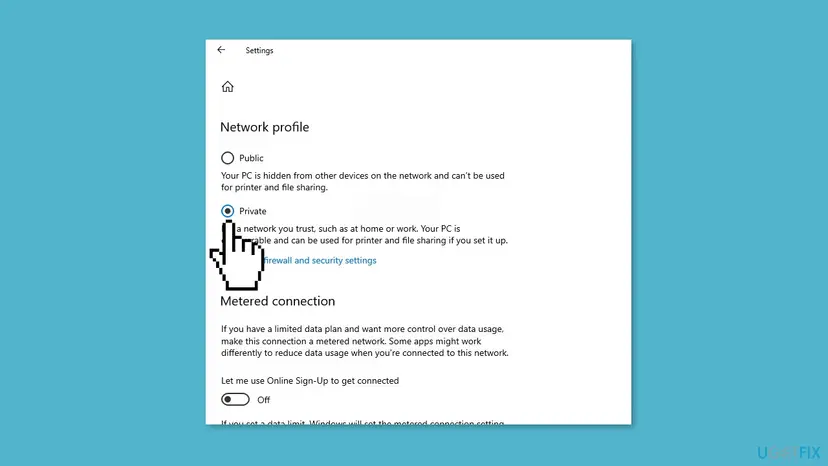
If basic browsing is also unstable, reset the network stack: Reset the network and flush DNS
It worked if: Ping answers without lost packets and the session stays open.
If not: If the PC does not answer at all, the problem is the network, not Remote Desktop. Otherwise go to Fix 8.
Fix 8. Restart Remote Desktop Services and renew its certificate
10 minutesLow riskThe extended code is 0x7, a restart of the remote PC helps for a while, or you see a security error.
Microsoft support staff point to a corrupted or expired Remote Desktop self-signed certificate as a cause of refused sessions. Windows creates a new one when the service starts again, and the restart also clears a stuck service state.
- Work at the remote PC itself or over another remote tool: this step ends every Remote Desktop session.
- Press Win + R, type
certlm.mscand press Enter. - Open Remote Desktop > Certificates and delete the certificate issued to the PC's own name.
- Press Win + R, type
services.mscand press Enter. - Right-click Remote Desktop Services and select Restart.
- Connect again and accept the new certificate if Remote Desktop Connection asks.

More on the Services console: Check and restart Windows services
It worked if: The connection opens, sometimes with a one-time question about the new certificate.
If not: Read the event logs in the next section before you change anything else.
If the session still ends: read the Remote Desktop logs
The remote PC writes the reason to its event logs at the moment the session ends. Compare the time there with the timestamp under Show details, which is in UTC, so it can be hours apart from your clock.
- On the remote PC, right-click Start and select Event Viewer.
- Open Applications and Services Logs > Microsoft > Windows > TerminalServices-LocalSessionManager > Operational.
- Find the entries at the time of the failure and read the text and the error code.
- Do the same in RemoteDesktopServices-RdpCoreTS > Operational.
- TCP socket READ or WRITE operation failed: users report these lines with network drops. Go back to Fix 2 and Fix 7.
- An error occurred when transitioning from CsrConnected: users report this when sign-in fails after a few reconnects. Fix 1, Fix 6 and Fix 8 apply.
- What to send to support: both error codes from Show details, the UTC timestamp, the Windows version of both PCs and the matching event log entries.
- When it is not software: the remote PC sleeps, loses power or drops off the network. Check its power plan and that it stays on the network.
Some answers suggest turning off Network Level Authentication, switching to the older RDP security layer or turning off FIPS algorithms. These lower the protection of the remote PC. Use them only for one test, if an administrator agrees, and switch them back.
How to keep Remote Desktop sessions from ending
- Sign out of the remote PC instead of closing the window, so no disconnected session waits there.
- Set Active hours in Windows Update on the remote PC, so updates do not restart it while you work.
- Keep both PCs on current updates. Windows 10 support ended on 14 October 2025, so a Windows 10 PC no longer gets Remote Desktop fixes without extended updates.
- Set the remote PC's power plan so it does not sleep while it is meant to accept connections.
- Write down the extended code each time. A repeating code points to one cause.
Frequently asked questions
What does "Your Remote Desktop Services session has ended" mean?
It means the remote PC closed your Remote Desktop session. The message lists three possible reasons: the administrator has ended the session, an error occurred while the connection was being established, or a network problem occurred. Those three lines are the same for many causes. Select Show details to see the extended error code, which Microsoft defines: 0x5 means another connection replaced yours, 0x3 means an idle time-out, 0x7 means the server denied the connection. The table in this guide maps each code to a fix.
Why does it say "The administrator has ended the session" when nobody did?
That line is part of a fixed text. Windows shows it whenever the remote side closed the session, not only when a person did. A second sign-in at the remote PC, an old disconnected session, an idle time limit or a restart for updates all produce the same words. Run quser on the remote PC to see which sessions exist, and read the extended error code under Show details. If you work on a managed PC, an administrator or a policy may really end sessions after a set time.
Why does my Remote Desktop session end after about a minute?
Most often the UDP part of the connection fails while the session starts over TCP. Microsoft support answers describe sessions from Windows 11 24H2 to Remote Desktop servers on Windows Server 2016 or older dropping after about 65 seconds, which later updates fixed. Install current updates on both PCs. If it still happens, turn on the policy Turn Off UDP On Client on the PC you connect from (Fix 2). The session then runs over TCP only, which works on almost any network.
The message says the remote computer didn't receive any input. What should I do?
That version of the message means an idle time limit ended your session. Microsoft lists it as code 0x3: the server disconnected a client that was idle longer than the designated time-out period. On your own PC, raise or remove the limit in Group Policy under Remote Desktop Session Host > Session Time Limits (Fix 5). On a work PC the limit is set by your organisation and comes back after a local change, so ask the administrator. Moving the mouse now and then only hides the problem.
What do error code 0x904 and extended error code 0x7 mean?
This pair comes with a different text: "This computer can't connect to the remote computer. Try connecting again." In Microsoft's table the extended code 0x7 means the server denied the connection. We could not confirm a Microsoft description of the main code 0x904 in the pages we read. In practice, clear the saved credentials in Credential Manager (Fix 6), then restart Remote Desktop Services and renew its certificate on the remote PC (Fix 8). Check also that the remote PC is on and reachable.
Does this fix work for "Your Chrome Remote Desktop session has ended"?
No. Chrome Remote Desktop is a separate Google service with its own host program, so the Windows policies in this guide do not change it. Its session ends when the host PC sleeps, loses the network, or its host program stops or is signed out. Check that the host PC stays awake and online, then use Google's Chrome Remote Desktop help pages. This guide covers Microsoft Remote Desktop Connection and Remote Desktop Services in Windows.
What does "the remote computer is shutting down" mean?
The remote PC restarted or shut down while you were connected, so the session ended with it. The usual reason is Windows Update installing updates outside active hours, a power plan, or someone at the remote PC choosing Restart. Wait a few minutes and connect again. To keep it from happening during work, set Active hours on the remote PC and make sure it is plugged in and not set to sleep.
What does "Remote Desktop disconnected because of a security error" mean?
It is a related message about the secure channel between the two PCs. It usually points to a broken or expired Remote Desktop certificate, or to a security setting that differs on the two ends after an update. Install current updates on both PCs, then delete the Remote Desktop certificate in certlm.msc and restart Remote Desktop Services (Fix 8). Turning off Network Level Authentication may make it connect, but it lowers protection, so use it for one test only.
What about "Remote Desktop Services is currently busy" or "The content has ended. You may close this window"?
"The task you are trying to do can't be completed because Remote Desktop Services is currently busy" is a different message. It means the service on the remote PC did not answer in time. Restarting the remote PC or the Remote Desktop Services service (Fix 8) usually clears it. "The content has ended. You may close this window" is not a Remote Desktop Connection message that we could match. This page covers the session ended message only.
Iska matlab kya hai? Kenapa tidak bisa diakses?
These questions ask what the message means and why the remote PC cannot be reached. The message means the remote computer closed your Remote Desktop session. The common causes are another session that took over, a dropped UDP connection, an idle time limit, or a refused sign-in. Open Show details, read the extended error code and use the table at the top of this guide to choose the fix. This guide is in English only.
Sources
Did this fix work?
One click, no account. It tells the next reader which guides are worth their time.
Questions and experiences: fix "Your Remote Desktop Services session has ended" error in Windows
Still broken, or found a fix we did not cover? Ask here: members and our editors answer. Reading is open; writing needs a free account.
…