How to fix
“Your startup disk is almost full” error
on Windows
Resolve the "Your startup disk is almost full" error on Windows 10 and 11 quickly. Free up space effortlessly and enjoy a smoother experience. Expert-te…

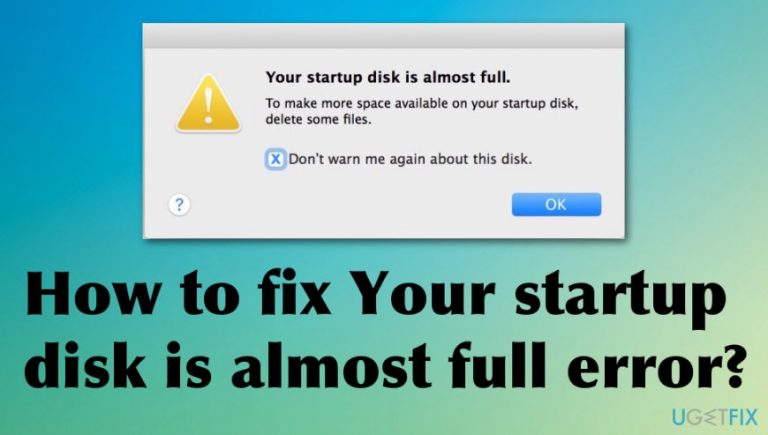
What causes How to fix “Your startup disk is almost full” error?
- Too many files occupying the hard drive
- Insufficient free disk space (less than 10%)
- Recent macOS update causing temporary issues
- Running programs that require more space than available
- System processes requiring additional space for optimal performance
Repairs Windows system files, removes malware, and restores a clean OS state — without reinstalling.
Hello, I get pop-ups and messages about my disk being full. It all shows up on the Mac computer. I am sure that it is NOT full, but Your startup disk is almost full error is not stopping. What is the startup disk, and what is happening? Can you provide any tips on how to fix the error or what is the reason for the issue in the first place?
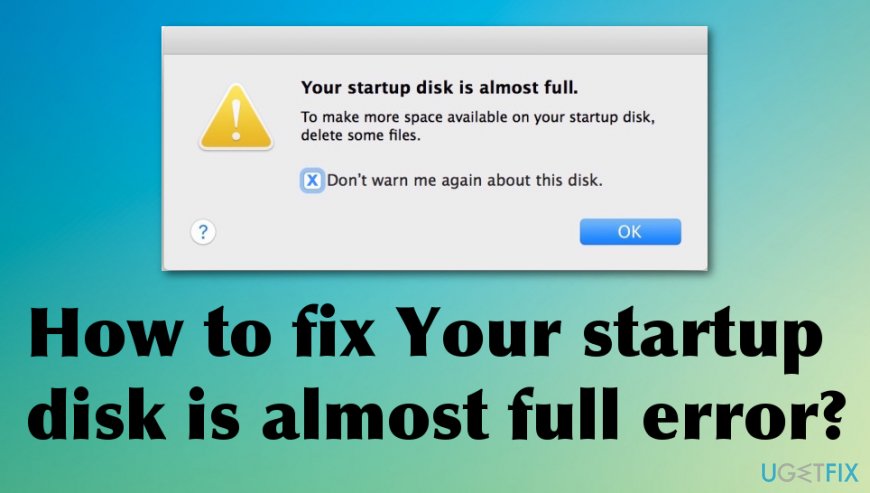
Your startup disk is almost full error is probably the issue that every macOS user encounters at least once because it is a common problem that drives people crazy.[ref en-1] The error itself mainly means that your device is running out of space on the primary disk drive, and it is not good news since that can affect various processes and the performance of applications, the computer itself.
These messages can appear on the screen out of nowhere, or when you reboot the machine, try to run a program or install a new tool. Your startup disk is almost full macOS error can often occur after the new release of the OS and, in such cases, the message is not related to hardware or software issues.
The problem might be related to the fact that too many files are occupying the hard drive, so the lack of space is indicated with Your startup disk is almost full error until it reaches the extreme state when the system suddenly crashes or cannot work properly.
Mac OS requires to have at least 10 percent of the disk space to be left free, so all the processes can run as supposed to, so these errors and warnings shouldn't be ignored. The best and the easiest solution for Your startup disk is almost full error is to clean up the hard disk.
This is the way to fix Your startup disk is almost full error because you make the free space and allow all the processes to run smoothly. There are a few methods that allow doing so, and you can choose the method that is easier for you. Some of the newer macOS releases include hard drive optimization features,[ref en-2] so these issues can be managed by users themselves. 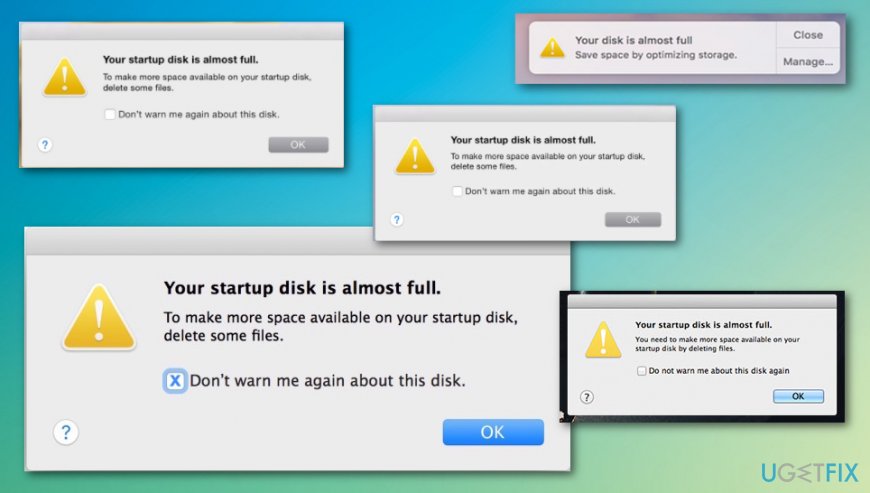
How to fix Your startup disk is almost full error
The first thing to address is that Your startup disk is almost full error is not a crucial warning that means corruption of the system. This issue is manageable and not related to malware[ref en-3] or any major problems with software or hardware. Even though the message is disturbing and makes the user frustrated, the problem with disk space is fixed when you clean out useless programs, files and literally control what takes up the most space on the disk and keeps your device from properly working.
You can end those Your startup disk is almost full error pop-ups by running a tool like [d1] since optimizers can keep the junk files cleaned and indicates when the app is useless and not used at all, so you can uninstall such programs and save space. As for all the best methods, follow the guide.
Get information about the disk space usage to fix Your startup disk is almost full error
- To know what is taking the most part of the disk, go to the Apple menu by clicking the logo at the top left corner.
- Then choose About this Mac and select Storage to see details.
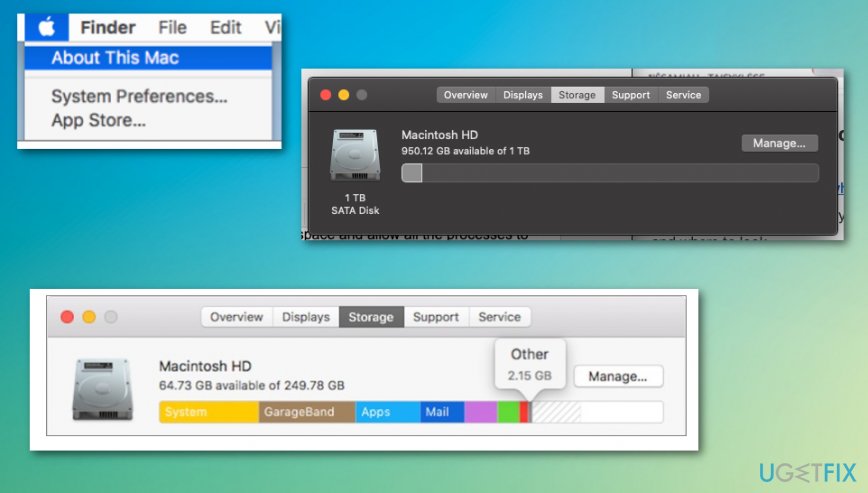
How to fix your startup disk is almost full error usage
Search for large files via Finder
- Open the Finder folder and click Command + F.
- Change the search settings to This Mac and choose File Size as the primary criterion.
- Then select Is greater than and pick file size to narrow the search results. Go for 500MB or 1GB, for example.
- When you find items that are too big, you can drag them into the Trash or select Command + Delete.
Clear Downloads folder and Trash to fix Your startup disk is almost full macOS error
Delete stuff from these folders when you determine of the file that you downloaded is no longer in use or needed. Also, when you leave files in the Trash they are not deleted still, so actually get rid of those files.
Restart the Mac and check the storage again.
Use storage optimization tools to fix Your startup disk is almost full error
If you are running macOS Sierra or higher, there is a built-in option for Optimized Storage that solves problems with a full hard drive and moves files into the cloud for you. The storage tool provides Recommendations and features that you can enable in the Storage tab by clicking the Manage button.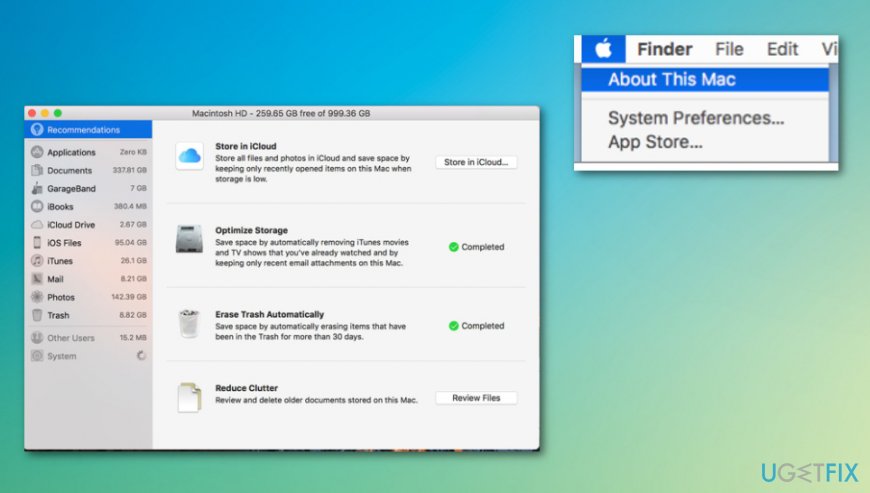
Bottom line
To fix the 'Your startup disk is almost full' error, you should clean up the hard disk to free up space. This can involve deleting unnecessary files, uninstalling unused applications, or using disk cleanup tools. If none of these methods work, consider seeking professional assistance.
Frequently asked questions
Start by checking your disk space usage through 'This PC' to identify large files or folders. You can then delete unnecessary files or move them to an external drive.
Open Disk Cleanup by searching for it in the Start menu, select your startup disk, and choose the files you want to delete, such as temporary files and system files.
Yes, Windows 10 includes Storage Sense, which automatically frees up space by deleting unnecessary files; you can configure it in the Settings under System > Storage.




Report an issue
What's wrong with this guide? We review every report and update or remove content.
Report received — thank you. We'll review and fix it.
You need a free account to submit a report.
Be the first to comment