How to fix
Your version of Windows 10 will reach end of service soon message
on Windows
Resolve the "Your version of Windows 10 will reach end of service soon" message effortlessly. Get expert-tested solutions and keep your system secure!

What causes How to fix Your version of Windows 10 will reach end of service soon message?
- Users receiving a notification about end of service for their Windows version
- Windows version 1909 or older no longer supported after May 11, 2021
- Misunderstanding that the license is expiring or that an update is mandatory
- Concerns about losing personal files during the update
- Fear of updates breaking existing functionality
Repairs Windows system files, removes malware, and restores a clean OS state — without reinstalling.
Hello. I suddenly started getting a small popup message at the bottom right corner of my screen of Windows: "Your version of Windows 10 will reach end of service soon." What does this mean? Will I have to pay for the new version, or what is going on? Because I am fine with my current version of Windows 10, it runs fine. Please advise on this.
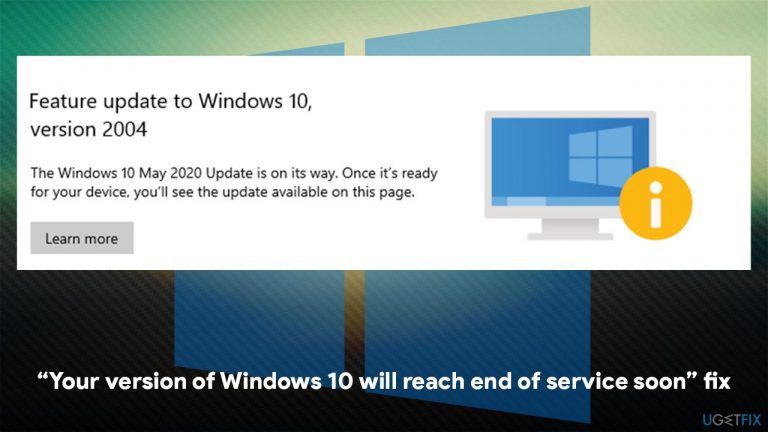
"Your version of Windows 10 will reach end of service soon" is a pop-up message that users started receiving directly on their desktops, and it caused a lot of confusion. Some people believed that their license is about to be terminated or that they are forced to update despite not wanting to do that.
However, there is no need to panic, as it is a very legitimate notification that comes from Microsoft itself. Here's what you might see at any time when operating your Windows 10 machine:
Your version of Windows 10 will reach end of service soon. Click to download a newer version of Windows 10 to stay supported
Windows feature updates are released approximately twice a year, and they are generally not forced upon people, as they while improving user experience and implement new features, are not critical. There are plenty of reasons why some users might not want to upgrade, as Windows is notorious for breaking things due to updates.
If you received such a message, it is likely that your Windows version is 1909 (or older) and will no longer be supported after May 11, 2021. Since the support stops, Windows has to force users to upgrade to the newest version. Therefore, you should not dwell on this and install the latest feature update that is offered to you.
If you thought that your Windows license is expiring, it is not the case at all - feature updates are free from Home, Pro, and Enterprise Windows users. You will also not lose any personal files or other data your hold on your device. However, it turns out that not everybody could run an update smoothly.
According to numerous user reports, they encountered several difficulties with the "Your version of Windows 10 will reach end of service soon" fix. Some said that they started receiving errors such as 0x800707e7,[ref en-3] while others claimed that they simply can't apply the update.
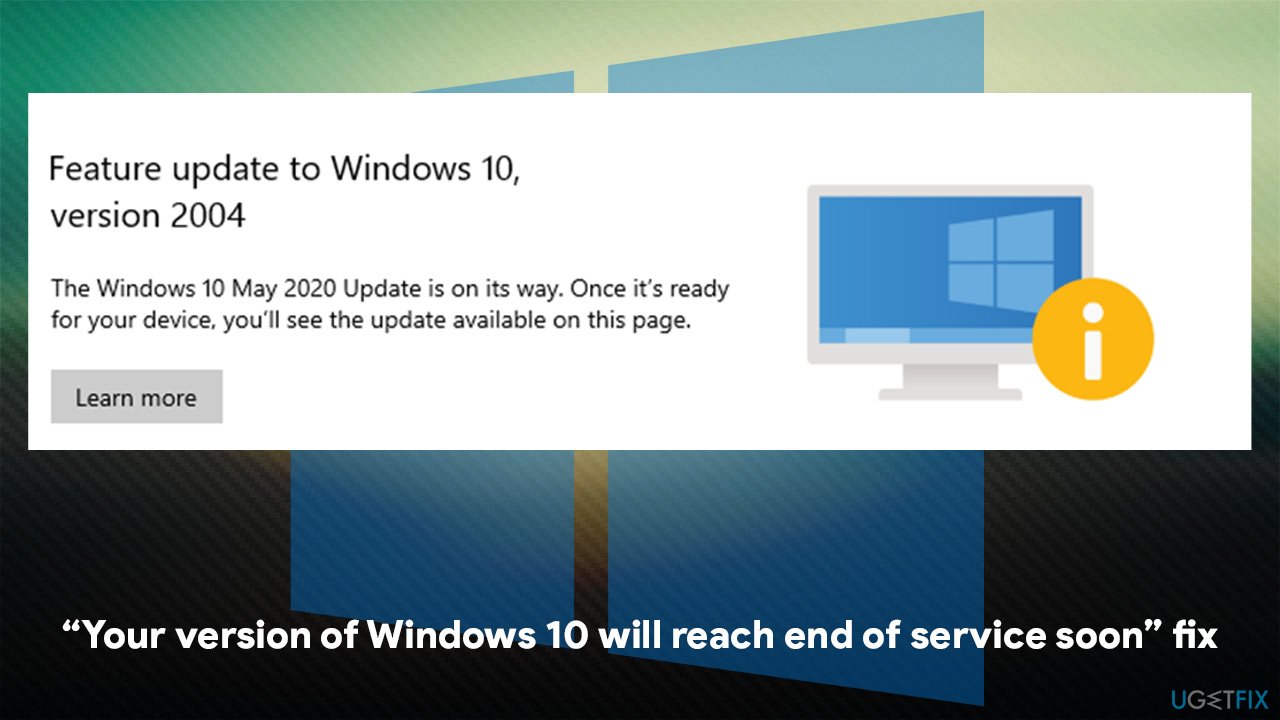
To be precise, if you are seeing the "Your version of Windows 10 will reach end of service soon" message, you should be able to update Windows by going to Windows Settings > Update & Security and clicking Check for updates. The problem here is that some users see the message "You're up to date."
If you your toolbar says Your version of Windows 10 will reach end of service soon but system claims Windows is up to date, we have a solution for you below. Before you proceed, we strongly recommend you check your computer with an automatic PC repair and maintenance tool [d1], as it can fix missing DLLs,[ref en-1] BSODs,[ref en-2] corrupted registries, and other commonly encountered problems on a Windows 10 machine.
Check which Windows version and edition you are running
As a regular computer user, you are likely to have Windows 10 Home or Windows 10 Pro edition installed on your device. In case you are using Home edition, feature updates are offered as optional updates, so it is likely to be the cause for an outdated Windows, hence the prompt.
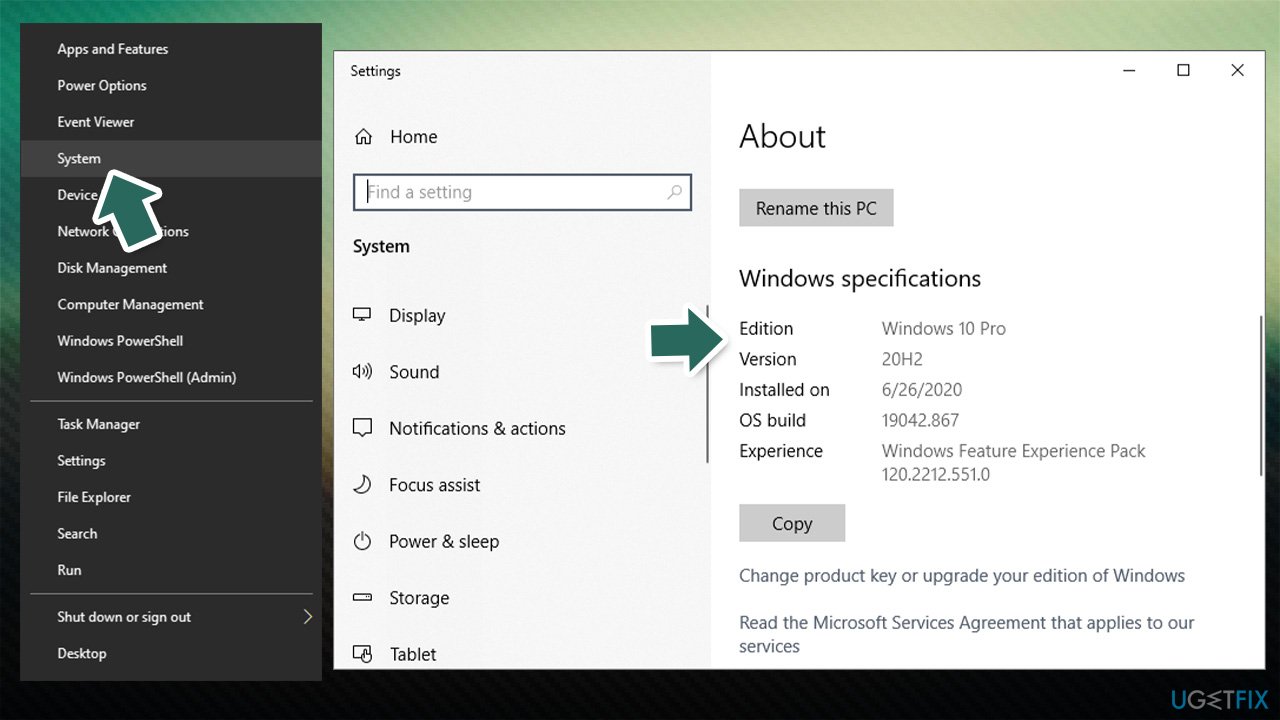
Here's how to check which Windows you are using:
- Right-click on Start and pick System
- On the right side of the window, scroll down until you see Windows specifications section
- Here, you can see Windows edition and Windows version you are using.
Here's the list of available Windows 10 versions:
| Windows 10 version | Release | End of life |
| 1507 | 07/29/2015 | 05/09/2017 |
| 1511 | 11/10/2015 | 10/10/2017 |
| 1607 | 08/02/2016 | 04/10/2018 |
| 1703 | 04/05/2017 | 10/09/2018 |
| 1709 | 10/17/2017 | 04/09/2019 |
| 1803 | 04/30/2018 | 11/12/2019 |
| 1809 | 11/13/2018 | 11/10/2020 |
| 1903 | 05/21/2019 | 12/08/2020 |
| 1909 | 11/12/2019 | 05/11/2021 |
| 2004 | 05/27/2020 | 12/14/2021 |
| 20H2 | 10/20/2020 | 05/10/2022 |
Fix 1. Update all your drivers to the latest version
In some cases, you will not be able to update your Windows to the latest version due to outdated drivers on your device. Some older versions of Conexant Audio driver in particular is known to be causing this issue. There are three ways you can update them:
Device Manager
- Right-click on Start and select Device Manager
- Expand the section you want to update, e.g., Display adapters
- Right-click and select Update driver
- Select Search automatically for drivers
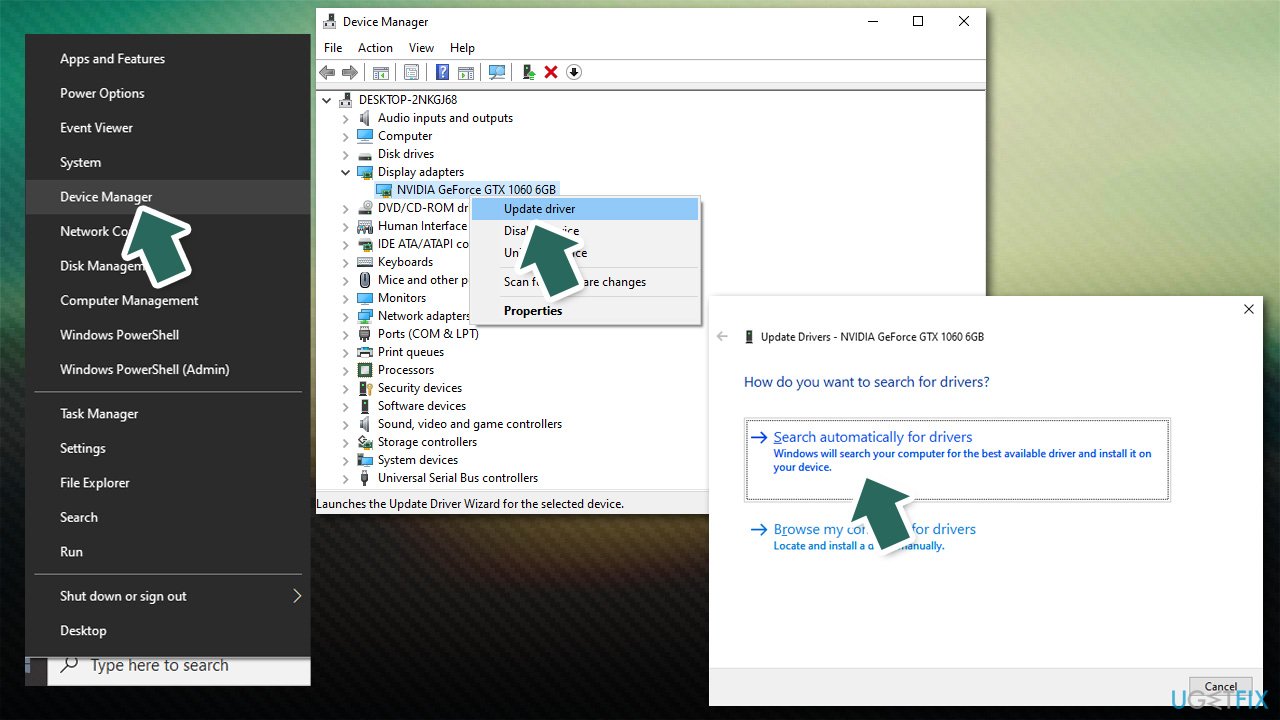
- Wait till the installation is finished and do the same for all of your installed devices.
Manufacturer's website
Downloading drivers from the manufacturer's website might take more time than using Device Manager, but it is worth mentioning that the latter might fail to find the most recent, relevant updates. Thus, navigate to the website of a maker of your device (for example, Nvidia for your graphics driver), enter your model, and install the latest drivers available.
Automatic software
As evident, using the Device Manager or visiting the manufacturer's website to download the latest drivers for all your devices will take you a long time to complete. Instead, you can employ an automatic driver updater [rev id="DriverFix"]. Not only will it update all your drivers automatically, but it can also be used to prepare driver backups in case something goes wrong.
Fix 2. Use Update Download Assistant
Some users were hesitant to use Update Assistant for some reason. Still, it is a perfectly valid solution when facing difficulties with updates after receiving a "Your version of Windows 10 will reach end of service soon" message.
- Visit the official Microsoft page and download Windows 10 October update by pressing Update now
- Once downloaded, click on the Windows10Upgrade9252.exe file once via your browser
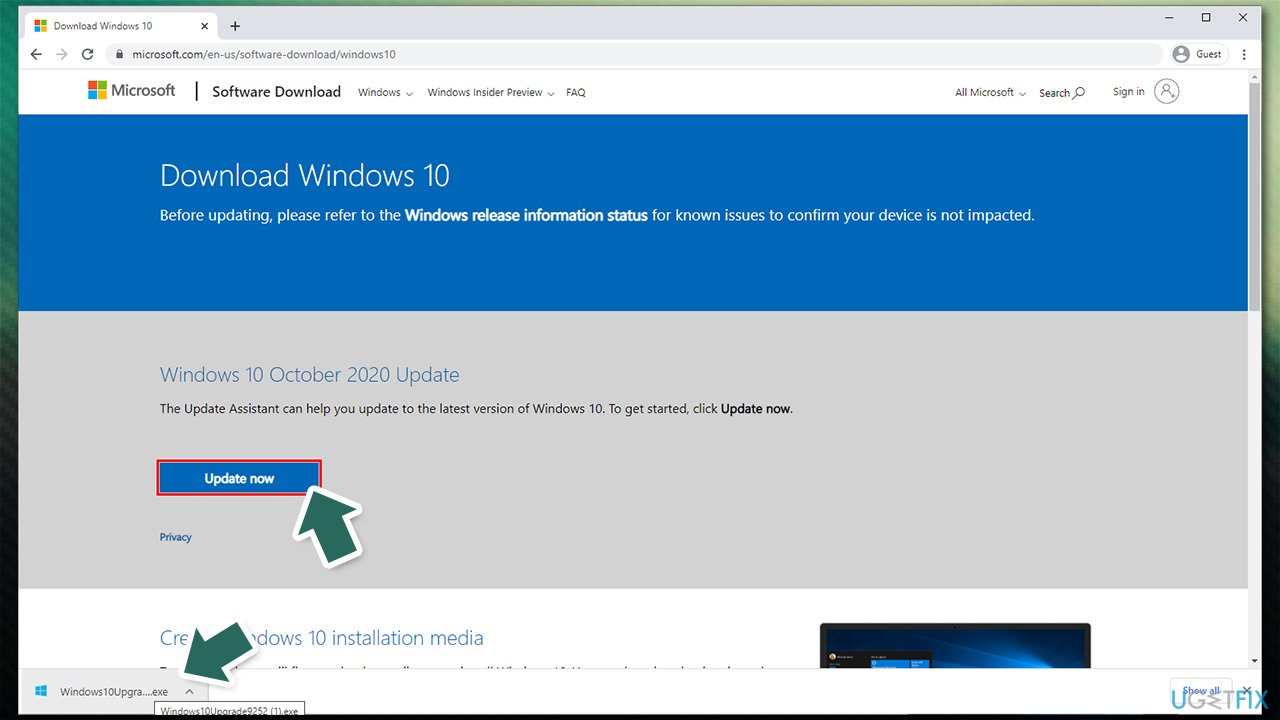
- The installation should proceed and finish in awhile (depending on which Windows version you are running).
Fix 3. Use Media Creation Tool
Windows Media creation tool can download and install all the necessary files from Microsoft servers, ensuring their integrity. Thus, if you are unable to update Windows 10 after receiving "Your version of Windows 10 will reach end of service soon" message, you should try using Windows Media Creation Tool:
- Download Windows 10 installation media from the official Microsoft website
- Double-click the installer
- Agree to Terms and pick Next
- Select Upgrade this PC now and then click Next
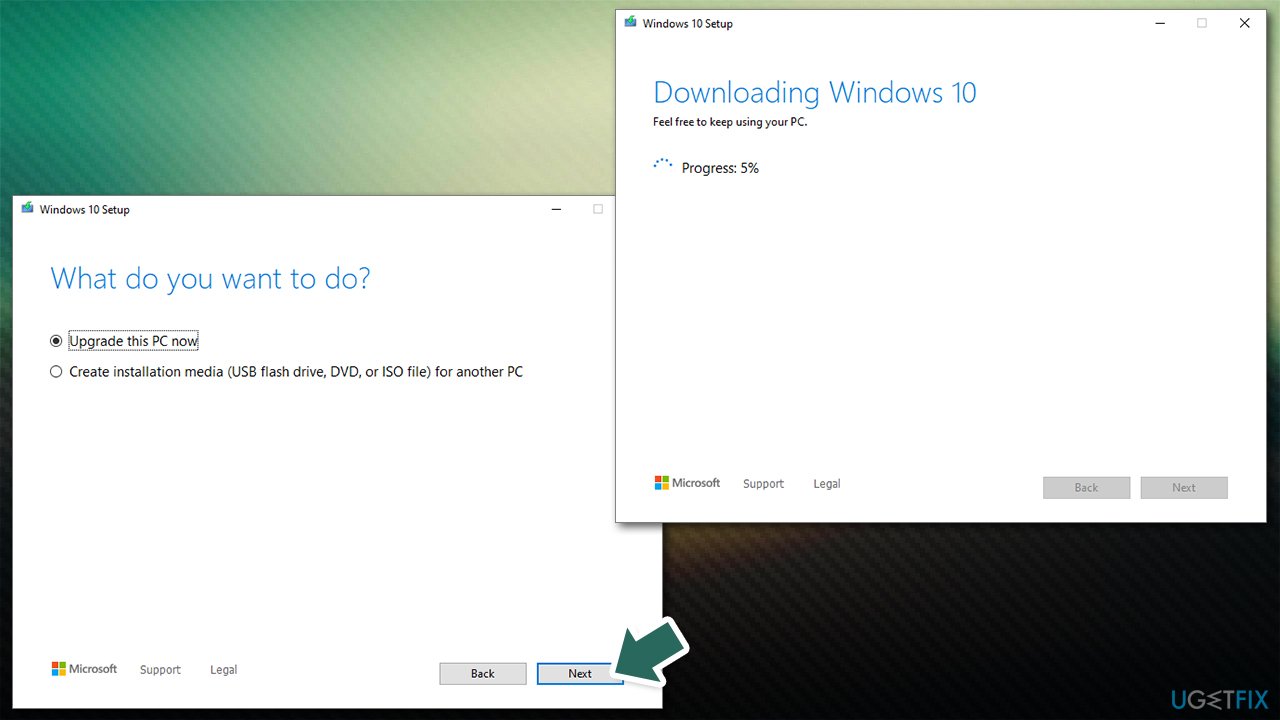
- Windows should download and install all relevant updates
- Restart your PC.
Fix 4. Uninstall Conexant Audio driver [Lenovo, Asus laptops]
Some Lenovo or other laptop users said that they do indeed have the latest version of Conexant Audio driver installed and are still unable to update Windows. Therefore, if you have these audio drivers installed, we recommend you uninstall them and try to upgrade then.
- Right-click on Start and open Device Manager
- Expand Sound, video and game controllers section
- Right-click on Conexant SmartAudio HD and select Uninstall device
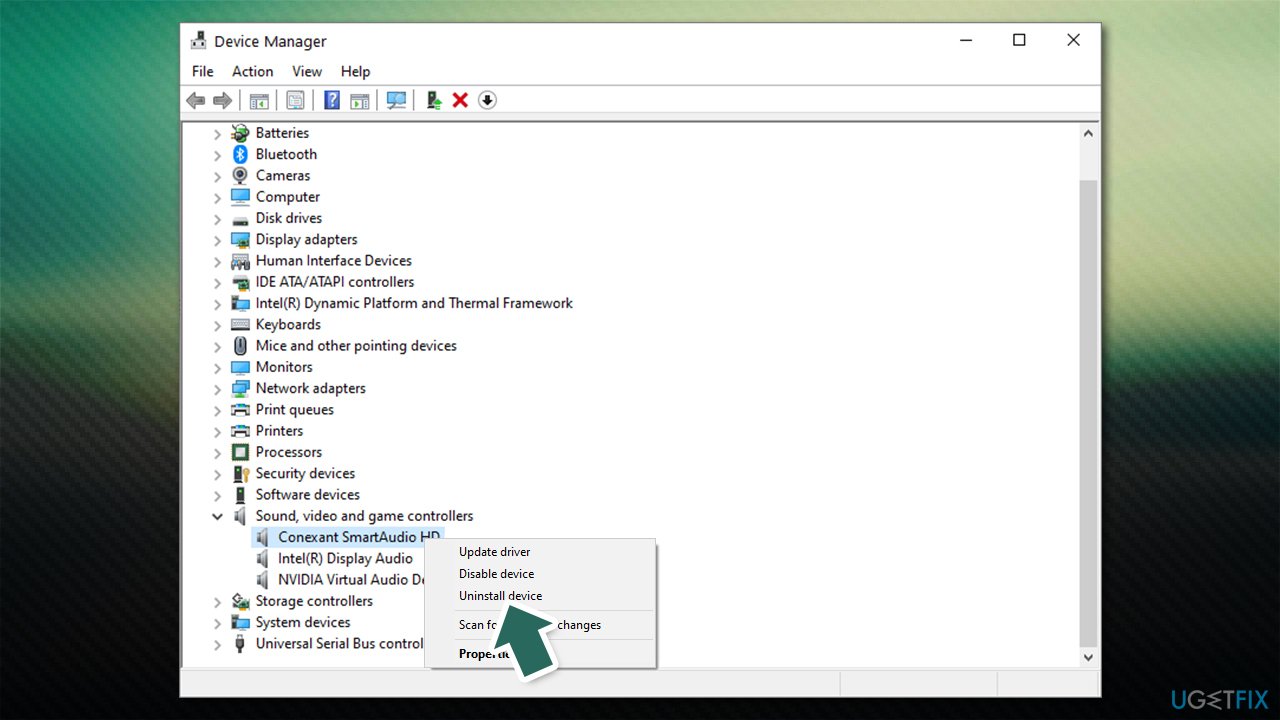
- Restart and try upgrading again.
If your sound goes missing after the installation, you should install generic audio driver until the developer of Conexant released a new, compatible version of the driver.
Bottom line
To resolve the issue, users should install the latest feature update offered by Microsoft. This update is free for Home, Pro, and Enterprise users, and personal files will not be lost. If the update does not install smoothly, users may need to seek further assistance.
Frequently asked questions
You should consider upgrading to the latest version of Windows 10 or Windows 11 to ensure continued security updates and support.
It is not advisable to ignore the message, as continuing to use an unsupported version of Windows 10 may expose your system to security vulnerabilities.
To upgrade to Windows 11, check if your PC meets the system requirements and then use the Windows Update feature or the Installation Assistant from Microsoft's website.




Report an issue
What's wrong with this guide? We review every report and update or remove content.
Report received — thank you. We'll review and fix it.
You need a free account to submit a report.
Be the first to comment