
How to fix "You're not up to date" but no updates available in Windows?

Prefer to fix it yourself? The manual steps follow.
- 8methods
- 5 minutes to 1 hour
- Easy
Applies to Windows 10 22H2 and Windows 11 PCs whose Windows Update page shows You're not up to date while Check for updates finds nothing
8 methods in this guide
I can't update Windows. At least, I think that's the case. The message in Settings is "You're not up to date. Your device is missing important security and quality fixes." But if I click "Check for updates," there's nothing: no updates are discovered or installed. I'm a bit at a loss. I'm using Windows 11.
"You're not up to date" with no updates to install means Windows Update thinks a required update is missing but cannot offer it. On Windows 10 the usual reason is a PC that is not enrolled in Extended Security Updates. On Windows 11 it is most often a pending restart, a pause or one failed cumulative update.
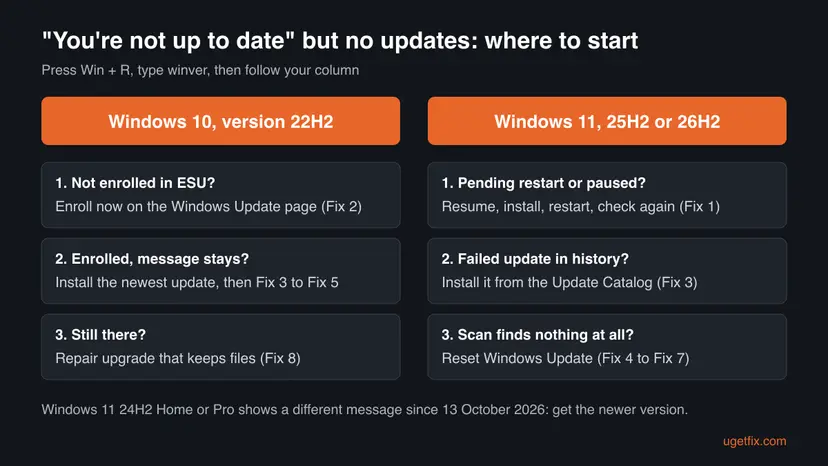
The status means Windows Update knows a security update is missing but has nothing it can install right now. Start with Fix 1: resume paused updates, install anything listed, restart and select Check for updates again. On Windows 10, check that the PC is enrolled in Extended Security Updates (Fix 2). If a cumulative update keeps failing, install it from the Microsoft Update Catalog (Fix 3).
| Error | You're not up to date with the red line Your device is missing important security and quality fixes. under it, while Check for updates finds nothing to install. |
|---|---|
| Where it appears | At the top of Settings > Windows Update on Windows 11, or Settings > Update & Security > Windows Update on Windows 10, after a scan. |
| Main cause | Windows 10 22H2 not enrolled in Extended Security Updates (ESU). On Windows 11: a pending restart, paused updates or a cumulative update that failed and is no longer offered. |
| Fastest fix | Resume updates, install what is listed, restart and check again (Fix 1). On Windows 10, select Enroll now for ESU (Fix 2). |
| Also written as | You are not up to date, your not up to date, not up to date but no updates, no updates found, no updates yet, Windows update not up to date. |
| Affects | Windows 10 22H2 Home and Pro since support ended on 14 October 2025, and Windows 11 Home and Pro on any version. |
| Microsoft's status | Not a listed known issue. Windows 10 ESU runs until 12 October 2027 and needs the licensing package KB5126256 and the latest update. |
| Time to fix | 5 to 15 minutes for Fix 1 and Fix 2. About 1 hour for a repair upgrade (Fix 8). |
Facts checked on 15 October 2026. Steps written for Windows 11 25H2 and 26H2, and Windows 10 22H2.
What "You're not up to date" means when no updates are available
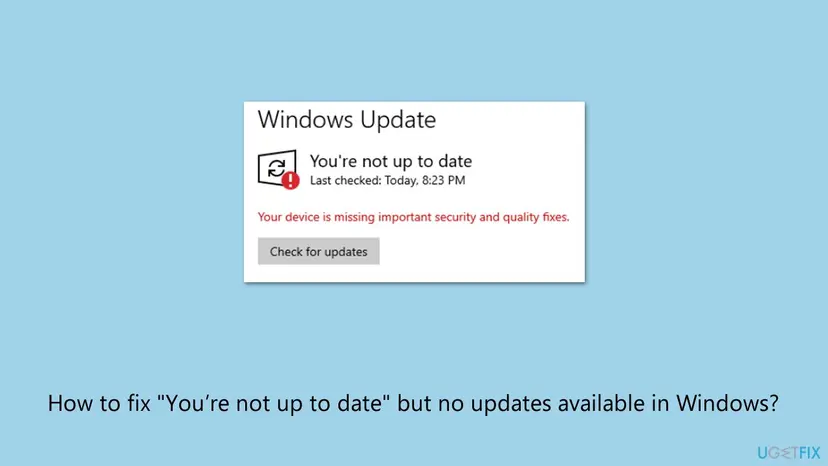
Windows Update shows two things at the top of its page: the status line and the list of updates it can install. Normally they agree. Here they do not: the status says You're not up to date and Your device is missing important security and quality fixes., while the list stays empty or Check for updates ends with no new updates.
The status comes from a check of how old the last installed security update is. When that check finds the PC behind, the red line appears. When Windows Update then has nothing it is allowed to offer, you get this mix. It is not an error code, and nothing in Windows is broken by it, but the PC really may be missing security fixes.
Windows 11 24H2 Home and Pro reached the end of updates on 13 October 2026. Those PCs show Get the newer version of Windows to stay up to date instead, and the fix is a feature update. Read our guide to Get the newer version of Windows to stay up to date.
Why Windows says you're not up to date but finds no updates
Most often the cause is on Windows 10. Its support ended on 14 October 2025, and only PCs enrolled in the Extended Security Updates program still get security updates. A PC that is not enrolled falls behind each month and has nothing to download. On Windows 11 the cause is usually simpler.
| Cause | How often | How to tell | Fix |
|---|---|---|---|
| Windows 10 22H2 is not enrolled in ESU, or enrollment did not finish. | Most often on Windows 10 | The Windows Update page shows an Enroll now link, or no ESU line at all. | Fix 2 |
| An update waits for a restart, or updates are paused. | Most often on Windows 11 | Restart now or Resume updates is shown on the Windows Update page. | Fix 1 |
| A cumulative update failed and Windows Update no longer offers it. | Often | Update history lists a Failed to install entry with an error code. | Fix 3 |
| The update services are stopped or the update cache is damaged. | Less often | The scan ends in seconds, hangs, or shows an error code. | Fix 4, Fix 5, Fix 6 |
| System files or the update stack are damaged. | Rarely | Every other fix fails and SFC reports files it could not repair. | Fix 7, Fix 8 |
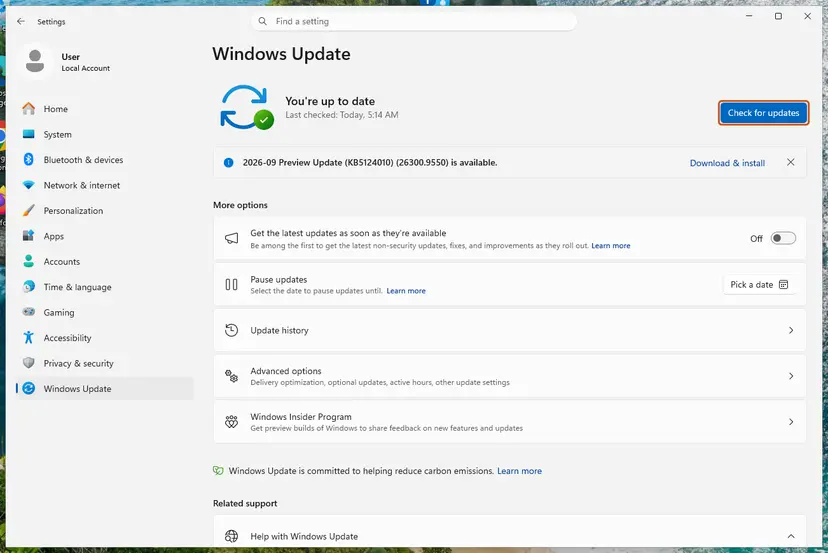
In Microsoft Q&A threads from December 2025 to July 2026, several Windows 10 users report that the red line stayed even after ESU enrollment and the newest update. The updates did install; only the status was stale. The section on what to do if it stays covers this case.
How to fix "You're not up to date" but no updates available
Fix 1 takes five minutes and clears the message on many Windows 11 PCs. Fix 2 is the main fix on Windows 10. Fix 3 to Fix 7 repair Windows Update itself, and Fix 8 reinstalls Windows over itself while keeping your files.
| What you see or have | Start with |
|---|---|
| Windows 11, and the page shows Restart now, Resume updates or updates waiting. | Fix 1 |
| Windows 10 22H2 with an Enroll now link, or no ESU line, on the Windows Update page. | Fix 2 |
| Update history shows a cumulative update with Failed to install. | Fix 3 |
| Check for updates ends at once or hangs. | Fix 4, then Fix 5 |
| Windows Update gives an error code every time. | Fix 5, then Fix 6 |
| Nothing above helped, on Windows 10 or Windows 11. | Fix 7, then Fix 8 |
Fix 1. Resume updates, install what is waiting and restart
5 to 15 minutesNo riskEveryone, first. Especially Windows 11 PCs that were paused, on a metered network, or not restarted for days.
The status line is set by the last scan. If an update is downloaded but waits for a restart, or downloads are held back, Windows counts the PC as behind while Check for updates finds nothing new. Finishing the queue and scanning again refreshes the status.
- Press Win + I and select Windows Update. On Windows 10 select Update & Security > Windows Update.
- If you see Resume updates, select it.
- If you see Restart now or Download and install, select it and let the update finish.
- Open Advanced options and, if your network is set as metered, turn on Download updates over metered connections for now.
- Restart the PC with Start > Power > Restart, not shut down.
- Open Windows Update again and select Check for updates.
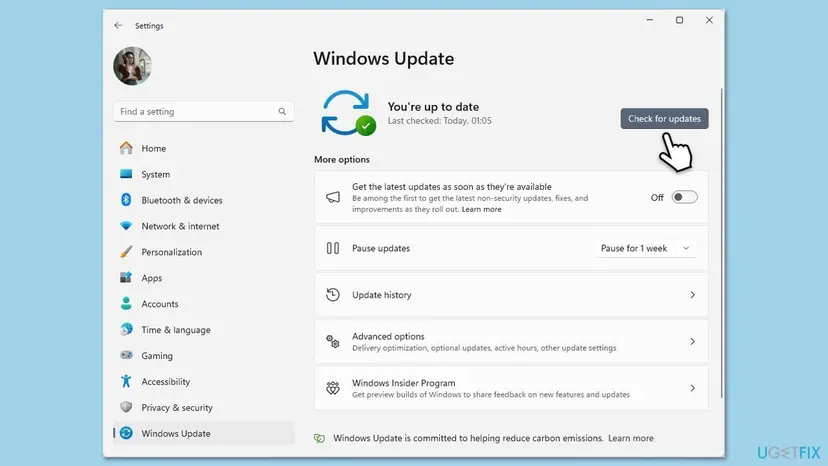
Open Update history before you go on. A line that says Failed to install names the KB number and an error code, and that tells you whether Fix 3 is your next step.
It worked if: After the scan, the page shows You're up to date with a green check mark.
If not: On Windows 10 go to Fix 2. On Windows 11 with a failed update in history, go to Fix 3, otherwise Fix 4.
Fix 2. Windows 10: enroll in Extended Security Updates or check the enrollment
10 minutesLow riskWindows 10 22H2 Home, Pro, Pro Education or Workstations. Not for Windows 11.
Windows 10 support ended on 14 October 2025. Since then only enrolled PCs get security updates, so an unenrolled PC is always missing fixes and Windows Update has nothing to offer it. Microsoft's ESU program runs until 12 October 2027, and enrollment is free if you sync your PC settings.
- Press Win + R, type
winverand press Enter. ESU is only for Version 22H2. - Open Settings > Update & Security > Windows Update and install every update offered, then restart. Microsoft lists the latest update and the licensing package KB5126256 as requirements.
- On the same page, select Enroll now.
- Sign in with a Microsoft account that is an administrator on the PC. A child account cannot enroll.
- Pick one option: back up your PC settings (no cost), redeem 1,000 Microsoft Rewards points, or a one-time purchase of 30 US dollars or the local equivalent.
- Restart and select Check for updates. The page should now say the PC is enrolled.
- No Enroll now link? Microsoft does not offer consumer ESU on kiosk PCs, PCs joined to a domain or Microsoft Entra, or PCs managed by MDM. Ask your IT department.
- One ESU license covers up to 10 PCs. On another PC, select Enroll now and then Add device.
- Enrolling does not stop a later upgrade to Windows 11, if the hardware meets its requirements.
It worked if: The Windows Update page shows that the PC is enrolled in Extended Security Updates, monthly security updates install, and the status turns to You're up to date.
If not: If you are enrolled and the red line stays after the newest update, go to Fix 3 and Fix 5, then read the section on what to do if it stays.
Fix 3. Install the latest cumulative update from the Microsoft Update Catalog
20 to 40 minutesLow riskUpdate history shows a cumulative update that failed, or the PC is several months behind.
When a cumulative update fails, Windows Update may stop offering it while the status still counts it as missing. Installing the newest cumulative update yourself brings the build up to date in one step, because each one contains all earlier fixes.
- Open Windows Update > Update history and note the KB number of the failed cumulative update.
- Open the Microsoft Update Catalog at
catalog.update.microsoft.comand search for that KB number, or a newer cumulative update for your version. - Download the
.msufile for your version and processor, then double-click it to install. - Restart the PC and select Check for updates again. Step by step: Install an update from the Microsoft Update Catalog.
- Pick the row for your version and processor: x64 for most PCs, Arm64 only for Arm PCs.
- On Windows 10, the ESU security updates also install this way once the PC is enrolled.
It worked if: After the restart, winver shows a higher build number and Check for updates shows You're up to date.
If not: If the update file stops with an error, reset Windows Update in Fix 5 and install it again.
Fix 4. Start the Windows Update and BITS services
5 minutesLow riskCheck for updates ends in a second, or a service was turned off by a tuning tool.
Windows Update needs the Windows Update service (wuauserv) and the Background Intelligent Transfer Service to scan and download. If either is stopped or disabled, the scan can end with nothing found while the status stays red.
- Press Win + R, type
services.mscand press Enter. - Double-click Background Intelligent Transfer Service. If Startup type is Disabled, set it to Manual, select Apply, then Start.
- Do the same for Windows Update. If it already runs, right-click it and select Restart.
- Close Services and select Check for updates. Step by step: Check and restart Windows services.
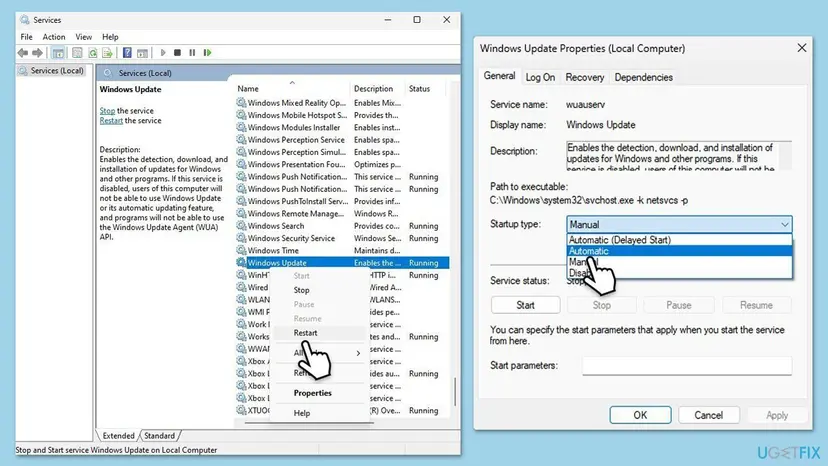
It worked if: Both services show Running, and the next Check for updates takes longer and lists updates or You're up to date.
If not: If the services run but the scan still finds nothing, go to Fix 5.
Fix 5. Reset the Windows Update components
10 minutesLow riskScans hang, end at once, or fail with the same error code each time.
A damaged download cache in SoftwareDistribution or a damaged signature store in catroot2 can make the scan miss updates the PC needs. Renaming both folders makes Windows build them again and rescan from scratch.
You stop the update services, rename the two folders and start the services again. Step by step with all commands: Reset Windows Update components.
The two folders, renamed in an administrator Command Prompt after the services are stopped:
ren %systemroot%\SoftwareDistribution SoftwareDistribution.old
ren %systemroot%\System32\catroot2 catroot2.old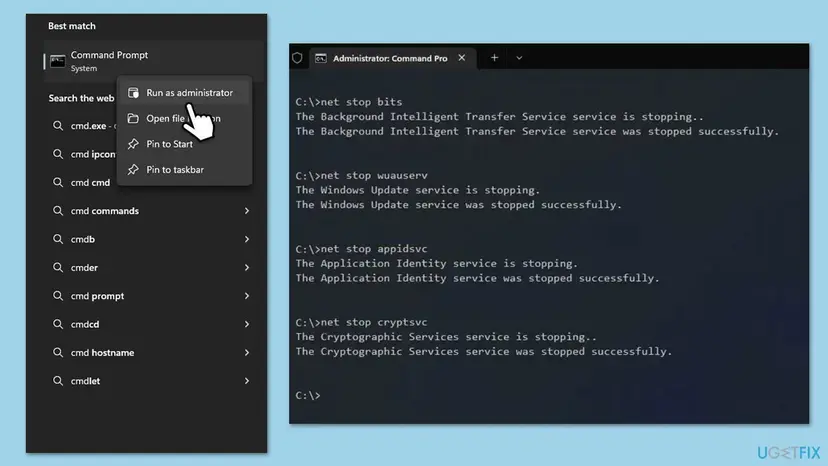
It worked if: After a restart the first scan takes longer, then offers the missing update or shows You're up to date.
If not: If the scan still finds nothing, run the troubleshooter in Fix 6.
Fix 6. Run the Windows Update troubleshooter
5 minutesNo riskFix 4 and Fix 5 did not help, or you prefer an automatic check.
The troubleshooter checks the update services and their settings and repairs what it can. It does not install updates itself, but it can clear a stuck state that keeps the scan from seeing them.
- Open Troubleshoot settings. Select Start > Settings > System > Troubleshoot.
- Open the list of troubleshooters. Select Other troubleshooters.
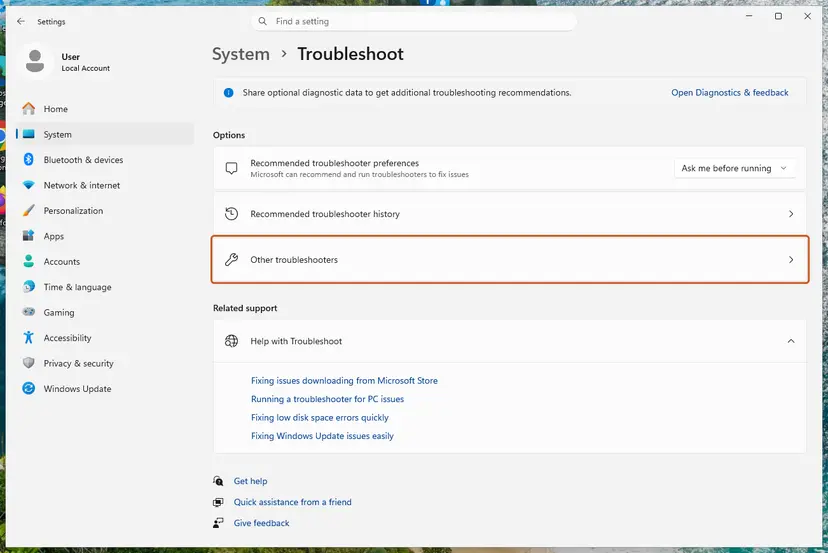
Settings, System, Troubleshoot: select Other troubleshooters. Screenshot: Windows 11 26H2. - Run the Windows Update troubleshooter. Under Most frequent, select Run next to Windows Update. The Get Help app opens and starts the checks.
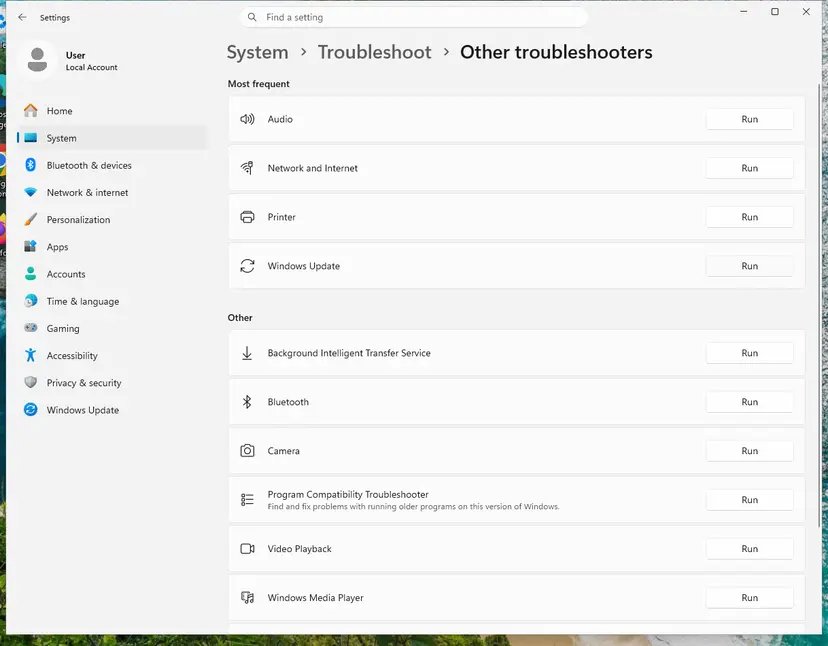
Windows Update is in the Most frequent group; select Run on its row. Screenshot: Windows 11 26H2. - Read the result. Wait until Get Help finishes. If it found and fixed a problem, it says so and asks whether this solved the problem. Answer the question so it can offer the next step.
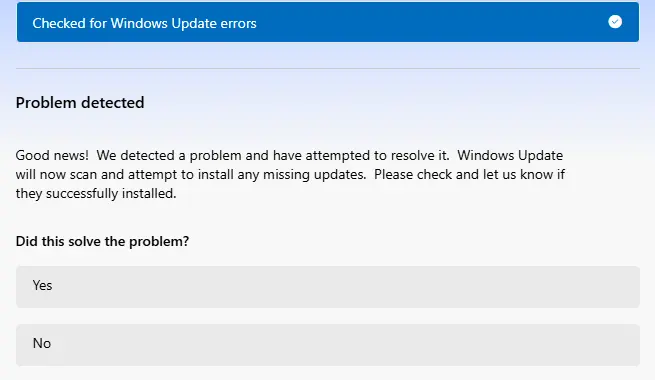
Get Help reports what it found and asks if the problem is solved. Screenshot: Windows 11 26H2. - Restart the PC. Restart when the troubleshooter finishes, even if it does not ask you to.
- Check for updates again. Select Start > Settings > Windows Update > Check for updates, and install the updates it finds.
These steps were written for Windows 11 (screenshots: 26H2). The full page with the other versions and what each result means: Run the Windows Update troubleshooter
It worked if: The troubleshooter reports what it fixed, and Check for updates finds the missing update.
If not: If it finds nothing, repair system files in Fix 7.
Fix 7. Repair system files with DISM and SFC
15 to 30 minutesLow riskUpdates fail again after a reset, or Windows shows other faults too.
Windows Update uses the component store in C:\Windows\WinSxS. If that store is damaged, updates fail or are skipped. DISM repairs the store from Windows Update, then SFC repairs the system files from it.
- Open an elevated command window. Right-click Start and select Terminal (Admin), or type cmd in the search box, right-click Command Prompt and select Run as administrator. Select Yes when Windows asks for permission.

Search for cmd and choose Run as administrator. Screenshot: Windows 11 26H2. - Run DISM first. Type the command below and press Enter. DISM downloads clean copies of damaged components from Windows Update, so it can take several minutes. Wait until it says The operation completed successfully.
DISM.exe /Online /Cleanup-Image /RestoreHealth
DISM /RestoreHealth running. Screenshot: Windows 11 26H2. - Run System File Checker. In the same window, type the command below and press Enter. Do not close the window until the verification reaches 100%.
sfc /scannow
sfc /scannow at 100%. Screenshot: Windows 11 26H2. - Read the result and restart. Compare the last message with the table below this guide, then restart the PC so that repaired files are loaded.

The result line tells you what SFC did. Screenshot: Windows 11 26H2.
These steps were written for Windows 11 24H2 and 25H2. The full page with the other versions and what each result means: Run DISM and SFC to repair Windows system files
It worked if: SFC reports that it found and repaired files, or found no integrity violations, and the next scan works.
If not: If DISM fails or SFC cannot repair some files, go to Fix 8.
Fix 8. Repair Windows with an in-place reinstall that keeps your files
About 1 hourLow riskNothing else worked, on Windows 11 or Windows 10.
An in-place reinstall replaces Windows and its update stack with a current copy while keeping your files, apps and settings. It also brings the PC to the newest build in one go, so the status starts fresh.
- Back up the files you cannot lose: Back up your files (Windows Backup, File History, Time Machine).
- Windows 11: open Settings > System > Recovery and select Reinstall now next to Fix problems using Windows Update. It needs Windows 11 22H2 or later and is not shown on managed PCs.
- Windows 10: download the Media Creation Tool from Microsoft's Download Windows 10 page, run it and choose Upgrade this PC now.
- When asked what to keep, select Keep personal files and apps.
- Leave the PC plugged in. It restarts several times.
- Open Windows Update and select Check for updates.
On Windows 10, a reinstall does not enroll the PC in ESU. If the PC was not enrolled, do Fix 2 afterwards, or the message returns.
It worked if: Windows starts with your files and apps in place, and Windows Update shows You're up to date after the first scan.
If not: Read the next section: the cause is the license, the hardware or a stale status.
If "You're not up to date" stays after every fix
First check whether updates really are missing. Open Update history and look at the date of the last Quality Updates entry. If it is from this month and winver shows a current build, the PC is patched and only the status is wrong.
| What you find | What it means and what to do |
|---|---|
| Windows 10, enrolled in ESU, updates of this month installed, red line stays | A stale status reported by many users. Updates still arrive. Select Check for updates again after the next monthly update, which often clears it. |
| Windows 10 that cannot enroll | The PC is a kiosk, domain joined or managed, or uses a child account. It gets no security updates. Upgrade to Windows 11 if the hardware passes, or ask IT. |
| Windows 10 older than 22H2 | ESU needs 22H2. Upgrade to 22H2 first with Fix 8, then enroll with Fix 2. |
| Some settings are managed by your organization | Your IT department controls updates. Ask them before you change anything. |
| An update fails with the same code each time | Note the code from Update history. It names the cause and has its own fixes. |
In a Microsoft Q&A thread, a volunteer shared a registry file that resets Windows Update's status data, and many Windows 10 ESU users report that it cleared the message. We could not check that file, so we do not link it. Never merge a registry file from a paste site without reading it, and back up the registry first: Back up the registry before editing it.
- What to send to support: the
winvertext, the edition from Settings > System > About, a screenshot of the Windows Update page and the last entries of Update history. - Add the error code of any failed update, and on Windows 10 say whether the PC is enrolled in ESU.
How to keep Windows from saying you're not up to date
The message comes back whenever the PC falls a month or more behind on security updates. Two dates matter now: Windows 10 ESU ends on 12 October 2027, and each Windows 11 version gets 24 months of updates on Home and Pro.
- Restart when Windows Update asks, within a few days.
- Check Update history once a month for Failed to install lines.
- On Windows 10, keep the ESU enrollment and plan the move to Windows 11 before October 2027.
- Keep 20 GB or more free on drive C for updates.
- Do not pause updates for weeks and forget to resume them.
- Do not disable the Windows Update service with tuning tools.
- Do not install update files from sites other than Microsoft.
- Do not trust a pop-up in a browser that says your PC is not up to date. Check Settings yourself.
Frequently asked questions
Why does Windows say I'm not up to date when there are no updates?
Because the status and the update list come from different checks. The status looks at how old the last installed security update is, while the list shows only updates the PC is allowed to install now. On Windows 10 without ESU, no security updates are offered at all, so the status stays red. On Windows 11, a pending restart, a pause or a failed cumulative update cause the same mix. Fix 1 and Fix 2 cover most cases.
How do I fix "You're not up to date" on Windows 10?
Check the version with winver first. Windows 10 support ended on 14 October 2025, so a 22H2 PC needs to be enrolled in Extended Security Updates to get security fixes. Install all offered updates, then select Enroll now on the Windows Update page and sign in with an administrator Microsoft account. Enrollment is free if you sync your PC settings. If you are already enrolled, install the newest cumulative update by hand (Fix 3) and reset Windows Update (Fix 5).
What does "Your device is missing important security and quality fixes" mean?
It means Windows found that the PC has not installed a recent security update. It is the red line under You're not up to date on the Windows Update page. It is not a virus warning and not an error code. The PC keeps working, but holes fixed in newer updates stay open on it. When the line appears together with an empty update list, use the chooser above to pick the right fix.
Is the "You're not up to date" message a scam?
Not when you see it in Settings on the Windows Update page. That is Windows' own status. Be careful with the same words in a web page pop-up, an email or a phone call that asks you to download a cleaner, pay for a fix or call a number. Windows never does that. Close such a page and open Settings yourself to check the real status.
I enrolled in ESU and it still says I'm not up to date. Why?
First check Update history. If this month's security update is installed, the PC is protected and the status is stale. Many Windows 10 users report exactly this in Microsoft Q&A after enrolling. Restart, select Check for updates, and wait for the next monthly update, which often clears it. If no update installed since enrollment, install the latest one from the Update Catalog (Fix 3) and reset Windows Update (Fix 5).
Check for updates says no updates found. Is my PC up to date?
Only if the status line says You're up to date. No updates found with a red status means Windows Update has nothing it can offer, not that nothing is missing. Look at Update history: if the last quality update is more than a month old, the PC is behind. On Windows 11 install the newest cumulative update by hand, and on Windows 10 check the ESU enrollment.
Does a metered connection stop Windows updates?
It can hold back downloads. When your Wi-Fi or Ethernet is set as a metered connection, Windows limits what it downloads in the background. In Windows Update, open Advanced options and turn on Download updates over metered connections, or turn off Metered connection in the network's properties under Network & internet. Then select Check for updates again. Turn it back if your data plan is limited.
Will the fixes on this page delete my files?
No. Fix 1 to Fix 7 change only update settings, services and caches. Fix 8 reinstalls Windows over itself and keeps your personal files and apps when you choose Keep personal files and apps. We do not suggest System Restore or Reset this PC here, because they can remove updates or apps and do not touch the cause. A backup before Fix 8 is still wise.
What happens if I ignore the message?
The PC keeps working, but it stays without the security fixes that the message is about. Every month the gap grows, and attacks that newer updates block can still reach your PC. On Windows 10 without ESU this never resolves by itself. On Windows 11 it often clears after the next successful monthly update, but only if updates install at all, so check Update history.
How do I check which version and build of Windows I have?
Press Win + R, type winver and press Enter. The window shows the version, such as 22H2 on Windows 10 or 25H2 on Windows 11, and the OS build. You can also open Settings, then System, then About, and read Windows specifications. Compare the build with the newest one Microsoft lists for your version. A build several months old confirms that updates are really missing.
Sources
- Microsoft: Windows 10 Consumer Extended Security Updates (ESU), prerequisites, enrollment and end date (microsoft.com)
- Microsoft Q&A: How to fix "Your device is missing important security and quality fixes." (Windows 10, user reports and advisor steps) (learn.microsoft.com)
- Microsoft Q&A: Device missing important security and quality issues (ESU enrolled PCs, user reports) (learn.microsoft.com)
Did this fix work?
One click, no account. It tells the next reader which guides are worth their time.
Questions and experiences: fix "You're not up to date" but no updates available in Windows
Still broken, or found a fix we did not cover? Ask here: members and our editors answer. Reading is open; writing needs a free account.
…