For some reason, most of the YouTube videos show up in a black screen. I can hear the sounds, but no video material displayed. The problem started just a few days ago, and I did not do anything out of the ordinary on my PC. Any suggestions on how to fix the issue?
Created in 2005, YouTube revolutionized[ref en-1] the way users can access and share the videos online, and it remains the leading video sharing and streaming site to this day. It helped novice video makers, singers, and other content creators to shine without promotional campaigns and gifted the world the amazing people that otherwise would not be heard. Therefore, while YouTube remains an important part of online experience, it does not always perform at its best.
One of the issues users commonly encounter (among slow loading speeds, green screens, computer shutdowns) is YouTube black screen errors. These usually result in the video never showing up on the computer or phone screen in the first place, although in some cases, YouTube black screen may disappear after a while, or the sound may still be present. The problem may also be consistent among multiple videos, and sometimes users only face it occasionally.
The different means and frequencies for the YouTube black screen error to occur are due to multiple factors, including malfunctioning ad-block extensions, issues with Google/YouTube account, internet stability, browser cache, etc. Luckily, in most cases, you can fix YouTube black screen error relatively easily, and we will describe quire a few methods below.
Fix youtube black screen error
In some cases, however, the YouTube black screen errors may be caused by factors that are outside of your control. For example, if your ISP (Internet Service Provider) has technical difficulties, or YouTube's servers are overloaded. Unfortunately, nothing can be done about these, and you will have to wait for YouTube black screen error to be fixed by outside sources.
Method 1. Refresh the video
This is one of the first methods you should try when having issues with YouTube or any other website. In some cases, tiny bits of data may not be displayed correctly or get bugged and not display the content correctly, and refreshing the page usually solves these types of issues.
Simply put the mouse cursor anywhere on the URL bar and hit Enter, or click the Refresh button instead. In case that did not work, you might also want to restart the browser altogether.
Method 2. Remove web browser cache clogs
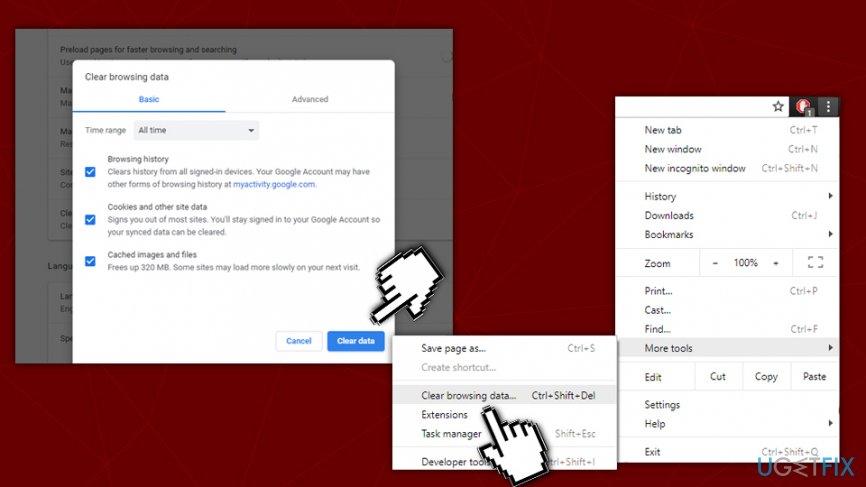
Browser cache[ref en-2] is a feature that can allow the content (such as pictures, texts, etc.) on web pages to load faster. While the feature can be very convenient, browser cache might pile up over time and take a considerable amount of space. In some cases, it might even prevent some content from loading properly. Besides, cleaning cache regularly is advised due to security reasons, as some malware might exfoliate data from it. Here's how to do it on Google Chrome:
Click on Menu > More Tools
Select Clear browsing data... (you can also press Ctrl + Shift + Delete instead while on any page)
Select all the boxes and click Clear Data (note: make sure Time range is set to All time)Fix youtube black screen error clear browsing data
While the names of the options are slightly different, similar steps apply for other web browsers as well, so make sure that you delete browsing data from Firefox, IE, Edge or another browser that you are using.
Method 3. Sign in/sign out your YouTube/Google account
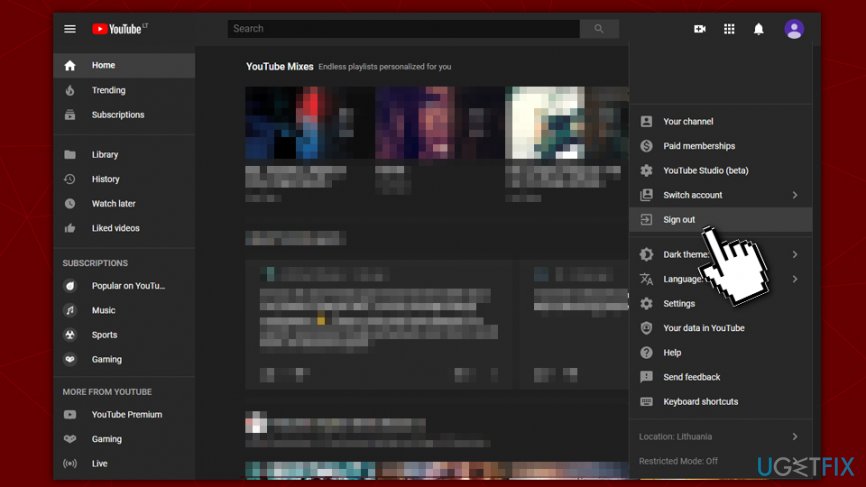
If you have a YouTube account, then check if you are signed into it. If you are, then try to sign out and check for YouTube videos. If the black screen vanished and now you can see videos as usual, then the culprit might have been an internal YouTube bug, which might have occurred due to the prolonged login to the account. In case you do not have the account, try to create one and log into it.Fix youtube black screen error sign out of youtube google account
Method 4. Disable or remove extensions
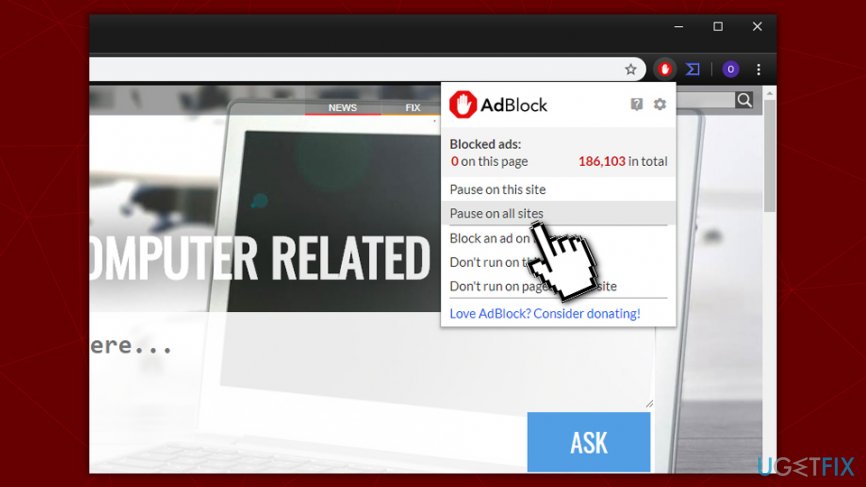
In some cases, browser extensions can cause YouTube black screen errors. It is exceptionally common for ad-blockers - these add-ons block certain elements of the website from being loading, blocking the advertisements in the process. This also works for video-streaming sites like YouTube, where ads are built-in into videos. In some cases, a malfunctioning application may load wrong components and block the desired content, resulting in YouTube black screen errors. To fix that, try disabling the extension:
Click on your ad-blocking app and select Pause on all sites or Pause on this site (these options may be worded Fix youtube black screen error pause disable ad blockdifferently - depending on the installed app (we are using AdBlock))
Reload the video and see if it returns the YouTube black screen error
If the issue is fixed, we advise you replace it with another ad-blocker
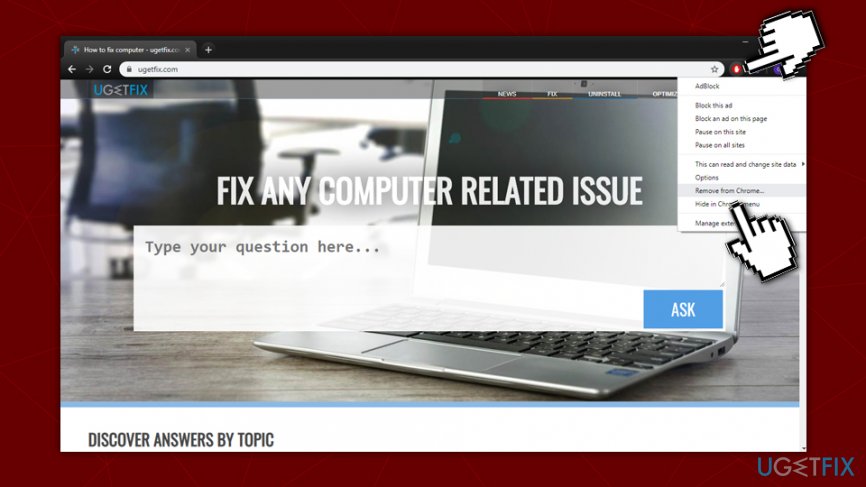
Additionally, you should also try disabling other apps and remove those that are considered to be unsafe (potentially unwanted).[ref en-3] To remove an extension, follow these steps:
Right-click on the undesired extension and select Remove from ChromeFix youtube black screen error remove extensions
Method 5. Disable hardware acceleration
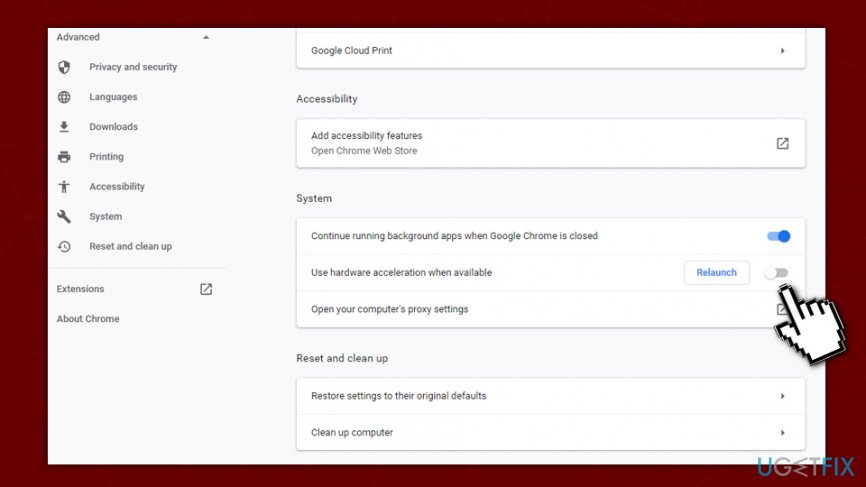
Hardware acceleration is designed to utilize the GPU in order to perform certain high-demand tasks while browsing. In some cases, however, this feature might cause various issues, including the YouTube black screen error. Therefore, try to disable hardware acceleration and try to play the video again:
On Chrome, click on Menu and select Settings
Scroll down and click Advanced
Scroll down again till you reach System section
Toggle the switch near the Use hardware acceleration when available optionFix youtube black screen error disable hardware acceleration
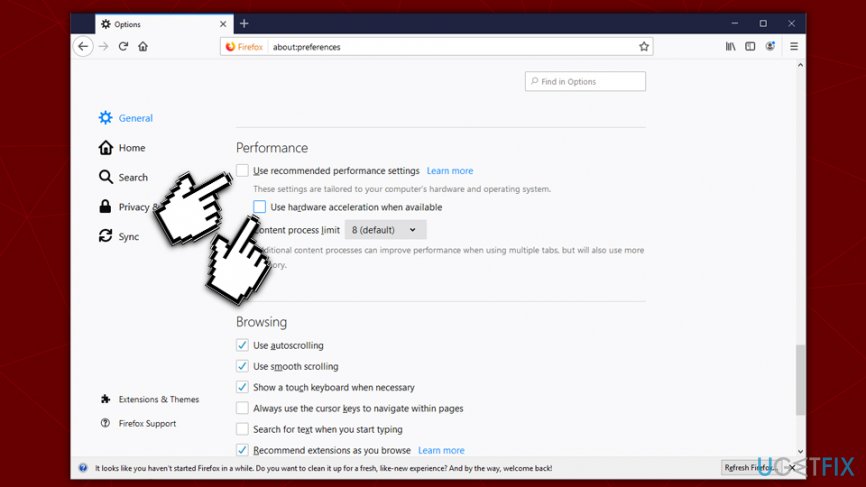
Instructions for Mozilla Firefox:
Open Firefox and go to Menu > Options
In the General section, scroll down until you reach Performance
UntickUse recommended performance settings
Untick Use hardware acceleration when availableFix youtube black screen error disable hardware acceleration firefox
Method 6. Check your internet speed
The best way to find out whether your internet is causing YouTube black screen errors is by checking your internet speed. There are plenty of free services available online, but possibly the most popular one is speedtest.net.
Method 7. Try another browser
It is worth trying another browser, as there is a small chance that the browser you are using cannot play the YouTube video properly due to incompatibility or other issues. Besides, it is also a good way to see if the browser extensions that you have installed on the browser are causing the issue.
Simply download another browser and install it on your computer. If it fixes the YouTube black screen error, you should contact the tech support of the browser that you are having trouble with.
Bottom line
To fix the YouTube black screen error, you can try refreshing the video, clearing your browser cache, or checking your internet connection. If these methods do not resolve the issue, it may be due to factors outside your control, and you will need to wait for external sources to address the problem.
Frequently asked questions
Try clearing the browser cache and cookies, then restart Chrome to see if the issue persists. If it does, consider disabling hardware acceleration in the Chrome settings.
Ensure that your Edge browser is updated to the latest version and try disabling any extensions that might interfere with video playback. Additionally, check your graphics drivers to make sure they are up to date.
First, try closing and reopening the app, then check for updates in the Microsoft Store. If the problem continues, consider resetting the app through the Settings menu.
Windows performanceStartup optimisationRAM and CPU tuningDisk cleanupBackground process management
Emma Collins is a Windows performance specialist who focuses on diagnosing and resolving slow system issues, startup bottlenecks, and resource management problems. With over five years of experience, she has helped thousands of users reclaim PC speed without reinstalling Windows. Emma's guides cover background process cleanup, startup item management, advanced RAM optimisation, disk performance, and visual effects tuning. She approaches performance problems from first principles — measuring before and after each change so readers know exactly what impact each fix delivers.





Report an issue
What's wrong with this guide? We review every report and update or remove content.
Report received — thank you. We'll review and fix it.
You need a free account to submit a report.
Be the first to comment