
You've entered an incorrect PIN too many times: how to fix it in Windows?

Prefer to fix it yourself? The manual steps follow.
- 7methods
- 2 minutes to 5 hours 20 minutes (waiting)
- Easy
Applies to Windows 11 and Windows 10 PCs that sign in with a Windows Hello PIN, with a Microsoft account, a local account or a work account
7 methods in this guide
Hello. My friend was messing around with my PC and entered my PIN incorrectly. Now, every time I log in, I receive a "You've entered an incorrect PIN too many times" error message, and I have to enter A1B2C3 every time before I can log in, which is very annoying. Please advise.
You've entered an incorrect PIN several times is Windows Hello's guard against PIN guessing: after three wrong PINs you must type A1B2C3 before the next try. It is not a fault, and it goes away once the TPM chip forgets the failed tries. Type A1B2C3, then your PIN slowly, or sign in with your password.
The message means Windows counted too many wrong PINs on this PC. Type A1B2C3 exactly, then your PIN once, slowly (Fix 1). If it keeps asking at every sign-in, the TPM chip still remembers the failed tries: sign in, then leave the PC switched on for at least 320 minutes without a wrong PIN (Fix 3). Shutting down does not count. Forgot the PIN? Use I forgot my PIN (Fix 4).
| Error | You've entered an incorrect PIN several times. To try again, enter A1B2C3 below. Users also quote it as "too many times" and with "restart your device" in place of A1B2C3. |
|---|---|
| Where it appears | On the Windows sign-in or lock screen, in place of the PIN box, after wrong PINs. Often at every start or after hibernation until the count is cleared. |
| Main cause | Wrong PINs typed by you, a child, a friend, a stuck key or a wrong Num Lock state. The TPM 2.0 chip counts them as a guessing attack. |
| Fastest fix | Type A1B2C3, then the correct PIN (Fix 1), or choose Sign-in options and use the password (Fix 2). |
| Also written as | you've entered an incorrect PIN too many times, you have entered an incorrect PIN several times, incorrect PIN too many times, to try again enter A1B2C3 below, the A1B2C3 challenge phrase. |
| Not the same as | The PIN is incorrect. Try again. That line follows each single wrong PIN. The A1B2C3 message comes after three of them. |
| Affects | Windows 11 and Windows 10 with a Windows Hello PIN on a PC with a TPM 2.0 chip. Windows 10 left support on 14 October 2025. |
| Microsoft's status | By design. Microsoft documents the A1B2C3 challenge as a result of the TPM 2.0 anti-hammering feature (checked 15 October 2026). |
| Time to fix | Two minutes with the right PIN or the password. Up to 320 minutes (5 hours 20 minutes) of the PC switched on for the TPM to forget every failed try. |
Facts checked on 15 October 2026. Steps written for Windows 11 (25H2 and 26H2) and Windows 10 22H2 with a Windows Hello PIN and TPM 2.0, read against Microsoft's Windows Hello and TPM documentation.
What "You've entered an incorrect PIN several times" means
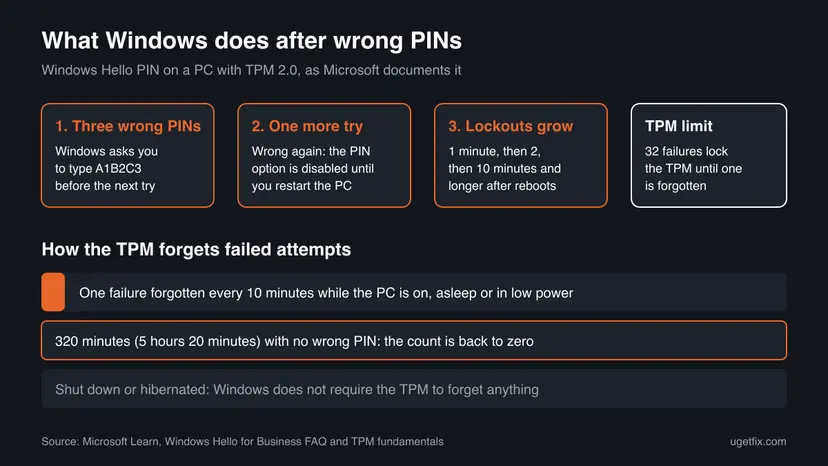
Microsoft's Windows Hello FAQ describes the exact sequence. After three wrong PINs the sign-in screen says You've entered an incorrect PIN several times. To try again, enter A1B2C3 below. When you type the challenge phrase A1B2C3, Windows gives you one more chance to enter the PIN.
If that chance fails too, the PIN option is disabled and the only way forward is a restart. After the restart the pattern repeats. If the wrong tries go on, the PC enters a lockout of 1 minute after the first reboot, 2 minutes after the fourth and 10 minutes after the fifth, and each later lockout is longer.
| What you see | What it means | Start with |
|---|---|---|
| The PIN is incorrect. Try again. | One wrong PIN. Nothing is locked yet. | Check Num Lock and type again (Fix 1) |
| You've entered an incorrect PIN several times. To try again, enter A1B2C3 below. | Three wrong PINs. One more try after the phrase. | Fix 1, then Fix 2 |
| To try again, restart your device (users' wording) | The extra try also failed. The PIN option is off until a restart. | Restart, then Fix 2 |
| This sign-in option is disabled because of failed sign-in attempts or repeated shutdowns. | The TPM is in lockout. Users quote this text on Microsoft Q&A. | Fix 2, or Fix 3 to wait it out |
| A1B2C3 at every start, even with the right PIN | The TPM still remembers old failures. | Fix 3 |
It is a fixed phrase, the same on every PC, typed as the capital letters A, B, C and the digits 1, 2, 3. It only proves that a person, not a script, is at the keyboard. It does not unlock anything by itself and it does not reset your PIN.
Why the A1B2C3 prompt comes back at every sign-in
Your PIN unlocks a key that lives in the TPM, the security chip of the PC. The TPM counts wrong tries itself, so a guess cannot be hidden from it. Microsoft's TPM fundamentals page gives the numbers for TPM 2.0 on Windows.
- Lock threshold
- The TPM locks after 32 authorization failures.
- Forgetting
- It forgets one failure every 10 minutes.
- Clean count
- After 320 minutes with no failure it remembers none.
- Leaving lockout
- A locked TPM leaves lockout when the PC is left on for 10 minutes.
- Powered off
- Windows does not require the TPM to forget failures while the PC is fully off or hibernated.
That last line is why the reader above sees A1B2C3 every morning. If the PC is shut down or hibernates soon after each sign-in, the clock that clears the failures barely runs, so the count stays high. Windows only requires forgetting while the PC is running, asleep or in another low power state, so normal sleep counts as waiting time.
Microsoft does not say in one sentence that a high TPM count makes Windows show A1B2C3 at every start. It is our reading of the two Microsoft pages, and it matches the old advice to leave the PC on for 320 minutes.
What causes too many incorrect PIN attempts, from the most common
The message itself is always caused by wrong PIN entries counted by Windows. What differs is where the wrong entries came from. The ranking below is our reading of the reports, not a statistic.
| How often | Cause | Typical sign | Fix |
|---|---|---|---|
| Most often | Someone else typed wrong PINs: a child, a friend, a colleague | It started on a day the PC was used by others. | Fix 1, Fix 3 |
| Often | Num Lock is off, a different keyboard layout is active, or the PIN was changed recently | Your PIN looks right but every try fails. | Fix 1, Fix 2 |
| Often | Old failures still counted because the PC is shut down or hibernates right after use | A1B2C3 appears at every start even with the right PIN. | Fix 3 |
| Less often | Something pressed keys on the lock screen: an object on the keyboard, a pet, a bag | Wrong tries you never made, often on laptops. | Fix 3, Fix 4 |
| Less often | Forced power offs during sign-in, which Windows also counts | The lockout text names repeated shutdowns. | Fix 3 |
| Rarely | A damaged PIN setup or a damaged user profile | The right PIN fails even after a long wait. | Fix 5, Fix 7 |
The message is part of Windows. Nobody needs a remote connection to cause it: the wrong tries happen at the keyboard of this PC, because the PIN works only on the device where you set it up.
How to fix "You've entered an incorrect PIN too many times"
The fixes start with what takes a minute and changes nothing. You are done when Windows accepts your PIN at the next start without asking for A1B2C3.
| Your situation | Start with | Then |
|---|---|---|
| You know the PIN and see A1B2C3 now | Fix 1 | Fix 2 |
| You know your account password | Fix 2 | Fix 3 |
| A1B2C3 comes back at every start or after hibernation | Fix 3 | Fix 5 |
| You forgot the PIN | Fix 4 | Fix 2 |
| The Remove button for the PIN is grey | Fix 5 | Fix 4 |
| You are an administrator and cannot wait | Fix 6 | Fix 3 |
| The right PIN and password still fail | Fix 7 | Still there section |
Fix 1. Type A1B2C3 and enter the PIN once, carefully
1 minuteLow riskEveryone who knows the PIN and sees the A1B2C3 box now.
Microsoft's FAQ says the challenge phrase buys exactly one more PIN attempt. Making that one attempt count stops the sequence before the PIN option is disabled and a restart is needed.
- Look at the Num Lock light. If you type the PIN on the number pad, Num Lock must be on.
- If the sign-in screen shows a language code such as ENG in a corner, check that it is the layout you normally use. On some layouts the top row does not type digits.
- Type
A1B2C3in the box, with capital letters, and press Enter. - Type your PIN once, slowly, and press Enter. Do not guess a second variant.
Every wrong try adds to the TPM count and makes the next lockout longer. If you are not sure of the PIN, stop here and use the password in Fix 2 or reset the PIN with Fix 4.
It worked if: Windows accepts the PIN and opens your desktop.
If not: If the PIN is refused or the box disappears, restart once and sign in with the password (Fix 2).
Fix 2. Sign in with your account password instead of the PIN
2 minutesLow riskYou know the password of the Microsoft account or the local account, or the PIN option is disabled.
The lockout belongs to the PIN, which unlocks a TPM key. A password sign-in is a different sign-in option, so it is the way in while the PIN is locked, and it gives you a session to run the later fixes.
- On the sign-in screen select Sign-in options.
- Select the key icon for Password.
- Type the password of the account. For a Microsoft account this is the password of that account online, not the PIN.
- Press Enter and wait for the desktop.
If there is no key icon, your account is set to sign in with Windows Hello only. Once you are in by another route, open Settings > Accounts > Sign-in options and under Additional settings turn off For improved security, only allow Windows Hello sign-in for Microsoft accounts on this device. On Windows 10 the switch is Require Windows Hello sign-in for Microsoft accounts.
If you do not know the password of a Microsoft account, reset it on Microsoft's account recovery page from a phone or another computer. The new password then works on this PC once it is online.
It worked if: You reach the desktop without the PIN box.
If not: If you are in, go to Fix 3 so the prompt does not come back. If the password is also refused, see Fix 7.
Fix 3. Leave the PC switched on for 320 minutes so the TPM forgets the failed tries
5 hours 20 minutes of waitingLow riskA1B2C3 comes back at every start or after hibernation, even when you type the right PIN.
Microsoft states that the TPM forgets one failure every 10 minutes and none remain after 320 minutes without a failure. Windows requires that forgetting only while the PC runs or sleeps, not while it is off or hibernated.
- Sign in with Fix 1 or Fix 2.
- Plug a laptop into power so it does not hibernate on a low battery.
- Leave the PC on for at least 320 minutes. Locked or asleep is fine. Do not shut it down, restart it or let it hibernate.
- Make sure nobody types at the lock screen during that time, and keep objects off the keyboard.
- After the wait, lock the PC with Win + L and sign in with the PIN once.
Start the wait in the evening with sleep allowed and hibernation avoided. Microsoft says sleep counts. If your laptop is set to hibernate after a few hours of sleep, keep it awake on power instead.
It worked if: The next start goes straight to the normal PIN box, with no A1B2C3 line.
If not: If A1B2C3 is back after a full 320 minutes with no wrong try, the PIN setup itself may be damaged: set a new one with Fix 4 or Fix 5.
Fix 4. Reset a forgotten PIN with I forgot my PIN
5 minutesLow riskYou do not remember the PIN, and you sign in with a Microsoft account or know the account password.
Guessing only grows the lockout. A reset proves who you are with the account itself and sets a new PIN, so you stop feeding the TPM count with wrong tries.
- On the sign-in screen, under the PIN box, select I forgot my PIN.
- Confirm your Microsoft account with its password and the security code Microsoft sends.
- Enter a new PIN twice and select OK.
- If you are already signed in, open Settings > Accounts > Sign-in options, expand PIN (Windows Hello) and select I forgot my PIN there instead.
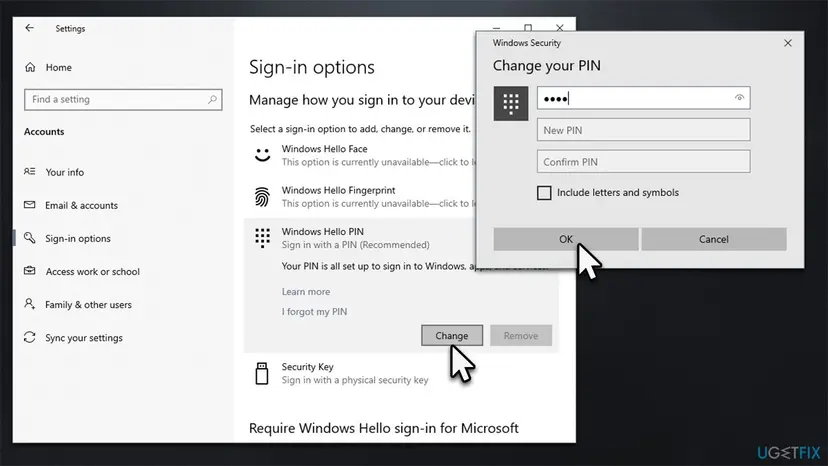
A new PIN does not erase failures the TPM already counted. If A1B2C3 still shows after the reset, combine it with the wait in Fix 3.
It worked if: Windows accepts the new PIN at the next lock with Win + L.
If not: If the reset fails or the account is local without a password hint, remove the PIN from a password session with Fix 5.
Fix 5. Remove the PIN, then set a new one
5 minutesLow riskYou are signed in with the password and the PIN keeps failing, or Windows asks for A1B2C3 even after the long wait.
Removing the PIN deletes the PIN setup of this account on this PC, and adding one creates it again. It replaces a damaged PIN setup and is the clean version of the old advice to change the PIN.
- Open Settings > Accounts > Sign-in options.
- Expand PIN (Windows Hello).
- Select Remove and confirm with your account password.
- If Remove is grey, turn off For improved security, only allow Windows Hello sign-in for Microsoft accounts on this device under Additional settings first. On Windows 10 it is Require Windows Hello sign-in for Microsoft accounts.
- Restart the PC and sign in with the password.
- Back in Sign-in options, select PIN (Windows Hello) > Set up and choose a new PIN.
Windows Hello face and fingerprint sign-in need a PIN. When you remove the PIN they stop working until you set up a new PIN, then you may need to set them up again.
It worked if: The new PIN works at every lock and start without the A1B2C3 line.
If not: If you cannot remove the PIN because no password works, see Fix 7.
Fix 6. Reset the TPM lockout from tpm.msc as an administrator
5 minutesRead the warningYou can sign in as an administrator and cannot wait 320 minutes. Not on a PC that IT manages.
Microsoft states that the anti-hammering count can be reset at once with a reset lockout command and the TPM owner password, and that an administrator can do it from tpm.msc when that password is stored on the PC.
If Windows asks you for a TPM owner password and you give a wrong one, Microsoft says the TPM refuses another reset attempt for 24 hours. Never select Clear TPM here: clearing removes the keys in the chip, including your PIN keys and possibly BitLocker protection, and needs the BitLocker recovery key.
- Sign in with the password (Fix 2) to an administrator account.
- Press Win + R, type
tpm.mscand press Enter. - In the Actions pane look for Reset TPM Lockout.
- If it is there and does not ask for a password, run it and close the window.
- Lock the PC with Win + L and sign in with the PIN.
We could not confirm on which Windows builds tpm.msc still shows Reset TPM Lockout. Microsoft says it works only when the owner password is stored locally. If the action is missing or asks for a password you do not have, skip this fix and wait it out with Fix 3.
It worked if: The PIN is accepted at once and A1B2C3 does not return at the next start.
If not: If the option is missing, go back to Fix 3. If the PIN still fails with a clean TPM count, set a new one with Fix 5.
Fix 7. Sign in with another administrator account or create a new account
15 minutesLow riskThe right PIN and the password of your account both fail, or Fix 5 did not help.
If another account on the same PC signs in normally, the TPM and Windows Hello work and the fault is in your profile or your account's PIN setup. A second administrator also lets you repair your own account.
- On the sign-in screen, select another account in the lower left corner and sign in, if the PC has one with administrator rights.
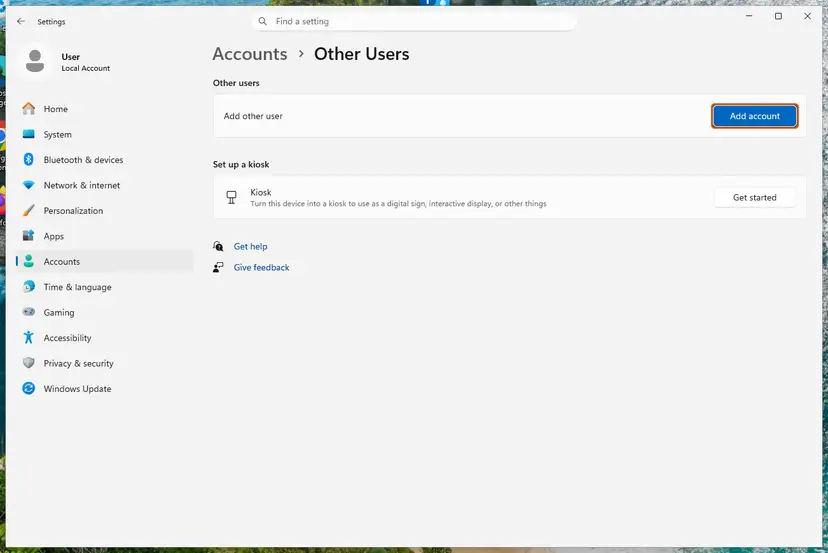
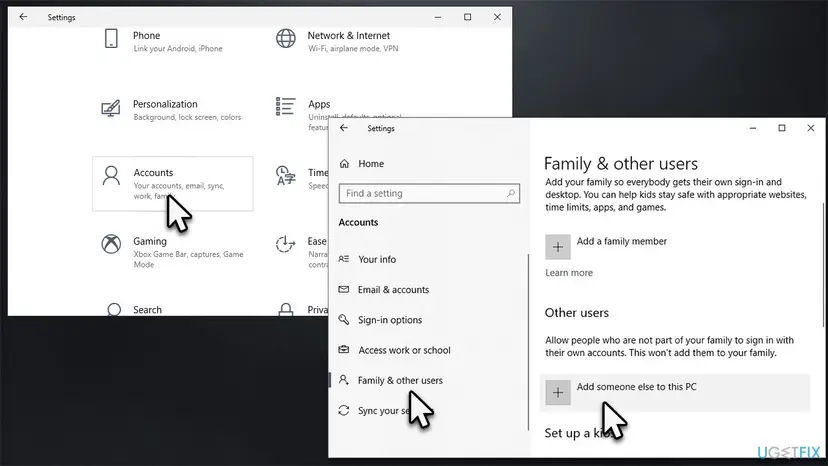
- From that account, create a fresh local account to test with. Step by step: Create a new user account to test a problem.
- Sign in to the new account and set a PIN for it.
- If the new account works, copy your files from your old profile under
C:\Users\<your name>and keep using the new account.
It worked if: The new account signs in with its PIN without the A1B2C3 line.
If not: If no account on the PC can sign in, read the section below.
If you still cannot sign in: what to check and who can help
When no PIN, password or other account works, stop trying. Each failure adds to the TPM count. Leave the PC on at the sign-in screen for at least 320 minutes before the next try, then use the password once.
- Microsoft account: reset the password on Microsoft's account recovery page from another device, then sign in to this PC online with the new password.
- Work or school PC: contact IT. Windows Hello for Business can be set to reset the PIN centrally, and IT may manage the TPM.
- Local account without a known password and no other administrator: there is no supported way around it. The way back is resetting Windows from the recovery screen, which can keep or remove files depending on what you choose and needs the BitLocker recovery key on an encrypted PC.
- Before any reset: copy your files out if another account on the PC still signs in. Step by step: Back up your files (Windows Backup, File History, Time Machine).
Older guides, this page included, told you to run net user administrator /active:yes from the recovery Command Prompt. We could not confirm that this enables the account of your installed Windows rather than the recovery system, and tools that bypass the sign-in screen weaken the PC's security. Use the supported routes above.
How to stop the incorrect PIN message from coming back
- Lock the PC with Win + L when you leave it, and do not leave a laptop open where children or pets can reach the keyboard.
- Give others their own account on the PC so nobody tries your PIN. Step by step: Create a new user account to test a problem.
- Keep Num Lock on at sign-in if you type the PIN on the number pad.
- Avoid forced power offs during sign-in. Microsoft's lockout text names repeated shutdowns too.
- Know your account password. It is the way in when the PIN is locked. Use it at sign-in now and then so you do not forget it.
- Choose a PIN you can type without thinking. Windows refuses simple patterns such as 1234 or 1111, and you can use letters and symbols if you tick Include letters and symbols.
Frequently asked questions
What does "You've entered an incorrect PIN several times" mean?
It means Windows counted three wrong PINs on this PC and now wants proof that a person is typing before it allows another try. You type the challenge phrase A1B2C3, then you get one more PIN attempt. If that also fails, the PIN option is disabled until you restart, and further failures bring lockouts that grow from 1 minute to 10 minutes and longer. Microsoft describes it as the result of the TPM 2.0 anti-hammering feature.
What does "you've entered an incorrect pin several times" artinya (mean in Indonesian)?
Artinya: Anda sudah memasukkan PIN yang salah beberapa kali. The sentence means you entered a wrong PIN several times, so Windows asks you to type A1B2C3 before you can try the PIN again. This page is in English. In short: type A1B2C3 exactly, then your PIN once, slowly. If you forgot the PIN, select I forgot my PIN or sign in with your account password.
Why does Windows ask for A1B2C3 every time I log in?
Because the TPM chip still remembers earlier failed tries. Microsoft says it forgets one failure every 10 minutes and all of them after 320 minutes without a failure, but only while the PC runs or sleeps. If you shut down or hibernate soon after each sign-in, the count barely drops. Sign in, keep the PC on and plugged in for 320 minutes without a wrong PIN, and the prompt should stop.
How long does Windows lock you out after too many wrong PINs?
Microsoft's FAQ gives 1 minute after the first reboot, 2 minutes after the fourth reboot and 10 minutes after the fifth, with each later lockout longer. Separately, the TPM locks after 32 failures and leaves the lockout when the PC is left on for 10 minutes. To clear all failures the PC needs 320 minutes on or asleep without a wrong try.
How many times can you enter a wrong PIN in Windows 11?
Three times before Windows asks for A1B2C3, then one more after the phrase. A fifth wrong try disables the PIN option until you restart. The TPM itself locks after 32 failures in total. Windows 11 and Windows 10 behave the same here, because the limit comes from the TPM 2.0 anti-hammering feature, not from the version of Windows.
Can I turn off the A1B2C3 challenge?
Not by a supported switch that we found. The prompt is part of how Windows protects the PIN, and Microsoft documents it as intended behaviour. What you can do is remove its cause: let the TPM forget the failed tries by keeping the PC on for 320 minutes, use the correct PIN, or remove the PIN and sign in with a password instead.
Will a new PIN stop the incorrect PIN message?
It stops new wrong tries if the old PIN was the problem, but it does not erase failures the TPM already counted. Those fade one every 10 minutes while the PC is on. So reset or replace the PIN with Fix 4 or Fix 5 and also give the PC the wait in Fix 3. After that the new PIN should work without the A1B2C3 line.
Did someone hack my PC if I see this message and never typed a wrong PIN?
Not necessarily. A Windows Hello PIN works only on the device where you set it, so the wrong tries were made at this PC's keyboard or lock screen. Common causes are another person in the house, keys pressed by an object in a bag, a stuck key or forced power offs. If you suspect a person, lock the PC when you leave and give others their own account.
What is the Spanish version of this message?
Searchers ask for the message en español. Windows in Spanish shows the same warning in Spanish, and the challenge phrase stays A1B2C3. The fixes on this page are the same in every language: type A1B2C3, then the correct PIN once, or sign in with the account password, and keep the PC on for 320 minutes if the prompt keeps returning. This page itself is in English.
Sources
- Microsoft Learn: Windows Hello for Business FAQ (incorrect PIN several times, A1B2C3 challenge phrase, lockout durations, PIN tied to the device) (learn.microsoft.com)
- Microsoft Learn: Trusted Platform Module (TPM) fundamentals, TPM 2.0 anti-hammering (32 failures, 10 minutes, 320 minutes, reset lockout) (learn.microsoft.com)
Did this fix work?
One click, no account. It tells the next reader which guides are worth their time.
Questions and experiences: You've entered an incorrect PIN too many times: how to fix it in Windows
Still broken, or found a fix we did not cover? Ask here: members and our editors answer. Reading is open; writing needs a free account.
…