How to fix
Zipped Folder Invalid error
on Windows
Resolve the Zipped Folder Invalid error on Windows 10 and 11 effortlessly. Get back to accessing your files with expert-tested solutions. Fixed in minutes!

What causes How to fix Zipped Folder Invalid error?
- File poorly compressed
- Malfunctioning compressor tool
- Path structure exceeds 260 character limit
- File may contain malware
Repairs Windows system files, removes malware, and restores a clean OS state — without reinstalling.
Hello, I have recently encountered a Zipped Folder Invalid error. Is there any way to fix this? Thanks in advance.
The purpose of compressing[ref en-1] files is to make them more manageable and less in size. There are hundreds of file extensions that are used for compressed files, for example, .zip, .rar, .7z, .cab, and many others. File compression does not only decrease the size of the file but also makes sending and receiving them much easier. For that reason, compressed data has been used for a while - it is simply practical.
To compress and decompress files, users need to take advantage of specific programs created for such purpose - WinRar, WinZip, 7zip are among one of the most popular ones. Unfortunately, regardless of what program users use, they still encounter a Zipped Folder Invalid error, which prevents them from archiving or opening a compressed file.
So, how can you fix Zipped Folder Invalid error? Well, there are several things you can do, and we explain those in detail below. However, let's find out why the Zipped Folder Invalid error occurs first.
Users will be shown the following message:
Compressed (zipped) Folders Error
Windows cannot open the folder.
The Compressed (zipped) Folder [path] is invalid.
There are several reasons why Zipped Folder Invalid error can pop-up. For example, the file itself might be poorly compressed (canceled before the process was fully finished), the compressor tool might be malfunctioning, the path structure of the file might exceed the 260 character limit on Windows, or the file might even contain malware inside, hence the error.
Nevertheless, below you will find ways on how to fix Zipped Folder Invalid error in more than one step. Please follow the guide carefully.
Fix 1. Scan the file for malware
Malware might steal your sensitive information, lock up your files,[ref en-2] record keystrokes, mine cryptocurrency using your system resources and also cause a variety of error messages. Besides, .zip, .rar and similar compressed files are known to be spreading malware.[ref en-3] For such reason, all security experts advise users being careful with compressed files, regardless of the type used.
To scan the file, download security application such as [d1] and thoroughly scan your device.

Fix 2. Check for characters that cannot be used in a compressed file names
Some characters are not permitted when compressing files. Therefore, make sure your file does not contain symbols like "@," "£," "♥," "§," and similar. Beware that files inside should not hold such symbols either, so you might have to rename a lot... which might be tiring. Same symbols are not allowed by Windows OS as well, so it is not only compressed files that have such a requirement.
Fix 3. Temporarely disable Windows Firewall or/and security software
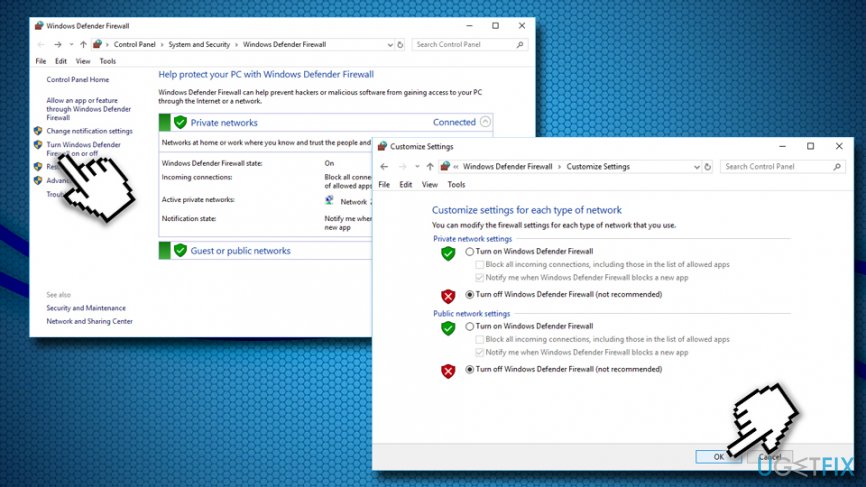
In some cases, security applications or built-in tools might cause Zipped Folder Invalid error. For that reason, disable Windows Defender, Firewall, or any other programs that might interfere with opening an archived folder. To disable Firewall, follow these steps:
- Type in Firewall.cpl in Cortana's search box and tap on Enter
- Pick Turn Windows Firewall On or Off option
- Under Private Network Settings select Turn off Windows firewall. Repeat this step for Public Network Settings
- Click OK
To disable your security application, refer to its official website.
Note: do not forget to re-enable the protection as soon as you are done with decompression of the file.
Fix 4. Extract the package into Temp folder
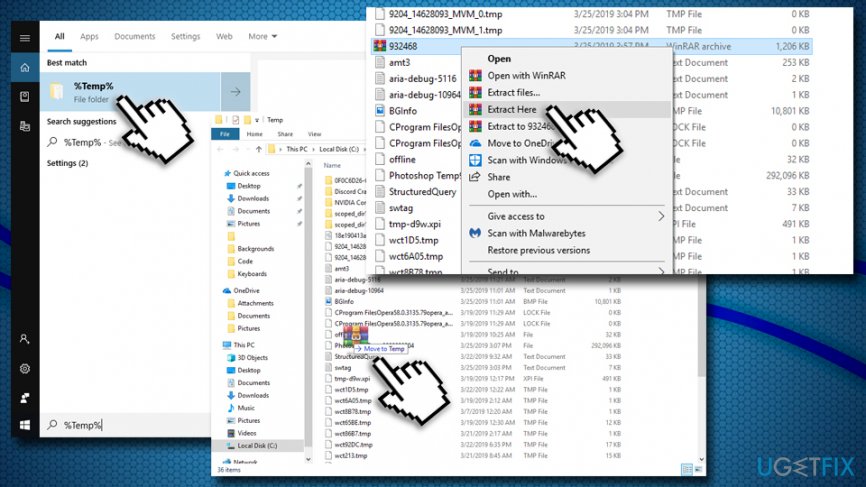
Some compressed files might contain path structures that exceed Windows limit - 260 characters. In such a case, you will encounter Zipped Folder Invalid error. To bypass that, you should copy or place the compressed file into your Temp folder, and attempt the extraction from there:
- Type in %Temp% into Cortana's search box
- Hit Enter
- Drag the archived file into the Temp folder
- Right-click on the file and select Extract to...
Fix 5. Use alternative compression software
In some cases, compression software might not be able to open certain files. In such case, you should simply download and install alternative archiver. Most users said that 7-Zip mostly helped them to fix Zipped Folder Invalid error. Nevertheless, you can also use such tools like WinRar, FreeArc, ZipGenius, ALZip, PowerArchiver, Zipeg, Info-Zip, WinAce, WinZip, and many others.
To uninstall the current archiver, follow these steps:
- Type in Control Panel into the search box and press Enter
- Go to Programs > Uninstall a program
- Locate your compressor software
- Right-click and select Uninstall
- Follow on-screen instructions
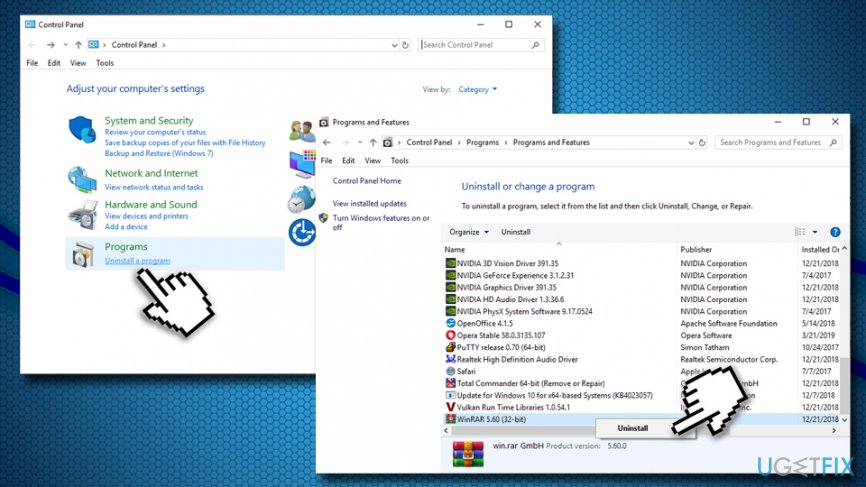
After that, re-install it and see if Zipped Folder Invalid error is gone. If it is not the case, download alternative tool and try again.
Fix 6. Use Zip files repair software
Some compression programs are also capable of repairing broken archived files, such as WinRar or ALZip. Additionally, there is dedicated zip repair software, such as Zip2Fix, ZIP Repair, and many others.
Bottom line
To fix the Zipped Folder Invalid error, users can scan the file for malware, ensure the compressor tool is functioning properly, and check the path length. If these solutions do not resolve the issue, further troubleshooting may be necessary.
Frequently asked questions
The Zipped Folder Invalid error in Windows 10 typically occurs due to file corruption or when the zipped file exceeds the system's maximum file size limit.
To repair a corrupt zipped folder in Windows 11, you can use file repair tools like WinRAR or Zip Repair, which can help restore the contents of the damaged archive.
Yes, you can attempt to recover files from an invalid zipped folder in Windows by using third-party recovery software that specializes in extracting files from corrupted archives.




Report an issue
What's wrong with this guide? We review every report and update or remove content.
Report received — thank you. We'll review and fix it.
You need a free account to submit a report.
Be the first to comment