How to fix
Zoom application error 0xc000003e
on Windows
Resolve Zoom error 0xc000003e on Windows 10 or 11 effortlessly. Get expert-tested solutions and enjoy seamless video calls again! Fixed in minutes.

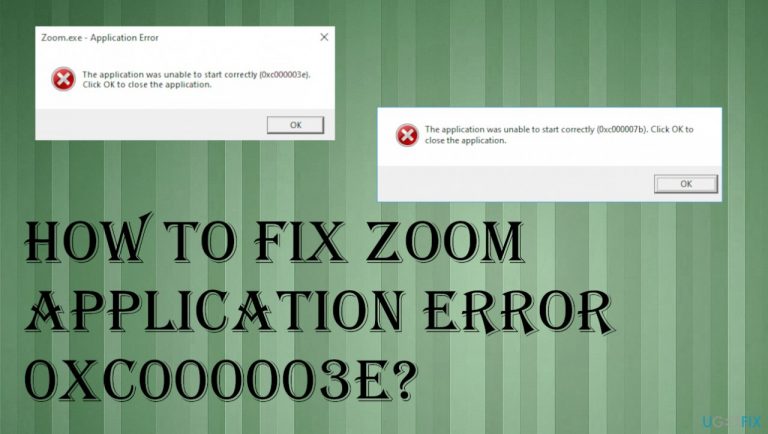
What causes How to fix Zoom application error 0xc000003e?
- Compatibility issues due to program version mismatch
- Outdated Zoom client
- Junk files or old cached data
- Malware affecting files and programs
- Windows update issues
Repairs Windows system files, removes malware, and restores a clean OS state — without reinstalling.
I cannot start the Zoom and get this error that the application unable to start with the error 0xc000003e code. Help me. I don't know what to do, but I need to solve this. I run Windows 10 device of 64bit. The program is downloaded from a good source, I don't think this is the issue with my app.
Zoom application error 0xc000003e appears on the screen when the program should open. The uninstall and reinstall seem to work for some users but for a few times only.[ref en-1] This message with the error code and suggestion to close the application appears every time the Zoop app is launched. It seems to be a particular Windows issue.
The issue with various programs might end up with the pop-up stating the error code. The particular Zoom application error 0xc000003e happens pretty often. It is possibly the result of the compatibility because the version of the programs not matching. Outdated Zoom client can trigger issues when Windows cannot run the program. Especially when you
A possible cause of the Zoom application error 0xc000003e pop-ups can be junk files or old cached data. Unfortunately, malware can be the one that damages files, programs and affects overall performance with its processes and files added on the machine.
This error is unfortunate and frustrating because people who encounter the Zoom application error 0xc000003e cannot fix the issue quickly since it is unknown what triggered the pop-up. However, it is possible to solve this error's root cause once the problem can be determined. For that, you need to troubleshoot to eliminate some possibilities.
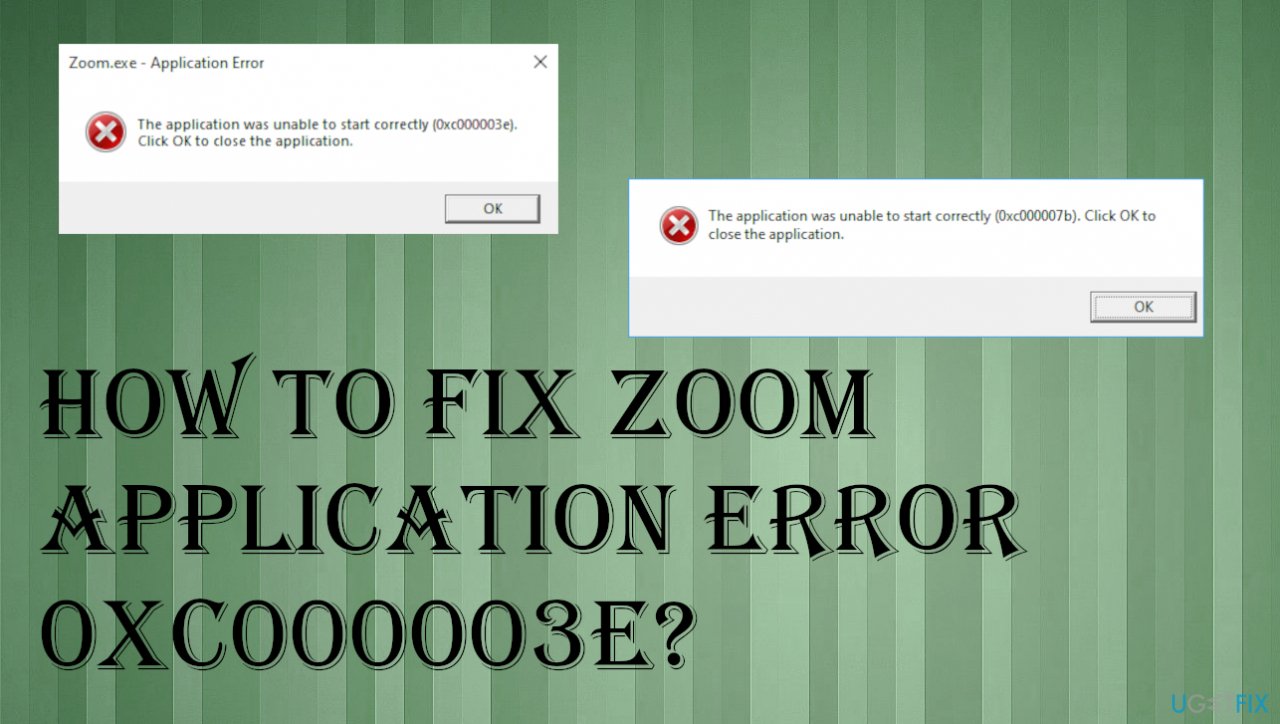
The application was unable to start correctly (0xc000003e).
Click OK to close the application.
How to fix Zoom application error 0xc000003e
Since the malware or Windows update[ref en-2] issues can be the reason for this error, you should run an anti-malware tool to fix Zoom application error 0xc000003e. This way, you can find ay possibly malicious applications on the system and terminate them. Also, a quick check for recent updates to your app or OS can provide a quick solution. Otherwise, you need to do manual changes.
Other quick fixes for the application errors could be uninstalling the application and then reinstalling it again. Also, you might fix Zoom application error 0xc000003e by restarting the computer fully. Some cases show that relaunching the freshly installed application solves the problem of incompatibility issues or some temporary errors with the system. You can also try to update the .NET framework since it is a possible cause of the error. You can find the latest version of the Framework in Microsft's official sources.
Repair Windows OS files that get corrupted or altered
Zoom application error 0xc000003e can be related to corrupted system files that affect the OS's functions. Unfortunately, damaged files and data in parts of the system like the registry or different system folders can be caused by malicious infections[ref en-3] or your manual interference with settings. Hopefully, tools like [d1] can help with file repair and restore functions, system application files, and OS data needed for the proper performance.
Run this application before going for any other manual methods. This way, you can be sure that the system is running properly and can launch all the features, programs that the Windows operating system controls. The application error 0xc000003e might occur concerning additional programs, so solve the system issue first.
Update Windows OS
You might fix some issues and bugs by rolling back to the older Windows version or updating the OS, when possible. System troubles, program issues, features can get fixed. DirectX and .NET Framework can also get updated during the process of OS update.
- Go to Settings.
- Click Update & Security.
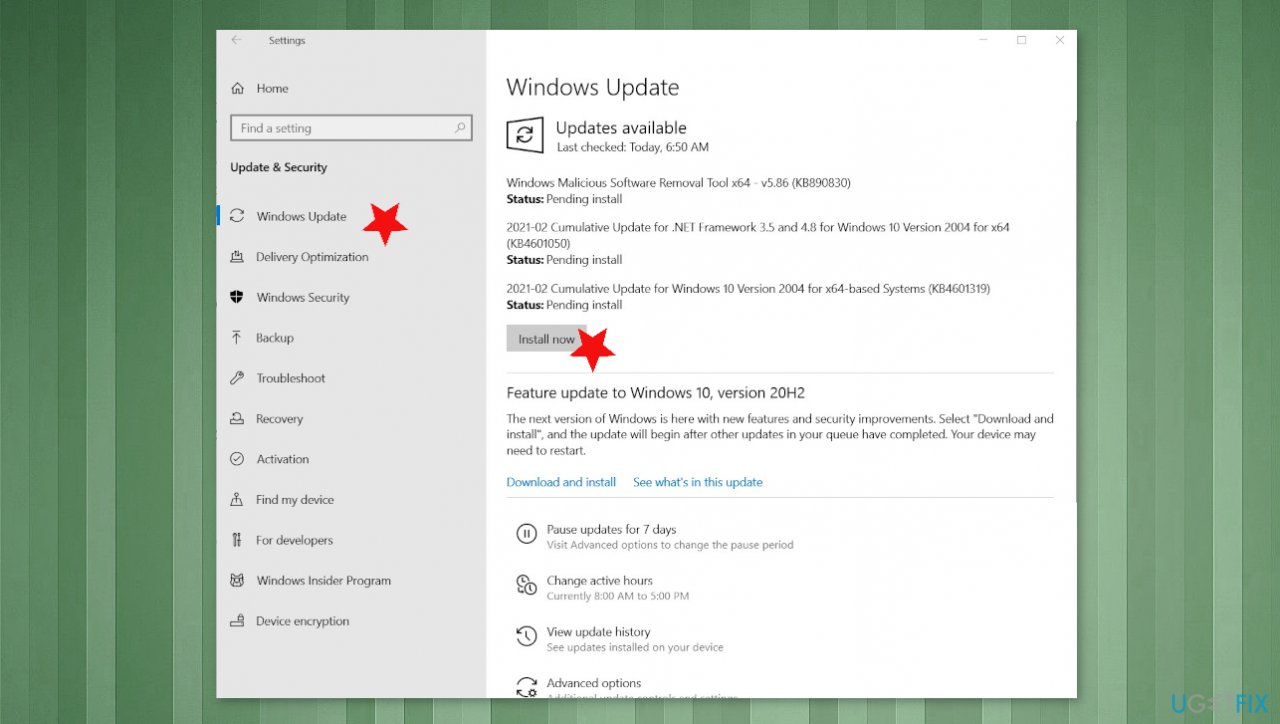
Zoom application error 0xc000003e fix windows os update - Find the Windows Update section and check if there are any available.
- Install the update.
Run in Compatibility mode to fix Zoom application error 0xc000003e
- Right-click on the application.
- Choose Properties and click the Compatibility tab.
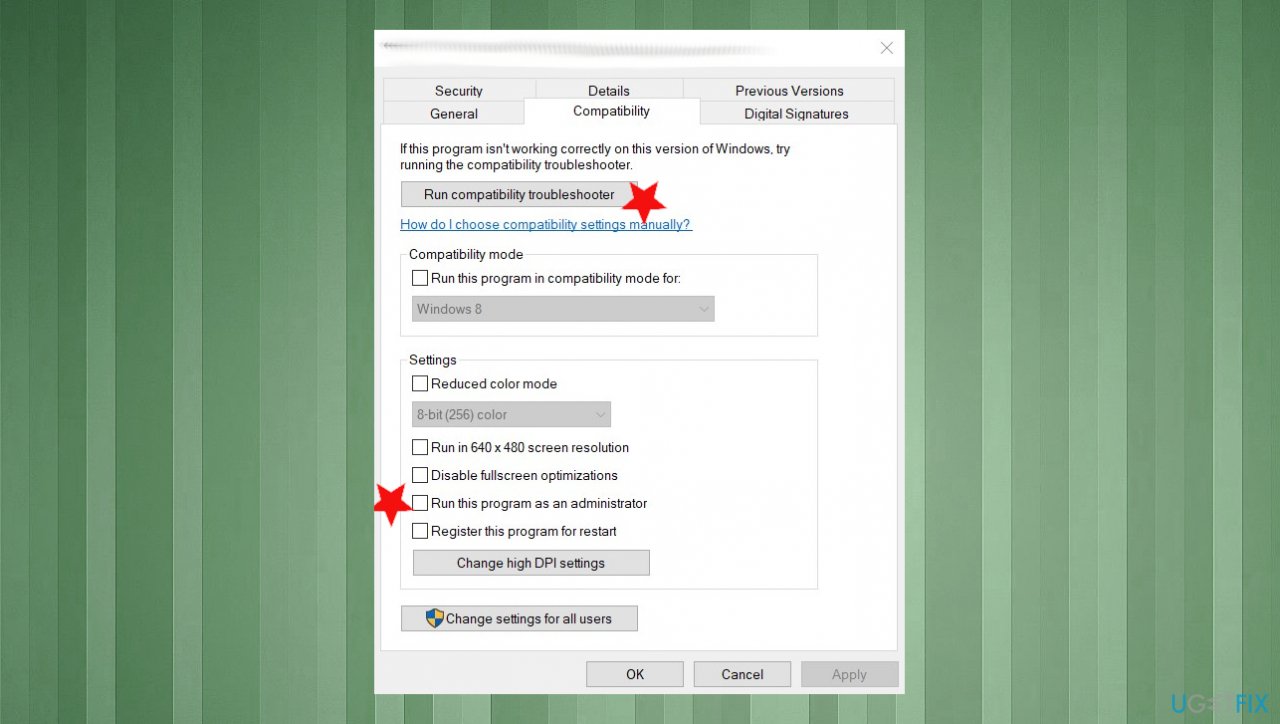
Zoom application error 0xc000003e fix compatibility trouleshoot - Choose Run compatibility troubleshooter.
- Check the Run this program as an administrator and try recommended settings.
- Hit OK.
Alter registry manually
- Hold Win and R keys.
- Type regedit.exe and hit Enter.
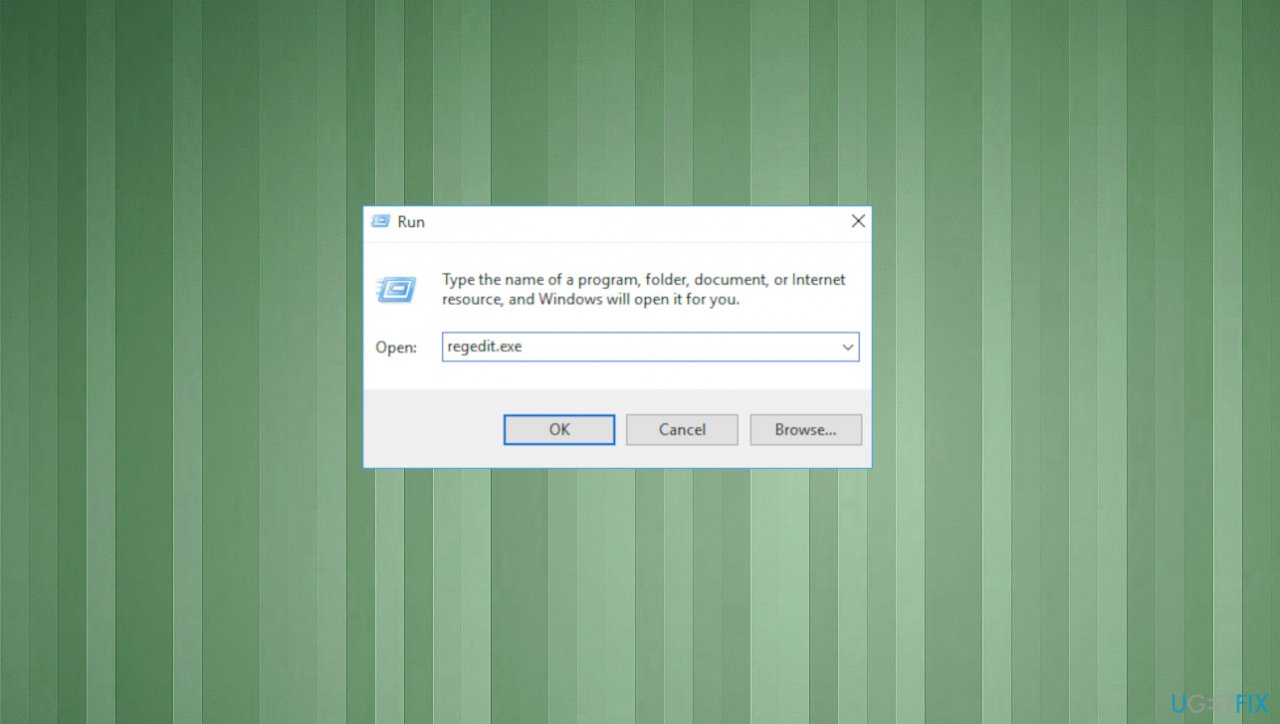
Zoom application error 0xc000003e fix regedit - Go to HKEY_LOCAL_MACHINE\\SOFTWARE\\Microsoft\\Windows NT\\CurrentVersion\\Windows.
- Double-click LoadAppInit_DII and change the value data to 0.
- Hit OK.
- Restart the PC.
Run disk check in Command Prompt to fix Zoom application error 0xc000003e
- Click the Start menu and type cmd in search.
- Right-click the Command Prompt to run as administrator.
- Type chkdsk c: /f /r
- Hit Enter.
- This command should repair the C drive. Chance c into other drive and check other disks.
Run SFC to fix the error 0xc000003e
- Open Command Prompt with admin rights.
- Type sfc /scannow and hit Enter.
- Wait and for the process and restart the device to check if Zoom application error 0xc000003e bothers you.
Bottom line
To fix the Zoom application error 0xc000003e, you should run an anti-malware tool to identify and remove any malicious applications. Additionally, check for recent updates to your Zoom app or Windows OS. If these solutions do not resolve the issue, further troubleshooting may be necessary.
Frequently asked questions
The error 0xc000003e typically indicates a problem with the application’s compatibility or a corrupted installation file on your Windows system.
You can try reinstalling the Zoom application or running it in compatibility mode to fix the error on Windows 11.
Yes, ensuring that Windows 10 is fully updated and checking for any conflicting software can help resolve the Zoom error 0xc000003e.




Report an issue
What's wrong with this guide? We review every report and update or remove content.
Report received — thank you. We'll review and fix it.
You need a free account to submit a report.
Be the first to comment