How to fix
Zoom error code 100006000
on Windows
Resolve Zoom error code 100006000 on Windows 10 and 11 effortlessly. Follow our expert-tested solutions for a glitch-free experience, fixed in minutes.


What causes How to fix Zoom error code 100006000 in Windows?
- Firewalls preventing the connection
- Antivirus conflicts
- Unreliable network environments
- Corrupted files
- Server-side problems
Repairs Windows system files, removes malware, and restores a clean OS state — without reinstalling.
I had started Zoom on my Windows computer this morning to participate in a team meeting, and it froze with error code 100006000. What's this?
Windows Zoom users are frequently beset by issues that disrupt their virtual meeting attendance, and error code 100006000 is a prime example. The error has a tendency to occur when initiating or joining a meeting, or occasionally during app updates. Firewalls preventing the connection, antivirus conflicts, or unreliable network environments are typical causes for communication between the client and Zoom infrastructure to fail smoothly.
Repairing the 100006000 error is a systematic process since its origin differs with systems. While modifying the firewall to permit Zoom traffic might resolve it for some, others may need to temporarily disable antivirus security or make sure that the network is stable.
Reinstalling the application or recreating the meeting is successful in a few instances if server-side problems or corrupted files are at fault. The uncertainty of the root problem necessitates the attempt of multiple solutions, which will be covered in greater detail in subsequent sections.
For the user who wishes to have an efficient solution, the [d1] fix tool offers a good alternative. The tool offers automated system fault diagnosis and repair (e.g., corrupted files or network configurations) that are likely to be contributing to the 100006000 error, without requiring manual intervention and expediency. This can be particularly convenient for the user who wishes to recuperate and resume using Zoom with no downtime.

Fix 1. Allow Zoom through Windows firewall
Firewall restrictions might block Zoom’s access to the internet, triggering error code 100006000, and adjusting settings can eliminate this barrier.
- Type in Control Panel in Windows search and press Enter.
- Go to System and Security and click on Windows Defender Firewall.
- On the left side of the window, click Allow an app or feature through Windows Defender Firewall.
- Locate Zoom Video Conference, ensure it’s checked for Private and Public, and click OK.
- Add Zoom manually via Allow another app if it’s not listed.

Fix 2. Disable antivirus temporarily
Antivirus software can interfere with Zoom’s server communication, causing error code 100006000, and pausing it may allow normal operation.
- Locate your antivirus icon in the system tray.
- Right-click and open Options/Settings.
- Find a setting to pause protection.
- Check if the issue is solved. If it is, add Zoom to your AV's exception list/whitelist.
Fix 3. Run Network troubleshooter
Network configuration issues might disrupt Zoom, and this tool can automatically detect and fix them.
Windows 11
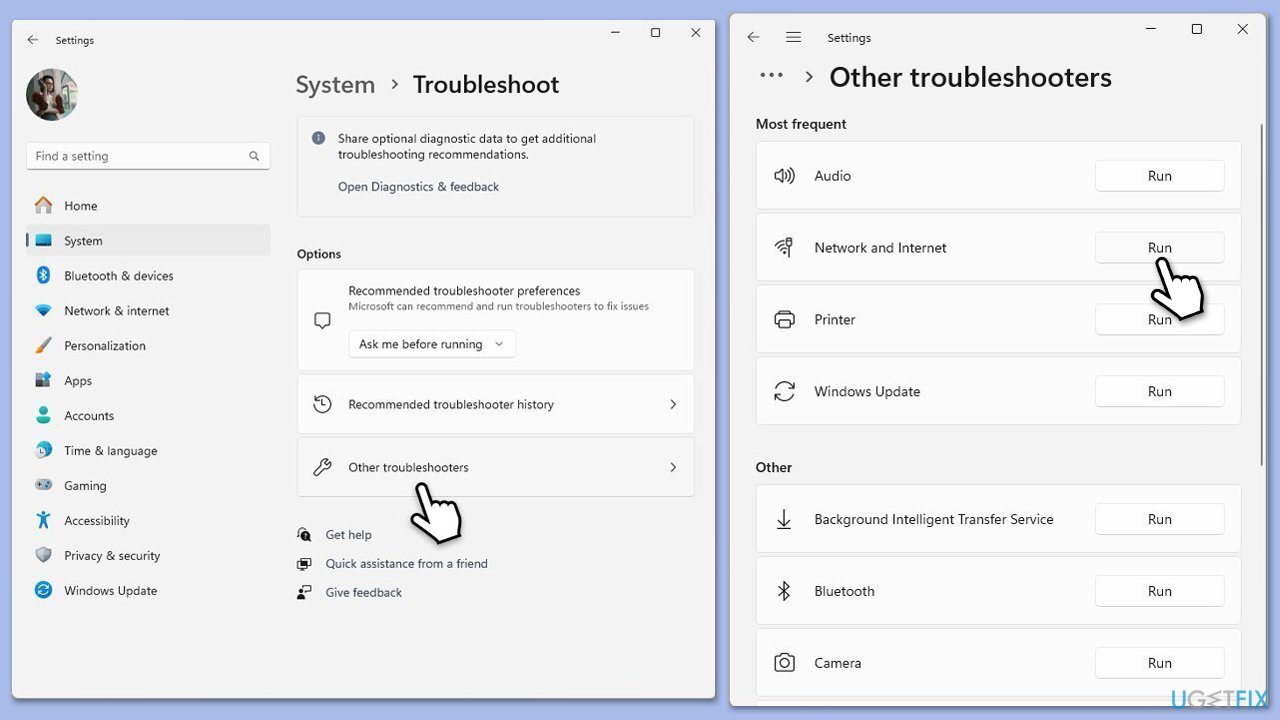
- Type Troubleshoot in Windows search and press Enter.
- Select Other troubleshooters.
- Find Network & Internet troubleshooter from the list and select Run.
- Wait till the process is finished and apply the offered fixes.
- Restart your computer.
Windows 10
- Right-click on Start and pick Settings.
- Go to Network & Internet section.
- On the right side, find the Advanced network settings section.
- Click Network troubleshooter, specify the problem, and wait till the scan is finished.
- When done, apply all the recommendations.
Fix 4. Update Windows system
Outdated system files can cause compatibility issues with Zoom, and updating Windows may resolve error code 100006000.
- Type Updates in Windows search and hit Enter.
- If updates are available, click Install updates.
- Otherwise, click Check for updates.
- If optional updates are available, install them as well.
- When all the update processes are complete, restart your computer.

Fix 5. Clear zoom cache
Accumulated cache files can disrupt Zoom’s functionality, and clearing them might eliminate error code 100006000.
- Close Zoom completely.
- In Windows search, type %appdata%\Zoom, and press Enter.
- Delete all files and folders in the Zoom directory.
- Restart Zoom and sign in again.
Fix 6. Reinstall Zoom application
Corrupted installation files can lead to error code 100006000, and a fresh install can replace faulty components.
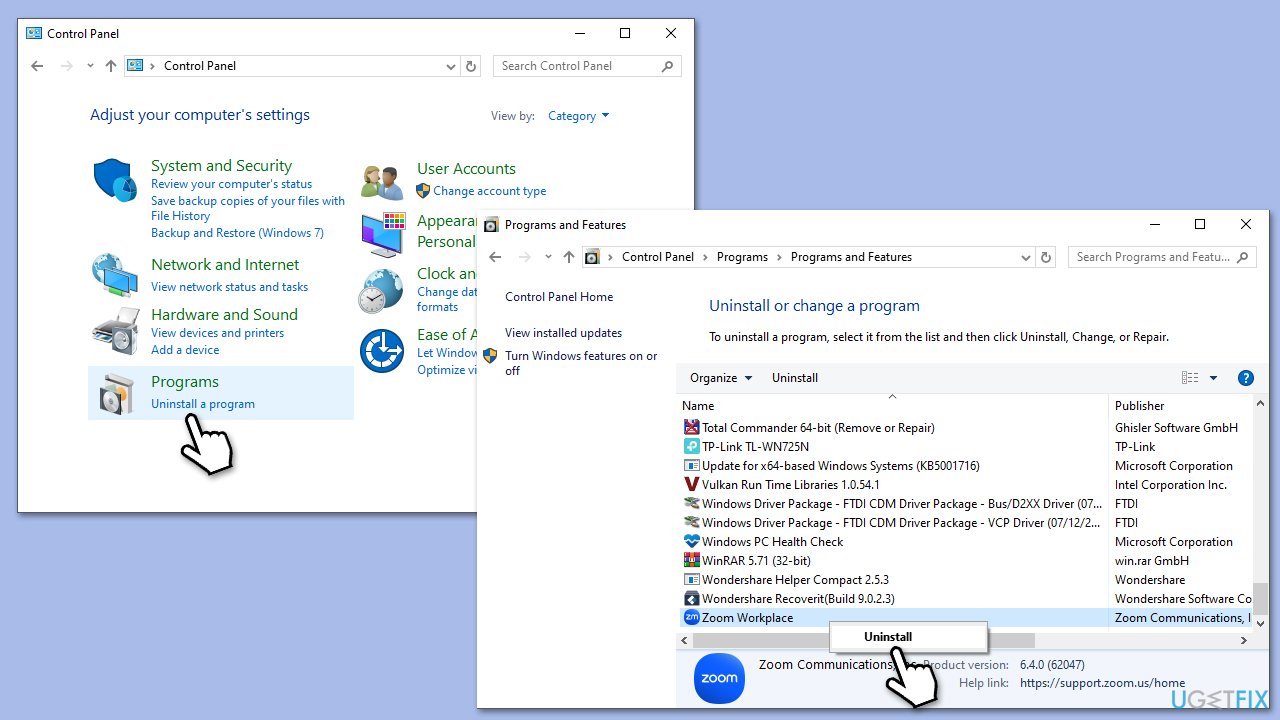
- Type Control Panel in Windows search and press Enter.
- Click on Uninstall a program under Programs.
- Scroll through the list to find Zoom, click it, then select Uninstall.
- Follow the prompts to uninstall the application.
- After uninstallation, restart your computer.
- Go to the Zoom website to download the latest version of the application.
- Follow the prompts to install the new version of Zoom.
Bottom line
To fix Zoom error code 100006000, users can allow Zoom through the Windows firewall, temporarily disable antivirus security, or ensure a stable network connection. Reinstalling the application or recreating the meeting may also help. If none of these solutions work, consider using an automated fix tool for diagnosis and repair.
Frequently asked questions
Zoom error code 100006000 is often caused by network connectivity issues, outdated Zoom application, or firewall settings blocking the connection. Ensuring a stable internet connection and updating the app can help resolve this issue.
To troubleshoot this error in Windows 11, try restarting your router, checking your firewall settings, and updating Zoom to the latest version. You can also run the Windows Network Troubleshooter for additional help.
Yes, you can fix Zoom error code 100006000 on Windows 10 by clearing the application cache and ensuring that your system's date and time settings are correct. Additionally, disabling any VPN services temporarily may also resolve the issue.




Report an issue
What's wrong with this guide? We review every report and update or remove content.
Report received — thank you. We'll review and fix it.
You need a free account to submit a report.
Be the first to comment