How to fix
Zoom error code 300
on Windows
Resolve Zoom error code 300 on Windows 10 and 11 with our expert-tested solutions. Get back to seamless video calls, fixed in minutes!


What causes How to fix Zoom error code 300 in Windows?
- Outdated version of the Zoom app
- Problem with user's login credentials
- Issues with Zoom cache
- Internet connection problems
- Computer not restarted
Repairs Windows system files, removes malware, and restores a clean OS state — without reinstalling.
Hello. I tried to log into Zoom but I get the 300 error code. Is there a way to fix this issue?
Zoom is a well-known video conferencing platform that lets users host virtual meetings, webinars, and conferences. Zoom has become the go-to platform for many businesses, schools, and individuals due to its user-friendly interface and numerous features.
Error code 300 is a common problem that users may encounter when using Zoom on Windows. When a user is unable to sign in to their Zoom account, they are unable to use the platform's services. This error can be caused by a number of factors, including an outdated version of the Zoom app or a problem with the user's login credentials.
This error has the potential to have serious consequences for users who rely on Zoom for work or communication. They may miss important meetings, deadlines, or collaborations with team members if they are unable to access Zoom. Furthermore, the error can lead to frustration and decreased productivity, both of which can have a negative impact on one's work and mental health.
Fortunately, there are several solutions to this problem. Some possible solutions include updating the Zoom app to the latest version, checking login credentials, and clearing the Zoom cache. Resetting the internet connection or restarting the computer may also aid in the resolution of the error. However, depending on the root cause of the error, the specific solution may differ.
In this guide, you will find 8 steps that should help you fix Zoom error code 300 in Windows. Keep in mind that you can also try a maintenance tool like [d1] that can fix most system errors, BSODs,[ref en-1] corrupted files, registry[ref en-2] issues, or clear cookies and cache.[ref en-3] Otherwise, follow the step-by-step instructions below.
Method 1. Run the Windows Store Apps Troubleshooter
- Press the Windows key + I to open Windows Settings
- Select the System section and scroll down until you see Troubleshoot and click on it
- Click on Other troubleshooters to see more troubleshooters available on your computer
- Scroll down at the bottom until you see Windows Store Apps
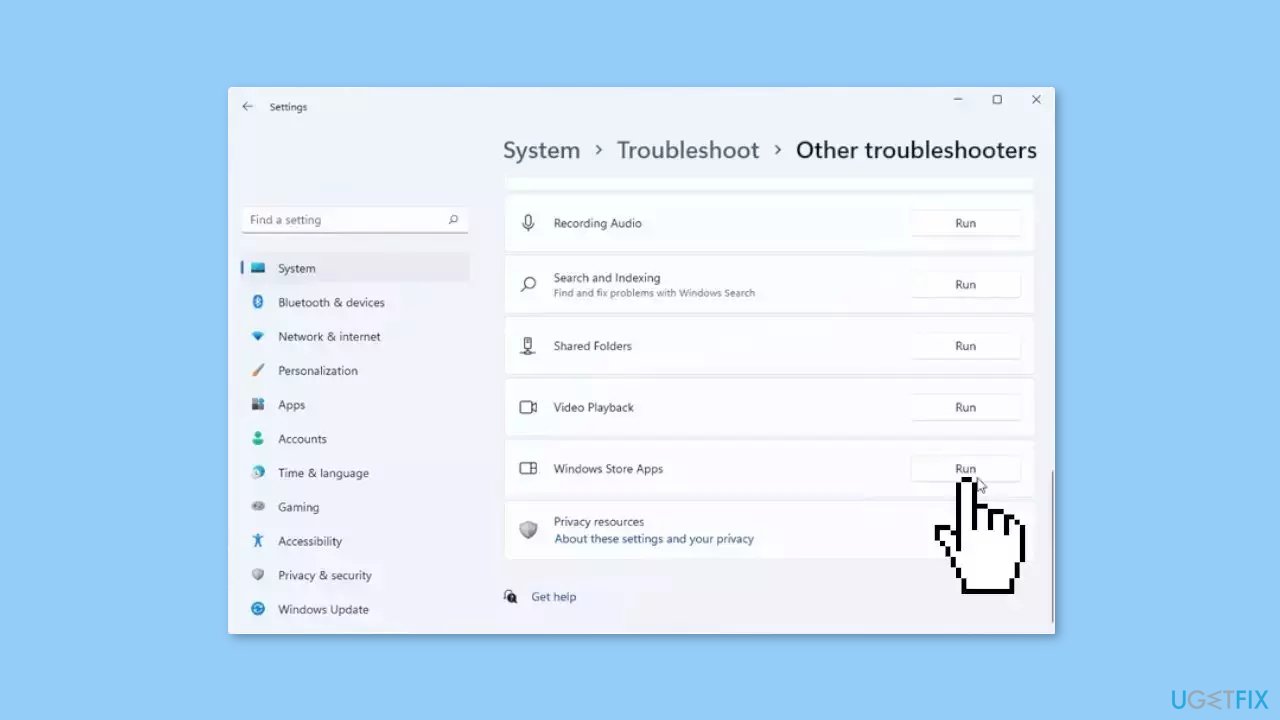
- Click on Run to start the troubleshooting process
- Wait until the process is complete
Method 2. Change Password
- Launch the Zoom app on your device.
- Click on the Sign in option.
- A new window will appear. Click on the Forgot Password hyperlink.
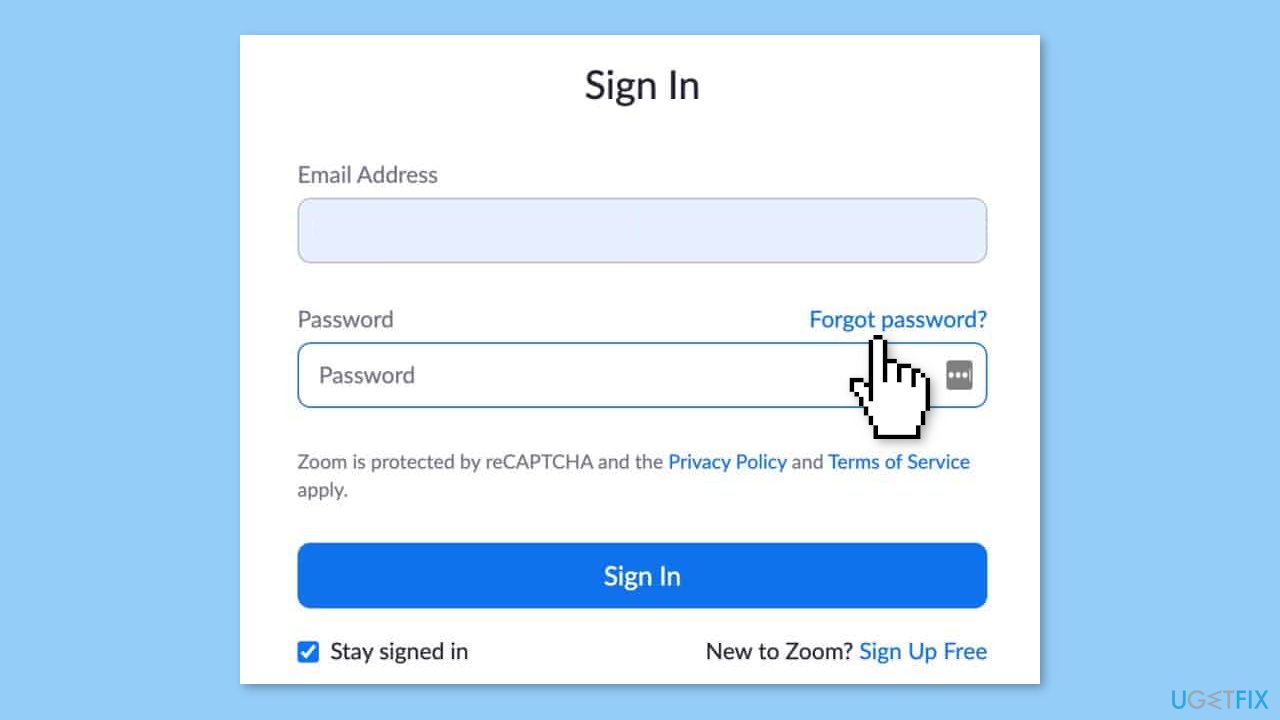
- Enter your email address in the prompt and click Submit.
- Check your email inbox for a password resetting link from Zoom.
- Click on the link in the email.
- Enter and confirm a new password on the page that opens.
- Restart the Zoom app.
- Enter your email address and the new password you just created.
- Click on Sign in.
- The problem should be fixed.
Method 3. Sign in using different Credentials
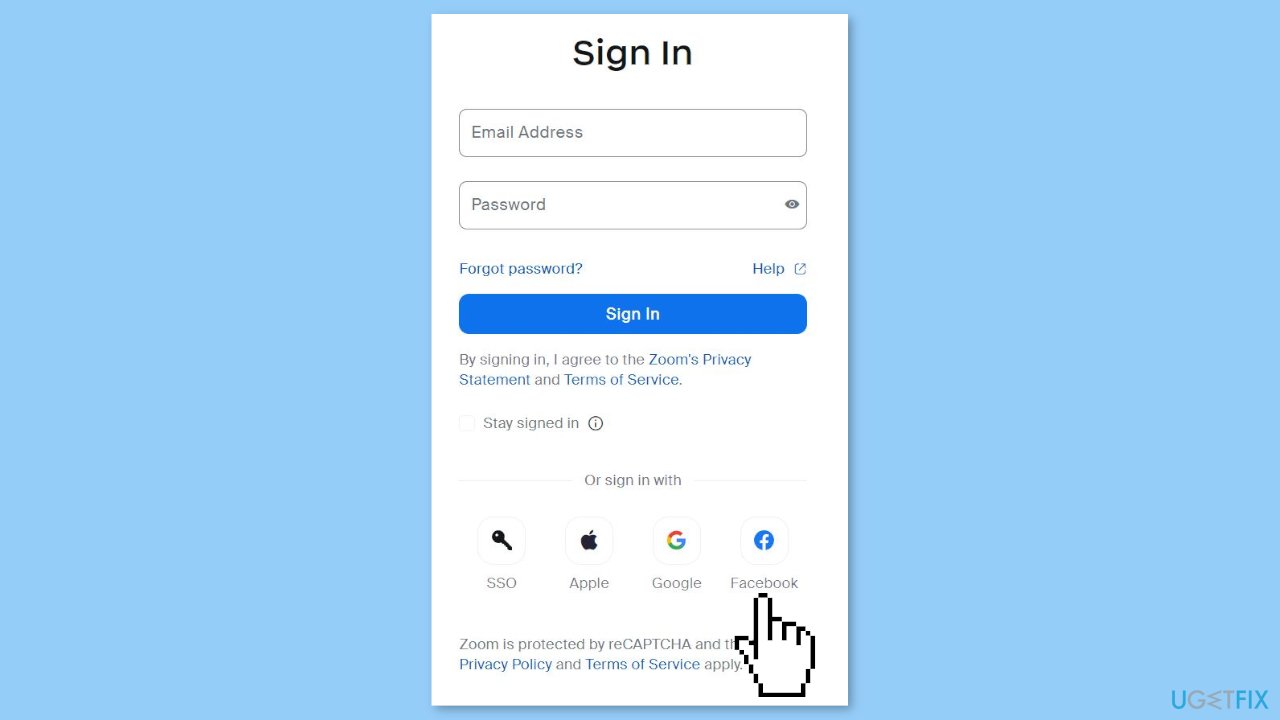
The error has been observed to occur most frequently when users attempt to sign in with a Google account or email address. Therefore, we recommend utilizing alternative login options, such as Sign in using Facebook or Sign in using Apple ID.
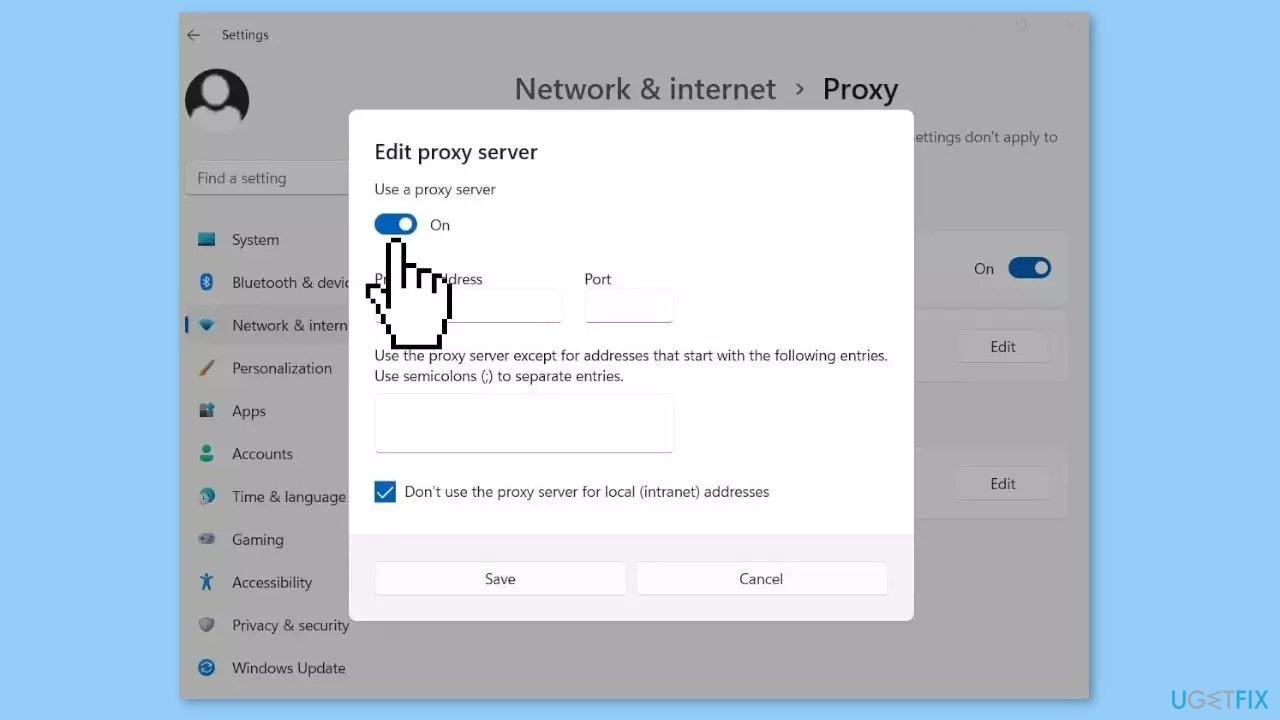
Method 4. Disable VPN and Proxy Server
VPN clients and proxy servers can create obstacles in the connection between the Zoom server and the Windows client machine. This can prevent access to Zoom. Therefore, it is recommended to disable or uninstall the VPN software or remove any proxy server from the device. After doing so, check whether logging in to Zoom is possible or not.
Method 5. Update Zoom
Newer versions of the Zoom app, specifically those above 5.13.1.1096, have demonstrated fewer instances of errors compared to older versions. Therefore, we suggest updating the app as a solution to fix the error.
- Open the Zoom app on your device.
- Click on your profile icon or picture in the top-right corner of the window.
- From the drop-down menu that appears, select Check for Updates.
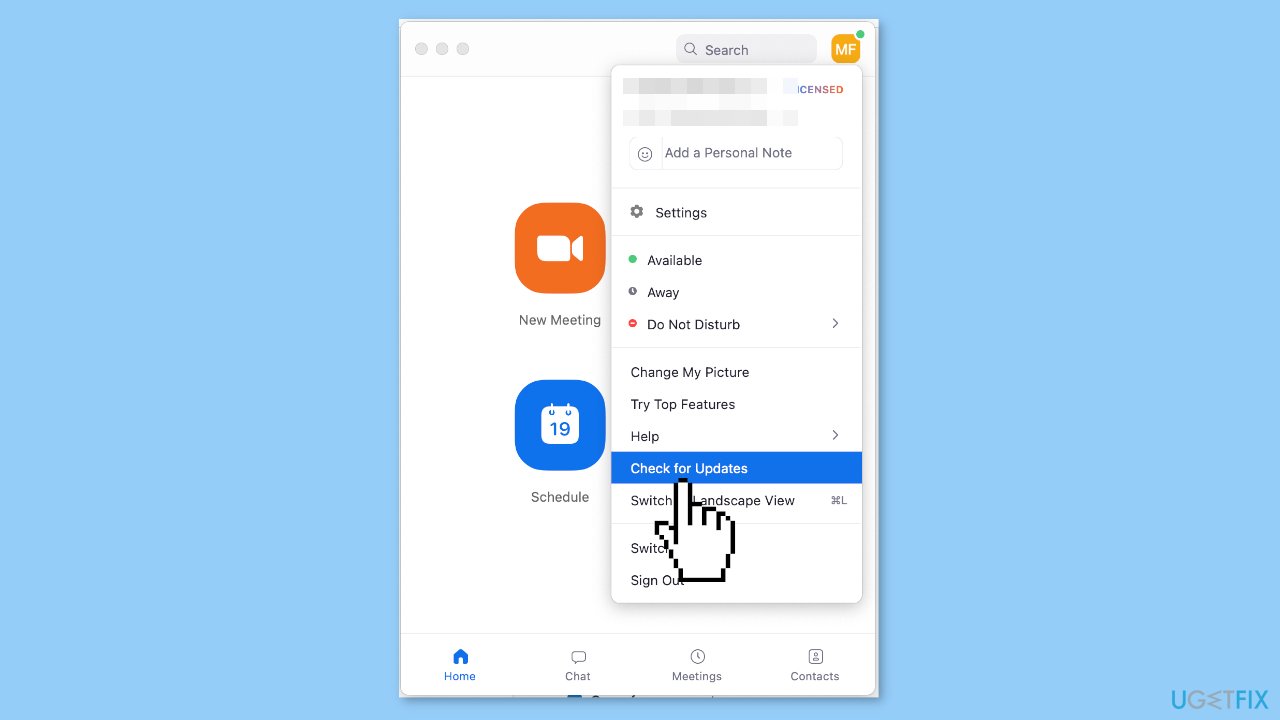
- If a new version is available, click on Download and Install to initiate the update process.
- Follow the on-screen prompts to complete the installation.
- Once the update is finished, restart the Zoom app to apply the changes.
- If prompted, sign in using your email and password.
- Verify that the update has been successful by checking the version number in the app settings.
Method 6. Repair or Reset Zoom
- Launch the Windows Settings app
- Go to Apps > Apps & features
- Locate Zoom
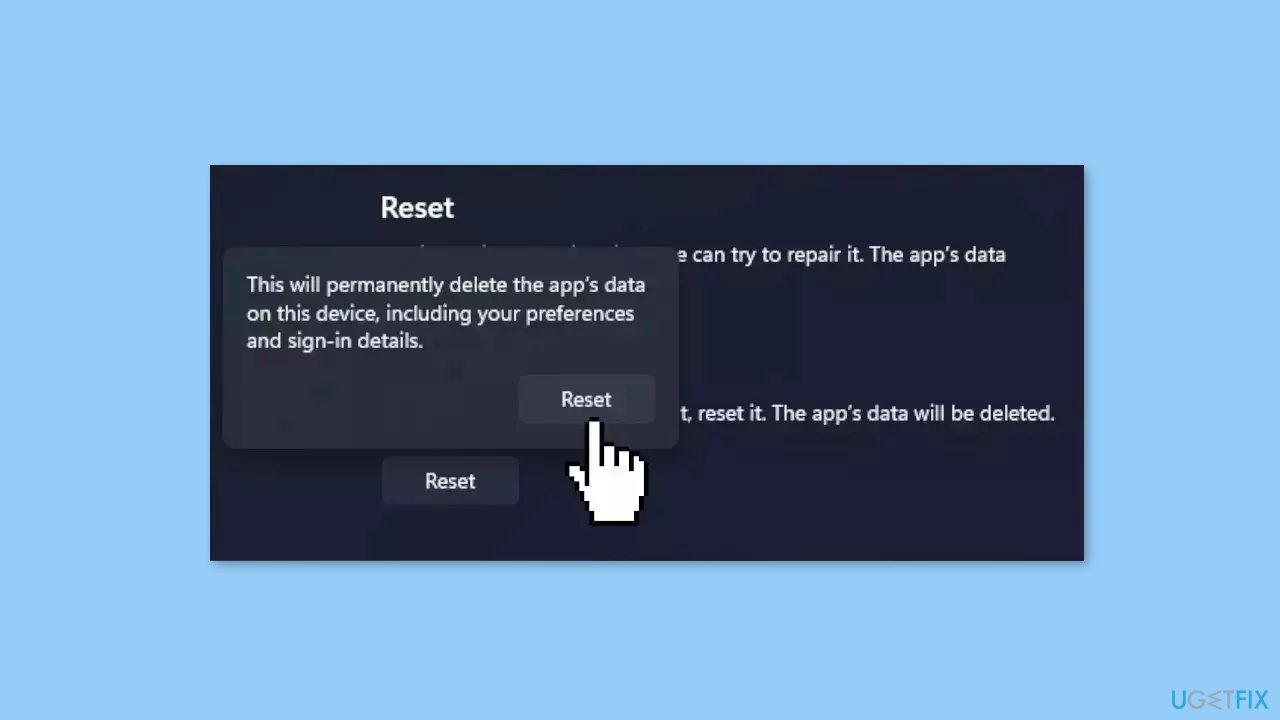
- Click on Advanced options
- Click on Repair, wait for the process to finish, and check if the issue is solved
- If not, press the Reset button and check again
Method 7. Reinstall the App
- Open the Start menu.
- Search for Control Panel and click on it.
- Select Programs and Features.
- Find the app you want to uninstall in the list of installed programs.
- Click on the app to select it.
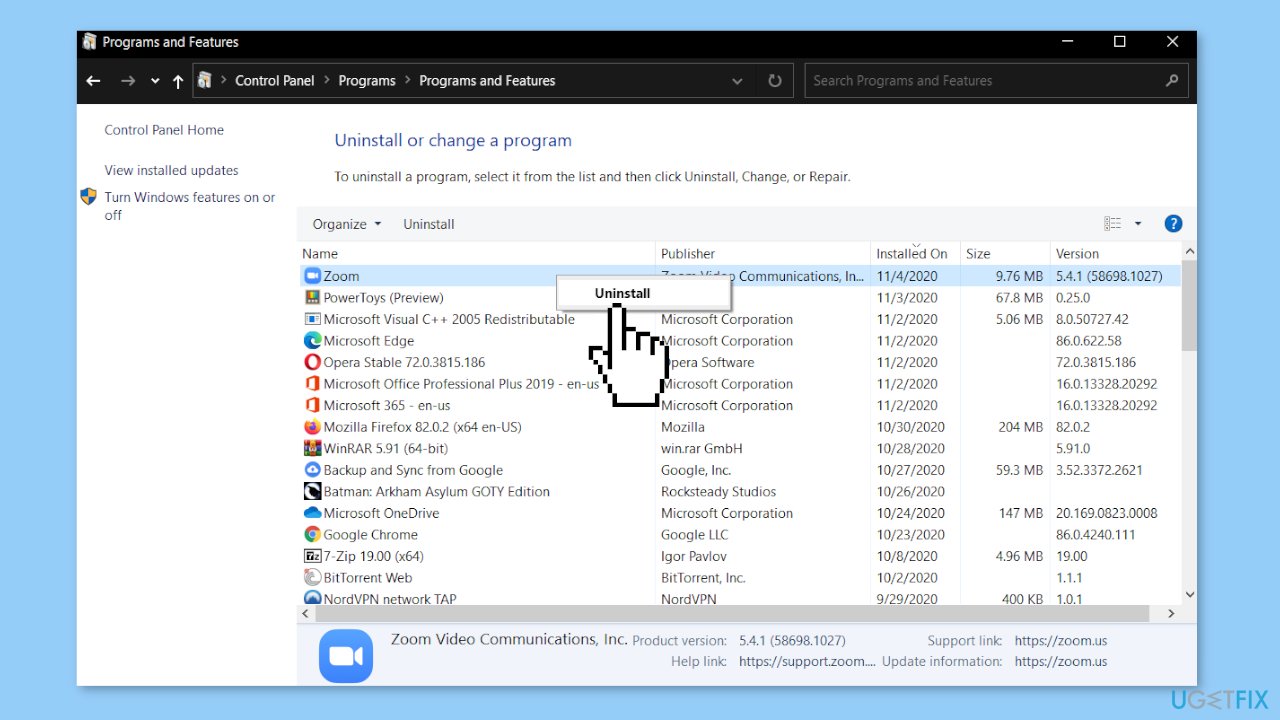
- Click on the Uninstall button located at the top of the list of programs.
- Follow the prompts in the uninstall wizard to complete the process.
- Wait for the app to finish uninstalling and then close the Control Panel.
Method 8. Use the Web Version (workaround)
The error code 300 is primarily observed in the desktop version of Zoom. If the previously mentioned solutions do not work, we recommend using the web version of the app. To access it, go to teams.microsoft.com, log in to your account, and proceed.
Bottom line
To fix Zoom error code 300 in Windows, you can try updating the Zoom app, checking your login credentials, clearing the Zoom cache, resetting your internet connection, or restarting your computer. If none of these solutions work, consider using a maintenance tool to address system errors or seek further assistance.
Frequently asked questions
Zoom error code 300 typically occurs due to network connectivity issues, firewall settings, or outdated Zoom application files on your Windows device.
To fix error code 300 on Windows 11, try restarting your router, disabling your firewall temporarily, or updating the Zoom application to the latest version.
Yes, you can troubleshoot error code 300 by clearing the Zoom cache, checking your internet connection, or ensuring your Windows 10 or Windows 11 system is fully updated.




Report an issue
What's wrong with this guide? We review every report and update or remove content.
Report received — thank you. We'll review and fix it.
You need a free account to submit a report.
Be the first to comment