How to fix
Remove “Captions are being missed. Try closing some applications to improve performance” notification
on Windows
Eliminate the "Captions are being missed" notification on Windows 10 or 11 effortlessly. Expert-tested solutions for smoother performance, fixed in minu…

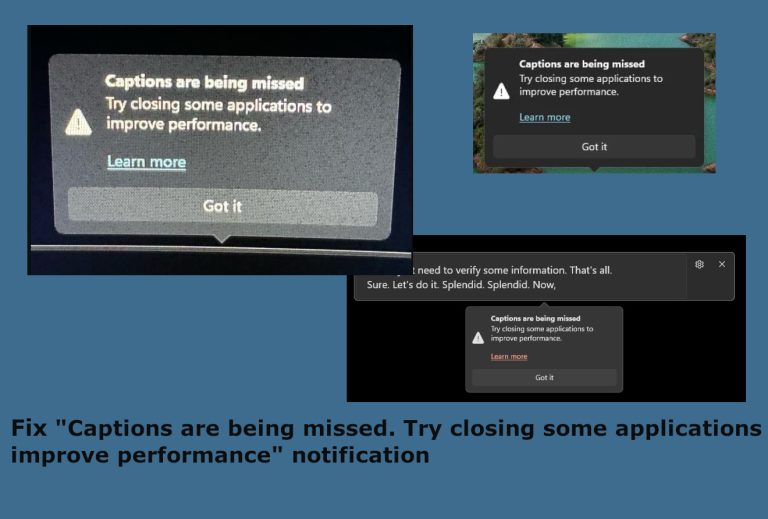
What causes How to remove “Captions are being missed. Try closing some applications to improve performance” notification from Windows?
- System performance limitations
- Multiple applications running simultaneously
- Recent software updates
- Third-party applications interfering
- Windows OS updates causing issues
Repairs Windows system files, removes malware, and restores a clean OS state — without reinstalling.
Hello, is there help? I need assistance because I cannot solve the issue myself. The issue is that a small window pops up, somewhat blocking my screen. I clicked the "Got it" button to dismiss it, but it keeps popping up again. It bothers me all the time. it states "Captions are being missed. Try closing some applications to improve performance" and it concerns me. I think there are issues with my PC potentially.
"Captions are being missed. Try closing some applications to improve performance" notification on Windows devices has been reported many times. According to the users online, the notification persisted, and the pop-up most likely concerned the performance of the machine and the apps on it.
This notification annoys other people too, so you're not alone. Many users[ref en-1] have reported this issue, especially when using Live Captions in Windows. This notification can be frustrating, especially when you're in the middle of something important. But what causes this problem, and are there any potential solutions - the question that we have a duty to answer.
The "Captions are being missed. Try closing some applications to improve performance" notification can indicate an issue caused by system performance limitations. When your computer runs multiple applications simultaneously, it can struggle to keep up with the demands of real-time captioning.
The notification is essentially a warning that your system resources are stretched too thin, leading to missed captions. Some users have also suggested that this could be related to recent software updates or third-party applications running in the background, potentially interfering with the system’s ability to process captions smoothly.
Windows OS updates often cause sudden system issues. Addressing the problem and possible reasons behind this persistent notification could help properly remove the "Captions are being missed. Try closing some applications to improve performance" notification from Windows.
Unfortunately, there is currently no option in the settings to turn off this warning. While Microsoft is aware of the issue and their technicians are working on a solution, there isn't an immediate fix available. Some users have found relief by uninstalling recent updates, as we mentioned, or performing a system restore, which might suggest that a recent change to the system could be at fault.
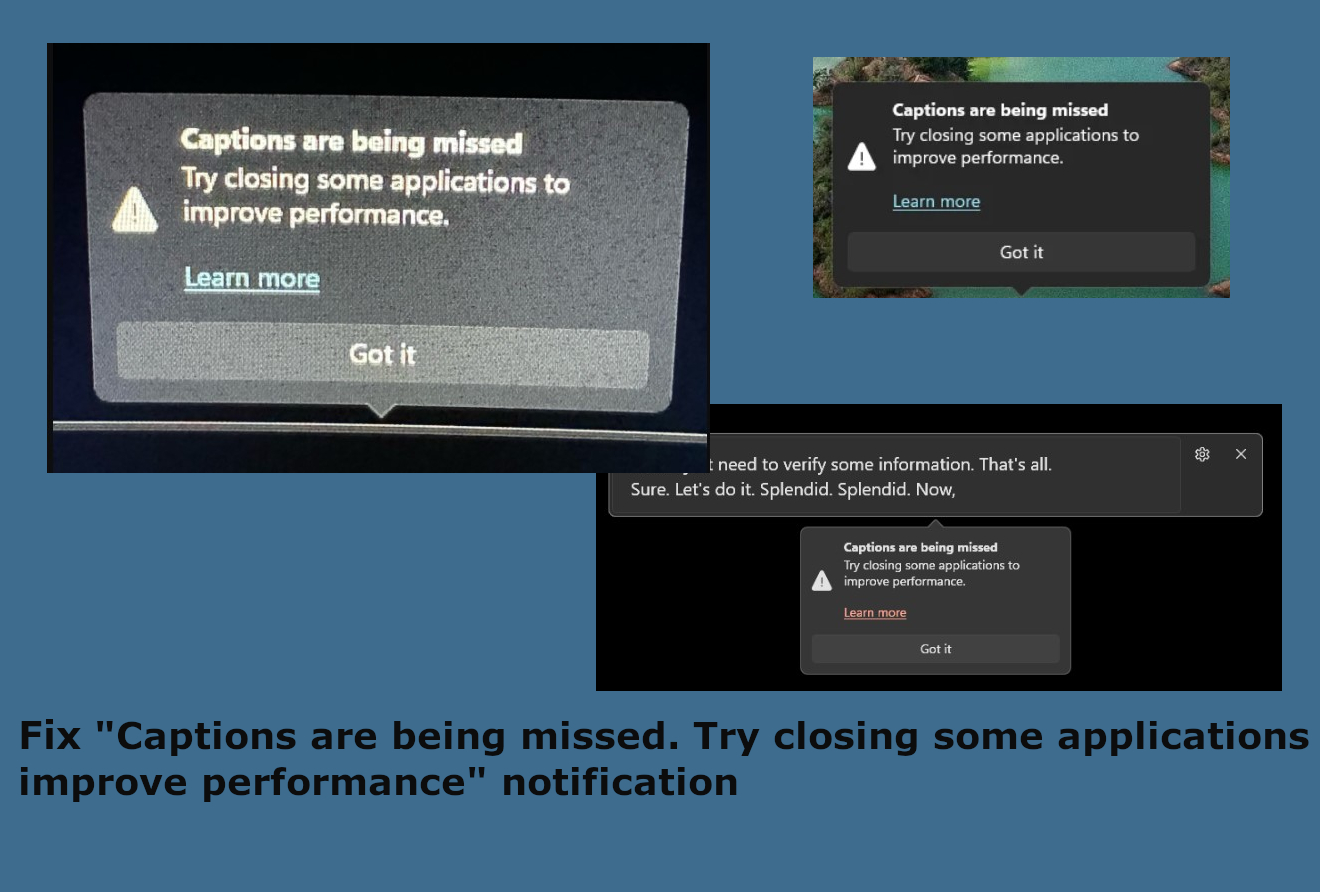
Fix persistent "Captions are being missed. Try closing some applications to improve performance" notification
While waiting for an official fix from Microsoft, you can do a few things. The problem could be related to interference from third-party applications. Performing a clean boot, which starts Windows with a minimal set of drivers and startup programs, can help you determine if background services are causing the problem.
This method isolates the issue and can help identify whether the problem lies with third-party software or the system itself. Also, issues triggered by third-party applications and damage to the machine can be solved using [d1]. The automatic scan and repair could solve additional issues on the device.
The "Captions are being missed. Try closing some applications to improve performance" notification can be disruptive. Understanding the potential causes can help manage the issue until a more permanent solution is provided. You might want to uninstall any suspicious apps and clear the machine from malware or at least check for such intruders at first.
Fortunately, whether it's due to system performance limitations, recent updates, or third-party software interference, there are ways to mitigate the problem. With patience and a bit of troubleshooting, and the guide below you may find a way to reduce the frequency of these notifications until Microsoft rolls out a fix.
1. Uninstall the update of OS
- Press Windows + I to open Settings.
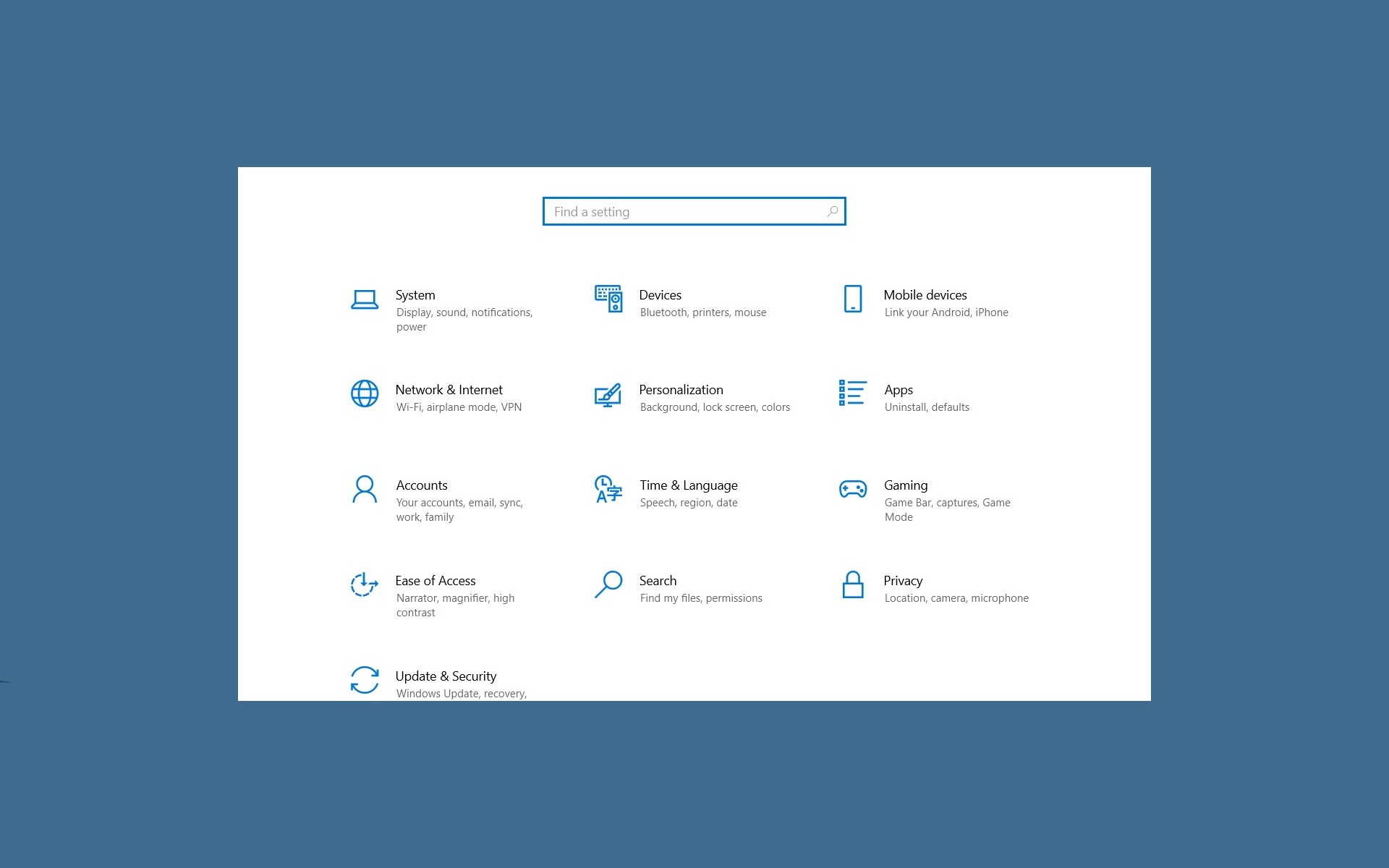
Captions are being missed notif settings - Got to System and then search for Recovery.
- Choose Advanced Startup, Click "Restart Now".
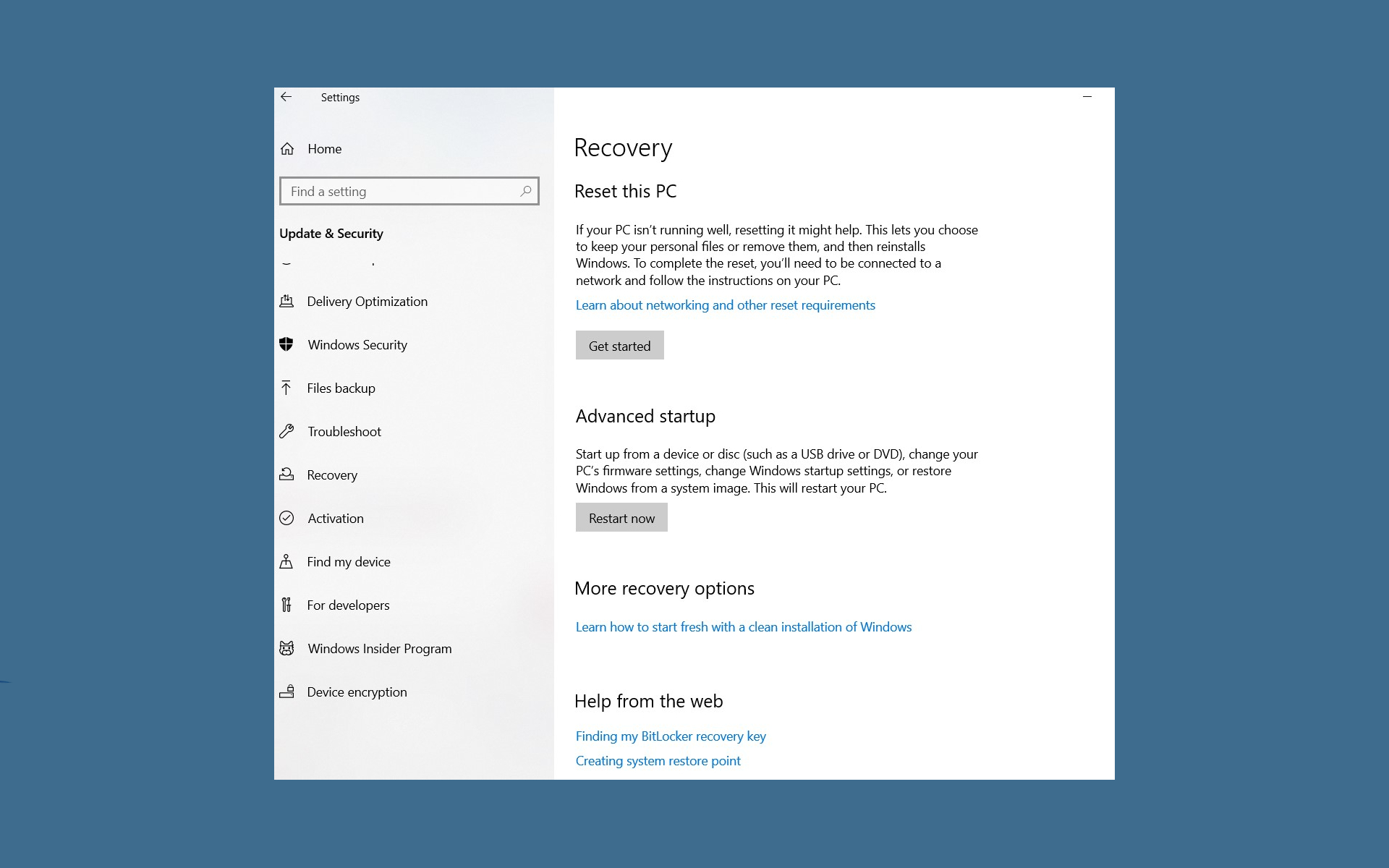
Captions are being missed notif recovery - The computer will boot into WinRE environment.
- Find Troubleshoot and then Advanced options.
- Choose Uninstall Updates.
- Uninstall the latest updates and reboot to see if the problem is resolved.
2. Restore the System
- Type in Create a Restore point in the Windows search bar at the bottom of your screen and hit Enter.
- Go to the System Protection tab and pick System restore.
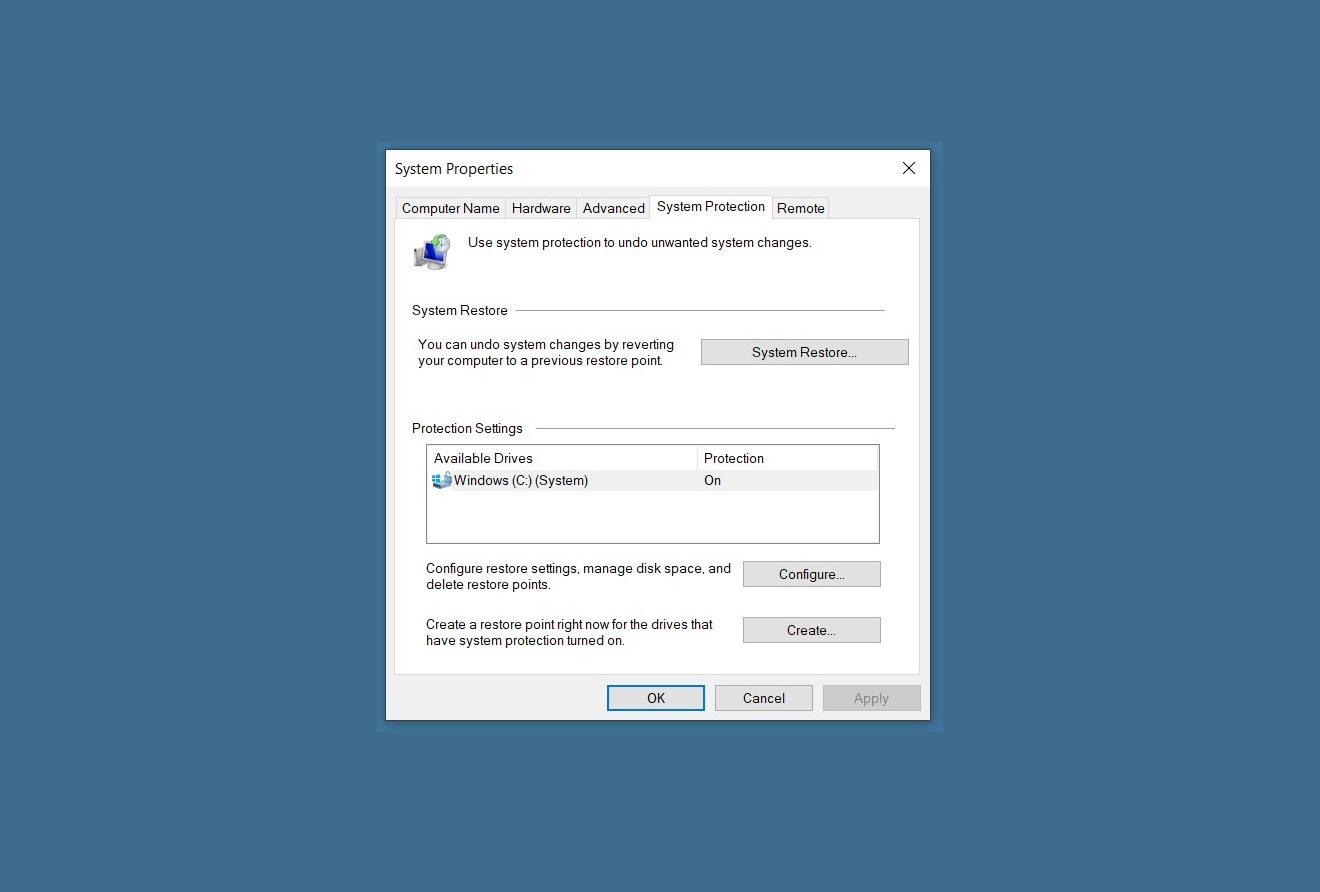
Captions are being missed notif restore sys - Click Next.
- Click Show more restore points (if available).
- Pick the time before the problem occurred and click Next.
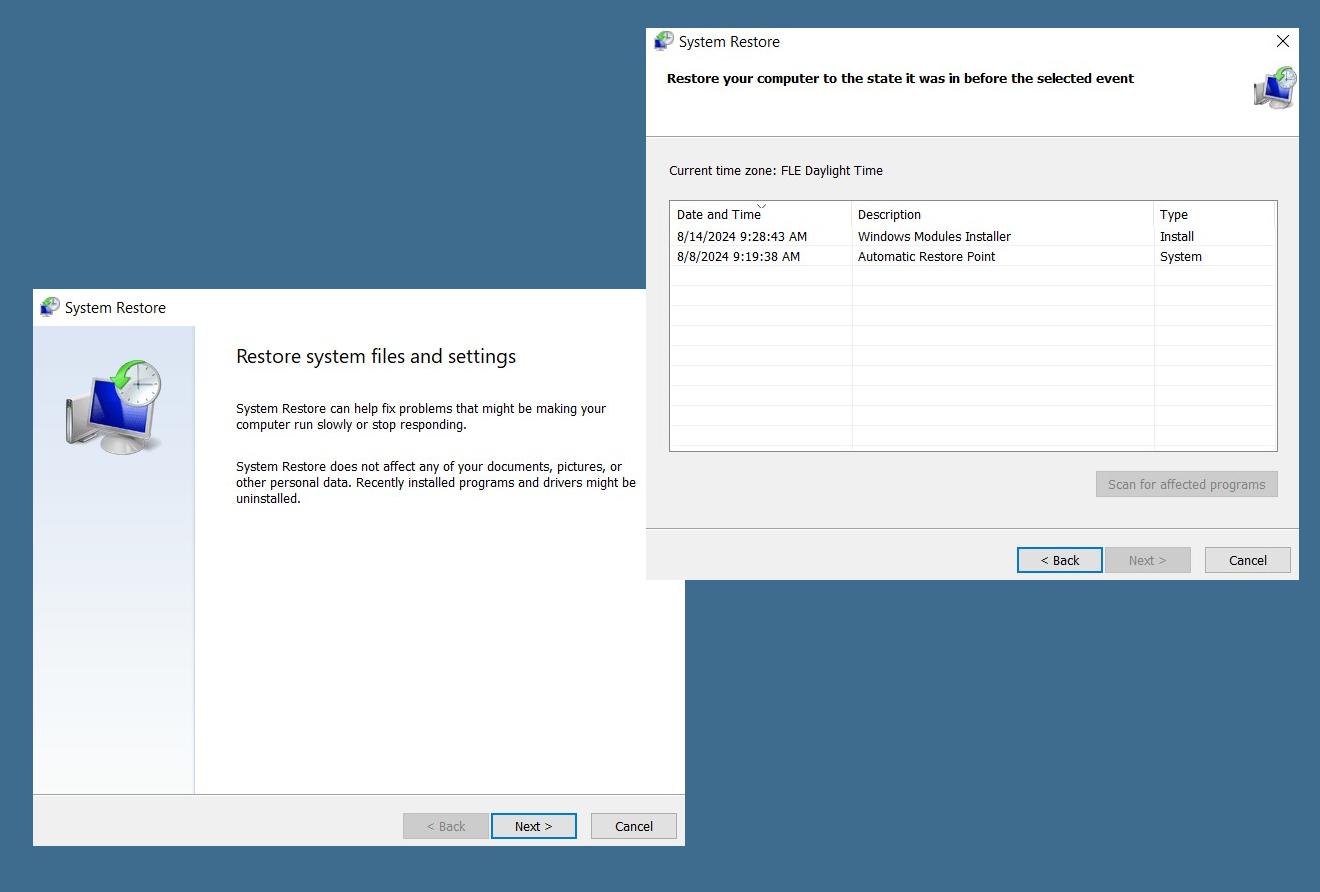
Captions are being missed notif restore - Follow the prompts to finish the process.
- Choose the restore point before the issue and then select Next > Finish.
3. Reset Windows update components
- Open Command Prompt as administrator.
- Stop the Windows Update-related services by running the following commands one at a time, pressing Enter after each one:
net stop wuauserv
net stop cryptSvc
net stop bits
net stop msiserver - Rename the SoftwareDistribution and Catroot2 folders by running the following commands:
ren C:\Windows\SoftwareDistribution SoftwareDistribution.old
ren C:\Windows\System32\catroot2 Catroot2.old
Note: If your Windows installation is not on the C drive, replace “C” with the appropriate drive letter.
regsvr32.exe /s atl.dll
regsvr32.exe /s urlmon.dll
regsvr32.exe /s mshtml.dll
netsh winsock reset
netsh winsock reset proxy - Restart the Windows Update-related services by running the following commands:
net start wuauserv
net start cryptSvc
net start bits
net start msiserver - Reboot your computer.
Bottom line
To address the persistent notification, users can try uninstalling recent updates or closing unnecessary applications to free up system resources. If these solutions do not work, it may be necessary to wait for a Microsoft update that resolves the issue.
Frequently asked questions
This notification typically appears when system resources are low, often due to multiple applications running simultaneously. Closing unnecessary applications can help alleviate this issue.
You can disable captions by going to Settings > Ease of Access > Closed Captions and turning off the captions feature. This will prevent related notifications from appearing.
You can also optimize performance by adjusting your system's visual effects or upgrading your hardware, such as adding more RAM, to better handle resource demands in Windows 10 or Windows 11.




Report an issue
What's wrong with this guide? We review every report and update or remove content.
Report received — thank you. We'll review and fix it.
You need a free account to submit a report.
Be the first to comment