How to fix
Remove empty space at the left of the Start button
on Windows
Eliminate the annoying empty space next to the Start button in your Windows 11 taskbar effortlessly. Fixes applied and expert-tested!

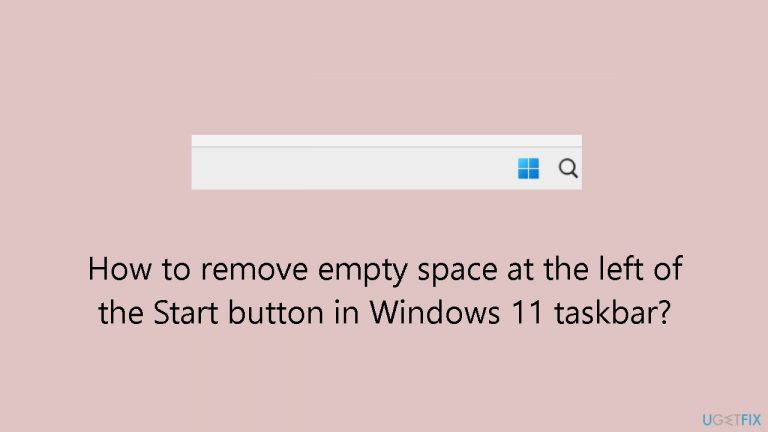
What causes How to remove empty space at the left of the Start button in Windows 11 taskbar?
- Default taskbar alignment set to center
- System configurations
- Conflicting software
- Recent updates
- Potential bugs in the operating system
Repairs Windows system files, removes malware, and restores a clean OS state — without reinstalling.
Hello. Why is there an empty bar in the lower-left corner of my Windows screen? It serves no apparent purpose and is simply occupying space. I'm unable to pin additional apps to my taskbar. Is there a way to change this?
The presence of an empty space at the left of the Start button on the Windows 11 taskbar has become a noticeable concern for some users, particularly those seeking to maximize their taskbar space for app pinning. While the default alignment for the Windows 11 taskbar is set to the center, users have the option to shift it to the left, similar to the layout in Windows 10. However, this adjustment may not prove effective for certain users, suggesting the existence of underlying issues.
The inability to address the empty space issue can significantly impact users who rely on efficient access to frequently used applications. For those who prefer a neatly organized and easily accessible taskbar, the wasted space to the left of the Start button can hinder their ability to pin additional apps, causing frustration and inconvenience in their daily workflow.
The reasons behind the persistent issue may vary, ranging from system configurations to potential bugs in the operating system. While changing the taskbar alignment is a common troubleshooting step, it may not resolve the problem for everyone. Other factors, such as specific system configurations, conflicting software, or recent updates, could be contributing to the persisting empty space.
In this guide, you will find instructions on how to change the Windows 11 Taskbar alignment and how to troubleshoot potential issues. You can also run a maintenance tool like [d1] that can fix most system errors, BSODs,[ref en-1] corrupted files, and registry[ref en-2] issues. Otherwise, follow the step-by-step instructions provided below.
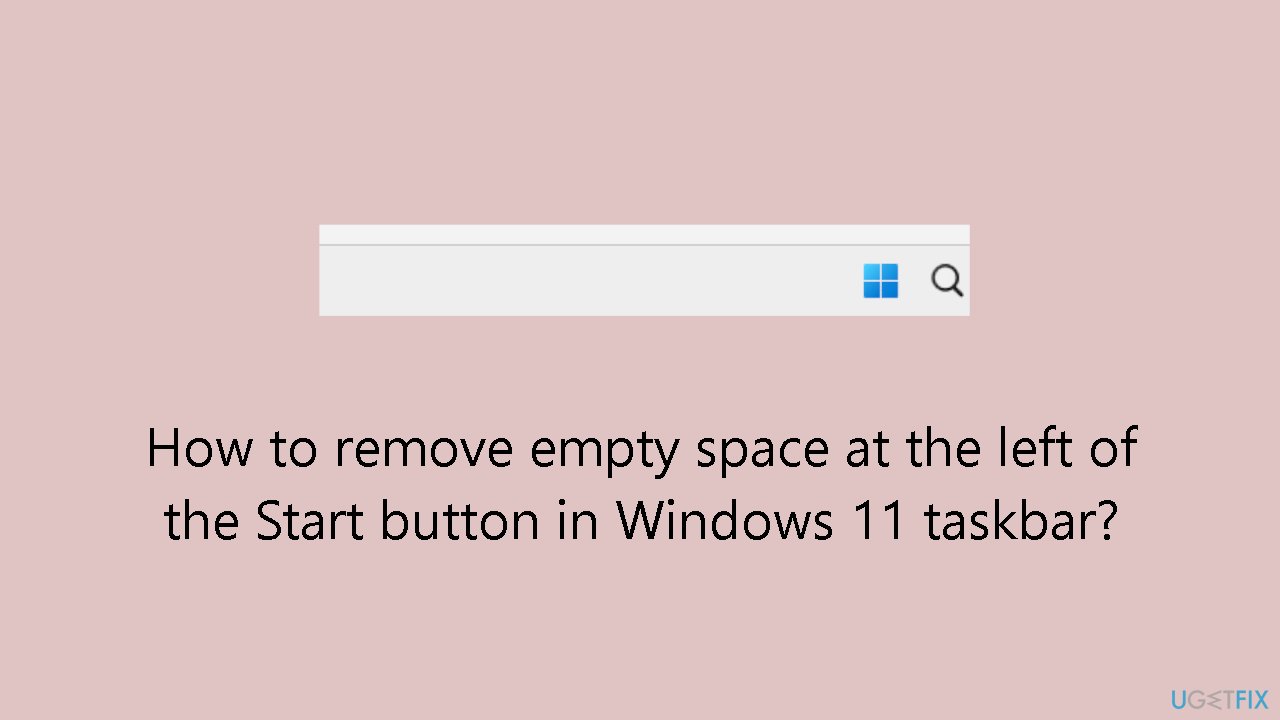
Change Taskbar Alignment
- Right-click on the Taskbar to open the context menu.
- Select Taskbar settings from the menu.
- Click on Taskbar behaviors to expand its options.
- In the expanded menu, locate the Taskbar alignment drop-down.
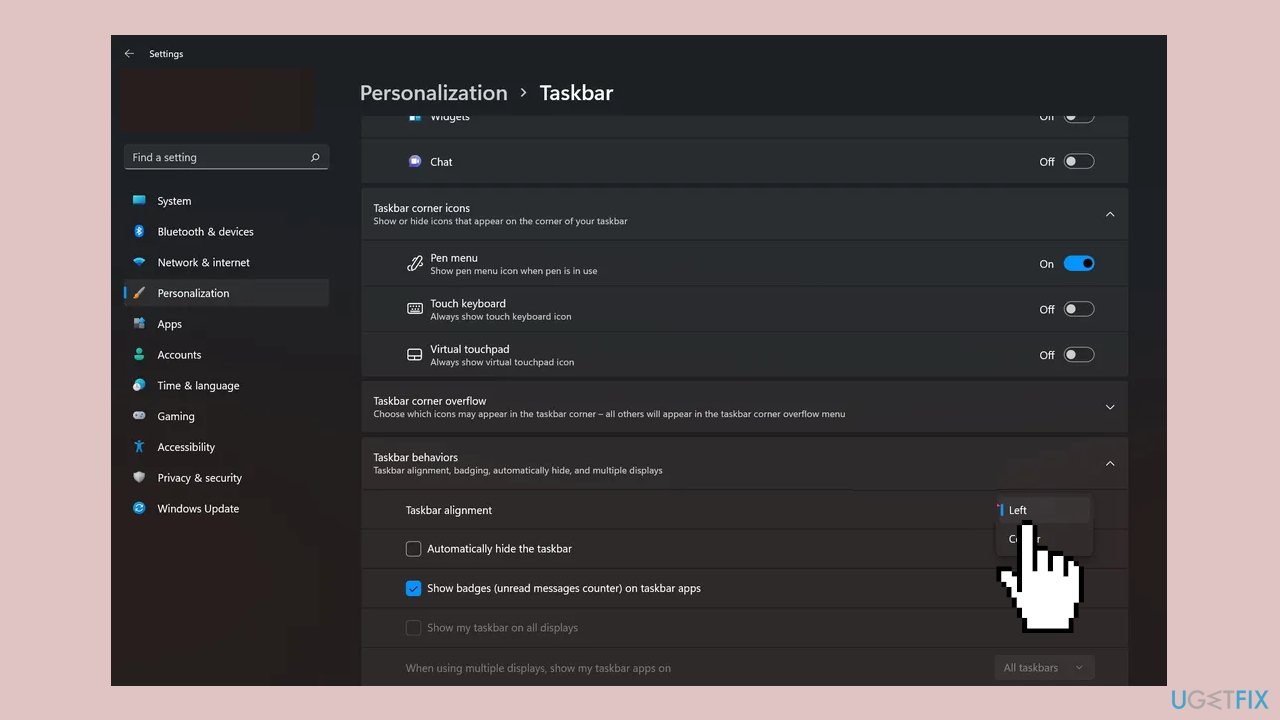
- Choose Left from the options in the Taskbar alignment drop-down menu.
- Confirm the changes, and now the Taskbar icons will be positioned to the left on your Windows 11 PC.
If for some reason these steps do not get rid of the empty space in your Taskbar there may be some underlying issues. Follow the troubleshooting steps below.
Solution 1. Re-register the Start Menu
- Search for PowerShell in the Start menu, right-click on it, and choose Run as administrator.
- Confirm the User Account Control prompt by clicking Yes.
- In the PowerShell window that opens, enter the following command:
Get-appxpackage -all *shellexperience* -packagetype bundle |% {add-appxpackage -register -disabledevelopmentmode ($_.installlocation + "\appxmetadata\appxbundlemanifest.xml")}
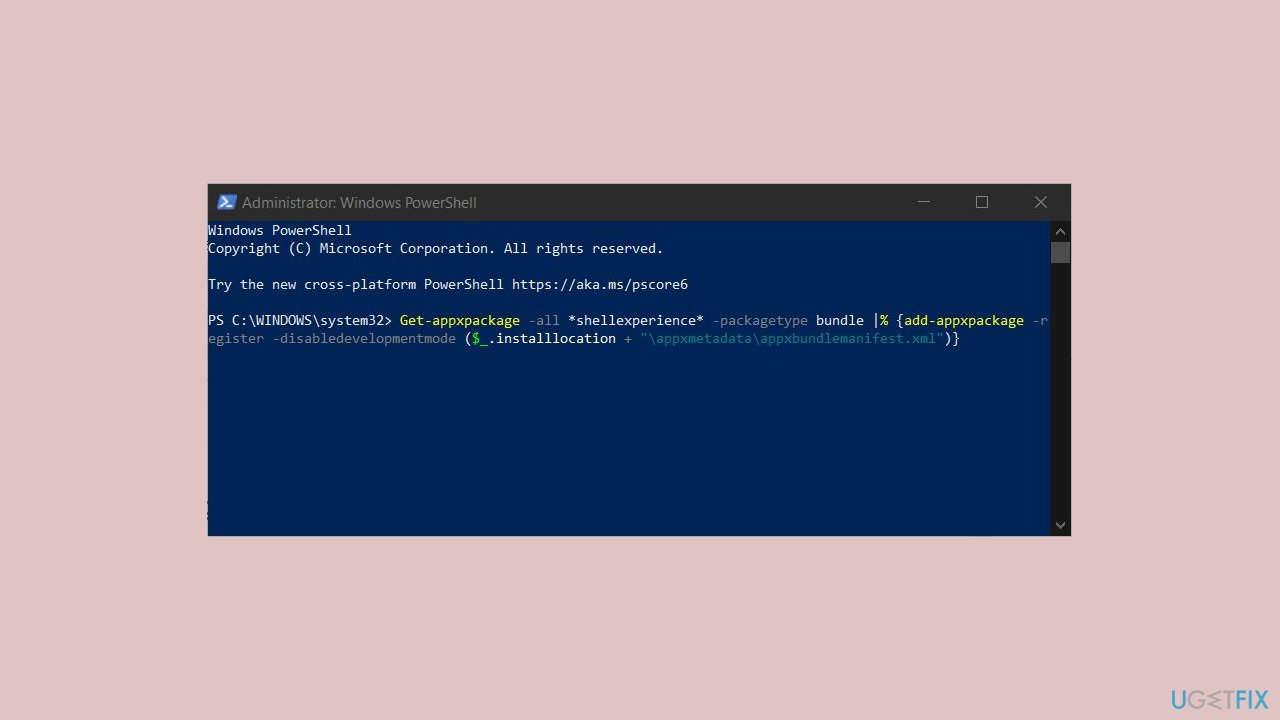
- Press Enter to execute the command.
- Close the PowerShell window.
- Restart your PC to apply the changes.
Solution 2. Update or Reinstall Display Drivers
- Search and open the Device Manager on your PC.
- Double-click on the Display adapters section to expand it.
- Right-click on the display driver.
- Choose Update driver from the context menu.
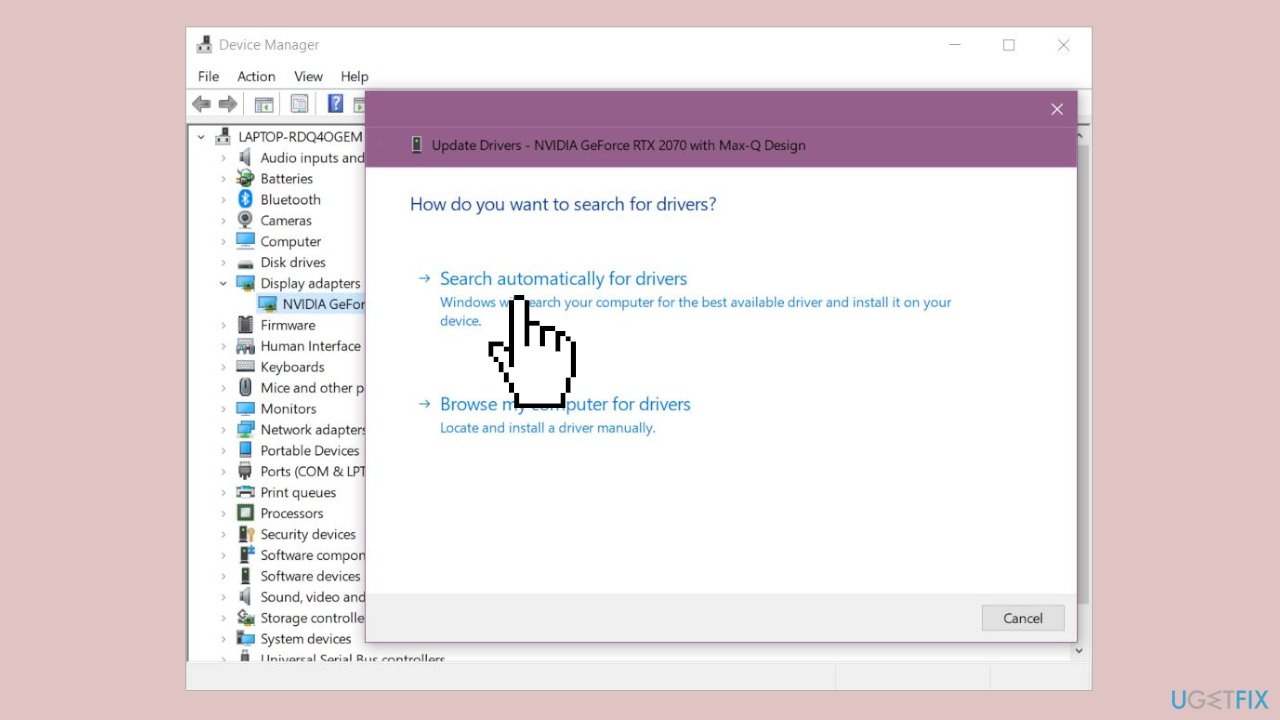
- Select Search automatically for drivers to let Windows find the appropriate drivers online. Ensure your PC is connected to the internet.
- If an update is found, install it, and then restart your PC.
- If no update is found, consider manually searching for drivers on your PC manufacturer's website.
If a manual search yields no results, reinstall the current drivers by following these steps:
- Right-click on your display driver in the Device Manager window.
- Select the Uninstall device option.
- Confirm by clicking the Uninstall button.
- Restart your PC and reconnect it to the internet. The system will automatically download and install the display drivers.
Bottom line
To address the empty space issue, users can change the taskbar alignment by accessing the taskbar settings and selecting 'Left' from the alignment options. If this does not resolve the problem, consider running a maintenance tool to fix system errors or exploring other troubleshooting steps.
Frequently asked questions
The empty space can occur due to taskbar settings or issues with pinned apps. Adjusting taskbar alignment or resetting the taskbar can help resolve this.
You can try re-centering the taskbar icons by right-clicking the taskbar, selecting Taskbar settings, and adjusting the alignment options. If that doesn't work, restarting Windows Explorer might also help.
Yes, keeping Windows 11 updated can resolve various bugs, including taskbar display issues. Check for updates in Settings > Windows Update to ensure your system is current.




Report an issue
What's wrong with this guide? We review every report and update or remove content.
Report received — thank you. We'll review and fix it.
You need a free account to submit a report.
Be the first to comment