How to fix
Repair corrupt user profile
on Windows
Fix corrupt user profiles in Windows 10 or 11 quickly and effectively. Restore your settings with expert-tested solutions that leave zero traces.

What causes How to repair corrupt user profile in Windows?
- Profile corruption due to software program conflict
- Incomplete Windows updates
- System errors during boot
- User settings not loading properly
- Corrupted user profile from download problems
Repairs Windows system files, removes malware, and restores a clean OS state — without reinstalling.
Hello. When I started my laptop to finish work and back it up, I was prompted to reinstall everything, and after loading, I saw a "Preparing Windows" message and found my wallpaper reset to the default; now, allmy apps don’t work, and I’m unable to use command keys or Run due to profile corruption, leaving me with options to reinstall Windows or stay in safe mode. Please help me fix this.
Profile corruption is a prevalent issue in Windows that can severely intervene with your computing. It usually occurs when users boot the system and suddenly face prompts indicating something about reinstalling or repairing their operating systems. After rebooting the system, some users may notice messages such as "Preparing Windows" when they log in, and that their actual desktop wallpaper has been reset to default while all of their desktop icons/shortcuts are still there.
One of the most common signs of a corrupt user profile is applications not working. Users may notice that their apps either do not open or close abruptly upon launch. In some cases, even over simple things like the Run command and command keys can stop working in rare instances, making it difficult to carry out basic troubleshooting steps.
This usually means the session was not dealing with either a software program conflict or system errors and that it has something to do with a corrupt user profile, perhaps formed by download problems during partial Windows updates.
Profile corruption stops the operating system from loading user settings and preferences properly, resulting in problems such as unresponsive applications or losing the ability to run essential system commands. When a user profile becomes corrupted, the strategies are generally one of fixing the profile in safe mode or doing something more drastic, such as reinstalling Windows due to how complex it tends to be.
[d1] Repair utility to fix user profile corruption and any Windows issues. It is a troubleshooter that can help automatically identify and fix various Windows issues, including the corruption of users' profiles, so it will do all the necessary work to ensure that your system without any problems worked again as usual.
Fix 1. Run SFC and DISM
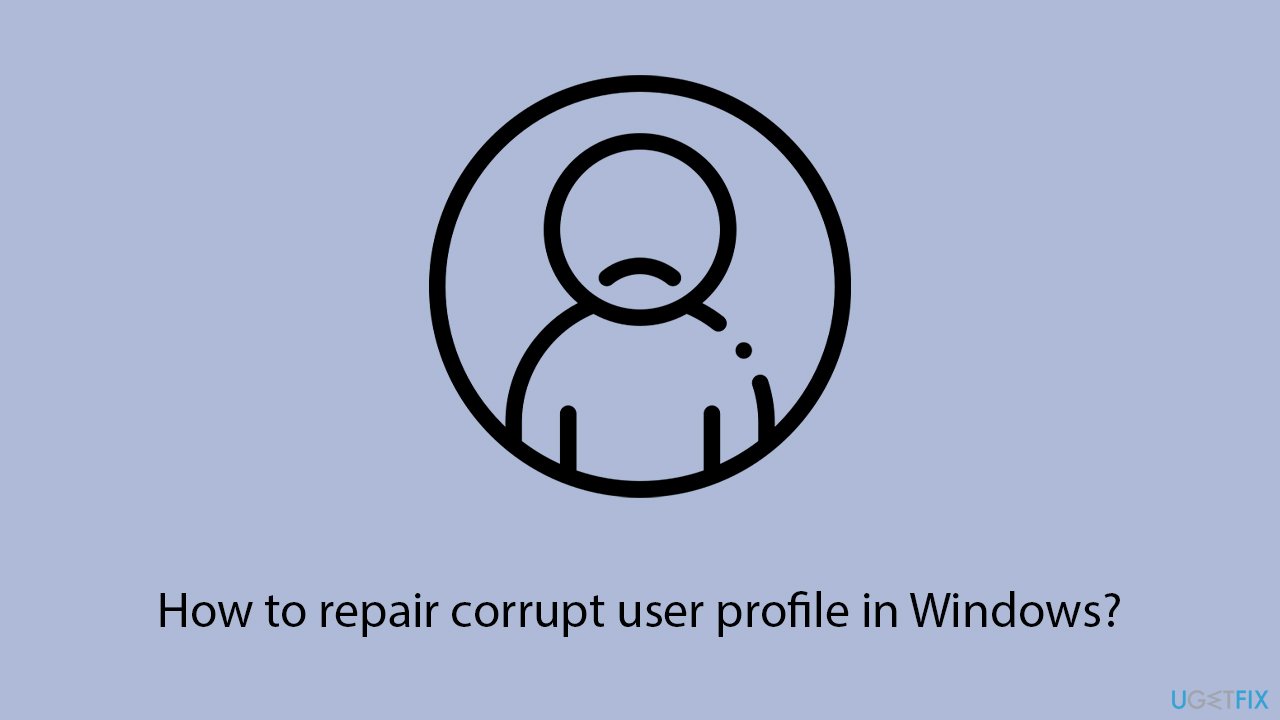
Running the System File Checker (SFC) and Deployment Imaging Service and Management Tool (DISM) helps repair corrupted system files and restore system integrity. These tools scan your system for issues and attempt to fix them automatically.
- Type cmd in Windows search.
- Right-click on Command Prompt and pick Run as administrator.
- User Account Control window will show up - click Yes when prompted.
- Type this command and press Enter:
sfc /scannow - Wait for the scan to finish.
- As soon as the scan finishes, Windows will report whether integrity violations were found and if they could be fixed. Regardless of the outcome, use these commands next, pressing Enter after each:
Dism /Online /Cleanup-Image /CheckHealth
Dism /Online /Cleanup-Image /ScanHealth
Dism /Online /Cleanup-Image /RestoreHealth
(Note: if you get an error executing this last command, add /Source:C:\RepairSource\Windows /LimitAccess to it and try again). - Close down the Command Prompt and restart your computer.
Fix 2. Update Windows
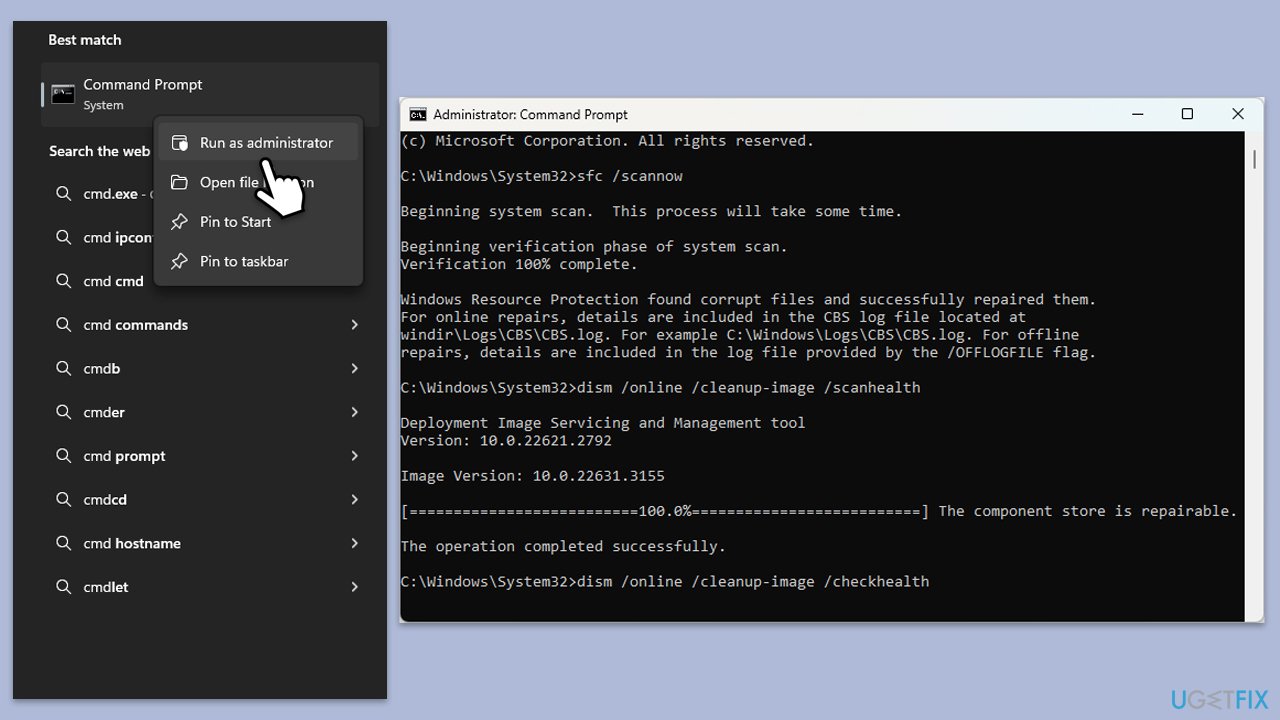
Keeping Windows up to date ensures that you have the latest patches and fixes, which can resolve issues related to user profiles and system stability.
- Type Updates in Windows search and press Enter.
- Here, click Check for updates.
- Wait till Windows downloads and installs all the files.
- If optional updates are available, install them as well.
- Reboot your device.
Fix 3. Create a new user profile and copy your files
Creating a new user profile can bypass the corruption in your current profile, allowing you to start fresh while preserving your files.
- Copy all your important files to a safe location (for example, c:\temp)
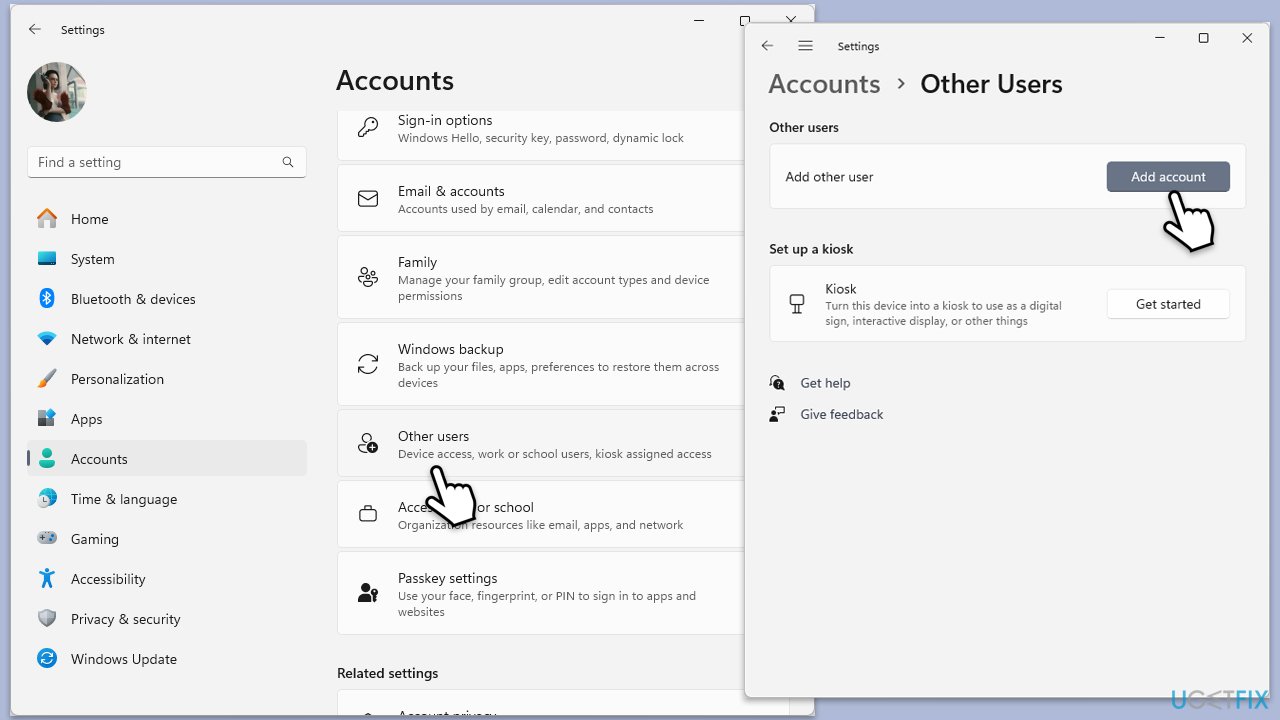
- Open Windows Settings.
- Go to Accounts then Family/Family & other users.
- Under Other users, click Add account/Add someone else to this PC.
- Follow the prompts to create a new user account. If you don't have Microsoft account details, you can choose I don't have this person's sign-in information followed by Add a user without a Microsoft account.
- Assign a username and password for the new account and complete the setup.
- Then go back to the Accounts section. Under Family/Family & other users, select the newly created account and click Change account type.
- Under Account type, pick Administrator and click OK.
- After the new profile is created, delete the corrupt one.
Fix 4. Use Registry Editor to fix the profile
The Registry Editor can be used to repair or restore corrupted registry keys that might be affecting your user profile.
- Type Regedit in Windows search and press Enter.
- Navigate to the following location:
HKEY_LOCAL_MACHINE\Software\Microsoft\Windows NT\CurrentVersion\ProfileList. - Find and select the profile with the .bak extension.
- Rename the .bak profile.
Fix 5. Perform a System Restore
System Restore can revert your computer to a previous state before the profile corruption occurred, potentially resolving the issue.
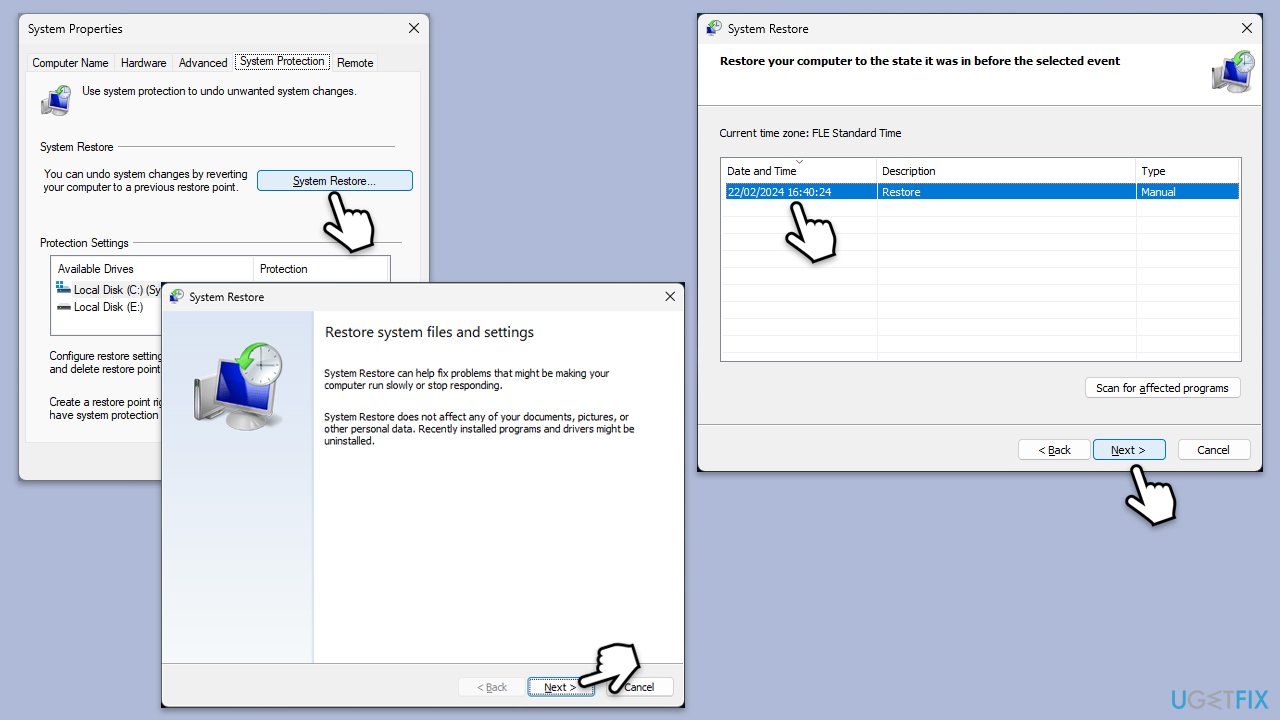
- Type System Restore in the search box and click Create a restore point.
- In the System Properties window, click System Restore.
- Click Next, choose a restore point from before the issues began, and click Next again.
- Follow the on-screen instructions to complete the restoration.
- Restart your computer after the process is completed.
Fix 6. Repair your installation of Windows
Repairing your Windows installation can fix system issues without affecting your personal files or installed applications.
- Download Windows 11 Installation media from the official Microsoft website. [Windows 10 version]
- Double-click the MediaCreationTool.exe file to launch it.
- When UAC shows up, click Yes.
- Accept license terms.
- Select Language and Edition (make sure it matches the one you have currently installed) or simply mark the Use the recommended options for this PC and click Next).
- Select the ISO file and click Next.
- Pick the location for your ISO file and wait till all the needed files are downloaded, then click Finish.
Repair-install Windows
- Go to the location of your ISO file, right-click, and select Mount.
- Run the setup.exe file.
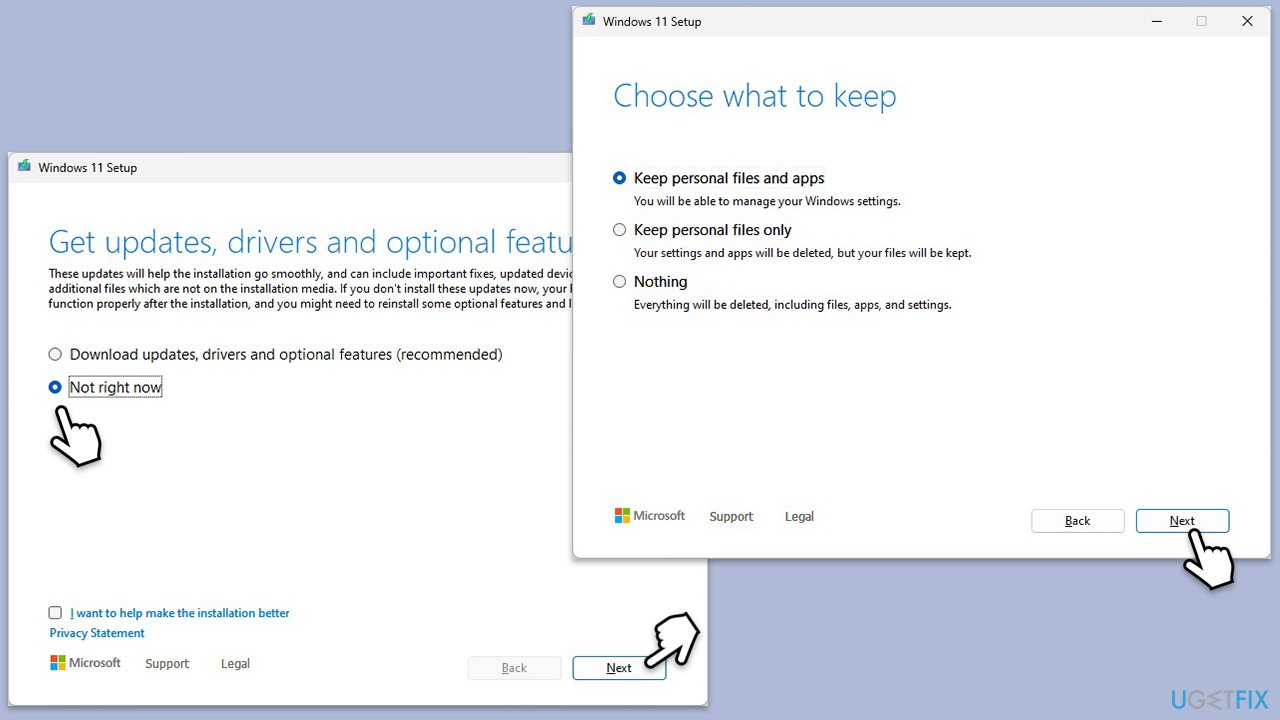
- You will be asked whether you want to update Windows to the latest version - pick Not right now and click Next.
- Accept Terms and Windows will make several checks to ensure everything is fine.
- Click Change what to keep.
- Here, you have several options: Keep your files and apps, Keep files only, or Keep nothing - choose what suits you the best. Click Next.
- Finally, click Install to begin the installation process.
Bottom line
To repair a corrupt user profile, you can attempt to fix the profile in safe mode or use a repair utility designed to identify and resolve Windows issues. If these methods do not work, you may need to consider reinstalling Windows.
Frequently asked questions
You can create a new user profile by going to Settings > Accounts > Family & other users, then selecting 'Add someone else to this PC' and following the prompts.
You can transfer files by logging into the new profile, navigating to the old profile's folder in C:\Users, and copying the necessary files like Documents, Pictures, and Desktop items.
If you encounter this error, try booting into Safe Mode and then create a new user account, as it often resolves the issue with corrupt profiles.




Report an issue
What's wrong with this guide? We review every report and update or remove content.
Report received — thank you. We'll review and fix it.
You need a free account to submit a report.
Be the first to comment