How to fix
Set up Miracast and fix its problems
on Windows
Easily set up Miracast on Windows 10 and 11 while troubleshooting common issues. Get expert-tested solutions for seamless screen mirroring, fixed in min…

What causes How to set up Miracast and fix its problems?
- Device does not support Miracast
- Both devices are not enabled with Miracast technology
- External adapter is not installed or functioning
- Network issues affecting device connection
- Device drivers are outdated or incompatible
Repairs Windows system files, removes malware, and restores a clean OS state — without reinstalling.
Hello, I wanted to watch a new TV show on my TV, but when I try to open the Miracast function it says that "The device doesn’t support Miracast, so you can’t project it wirelessly." Is there something wrong with my PC, or is it some other issue that is causing this error? Would be grateful if you would provide me with some solutions to this problem.
Miracast is a technology standard patented by the Wi-Fi Alliance in 2012 - it allows sharing various content from one screen to another and can be used on monitors, TVs, projectors, etc., regardless of manufacturer. This feature is particularly useful in the corporate or education sectors, as it allows easy access to displaying presentations. Indeed, the Miracast connections are also enjoyed by many regular users as well, as it enables them easily to access content like TV shows, movies, and other media via a different device.
For Miracast to function properly, both of the connected devices should be enabled with the technology, or otherwise and error "The device doesn’t support Miracast, so you can’t project it wirelessly" will be displayed. Luckily, Windows computers can be equipped with an external adapter to fix this issue.
The benefits of Miracast are incredible, as it does not need an existing network to operate. Instead, it uses a direct connection between a device and a display with the help of peer-to-peer[ref en-2] connection, essentially working as its own WiFi. As a result, it allows particularly heavy media traffic between devices without using bandwidth, which is particularly useful in commercial environments, where many PCs might be using the same WiFi, slowing the speed down.
By not using the bandwidth or the network, Miracast also serves as a wireless extension of the PC, which means that users can employ mice or keyboards to control the display more easily.
Despite is possessing a useful feature and providing an extra layer of protection when it comes to cyberattacks, Miracast sometimes fails, and many users reported that they could not enable the feature. While in some cases devices might simply not be equipped with Miracast technology, a lot of times, issues lie within device settings or even drivers[ref en-1] on the PC.
Therefore, if you are encountering, "The device doesn’t support Miracast, so you can’t project it wirelessly." error on your device, there are several ways you could fix it. Nevertheless, you should keep in mind that various errors and some functions of the PC might not work due to malware[ref en-3] infections - so we strongly suggest scanning the machine with anti-virus software first. In case after malware removal, your PC still suffers from errors and various issues, you could fix them with software like [d1].
And now, follow the steps below to fix Miracast issues on your Windows PC.
Step 1. Ensure that Miracast is set up correctly
First of all, you need to ensure that your computer uses correct hardware, which supports the Miracast function. Thus, proceed with the following:
- Type in Connect into Windows search
- Click on the "Connect" app
- You might see the following message: "The device doesn't support Miracast, so you can't project wiressly"

How to set up miracast and fix its problems device does not support miracast error
This means that you don't have appropriate hardware, and you need an adapter one that supports the Miracast function. For example, you can buy a Microsoft Wireless Display adapter for around $39 on Amazon or even cheaper on eBay. Once you connect the adapter, proceed with the following steps:
- Right-click on Start and select Settings
- Click on Devices
- Select Add Bluetooth or other device
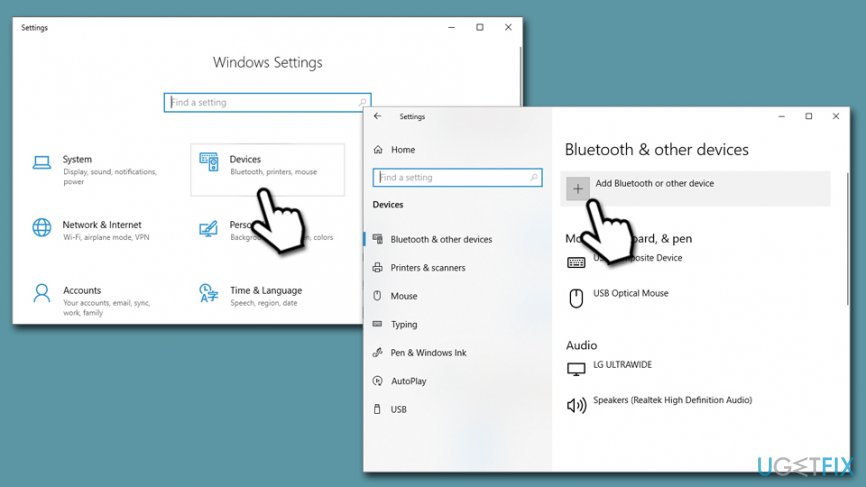
How to set up miracast and fix its problems add bluetooth device - Now pick Wireless display or dock
- Wait till Windows detects your device - it is ready to use
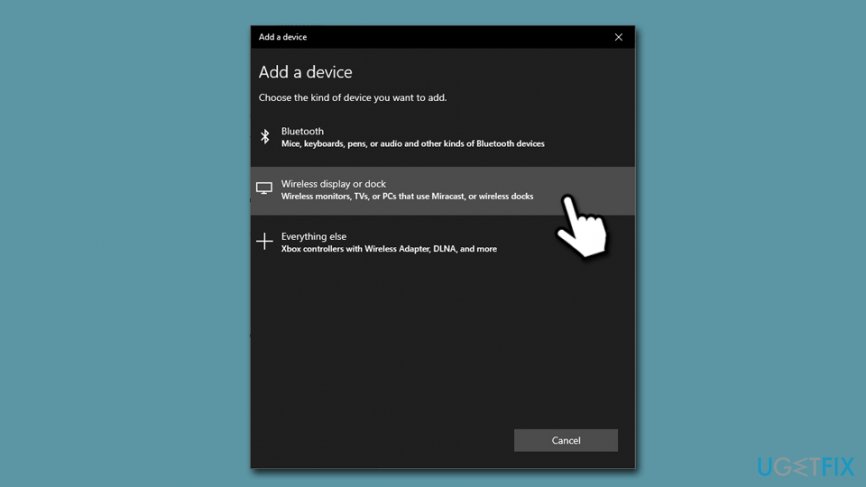
How to set up miracast and fix its problems select wireless display
Note: if you are trying to connect to a TV or a projector, ensure that these devices are also Miracast ready, as Windows will simply not detect them.
Step 2. Ensure your drivers are up to date
In some cases, the reason why you cannot connect to Miracast is connected to your PC drivers. There are several applications that update and install drivers automatically; however, industry experts are often against use of such programs, as they might download and install incorrect drivers, resulting in system malfunctions (it does not necessarily mean that these apps are programmed to do so (although some are completely useless potentially unwanted applications), but they simply cannot correctly determine different setups of a Windows machines).
Therefore, we highly recommend updating WiFi drivers manually as per the instructions below:
- Right-click on Start and select Device Manager
- Expand Network adapters section
- Right-click on your WiFi device
- Select Update driver and then go for Search automatically for updated driver software
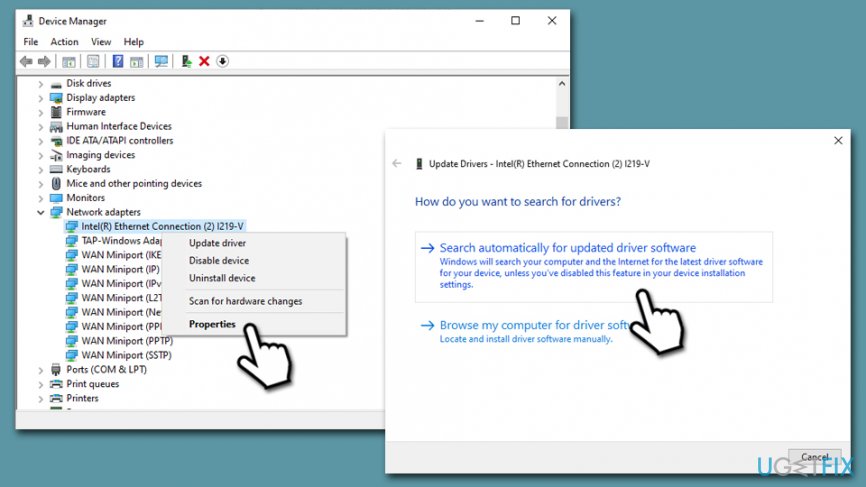
How to set up miracast and fix its problems update drivers - Wait till windows installs updates and reboot your PC
Fix Miracast issues relating to audio
If you can hear the audio playing on your computer, try to disconnect from the TV or another display and see if Miracast audio issues persist. If they do, follow these steps:
- Right-click on your speakers icon at the bottom-right of your taskbar
- Select Open sound settings
- Under Output, click on the drop-down menu, and ensure that the correct device is chosen
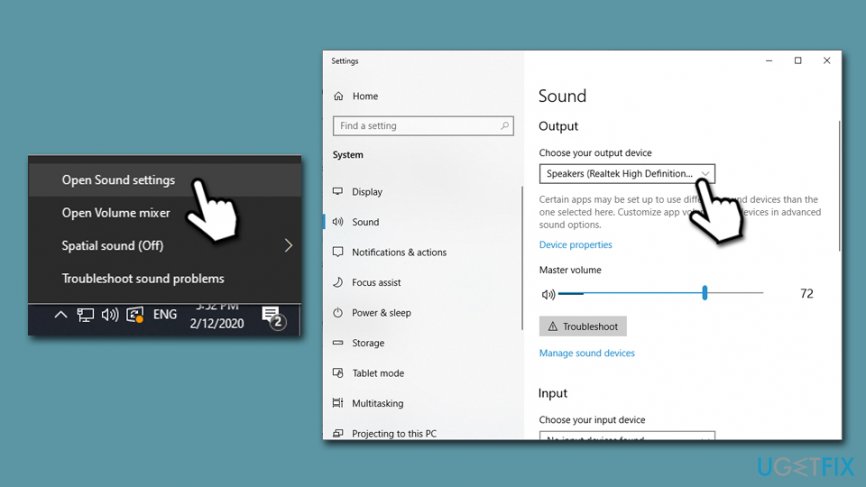
How to set up miracast and fix its problems fix sound problems
Fix Miracast issues relating to video
In some cases, you might find that the image on your projector or a TV does no come out correctly - it might be fuzzy, or a portion of a display might be missing. In such a case, you need to change the resolution as follows:
- Type in Display into Windows search
- Select Display settings
- Pick a correct resolution - you might have to check several settings before you pick the correct one if you don't know the resolution of your output device
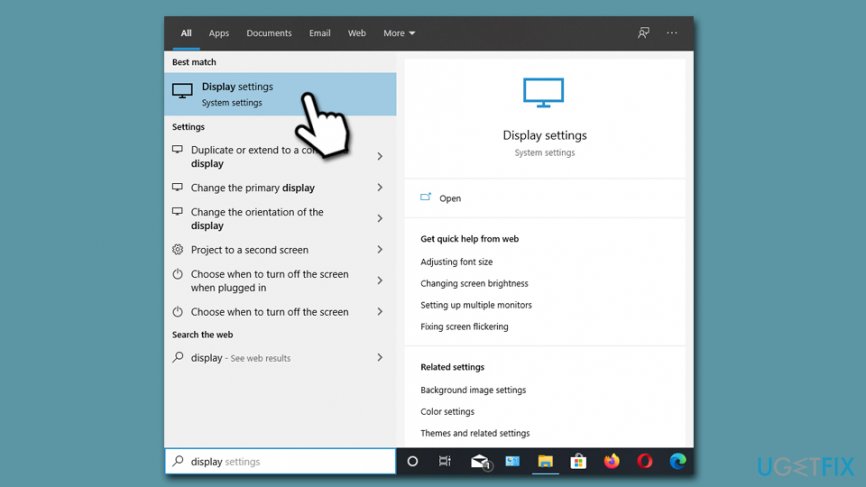
How to set up miracast and fix its problems fix display problems
Bottom line
To resolve the Miracast issue, ensure both devices support and are enabled for Miracast, consider installing an external adapter, and update device drivers. If these solutions do not work, further troubleshooting may be necessary.
Frequently asked questions
Ensure that both your PC and the receiving device support Miracast and are connected to the same Wi-Fi network. Also, update your display drivers through Device Manager to eliminate compatibility issues.
To enable Miracast on Windows 11, go to Settings > System > Projecting to this PC and configure the settings to allow connections. Make sure your device meets the hardware requirements for Miracast.
Restart both your PC and the receiving device, check for Windows updates, and run the Network Troubleshooter in Settings to resolve connectivity issues.




Report an issue
What's wrong with this guide? We review every report and update or remove content.
Report received — thank you. We'll review and fix it.
You need a free account to submit a report.
Be the first to comment