How to fix
Stop Ads
on Windows
Discover effective methods to block ads on your Android device, ensuring a smoother experience. Expert-tested solutions for all users. Fixed in minutes!

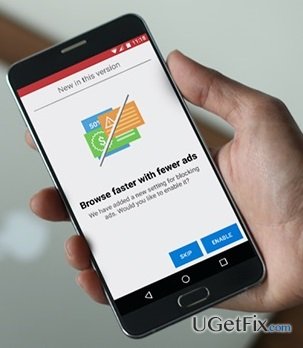
What causes How to Stop Ads on Android Phone?
- Ads arrive from ad-supported applications
- Ads are attached to third-party websites
- Static ads include banners and pop-ups
- Moving ads include videos and moving text lines
- Ads can cause Android to become sluggish
Repairs Windows system files, removes malware, and restores a clean OS state — without reinstalling.
My Android web browser is full of pop-up ads. I can’t browse without clicking on the by accident, which gets my seriously annoyed! I’m tired of being redirected to some stupid online shops, which offer nothing except useless stuff. Is it possible to avoid those ads on Android? Thanks in advance!!!
Just like Macs, Android OS has been advertisement resistant for a long time. However, it was clear that it’s just a matter of time when online marketers will find a way to invade Android’s web browsers. Unfortunately, but neither Mac nor Android operating systems developers can boast having created an ad-free browsing environment any more. The number of helpless Android Phone users who cannot fight against irritating ads while browsing is increasing every day, so we will try to help them.
First of all, it’s important to clarify the types of advertisements and their causes. None of the ads are built-in to Android OS by default. Usually they arrive on people’s phones with the ad-supported applications (games, browser add-ons, plug-ins, etc.) or are attached to some third-party websites. That’s why it is very important to choose what kind of apps to install and what websites to visit carefully. There are two types of ads, i.e. static (banners, in-text links, pop-ups) or moving (videos, moving text lines). These ads not only distract phone users, but also suck up bits, which is why Android gets sluggish. Some of the experts claim that using Google Chrome will solve the issue as it is supposed to block most of the pop-ups. We must admit that this is true except that it's not enough to simply use it. To stop ads on Android phone it's a must to change Google Chrome's settings and we are going to explain how to do so.
How to Stop Ads on Android Phone?
Online ads are not only annoying. They cause Android’s slowdowns, initiate frequent redirects to affiliate websites and increase the risk of being exposed to malware. Therefore, it’s important to get rid of ads on your Android phone. There are two methods that can help you:
- Use built-in browser settings
- Install a third-party ad block application
Enable pop-ups block on your web browser's settings
Step 1. Use a built-in browser settings
- Open your web browser.
- Go to Menu by tapping on three dots icon on the top right corner.
- Select Settings and then tap Advanced.
- Enable Block pop-ups setting.
Step 2. Disable pop-up ads on Google Chrome
To ensure an ad-free environment while browsing, it’s advisable to disable pop-up ads on Chrome and use this web browser in the future:
- Open Google Chrome.
- Go to Menu. For this, tap on three dots icon on the top right corner.
- Select Settings and then tap on Site settings.
- Tap Pop-ups option and check if pop-ups are disabled. If you have accidentally changed the settings and pop-up ads are enabled or this has been done by a third-party software, move the slider to change the settings to Pop-ups Block.
Step 3. Turn on Data Saver on Google Chrome
This function is helpful in the removal of ads on Android because Data Saver does not allow ads to consume resources, what means that they are indirectly blocked. Therefore, follow these steps:
- Open Google Chrome.
- Open Menu by tapping on three dots icon on the top right corner.
- Select Settings and then tap on Data Saver.
- Push the slider from Off to On.
Install a third-party ad block application
There is a variety of free ad block applications available on the Internet. Unfortunately, but not all of them are reliable. Lots of people reported that after installing an ad block they’ve started receiving even more advertisements after some time. That’s because probably more than a half of ad block apps are involved in advertisement marketing, what means that they are support ads rather than block. Thus, before installing such a tool, make a thorough research about it. Nevertheless, we must admit that there are quite a lot of useful ad block applications that can be installed for no cost.
Bottom line
To stop ads on your Android phone, you can use Google Chrome and change its settings to block most pop-ups. Additionally, be cautious about the apps you install and the websites you visit. If these methods do not work, consider exploring ad-blocking applications.
Frequently asked questions
Windows phones are no longer actively supported, but you can manage ad settings through the privacy options in your Microsoft account.
Yes, you can use ad-blocking software such as AdGuard or uBlock Origin to reduce ads while browsing on Windows 10 or Windows 11.
To disable personalized ads, go to Settings > Privacy > Activity history and turn off 'Let Windows collect my activities from this PC'.




Report an issue
What's wrong with this guide? We review every report and update or remove content.
Report received — thank you. We'll review and fix it.
You need a free account to submit a report.
Be the first to comment