How to fix
Stop apps from opening on a second monitor that’s been disconnected
on Windows
Easily stop apps from opening on a disconnected second monitor in Windows 10 or 11. Expert-tested solutions to enhance your multitasking efficiency!


What causes How to stop apps from opening on a second monitor that’s been disconnected in Windows?
- Windows retains settings of previous monitor configurations
- Windows may not immediately adapt to changes in display setup
- Applications open on an invisible screen
- The disconnected monitor is still recognized as active
- Display settings need to be manually adjusted
Repairs Windows system files, removes malware, and restores a clean OS state — without reinstalling.
Whenever I try to open a program, it does not open on my main monitor. The problem is that the second monitor has been disconnected and I no longer have access to it. How do I stop apps from being opened on a second monitor that is not connected?
Dual monitor setups are common in professional and personal computing environments, offering the advantages of enhanced productivity and easier multitasking. However, these configurations can lead to specific issues, particularly with how Windows handles multiple displays. A notable problem occurs when applications open on a second monitor that has been disconnected. This situation can be frustrating as it renders the applications inaccessible in their usual manner.
This problem typically stems from Windows' management of display settings. When a second monitor is disconnected, Windows may not immediately adapt to this change. Consequently, the system continues to behave as though the disconnected monitor is active, resulting in applications opening on an invisible screen. This behavior occurs because Windows retains the settings of previous monitor configurations, including the arrangement and identification of each screen.
To stop apps from opening on a second monitor that's been disconnected, it's important to prompt Windows to recognize the current display setup. This action can help the system to update its memory of the monitor configurations. Manually adjusting the display settings to designate the remaining monitor as the primary display can also be effective.
This step ensures that applications will open on the visible screen, rather than defaulting to the disconnected monitor. These methods are aimed at helping Windows to correctly identify and use the active display, without altering system settings directly.
Solving this issue involves guiding Windows to accurately recognize and utilize the active display configuration. If the problem continues, using a specialized PC repair tool like [d1] is advisable. Such tools can automatically resolve underlying issues in Windows, facilitating optimal performance with your chosen monitor setup.
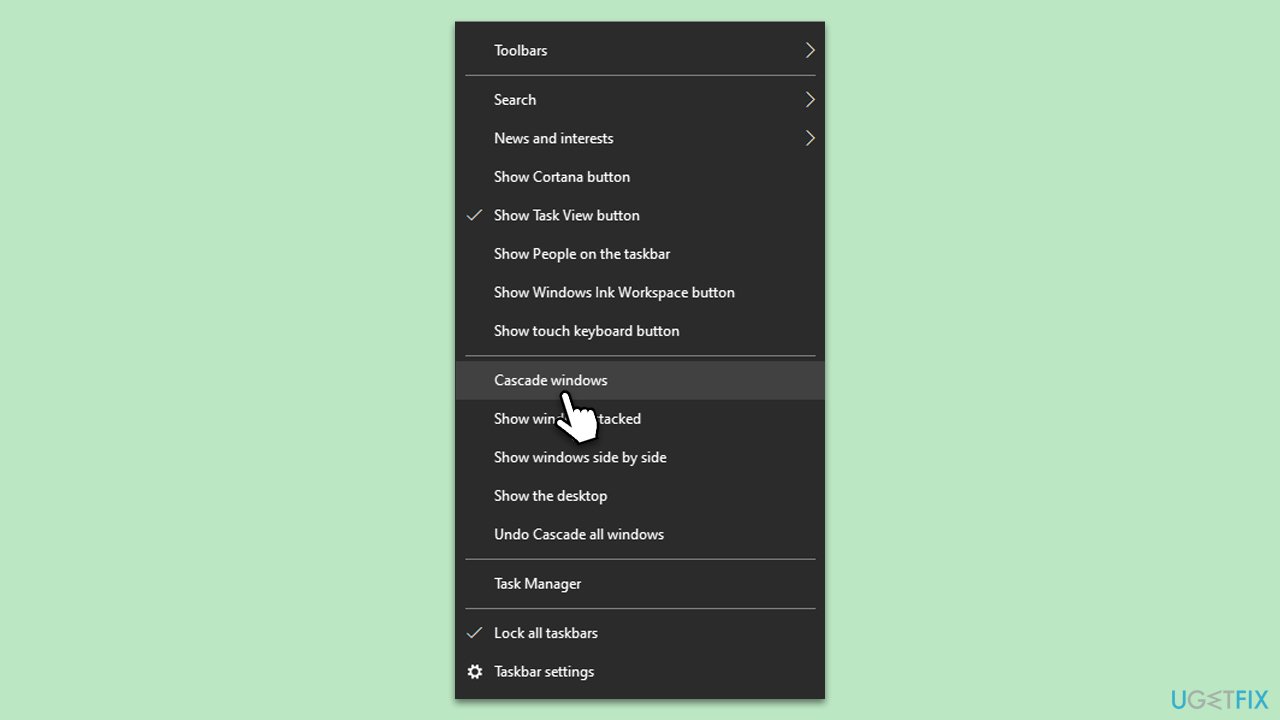
Fix 1. Use the Cascade Windows function
This feature neatly arranges all open windows in a cascading manner, bringing any off-screen applications into view on the primary display.
- Right-click on the app on the taskbar and select Maximize.
- Then, right-click on an empty area of the taskbar.
- From the context menu, select Cascade windows.
- This action will rearrange all open windows in a cascading layout.
- Locate the previously inaccessible applications on the primary monitor.
- Re-adjust the windows to your preferred layout if necessary.
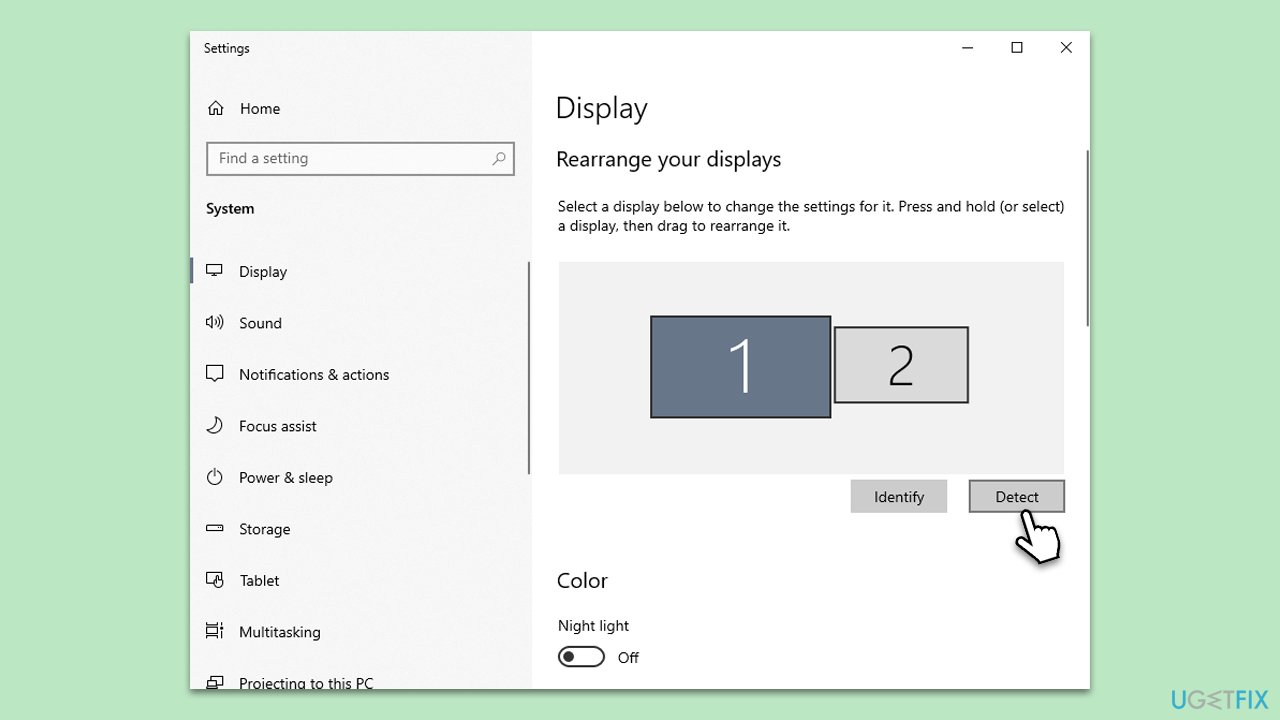
Fix 2. Adjust Display settings
Changing display settings can prompt Windows to recognize the primary monitor as the only active display.
- Right-click on the desktop and select Display settings.
- In the Display settings, identify the disconnected monitor.
- Select the monitor and click on the Detect button.
- If the system still shows two monitors, select the second monitor and choose to disconnect it.
- Apply the changes and close the settings.
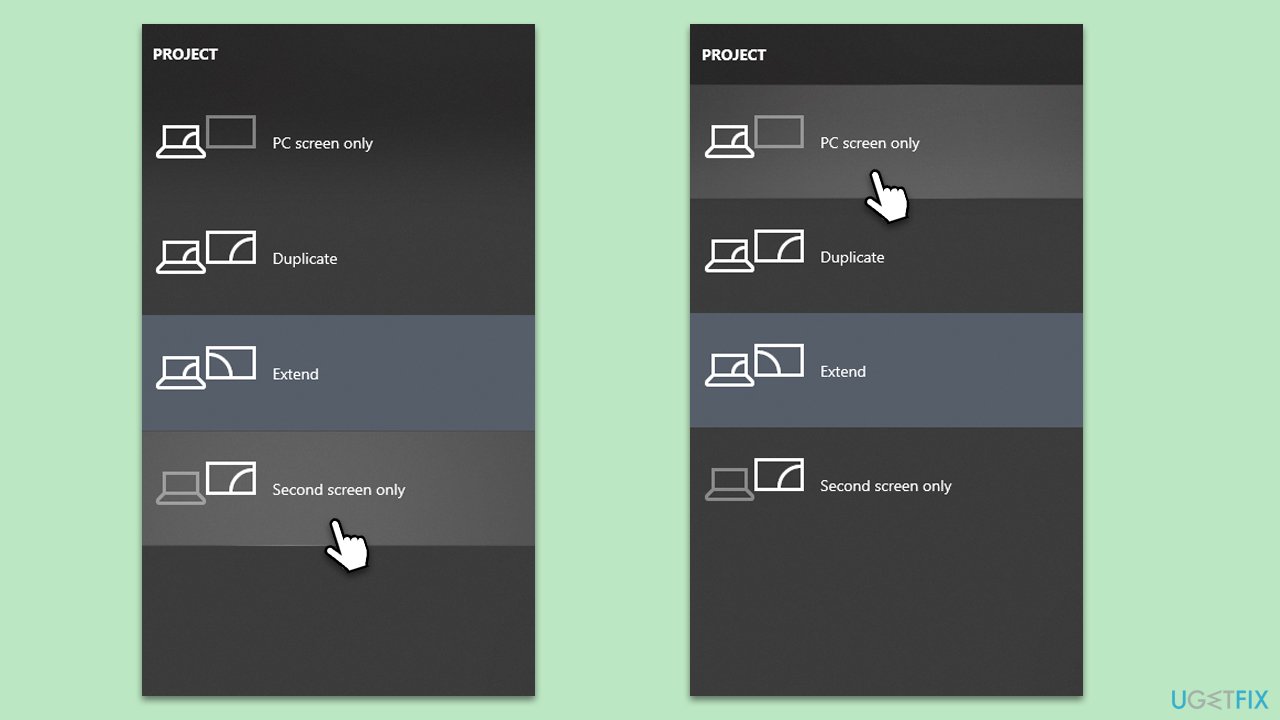
Fix 3. Change Project Mode
Switching the project mode can force Windows to recognize only the available displays.
- Launch the app you can't reach.
- Press Win + P on your keyboard.
- Select Second Screen so that the app would rearrange itself on the main monitor.
- Press Win + P again and pick PC screen only.
- Exit the application and relaunch it.
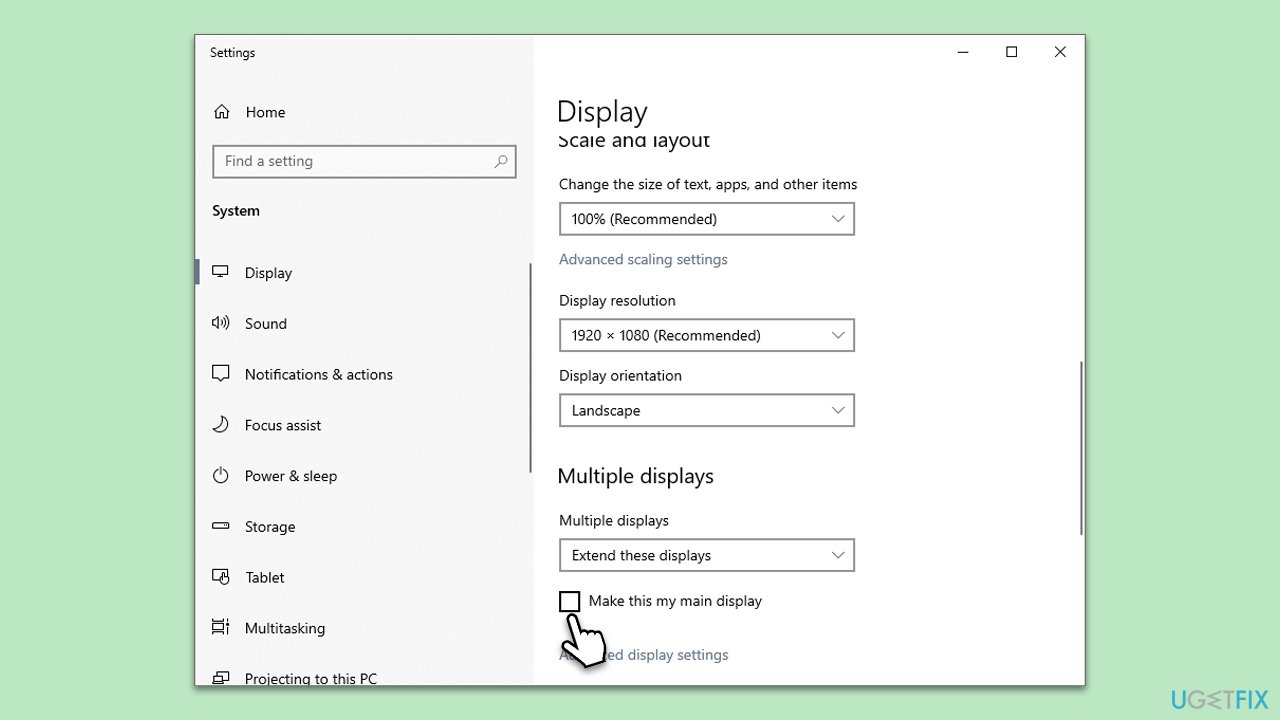
Fix 4. Use the "Make this my main display" function in Display Settings
This function designates your primary monitor as the main display, ensuring applications open where you can easily access them.
- Close the problematic application(s).
- Right-click on the desktop and choose Display settings.
- Select your main display and scroll down.
- Scroll down to find the Multiple displays section.
- Check the box next to Make this my main display.
Fix 5. Create a new Windows user profile
Sometimes, the issue may be tied to a specific user profile. Creating a new one can bypass these problems.
- Open Settings from the Start menu.
- Go to Accounts and select Family & other users.
- Click on Add someone else to this PC.
- Follow the instructions to create a new user account.
- Log into the new account and check if the issue occurs there.
Fix 6. Update GPU driver
Outdated or corrupt graphics drivers can cause display issues. Updating them ensures compatibility with the current setup.
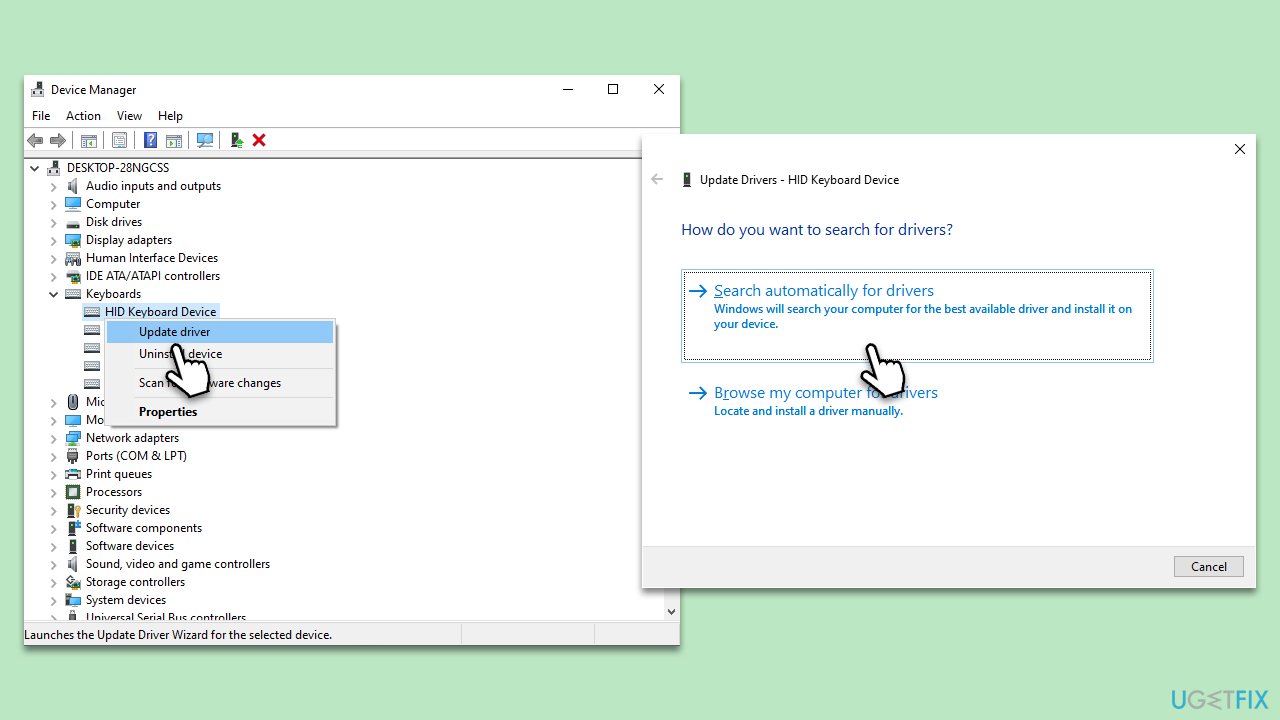
- Right-click on the Start button and select Device Manager from the menu.
- Expand the Display adapters section.
- Right-click on your graphics card and select Update driver.
- Pick Search automatically for drivers.
- If updates are found, allow them to install.
- Restart your computer after updating all necessary drivers.
- If Windows fails to find any updates (which is likely), you can either employ automatic tools like [rev id="DriverFix"] or download the latest driver from your GPU maker's website and install it manually.
Bottom line
To stop apps from opening on a disconnected second monitor, you can use the Cascade Windows function or manually adjust the display settings to set the primary monitor. If the issue persists, consider using a specialized PC repair tool to resolve underlying problems.
Frequently asked questions
You can do this by going to Settings > System > Display, and under the Multiple displays section, select 'Show only on 1' to ensure apps are only displayed on your primary monitor.
You can right-click on the app's title bar, select 'Move,' and then use the arrow keys to shift the window back to your primary display.
Yes, you can reset display settings by right-clicking on the desktop, selecting 'Display settings,' and then clicking 'Advanced display settings' to reconfigure your primary monitor.




Report an issue
What's wrong with this guide? We review every report and update or remove content.
Report received — thank you. We'll review and fix it.
You need a free account to submit a report.
Be the first to comment