How to fix
Stop Autoplay Video in Safari
on Windows
Stop unwanted autoplay videos in Safari on Windows 10 or 11 effortlessly. Follow our expert-tested guide for a seamless browsing experience.


What causes How to Stop Autoplay Video in Safari?
- Annoying video advertisements play automatically
- Autoplay feature deteriorates browsing experience
- Ads can lead to potentially unwanted programs (PUP) or malware
- Ads may lure users to click and visit suspicious pages
Repairs Windows system files, removes malware, and restores a clean OS state — without reinstalling.
Hi. I'm frustrated from annoying video advertisements which are set to play automatically. Maybe there is a way I could stop autoplay on Safari?

Autoplay is an annoying feature which might significantly deteriorate your browsing experience while displaying loud video advertisements on your frequently visited pages[ref en-1]. The most frustrating part is that every time you open the website, ads will start playing without your consent.
We advise you to stop autoplay function not only to enhance your browsing routine but also to protect your computer from possible infections of potentially unwanted programs (PUP) or even malware[ref en-2]. While those ads might look attractive, you can be lured to click on them and end up on highly suspicious pages[ref en-3].
Note that while browsers such Google Chrome do not have the in-built possibility to stop autoplay, Safari requires only a few clicks to finish the procedure and forget about the annoying video ads for good.
How to Stop Autoplay in Safari
Instructions below will present you multiple methods to help you stop autoplay on Safari. We advise you to try all the techniques since some advertisements might be misrecognized and you need to take every possible measure to keep it out of your sight.
Method 1. Block Autoplay Videos Using Website Settings
- Open the website that keeps playing annoying video advertisements.

Open settings for the website - Right-click on the URL box or Safari on the top menu bar;
- Select Settings for This Website;
- Click on Auto-Play and pick Never Auto-Play.
NOTE: This methods allows the website to display video ads. However, they will not be played automatically and you will have the possibility to click the play button once you feel like watching it.
Method 2. Use Debug Menu to Stop Autoplay
- Quit Safari;
- Open Terminal app.
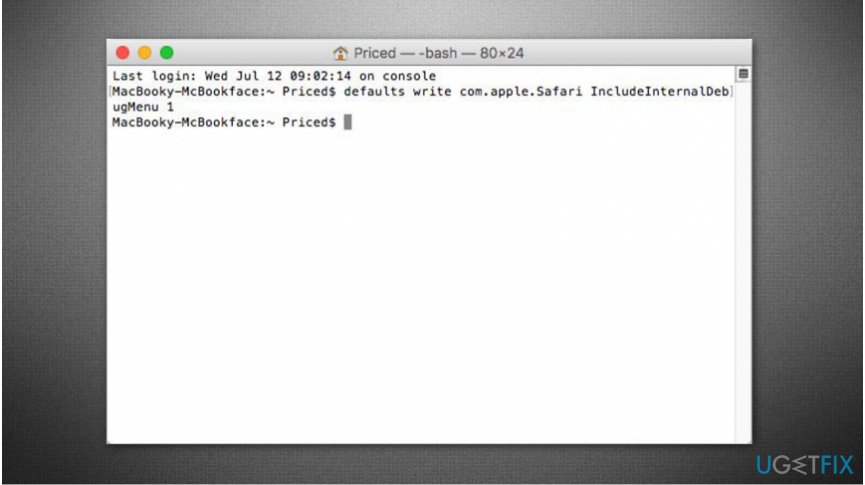
Enable debug - Submit the following command defaults write com.apple.Safari IncludeInternalDebugMenu 1 and press return;
- Open Safari navigate to the top bar menu and click Debug.
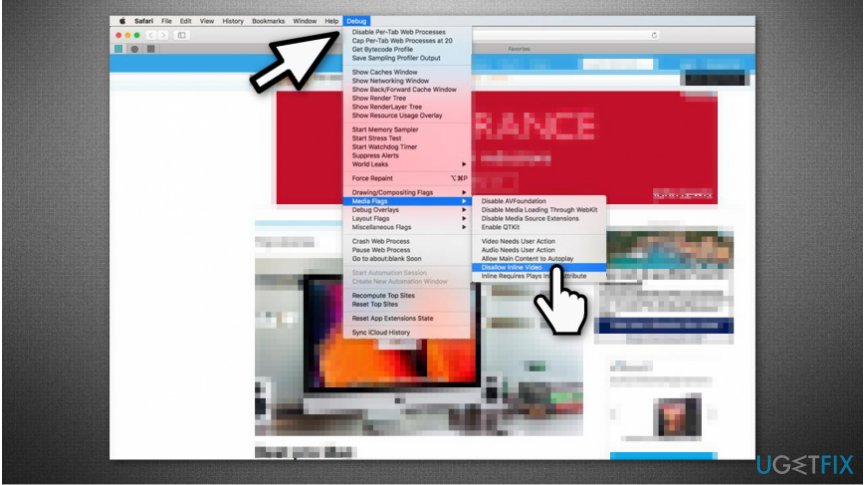
Blocl autoplay video on safari - Select Media Flags and pick Disallow Inline Video.
NOTE: To reset Safari to the previous state and remove Debug menu you have to open Terminal App once again and enter defaults write com.apple.Safari IncludeInternalDebugMenu 0 command.
Bottom line
To stop autoplay in Safari, you can block autoplay videos using website settings or use the Debug menu to disallow inline video. If these methods do not work, consider trying additional techniques to ensure a better browsing experience.
Frequently asked questions
To disable autoplay videos in Safari on Windows 10, go to the Preferences menu, select the Websites tab, and adjust the Auto-Play settings for individual sites or all websites.
If autoplay videos continue to play in Safari on Windows 11, ensure that you have saved your preferences correctly and try restarting the browser to apply the changes.
Yes, you can stop autoplay videos in Safari on your Windows laptop by accessing the Preferences and modifying the Auto-Play settings according to your preferences.




Report an issue
What's wrong with this guide? We review every report and update or remove content.
Report received — thank you. We'll review and fix it.
You need a free account to submit a report.
Be the first to comment