How to fix
Stop Cortana from popping up randomly
on Windows
Is Cortana interrupting your Windows 10 or Windows 11 experience? Discover quick fixes to stop those pesky pop-ups—expert-tested solutions await!

What causes How to stop Cortana from popping up randomly?
- Cortana is activated by touchpad input
- Cortana opens unexpectedly due to software glitches
- Voice activation may trigger Cortana without intent
- User settings may allow Cortana to pop up
- Cortana notifications are enabled in system settings
Repairs Windows system files, removes malware, and restores a clean OS state — without reinstalling.
Hello. Cortana keeps popping up in the task manager and sending annoying notifications. It appears every time I touch my computer's touchpad. I have already tried everything that is in my power. Could you help me to disable Cortana pop-up?
Cortana is an application designed to help people manage their activities on the computer. In other terms, it can be called as a personal in-built digital assistant[ref en-1] which can be found on Windows 10[ref en-2], Android, Windows phone 8.1, and iOS. Many users are highly satisfied with this software as it allows to use the computer or smartphone without having a keyboard. However, some people become annoyed by the continuous pop-ups delivered by this application.
Similar to such software as Apple Siri and Google Assistant, Cortana has a long list of features which are very useful to the contemporary user. They include the following attributes completed by the application on user's behalf:
- Sending messages and emails;
- Create reminders and tasks;
- Manage calendar, files, and other data.
Despite how useful this program might seem, users complain about Cortana opening randomly. Even though it might seem insignificant, people become annoyed as it significantly deteriorates their experience with the computer. Keep in mind that this application is accessible for people speaking several languages:
- English;
- German;
- Portuguese;
- Chinese;
- French;
- Italian;
- Japanese;
- Spanish.
Usually, the software can be activated by voice command, saying "Hey Cortana." Although, one of the negative features of this digital assistant is that it does not necessarily pop-up only when called. Thus, people report about the issue that Cortana popups unexpectedly on their systems.
Luckily, several methods can help you to stop Cortana from popping up randomly. Below, you will find ways how to prevent the notifications by this in-built assistant on your computer. Please, try them all to make sure that you can get rid of these annoying pop-ups for good.
Ways to disable Cortana notifications
Note that you can learn how to disable Cortana entirely by following the instructions below. There are multiple methods presented to ensure that none of the pop-ups would reappear in the future. However, be attentive during the procedure as it will help you to protect your PC from any potential damage.
Additionally, you can turn off Cortana automatically with the help of a reputable system optimization software. Our experts highly recommend you [d1] as it is the only software which cleans and repairs corrupted Windows registry[ref en-3] as well as protects the computer from various cyber threats.
Technique 1. Turn off trackpad gestures to stop Cortana pop-ups
In case you are using a laptop and noticed that Cortana displays a pop-up right when you touch your trackpad, turning off some gestures might do the trick:
- Press Windows key + I to open "Settings".
- Select "Devices" and click on "Mouse & Touchpad".
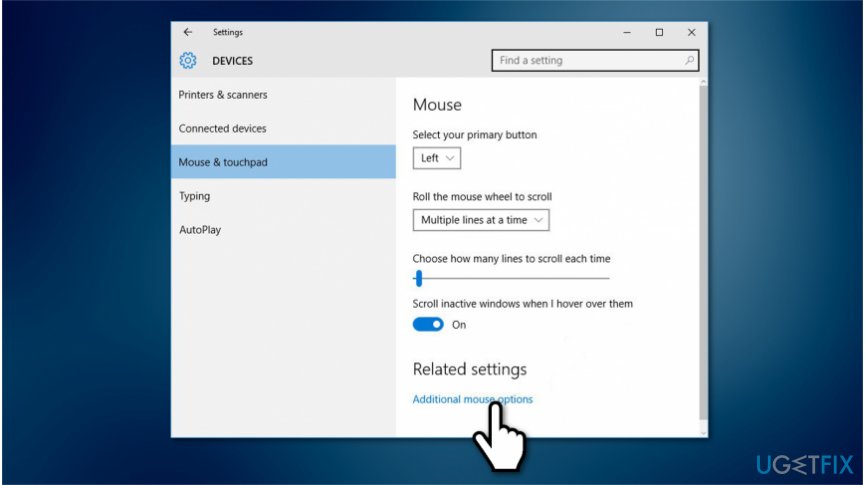
Disable cortana via trackpad - Click on "Additional mouse options". In the newly opened window, you should find options like “Three Finger Tap” or “Four Finger Tap.”
- Make sure that these options are disabled.
- Click "Apply" and "OK" to save changes and close the Settings app.
Technique 2. Deactivate “Hey Cortana” voice command
- Press Windows key and type "Cortana".
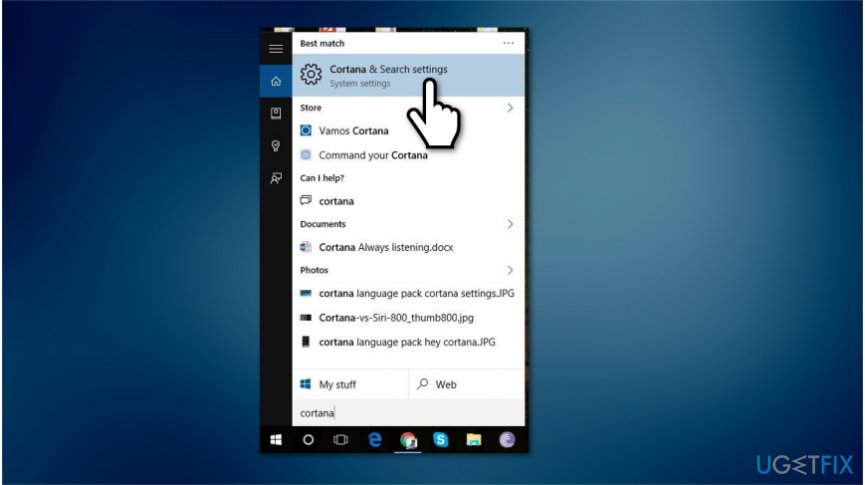
Ways to disable cortana pop up - Select "Cortana & Search settings" from the search results.
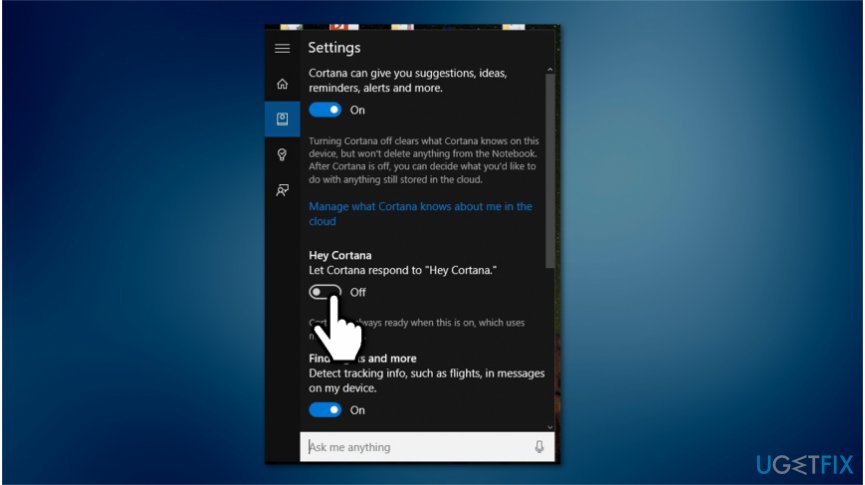
Turn off hey cortana command - Find "Let Cortana respond to Hey Cortana" and turn the option off.
Technique 3. Disable Cortana via registry
If you are not a devoted Cortana user, to disable its pop-ups you may disable Cortana itself. While this is not the best solution, you can apply it temporarily.
- Click Windows key + R, type "regedit", and press "Enter".
- Navigate to the "HKEY_LOCAL_MACHINE\\SOFTWARE\\Policies\\Microsoft\\Windows\\Windows Search" on the left pane.
- In case there is no Windows Search option, right-click on the "Windows" folder, select "New" -> "Key", and name the folder as "Windows Search".
- After that, right-click "Windows Search" that you’ve just created and then select "New".
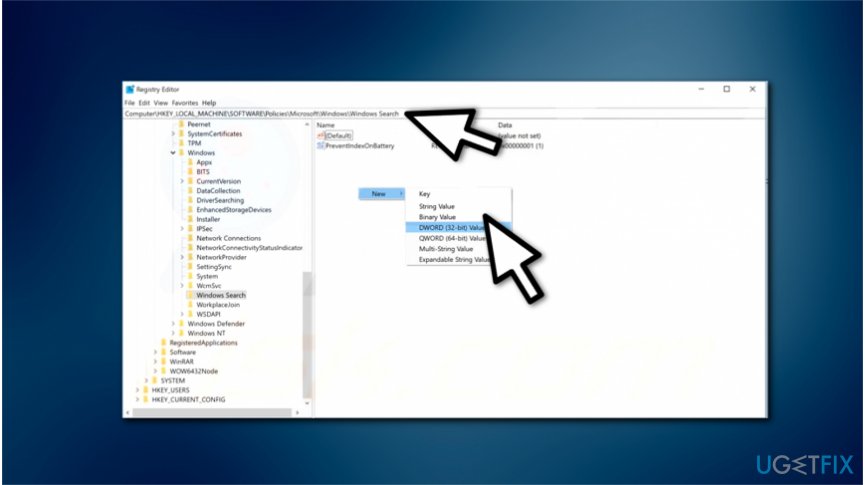
Deactivate cortana notifications - Click on "DWORD (32-bit) Value" and name it "AllowCortana".
- Then double click on "AllowCortana" and set the value to "0".
- Reboot your PC.
NOTE: if later you will decide to enable Cortana, access Registry Editor as explained above and change the value from 0 to 1.
Bottom line
To stop Cortana from popping up randomly, you can disable notifications, adjust touchpad settings, or turn off voice activation. If these methods do not resolve the issue, consider disabling Cortana entirely or checking for software updates.
Frequently asked questions
Cortana may pop up unexpectedly due to accidental key presses or misconfigured settings. This can happen if the 'Hey Cortana' feature is enabled or if certain keyboard shortcuts are triggering it.
To prevent Cortana from starting automatically, go to Task Manager, find Cortana in the Startup tab, and disable it. This will stop it from launching each time you start your computer.
You can disable Cortana by going to Settings > Privacy > Speech, inking & typing and selecting 'Stop getting to know me'. Additionally, you can turn off Cortana in the Apps & features section.




Report an issue
What's wrong with this guide? We review every report and update or remove content.
Report received — thank you. We'll review and fix it.
You need a free account to submit a report.
Be the first to comment