How to fix
Stop iCloud Calendar Spam
on Windows
Eliminate iCloud calendar spam on your Windows 10 or Windows 11 device effortlessly. Follow our expert-tested solutions for a cleaner calendar, fixed in…

What causes How to Stop iCloud Calendar Spam?
- Spam messages proliferating through iCloud Calendar
- Scammers using calendar invites to trick users
- Users' emails potentially leaked due to data breaches
- Clicking response buttons confirms email activity
- Invitations are often linked to fraudulent offers
Repairs Windows system files, removes malware, and restores a clean OS state — without reinstalling.
I frequently receive strange invitations and shopping offers on iCloud Calendar. I found them useless and annoying. How can I block them?
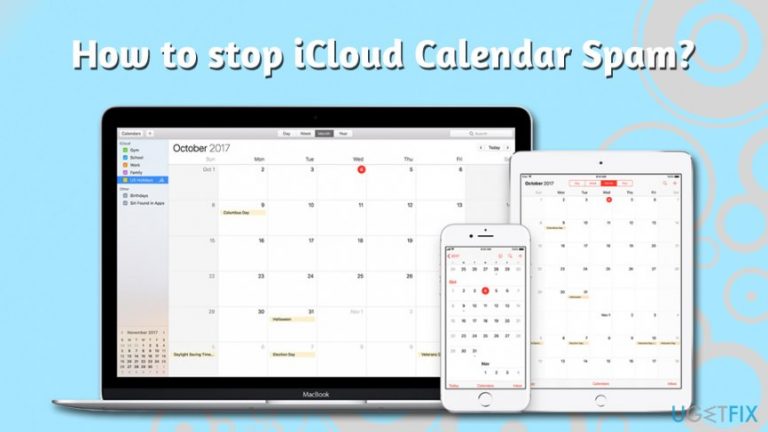
Possibly the most irritating issue that users come across while using their devices connected to the internet is spam - those pesky messages that continually bother users via emails,[ref en-1] while browsing the sites or when dealing with browser redirect issues. However, crooks are now using iCloud Calendar to proliferate spam messages directly on Mac, iPhone, and iPad users' screens - all the devices connected to the iCloud account.
The first sightings of iCloud Calendar Spam were seen before the Black Friday in November 2016. They were informing about fraudulent offers about special prices for Ray-Ban,[ref en-2] Oakley, Louis Vuitton, and other well-known products. In most of the cases, the Calendar Spam events are fake, and users are mostly led to survey scam sites where they are asked to enter their sensitive information.
Without a doubt, getting tricked by scammers is something nobody wants, although many still fall for the trick simply because they get notification directly from they iCloud Calendar, thinking that messages are legitimate. This is because scam originators insert the Calendar invites into a spam email that is sent to random users (nevertheless, the chances are that your email was leaked somewhere due to data breaches[ref en-3] or placed in on an insecure site - you are highly recommended changing your password just a precautionary measure).
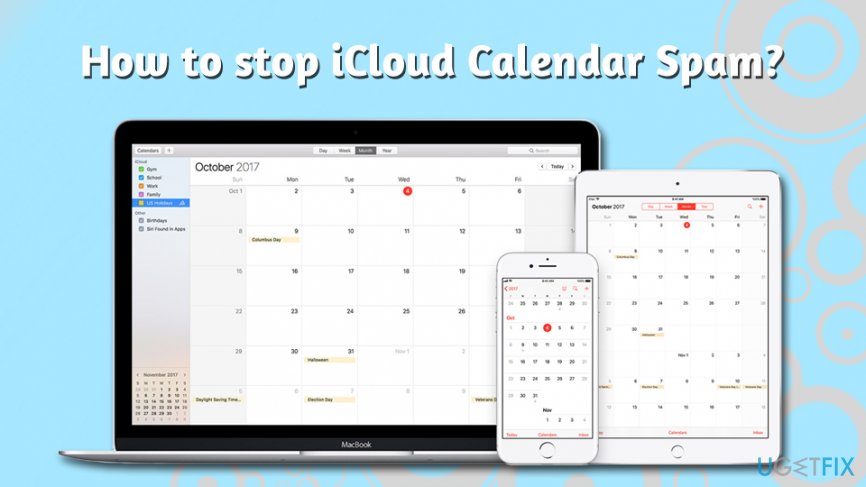
Just like normal event invitations, these also have three active buttons that you are supposed to click and inform the sender about your attendance or interest. However, clicking “Decline,” “Maybe,” or “Accept" button only tells spam sender that your email is active. Unfortunately, but selecting any of these options will not stop iCloud Calendar spam invitations either - in fact, it will only show that the account is active, and you will receive more annoying pop-ups on your Apple devices. Thus, no matter what you do, do not hit "Decline" or any other options available!
So, how to stop iCloud Calendar spam? While there is no official solution for the issue, there are few workarounds that can help you deal with the spam issue and keep your sanity intact. Now, let's get rid of those pesky spam notifications as per the guide below!
Note: if you already clicked on the link bit.ly or similar link provided in the notification, you should scan your device for malware[ref en-4] with security software. If it finds something, remove the payload and then use [d1] to recover from the infection.
How to Stop iCloud Calendar Spam?
Unfortunately, there’s no simple way to block iCloud Calendar Spam. However, there are other ways to prevent these notifications from popping up and flooding your calendar. You may not be able to stop them entirely, but you can be sure that you will minimize the amount of them. As we already mentioned, declining invitations are not an option because you might be attacked with even more messages.
Solution 1. Create a new calendar called “Spam”
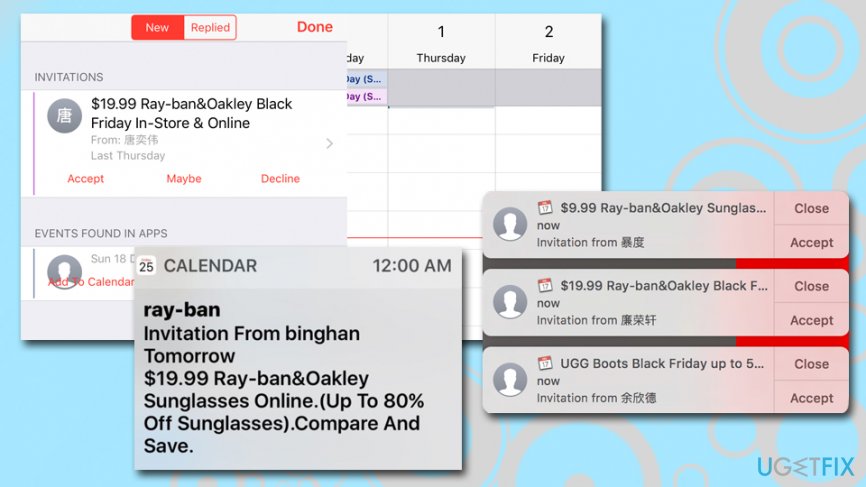
This method is useful if you are not receiving the persistent iCloud Calendar Spam messages, and you do not want to indicate to the culprit that your email is active. In order to trick the recipient, you should create a new calendar, transfer the invitation there, and then delete the newly-created calendar. Here's how to do it on macOS:
- Open Calendar application on the device.
- Create a new iCloud calendar and name it Spam, SpamCalendar or similarly.
- Move these spam event invitations to a new calendar.
- Delete the SpamCalendar.
- You will receive a pop-up where you have to choose Delete and Don’t Notify option. This option is important because you do not want to inform spam sender that you are using this email.
iOS devices can also be used for this function:
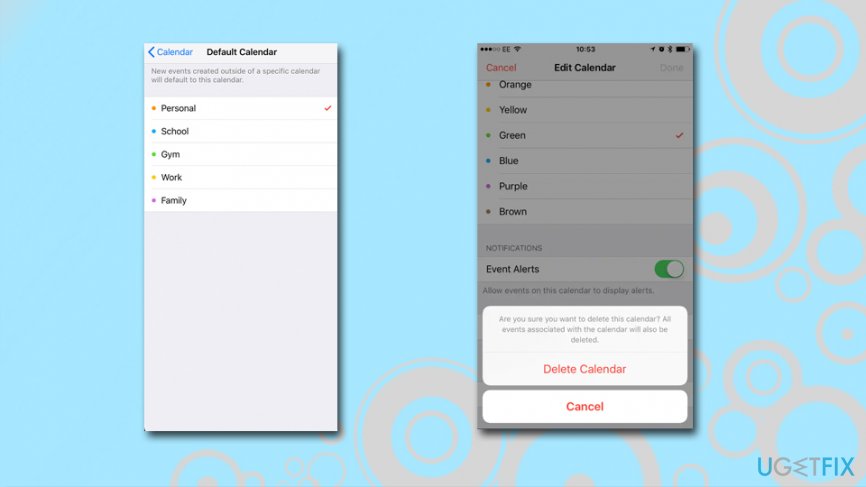
- Select Calendars that us located at the bottom of your screen.
- Pick Add Calendar and name it whatever you like.
- Tap Done.
- On the newly created calendar, press on i button.
- Scroll down and tap Delete Calendar.
Stop icloud calendar spam create and delete calendar
However, this method allows only terminating current invitations. Thus, you may need to follow these steps whenever new iCloud Calendar Spam invitations show up.
Solution 2. Redirect spam from Notifications into an email
One of the ways to stop iCloud Calendar Spam is to convert your Calendar invites into emails. Instead of getting persistent pop-up notifications on your screen, you will receive them into your inbox, where you can safely delete them. By using this solution, you are likely to minimize the amount of spam you receive in the first place, as many email providers use adequate spam filters that prevent these unwanted emails from reaching your inbox in the first place.
- Go to iCloud.com and log in.
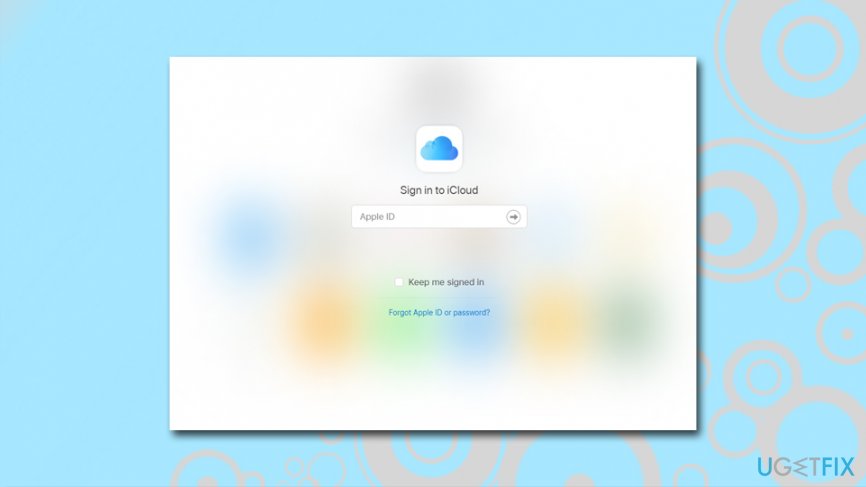
Stop icloud calendar spam set login to icloud - Click Calendar.
- Click the gear icon and choose Preferences.
- When in Preferences click on Advanced.
- In the Advanced tab scroll down until you see Invitations section. Here you will see two options how you want to receive event invitations. Instead of In-app notifications choose Email to.
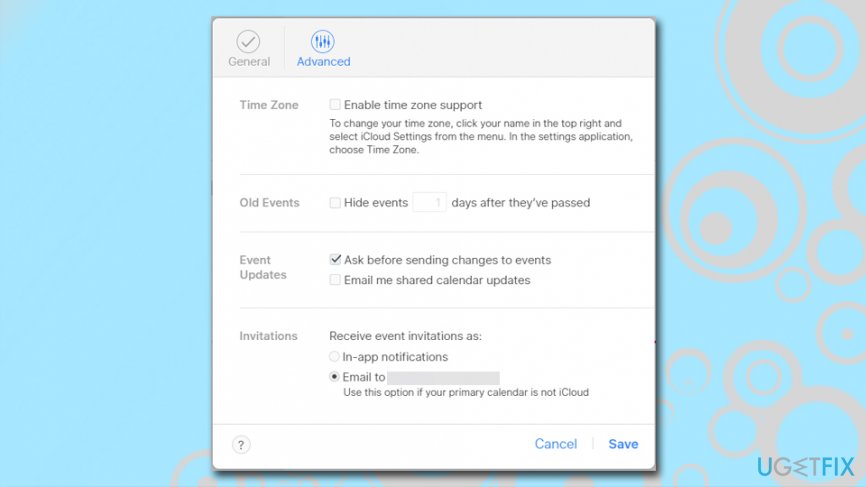
Stop icloud calendar spam set invitations to be sent to email - Click Save to confirm changes.
While this option allows you to stop the iCloud calendar notifications, your email might be flooded with spam. Additionally, another downside to this solution is that you will not be able to view legitimate calendar invites either, as they will be sent to your inbox instead. Thus, this is not a perfect solution for those who receive frequent genuine invites on their Calendars.
Solution 3. Disable iCloud calendar
Disabling Apple Calendar might sound like a drastic way to stop iCloud Calendar Spam. However, if you do not use this app, it’s the easiest solution. Follow the steps below to disable these apps and forget about unwanted invitations:
On iPhone, iPad or iPod touch:
- Go to Settings.
- If you are using iOS 10.3 or later from Settings go to [Your Name].
- If you are using iOS 10.2 or earlier from Settings go to iCloud.
- Scroll down to the bottom of the window.
- Choose Sign Out.
On Mac:
- Go to Apple menu and choose System Preferences.
- Click iCloud.
- Choose Sign Out.
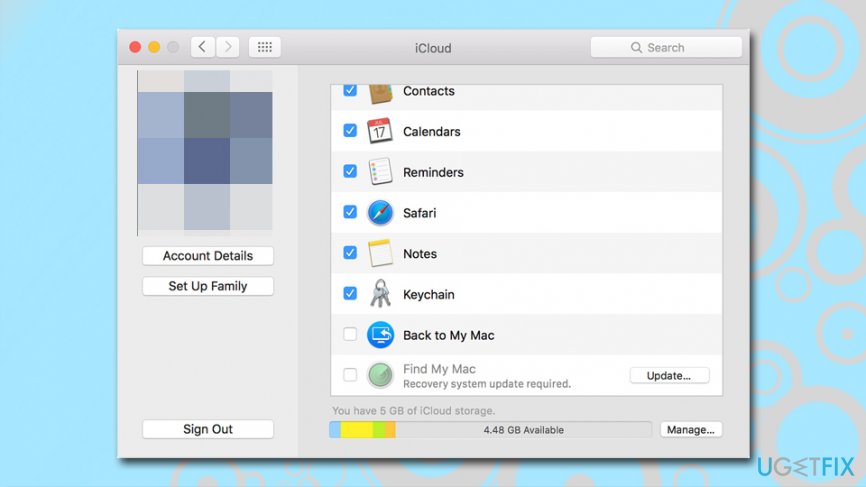
Stop icloud calendar spam sign out of icloud
On Windows computer:
- Open iCloud for Windows.
- Click Sign out.
Solution 4. Report the spam as junk to Apple
Apple made adequate steps in order to provide solutions for this iCloud Calendar spam campaign. Now you can report the received messages as junk, and the calendar will not notify the attacker about your choice. This is possibly the most optimal solution - although it only works for an online version of the Calendar.
- Login to your iCloud account on your Mac.
- Open Calendar application.
- Locate the spam event invite, and double click it.
- Under From, click on Report Junk.
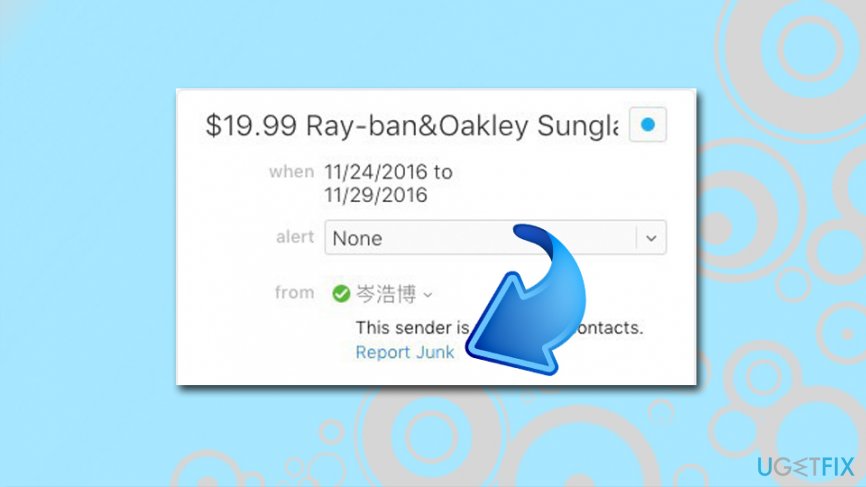
Stop icloud calendar spam report junk - This will delete the Calendar invite and not send the notification to crooks.
Bottom line
To stop iCloud Calendar spam, avoid clicking any response buttons on spam invitations, as this only confirms your email is active. Change your password as a precautionary measure and consider adjusting your calendar settings to limit unwanted invitations. If these steps do not work, further investigation into your account security may be necessary.
Frequently asked questions
You can stop iCloud calendar spam by removing the spam calendar from your iCloud account via the iCloud website, then syncing your calendar on Windows 10 to reflect the changes.
Unfortunately, the iCloud app for Windows 11 does not have a direct option to block spam invites; you need to manage your invites through the iCloud web interface.
If spam reappears, ensure you have deleted the spam calendar from your iCloud settings and check your email settings for any subscriptions that may be causing the issue.




Report an issue
What's wrong with this guide? We review every report and update or remove content.
Report received — thank you. We'll review and fix it.
You need a free account to submit a report.
Be the first to comment