How to fix
Stop Skype from running in the background of Windows 10
on Windows
Stop Skype from running in the background on Windows 10 with our easy guide. Enjoy better performance and privacy—expert-tested and updated 2025.


What causes How to stop Skype from running in the background of Windows 10?
- Skype uses lots of CPU
- Skype may cause system slowdowns
- Skype launches at boot automatically
- Skype signs users into their account automatically
- Skype runs in the background continuously
Repairs Windows system files, removes malware, and restores a clean OS state — without reinstalling.
Hello. I would like to ask is it possible to stop Skype from working in the background? I’m running Windows 10 and have recently installed a New Skype Preview App. Thanks!
Most probably, Skype is one of the applications used every day by billions of PC users. The emergence of this tool changed the way of online communication radically as people were provided with an ability to contact friends and relatives from the other “corner” of the globe for free and in a very fast way. However, various issues with the application came to the light recently.[ref en-1]
On top of that, the communication reached the next level as the members of the chat/call can see each other using a front camera of the device. Despite all the pros, Skype belongs to the group of apps that use lots of CPU, may cause system slowdowns or random freezes.[ref en-2] In addition, lots of people complain about the fact that Skype launches at boot and signs them into the account automatically; therefore, all Skype contacts can see when you turn on your PC.
Older Windows versions required downloading Skype application manually. For now, those who have recently installed Windows 10 Anniversary Update or installed Windows 10 from scratch should have noticed that the new version currently is called Skype Preview app and comes by default. The issue is that the app gets launched automatically at system boot.

This feature is not helpful for everyone because it allows your contacts to see when you are rebooting your PC. Of course, there are many people that could benefit from this feature but the issue not with the app itself it is with a program that runs in the background of your device and may be causing slowness of the device due to the high usage of CPU.
In addition, it continuously runs in the background even if the user turns it off, what may influence the performance of the system and may sometimes get on once nerves. Therefore, we will explain how to stop Skype from running in the background of the system. However, there is a question of the particular version that you use because.
Although you might not want to have either of them running in the background, Skype Preview is installed as a built-in with Windows 10. Other two Skype Desktop app and Skype for Business are downloaded separately.
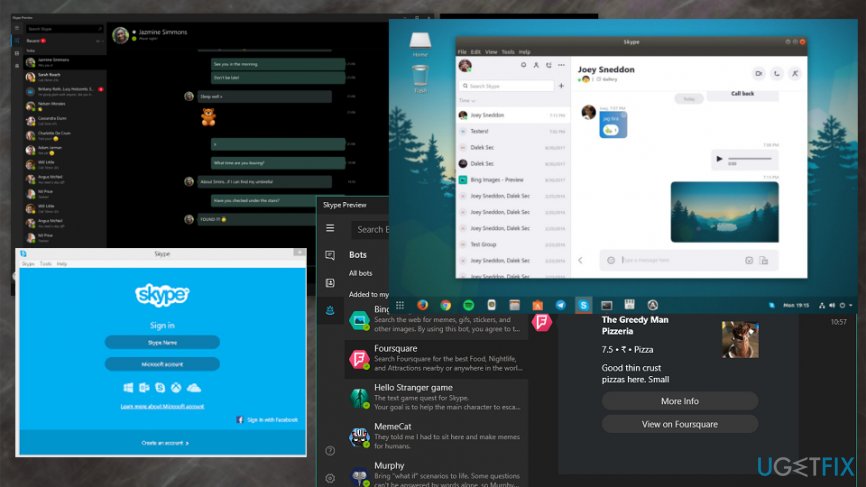
Methods to stop Skype from running in the background of Windows 10
Skype application that runs in the background may cause issues with your advice and there might be a few different solutions for this problem. The main reason behind this automatic launch is the update that has this feature as a default so you can get your calls and messages whenever your computer is on. However, the application that runs in the background may be the malicious version of the original program.[ref en-3] Check your system with [d1] to see the purpose of files or programs and fix additional issues. When you are sure that all issues got fixed after the full system scan, you should follow all these manual solutions for Skype running in the background issue.
Sign out of Windows 10 Skype Preview App
- Click Win key and type Skype.
- Click on Skype Preview shortcut.
- Find the icon of your profile (bottom left corner on Skype Preview App) and click on it.
- Select Sign Out.
Remove Skype App from the list of startup programs
- Find Skype on the menu and open it.
- Click Tools and then Options.
- Remove a check mark from Start Skype when I start Windows and click Save.
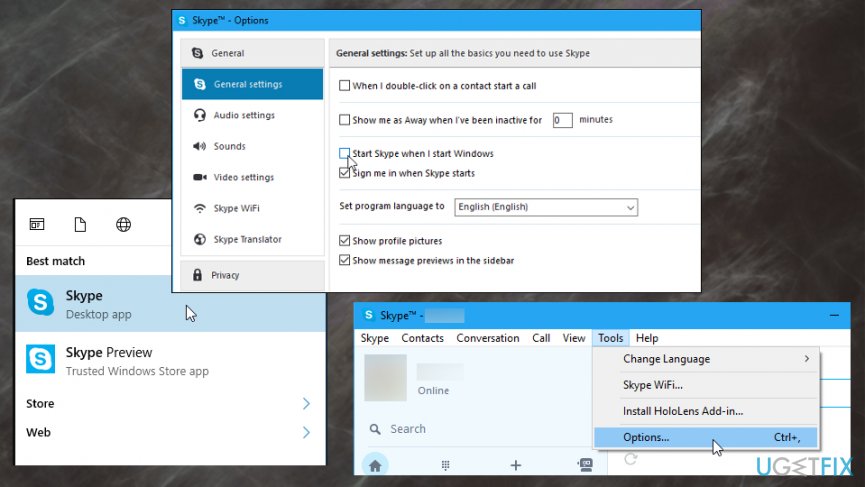
How to stop skype from running in the background of windows 10 options
Prevent Skype App from running in the background
Keep in mind that closing Skype window doesn't mean that the program has been closed completely. For some obscure reasons, even if the computer owner closes the Skype window, it keeps working in the background. Thus, to close it completely, you have to:
- Close Skype window.
- Then at the bottom right corner on your taskbar, click an arrow to open the list of programs.
- Find Skype, right-click on it and select Quit.
Bottom line
To stop Skype from running in the background, you can disable it from launching at startup and adjust its settings to prevent it from running when not in use. If these solutions do not resolve the issue, consider uninstalling the app or checking for updates.
Frequently asked questions
To stop Skype from launching automatically, open the app, go to 'Settings', then 'General', and toggle off the 'Automatically start Skype' option.
Yes, you can disable Skype from running in the background for all users by opening the Task Manager, going to the 'Startup' tab, and disabling Skype.
If Skype continues to run in the background after closing, check the app's settings and ensure 'Keep Skype running for quick re-launch' is turned off.




Report an issue
What's wrong with this guide? We review every report and update or remove content.
Report received — thank you. We'll review and fix it.
You need a free account to submit a report.
Be the first to comment