How to fix
Translate a web page in Google Chrome
on Windows
Easily translate web pages in Google Chrome on Windows 10 or 11. Follow our expert-tested tips for seamless browsing and comprehension, fixed in minutes.

What causes How to translate a web page in Google Chrome?
- User visits a website in a foreign language
- Translation pop-up does not appear
- User has not set a preferred language
- Google Translate extension is not installed
- User disables automatic translation
Repairs Windows system files, removes malware, and restores a clean OS state — without reinstalling.
Hello. How can I translate websites in Google Chrome? Any suggestions would be appreciated.
Google Chrome is a web browser developed by Google that has grown in popularity since its initial release in 2008. It has a user-friendly interface, fast browsing speed, and the ability to add extensions to enhance its functionality, which set it apart from other browsers.
Google Chrome's built-in translation feature, which allows users to quickly translate web pages from one language to another, is one of its most important features. This feature is especially useful for users who frequently visit websites in foreign languages or work with people from all over the world.
Quick translation is critical because it saves users the time and effort of copying and pasting text into a separate translation tool or learning a new language to understand website content. Users can easily understand website content and communicate with people who speak different languages by using Google Chrome's quick translation feature.
To translate a web page in Google Chrome, users can use the built-in translation feature or install the Google Translate extension, which provides additional features such as highlighting individual words and translating entire documents. In this guide, you will find how to use automatic translation, the extension, and how to enable or disable these features. Follow the step-by-step instructions below.
1. Automatic Translation
- Start by entering a website in a foreign language from your preferred language.
- The translation pop-up will automatically appear in the address bar.
- The webpage should automatically translate to the preferred language you have set.
- If you need to use the pop-up again, simply click the icon.
Access the options in the pop-up:
- Click the Ellipsis (the three vertical dots) in the pop-up.
- Choose from the five options available, including selecting another language and always or never translating a specific language.
- Once you have translated a webpage, you can navigate the site and read the content without issues.
2. Google Translate Extension
Install and use Google Translate in Chrome:
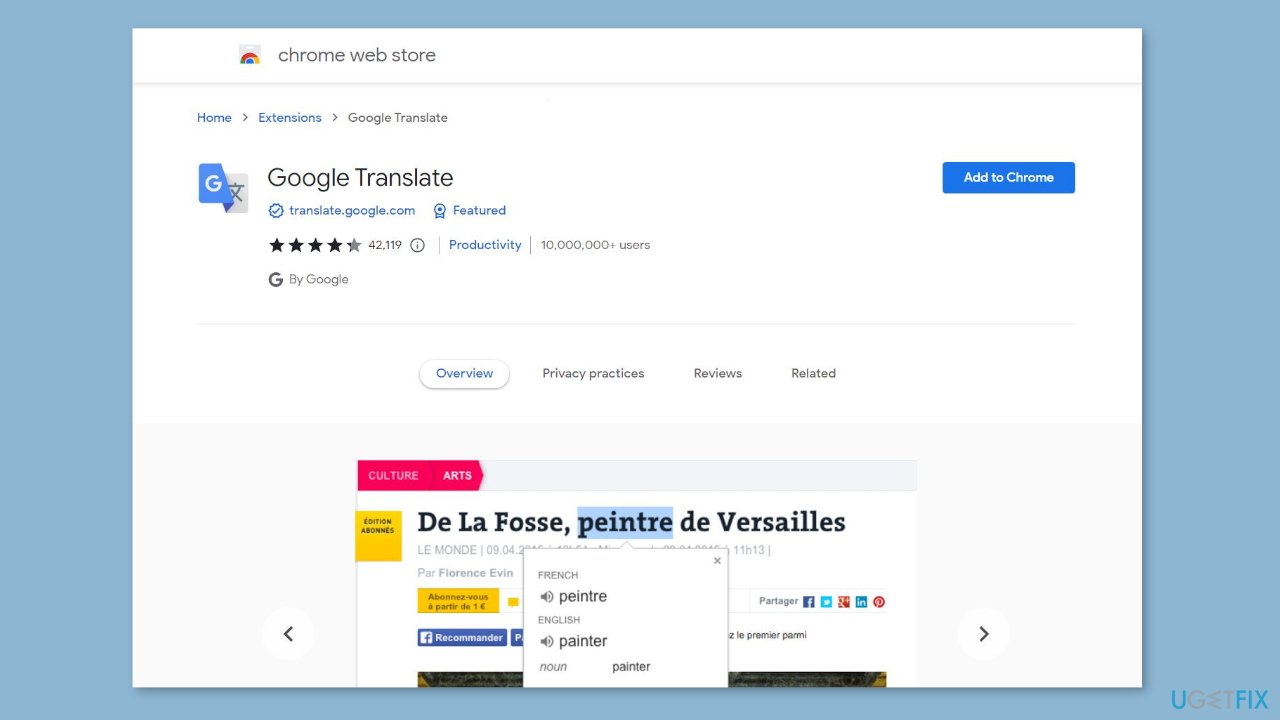
- Go to the Chrome Web Store and search for the Google Translate extension.
- Click Add to Chrome and follow the prompts to install the extension for free.
- With the extension installed, you can translate text by highlighting and clicking the small icon to reveal the original and translated word.
- You can also translate websites using the extension.
Access additional features:
- When you highlight a word using the extension, you get the translation and a definition.
- You can even use the Google Translate extension to translate documents.
Optimize your experience:
- Turn off the translation pop-up in the Chrome settings if you are using the extension, as there would be no reason to have both active simultaneously.
- If you prefer to continue using the translation pop-up, you can remove the extension.
3. Enable or Disable Translation
Customize Google Translate settings in Chrome:
- Click on the Ellipsis (the three vertical dots) in the top-right corner of your Chrome browser.
- Click on Settings from the context menu that appears.
- From the left-hand tab, click on Languages.
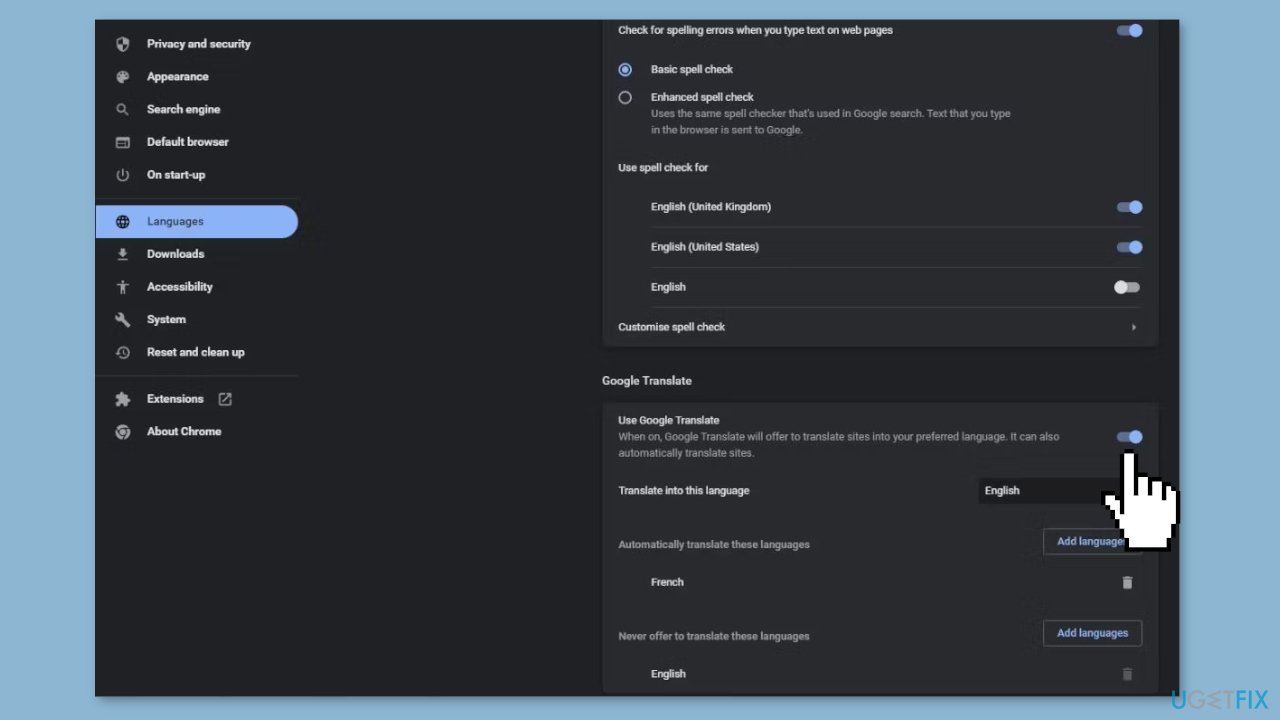
- Scroll down to the bottom to find the Google Translate section.
Turn Google Translate on or off:
- Click on the toggle switch next to Offer to translate pages that aren't in a language I read.
- The switch will turn blue if the feature is enabled and gray if it's disabled.
- You can turn it on or off efficiently using this toggle switch.
Customize translation preferences:
- You can choose your preferred language to translate to by clicking on Offer to translate pages in this language.
- You can add or remove languages to automatically or never translate by clicking on Add languages or Never translate languages.
Bottom line
To translate a web page in Google Chrome, users can utilize the automatic translation feature or install the Google Translate extension for additional options. If the translation pop-up does not appear, ensure that a preferred language is set and that the extension is installed. If none of these solutions work, consider checking Chrome settings or reinstalling the browser.
Frequently asked questions
To enable translation, open Chrome, go to Settings > Advanced > Languages, and make sure 'Offer to translate pages that aren't in a language you read' is turned on.
If the translation feature isn't working, try clearing your browser cache by going to Settings > Privacy and security > Clear browsing data, and then restart Chrome.
Yes, you can right-click on the page and select 'Translate to English' or the desired language, if the automatic prompt doesn’t appear.




Report an issue
What's wrong with this guide? We review every report and update or remove content.
Report received — thank you. We'll review and fix it.
You need a free account to submit a report.
Be the first to comment