How to fix
Turn Cortana off
on Windows
Disable Cortana in Windows 10 Anniversary Update effortlessly. Follow our expert-tested guide and regain your privacy today—fixed in minutes!

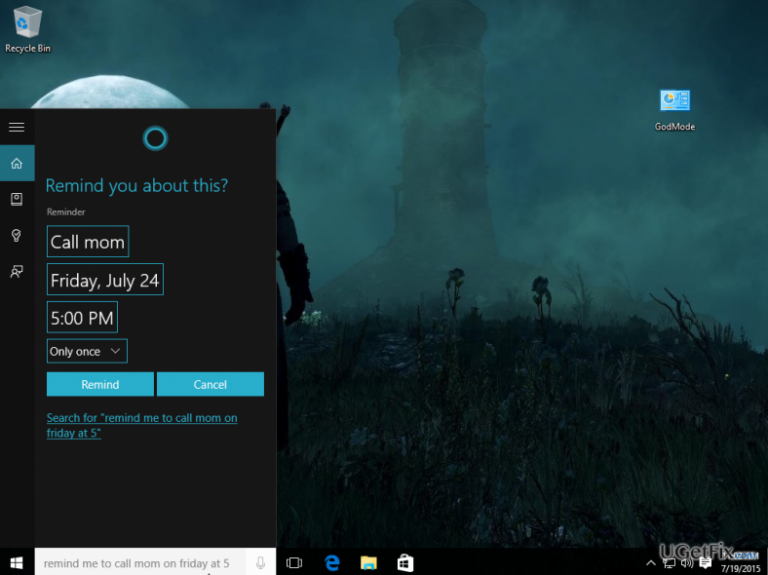
What causes How to turn Cortana off in Windows 10 Anniversary Update?
- Cortana notifications interrupting full screen activities
- Cortana automatically launching Microsoft Edge and Bing
- Cortana's toggle option disabled in Windows 10 Anniversary Update
- User irritation with Cortana's presence
- Difficulty in disabling Cortana compared to previous Windows versions
Repairs Windows system files, removes malware, and restores a clean OS state — without reinstalling.
Is it possible to disable Cortana on Windows 10 Anniversary Update? It’s actually a bit annoying when Windows 10/Cortana throws notifications while I’m watching movies in full screen mode. If it’s not possible to disable notifications only, then please provide a guide how to disable Cortana. Thanks!
Cortana is referred to as a “personal digital assistant”, which helps Windows users to navigate through the system, organize daily activities, allows searching for information more quickly, manage meetings, and many more. It can be managed using search or voice, and, on top of that, it is programmed to learn computer/phone users’ habits to be as helpful as it can. While some of Windows 10 users cannot imagine life without Cortana’s services, the others did not get used to it and often get irritated by notifications from it. Besides, many Windows users have reported that Cortana automatically launches Microsoft Edge and Bing search engine regardless of what their default web browser and search engine are, which is, obviously, not pleasing.
In Windows 10, people could have easily disable Cortana by sliding a toggle from On to Off. Unfortunately, but Microsoft attempt to accustom Windows users to Cortana, which is why Cortana’s turning off option has been disabled in Windows 10 Anniversary Update. Nevertheless, people who cannot get used to this personal assistant still have the ability to turn it off though the procedure is a bit more elaborate.
How to disable Cortana on Windows 10 Anniversary Update?
While in Windows 10 version Cortana could have been disabled by simply sliding a toggle to off, in Windows 10 Anniversary Update this procedure can be executed via Registry Editor only. Before doing so, it’s advisable to create a System Restore Point, so that you could get back in case you do something wrong with the registries. For this purpose, click Win key, type System Restore Point, and press Enter. Then when on System Properties, select Create at the bottom of the page, type the name of the restore point, and press OK. After that, it’s safe to use Registry Editor. Now you can safely turn Cortana off.
- Click Win key + R, type regedit, and press Enter.
- Navigate to the HKEY_LOCAL_MACHINE\SOFTWARE\Policies\Microsoft\Windows\Windows Search on the left pane.
- In case there is no Windows Search option, right-click on the Windows folder, select New, then press Key, and name the folder as Windows Search.
- After that, right-click Windows Search that you’ve just created and then select New.
- Click on DWORD (32-bit) Value and name it AllowCortana.
- Then double click on AllowCortana and set the value to 0.
- Reboot your PC.
NOTE: if later you will decide to enable Cortana, access Registry Editor as explained above and change the value from 0 to 1.
Bottom line
To disable Cortana in the Windows 10 Anniversary Update, users must utilize the Registry Editor after creating a System Restore Point. This process is more complex than simply toggling a switch off. If this method does not work, consider seeking additional support or exploring third-party solutions.
Frequently asked questions
To disable Cortana, open the Start menu, click on the gear icon for Settings, then go to 'Cortana & Search' and toggle off 'Cortana can give you suggestions, ideas, reminders, alerts and more.'
When you turn off Cortana, your data will not be deleted, but Cortana will stop collecting new data or providing personalized suggestions.
While you cannot completely uninstall Cortana, you can disable it and remove it from your taskbar for a cleaner interface.




Report an issue
What's wrong with this guide? We review every report and update or remove content.
Report received — thank you. We'll review and fix it.
You need a free account to submit a report.
Be the first to comment