How to fix
Turn off auto select on my mouse
on Windows
Disable auto select on your mouse for Windows 10 and 11 effortlessly. Expert-tested tips to enhance your browsing experience. Fixed in minutes!


What causes How to turn off auto select on my mouse?
- Auto select feature enabled accidentally
- Mouse settings misconfigured
- Driver issues
- Touchpad sensitivity settings
- External mouse malfunction
Repairs Windows system files, removes malware, and restores a clean OS state — without reinstalling.
Hi, I am dealing with a very frustrating issue regarding my mouse. Every time I hove over a shortcut or a file, it is opened despite me not willing to do it or clicking on it myself. I have no clue why this happened, but it started yesterday. This annoying "feature" is making my laptop almost unusable. Is there a way to stop my mouse from selecting when hovering? My system is Windows 10. Many thanks.
A mouse is an extremely useful command and an information input device that has been around for decades now,[ref en-2] and many users cannot imagine operating a computer without it. Despite that, this hand-held device can suffer from its fair share of issues, for example, when mouse begin clicking itself or when it starts other erratic behaviors, such as you describe (hover select or otherwise known as auto select).
When a mouse begins to auto select items without the user's command, it becomes a real problem. A mouse can be used to open a variety of different files, links, and applications on the computer. While opening a picture on your computer unintentionally will not cause you any issues, opening malicious links on the internet can cause some serious consequences (such as malware infections).
The reason why users experience this questionable behavior is due to the auto select feature that is present on all Windows devices. There are several reasons why this function might have been turned on accidentally, but you should turn off auto select if you did not want the functionality in the first place.
There are several ways of how to turn off or disable hover mouse function on your Windows operating system. However, methods that help users fix auto select mouse issues vary depending on the version of their operating system and configuration settings, as well as whether you use a desktop or a laptop.
Therefore, in order to stop hover mouse select problem, you should try several methods we provide below. Nevertheless, you should also attempt to fix Windows problems automatically with the help of a unique PC repair tool [d1]. If that did not help, you should check the methods we provide below - make sure you follow each solution carefully.
Option 1. Check your system for malware
Malware[ref en-3] can reprogram and change the way your Windows OS operates. In some cases, clicks that you did not perform yourself could be caused by malware, so we strongly suggest you scan your system with powerful anti-malware software.
While there are plenty of third-party security applications available, you can also use the built-in security tool Windows Defender - otherwise known as Microsoft Defender, which has been drastically improved over the years and can compete with many paid AVs when it comes to detection rates, stability, and usability.[ref en-1]
- Type in Security into Windows search and pick Windows Security
- Select Virus & Threat protection
- Go to Scan options
- Pick Full scan and then Scan now
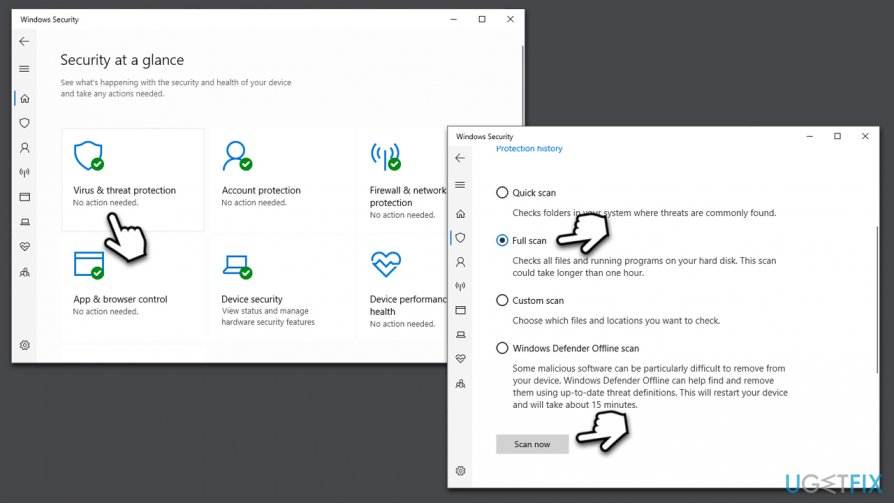
How to turn off auto select on my mouse scan for malware
Option 2. Fix mouse hover-select by accessing Ease of Access section
- Type in Control Panel in Windows search and hit Enter
- Once Control Panel is opened, select Ease of Access
- Go to Ease of Access Center
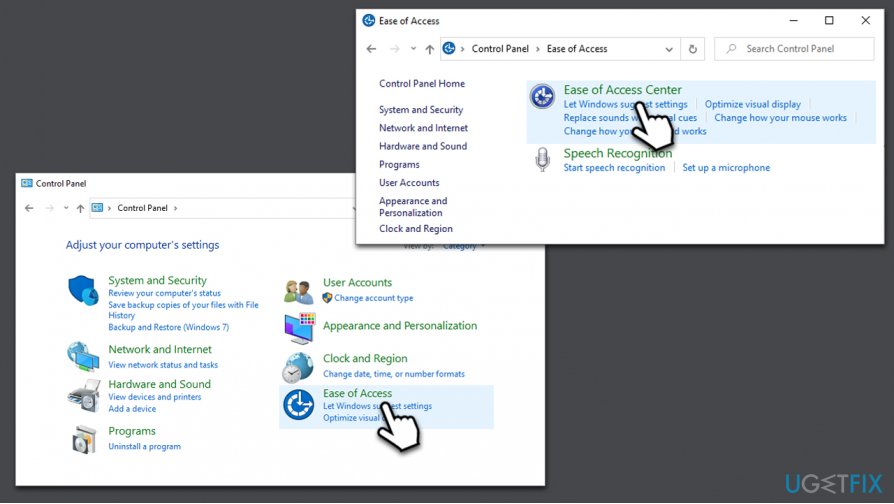
How to turn off auto select on my mouse go to ease of access - Scroll down and select Make the mouse easier to use
- Locate Make it easier to manage windows section
- Remove tick from the Activate a window by hovering over it with the mouse
- Click Apply and OK
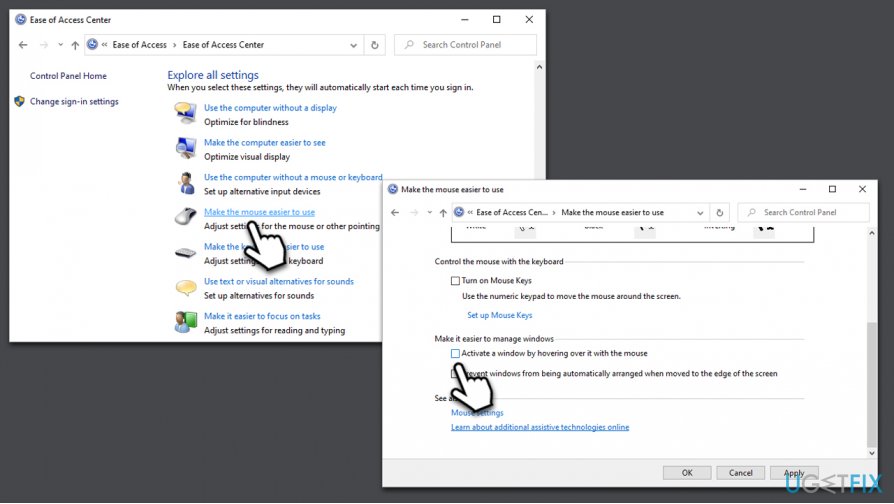
How to turn off auto select on my mouse disable hovering over
Option 3. Reinstall mouse and touchpad drivers
In some cases, the autoselect issue can lie within broken or damaged Windows drivers for the mouse. Hence, it is recommended to reinstall mouse drivers, as explained below. If you are using a laptop, you should also reinstall your touchpad drivers.
- Right-click on Start button and select Device Manager
- Expand Mice and other pointing devices section
- Right-click on your mouse driver
- Select Uninstall Device
- Confirm the process by pressing Uninstall
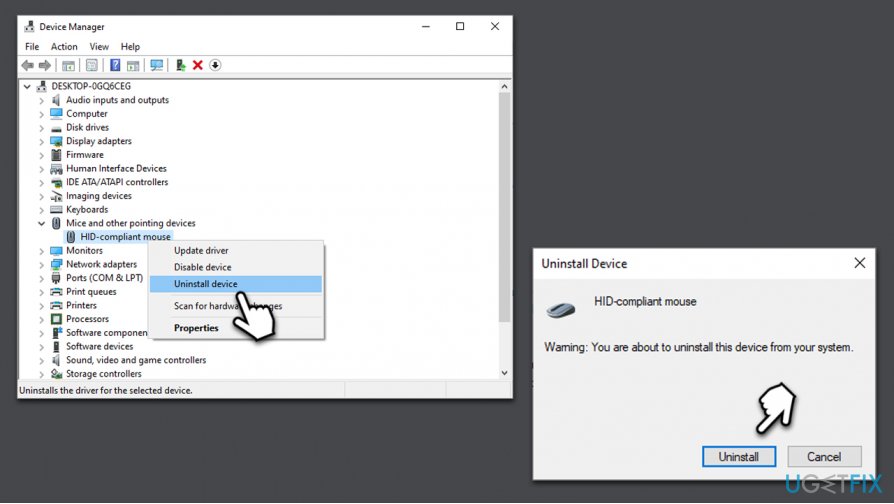
How to turn off auto select on my mouse reinstall mouse touchpad drivers
Note: your mouse will not work after this process. To make it reinstall drivers automatically, you should reboot Windows manually (you can press and hold the Power button).
If you are using a laptop, we recommend repeating the process with touchpad drivers.
Option 4. Disable tapping on a touchpad (laptops only)
If your touchpad is the reason why your are encountering the mouse hover problem, you can disable touchpad tapping, as it will prevent only allow touchpad buttons to be used to perform actions on a laptop.
- Right-click on Start and select Settings
- Select Devices and then pick Mouse
- Scroll down and pick Additional mouse options
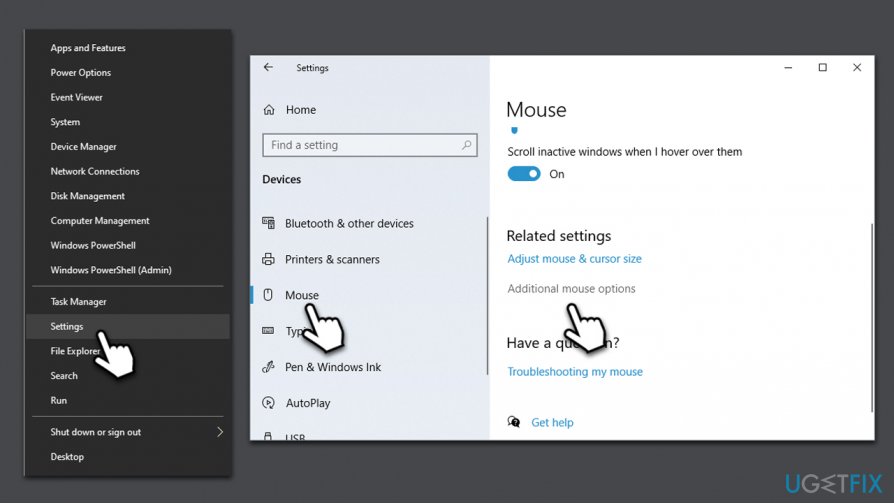
How to turn off auto select on my mouse disable touchpad tapping - In Mouse Properties, select the Settings (this section may vary depending on your laptop) tab
- Once Settings open, disable the Tapping function
Bottom line
To resolve the auto select issue, you can try adjusting your mouse settings, checking for driver updates, or modifying touchpad sensitivity settings. If these methods do not work, consider using a PC repair tool to fix Windows problems automatically.
Frequently asked questions
To disable auto select on your mouse in Windows 10, go to Settings > Devices > Mouse, and uncheck the option for 'Select words automatically' or adjust the settings under 'Additional mouse options'.
Yes, in Windows 11, navigate to Settings > Devices > Touchpad and look for the option to disable 'Tap twice to select' or similar settings.
If auto select persists, try updating your mouse drivers through Device Manager or check for any third-party software that may be overriding your settings.




Report an issue
What's wrong with this guide? We review every report and update or remove content.
Report received — thank you. We'll review and fix it.
You need a free account to submit a report.
Be the first to comment