How to fix
Upgrade to Windows 11 when processor is not supported
on Windows
Upgrade to Windows 11 smoothly, even with unsupported processors. Unlock tips and tricks from our experts to resolve compatibility issues effortlessly. …


What causes How to upgrade to Windows 11 when processor is not supported?
- Processor isn't supported for Windows 11
- PC does not meet minimum system requirements
- UEFI is not enabled
- TPM is not enabled
- Secure Boot is not enabled
- Processor not on Microsoft's approved list
Repairs Windows system files, removes malware, and restores a clean OS state — without reinstalling.
Hello. I have tried installing Windows 11, but I receive a message saying "The processor isn't supported for this version of Windows". Is there anything I can do to eliminate it?
Microsoft has released a new version of Windows with an updated design, new features, modernized desktop UX,[ref en-2] and more. But it is not ready for everyone. Depending on when your PC was built, which components you have, and how it was configured, there is a decent chance Microsoft will try to scare you away from installing the free upgrade.
The current basic system requirements[ref en-1] to receive the Windows 11 update for free are:
- 1GHz dual-core CPU, 4GB RAM, 64GB storage, UEFI motherboard, TPM 2.0, DX12 graphics, 720p display
- UEFI must be enabled
- TPM must be enabled
- Secure Boot must be enabled
- The processor must be on Microsoft’s approved list if you want an in-place upgrade
- 64GB of free space if you want to dual-boot Windows 11
Windows 11 is currently available as an update for eligible Windows 10 PCs. If you do not meet at least one of these requirements, you will receive a message saying "This PC doesn't currently meet Windows 11 system requirements". This means not everyone is offered the update immediately. When your PC is ready, a big pop-up will appear in Windows Update that will allow you to start the download and install process.
You should evaluate if you really need an update right at this moment when it is not ready for your hardware. If you try to bypass the requirements at this stage, that could result in bugs, errors, or crashes. You can read about all the known issues in the article we wrote recently - Windows 11: is it worth upgrading?
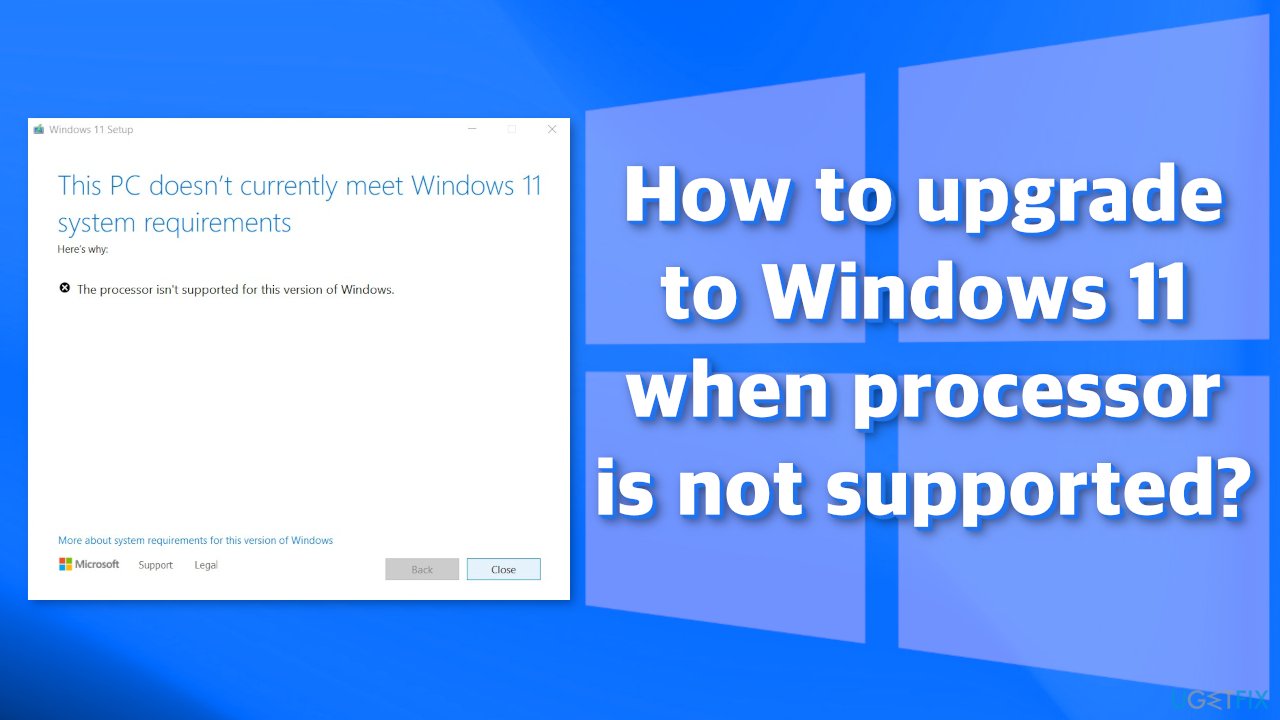
If you have decided that you still want to upgrade, and you took into account all the risks, we have a way how you can overcome the "processor is not supported" message in Windows. Please follow the steps carefully:
1. Edit the Windows Registry
- Hit Start and type regedit
- Press Enter to launch the Registry Editor
- Navigate to Computer\\HKEY_LOCAL_MACHINE\\SYSTEM\\Setup\\MoSetup, either by copy-pasting that whole address into the box beneath File, Edit, View, Favorites, Help or by going through the HKEY_LOCAL_MACHINE and System and Setup and MoSetup folders one at a time
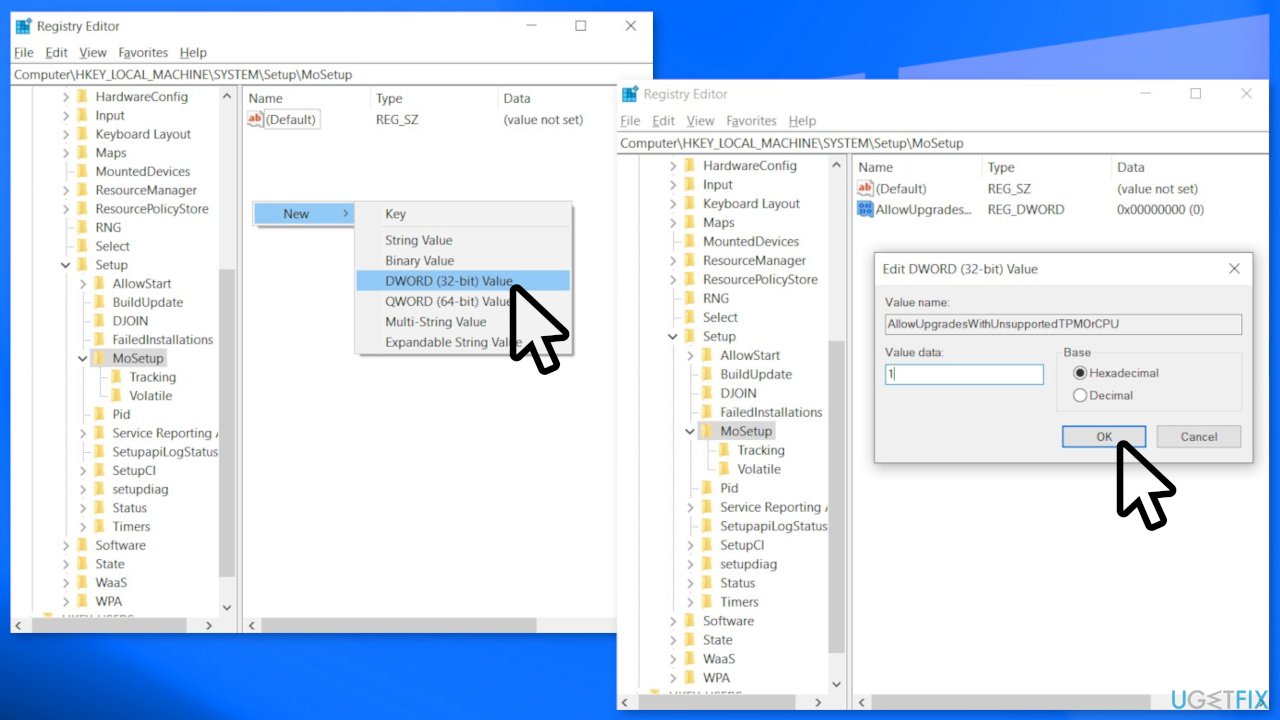
- In the right pane, right-click and pick New > DWORD (32-bit) Value
- Name the value AllowUpgradesWithUnsupportedTPMOrCPU
- Double-click on the new value you created, and enter 1 into the Value data
- Hit OK and close the registry editor
2. Download the Windows 11 ISO
- Go to the official Microsoft page
- Open the Select Download dropdown, pick Windows 11, and hit the Download button
- Select your product language from the Choose one dropdown, hit Confirm, then click 64-bit Download
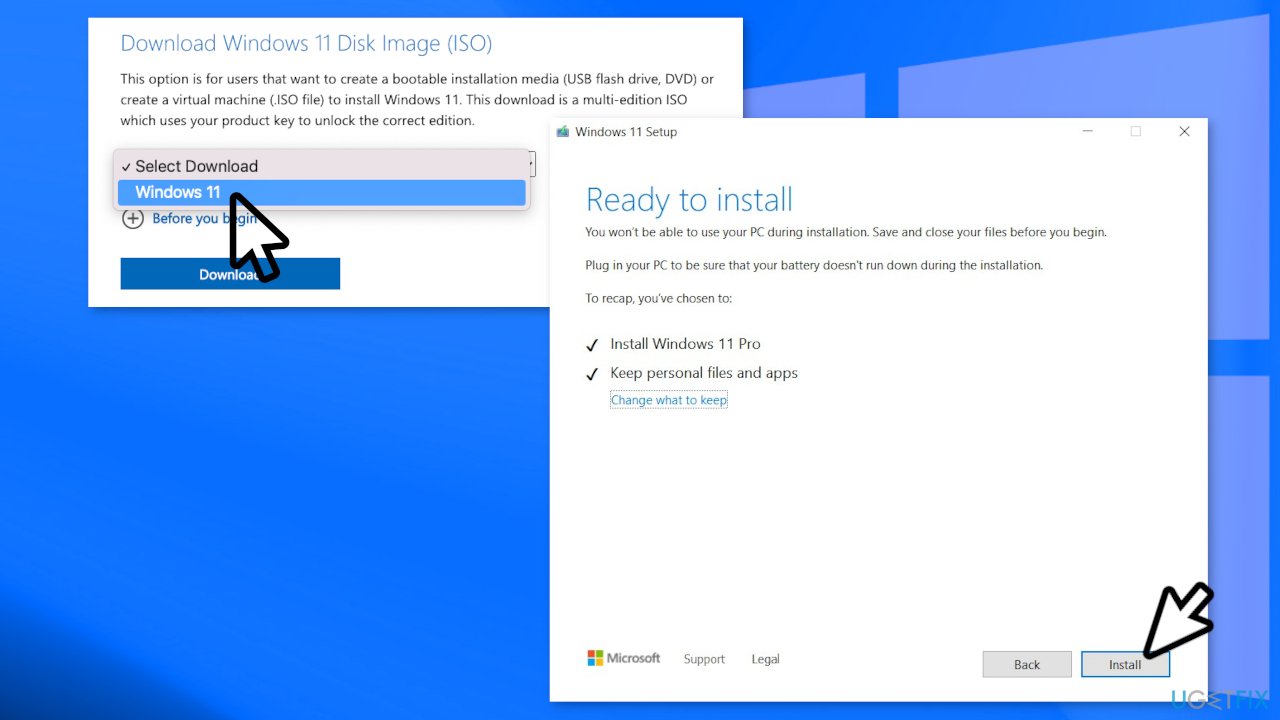
- When the .ISO file finishes downloading, right-click on it and pick Open with > Windows Explorer to mount the virtual disc, then double-click the setup file to begin the installation
- Follow the on-screen instructions
If by any chance you start experiencing crashes and errors, you can try using a repair tool [d1] that specializes exactly in that. This powerful software can take care of corrupted files, registry issues, system errors, and BSoDs.[ref en-3]
Bottom line
To overcome the 'processor is not supported' message, you can edit the Windows Registry and ensure that UEFI, TPM, and Secure Boot are enabled. If these steps do not resolve the issue, consider evaluating whether an upgrade is necessary at this time.
Frequently asked questions
Yes, you can bypass the processor requirement by modifying the registry, but this may lead to stability issues and is not recommended for everyone.
Installing Windows 11 on unsupported hardware can result in performance problems, lack of updates, and potential security vulnerabilities.
You can use the PC Health Check tool provided by Microsoft to verify if your processor meets the requirements for Windows 11.




Report an issue
What's wrong with this guide? We review every report and update or remove content.
Report received — thank you. We'll review and fix it.
You need a free account to submit a report.
Be the first to comment