How to fix
Laptop speakers crackling. How to fix
on Windows
Resolve crackling laptop speakers on Windows 10 or 11 with easy fixes. Enjoy clear sound again, with expert-tested solutions and detailed screenshots.


What causes Laptop speakers crackling. How to fix?
- Audio device settings
- Faulty drivers
- Outdated drivers
- Loose cable connections
- Corrupted drivers or applications
Repairs Windows system files, removes malware, and restores a clean OS state — without reinstalling.
Hello, I have an issue with my laptop and its speakers. Sound is awful because I hear crackles all the time. Sound of popping, crackling appears for no reason. Internal speakers it is. Unfortunately, the issue also involves earphones, external speakers. So the issue is somewhat internal, I guess. I have tried to upgrade Realtek HD audio, but nothing appears to solve this problem. Please offer me something.
Laptop speakers crackling or popping is the issue that people, unfortunately, report.[ref en-1] Although it appears in various instances when using internal speakers, an external device, or even headphones. This issue can be solved because, in most cases, it is caused by audio device settings, faulty or outdated drivers.
There is not a definite fix for all the issues regarding laptop speakers crackling because these interruptions can be caused by certain hardware or even flaws of the operating system, updates, and applications installed on the machine. The problem mainly affects Windows users, so the recent updating to Windows 10, for example, may be the reason.[ref en-2]
The problem may be fixed by adjusting audio device settings or updating the sound driver. It is worth checking the hardware first. Things like loose cable connections can cause issues.[ref en-3] Troubleshooting can possibly go next and then, try all the more difficult methods to solve the laptop speakers crackling problem.
How to fix laptop speakers crackling
There are a few reasons why something on the system works not as it supposed to. One of those reasons can be related to corrupted drivers or applications. Unfortunately, these issues often get caused by cyber intruders like malware or potentially unwanted programs, infected files, and illegally cracked software. Nevertheless, this "Laptop speakers crackling" issue can be fixed by scanning the machine thoroughly with a system tool like [d1]. This program can find Windows issues, malicious files, PUPs, or corrupted drivers.
Change the sound format to fix laptop speakers crackling
- Press the Windows button and R at the same time to launch Run dialogue box.
- Launch Control Panel and find Sound to open sound options.
- Once there, find audio device connections and right-click to select Properties.
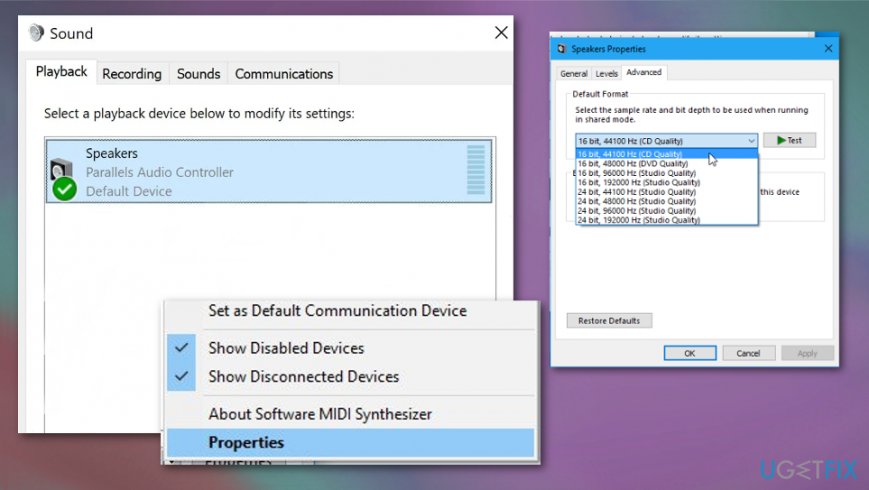
Laptop speakers crackling how to fix sound properties - Select the Advanced tab and click Default Format to open the drop-down menu.
- Select CD quality and save changes.
Run the Audio Troubleshooter
- Go to Settings and search for Troubleshooting in the search bar.
- Then you should find Playing Audio under the Get up and running section and click Run the troubleshooter.
- Windows will try to find and fix sound problems, so this method may fix your crackling sound issue.
Disable all enhancements to fix laptop speakers crackling problem
- Go to Control Panel and sound options.
- Find the audio devices connected to the computer and right-click and select Properties.
- Go to the Enhancements tab and uncheck all the enhancements.
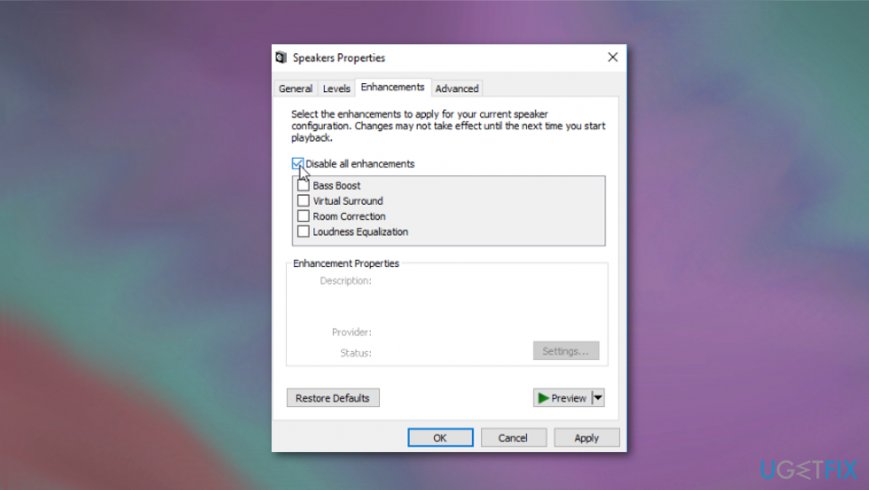
Laptop speakers crackling how to fix sound enhancements - Under the Advanced tab uncheck the exclusive mode where applications allowed to override the settings.
Update audio drivers and fix laptop speakers crackling issue this way
- Go to device manager and find Sound, video and game controllers section.
- Right-click on the driver and choose Update driver.
- Find the driver automatically or choose the file from your computer.
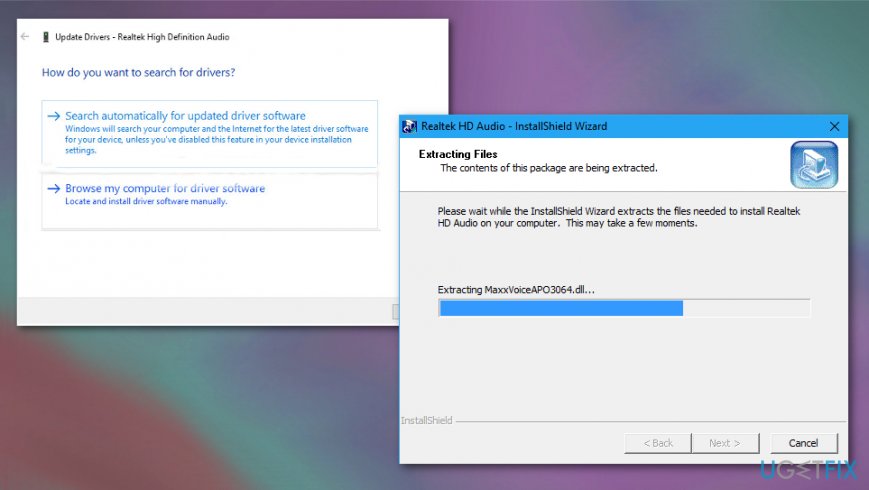
Laptop speakers crackling how to fix update drivers
Bottom line
To fix laptop speakers crackling, you can adjust audio device settings or update the sound driver. Additionally, check for hardware issues like loose connections. If none of these solutions work, consider scanning your machine with a system tool to identify further problems.
Frequently asked questions
Crackling laptop speakers can be caused by outdated audio drivers, interference from other applications, or issues with the audio settings. It's important to check and update your drivers and audio configuration to resolve the issue.
To update audio drivers in Windows 11, right-click the Start button, select Device Manager, expand Sound, video and game controllers, right-click your audio device, and choose 'Update driver.' Follow the prompts to search for and install any available updates.
In Windows 10, right-click the sound icon in the taskbar, select 'Sounds,' go to the Playback tab, and ensure the default device is set correctly. Additionally, check the enhancements tab to disable any sound effects that might be causing interference.




Report an issue
What's wrong with this guide? We review every report and update or remove content.
Report received — thank you. We'll review and fix it.
You need a free account to submit a report.
Be the first to comment