How to fix
Print Spooler keeps stopping. How to fix
on Windows
Resolve Print Spooler issues quickly on Windows 10 and 11. Get expert-tested fixes and print seamlessly, with zero traces left behind.


What causes Print Spooler keeps stopping. How to fix?
- Corrupted print spooler service
- Outdated printer drivers
- Conflicting software or applications
- Insufficient system resources
Repairs Windows system files, removes malware, and restores a clean OS state — without reinstalling.
Hello! I'm here with some type of problem... I have been using Windows 10 for a while now and always kept a printing machine connected to my computer. I have never experienced any problems with the printing process until now. Whenever I try to print whatever type of document, the print spooler seems to stop! How can I fix this? Thanks in advance!
Print Spooler[ref en-1] is a component necessary for successful printing work when your computer or laptop is connected to a printing machine or server. This application takes care of all tasks related to printing, allows creating multiple jobs, and ensures that the entire process from the start to the end is completed quality-full.
The Print Spooler product starts working whenever the printer is launched and has been commanded to complete various printing tasks. This app also speeds up the entire process so that it does not take very long as it would otherwise. In addition, the tool comes as the spoolsv.exe executable file on the computer.
Once your machine is booted the Print Spooler also launches automatically and disables itself whenever the operating system is no longer active. After that, the user is allowed to manage printing actions in full quality and speed. This includes:
- Viewing all created printing tasks;
- Viewing the size, length, and status of the pending printings;
- Delaying or deleting already created tasks.
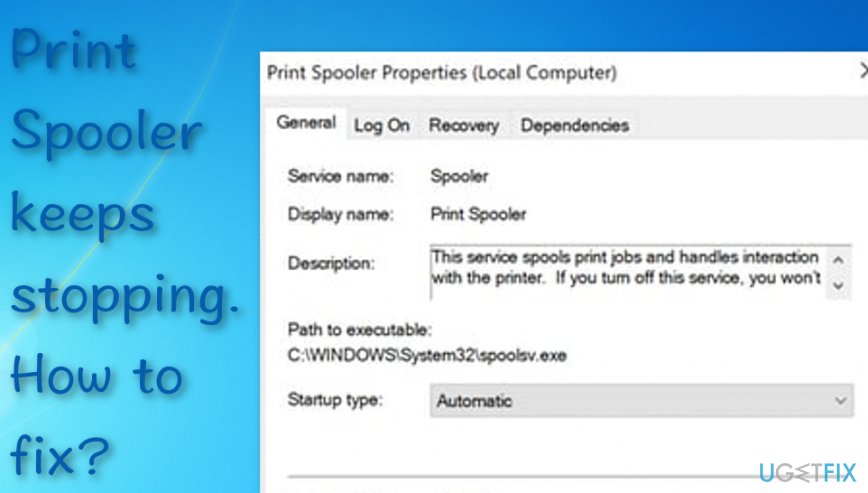
However, you will see an unwanted change in your printing work if you ever have to deal with the Print Spooler keeps stopping problem on your machine. Some users have already reported this issue although its appearance still remains unknown.[ref en-2] Gladly, there are some expert-tested fixes that might help you to eliminate the Print Spooler keeps stopping error from your Windows machine. Take a look at the below-provided fixing techniques.
Print Spooler keeps stopping. How to fix?
Print Spooler keeps stopping is a problem that can occur to any Windows user who holds a printing machine. If you are also a person who has run into such type of error, do not worry, there are some fixes. View all below-provided methods and choose the most suitable technique for you. If one fix does not help, try others.
In addition, if everything has been completed but the issue has still been bothering you again, there might be some malicious products, entries,[ref en-3] or software unknowingly installed on your Windows computer that have been triggering the Print Spooler keeps stopping error. For this purpose, complete a full system check-up with a tool such as [d1].
Fix no. 1. Try "owning" the spoolsv.exe file
If you have been looking for ways to fix Print Spooler keeps stopping problem, our experts' team has provided some fixing methods for you. One of them is owning the related file. Try out the technique here:
- Press the Windows logo key and E button together.
- Wait for File Explorer/Windows Explorer to appear.
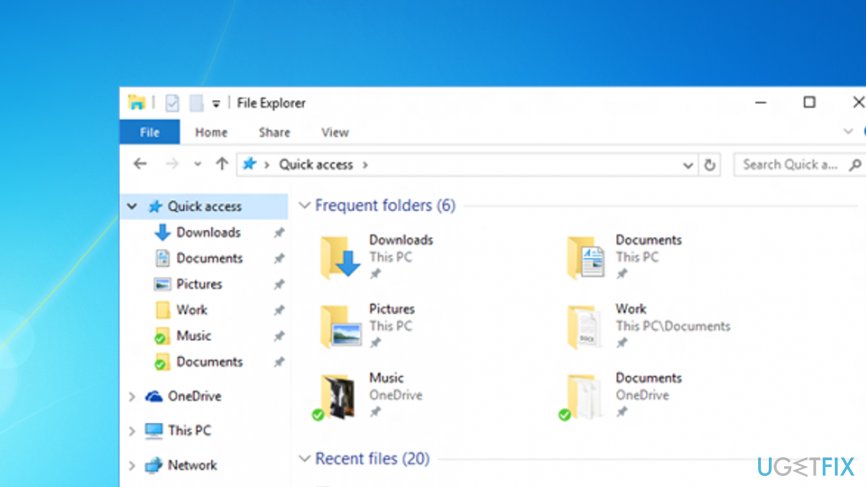
Use file explorer - One the left pane of the window select This PC/My Computer.
- Go to this directory: C:\\Windows\\System32.
- Continuously, choose the spoolsv.exe component.
- Right-click on the file with your mouse and go ahead with Properties.
- Proceed with the Security tab that will show after launching the Properties window.
- The Group and user names section will appear. Click Users > Advanced here.
- Under the Owner option, select to Change and write the name of your user account.
- Furthermore, select Check Names > OK.
- Then, Apply > OK.
- Afterward, Apply > OK again.
- Restart the Print Spooler service and your machine also.
Fix no. 2. Eliminate information from the Spool folder
- Click the Windows key and E button to launch Windows Explorer or File Explorer.
- On the left pane, proceed with My Computer/This PC.
- Go to this location: C:\\Windows\\System32\\spool.
- Enter the drivers folder and delete all the content that is found there.
- Continuously, eliminate all content from the Printers folder.
- Restart Print Spooler and your computer afterward.
Fix no. 3. Isolate some drivers
- Hold the Windows key and R button on your keyboard for a second.
- When a white run box appears, type in printmanagement.msc and hit Enter.
- Once the Print Management window appears, select All drivers.
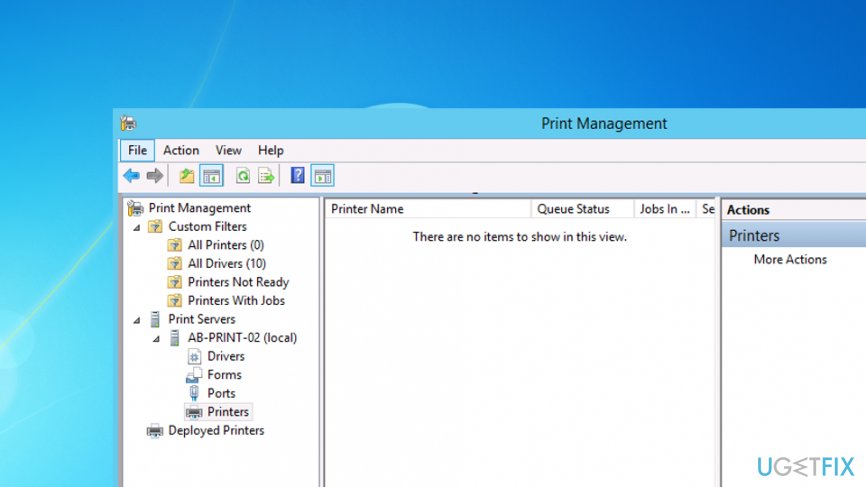
Use print management - Afterward, choose your print driver name.
- Then, right-click and opt for Set Isolation.
- Chose the Isolate function.
- Close the Print Management window.
- Reboot your machine.
- Restart the Print Spooler service.
Fix no. 4. Eliminate unneeded Registry entries
If you have been encountering trouble with your Print Spooler lately and the Print Spooler keeps stopping error has been appearing frequently, you should try deleting unnecessary registry keys as some of them might be related to your problem.
- Press the Windows key and R button on your keyboard.
- Wait for a small run box to show up.
- Afterward, type regedit and hit Enter.
- The Registry Editor will now appear.
- Select Yes for running the Registry Editor via administrative privileges.
- Continue by clicking File > Export.
- Choose the Desktop option for the exporting location.
- Find the File name location and type the name.
- Continuously, select All > Export range.
- Opt for Save.
- Then, go to Computer\\HKEY_LOCAL_MACHINE\\SYSTEM\\CurrentControlSet\\Control\\Print\\Providers.
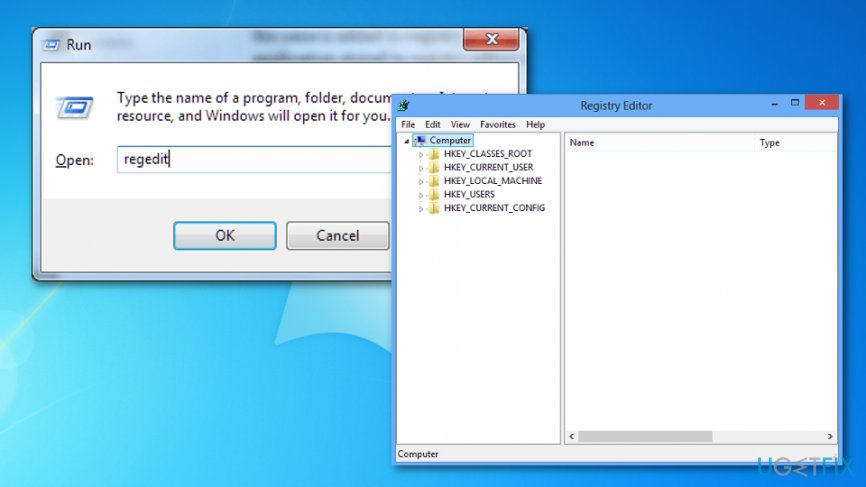
Run regedit - Here, delete all entries except LanMan Print Services and Internet Print Provider.
- Also, delete the key named Printing Services if you locate one.
- Restart your Windows PC and Print Spooler.
Fix no. 5. Update your printing drive
In some cases, a corrupted or bad printer driver might cause the Print Spooler keeps stopping problem. Good news is that you have a chance of removing the issue here. Regarding this fix, you will have to download the newest upgrade for your printer driver as lacking crucial updates can result in various software struggles, including your printing machine/driver/server.
Fix no. 6. Try running an SFC scan or disk check
These two checkups might help you to identify the cause of the Print Spooler keeps stopping error. Running an SFC scan will help you to find out if there are any corrupted files or keys that have been preventing your printing drive from working properly. Continuously, the disk scan will allow you to check for possible corruption in your computer's disk.
SFC scanning:
- Go to Windows search and type cmd.
- Launch the Command Prompt service with administrative privileges.
- Type sfc /scannow after the blinking cursor.
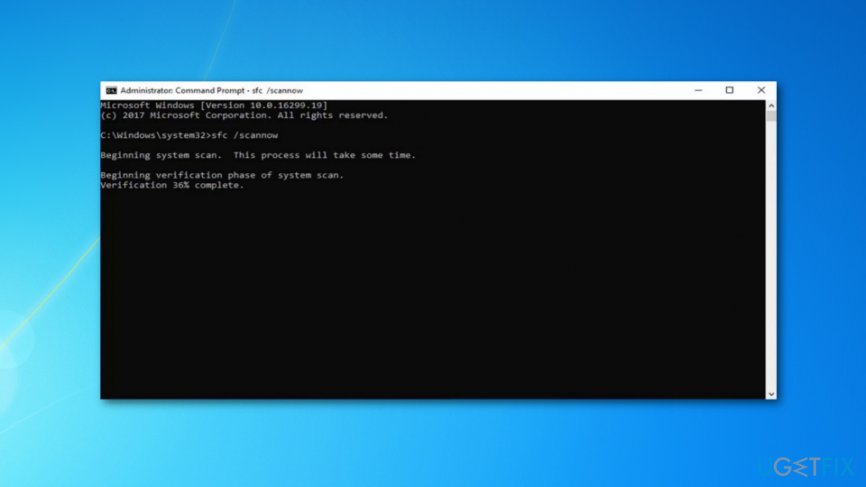
Run an sfc scan - Hit the Enter key.
- Wait for the process to finish and close the black window.
- Reboot your machine.
Disk checking:
- Boot Command Prompt as an Administrator once more.
- Type chdksk /r after the blinking cursor and press Enter.
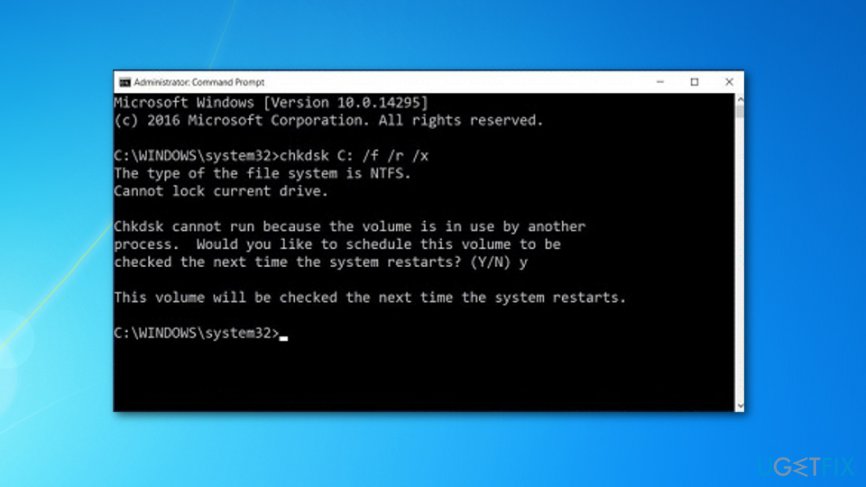
Run a disk check - Wait for the command to execute and finish its task.
- Afterward, reboot your Windows machine.
Bottom line
To fix the Print Spooler keeps stopping issue, you can try restarting the Print Spooler service, updating your printer drivers, or checking for conflicting software. If none of these methods work, consider reinstalling the printer or seeking further technical support.
Frequently asked questions
The Print Spooler may keep stopping due to corrupted printer drivers, conflicting software, or issues with the printer itself. It's essential to check for updates and remove any problematic drivers.
You can restart the Print Spooler service by opening the Services app, locating 'Print Spooler', right-clicking it, and selecting 'Restart'. Alternatively, you can use the Command Prompt with the command 'net start spooler'.
If reinstalling the printer driver doesn't resolve the issue, try clearing the Print Spooler folder by deleting files in 'C:\Windows\System32\spool\PRINTERS'. Also, ensure that no unnecessary printers are installed that could conflict with your default printer.




Report an issue
What's wrong with this guide? We review every report and update or remove content.
Report received — thank you. We'll review and fix it.
You need a free account to submit a report.
Be the first to comment