How to fix
Service Host SuperFetch high Disk usage: how to disable SuperFetch
on Windows
Struggling with high disk usage from Service Host SuperFetch on Windows 10 or 11? Discover effective methods to disable it and speed up your system. Exp…


What causes Service Host SuperFetch high Disk usage: how to disable SuperFetch?
- High CPU usage
- High disk usage
- High memory usage
- Incompatible hardware configurations
- Corrupted system files
Repairs Windows system files, removes malware, and restores a clean OS state — without reinstalling.
Hello. Since I reinstalled Windows a few weeks ago and patched the system with latest updates, I have been having troubles with the high resources usage, mainly, my disk usage typically runs at 100% (the Service host: SuperFetch process in the Task Manager is the main culprit), making the PC hot. It simply seems like that computer is overworking itself, although I did only recently reinstalled my OS. Is there any way to fix this? I need help, as I can't use my PC almost at all.
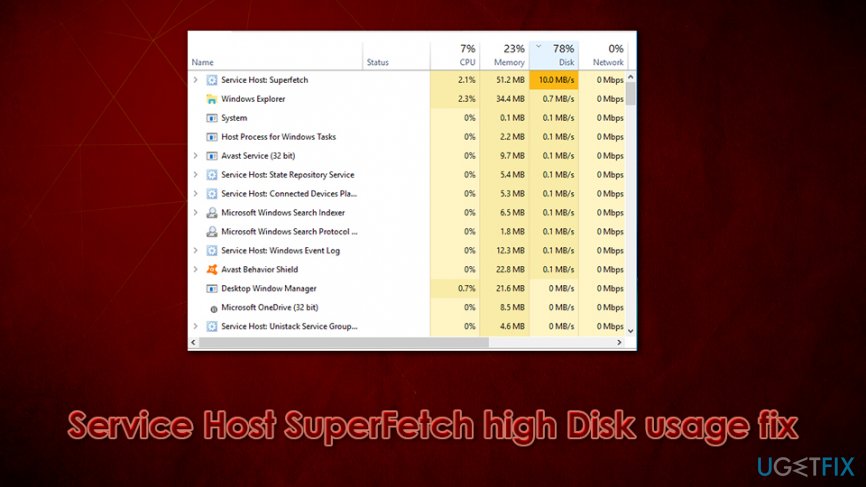
Service host: SuperFetch is a Windows process that allows your programs to load faster, but can cause serious issues when running on a certain type of hardware configurations.
High CPU, disk, or Memory usage can be a serious problem for Windows 10 users, as it slows down the speed at this the OS performs operations, runs fans at maximum capacity, and also can completely destroy the user experience. There are several different reasons why this might happen, as each of the Windows machines is unique: it uses a different set of hardware and software that runs in harmony... or sometimes not.
When having problems with disk usage, the culprit of the problem is typically Service Host SuperFetch - a process that runs in the background. While the issue is mostly experienced by Windows 10 users, Windows 7 can also suffer from the SuperFetch high Disk usage problem as well.
Finding yourself in a situation where your PC runs into a problem that it couldn't handle due to 100 percent usage by Service Host: Local System might be extremely frustrating, as even applying fix might take some time due to extreme lag. This is caused by a 100% usage of the disk, which technically means that your hard drive ran out of space to handle tasks correctly.
However, it does not mean that it is impossible to fix Service Host SuperFetch high disk usage. Before you do that, however, you should understand what is service host Superfetch and how it is related to your computer's full-disk issue.
What is Windows Service Host SuperFetch?
Windows is an intricate operating system that consists of millions of components, each of which is specially dedicated to performing a particular task for your machine to work well. For all those elements to work alongside each other, various criteria should be met, and, in case something goes wrong, users might experience serious issues, e.g., Service Host SuperFetch high disk usage.
Windows 10 is the newest operating system developed by Microsoft, a company that has years of experience in the software production business. Since 1985, when Windows 1.0 was released, the components and the way they interact with each other changed drastically.[ref en-1]
SuperFetch is a service that originated in Windows XP times as a "Prefetch" component, and is a relatively old feature that is still present on modern Windows versions. Possibly due to this, users might find such elements annoying in some cases, as they cause issues during computer operation, mainly, high disk usage. Nonetheless, the service allocates a certain amount of RAM[ref en-3] for the applications you use the most (in other words, it allows the OS to "learn" which programs/services you launch frequently), which allows it to load them quicker.
While SuperFetch is a useful feature with making your machine run faster, it does not mean that it is always useful. To be more precise, users who are running SSDs (Solid State Drives) instead of HDDs (Hard Disk Drives)[ref en-2] will not be affected by it in any way. So, essentially, SuperFetch becomes useless to those that use SSD as their primary drive, although the feature will be enabled by default.
Users often wonder whether the SuperFetch is needed is and how to disable SuperFetch once and for all - and for a reason. Not only can it be relatively useless to users running SSDs, but it can also cause high disk/CPU usage on certain configurations. It can also start pre-loading applications that are rarely used and slow down the machine significantly.
When and how to disable SuperFetch?
In most cases, users who are trying to run games experience significant lag due to Service Host SuperFetch high disk usage. Typically, systems that use 4GB of RAM or less are impacted the most, as video games typically use a predetermined amount of RAM when it's needed. Superfetch can significantly interfere with this action.
However, those who are running Windows on more sophisticated hardware, removing the service will not improve much. In other words, whether you need to disable SuperFetch depends on the state of your computer system configuration. If your computer is running on older hardware, it will not be able to optimize the process to run well, resulting in Service Host SuperFetch high disk or/and CPU usage.
Finding it might not be that easy, however, as it does not have its own allocated process. Instead, SuperFetch can be found under Service Host - this is because it runs via the .dll file instead of a .exe - the former requires a shell to be run in the first place. Due to name changes, you can find the process as Service Host: SysMain as well.
Below you will find several methods on how to disable Service Host SuperFetch on your machine, and we will also provide several other fixes that could help you to reduce high disk usage on your machine. Additionally, we would like to offer to perform a full system scan with a PC repair tool [d1], which could fix various Windows issues automatically.
Note: on newer Windows 10 OS versions, the SuperFetch service has been renamed to SysMain. To find out which version your machine is running, simply press Ctrl + Shift + Esc on your keyboard, and look for according entries on the Task Manager.
Fix 1. Disable Service Host SuperFetch via Services
This is one of the easier ways to disable Service Host SuperFetch and should not create any difficulties to users:
- Press Win + R on your keyboard or use Windows search
- Type in services.msc and hit Enter
- Sort by name
- Scroll down and locate SuperFetch or SysMain entry
- Right-click and select Properties
- Under Startup type, select Disabled
- Click Apply and OK
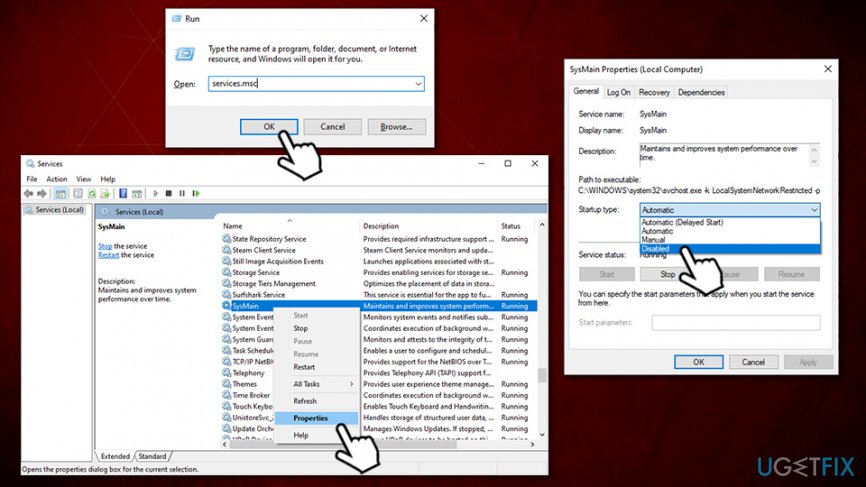
How to fix service host superfetch high disk usage disable via services - Reboot your computer
However, in some cases, the attempt fails. If that happens, please proceed to the next SuperFetch high Disk usage fix.
Fix 2. Disable Service Host SuperFetch via Command Prompt
Command Prompt is an essential part of Windows OS, and it allows running various commands. For them to be successful, users should run CMD with administrative privileges. Here's how to do it:
- Type in cmd in Windows search bar
- Right-click on Command Prompt result and select Run as administrator
- Type in the following command and hit Enter:
net.exe stop superfetch
or (if the above comes back with the "invalid service name" error)net.exe stop sysmain
- Reboot your system
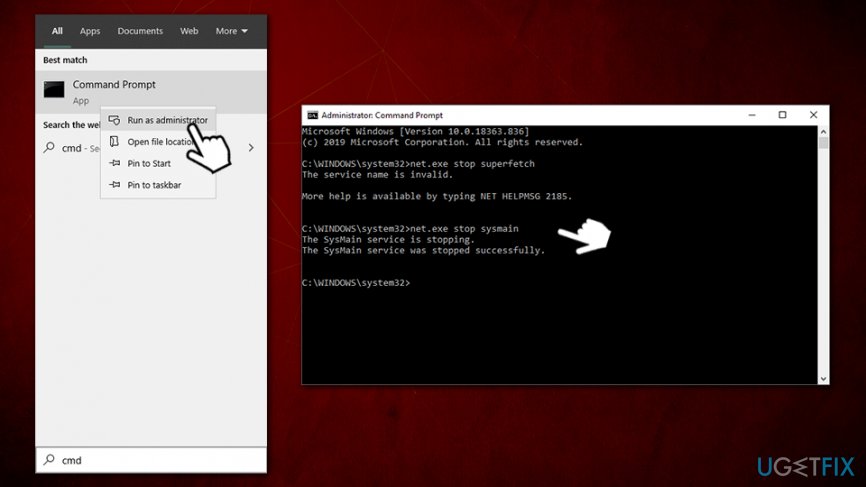
How to fix service host superfetch high disk usage disable via command prompt
Fix 3. Use Windows Registry to turn off SuperFetch
- Type in regedit into Windows search
- Right-click on the Registry Editor result and select Run as administrator
- Go to the following location:
HKEY_LOCAL_MACHINE\\SYSTEM\\CurrentControlSet\\Control\\Session Manager\\Memory Management\\PrefetchParameters
- On the right side, double-click the Enabled Superfetch or EnablePrefetcher (depending on the version) value
- In the Value data field type in 0 [zero] and press OK
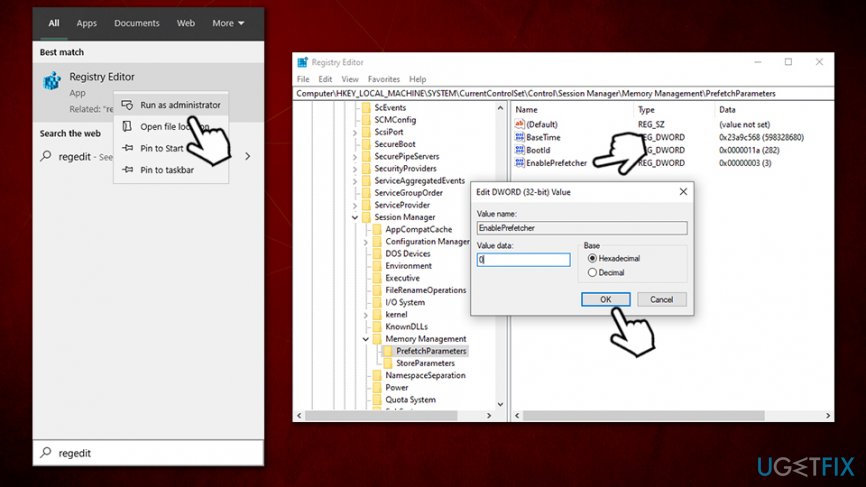
How to fix service host superfetch high disk usage disable via registry editor - Reboot your machine
Fix 4. Uninstall latest Windows updates
Many users claimed that they started experiencing high SuperFetch disk usage after a Windows update. This might be caused by incorrectly installed updates (for example, your power went off, and the updates did not finish to be installed). In such a case, you should uninstall the recent Windows updates as follows:
- Type in Control Panel in Windows search and press Enter
- Go to Programs > Uninstall a Program
- On the left side of the window, press View installed updates
- Locate Microsoft Windows section and find the latest installed update
- Right-click and select Uninstall
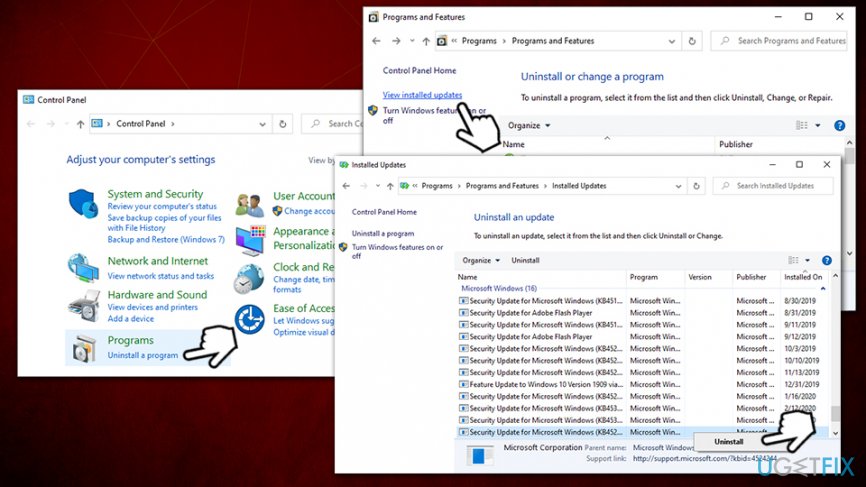
How to fix service host superfetch high disk usage uninstall bad windows updates - Restart your PC
Fix 5. Run Windows Update Troubleshooter
If you are not able to update Windows after uninstallation of faulty updates, run the Troubleshooter:
- Right-click on Windows Start button and select Settings
- Go to Update & Security
- Select Troubleshoot on the left side of the window
- Scroll down and select Windows Update (right side)
- Press Run the Troubleshooter
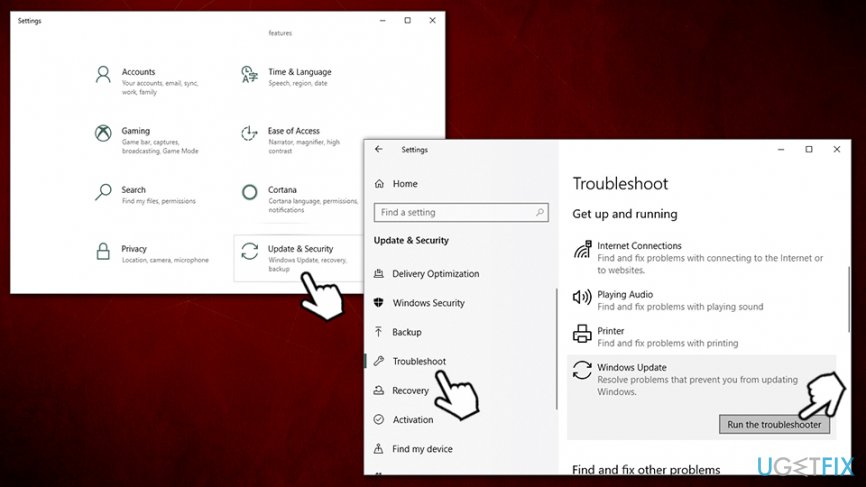
How to fix service host superfetch high disk usage run windows update troubleshooter
Bottom line
To address the high disk usage caused by Service Host SuperFetch, you can disable SuperFetch, check for system file corruption, or update your hardware drivers. If these solutions do not resolve the issue, consider seeking further technical assistance.
Frequently asked questions
To disable SuperFetch in Windows 10, press Win + R, type 'services.msc', find 'SysMain' in the list, right-click it, and select 'Stop'. Then, to prevent it from starting again, right-click 'SysMain', go to 'Properties', and set the Startup type to 'Disabled'.
Yes, disabling SuperFetch on Windows 11 is generally safe and can help reduce high disk usage, especially on systems with limited resources.
Disabling SuperFetch may lead to slightly longer loading times for frequently used applications, as the feature is designed to pre-load them into memory for faster access.




Report an issue
What's wrong with this guide? We review every report and update or remove content.
Report received — thank you. We'll review and fix it.
You need a free account to submit a report.
Be the first to comment