How to fix
“Some settings are managed by your organization” – how to fix
on Windows
Resolve the "Some settings are managed by your organization" error on Windows 10 and 11 effortlessly. Expert-tested solutions await you.

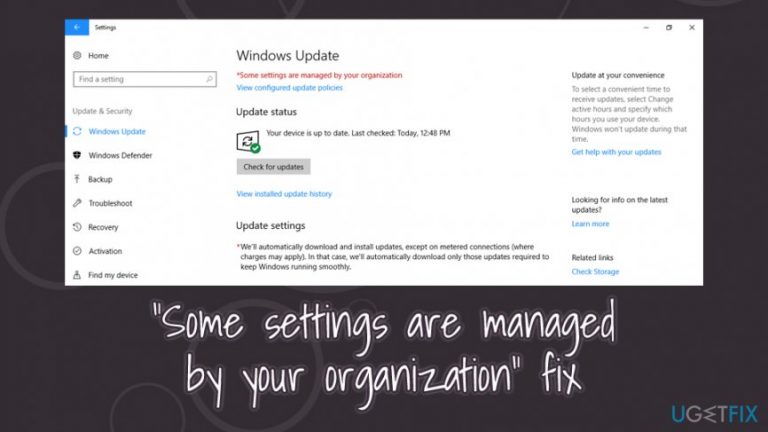
What causes “Some settings are managed by your organization” – how to fix?
- Browser hijackers
- Potentially unwanted programs (PUPs)
- Malware infection
- Unsolicited policy changes
- Insecure user behavior
Repairs Windows system files, removes malware, and restores a clean OS state — without reinstalling.
Hello. One day, seemingly out of nowhere, I noticed that my web browser's homepage changed. I did not initiate this, so I tried to get rid of it by accessing Chrome's settings, but to no avail. I then noticed that I couldn't perform any changes to the browser since it says "Managed by your organization," which left me baffled, as this is my home computer, and no organization is involved. Is there anything I can do to regain all controls of my Chrome browser? Help would be appreciated.
"Some settings are managed by your organization" or "Managed by your organization" is a message that users can see within their web browser or other parts of Windows OS. When such a policy[ref en-3] is applied, they will not be able to configure particular settings within the web browser (or a computer), for example, the homepage URL or access restrictions to particular websites.
Initially, "Some settings are managed by your organization" is a legitimate prompt that is used by companies and organizations to restrict the web browser settings modification by employees and third-parties. This can be particularly useful for companies, as it can prevent the infection of malware due to insecure user behavior (visiting malicious sites and downloading unknown executables[ref en-2] can lead to the infiltration of ransomware,[ref en-1] Trojans, and other malicious software, which can be disastrous to any business).
However, users recently started complaining about the "Some settings are managed by your organization" policy appearing on their web browsers while using a home computer, Essentially, there is no organization management to set these preferences, so the prompt leaves users baffled and they don't understand what is going on.
The truth is, it turned out that potentially unwanted programs, such as browser hijackers (Bundlore, Storm Search, Optimum Search, and many others), started abusing the feature to prevent the termination of these apps. PUP developers constantly look for new ways of preventing users from eliminating malware from their systems, and the unsolicited Chrome policy changes are one of them. So, how do you fix "Some settings are managed by your organization" issue?
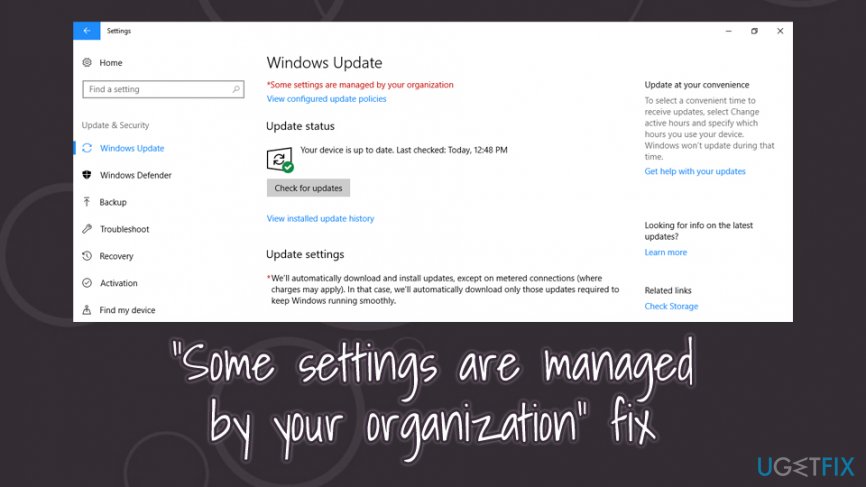
There are several different ways of how the "Some settings are managed by your organization" problem could be resolved. However, it is also important to note that the policy can also be applied to different parts of a Windows computer - not necessarily to the web browser. For example, the settings of the following features might be restricted:
- Windows Defender
- Windows update
- Time and date
- Lock screen
- Windows Hello, etc.
Another important note is that if your company you are working at has set the "Some settings are managed by your organization" policy to restrict access to the work computer, there is nothing you can do to change these permissions. Thus, the below fixes are only applicable to home users.
Protip: in some cases, you could fix "Some settings are managed by your organization" error by scanning the device with anti-malware software or a repair tool such as [d1]. If that does not help, please follow the manual solutions we provide below.
Fix 1. Resolve the "Managed by your organization" on Google Chrome
The "Some settings are managed by your organization" on Google Chrome had many users concerned and annoyed, as they claimed that they never allowed such a setting to be implemented in the first place. However, in many cases, the Chrome policy is modified by a potentially unwanted application that is typically installed by users themselves. Therefore, there are several steps on how to remove "Some settings are managed by your organization" prompt from Chrome. Follow these steps:
Step 1. Attempt to eliminate all the unwanted browser extensions
While this might seem like an obvious solution, it does not always work, as the setting itself prevents the removal of add-ons. Nevertheless, you should try it as a first solution:
- Click on Chrome's menu (three vertical dots at the top-right corner of the window)
- Go to More tools > Extensions
- In there, click on Remove next to all the extensions that are present
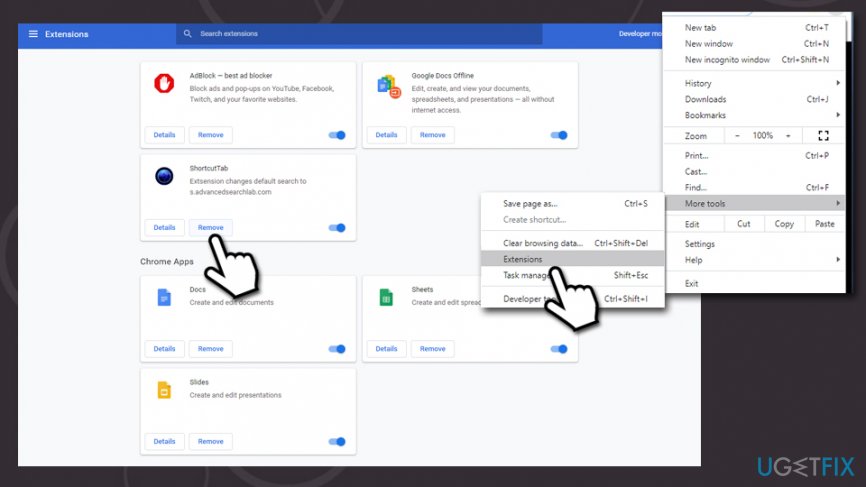
Some settings are managed by your organization fix remove extensions from chrome
You should also uninstall all unwanted programs via Control Panel > Programs and Features (right-click on the unwanted app and select Uninstall. Reboot after). In case this doesn't work, proceed with the next step.
Step 2. Reset Google Chrome
Try to reset Google Chrome if possible. Follow these steps:
- Go to menu and select Settings
- Scroll down and click on Advanced
- Locate the Reset and clean up section
- Click on Restore settings to their original defaults
- Confirm with Reset settings
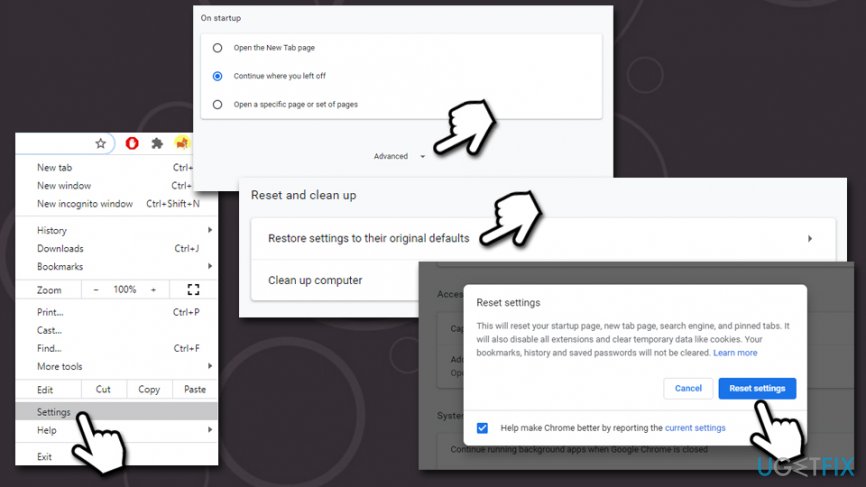
Some settings are managed by your organization fix reset google chrome
Step 3. Delete AppData contents in Chrome folder
For best results, we recommend uninstalling the web browser altogether, and then performing the following actions:
- Press Win + E on your keyboard to open file explorer
- Navigate to the following location to access Google folder (note: if you are unable to view this location, click on view and then tick the Hidden items box):
C:\\Users\\[username]\\AppData\\Local\\Google
- Press Ctrl + A to select everything
- Right-click and press Delete
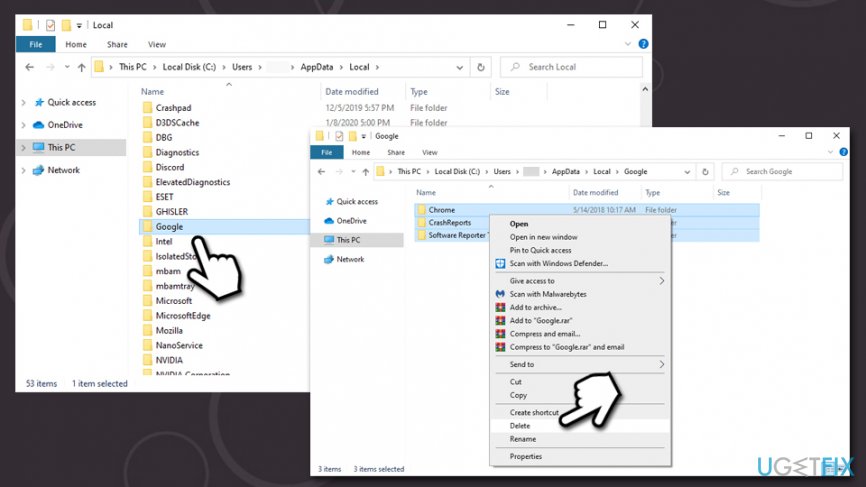
Some settings are managed by your organization fix delete app data - Empty Recycle bin
Fix 2. Configure Telemetry policy and service
Editing group policies could help you fix the "Some settings are managed by your organization" issue:
Step 1. Use Local Group Policy Editor
- Type in gpedit.msc in Windows search
- Right-click on the search result and select Run as administrator
- Go to the following location:
Computer Configuration > Administrative Templates > Windows Components > Data Collection and Preview Builds
- On the right side of the window, double-click the Allow Telemetry
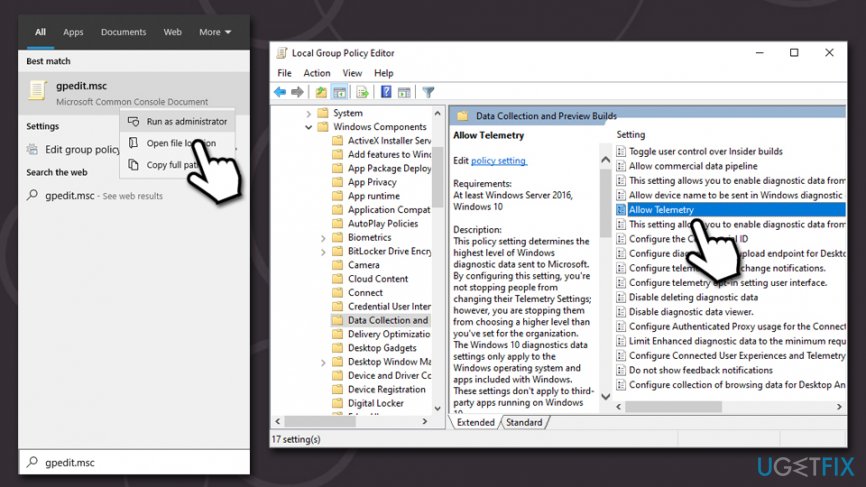
Some settings are managed by your organization fix allow telemetry - Select the Enable setting
- In the Options drop-down menu, pick Full setting
- Click Apply and then OK
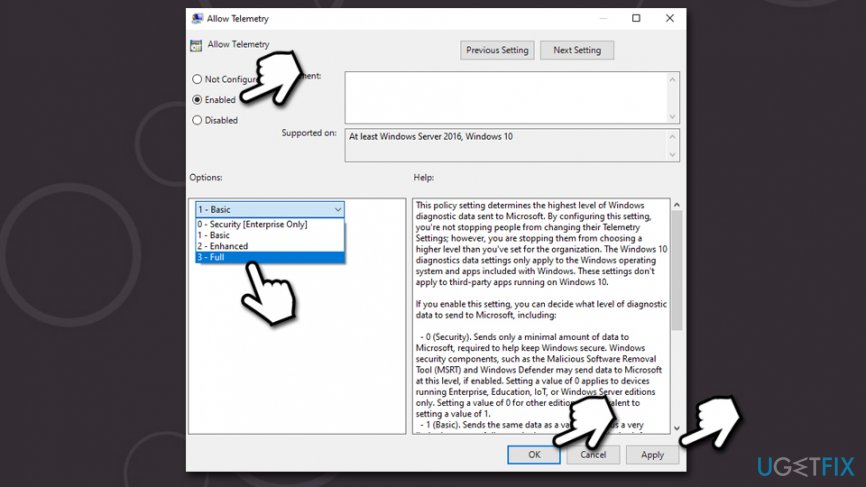
Some settings are managed by your organization fix allow telemetry enabled full - Close down the Local Group Policy Editor
Step 2. Enable Telemetry service
- Type in services.msc into Windows search
- Right-click on the search result and select Run as administrator
- Double-click the Connected User Experience and Telemetry service
- In the new window, select Automatic under Startup type (if it is not set so yet)
- Click Apply and OK
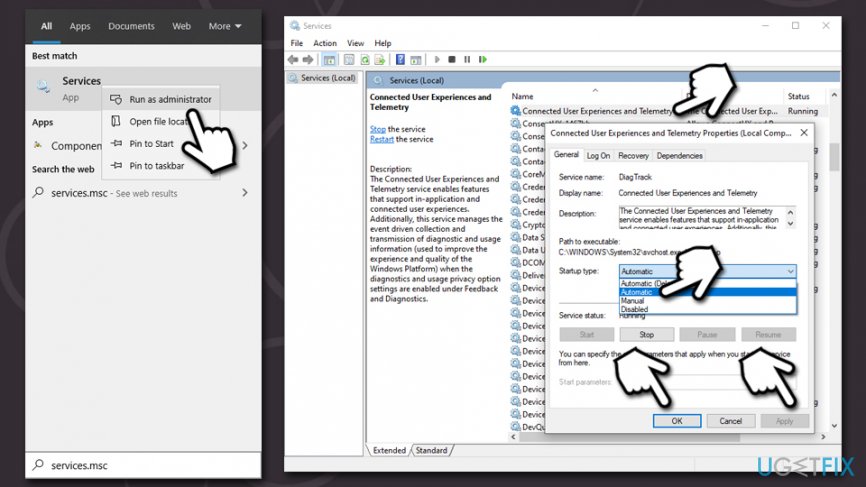
Some settings are managed by your organization fix enable telemetry service
Fix 3. Disable Start Menu and Taskbar notifications via Group Policy
- Open Local Group Policy Editor as administrator as explained in the previous step
- Navigate to the following location:
User Configuration > Administrative Templates > Start Menu and Taskbar > Notifications
- On the right side, double-click the Turn off toast notifications
- Click on the Disabled option and then select Apply and OK
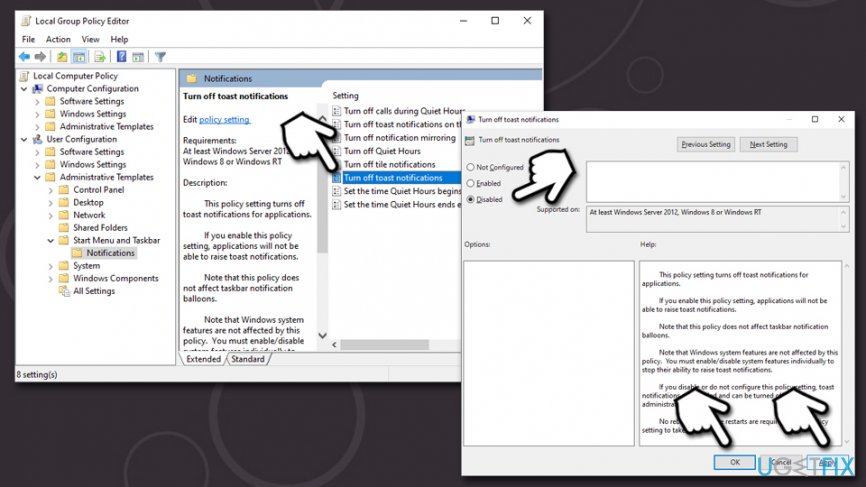
Some settings are managed by your organization fix turn off toast notifications
Fix 4. Edit Windows registry
Before you touch the registry, it is important that you back it up in case something goes wrong, as an incorrectly modified registry could destroy Windows.
Step 1. Backup your registry
- Type in regedit Windows search bar
- Right-click the Registry Editor result and select Run as administrator
- In case User Avaunt Control window shows up, click Yes
- Select File > Export
- Choose the location where you would like to store the backup of your Registry
- Ensure that Export range is set to All and then click Save
Step 2. Modify Windows registry
Once your registry is backed, you can modify it. Please follow these steps:
- Open Registry Editor as an administrator once again
- Go to the following location:
HKEY_LOCAL_MACHINE\\SOFTWARE\\Policies\\Microsoft\\Windows\\Personalization
- Double-click the NoLockScreen on the right
- Change the value from 1 to 0.
Fix 5. Delete the malicious registry key that disabled Windows Defender
Once malware gets into a machine, it performs a series of changes on Windows in order to operate as intended by cybercriminals. Recently, users started complaining about this issue, as they spotted that their security software is not fully functional. Instead, they see the following notifications:
Your Virus & threat protection is managed by your organization
No active antivirus provider
The reason for the "Your Virus & threat protection is managed by your organization" notification is the infection of an aggressive malware that overrides Windows Defender Tampering protection and creates a registry key that keeps the anti-malware disabled. To regain control of the security software, you should delete the malicious registry. The easiest way to do it is by accessing elevated Command Prompt:
- Type in cmd in Windows search
- Right-click on Command Prompt and select Run as administrator
- Type in the following command and press Enter:
REG DELETE “HKLM\\SOFTWARE\\Policies\\Microsoft\\Windows Defender” /v DisableAntiSpyware
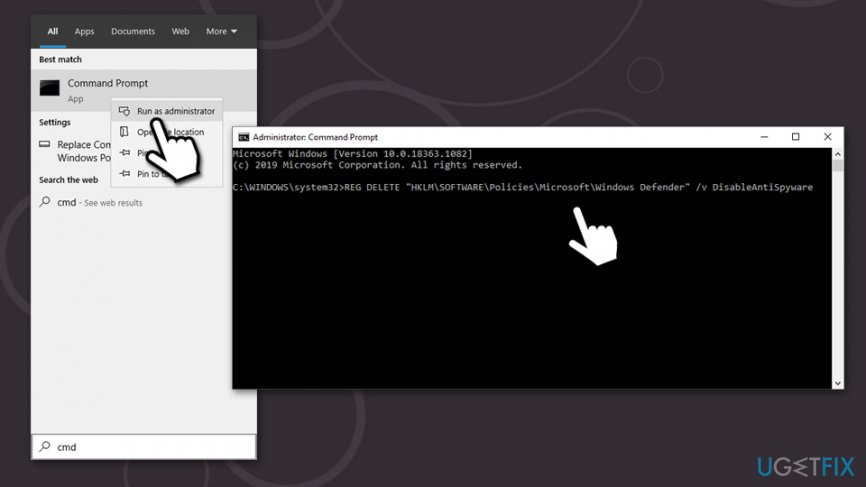
Fix 6. Ensure Windows Defender-related services are running
If you had to deal with the "No active antivirus provider" or "Your Virus & threat protection is managed by your organization" issue, you should check whether the Windows Defender-related settings are set correctly.
- Type in services.msc into Windows search
- Right-click on the Services search result and select Run as administrator
- Check the following services:
Microsoft Defender Antivirus Service set to Automatic
Security Center set to Automatic (Delayed start)
Windows Security Service set to Manual
Fix 7. Set Diagnostic and usage data to Full via Settings
- Right-click on Start button and select Settings
- Go to Privacy
- Select Diagnostics & Feedback
- Change the setting from Basic to Full
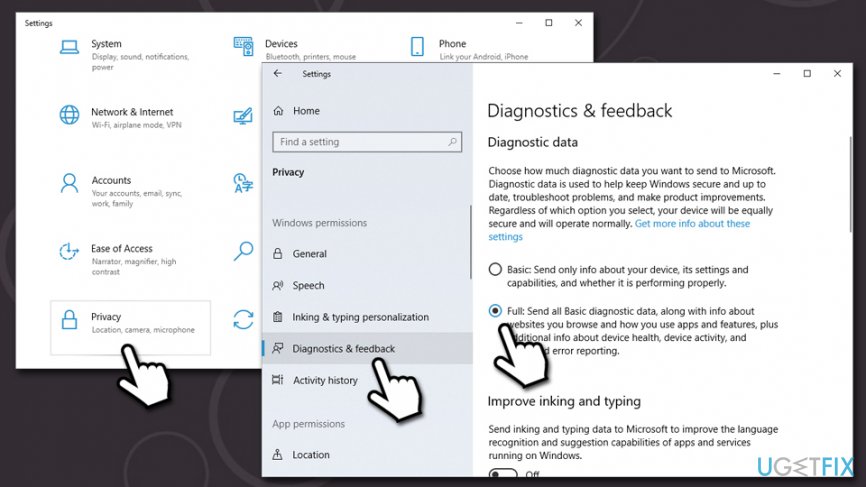
Some settings are managed by your organization fix set diagnostic data to full
Hopefully, this guide helped you to fix "Some settings are managed by your organization" issue on your Windows PC.
Bottom line
To fix the "Some settings are managed by your organization" issue, users can remove unwanted extensions, reset browser settings, or use antivirus software to eliminate potential threats. If these solutions do not work, consider seeking professional help or reinstalling the browser.
Frequently asked questions
This message indicates that certain settings on your device are being controlled by Group Policy, often due to organizational policies or unintended changes in system settings.
To resolve this, you can use the Local Group Policy Editor or Registry Editor to revert any changes, or reset your policy settings if you're not part of a domain.
Yes, you can navigate to the Group Policy Editor or Registry Editor to remove any conflicting policies that may be causing this message to appear.




Report an issue
What's wrong with this guide? We review every report and update or remove content.
Report received — thank you. We'll review and fix it.
You need a free account to submit a report.
Be the first to comment