How to fix
The context menu not working: how to fix mouse right-click
on Windows
Restore your right-click functionality in Windows 10 or 11 with our expert-tested solutions. Get your context menu working again, fixed in minutes!

What causes The context menu not working: how to fix mouse right-click?
- Corrupted drivers
- Affected system files
- Faulty mouse hardware
- Outdated applications
- Operating system issues
Repairs Windows system files, removes malware, and restores a clean OS state — without reinstalling.
I encounter a problem with my mouse. The right-click is not giving me a context menu as usual. I use Windows 10, and when I right-click, nothing happens. Sometimes when I reboot, the function works, but later on, it fails again. I cannot do so many things. Do you know why this is annoying me and how to solve the problem?
The context menu not working is the problem with the mouse right-click command when the context menu doesn't appear. It is quite common and understandably frustrating for users[ref en-1] who want to create new items, view particular icons, functions and explore options. If the function fails in a specific application, using the program becomes impossible. The issue can occur on various OS versions and in different instances.
When the mouse right-click function is not working, corrupted drivers or affected system files might be blamed. First of all, as with any issue related to an external device, you should check if the mouse is working with other devices, see if the problem is not related to the faulty piece. If everything is okay and right-click is not broken/ working on another computer, you may need to look into system and software problems.[ref en-2]
The troubleshooting process can answer what the root cause for the context menu not working problem is. However, when troubleshooting is needed, checking various parts of the machine can be crucial. If the context menu does not show up on particular programs like web browsers or does not work in Excel, you might need to update those particular apps to ensure that all processes run properly.
Often to fix such problems with common system functions, users need to upgrade their operating system since that is the trigger for various issues especially when it comes to Windows 10 recent updates.[ref en-3] The context menu not working mouse right-click issue can also get fixed by repair system files that got corrupted without your knowledge.
That can happen during some failed installation or upgrades or even due to malware infections. You can run [d1] and check for any altered pieces, fix damaged files and move on to the methods below if that is not enough. Some of the things that lead to this issue may require a more in-depth fix, so rely on the guide below and make sure to check a few methods at least.
#1 Update mouse drivers
- Search for Device Manager.
- Once the window opens up, find Mice and other pointing devices.
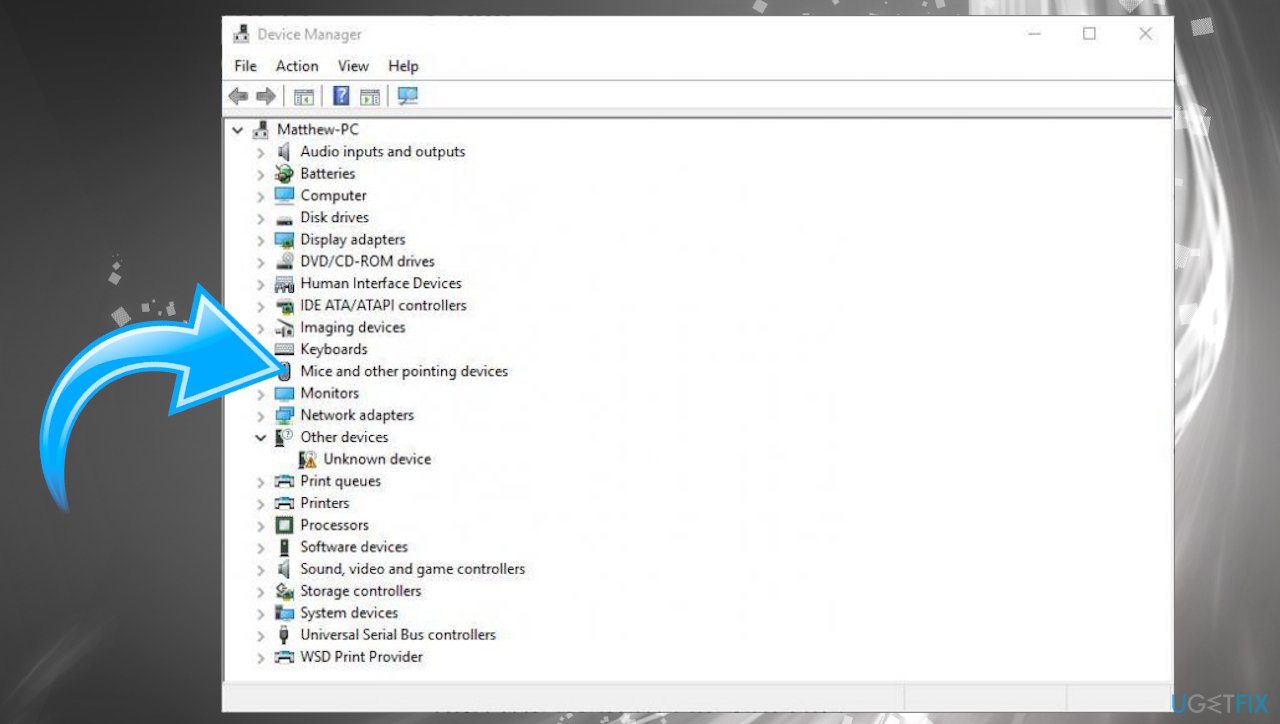
The context menu not working how to fix mouse right click drivers - Click to expand the section.
- Double-click the mouse driver and open Properties.
- Choose the Driver tab and choose Update.
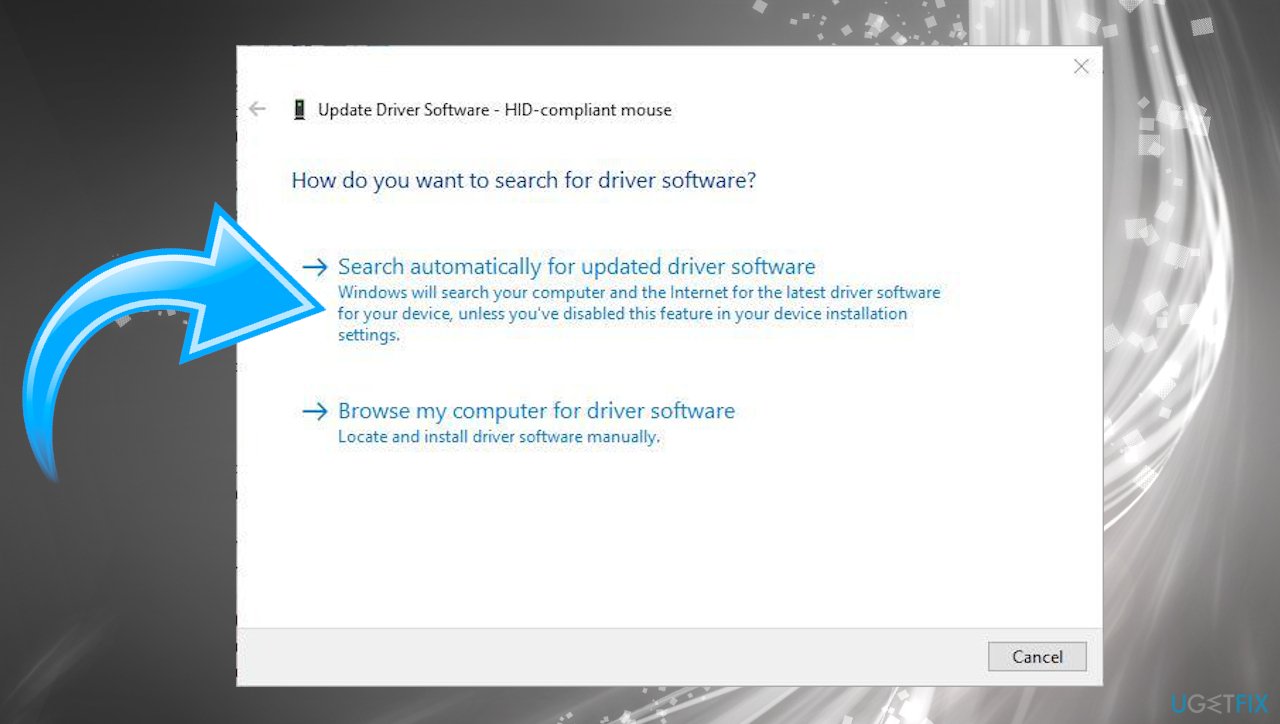
The context menu not working how to fix mouse right click search - Select the Search automatically for updated driver software option from there.
Updating drivers can be a bit easier process with automatic tools like [rev id="DriverFix"] that can keep the system away from damage by downloading and installing needed driver versions. You can install the tool and let it scan the machine, so outdated, broken, missing drivers get located. The tool will update and fix any driver issues for you, so errors should stop.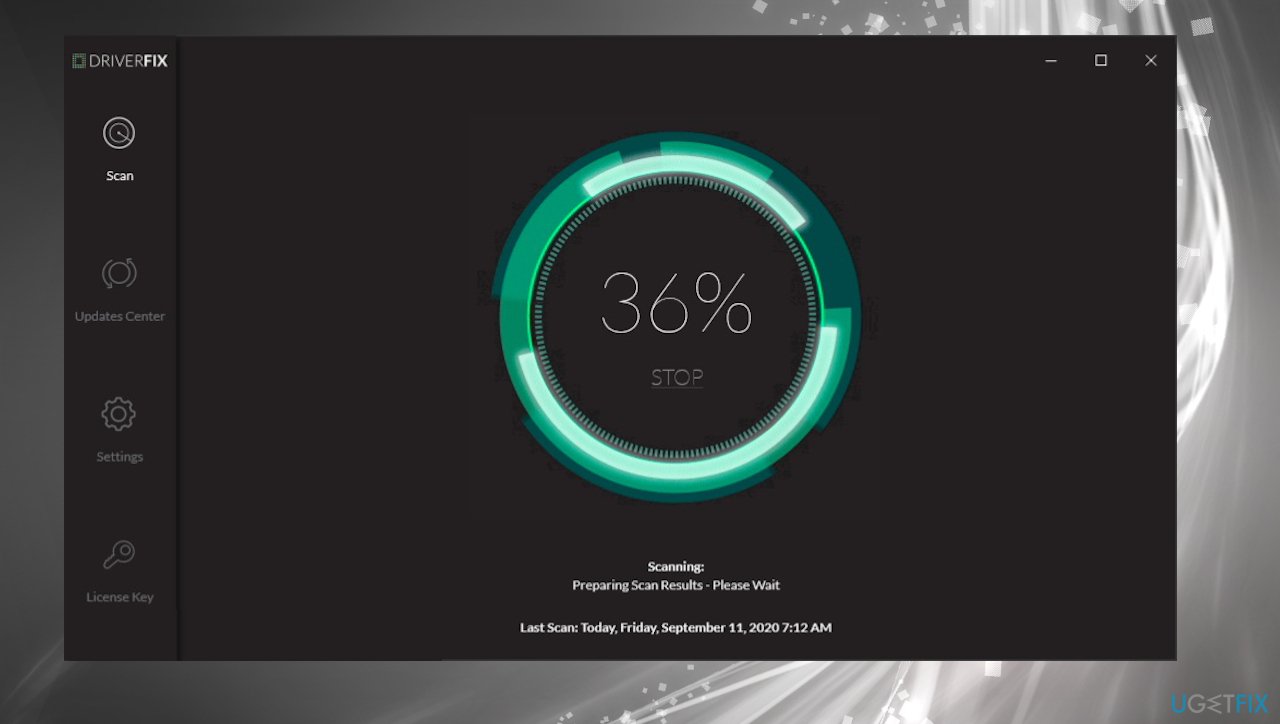
#2 Check the mouse
- Search for Hardware and Devices in search.
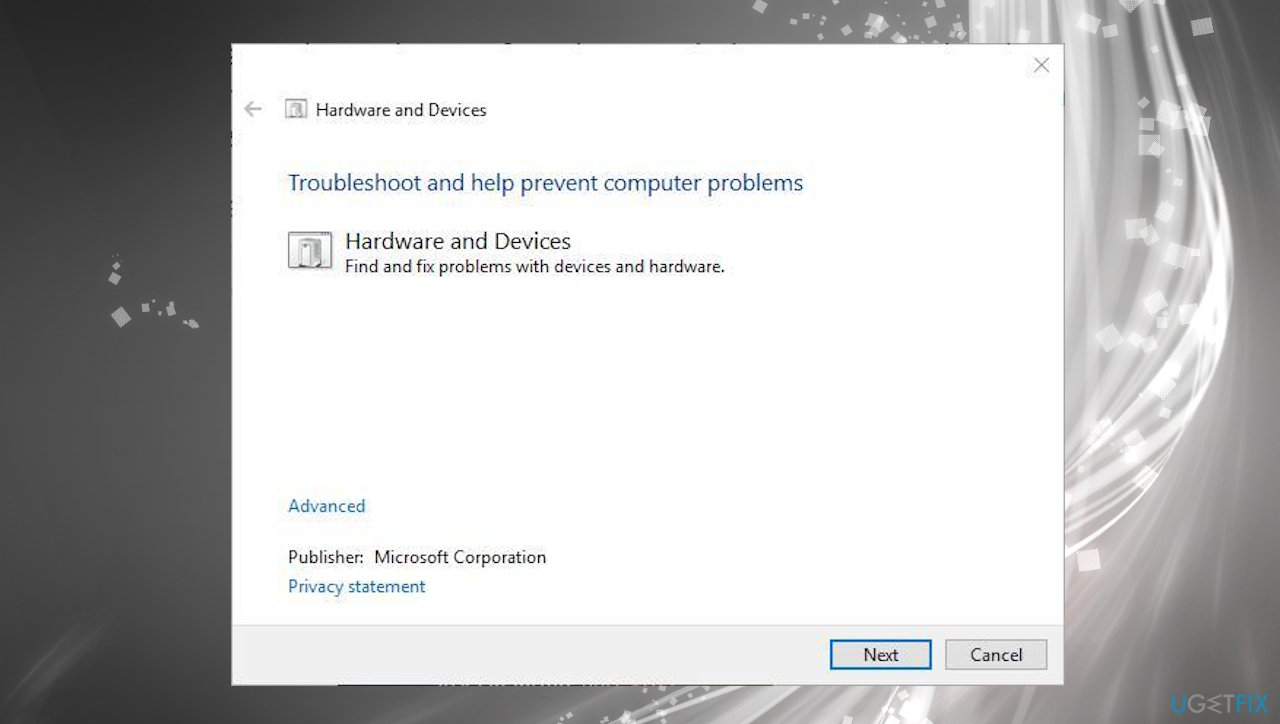
The context menu not working how to fix mouse right click hardware devices - Choose Find and fix problems with devices.
- Click Next to scan the machine.
- Troubleshooter should find problems and fix issues automatically.
#3 Restart Windows File explorer
- Open Task Manager by pressing the Ctrl + Alt + Del combination.
- Click the Processes tab in Task Manager.
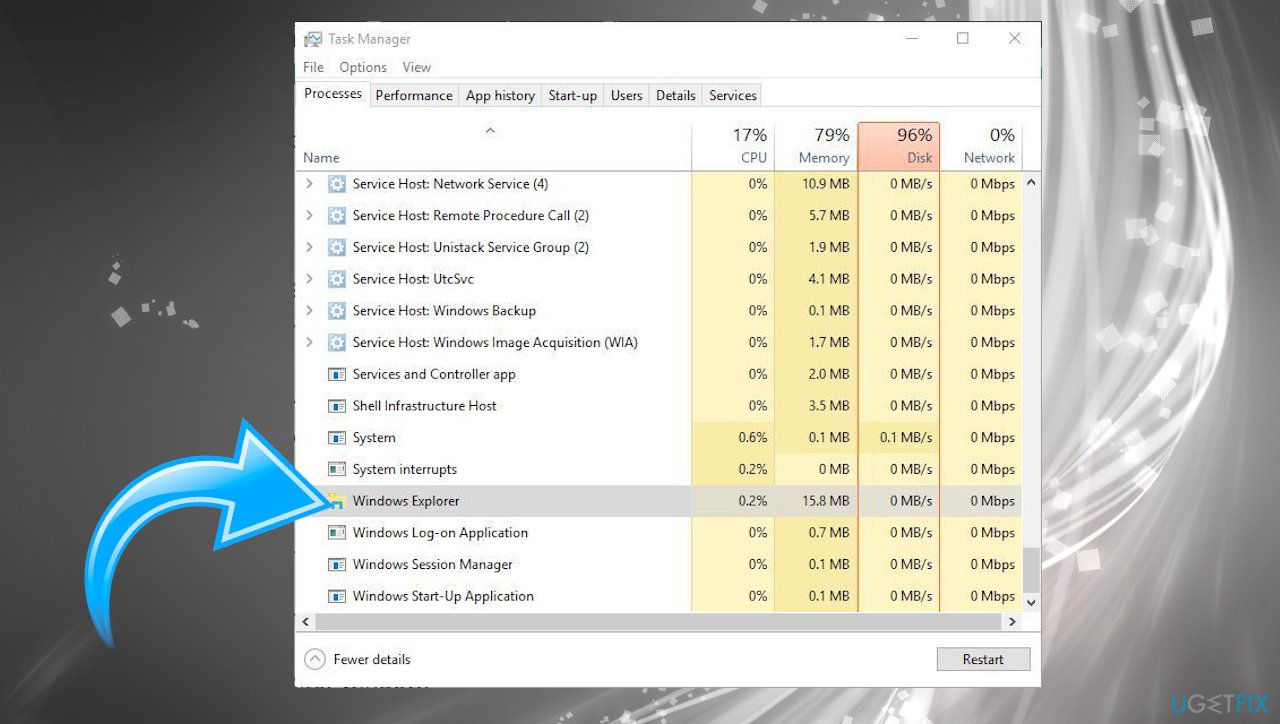
The context menu not working how to fix mouse right click task manager - Windows Explorer is listed under Windows processes.
- Select it and press its Restart button at the bottom.
#4 Check Group policies
- Press Windows key and R at the same time to open the Run box.
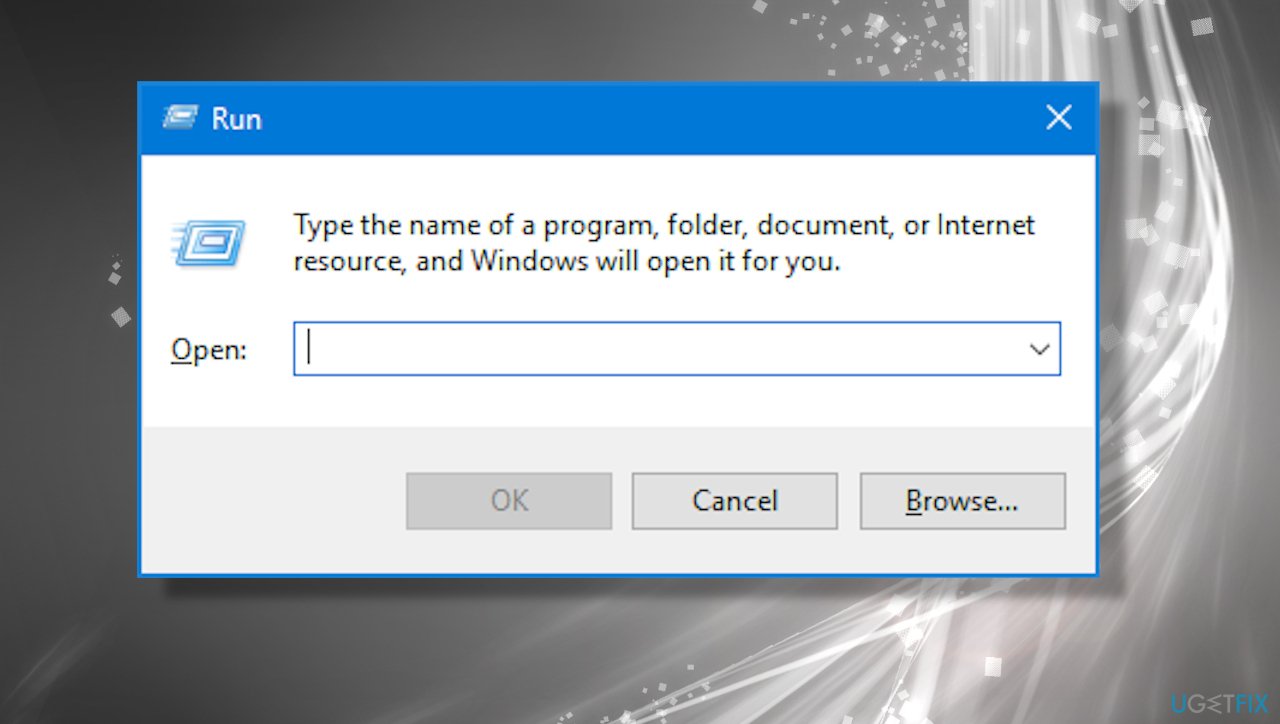
The context menu not working how to fix mouse right click run box - Type gpedit.msc and hit Enter.
- Open Local Group Policy Editor.
- Click User Configuration.
- Then Administrative Templates.
- Find Windows Components and File Explorer on the left.
- Double-click the Remove Windows Explorer’s default context menu option.
- If the option is enabled, click the Disabled button.
- Press Apply and OK to close the window.
- Reboot the machine.
#5 Run System File Checker
- Search for Cmd and open Command Prompt with administrative rights.
- Then input sfc /scannow and press Enter.
- The scan will indicate and possibly fix issues.
- Restart Windows.
#6 Use System Restore
- Enter System restore in the search box.
- Choose to Create a restore point to open the System Properties window.
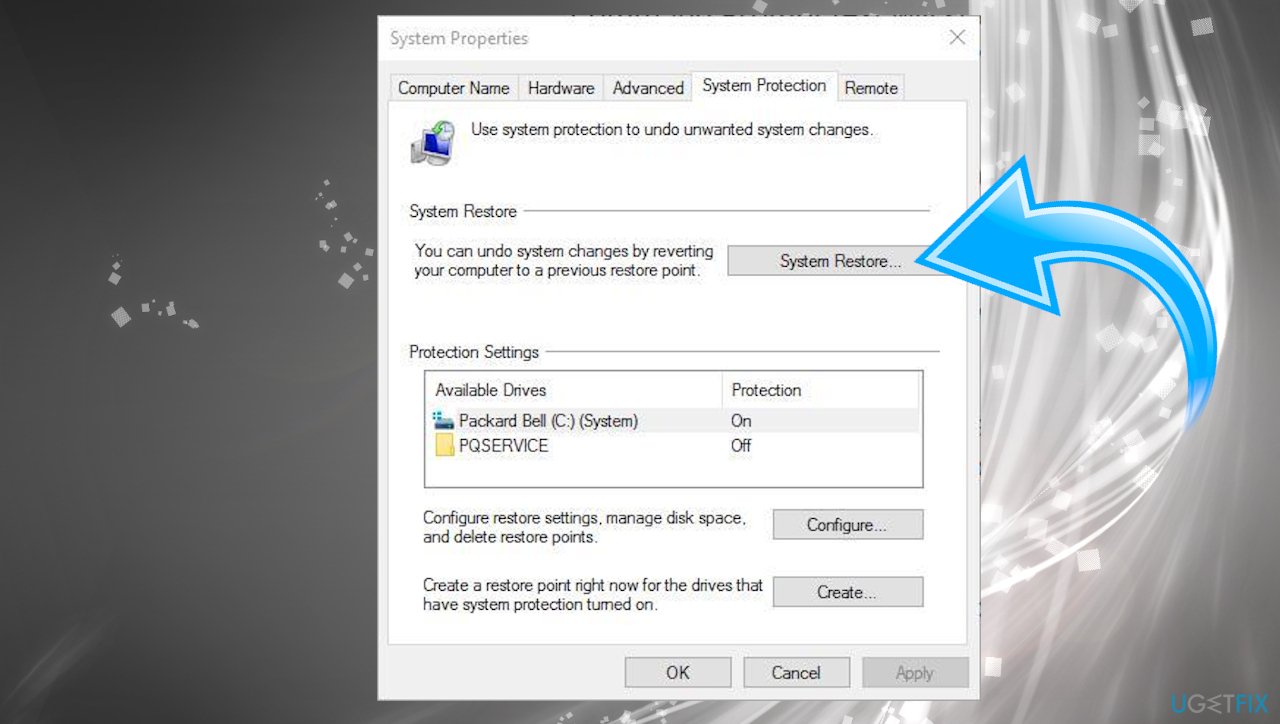
The context menu not working how to fix mouse right click system restore - Choose System Restore and click Next to see the list of restore points.
- Click the Show more restore points options to open a full list of restore points.
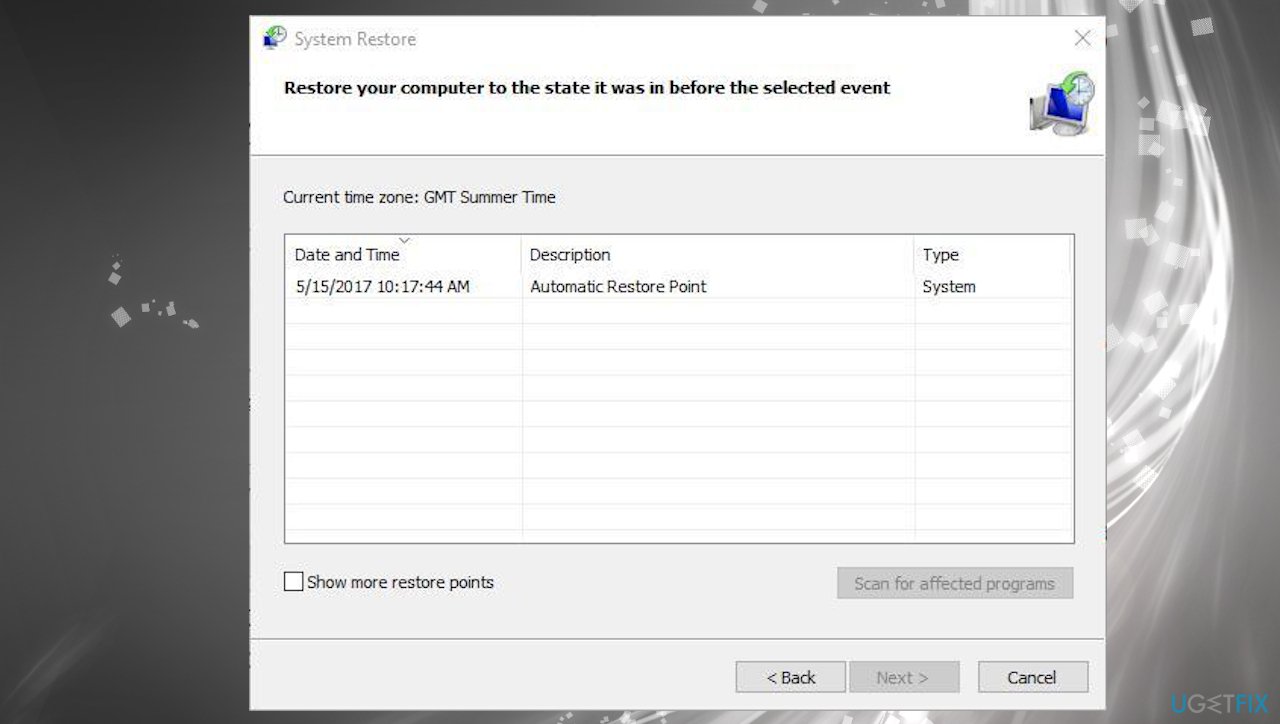
The context menu not working how to fix mouse right click restore - Select a date to restore Windows to and click Next.
- Now press the Finish button to restore Windows.
Bottom line
To fix the context menu not working issue, you can check the mouse functionality with other devices, update specific applications, or upgrade your operating system. Additionally, repairing corrupted system files may resolve the problem. If none of these solutions work, further troubleshooting may be necessary.
Frequently asked questions
This issue can occur due to corrupted system files or settings. You can try running the System File Checker tool to repair any damaged files.
Resetting the File Explorer settings or disabling third-party context menu extensions can often resolve this problem. Additionally, ensure that your Windows 11 is up to date.
This can be caused by too many items in the context menu or background processes; try disabling unnecessary startup programs and cleaning up the context menu with a third-party tool.




Report an issue
What's wrong with this guide? We review every report and update or remove content.
Report received — thank you. We'll review and fix it.
You need a free account to submit a report.
Be the first to comment