How to fix
What is Windows Event Error: CbsPackageServicingFailure2 and how to fix it
on Windows
Resolve the Windows Event Error: CbsPackageServicingFailure2 quickly with our expert-tested solutions for Windows 10 and 11, fixed in minutes.

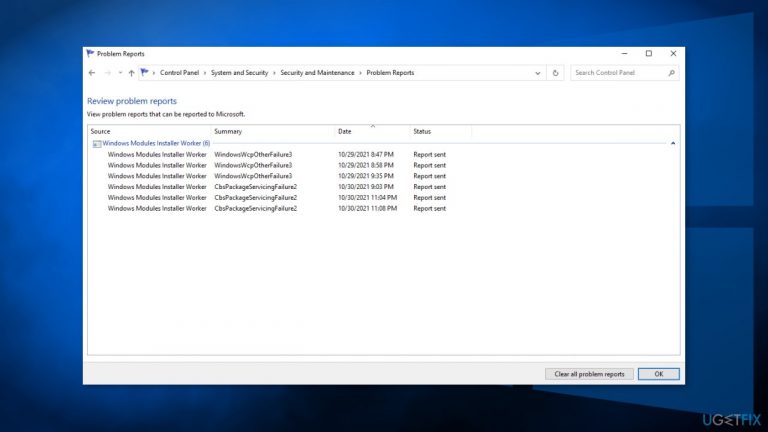
What causes What is Windows Event Error: CbsPackageServicingFailure2 and how to fix it?
- Incomplete system updates
- Software installations
- Outdated drivers
- Windows update cache issues
- Software errors
Repairs Windows system files, removes malware, and restores a clean OS state — without reinstalling.
Hello. I see a Windows Event error CbsPackageServicingFailure2 appearing in Windows logs every 10 seconds. I am concerned that it could damage the system. What is it and how do I fix it?
Windows is an extremely complicated system that relies on thousands of processes to keep it running smoothly. Sometimes people start experiencing crashes, errors, corruption of files when a process goes rogue. These can be caused by incomplete system updates, software installations, outdated drivers,[ref en-1] and more.
However, some users experience errors that do not cause any noticeable changes to the system, no performance issues, or anything whatsoever. One of those is the Windows Event Error CbsPackageServicingFailure2. The only way users find out about this error is by going to their Windows logs.
It is thought to be a system problem potentially caused by the Windows update cache that initiates repeated downloads and installations. The error normally should not affect regular use of Windows and that is exactly what users experiencing it report.
So even if you try out all the solutions and nothing works, you should not worry too much about it. Some say that the Windows Event Error CbsPackageServicingFailure2 could be caused by software so you can open your Task Manager and see whether any program reports errors or exceptions during use.
If you want to avoid going through a lengthy troubleshooting process, we recommend using [d1] repair tool to scan your machine and automatically fix damaged system components, errors like BSODs,[ref en-2] and registry issues. The software can also be used for optimization purposes - free up space by clearing cookies and cache,[ref en-3] which should boost the performance.
Below you will find 6 possible solutions for the Windows Event Error: CbsPackageServicingFailure2. Be sure to go through them carefully and step-by-step:
Method 1. Install Available Updates
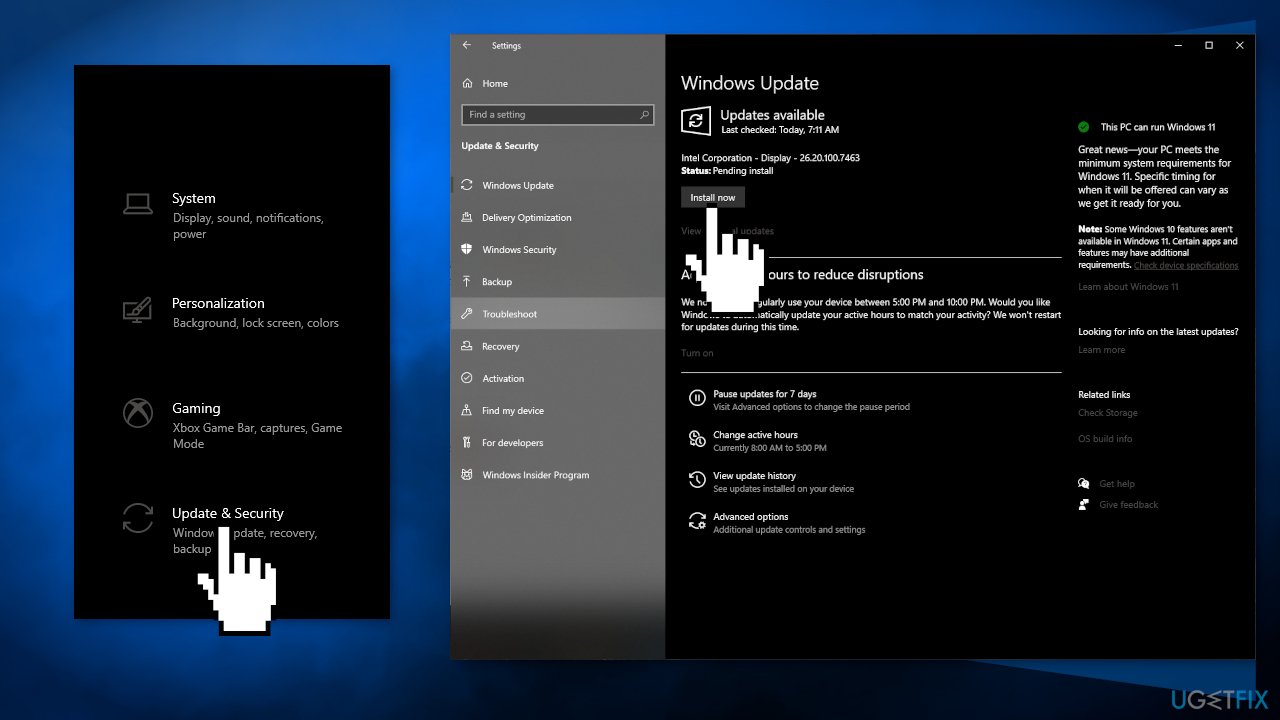
- Click Settings from your start menu and click Updates & Security
- Choose Windows Upgrade from the left panel and click Check for updates button, and then your computer will check for, download, and install any updates found
Method 2. Repair Corrupted System Files
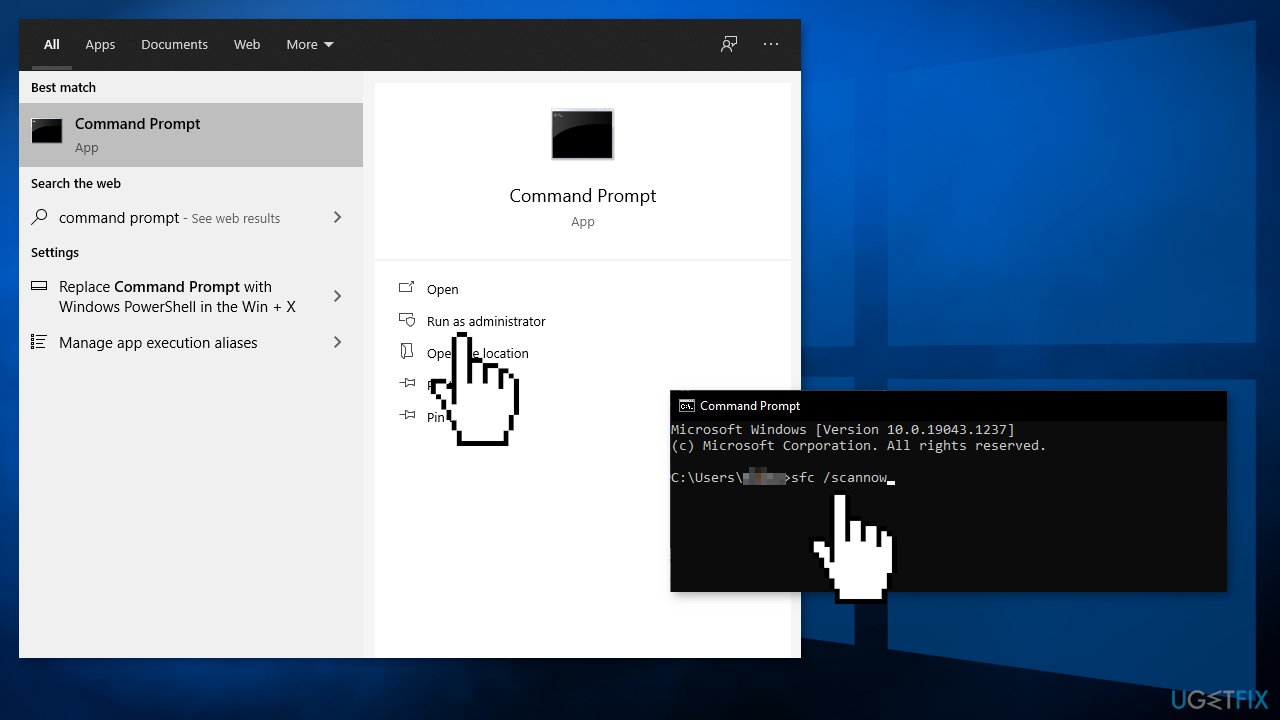
Use Command Prompt commands to repair system file corruption:
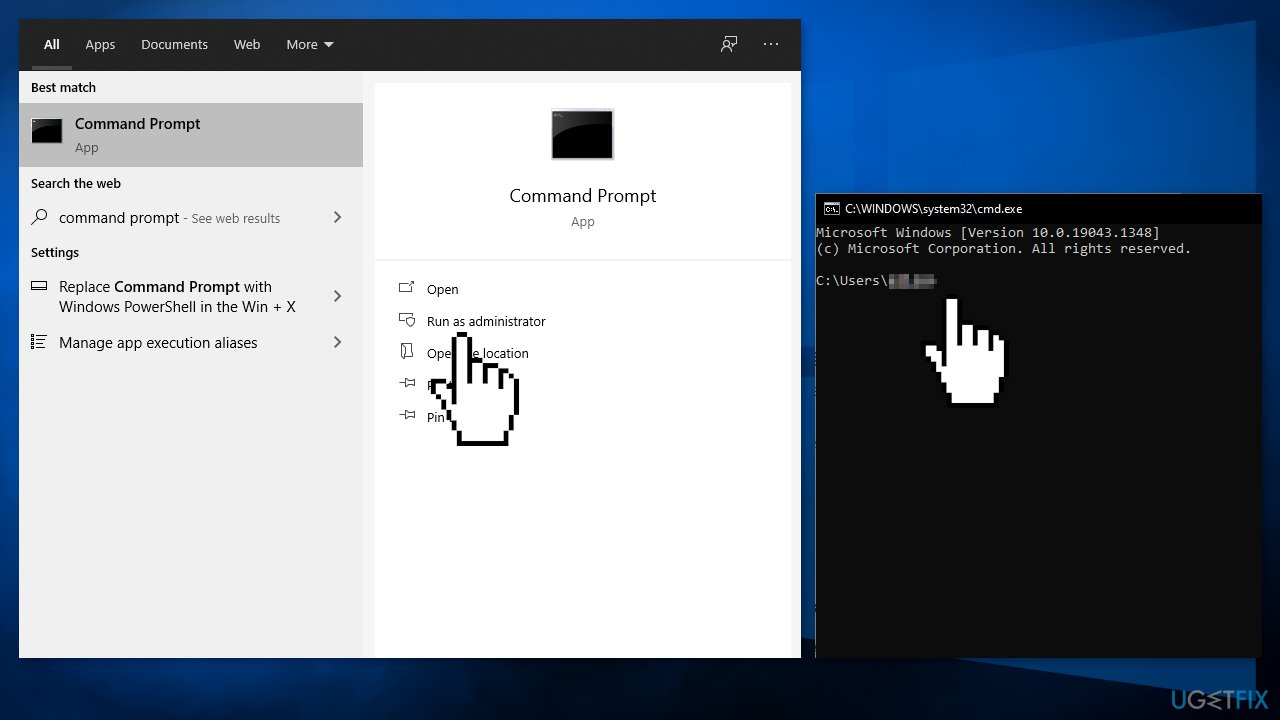
- Open Command Prompt as administrator
- Use the following command and press Enter:
sfc /scannow
- Reboot your system
- If SFC returned an error, then use the following command lines, pressing Enter after each:
DISM /Online /Cleanup-Image /CheckHealth
DISM /Online /Cleanup-Image /ScanHealth
DISM /Online /Cleanup-Image /RestoreHealth
Method 3. Check Disk
- Ensure that your disk is not damaged. You can perform checks using Administrative Command Prompt:
- If you are using an HDD as your main driver (where your operating system is installed - C: by default), use the following command and press Enter:
chkdsk c: /f
- If you are using SSD, use this command:
chkdsk c: /f /r /x - If you receive an error, type in Y and hit Enter
- Restart your device to perform the check
Method 4. Clean the Windows Update Cache File
First, you will have to disable the Windows Update Service:
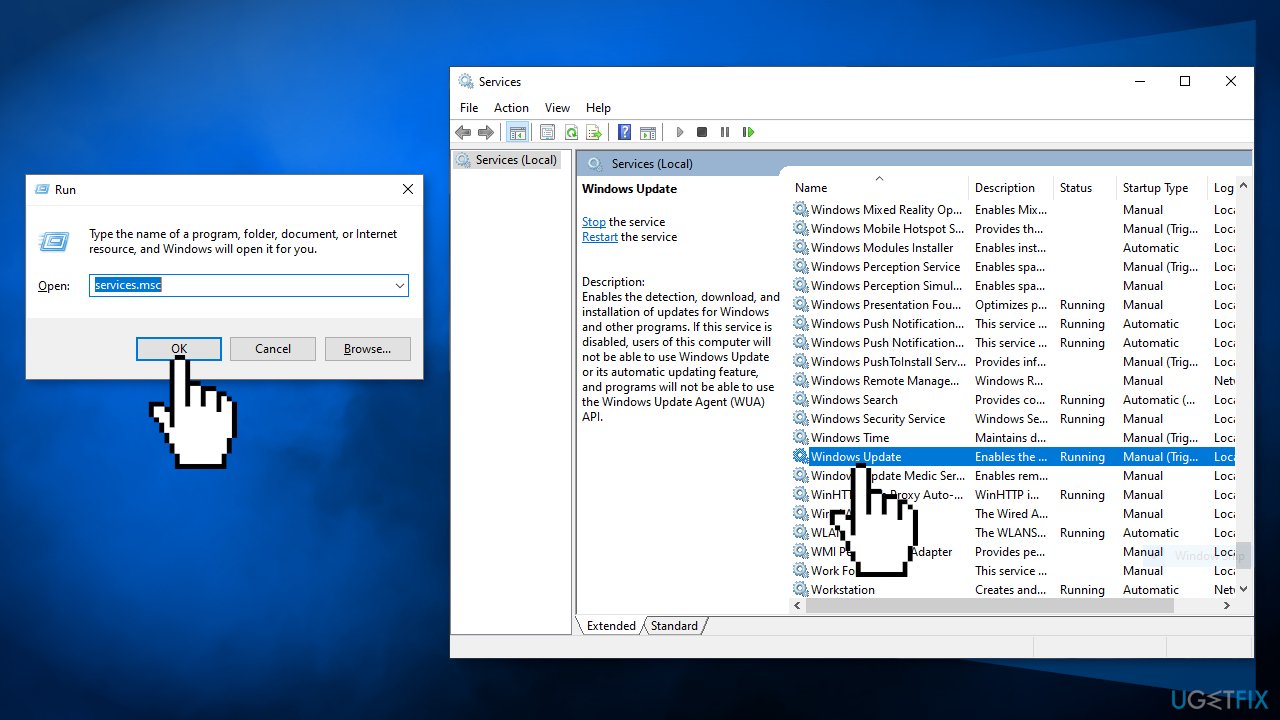
- Press and hold Windows + R to open the Run box
- Type in services.msc and press OK
- Find Windows Update in the list
- Right-click on it and choose disable
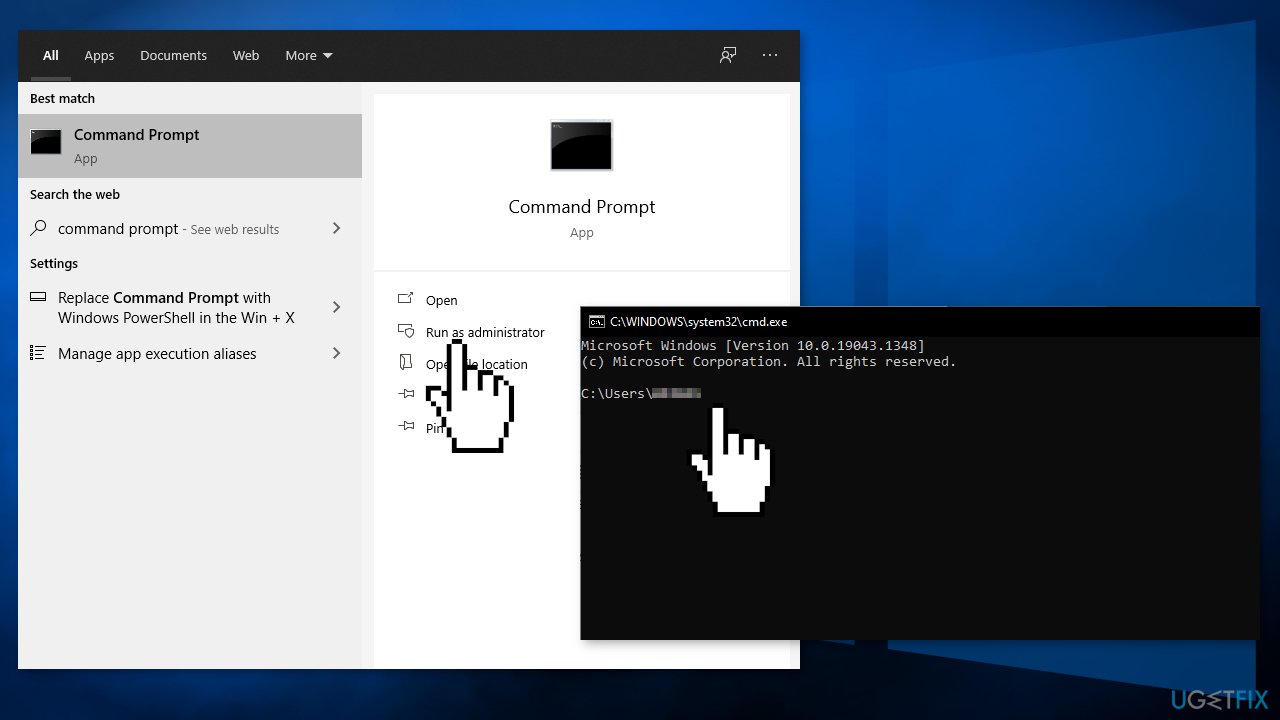
- Now enter cmd in the search bar and choose to run the Command Prompt as administrator
- Copy-paste the following command and press Enter:
ren C:\\Windows\\SoftwareDistribution SoftwareDistribution.old
- Now following the first steps, enable the Windows Update Service
- Restart your PC
- Check if the issue still persists
Method 5. Update Drivers
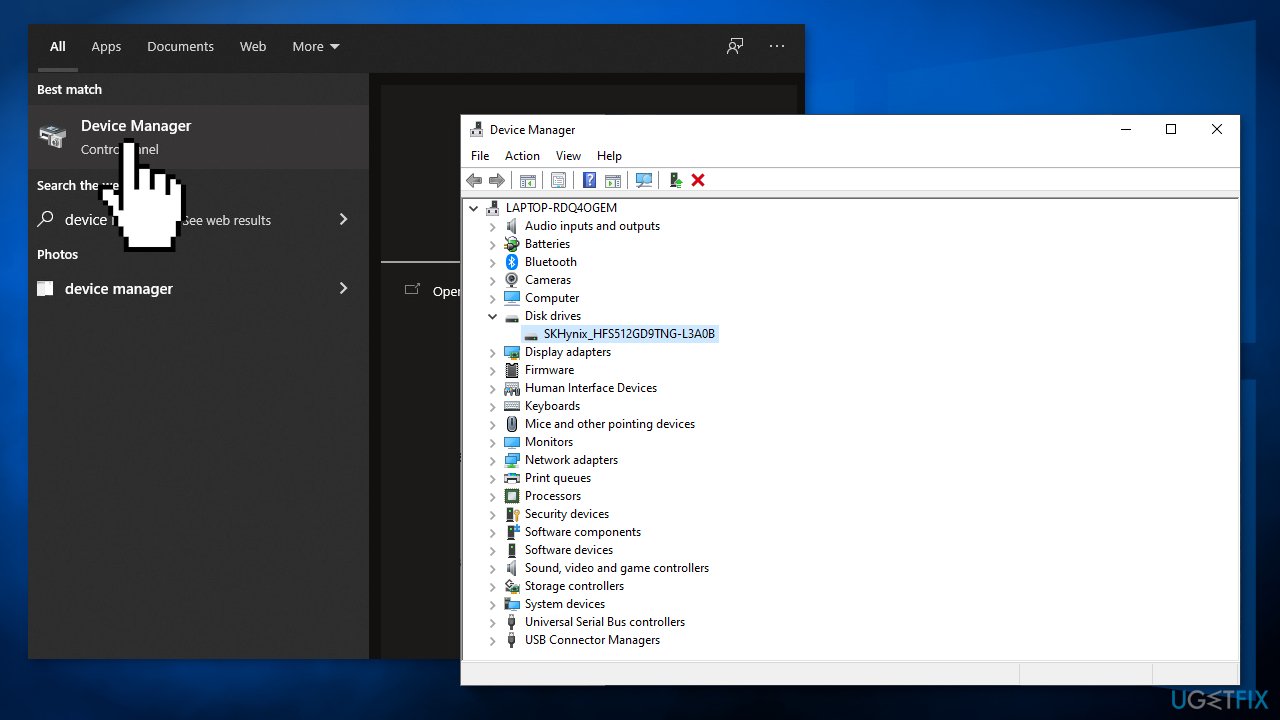
- Press the Windows key and type Device Manager into the search bar
- Click on the Device Manager option
- Go through drivers one by one, right-click on the names, and select Update Driver Software
- Select the Search automatically for updated driver software option
- The system should automatically search for available drivers
- Restart Windows to finish up with the installation
- You can also use [rev id="DriverFix"] as the automatic driver updater software as it finds and installs needed drivers from its database automatically choosing the right ones
Method 6. Clean Install Windows
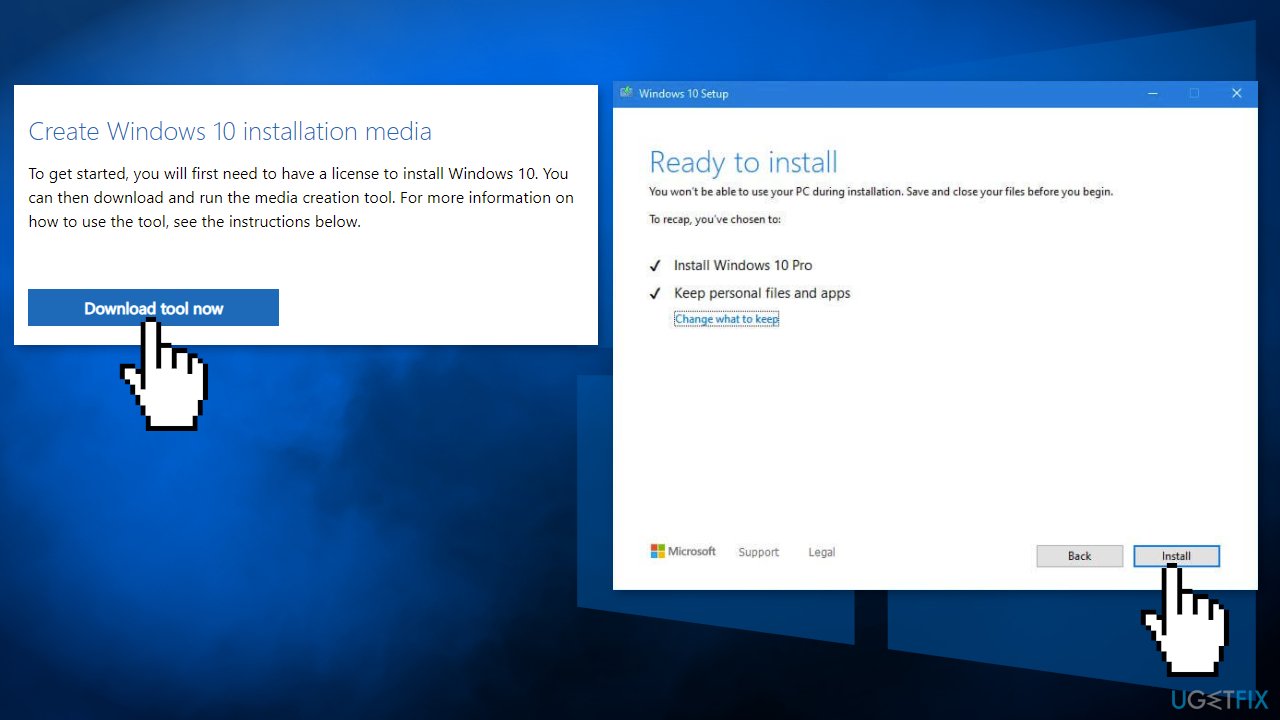
If none of the steps above helped, you can try using the Media Creation tool to reinstall Windows. As a precautionary measure, you can back up your data.
- Download the Windows installation media from the official Microsoft website
- Double-click the installer to initiate the process
- Agree to terms
- Pick Create installation media (USB flash drive, DVD or ISO file) for another PC option and click Next
- Select the Use Recommended options for this PC checkbox and click Next
- Choose ISO file and click Next
- After downloading the ISO file, right-click it and select Mount, and double-click the Setup.exe
- Accept the license once again
- Select Keep my personal files and click Install
Bottom line
To fix the Windows Event Error CbsPackageServicingFailure2, users can install available updates, repair corrupted system files, and consider using a repair tool for automatic fixes. If none of these solutions work, users should not worry too much about the error as it typically does not affect regular system use.
Frequently asked questions
This error usually occurs due to issues with the component store, corrupted Windows updates, or problems with installed applications affecting system files.
You can resolve this error by running the DISM and SFC tools to repair the component store and system files, followed by checking for Windows updates.
To prevent this error, ensure your Windows 10 system is regularly updated and consider using a reliable antivirus program to avoid file corruption.




Report an issue
What's wrong with this guide? We review every report and update or remove content.
Report received — thank you. We'll review and fix it.
You need a free account to submit a report.
Be the first to comment