How to fix
WMPnetwk.exe high CPU and memory usage
on Windows
Resolve WMPnetwk.exe high CPU and memory usage issues in Windows 10 and 11 effortlessly with our expert-tested solutions. Fixed in minutes!

What causes How to fix WMPnetwk.exe high CPU and memory usage in Windows?
- Service starting automatically and running wild
- Corrupted media library bogging it down
- Conflicts with other media software
- Glitch from a recent Windows update
Repairs Windows system files, removes malware, and restores a clean OS state — without reinstalling.
I noticed my PC getting sluggish lately, and when I checked Task Manager, WMPnetwk.exe was eating up tons of CPU and memory. It started after a Windows update, and even rebooting doesn't help.
Windows is a complex system, constantly juggling resources like CPU and memory to keep everything running smoothly. These resources are distributed across apps, background processes, and system services based on what’s active - your browser might grab a chunk while streaming, or File Explorer might spike when moving big files. It’s a balancing act, and Windows is designed to handle it, dynamically shifting priorities to keep user experience as smooth as possible.
Most of the time, high resource usage is normal. When you’re rendering a video, updating software, or running a game, processes like svchost.exe or MsMpEng.exe (Windows Defender) might temporarily max out CPU or memory - that’s just the system doing its job. But when resource spikes linger or spike unexpectedly, it’s a different story.
Abnormal usage can drag your PC to a crawl, overheat components, or even force a shutdown if things get too intense. One culprit some users have flagged is WMPnetwk.exe high CPU or memory usage in Windows, turning a quiet background task into a performance hog.
So, what is WMPnetwk.exe? It’s part of the Windows Media Player Network Sharing Service, a feature that lets you share media (like music or videos) across devices on your network. Handy if you’re streaming to a smart TV, but not everyone uses it. When it misfires, though, WMPnetwk.exe high CPU or memory usage in Windows can kick in.
Potential causes include the service starting automatically and running wild, a corrupted media library bogging it down, conflicts with other media software, or even a glitch from a recent Windows update throwing it off kilter.
Fixing WMPnetwk.exe high CPU or memory usage in Windows might involve shutting down the service if you don’t need it, tidying up your media library, or checking for software clashes. Updates could help too, aligning things back to normal. As an alternative, you can always try to use an automatic repair tool such as [d1], when determining the cause of the problem is rather difficult.
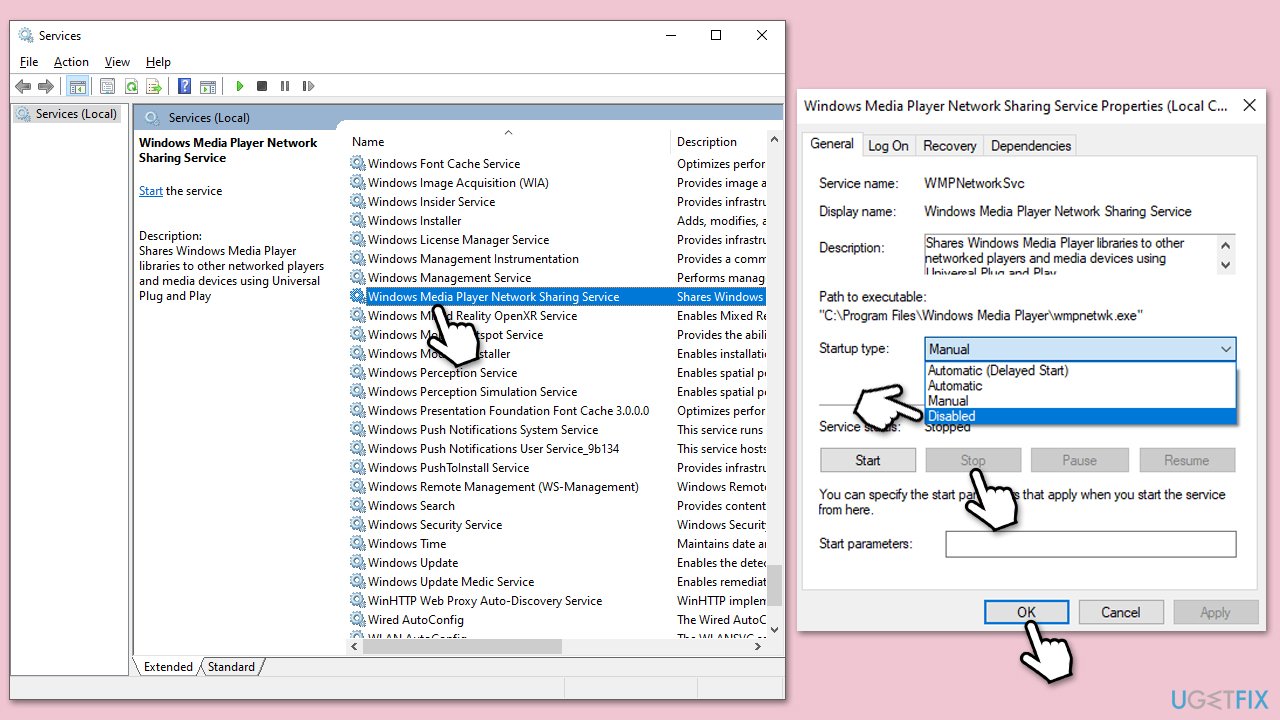
Fix 1. Disable Windows Media Player Network Sharing Service
This service runs in the background to enable media sharing, but if you don’t use it, stopping it can free up system resources immediately.
- Type Services in Windows search and press Enter.
- Scroll to Windows Media Player Network Sharing Service.
- Right-click it, select Properties, and set Startup type to Disabled.
- Click Stop if it’s running, then click OK.
- Restart your computer and check Task Manager.
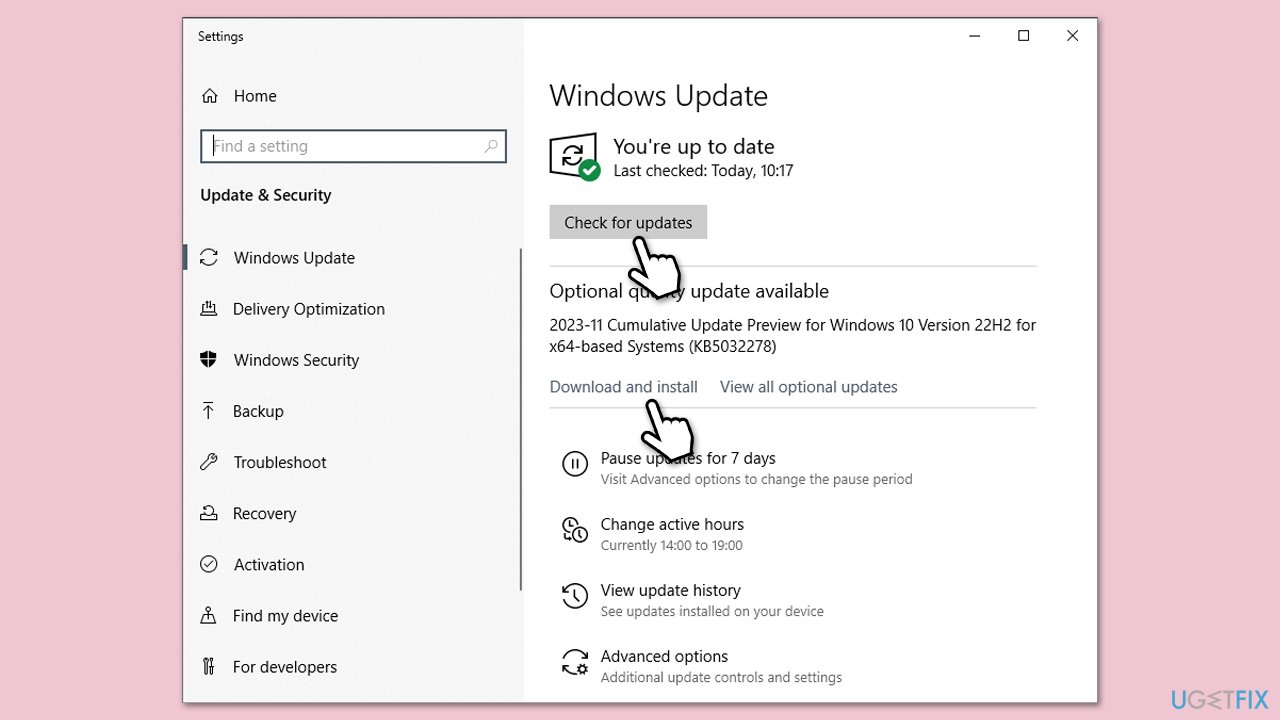
Fix 2. Update Windows
A recent update might have destabilized the service, but a newer patch could stabilize it, reducing excessive CPU or memory demands.
- Type Updates in Windows search and press Enter.
- Update window should pop up - click either Install all (if pending) or Check for updates.
- Download and install any available updates, including the optional ones.
- Restart your computer when prompted.
- Open Task Manager and check the resource usage.
Fix 3. Uninstall conflicting media software
Other media players or streaming apps might interfere with the network sharing service, causing unexpected resource spikes, so make sure you disable them.
- Right-click on Start and pick Settings.
- Go to Apps, then select Installed apps.
- Look for media software like VLC, or similar.
- Click the three-dot menu next to it and select Uninstall.
- Follow the prompts, then restart your PC.
Fix 4. Uninstall Media Player
If you don’t rely on Windows Media Player at all, removing it entirely eliminates the root of the sharing service and its resource demands.
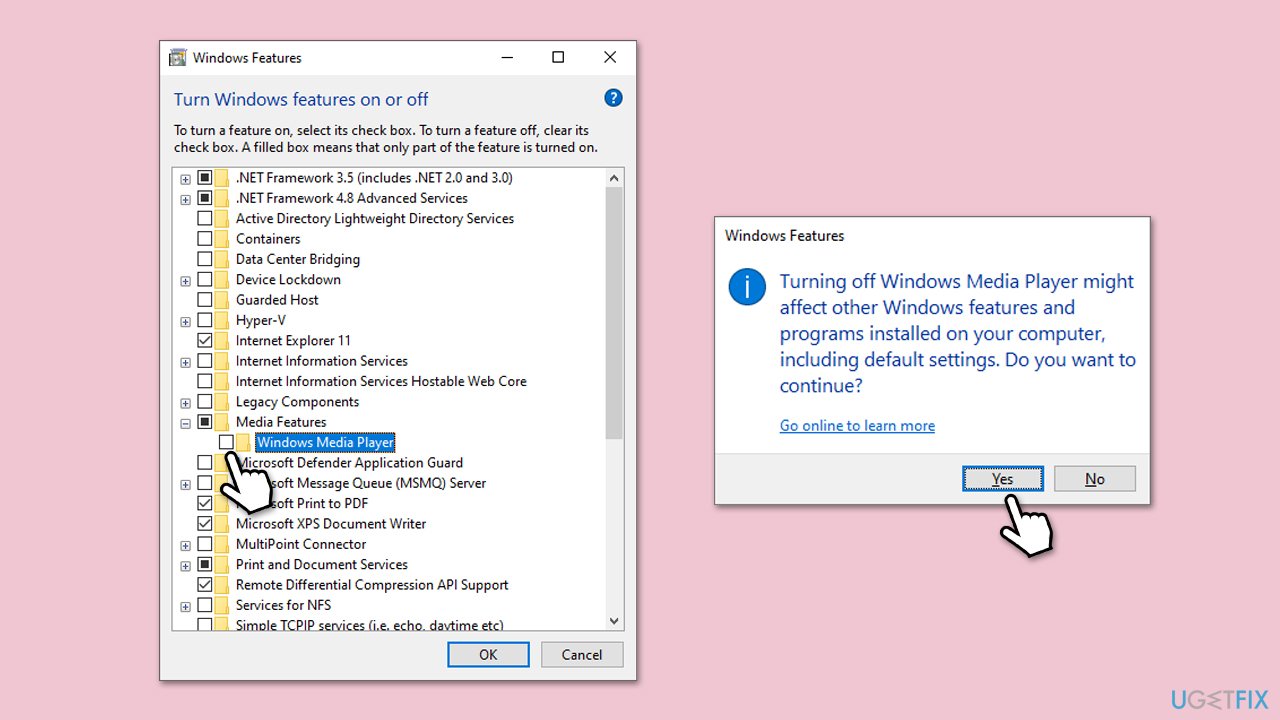
- Type Windows features in Windows search and press Enter.
- Scroll down to find Media Features and press + to expand it.
- Click on the checkbox to uninstall it.
- When a warning shows up, click Yes.
- Follow the prompts to finish the process.
- Restart your computer and check Task Manager for improvements.
Fix 5. Update audio and network drivers
Outdated drivers can create inefficiencies that amplify the service’s resource consumption, and updating them can restore balance.
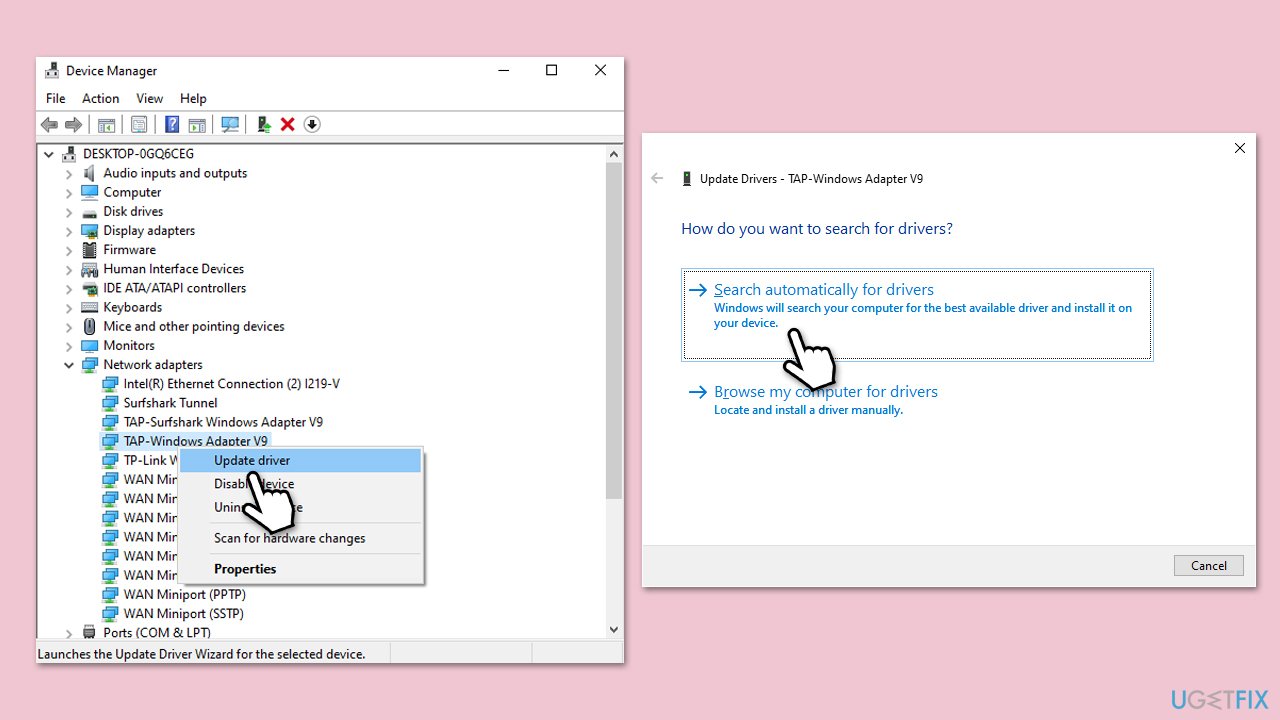
- Right-click on Start and pick Device Manager.
- Expand Sound, video and game controllers and Network adapters.
- Right-click each device and select Update driver.
- Choose Search automatically for drivers and install updates.
- Restart your system and check performance.
Fix 6. Repair corrupted files
If WMPnetwk.exe high CPU and memory is caused by system file corruption, running SFC and DISM could help you resolve these issues.
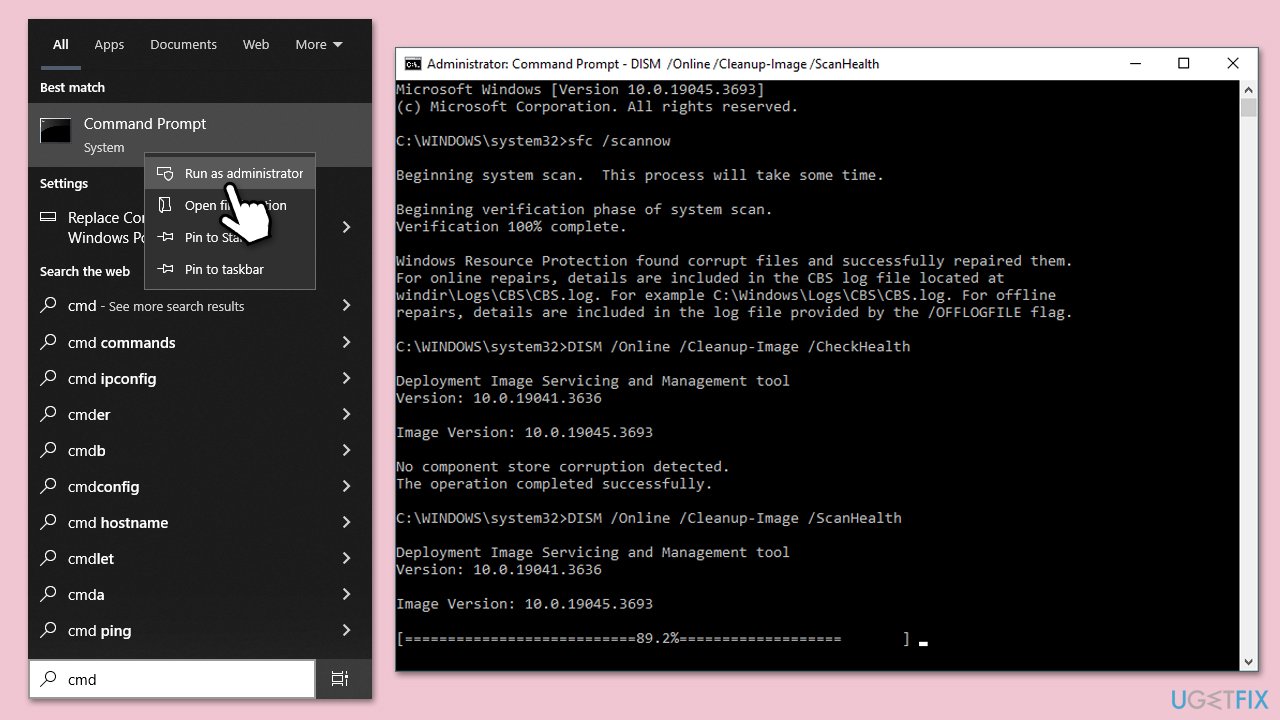
- Type cmd in Windows search.
- Right-click on the Command Prompt result and select Run as administrator.
- At this point, you should be asked by UAC (User Account Control) if you want to allow changes - click Yes.
- In the Command Prompt window, type in this command and hit Enter:
Sfc /scannow - Once this command is executed, you should check Windows image files - use the following commands:
Dism /Online /Cleanup-Image /CheckHealth
Dism /Online /Cleanup-Image /ScanHealth
Dism /Online /Cleanup-Image /RestoreHealth - Close down the Command Prompt and restart your system.
Bottom line
Fixing WMPnetwk.exe high CPU or memory usage might involve shutting down the service if you don’t need it, tidying up your media library, or checking for software clashes. Updates could also help align things back to normal. If none of these solutions work, consider using an automatic repair tool.
Frequently asked questions
High CPU and memory usage by WMPnetwk.exe in Windows 10 can be caused by issues with Windows Media Player's library indexing or corrupted media files.
To stop WMPnetwk.exe from running in the background on Windows 11, you can disable the Windows Media Player Network Sharing Service in the Services app.
Yes, it is safe to disable WMPnetwk.exe if you do not use Windows Media Player for streaming or sharing media, as it will not affect other system functions.




Report an issue
What's wrong with this guide? We review every report and update or remove content.
Report received — thank you. We'll review and fix it.
You need a free account to submit a report.
Be the first to comment