How to fix
Disable Efficiency Mode
on Windows
Easily disable Efficiency Mode in Windows 10 and 11 for optimized performance. Follow our expert-tested guide to regain full control, fixed in minutes.

Why does How to disable Efficiency Mode in Windows occur?
- Lower CPU priority for background programs
- Increased power consumption management
- Automatic activation of Efficiency Mode
- Interference with performance during delicate operations
- Lag when switching between browser tabs
Repairs Windows system files, removes malware, and restores a clean OS state — without reinstalling.
Efficiency mode makes Chrome completely unusable for me! It just works so extremely slow, and it happened a few days ago. After I opened the Task Manager to check what is going on,
Windows Efficiency Mode is a feature that has been incorporated to better handle system resources. It is meant to lower the CPU priority and power consumption of certain background programs and processes, which can make the battery life on laptops longer and the overall energy efficiency improved.
Within Task Manager, users can specifically tell which applications are using this function - an icon will appear beside those that are executing in Efficiency Mode, such as Google Chrome tabs or other routine applications.
While Efficiency Mode should help boost performance and curb excessive power use, some users have reported troubles when the function is automatically activated. According to a number of online forums, certain users have reported that Efficiency Mode slows down running applications, interferes with performance while performing delicate operations, or adds lag when changing between browser tabs. For people relying on always excellent responsiveness (especially on applications such as Chrome or Edge) this feature can prove more of a hindrance than a help.
To avoid these performance dips, users have the option to disable Efficiency Mode on certain processes. Conveniently, this can be done from Task Manager. Through the disabling of the feature on certain apps, the system would no longer cap CPU resources, thus putting an end to the slowdown or lag on which some have complained.
Keep in mind that it only affects the provided process that you shut it off for, giving you some flexibility with performance handling without completely disabling the feature system-wide.
Below, I will describe clearly how to disable Efficiency Mode within Windows on individual programs. To optimize overall system performance for those looking for better functioning, even scanning the PC through a tested [d1] repair program should be performed for more consistent operation.
Fix 1. Disable Efficiency Mode for individual apps via Task Manager
Efficiency Mode can be turned off for specific processes that are being throttled unnecessarily, especially if they are active or important to your workflow.
- Press Ctrl + Shift + Esc to open the Task Manager.
- Switch to the Processes tab.
- Find the app or process showing the green leaf icon (Efficiency Mode).
- Mark the process in question and click on Efficiency mode in the top-right corner of the window (if you can't see it, expand the window).
- When the confirmation prompt shows up, click OK to confirm.

Fix 2. Turn off Efficiency Mode for background Chrome tabs
Google Chrome may apply Efficiency Mode to inactive tabs, which can result in performance issues when switching back to them.
- Close Google Chrome if you had it open.
- Right-click on Chrome shortcut and select Properties.
- Check out the Target field - click anywhere and press End on your keyboard to put the cursor to the very end.
- Copy in the following command:
--disable-features=UseEcoQoSForBackgroundProcess - Click Apply and then OK.

Fix 3. Prevent Windows from applying Efficiency Mode automatically
If Efficiency Mode keeps turning back on, you can try adjusting power settings to avoid automatic throttling.
- Type Control Panel in Windows search and press Enter.
- Go to Hardware and Sound.
- Select Power Options.
- Under Preferred plans, select High performance.
- Select Change plan settings for the current plan.
- Click on Change advanced power settings.
- Expand Processor power management and pick Minimum processor state.
- Change the setting to 100%.

Fix 4. Update apps to improve compatibility with Efficiency Mode
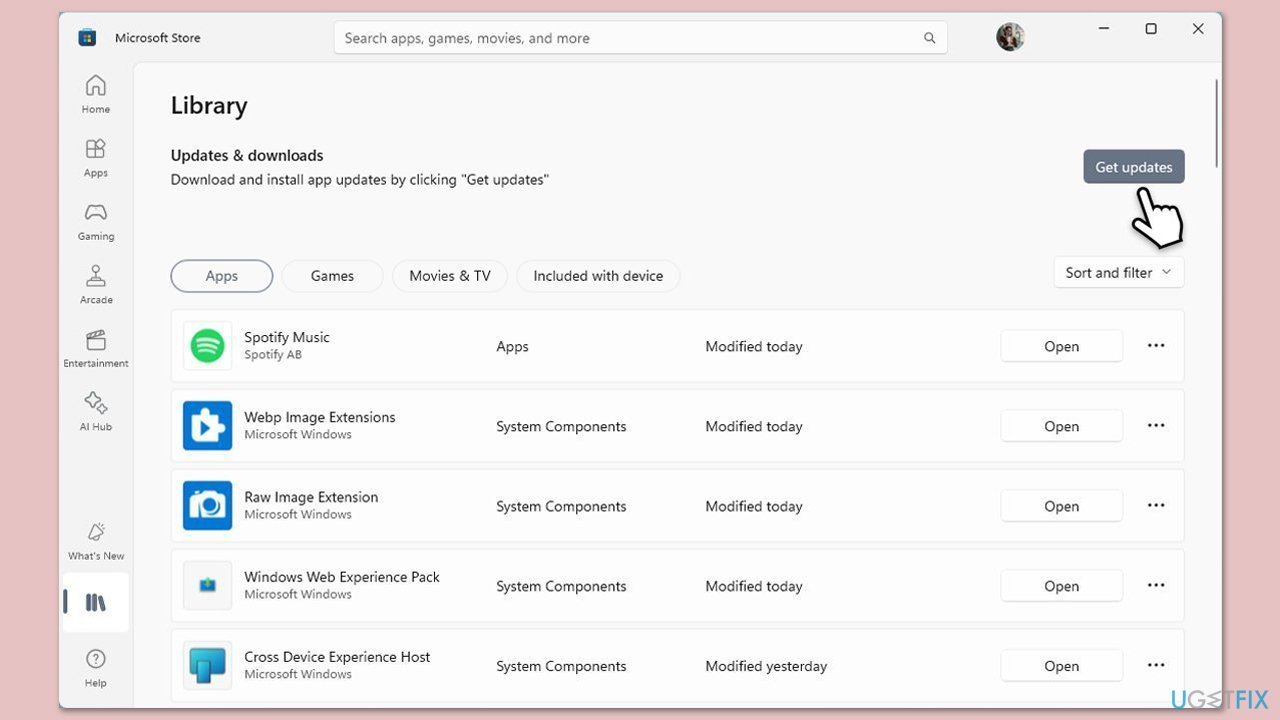
Some performance issues may be caused by app versions that don't interact well with this feature. Updating a particular app depends on its origins. For example, you can update Office suite via one of the apps, others can be downloaded from Microsoft Store. Meanwhile, third-party applications can be updated via settings or by accessing their official websites.
- Open the Microsoft Store or app’s official site.
- Search for the app showing Efficiency Mode issues.
- Download and install the latest available updates.
Fix 5. Disable Efficiency Mode using Registry Editor (advanced)
For advanced users, this method can be used to limit Efficiency Mode system-wide. Use with caution.
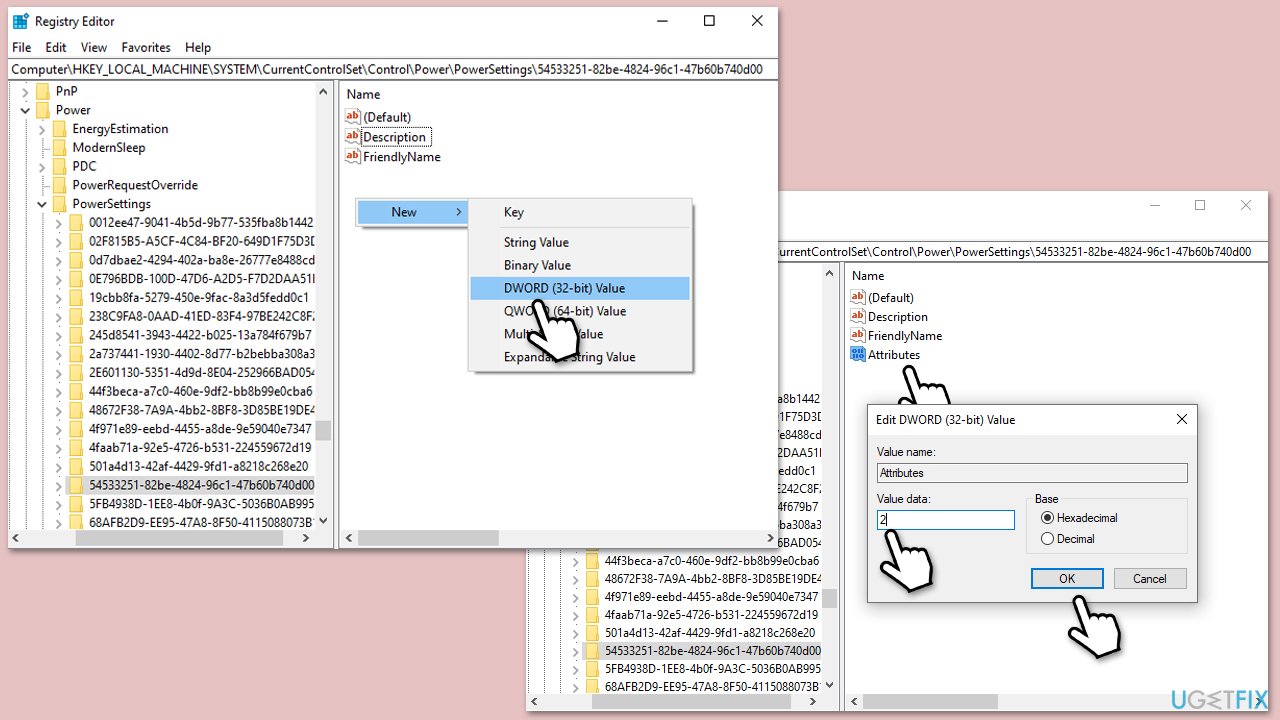
- Type regedit in Windows search and press Enter.
- Navigate to the following location (left pane):
HKEY_LOCAL_MACHINE\SYSTEM\CurrentControlSet\Control\Power\ PowerSettings\54533251-82be-4824-96c1-47b60b740d00\be337238-0d82-4146-a960-4f3749d470c7 - In the right pane, double-click on Attributes (if it doesn't exist, right-click on empty space, select New > DWORD (32-bit) Value and name it Attributes).
- Set its value to 2.
- Restart your computer to apply the changes.
Bottom line
To disable Efficiency Mode, users can turn it off for individual apps via Task Manager, which helps restore performance by allowing full CPU resources for those processes. If issues persist, consider scanning the PC with a tested repair program for more consistent operation.
Frequently asked questions
To disable Efficiency Mode for a specific app in Windows 10, right-click on the app in the Task Manager, go to 'Efficiency Mode,' and select 'Turn off Efficiency Mode.'
Yes, you can disable Efficiency Mode completely in Windows 11 by going to the 'Settings' app, navigating to 'System,' and then 'Power & battery' to manage the settings accordingly.
Disabling Efficiency Mode may increase resource usage and improve performance for certain applications, but it could lead to higher power consumption on your Windows device.




Report an issue
What's wrong with this guide? We review every report and update or remove content.
Report received — thank you. We'll review and fix it.
You need a free account to submit a report.
Be the first to comment