How to fix
Slow download speed in Microsoft Store
on Windows
Boost your Windows 10 or Windows 11 download speeds in the Microsoft Store with proven tweaks and expert-tested solutions. Fixed in minutes!


Why does How to fix slow download speed in Microsoft Store occur?
- Internal cache corruption
- Misaligned settings in the Microsoft Store
- Third-party software conflicts
- Bandwidth usage from background operations
- Outdated network drivers
Repairs Windows system files, removes malware, and restores a clean OS state — without reinstalling.
Could you please help me with an issue I am having with Microsoft Store? I don't know what happened, but Store download speed is insanely slow. It takes me over an hour to update or download one app. What is going on here?
Windows users rely on the Microsoft Store for app downloads and update services, as well as access to digital content. Microsoft designed this platform with a smooth interface that allows users to easily maintain software updates.
Some users report Microsoft Store download speeds that are slower than expected despite no problems with their internet connection. Microsoft Store download speed issues cause significant frustration, particularly during lengthy download times that disrupt app updates and newly installed software.
Many users facing the Microsoft Store download speed slow problem notice that while other online activities such as streaming or browsing occur at normal speeds, downloads from the Store lag significantly.
The symptoms are downloads freezing, progress bars moving extremely slowly, and in some cases, the process timing out completely. Even with a fast and stable internet connection, the Store appears to lag, something that has caused a lot of discussion on the internet about the issue.
Several factors could explain the disparity between actual speeds and download times. This issue is commonly caused by internal cache corruption or misaligned settings in the Microsoft Store. Third-party software conflicts, bandwidth usage from background operations, and occasional server problems encountered by Microsoft systems are all potential causes of slow performance. Outdated network drivers and system components may cause performance issues.
The solutions require an investigation of potential causes, with the option of resetting the cache, modifying network configurations, and upgrading system components. In the Microsoft Store, the [d1] repair and maintenance app provides users with an automated method to diagnose and resolve underlying issues, allowing normal download speeds to be restored.
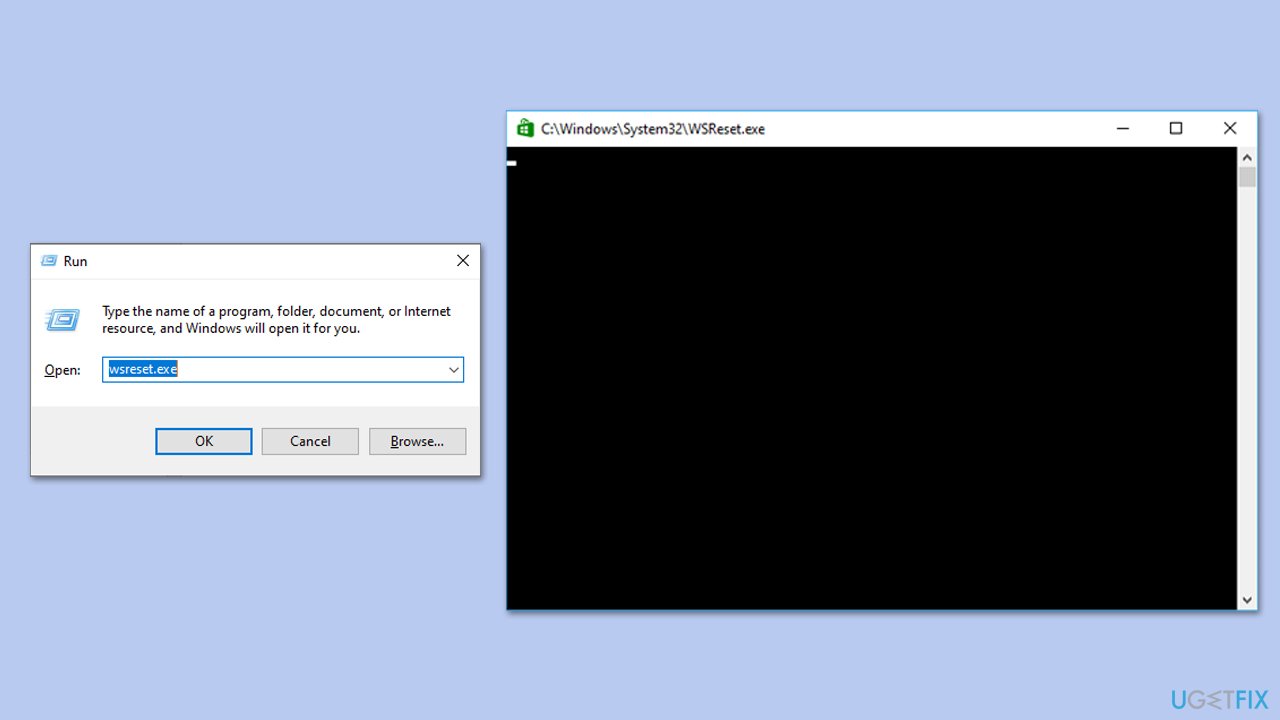
Fix 1. Clear Microsoft Store cache
Corrupted cache files can slow down downloads in the Microsoft Store, and clearing them can often restore normal speeds.
- Type wsreset.exe in Windows search and press Enter.
- Wait till a black window shows up – do not close it.
- Once it's gone, Microsoft Store should restart.
- Try using the Store again.
Fix 2. Run the troubleshooters
The built-in troubleshooters can automatically identify and fix common issues affecting Microsoft Store downloads.
Windows 11
- Type Troubleshoot in Windows search and hit Enter.
- Click Additional troubleshooters/Other troubleshooters.
- Scroll down to find Windows store apps and select it.
- Click Run the troubleshooter/Run.
- Wait till the process is finished and apply the fixes.
- Repeat with Network & Internet troubleshooter.
Windows 10
- Right-click on Start and pick Settings.
- Go to Network & Internet section.
- On the right side, find the Advanced network settings section.
- Click Network troubleshooter and wait.
- The fixes should be automatically applied.

Fix 3. Sign out and sign back into Microsoft Store
Refreshing your account credentials can resolve connection issues within the store and improve download speeds.
- Launch Microsoft Store.
- Click on your Profile picture and click Sign out.
- Restart your computer.
- Sign back in again with your account credentials.

Fix 4. Repair or reset Microsoft Store App
Repairing or resetting the app can fix internal issues and restore its default settings, potentially speeding up downloads.
- Right-click on Start and select Apps & Features/Installed apps.
- Scroll down to find Microsoft Store and click Advanced options or go to Settings > System > System Components > Advanced options.
- Scroll down again and click Terminate and Repair.
- If that does not work, try using Reset.

Fix 5. Disable VPN or proxy
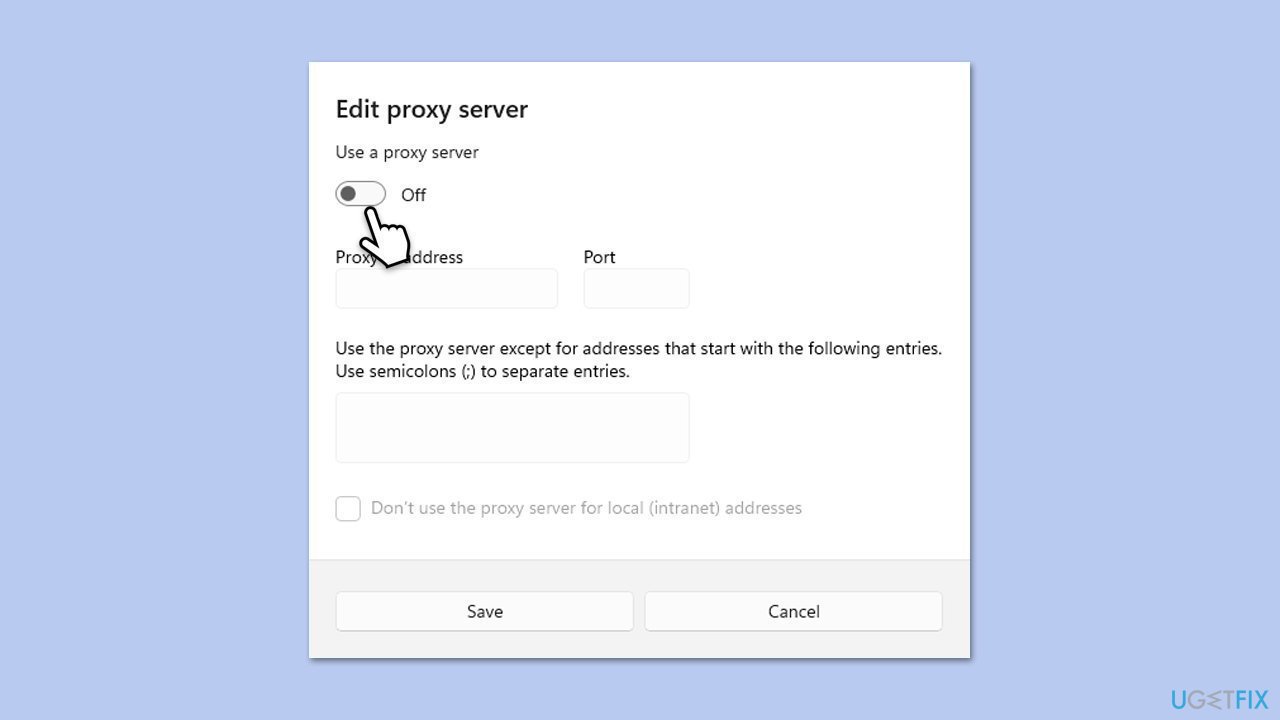
VPN or proxy settings can interfere with the connection to the Microsoft Store, slowing down downloads.
- Right-click on Start and pick Network connections.
- Navigate to the VPN section and disable it if it's connected.
- Then back and select Proxy.
- Here, disable Proxy if it's enabled.
- If using a VPN, disconnect it and try logging in again.
Fix 6. Check Delivery Optimization settings
- Type Updates in Windows search and press Enter.
- Go to Advanced options.
- Scroll down and find Delivery Optimization - click it.
- Scroll down again and click Advanced options.
- Under Download settings, click the Percentage of measured bandwidth (measured against the update source) check box.
- Then, mark the Limit how much bandwidth is used for downloading updates in the background and slide the slider to 100%.

Fix 7. Re-register Microsoft Store App
Re-registering the app can resolve persistent issues by restoring its original configuration.
- Type PowerShell in Windows search.
- Right-click on PowerShell and select Run as administrator.
- When UAC shows up, click Yes.
- Type in the following and press Enter:
ren %localappdata%\Packages\Microsoft.WindowsStore_8wekyb3d8bbwe\LocalState cache.old - Then type the following and press Enter:
powershell -ExecutionPolicy Unrestricted
Get-AppXPackage -AllUsers | Foreach {Add-AppxPackage -DisableDevelopmentMode -Register "$($_.InstallLocation)\AppXManifest.xml"} - Restart your device.

Fix 8. Run a Clean Boot
A clean boot ensures that background applications do not interfere with Microsoft Store operations, which can help restore normal download speeds.
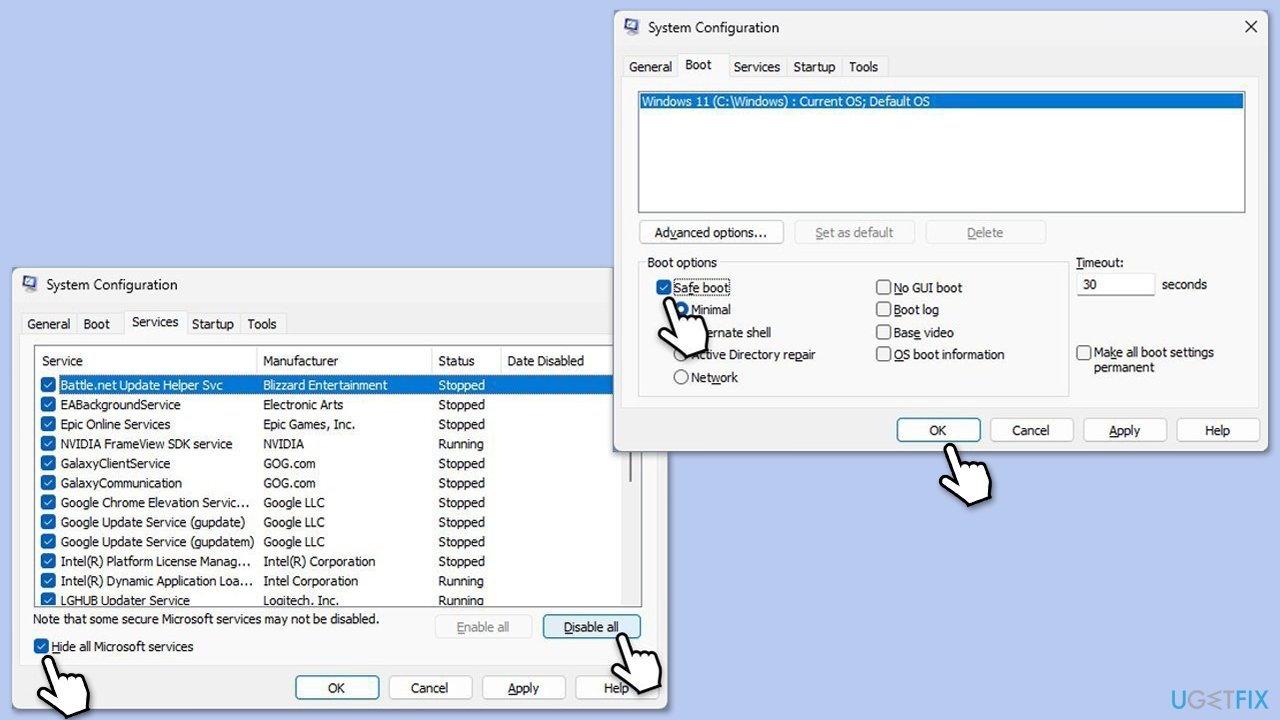
- Type msconfig inWindows Search and press Enter to open the System Configuration window.
- Click on the Services tab and check the Hide all Microsoft Services box.
- Click Disable all to disable non-Microsoft services, then click the Startup tab.
- Open the Task Manager, disable all startup items, and close the Task Manager.
- Go to the Boot tab and mark the Safe boot option.
- Click OK on the System Configuration window and restart your computer.
- If everything works fine, you should enable half of the processes and repeat the process. Keep doing this until you find the culprit. Update or uninstall conflicting software.
Bottom line
To fix slow download speeds in the Microsoft Store, you can clear the Microsoft Store cache, modify network configurations, or upgrade system components. If these solutions do not resolve the issue, consider using the repair and maintenance app in the Microsoft Store to diagnose and fix underlying problems.
Frequently asked questions
You can try adjusting your network settings, such as enabling the 'Delivery Optimization' feature, which allows you to download updates from other PCs on your local network.
Yes, background applications consuming bandwidth can slow down downloads; ensure that unnecessary apps are closed or disabled while using the Microsoft Store.
You can clear the Microsoft Store cache by pressing Win + R, typing 'wsreset.exe', and hitting Enter; this will reset the store without affecting your installed applications.




Report an issue
What's wrong with this guide? We review every report and update or remove content.
Report received — thank you. We'll review and fix it.
You need a free account to submit a report.
Be the first to comment