How to recover
Find my games
from Windows
Discover how to quickly locate your games on Windows 10/11, ensuring no fun is lost. Expert-tested tips for smooth recovery and access, fixed in minutes!

What leads to How to find my games on Windows 10/11?
- Games are stored in the protected 'WindowsApps' folder
- Microsoft Store games do not create desktop shortcuts
- Start menu tiles for games may be missing
- Cluttered Start menu can make games hard to find
- System glitches like Store app indexing issues
Repairs Windows system files, removes malware, and restores a clean OS state — without reinstalling.
How do I find my games on Windows? I have recently got Minecraft (I think) and I can't find it. How can I find my games on Windows?
When users purchase or download games from the Microsoft Store on Windows 10 or 11, they often expect these games to appear as shortcuts on the Desktop or in an obvious folder like "Program Files." However, this isn’t always the case, leading to confusion about where these games are installed or how to access them. The issue stems from how Windows organizes Microsoft Store apps, including games, differently from traditional desktop applications.
Unlike classic .exe files you might download from a website, Microsoft Store games are typically stored in a protected system directory - specifically, the "WindowsApps" folder under "C:\Program Files" - which isn’t easily accessible without adjusting permissions.
This setup can make it tricky for users to find their games, especially if they’re unfamiliar with the Microsoft Store ecosystem or if the game doesn’t automatically create a Start menu tile. Factors like a cluttered Start menu, missing tiles, or even system glitches (e.g., Store app indexing issues) can exacerbate the problem.
For gamers eager to jump into their new titles, this can be frustrating, particularly if they’ve spent money and can’t locate their purchase. Additionally, some users might encounter related issues, such as games not launching due to corrupted files or improper installation, which could require further troubleshooting beyond just finding them.
Fortunately, Windows provides built-in tools to locate these games, and with a few steps, users can track them down via the Start menu, Microsoft Store, or File Explorer. For those facing persistent issues, tools like [d1] can help by repairing system files or resolving app-related errors automatically.

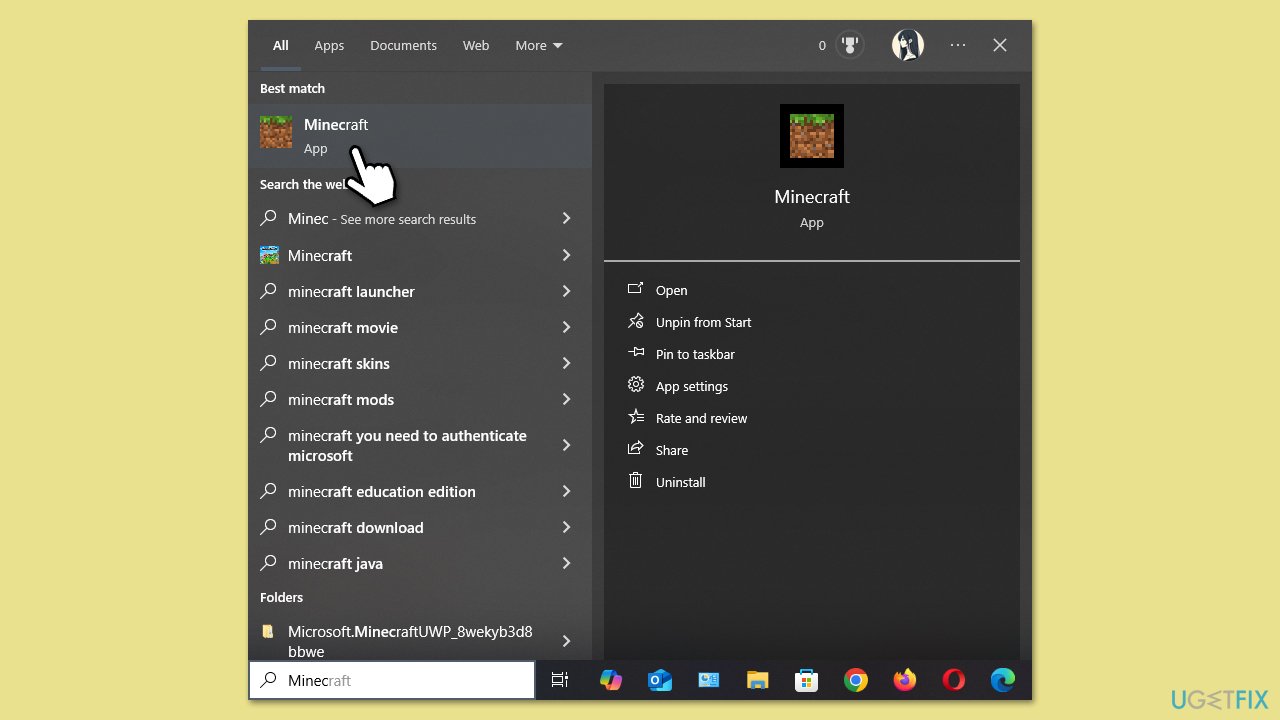
Method 1. Search the Start Menu
This method leverages Windows built-in search functionality to quickly pinpoint your game, bypassing the need to manually scroll through apps.
- Click the Start button (Windows icon) on the taskbar.
- Type the game name in the search bar.
- Press Enter to see if it appears in the results.
- Right-click the game and select Pin to Start or Pin to Taskbar for future convenience.
Method 2. Check Microsoft Store Library
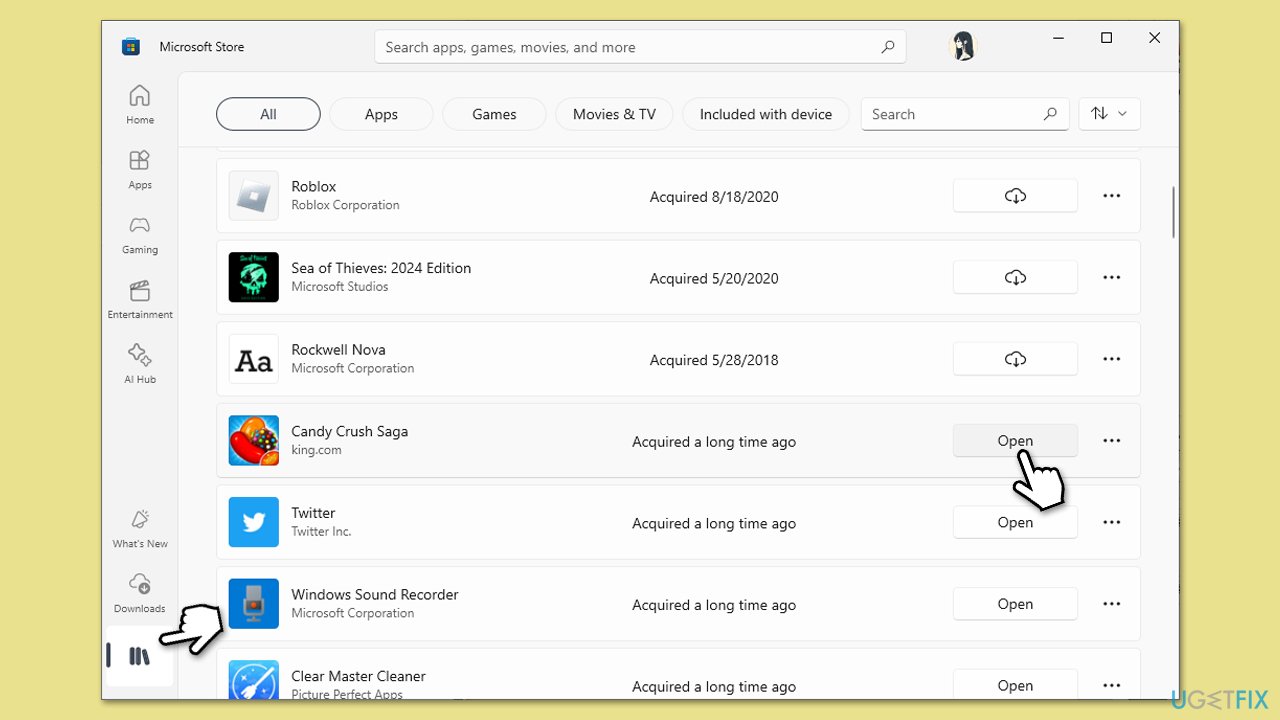
The Microsoft Store keeps a record of all your downloaded content, making it a reliable hub to locate and launch games directly.
- Type Microsoft Store in Windows search bar and press Enter.
- Click the Library icon (stack of books) in the bottom-left corner.
- Navigate to the Games tab to view your collection.
- Click your game and select Launch to start playing.
Method 3. Explore the WindowsApps Folder
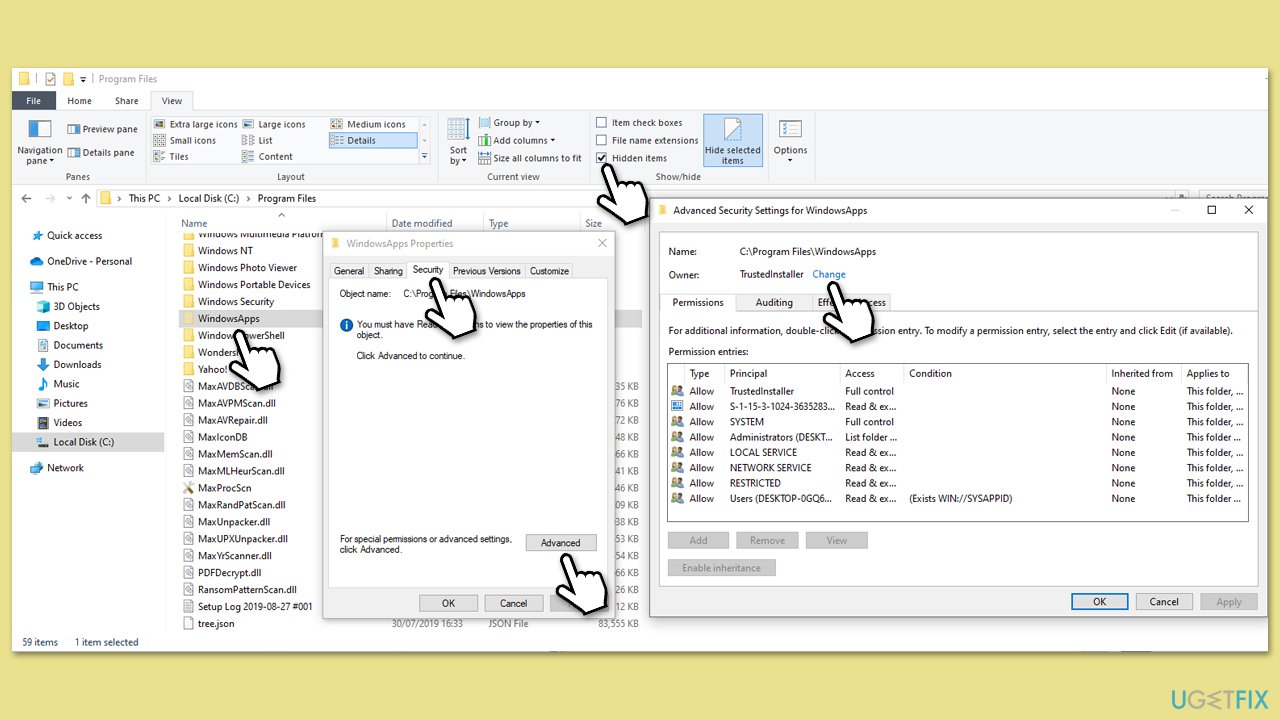
For users comfortable with advanced navigation, this approach reveals the exact storage location of Microsoft Store games on your drive.
- Open File Explorer and go to C:\Program Files.
- Locate the WindowsApps folder (hidden by default, so make sure that Hidden items are shown in File Explorer).
- Right-click it, choose Properties > Security > Advanced, and adjust ownership to access it.
- Search inside for your game’s folder (e.g., GameName_1.0.0.0_x64__).
Method 4. Use third-party software
There are numerous third-party application dedicated for game management. These include Steam, Xbox App, Epic Games, GOG, and more. These are not only managing apps, they also allow users to purchase games as well, making it a comfortable endeavor.
Steam
Steam organizes your games in a digital library accessible through its client, and its installation files are stored in a consistent folder structure on your PC, making it easy to find them physically if needed.
- Open the Steam client (install it from steampowered.com if you don’t have it).
- Click the Library tab at the top to view all your owned games.
- Scroll or use the search bar to find your game (installed titles are in white, uninstalled in gray).
- Right-click a game and select Play to launch it from the library.

To find these game in your Windows directories, follow these steps:
- Open File Explorer and navigate to C:\Program Files (x86)\Steam\steamapps\common.
- Look for your game’s folder containing its installed files.
- Adjust the path if Steam is installed elsewhere (check Steam > Settings > Storage for the drive).
Epic Games
The Epic Games Store centralizes your purchases in its launcher for easy library access, with game files tucked into a default directory that you can explore manually on your drive.
- Open the Epic Games Launcher (get it from epicgames.com if not installed).
- Click the Library tab on the left to display all your games.
- Browse or search for your game using the search bar (installed games show a Play button).
- Select the game and click Launch to play it directly.
Find in Windows directories:
- Open File Explorer and head to C:\Program Files\Epic Games.
- Find your game’s folder containing its installed files.
- Verify the path in the launcher under Settings > Manage Games if you changed the default location.
Xbox App
The Xbox app integrates your Game Pass and purchased titles into a single interface, while storing games in a protected Windows directory that requires some navigation to access manually.
- Open the Xbox app (pre-installed on Windows 10/11 or downloadable from microsoft.com).
- Click My Library on the left to view your owned and Game Pass titles.
- Scroll through the list or use the search bar at the top to locate your game.
- Click the game and select Play to launch it from the app.

Find these game in your Windows directories:
- Open File Explorer and navigate to C:\Program Files\WindowsApps.
Find your game’s folder (e.g., GameName_1.0.0.0_x64__), noting it requires admin access to view.
Right-click WindowsApps, go to Properties > Security > Advanced, and adjust permissions if needed.
GOG
GOG provides a DRM-free experience with its Galaxy client, allowing you to browse your library effortlessly, while its files are stored in customizable locations on your system for direct access.
- Launch GOG Galaxy (download from gog.com if necessary).
- Go to the Owned Games section on the left sidebar to see your collection.
- Find your game by scrolling or typing its name in the search field at the top.
- Click the game and press Play to start it from Galaxy.
Find GOG games in Windows directories:
- Open File Explorer and go to C:\Program Files (x86)\GOG Galaxy\Games.
- Locate your game’s folder, where its files are installed.
- Check GOG Galaxy > game settings if you customized the install path during setup.
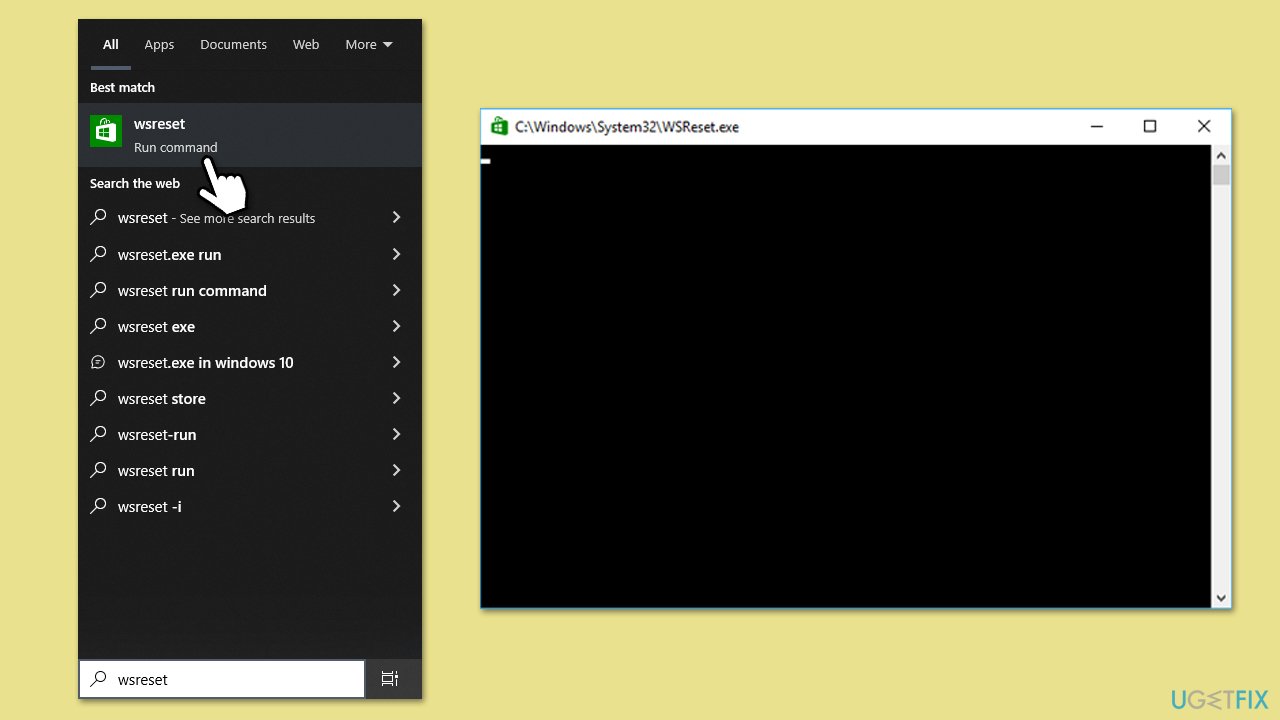
Fix 5. Reset Store cache
System glitches affecting the Microsoft Store’s indexing can hide games, and clearing the cache resolves this efficiently.
- Type wsreset.exe in Windows search and press Enter.
- Wait till a black window shows up – do not close it.
- Once it's gone, Microsoft Store should restart.
- Try using the Store again.
Bottom line
To find your games on Windows 10 or 11, you can search the Start menu, check the Microsoft Store, or use File Explorer to locate the 'WindowsApps' folder. If you still can't find your games, consider using built-in tools to repair system files or resolve app-related errors.
Frequently asked questions
You can find your installed games by checking the 'Start Menu' or navigating to 'C:\Program Files' or 'C:\Program Files (x86)' where most games are usually installed.
If your games are missing, try verifying the game files through the game launcher or checking your system's 'Settings' under 'Apps & features' for any uninstalled games.
Yes, you can recover lost game saves by checking the cloud save feature of the game platform you use or by looking in the 'Documents' folder where many games store their save files.




Report an issue
What's wrong with this guide? We review every report and update or remove content.
Report received — thank you. We'll review and fix it.
You need a free account to submit a report.
Be the first to comment